How to Track Project Progress and Build Real-Time Reports in TaskFord
Learn how to track project progress, monitor status, and build real-time reports in TaskFord to keep teams and stakeholders aligned on delivery.
Every project runs on one question: are we going to deliver on time? When updates live in standups, status sits in spreadsheets, and risks stay in someone’s head, that question is hard to answer until it’s too late to act.
TaskFord gives teams one place to track progress, monitor status, surface risks, and report on delivery, from kickoff to wrap-up, across every task, milestone, and contributor involved.
When to use this
Use this workflow when:
- You need to know what’s on track and what’s slipping before the next deadline
- Several people are working the same project and updates are scattered
- You want to catch blockers and at-risk work before they affect delivery
- Stakeholders need visibility without another status update meeting
- You report on the same project every week, month, or to leadership
What is Progress Tracking & Reporting?
Progress tracking is how you measure where work stands against the plan. Reporting is how you share that clearly with the people who need it. Together they answer three questions:
- What’s done?
- What’s at risk?
- What happens next?
TaskFord connects the work to the report. Every task carries its own status, owner, and due date. As people update their work, progress rolls up on its own: subtask to task, task to milestone, milestone to project. Your dashboard shows the real picture without anyone rebuilding a spreadsheet.
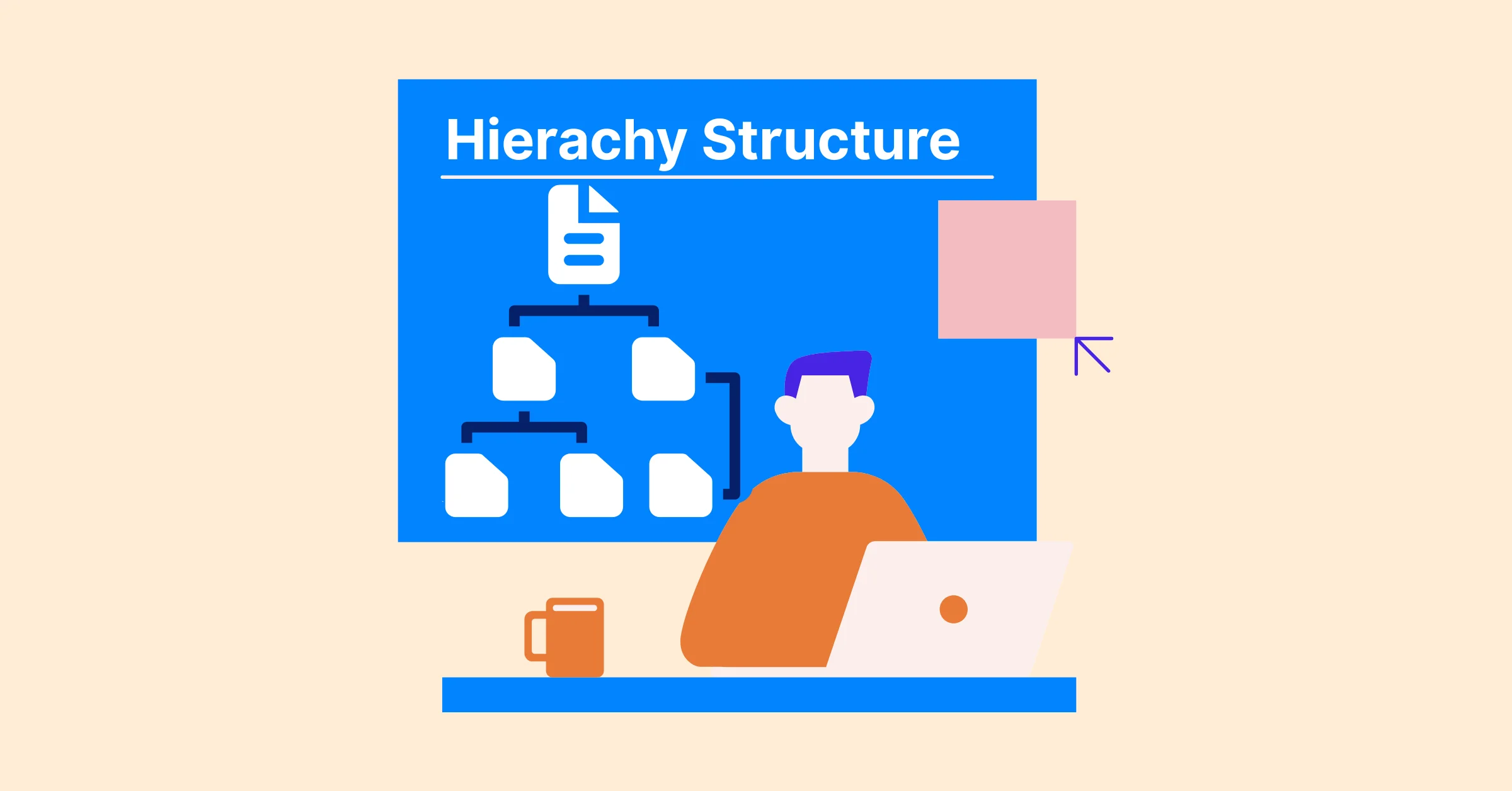
Progress follows a clear hierarchy. Each level rolls up into the one above it.
| Level | In TaskFord |
|---|---|
| Portfolio | An Overview across every project |
| Project | One project’s tasks and milestones |
| Milestone | A dated checkpoint made of tasks |
| Task | A single unit of work with a status and owner |
| Subtask | A checklist item that feeds its task’s progress |
Key challenges this solves
Without a structured way to track progress, the same problems show up on every project:
- Status is out of date the moment you read it, scattered across chats, spreadsheets, and memory
- Delays stay hidden until they’re too big to absorb
- Reports get rebuilt by hand every week, taking time away from the work itself
- The team and the stakeholders are working from different numbers
A real-time tracking workflow fixes the root cause: the work becomes the report, so the status everyone sees is the same status, and it’s always current.
Phase 1: Make progress visible
Reporting is only as good as the signals underneath it. This use case assumes your project already lives in TaskFord. Phase 1 is about turning that work into something you can read at a glance.
- Default view: Gantt
- Views included: Table, Kanban, Gantt, and Overview
- Workflow: TO DO → IN PROGRESS → AT RISK / BLOCKED → DONE
Set a status that shows where each task stands
A task without a status is just a line on a list. You can’t tell what’s moving and what’s stuck. Set up five statuses so every task reports its own state:
To Do → In Progress → At Risk / Blocked → Done
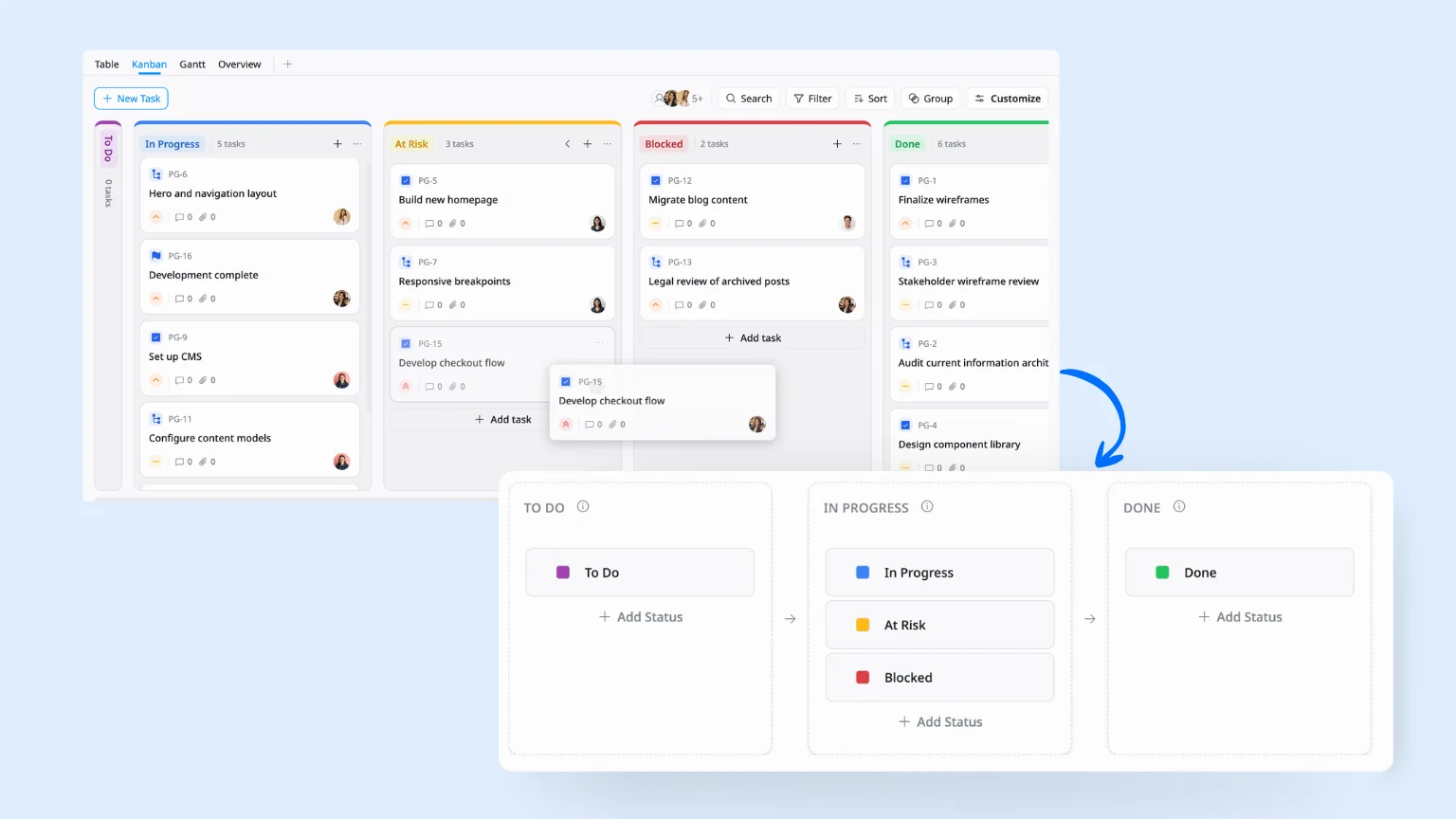
To Do and In Progress carry the normal flow. At Risk flags a task that’s drifting, and Blocked flags one that can’t move until something clears. Done closes it out. Now a glance at any task shows its real state.
Add a Health signal to every task
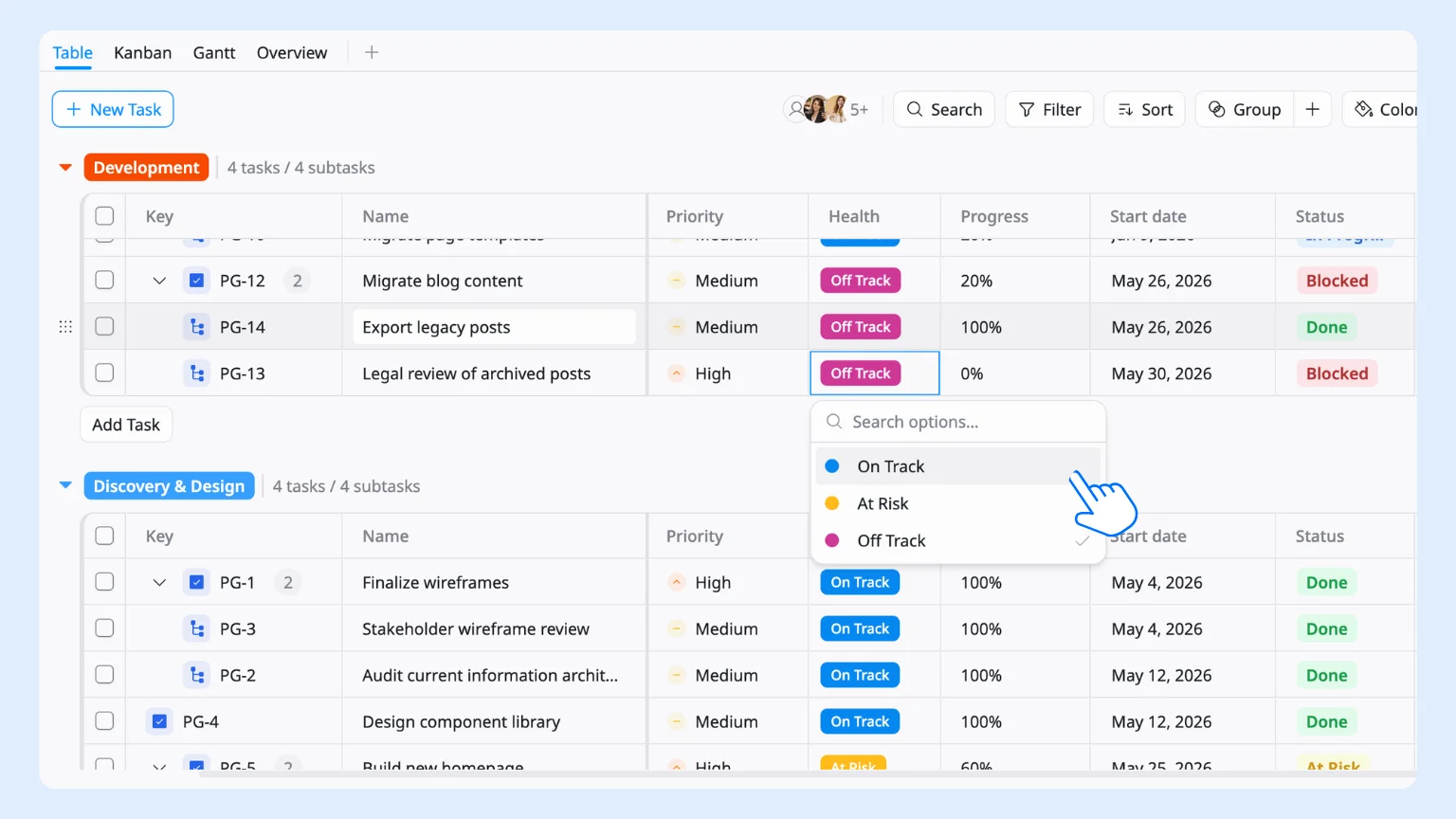
Status tells you if a task is moving. It doesn’t tell you how worried to be. A Health field rolls a task’s overall condition into one signal you can scan and filter on. Add these custom fields:
Custom fields are additional fields that admins can create and manage to capture information beyond default task details.
| Custom Field | Options |
|---|---|
| Health | On Track, At Risk, Off Track |
| Progress | 0–100% on every task |
With Health in place, you can filter the board to show everything Off Track in one click. With Progress, you see at a glance how close each task, milestone, and the project as a whole is to done.
💡 Tip: TaskFord’s Project Management template comes with this workflow and these fields already set up, so your work is trackable from the first task.
Mark the milestones you’ll measure against
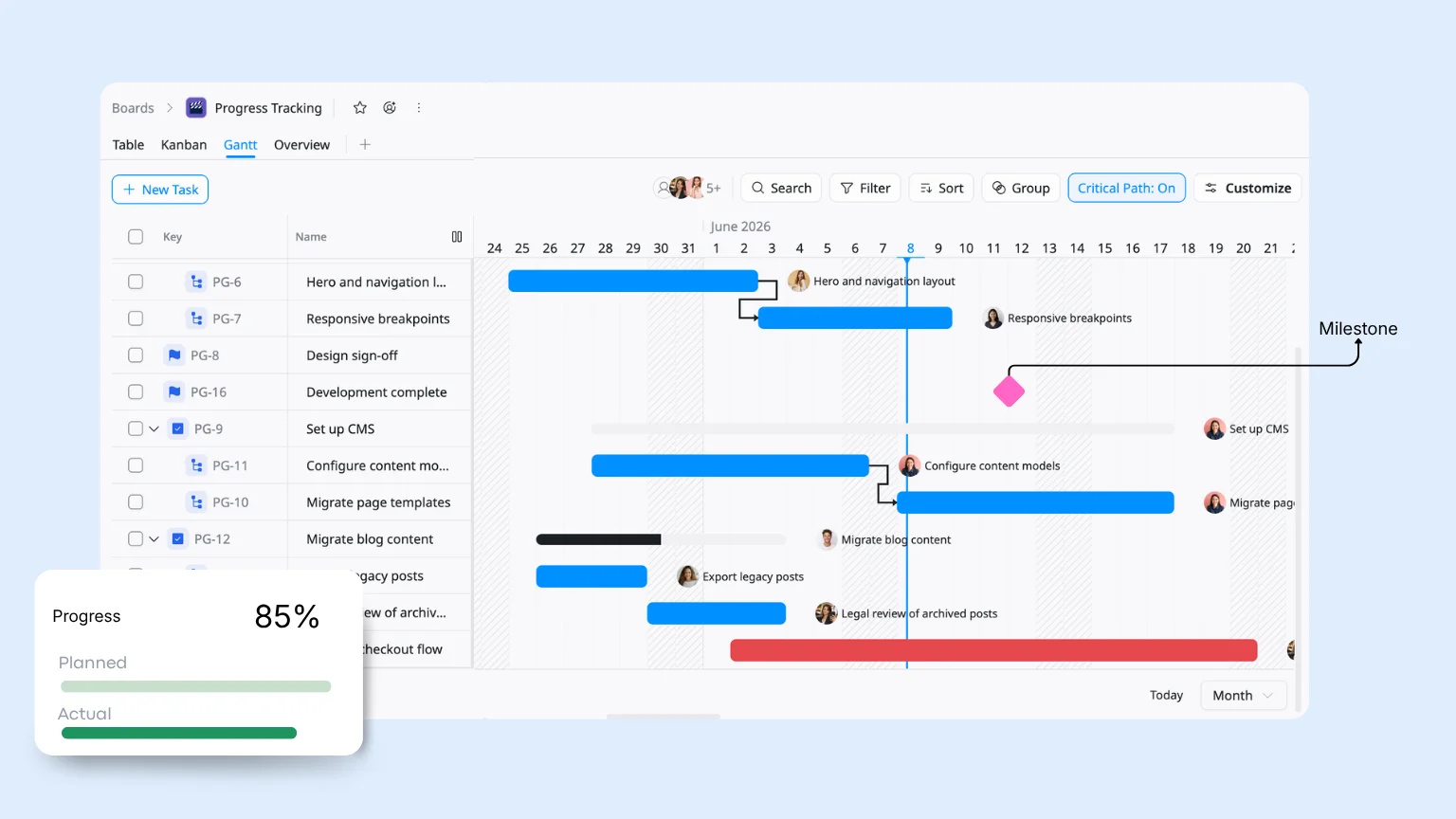
Tasks are the day-to-day. Milestones are the dates stakeholders actually watch: design sign-off, development complete, go-live. Mark these checkpoints as milestones so they stand out on the timeline and pull their own status up from the tasks beneath them. When the tasks behind a milestone slip, the milestone turns At Risk on its own.
Let progress roll up on its own
You don’t update a percentage by hand. TaskFord calculates progress from completed subtasks and from planned dates against actual dates, then rolls it up: subtask to task, task to milestone, milestone to project. The number you report is always current, because it comes straight from the work.
Phase 2: Monitor Work as It Happens
Once the work is readable, monitoring is about catching the right thing at the right moment. Set up a few views once, then let them do the watching.
Read progress from the right angle
Different questions need different views. Switching between them gives you the right perspective without changing any data.
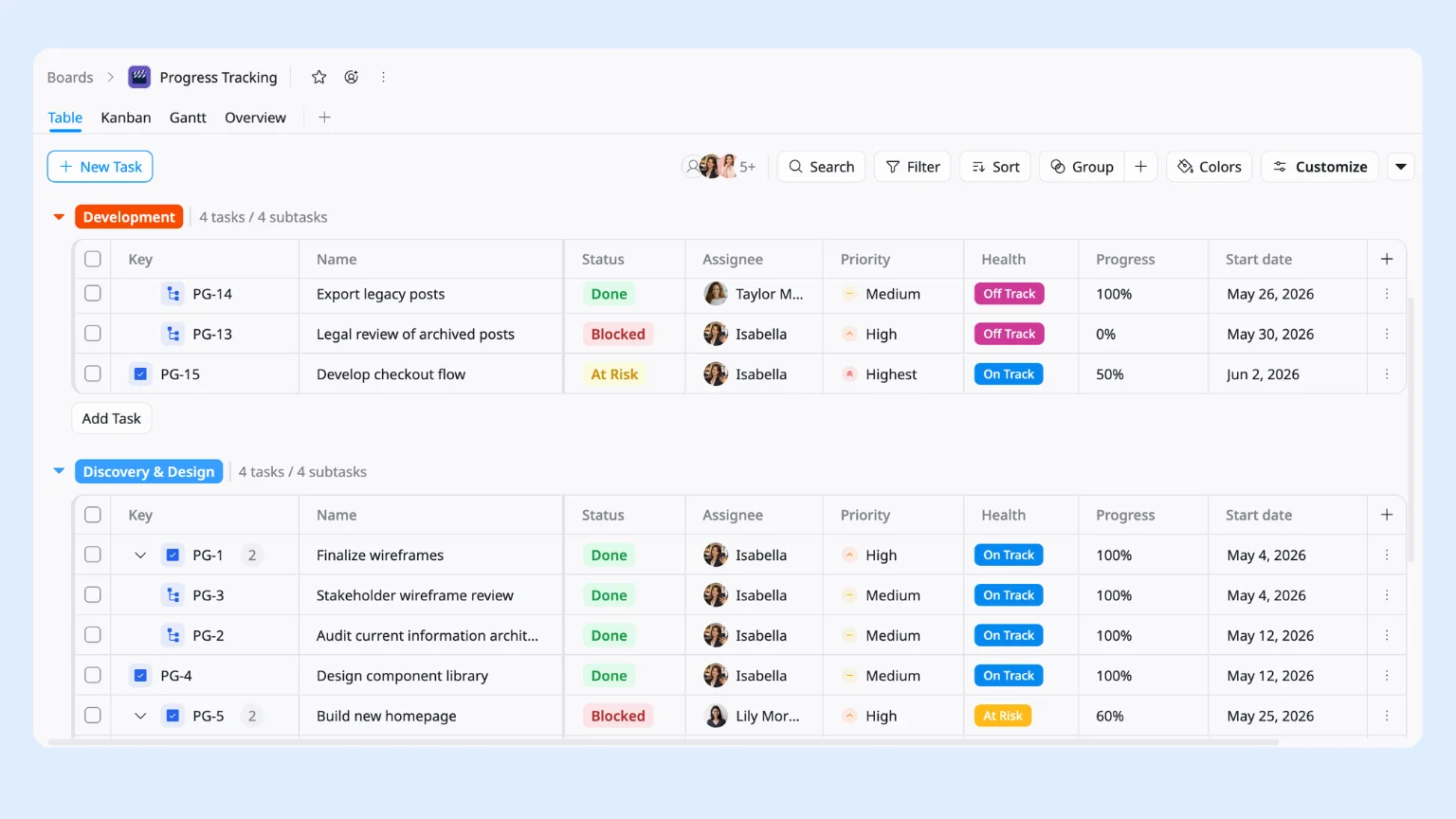
- Table view is the place to answer “what’s due this week?” See every task, owner, status, Health, and date in one grid. Sort by Due Date to bring the next deadlines to the top, or filter by Health to surface what needs attention.
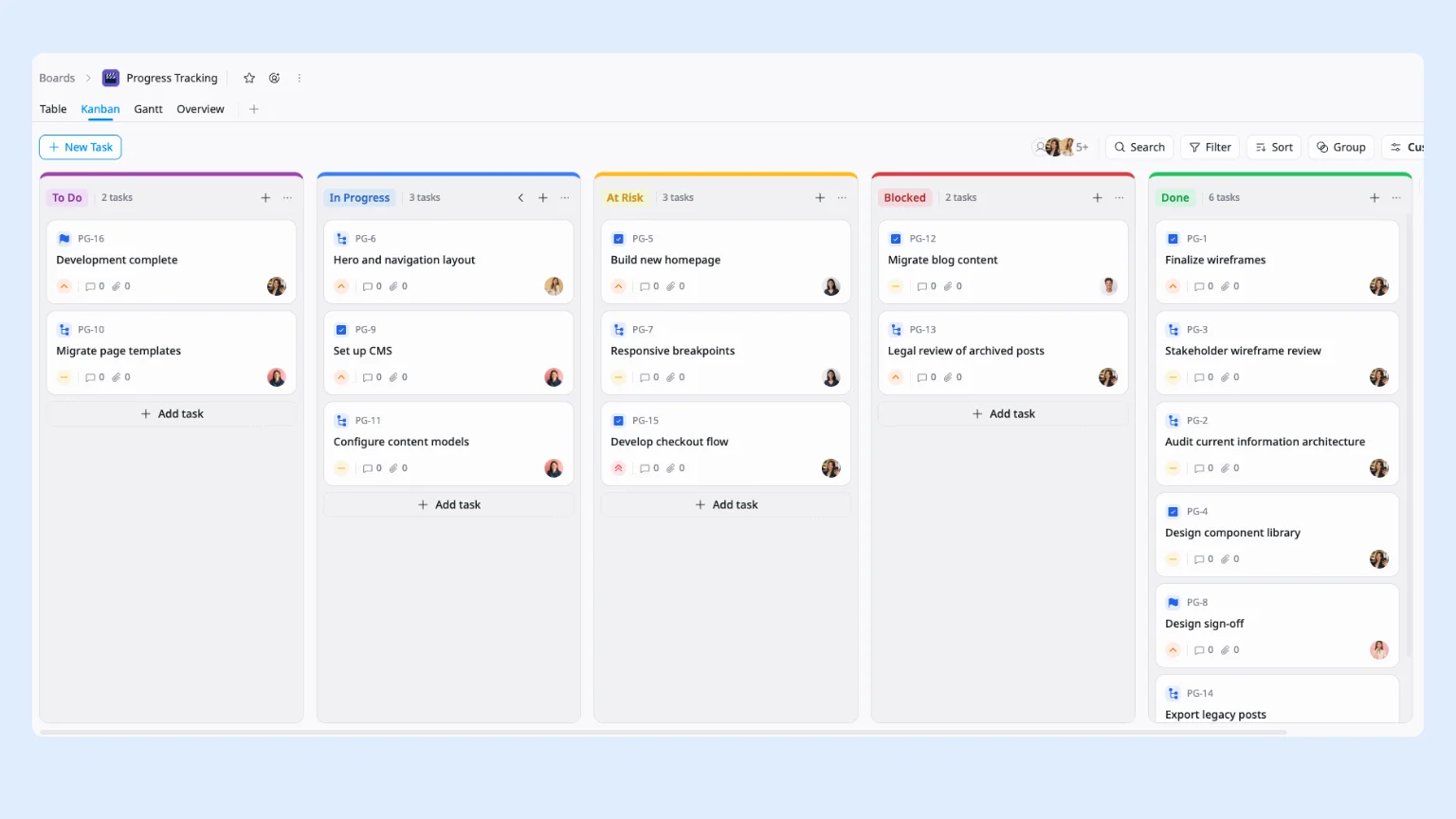
- Kanban view answers “where is work piling up?” Tasks move as cards across your statuses. When the Blocked column starts filling, you’ve found your bottleneck before a deadline slipped.
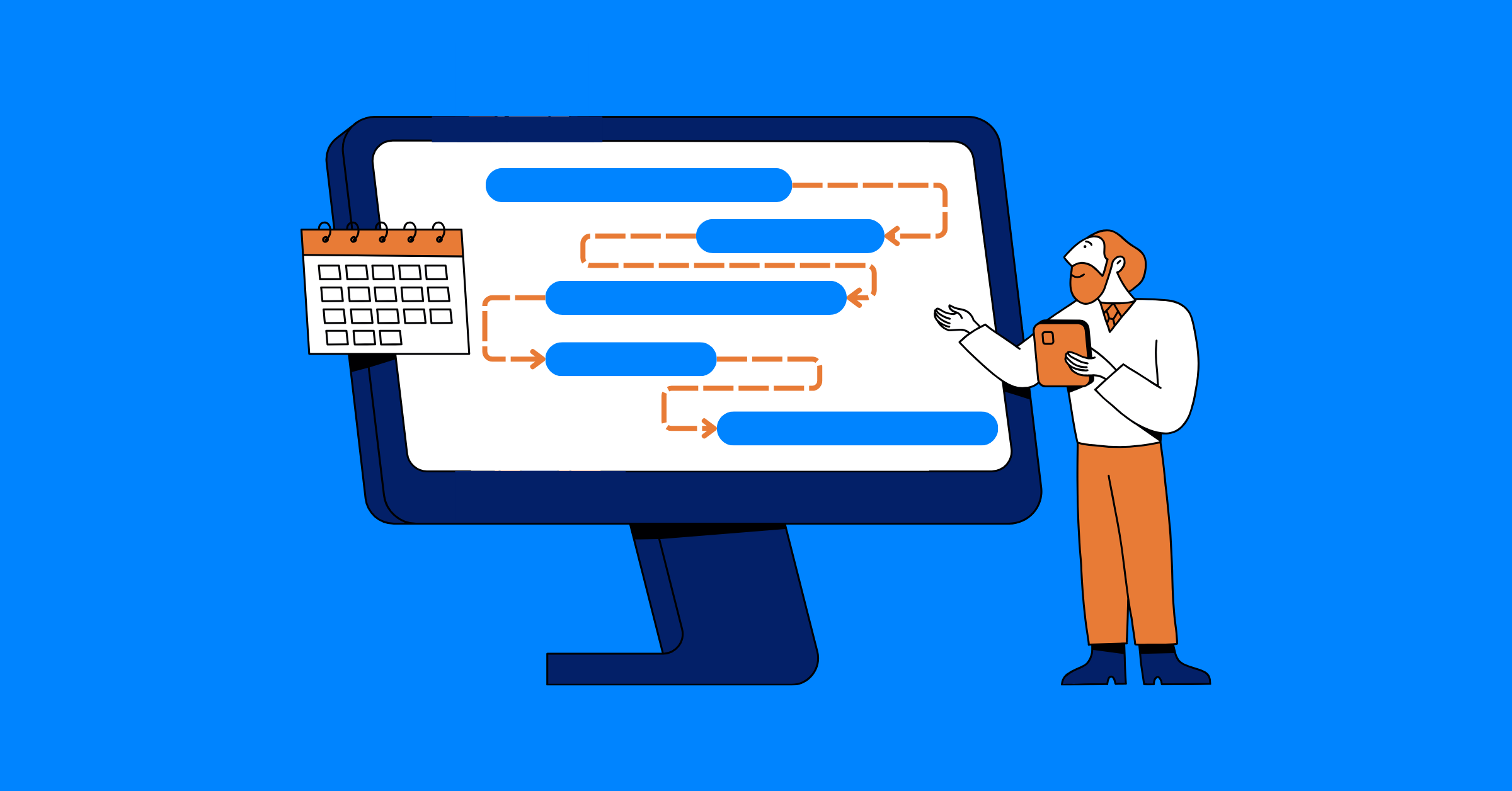
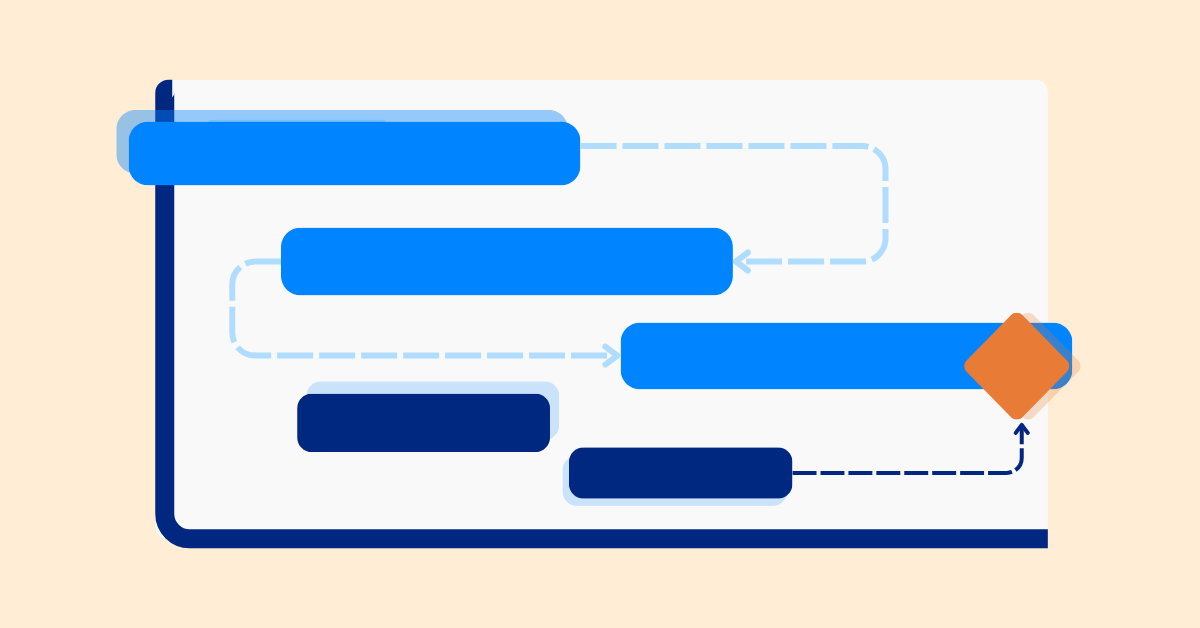
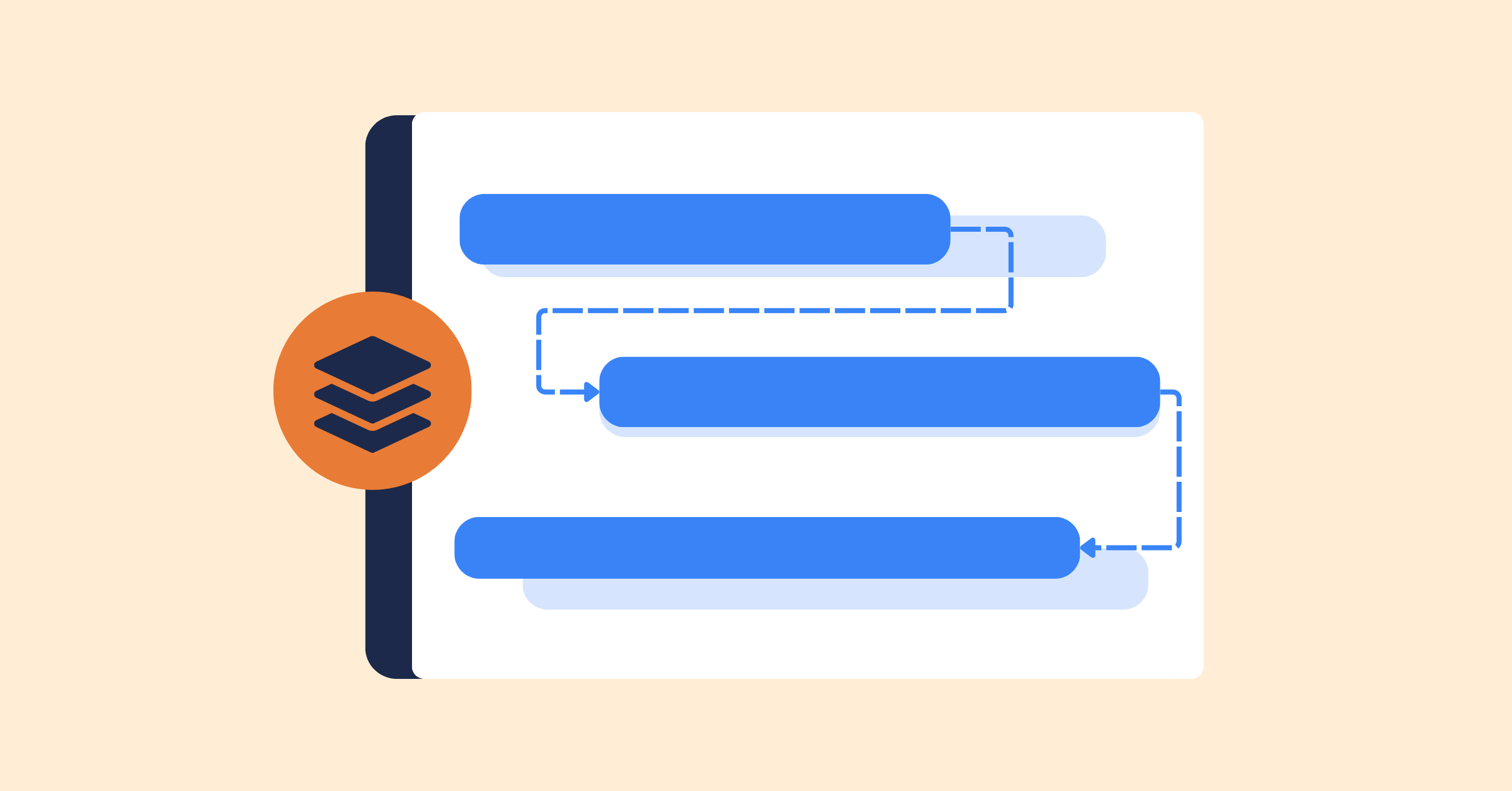
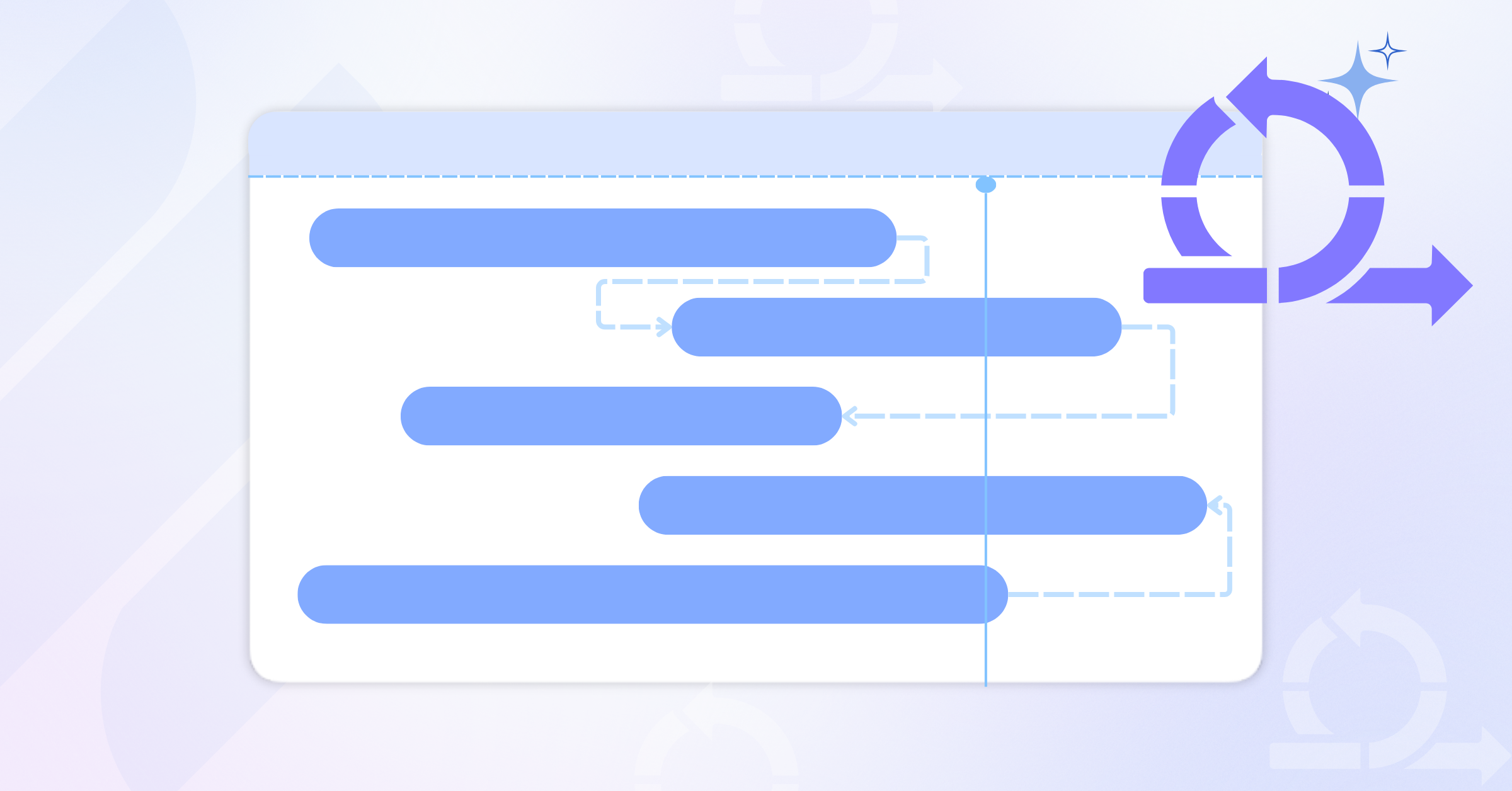
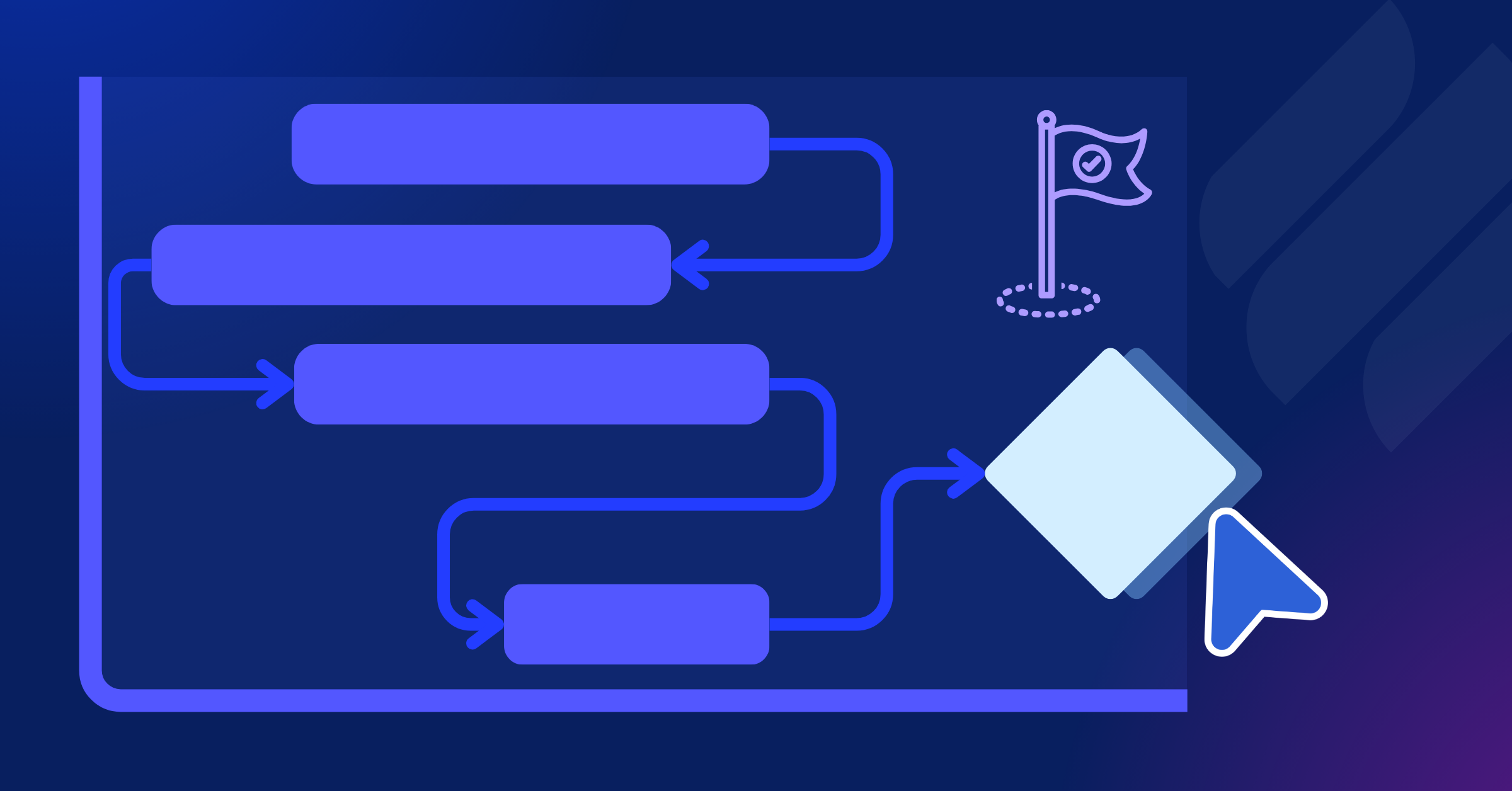
- Gantt view answers “will we hit go-live?” Tasks render as bars across the calendar, with dependencies linking the work that relies on other work. When one task slips, you see every task and milestone that moves with it.
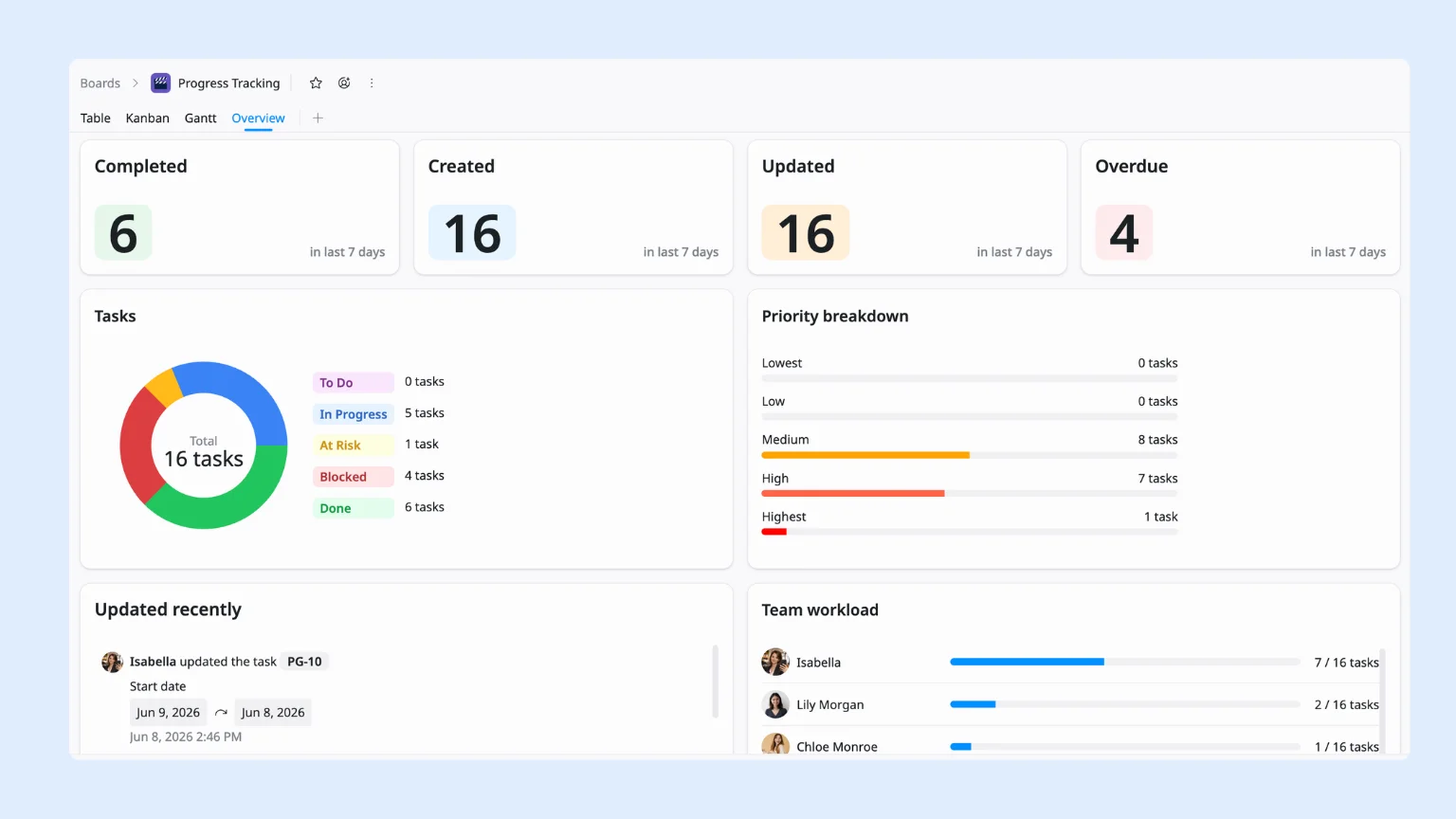
- Overview answers “which project needs me most?” It rolls every project into one real-time snapshot of status, ownership, and workload across teams.
Catch blocked and at-risk work early
A blocked task rarely stays one problem. It holds up everything that depends on it. When a task moves to Blocked or its Health turns At Risk, the owner @mentions whoever can clear it and notes what’s needed in a task comment. The thread stays on the task, so the next person sees the full history without hunting through email.
Track milestones and upcoming deadlines
Missing a milestone quietly is how trust erodes. In Gantt view, upcoming milestones and their dependencies stay visible, and TaskFord watches planned dates against actual progress so drift shows up early, not at the deadline. Reminders add a backstop: owners get a nudge before a due date, not after.
Read also: How to Set Project Milestones That Actually Signal Progress
Save the checks you run every day
Rebuilding the same filter every morning wastes time. When you land on a view you keep coming back to, save it so it’s one click away.
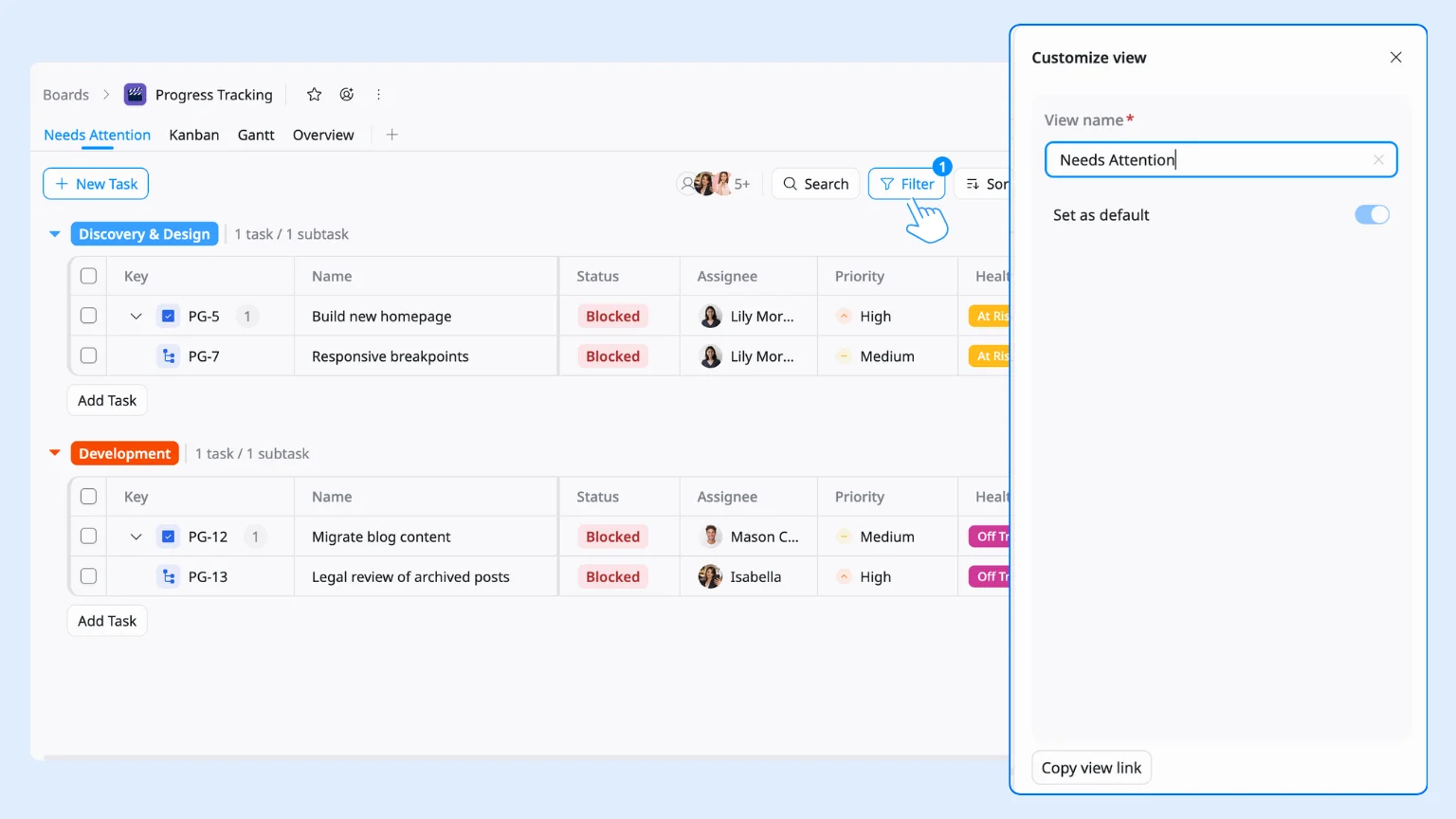
Set the view up the way you want it first: apply a Filter, choose a Sort order, and Group the tasks if it helps. Then open Customize and save it as a named view. It drops into your view bar with the same filters, sort, and layout every time you open it.
A few worth saving:
- Needs attention: filter for Status is Blocked, or Due Date before today. Your first stop each morning.
- This week: filter for Due Date within the next 7 days. The work to protect.
- By owner: group by Assignee to spot who’s overloaded at a glance.
Save them once, and anyone on the team opens the same view to the same picture, with no filters to rebuild.
Phase 3: Turn Tracking into Reports
Tracking tells you where things stand. Reporting shares that clearly with the people who need it, on a cadence they can count on.
Build a dashboard that reports itself
A handwritten status report is stale the moment you finish it. A dashboard reads from the live project, so it’s always current. Add the widgets that answer real questions, not every number you have:
- Overall progress for the whole project
- Tasks by status: to do, in progress, blocked, and done
- Milestones at risk
- Overdue tasks, grouped by owner
- Workload by owner
Open it before a standup and the whole picture is there. Nobody assembles it.
See project health in one place with Overview
For the high-level read, open Overview. It rolls the whole project into one real-time snapshot: overall progress, what’s at risk, what’s overdue, and how work is spread across the team. When you run more than one project, it rolls them all up too, so you can see which one needs you most this week, without copy-paste between trackers. Nobody assembles it, and it’s never out of date.
Report on dates and milestones in Gantt
Stakeholders report on dates. Gantt view lays every milestone against the calendar and measures planned dates against actual progress, so a slipping checkpoint shows before the date arrives. Use it to report plainly: what’s on schedule, what’s moved, and what’s at risk of moving next.
Phase 4: Keep teams and stakeholders aligned
Tracking and reporting only pay off when the right people see the right thing at the right time.
Share live status, not status meetings
Stakeholders shouldn’t have to ask for an update. Share a dashboard or the Overview with a link, and they see current status whenever they look. For a set cadence, schedule a weekly summary. The numbers in the meeting match the numbers in the tool, because they are the same numbers.
Set alerts so nothing slips quietly
The point of tracking is to catch problems while you can still act. Turn on notifications for the three that matter most: a due date approaching, a task moving to Blocked, and a task going overdue. The right person hears about it before the deadline, not after.
Run reviews from one source of truth
Review meetings stall when people argue about whose numbers are right. Open the dashboard and walk through health, risks, and upcoming milestones together. Decisions get made on current facts, and the project stays the single source of truth long after the meeting ends.
What your team gains
With TaskFord, your team moves from scattered updates and surprise delays to a tracking workflow where progress reports itself and nothing slips unseen.
- A live view of what’s done, what’s moving, and what’s stuck
- Progress that rolls up on its own, so status is always current
- Early warning on blockers and at-risk work, while you can still act
- Dashboards and an Overview that give stakeholders visibility without a meeting
- Alerts that surface problems before they reach a deadline
- A single source of truth the whole team and every stakeholder can trust
Your team can track without guesswork, report without the busywork, and deliver on time — every time.
You May Also Like:
Related Articles








How to Build and Manage a Product Roadmap with TaskFord









How to Build a Connected Project Timeline in TaskFord








What Are the Best Jira Alternatives for Scrum Teams?


















How WBS Reveals Delivery Breakdown Before It’s Too Late






![How To Conduct a Profound Stakeholder Analysis [+ Free Template]](/marketing/blog/stakeholder-analysis.webp)











What to Look for in Scrum Tools (Beyond Kanban Boards)

![Project Management Calendar for Teams and Managers [Free Templates]](/marketing/blog/project-management-calendar.webp)




How to Define Project Deliverables: A Step-by-Step Guide





![RACI Chart in Project Management: Rules & Examples [Free Download]](/marketing/blog/raci-chart.webp)








![7 Must-Have Project Management Documents Every PO Should Know [Free Templates]](/marketing/blog/project-management-documents.webp)





![How to Create a Winning Project Plan for IT Projects [10 Steps Included]](/marketing/blog/how-to-create-a-project-plan.webp)


![Daily Standup Best Practices: Apply AI to Organize Meetings Successfully [2026 Trends]](/marketing/blog/daily-standup.webp)





![How to Create a Project Communication Plan: Step-by-Step Guide [+Free Template]](/marketing/blog/project-communication-plan.png)


![Master Project Procurement Management in 5 Steps [Download a free plan template]](/marketing/blog/project-procurement-management.webp)

















Subscribe for Expert Tips
Unlock expert insights and stay ahead with TaskFord. Sign up now to receive valuable tips, strategies, and updates directly in your inbox.