Add board views
Add and manage board views in TaskFord to visualize tasks in different layouts such as Table, Kanban, Gantt, Schedule, and Overview, helping you work more efficiently across projects.
Who can use this feature?
- Board Admins / Board Editors can add, edit, manage, and delete board views
- App Admins / App Editors can also add, edit, manage, or delete board views only on Open boards
In TaskFord, Board views are different layouts that you can use to visualize and manage your tasks within a board. Depending on your project needs, you can choose a view that suits your work style and helps you understand tasks more effectively.
How to add a Board view
To add a new view to your board:
- Go to the specific board where you want to add views.
- Click (+) button located next to your current tabs.
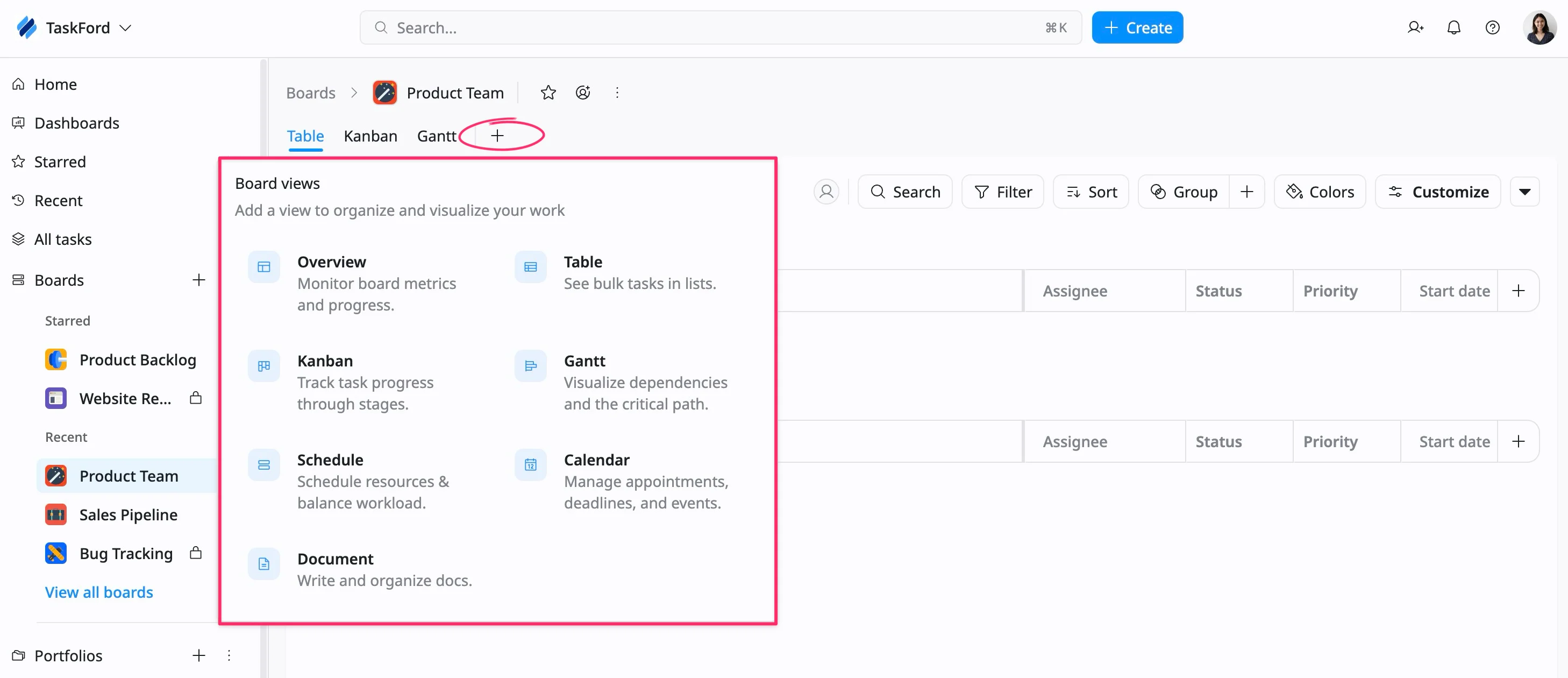
- Select the view you want to add:
- Overview – Provides a high-level summary of project progress and key metrics.
- Table – Displays tasks in a spreadsheet-style layout for easy sorting, filtering, and bulk updates.
- Kanban – Organizes tasks into columns based on status, giving a clear visual workflow.
- Gantt – Shows tasks with progress bars and timelines, visualizing dependencies and critical paths.
- Schedule – Displays tasks across a timeline or calendar format to plan resources and balance workload.
- Calendar – View tasks by specific dates, manage deadlines, milestones, and appointments.
- Document – Write, store, and organize project-related documentation directly in the board.
Tip
You can add multiple views, allowing you to easily switch between different perspectives of the same set of tasks.