Add or reduce seats
Learn how to manage your TaskFord subscription seats, including adding new paid user slots or reducing seats as your team changes.
Only the Site Owner or users with Billing Manager permission can change billing cycle settings.
Your seat count controls how many paid user slots are included in your TaskFord subscription. You can add seats when your team grows or reduce seats when your team no longer needs as many paid slots.
Add seats to the current subscription
Add paid seats to your subscription when you need to onboard team members right away. The new seats become part of your active plan as soon as the change is confirmed, giving you immediate access without having to wait for the next billing cycle.
To add seats:
- Go to the Billing & Plans page.
- Select Subscription in the left-hand menu.
- In the Current subscription section, find Seats.
- Click the plus (+) button beside the current seat count.
- In the Buy more seats window, enter the number of seats you want to add.
- Review the new total seat count and cost change.
- Click Confirm.
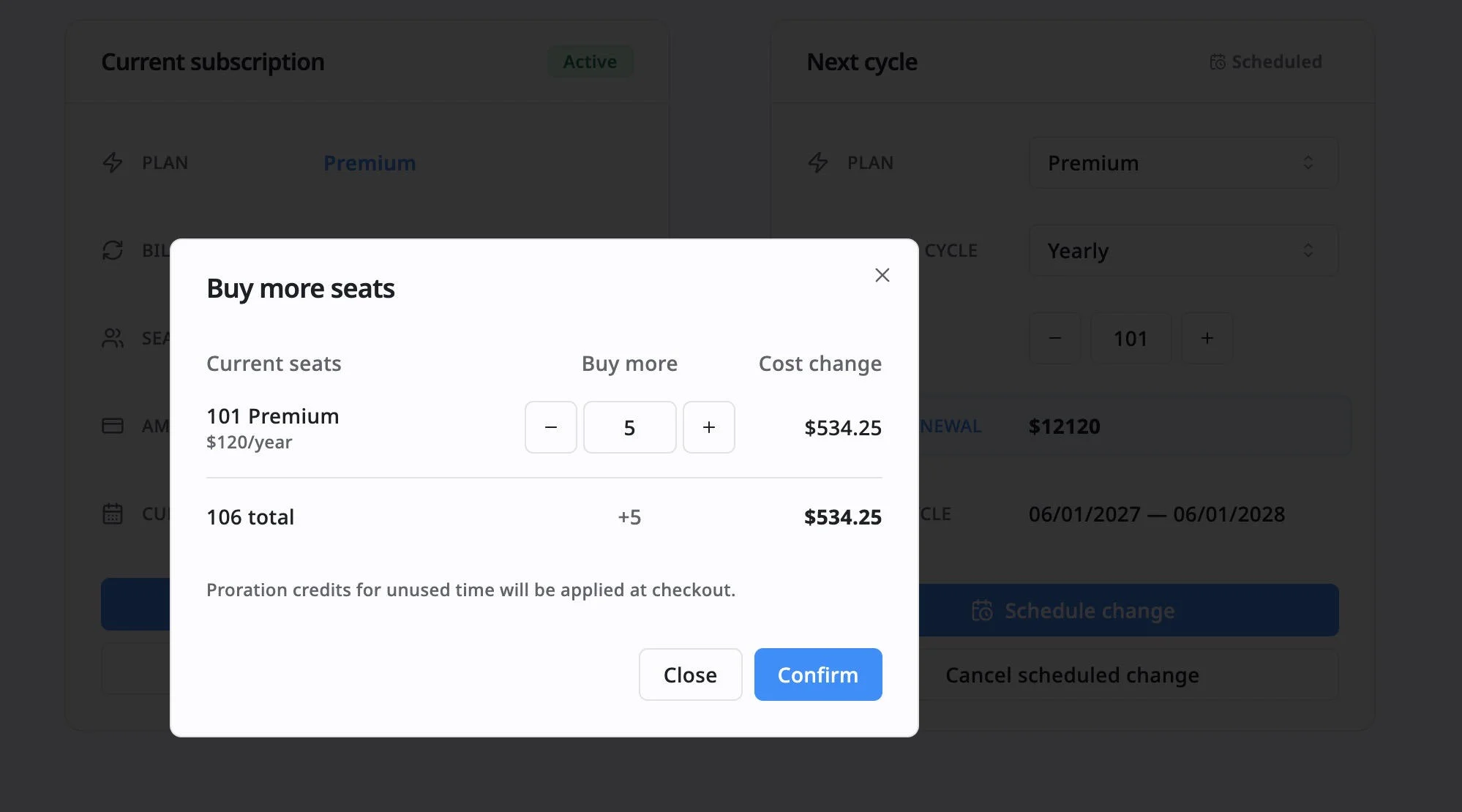
When you add seats on an active paid plan, the change takes effect immediately. TaskFord calculates a prorated charge for the added seats based on the remaining time in your current billing period.
Example:
You currently have 101 Premium seats. If you add 5 more seats, your subscription will increase to 106 seats.
Because you are adding seats before the current billing period ends, TaskFord only charges you for the time left in that billing period, not the full yearly or monthly price right away.
The Cost change shows the amount you need to pay now for those 5 extra seats until the next renewal date. At the next renewal, your subscription will renew based on the new total of 106 seats.
Add seats for the next cycle
Use this option when you want to increase your seat count at the next renewal, but do not need the extra seats immediately.
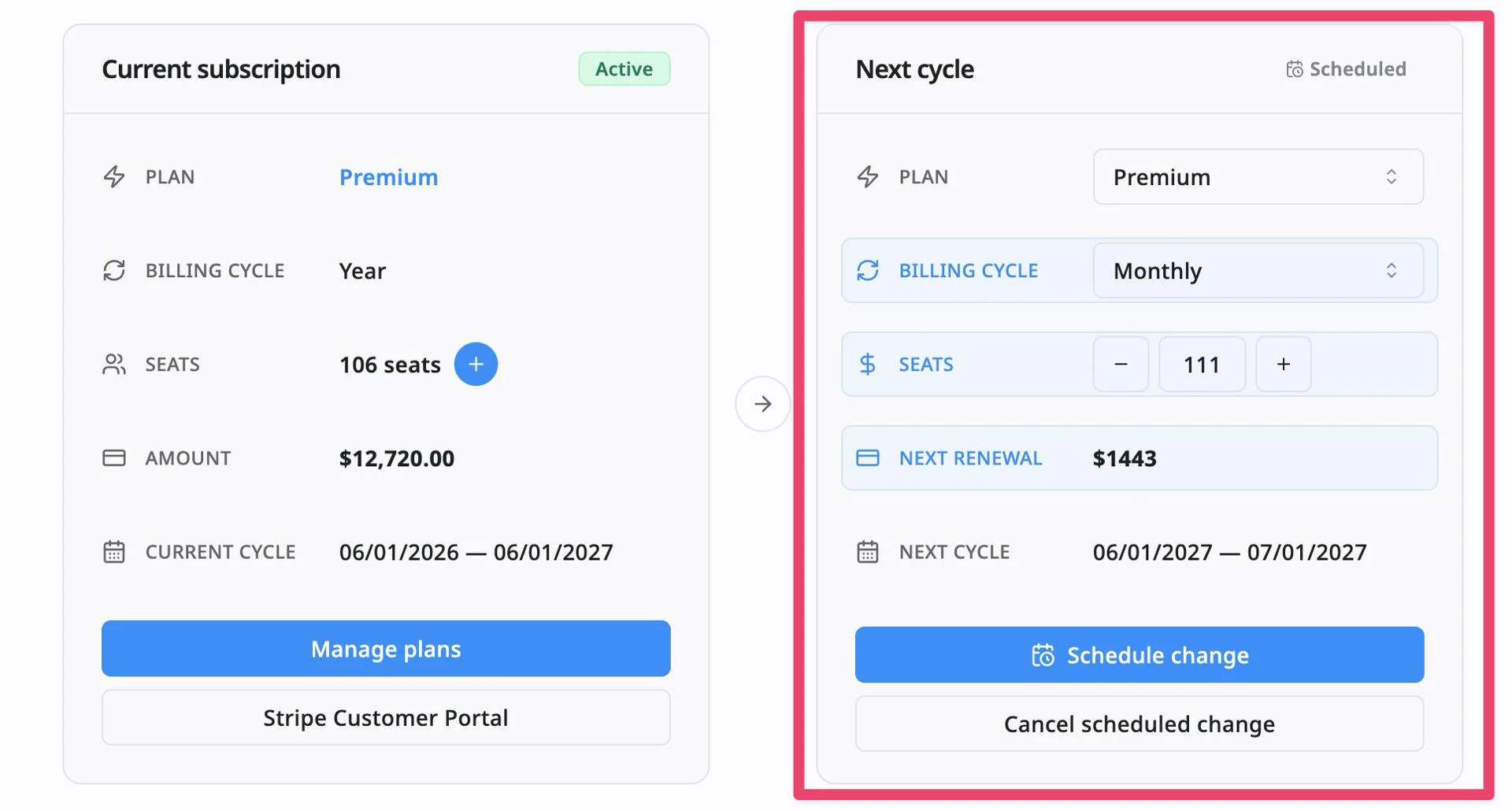
When you add seats in the Next cycle section, your current seat count stays the same until the current billing period ends. The higher seat count applies when the next billing cycle begins.
To add seats for the next cycle:
- Go to the Billing & Plans page.
- Select Subscription in the left-hand menu.
- In the Next cycle section, use the plus (+) button to increase the seat count.
- Review the updated seat count and next renewal amount.
- Click Schedule change and confirm.
Reduce seats for the next billing cycle
Reduce your active seats for the next billing cycle when your team downsizes. Seat reductions do not take effect immediately and will not generate a prorated refund. Your current seat count remains active until the end of your current billing period.
To reduce seats:
- Go to the Billing & Plans page.
- Select Subscription in the left-hand menu.
- In the Next cycle section, use the minus (-) button to lower the seat count.
- Review the updated seat count and next renewal amount.
- Click Schedule change and confirm.
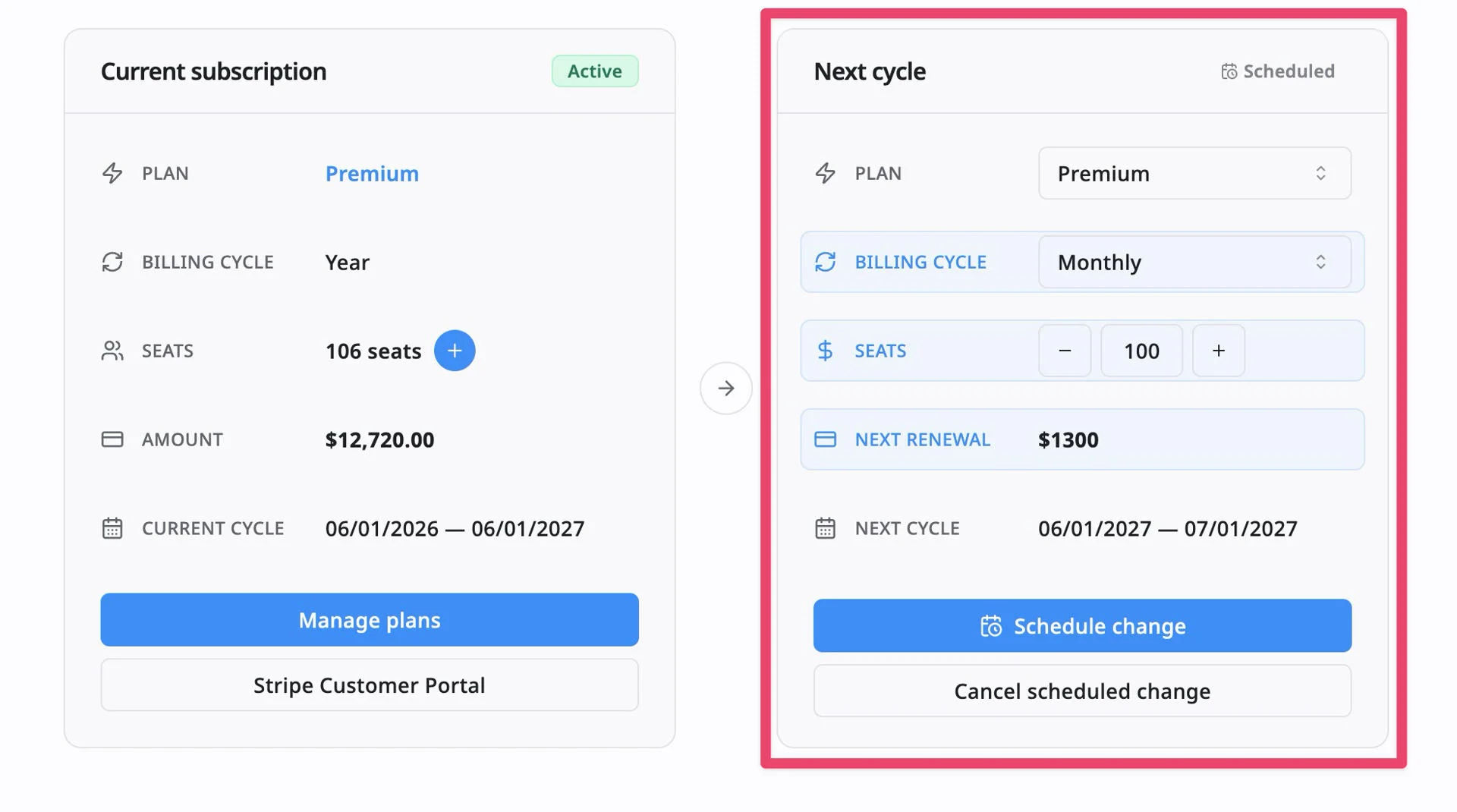
Your current subscription keeps the existing seat count until the current billing period ends. When the next billing cycle begins, TaskFord applies the lower seat count and calculates the next renewal based on that reduced number.
Seat reductions do not create an immediate refund for the current billing period.