All tasks
Manage and organize tasks across boards and projects with TaskFord's Task List, featuring task creation, editing, and advanced filtering.
What is a Task List?
The Task List is your central workspace for viewing, creating, and managing all tasks across boards and projects. It provides a clear, organized view of every task in your workspace, helping you stay on top of assignments, priorities, and progress in one place.
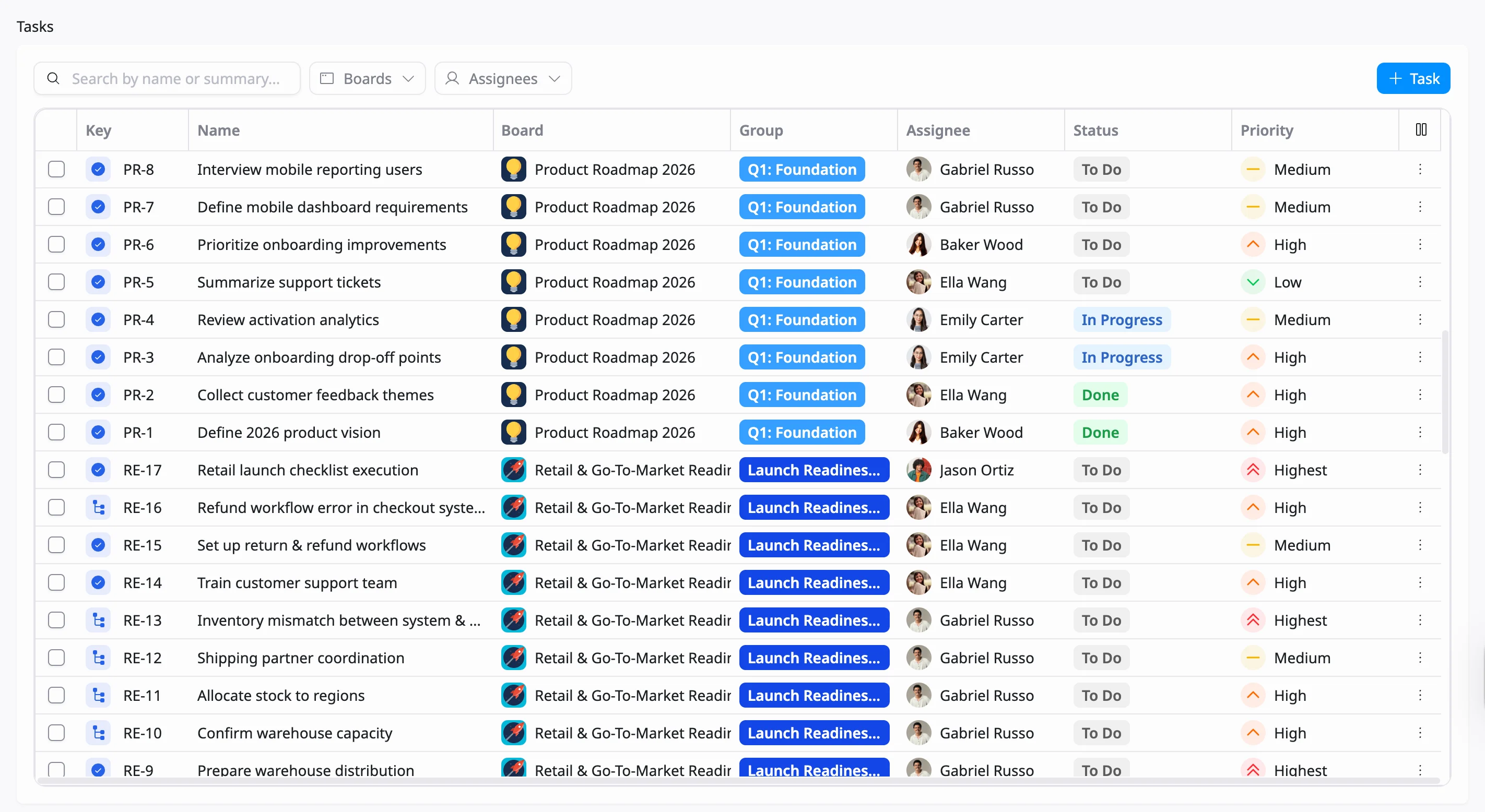
Each row in the Task List represents an individual task and displays key information, including:
- Task Key (unique ID)
- Summary (task title)
- Assignee
- Status
- Priority
- Start and End Dates
Create a task from the All tasks page
- Navigate to the Task list page.
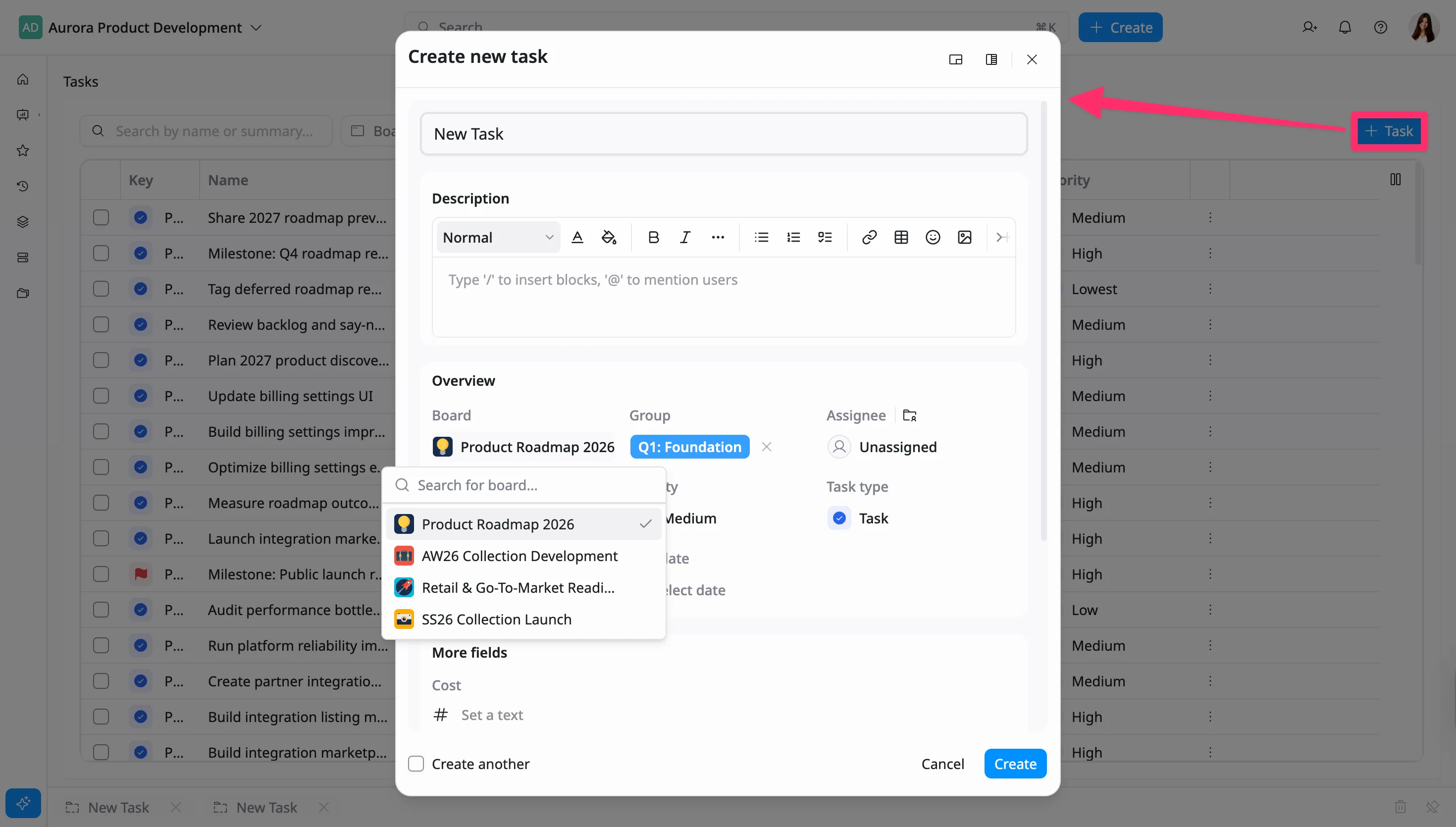
- Click Create Task at the top right of the Task List.
- In the Task Details Panel, choose the Board where the task should belong.
- Enter the task name, description, assignee, due date, and any additional details such as priority or status.
- Click Create to save the task
Edit tasks
Editing Individual Tasks
You can edit task information directly in the Task List page:
- Click the cell you want to modify (e.g., Group, Assignee, Priority, Dates, or Status).
- Use the provided options to select a new value from a dropdown.
Bulk Edit
Bulk editing allows you to update multiple tasks at once, helping you save time when making the same change across several items in your workspace.
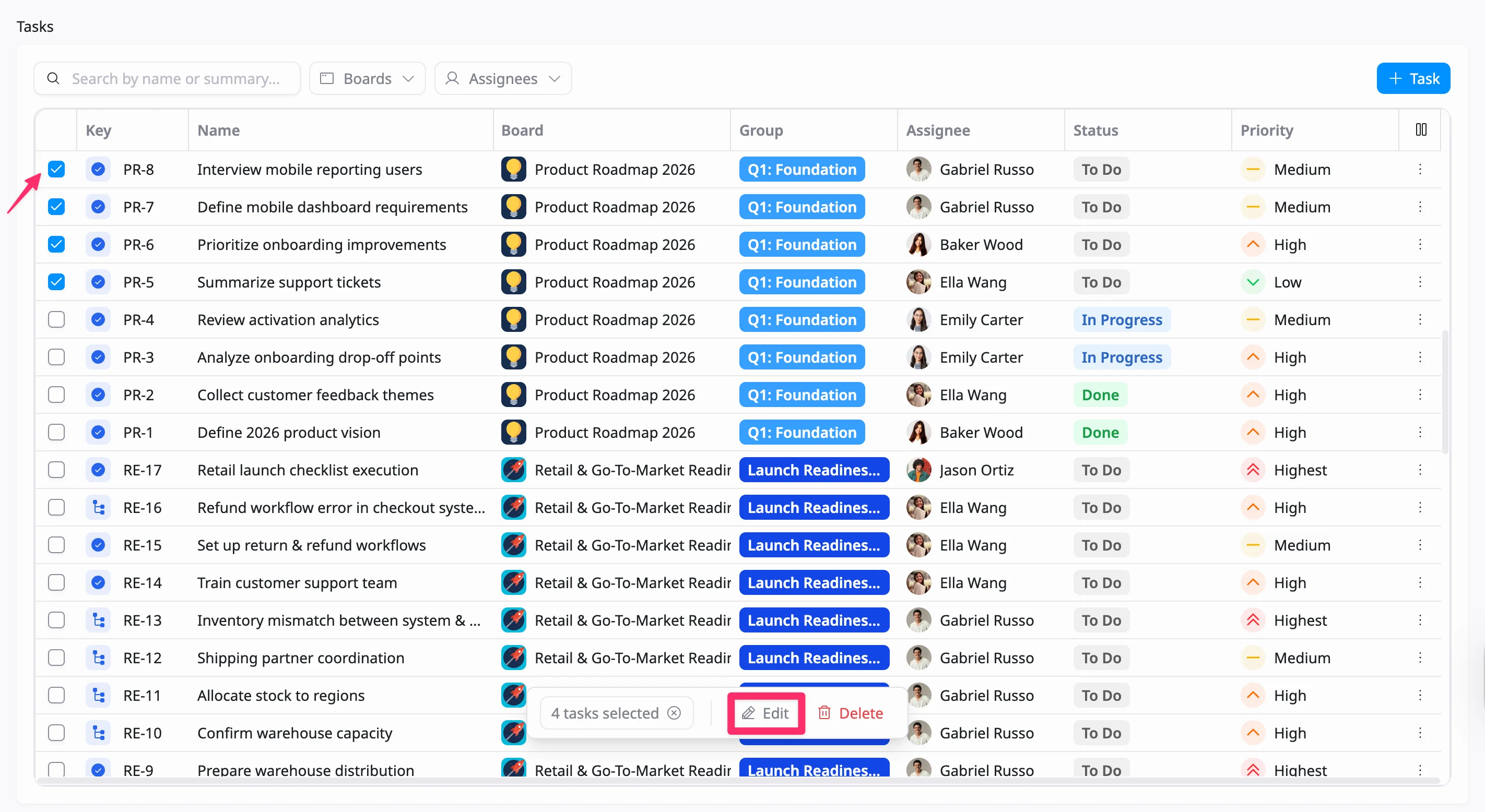
- In the Task list, hover your cursor over the left side of the rows. Then check the box next to each task you want to edit.
- After selecting tasks, a toolbar will appear at the bottom of the table. Click Edit to open the Bulk edit panel.
- In the Bulk Edit panel, update one or more task fields at once.
- Click Save to complete the changes. All selected tasks will be updated at the same time.
Open a task
To open a task:
- Hover over the task row. Then click the More Actions (⋮) icon on the right side of the row.
- Select Open from the dropdown menu.
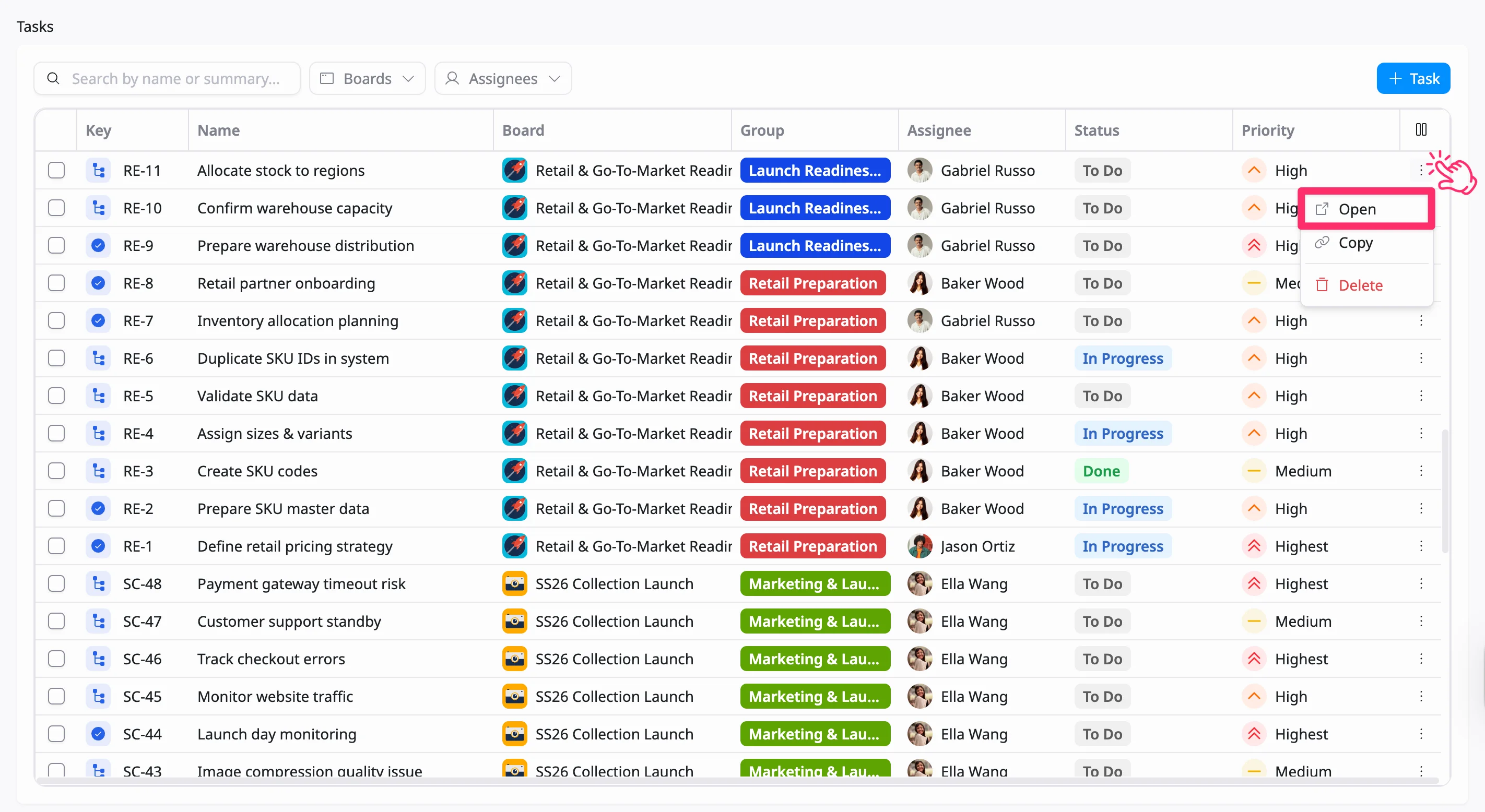
The task details view will be opened.
Copy a task link
To copy a task link:
- Hover over the task row. Then click the More Actions (⋮) icon on the right side of the row.
- Select Copy from the dropdown menu.
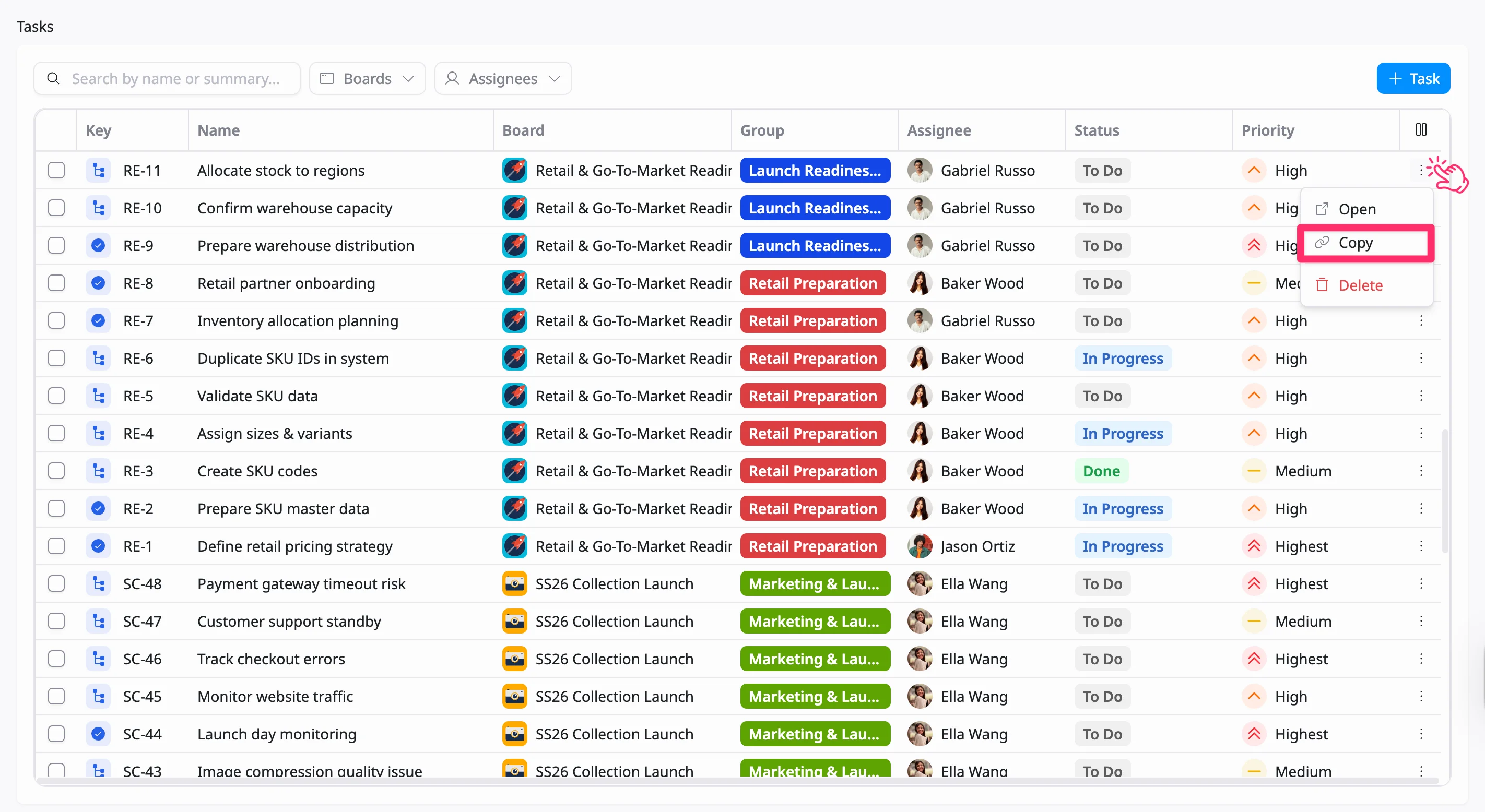
The task link is copied to your clipboard.
Delete tasks
To delete a task:
- Hover over the task row. Then click the More Actions (⋮) icon on the right side of the row.
- Select Delete from the dropdown menu.
- Confirm your action if prompted.
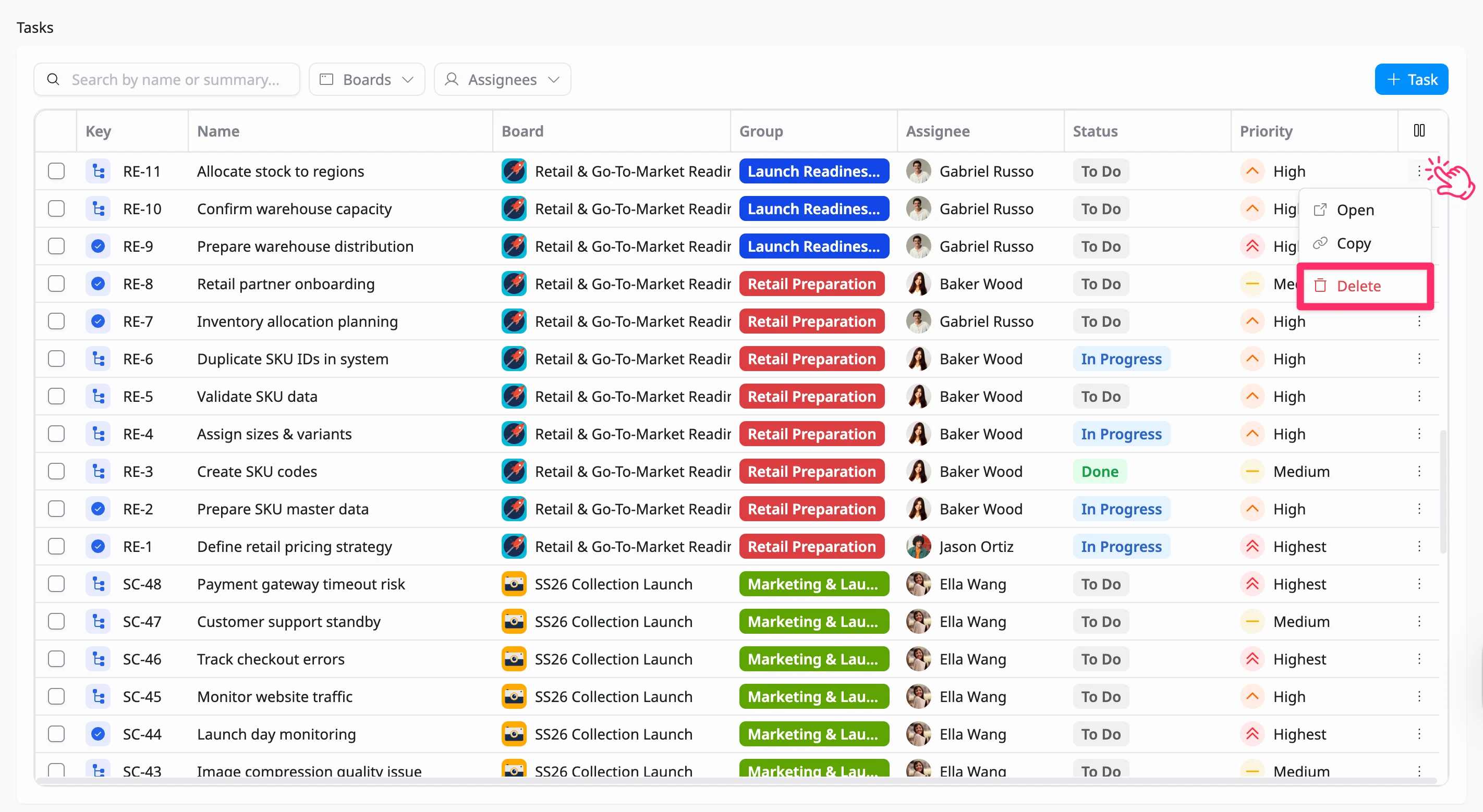
Bulk delete
To bulk delete tasks:
- Hover over the left side of the rows and check the boxes next to the tasks you want to delete.
- Once selected, a toolbar will appear at the bottom of the table.
- Click Delete in the toolbar.
- Confirm the deletion when prompted.
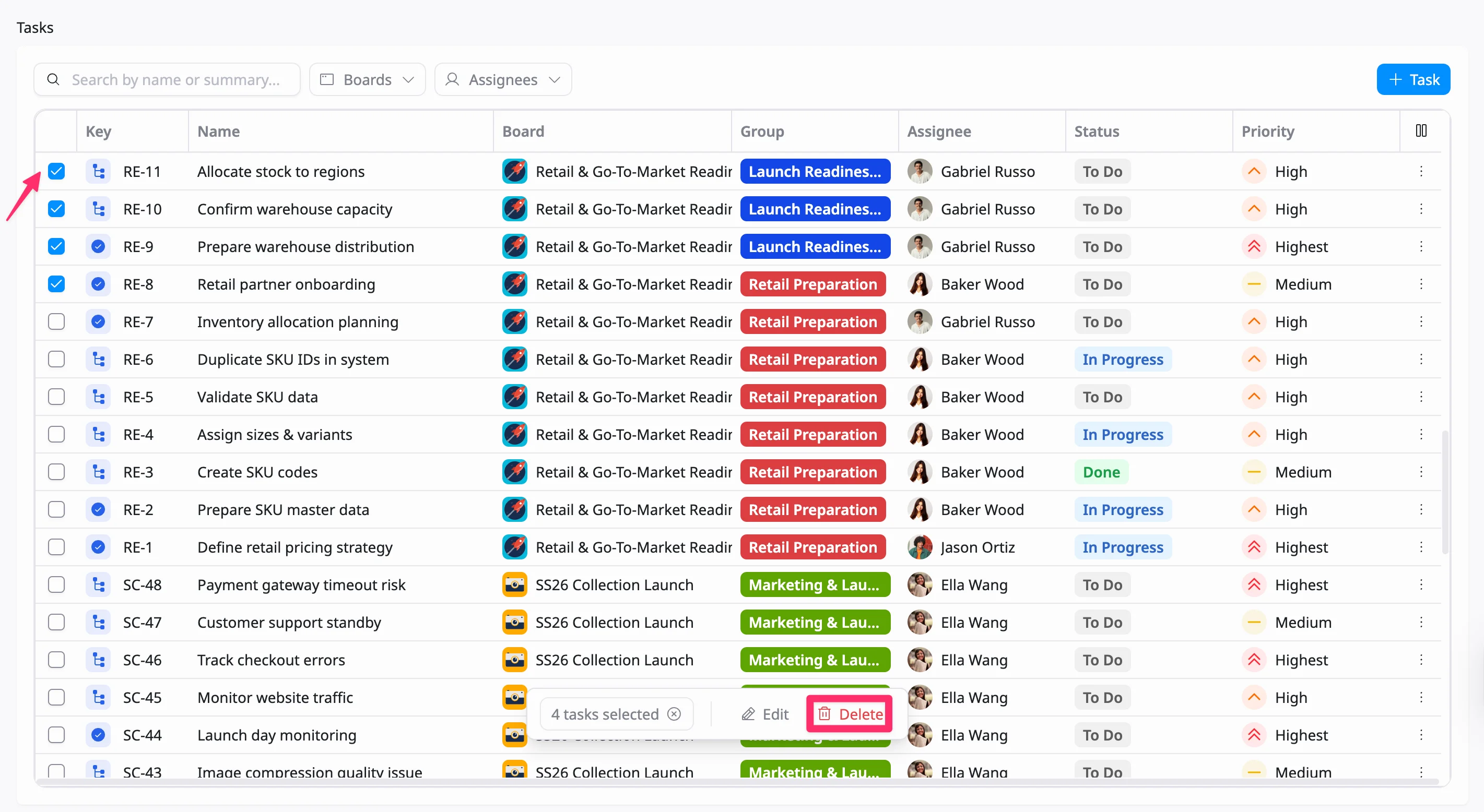
Search & Filter tasks
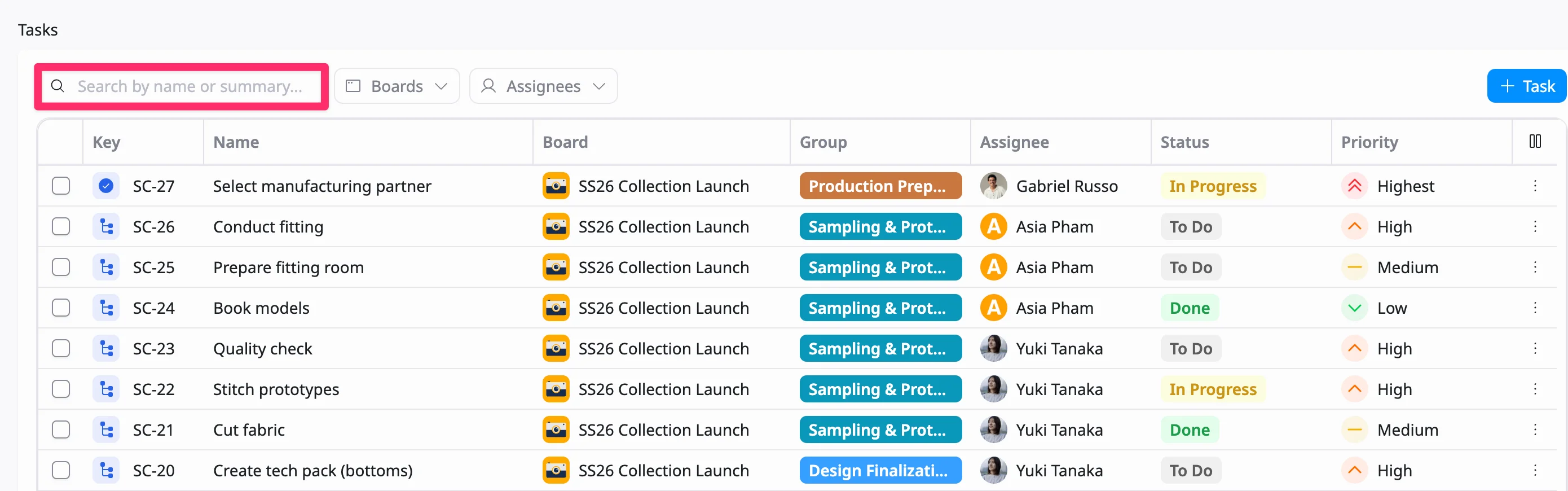
- Search Tasks
Use the Search bar to quickly find tasks by name or summary. It displays matching results across your entire workspace in real time.
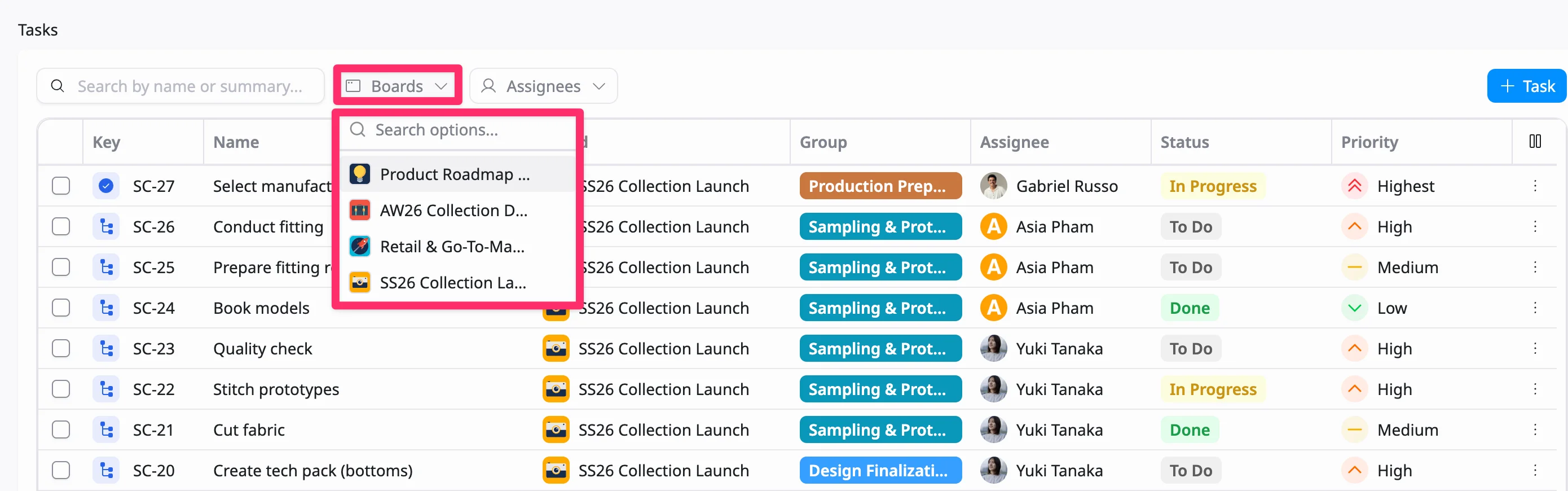
- Filter by Board
Click Boards to filter tasks by specific boards or projects. This helps you narrow down the list to view only tasks from the boards you’re currently managing.
- Filter by Assignee
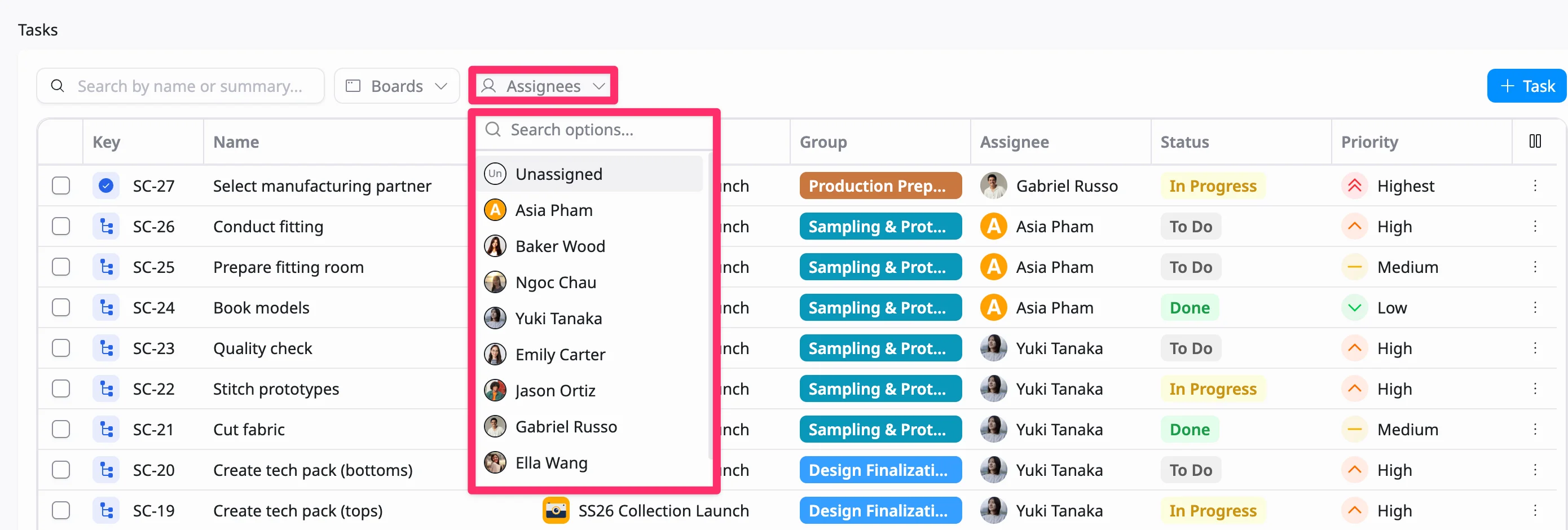
Click Assignees to display tasks assigned to a specific member. You can select one or multiple assignees to view their active tasks at a glance.