Auto-scheduling
Use Auto-scheduling in TaskFord’s Gantt view to automatically adjust dependent task dates and keep project timelines accurate when plans change.
- Board Admins / Board Editors can enable Auto-scheduling in the Gantt view.
- Site Admins / Site Editors can enable Auto-scheduling in the Gantt view only on Open boards.
Auto-scheduling automatically adjusts task dates when changes occur in dependent tasks. When a task’s start date, end date, or duration changes, related tasks are updated to maintain the correct sequence.
This allows you to update a task without manually adjusting every related task, helping you keep the project schedule accurate and consistent when plans change.
Enable Auto-scheduling
To enable Auto-Scheduling from the Gantt view:
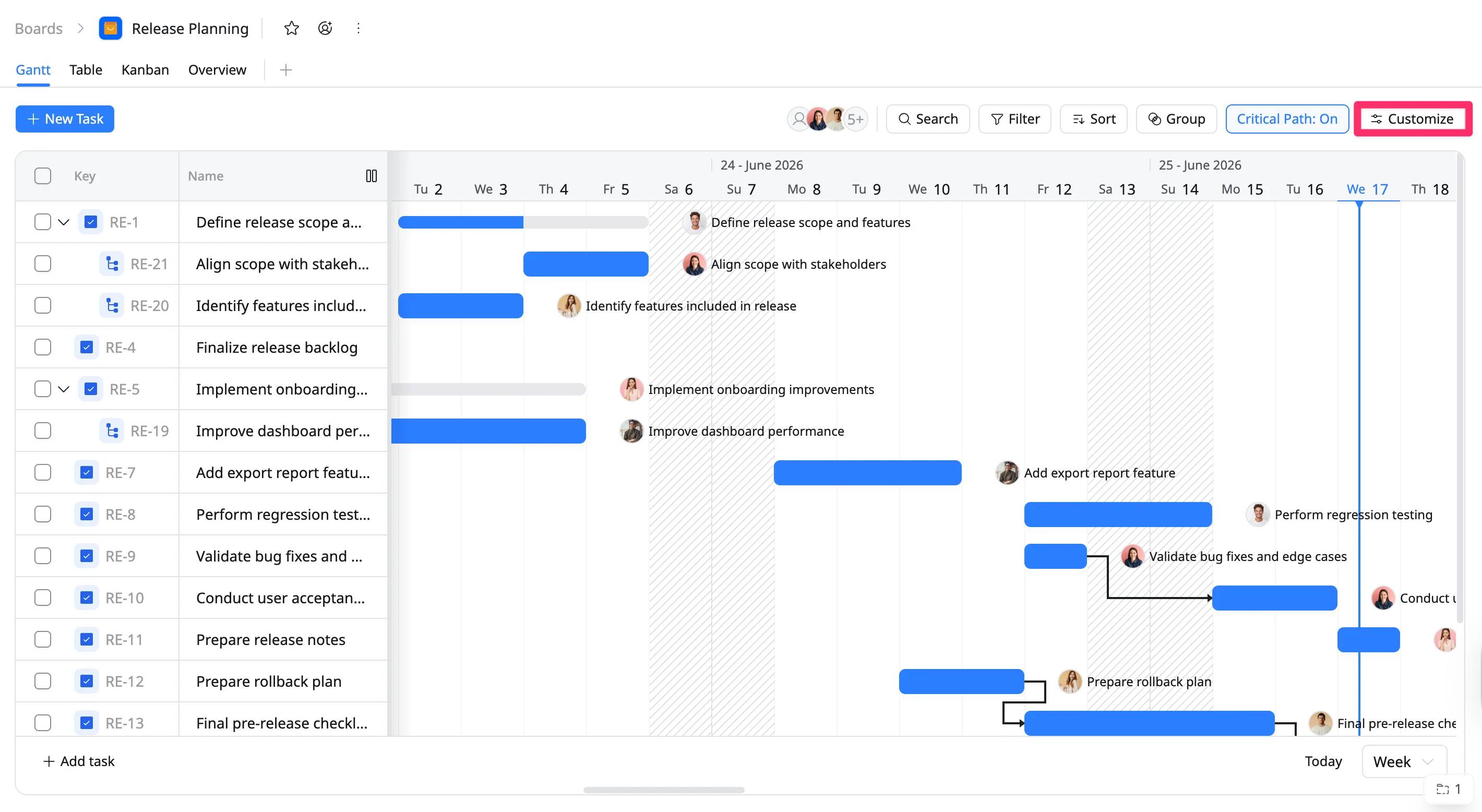
- Click Customize in the toolbar.
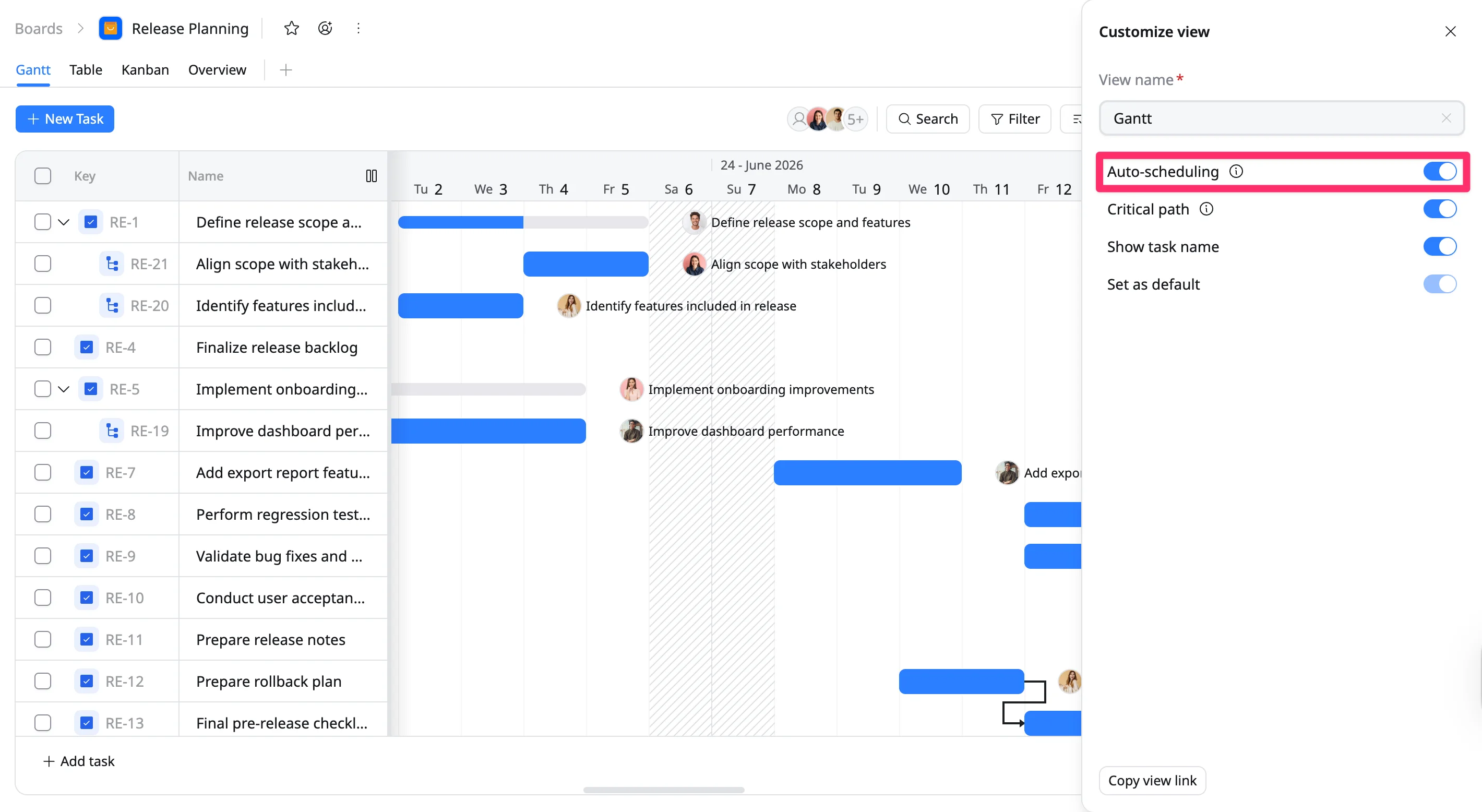
- Enable Auto-scheduling by toggling the setting.
Auto-scheduling based on dependencies
When Auto-Scheduling is enabled, the system automatically adjusts the dates of successor tasks based on their dependency links.
Example: If a task is moved, the tasks connected to it will update automatically to maintain the correct sequence.
Auto-scheduling based on link types
Auto-Scheduling follows the rules defined by each dependency link type:
- Finish-to-Start (FS): Task B starts after Task A finishes.
- Start-to-Start (SS): Task B starts when Task A starts.
- Finish-to-Finish (FF): Task B finishes when Task A finishes.
- Start-to-Finish (SF): Task B finishes when Task A starts.
Each link type defines how tasks are related, and Auto-Scheduling updates successor tasks to maintain those relationships when schedules change.
Auto-scheduling for tasks with multiple dependencies
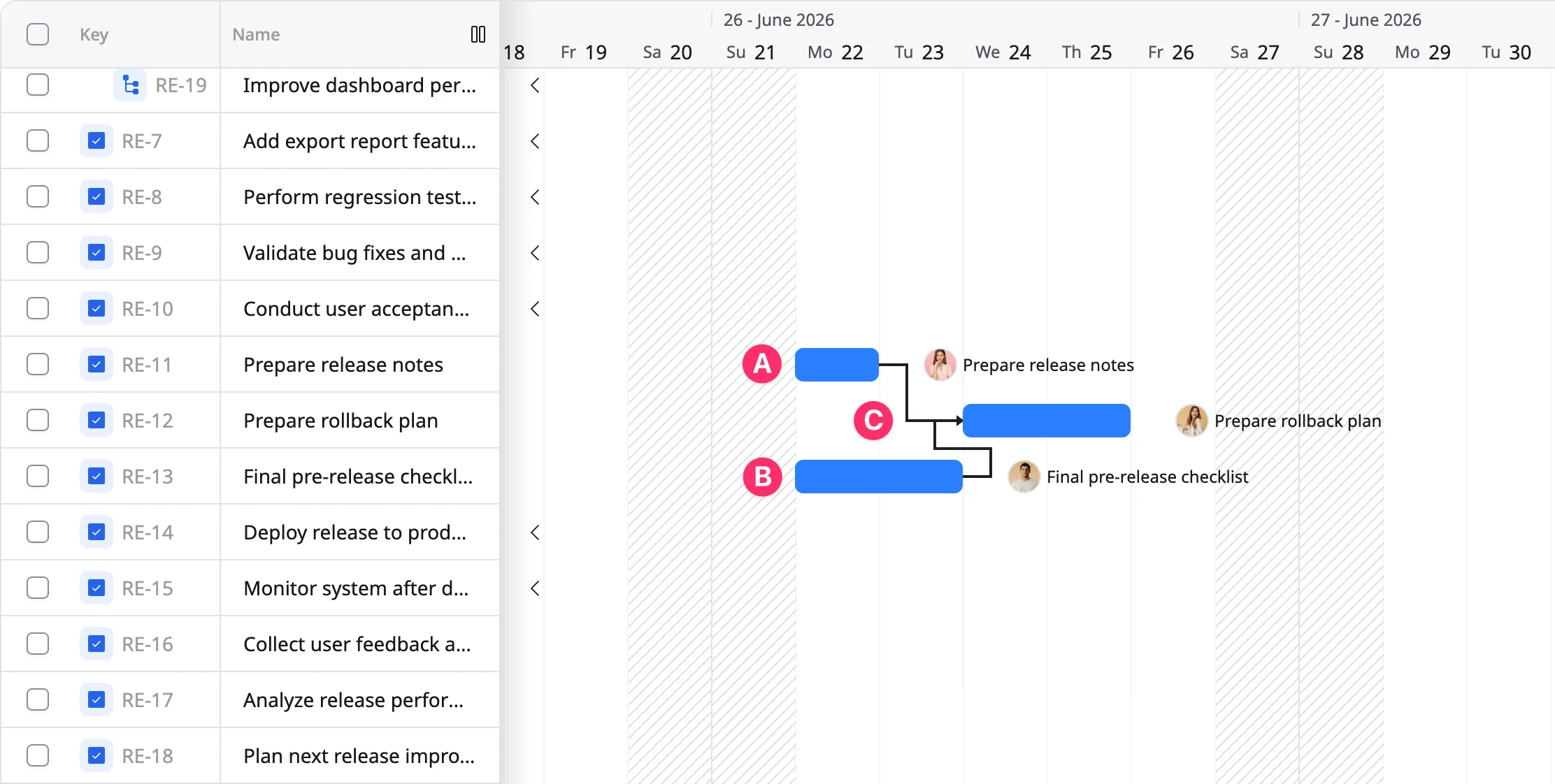
When a task depends on multiple tasks, Auto-Scheduling automatically sets its start date based on the latest finishing predecessor. This ensures the task begins only after all required tasks are completed, helping you keep the project schedule accurate.
Example: Task C depends on Task A and Task B using Finish-to-Start (FS) links.
- Task A ends on June 22
- Task B ends on June 23
→ Task C will start on June 24, after both tasks are completed.