Board access settings
The Access section allows you to manage who can access your board and control what actions they can perform.
Only Board Admins can access and modify Access settings.
The Access section allows you to manage who can access your board and control what actions they can perform. You can set the board’s privacy level and assign roles to members, ensuring that the right people have the appropriate level of access to your project.
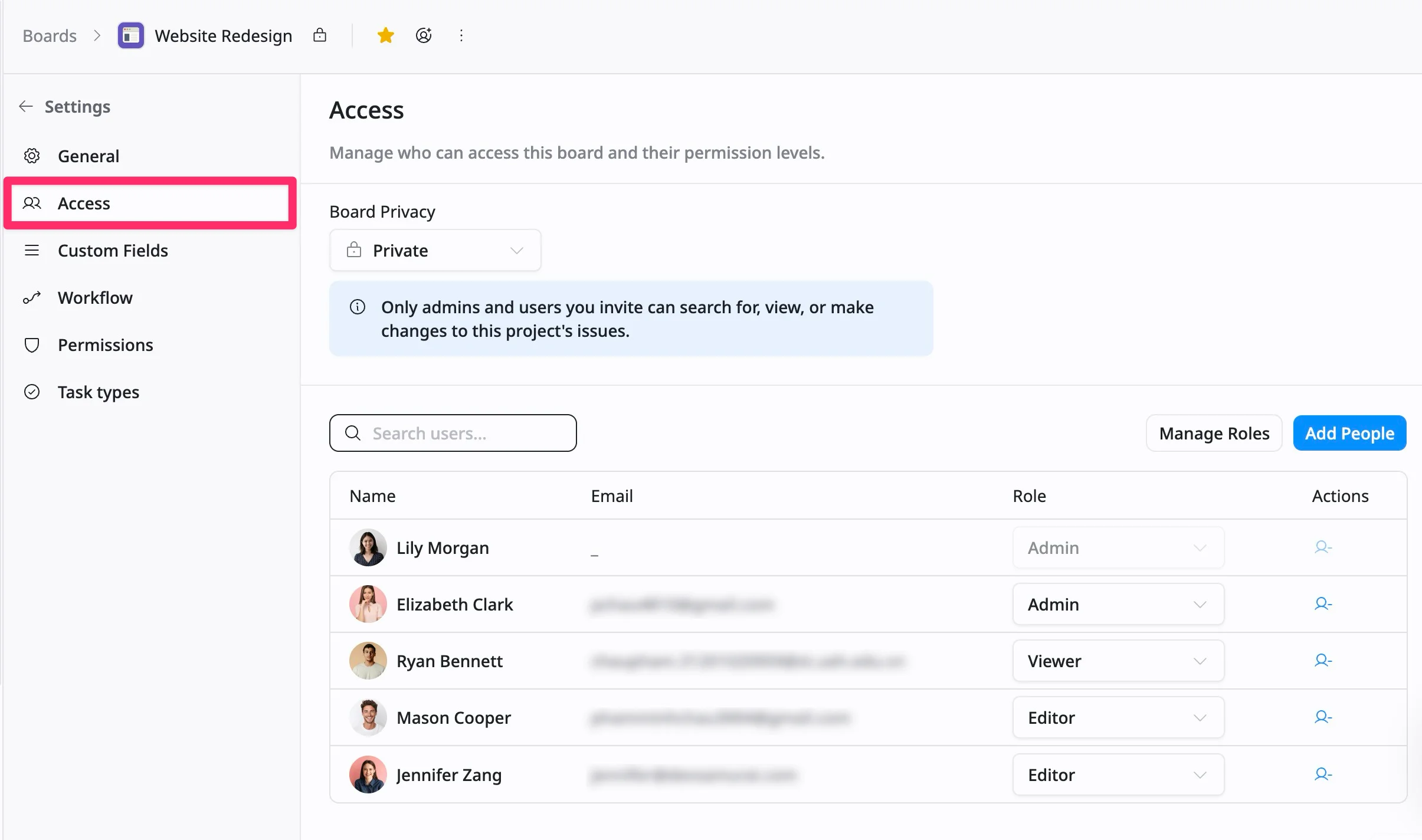
Access the Access tab
- Navigate to the Board settings page
- Select the Access tab from the left-hand menu.
Set board privacy
To control who can access your board, follow these steps:
- In the Access tab, find the Board Privacy section.
- Click on the privacy dropdown menu.
- Choose one of the following privacy levels:
- Open: Open access for everyone within your site.
- Limited: Visible to everyone, but only invited members can create or edit tasks.
- Private: Restricted access; visible only to admins and invited members.
- Once you select your preferred privacy level, the changes will be saved automatically.
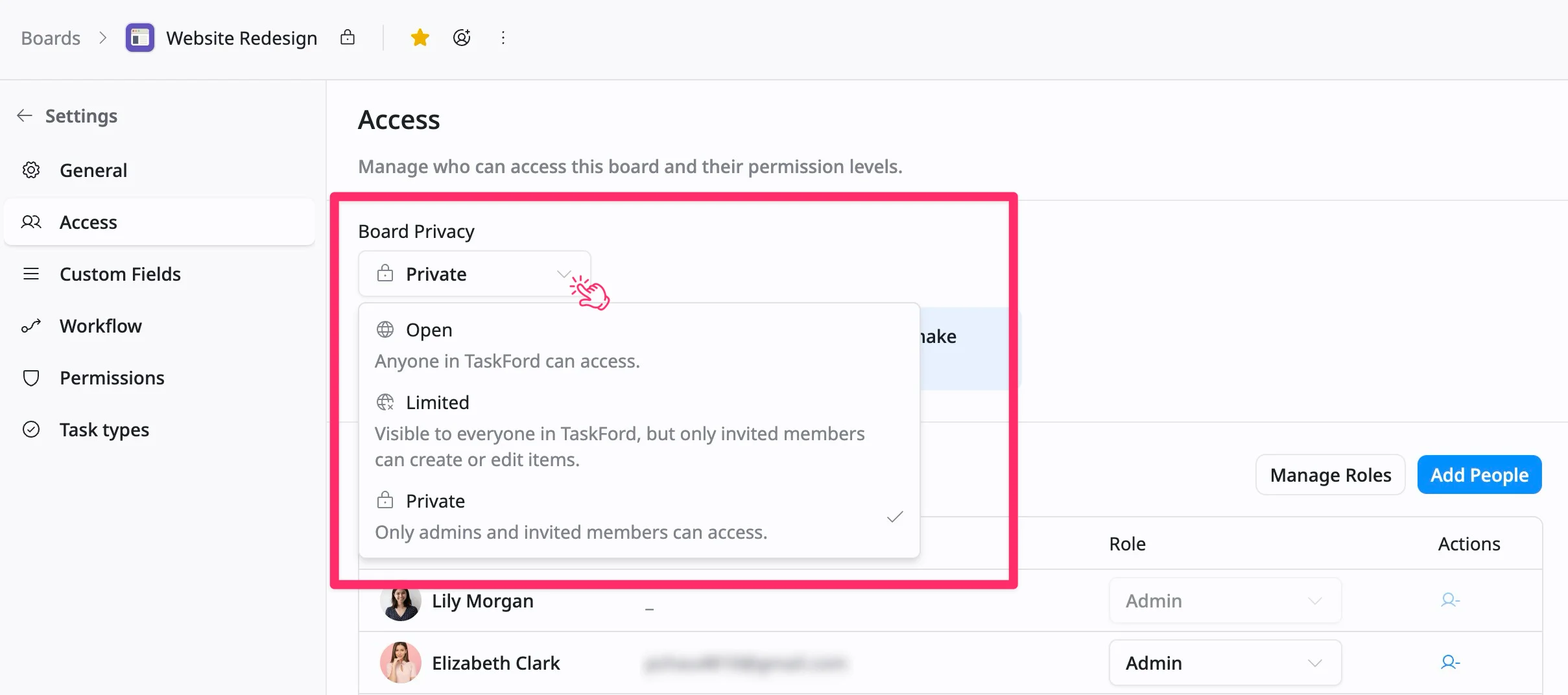
This setting ensures that only the right people can access or modify your board based on the privacy level you choose.
Member management
Board Admins can view and manage members, assign roles (Admin, Editor, Viewer), and add or remove people. They can also manage roles via the Permissions tab, ensuring proper control over board access and permissions.
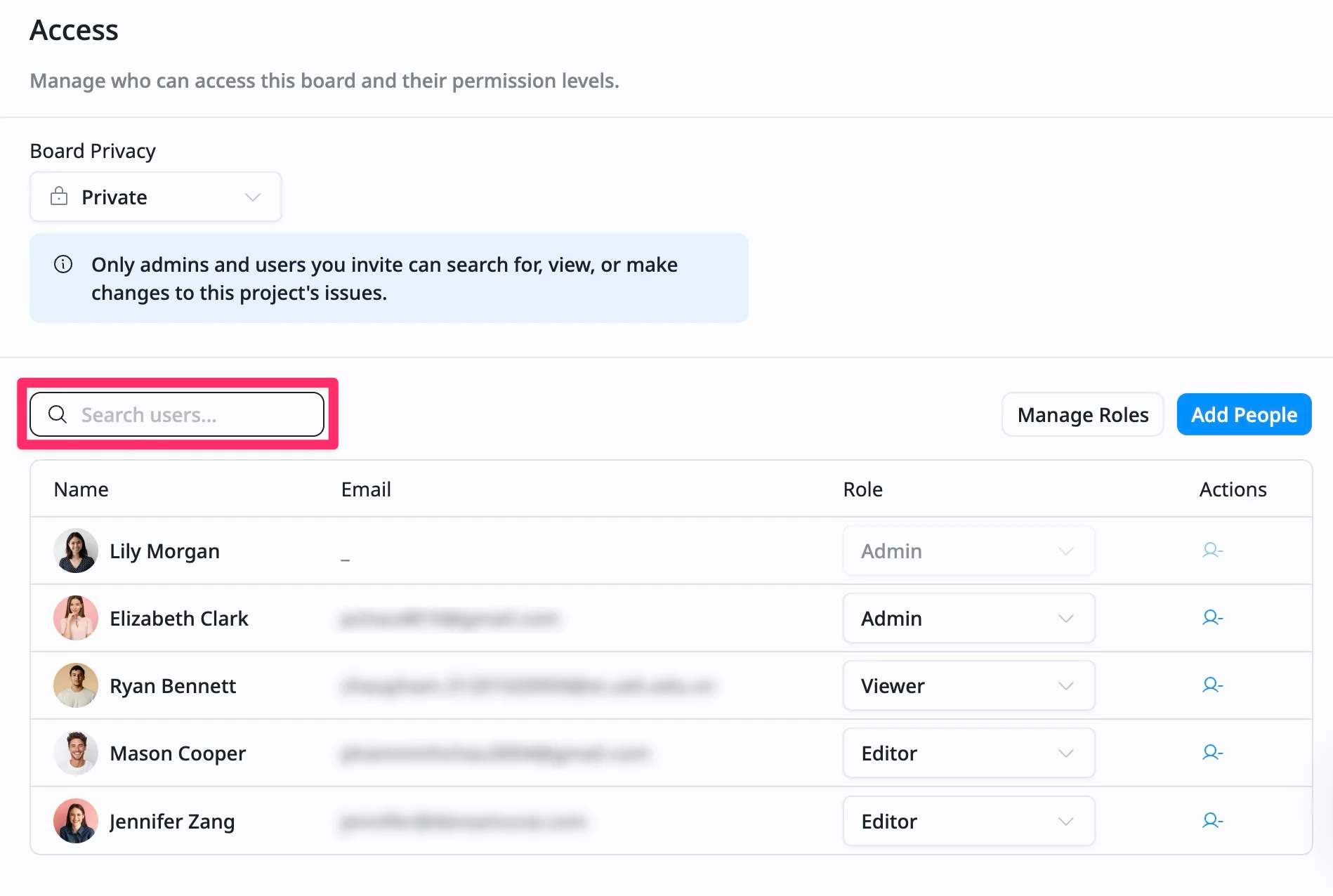
Search for board members
To search for board members, click the Search bar and type the member’s name. This allows you to quickly find and manage specific members within the board.
Add a new member
You can invite new users to collaborate on the board by following these steps to manage access and permissions:
To add a new member:
- In the Access tab, click ‘Add People’ button.
- The ‘Add members’ modal opens. From here:
- Enter a user’s name or email address. You can add multiple users at once.
- Select a portfolio role to define their :
- Admin – Full control to manage settings, members, and the board
- Editor – Can create, edit, and manage board content
- Viewer – Can view and search board content only
- Click Send invite to grant access.
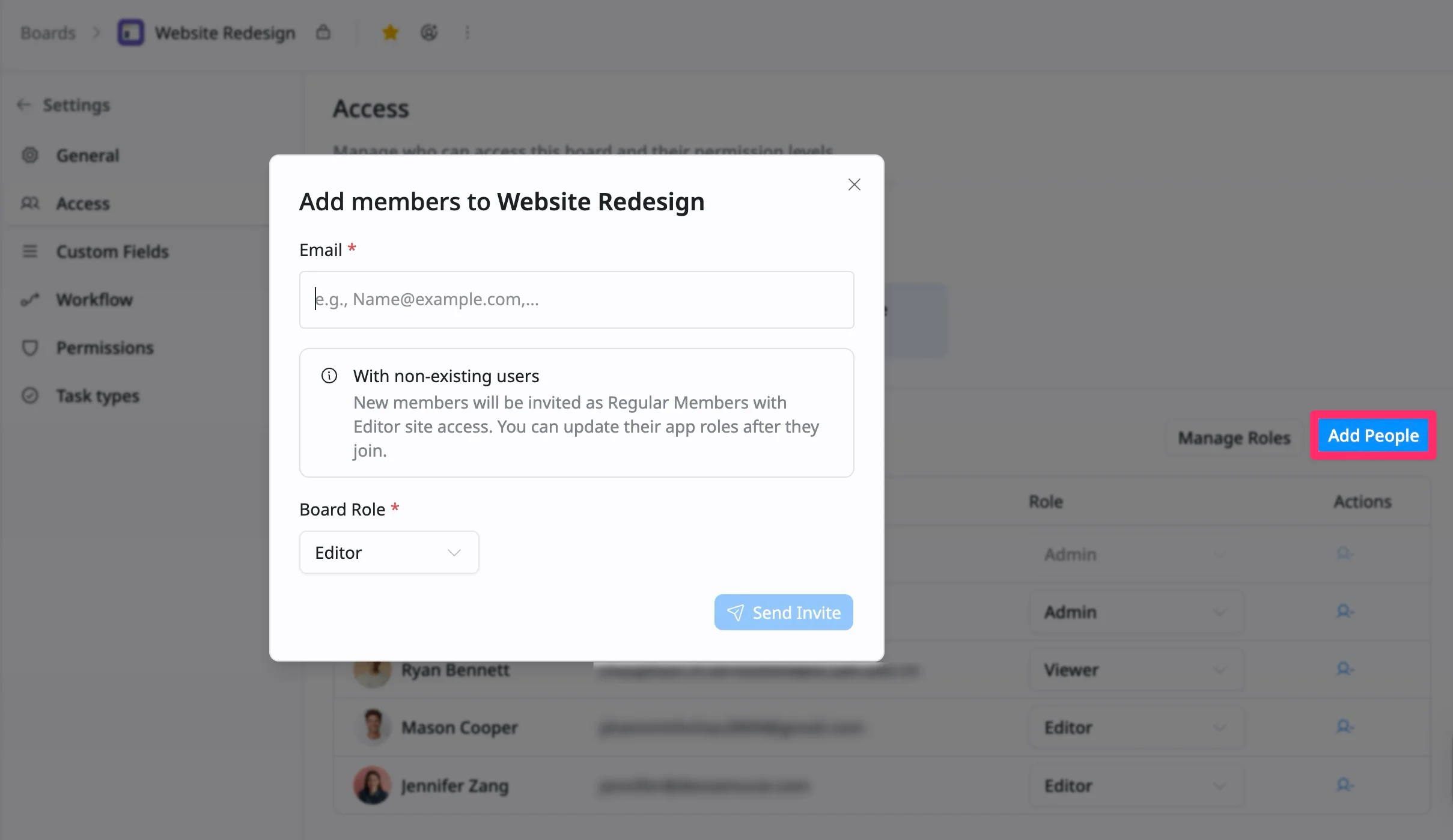
You can invite both existing members and external users to a board.
- Internal users: Added to the board immediately.
- External users: Receive an invitation and must join the site before accessing the board.
New users are added as Regular Members with Editor site access by default. App admins can update their roles after they join.
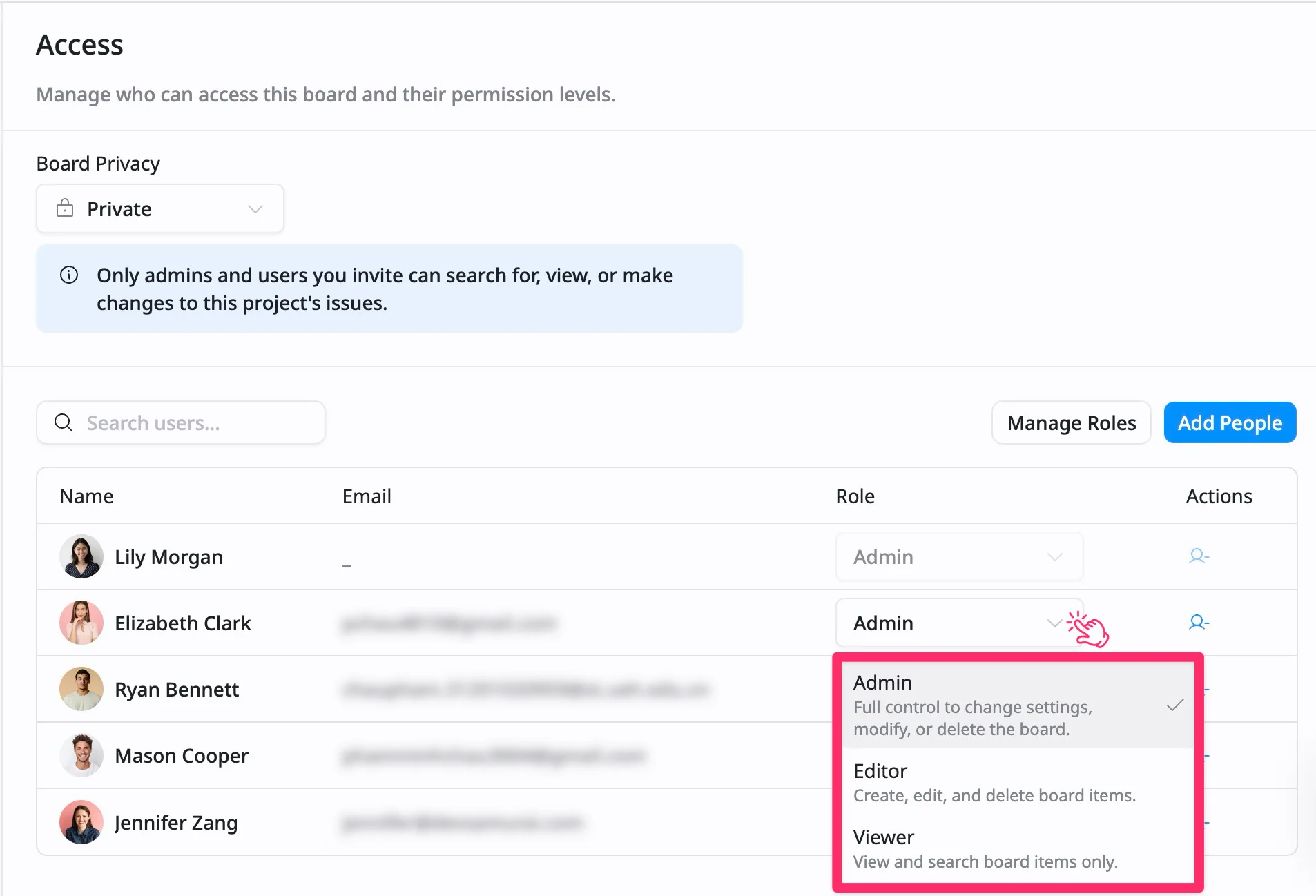
Edit a member’s role
To edit a member’s role:
- Navigate to the member’s row you want to edit.
- Click the current role next to the selected member’s name.
- From the dropdown, select a new role (Admin, Editor, or Viewer) or a custom role.
The role change will be updated immediately for the selected member.
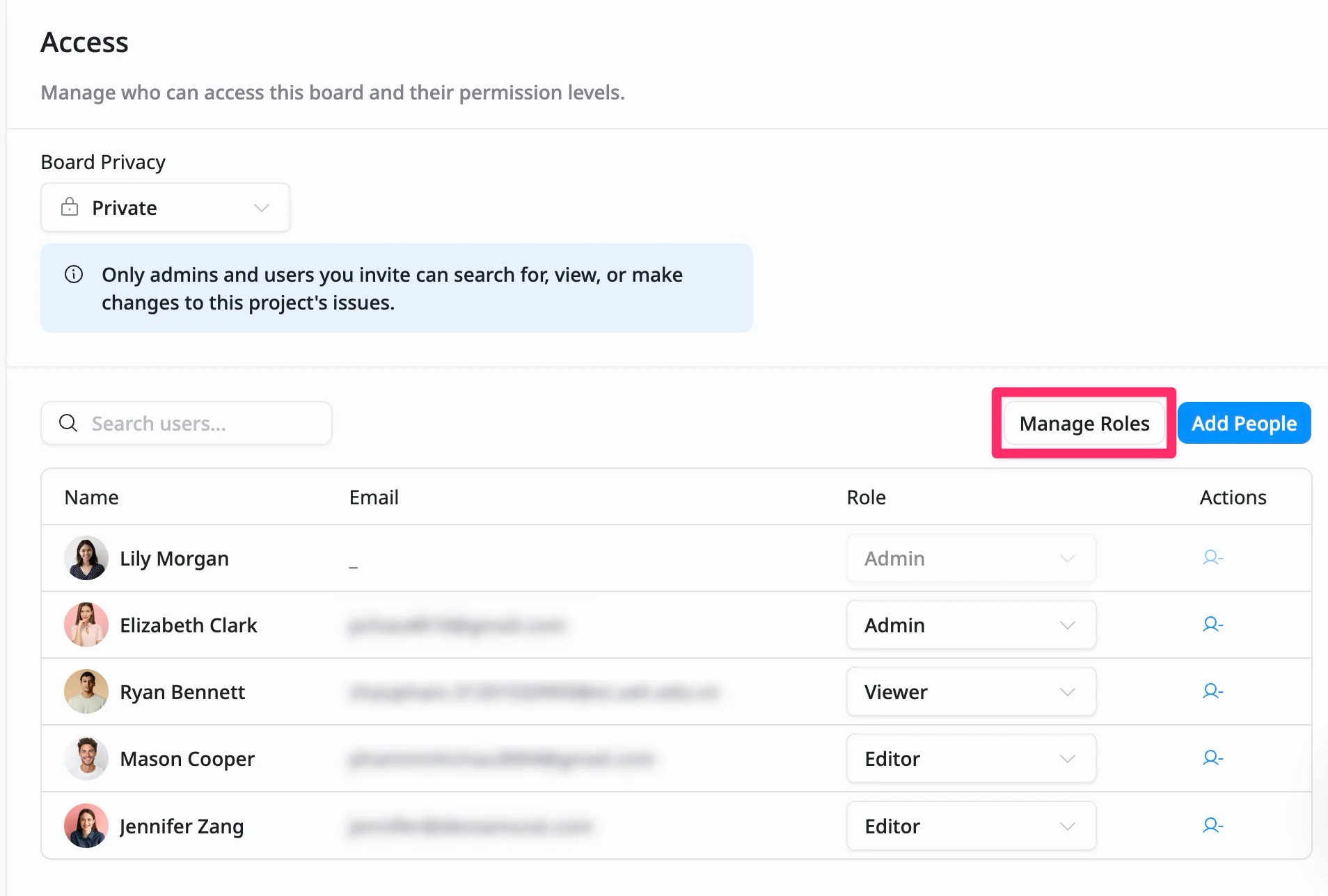
Manage Roles
To manage existing roles or add new roles for board members:
- Click the Manage Roles button.
- This will navigate you to the Board permissions tab, where you can customize the permissions for each role (Admin, Editor, or Viewer).
- You can modify existing roles or create new roles with specific permissions for your team.
Remove a member
To remove a member from the board:
- Navigate to the member’s row you want to remove.
- Click the remove member icon.
- In the confirmation dialog that appears, click Delete to remove the member or Cancel to discard the action.
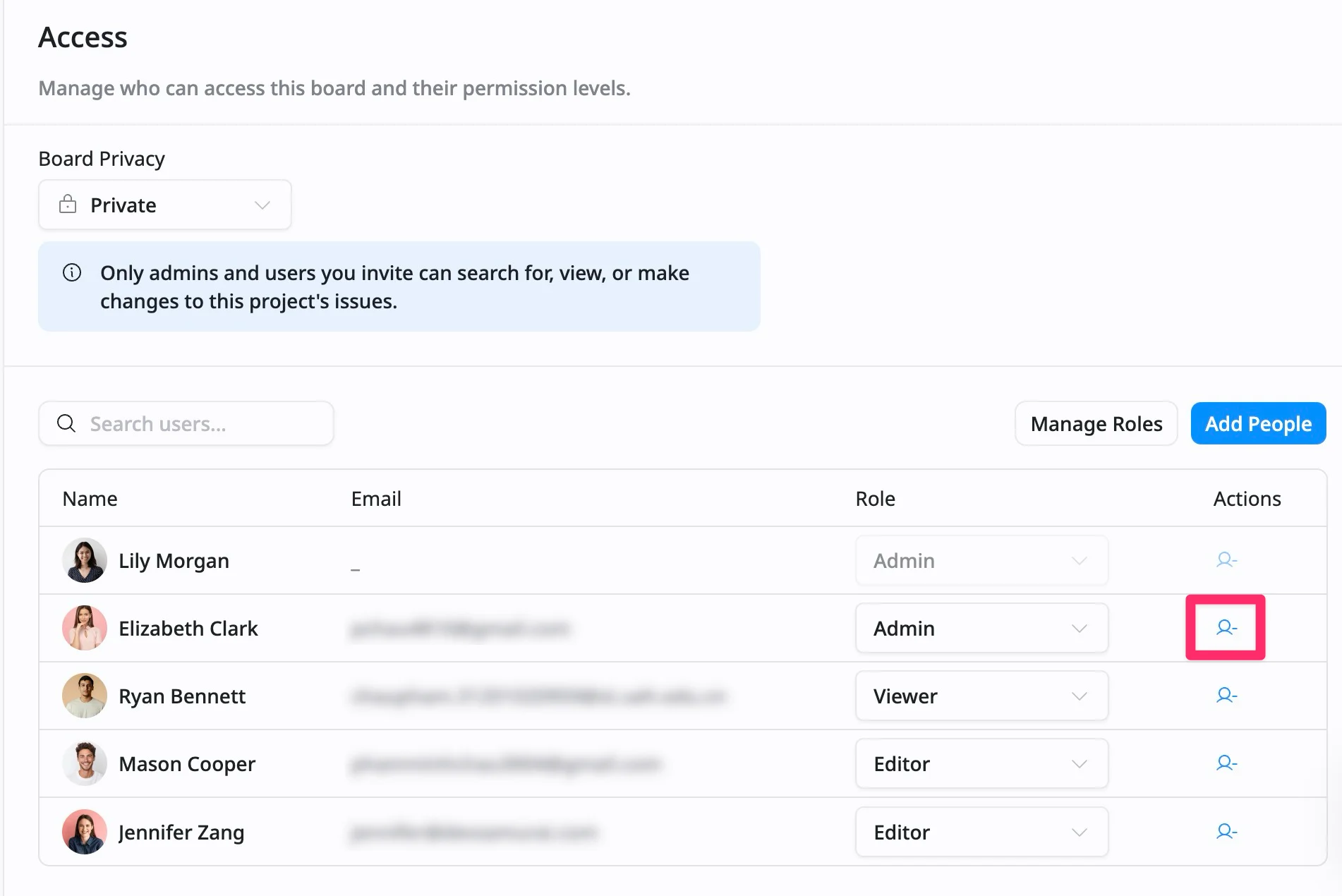
This will immediately remove the member from the board, and they will no longer have access to it.