Board permissions settings
Board permissions let you control what users can see and do within your board, ensuring the right level of access for each team member.
Only Board Admins can access and manage Permission settings.
Permissions allow you to control exactly what users can see and do within your board. By assigning roles, you ensure that each team member has the right level of access based on their responsibilities.
Access the Board permissions tab
- Navigate to the Board settings page
- Select the Permissions tab from the left-hand menu.
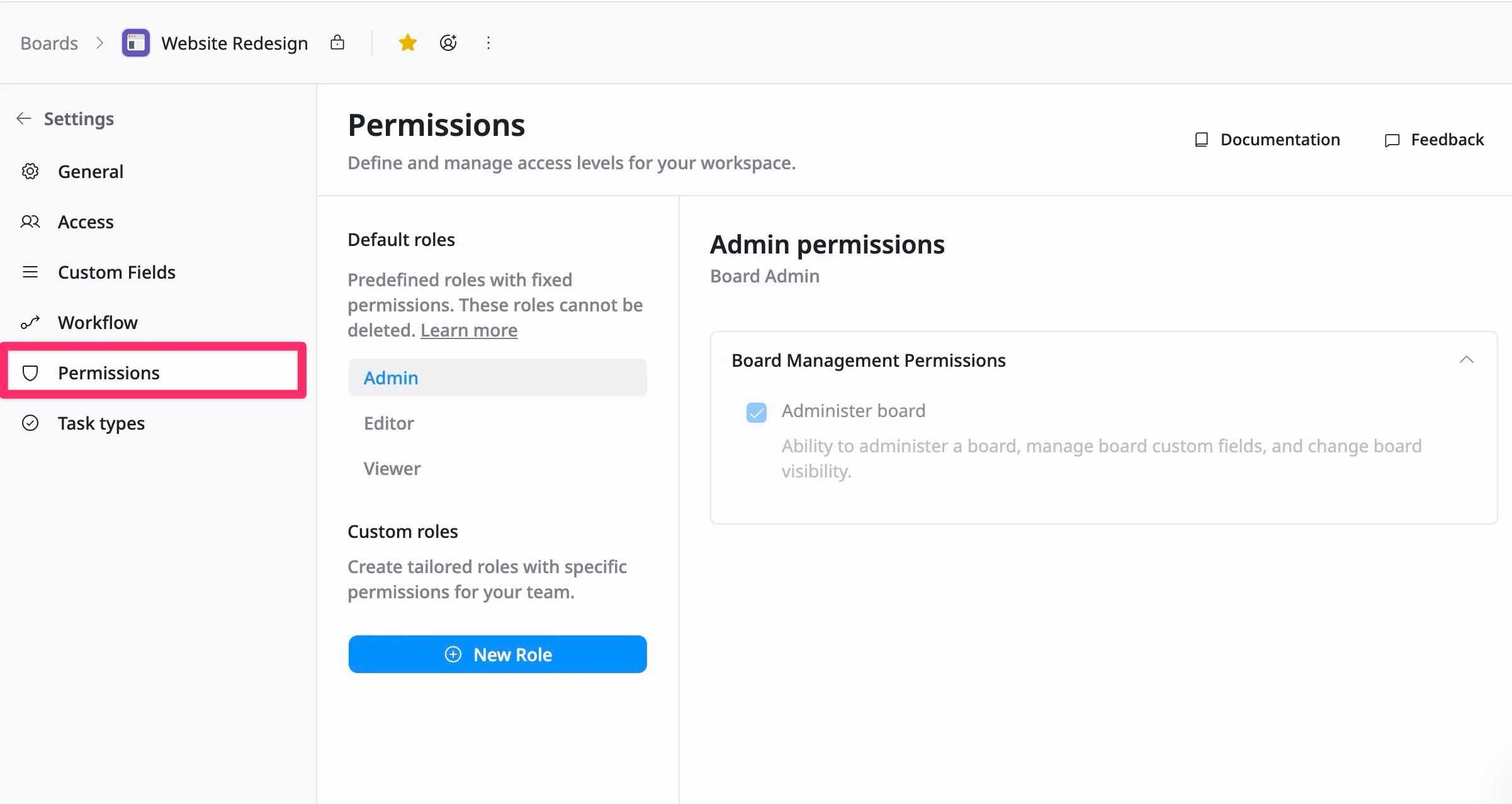
From here, you can choose a role and decide which actions that role can take across the board.
Role types
There are two types of roles available in a board:
Default roles
The board includes three default roles with predefined permission levels. These roles follow a hierarchy, where higher roles inherit all permissions from lower ones.
- Admin – Full access to manage the board, settings, and members
- Editor – Can create, update, and manage board content
- Viewer – Can only view and search board content
Custom roles
Custom roles allow you to create tailored roles based on job functions, teams, or specific responsibilities. You can define exactly what each role is allowed to do.
Each role’s capabilities are defined by a role-based permission matrix, which shows what actions each role can perform on the board.
👉 Refer to the role-based permission matrix to see a full breakdown of permissions for each role.
Manage custom roles
Create a custom role
To start creating a new role:
- In the Custom roles section, click + New Role button.
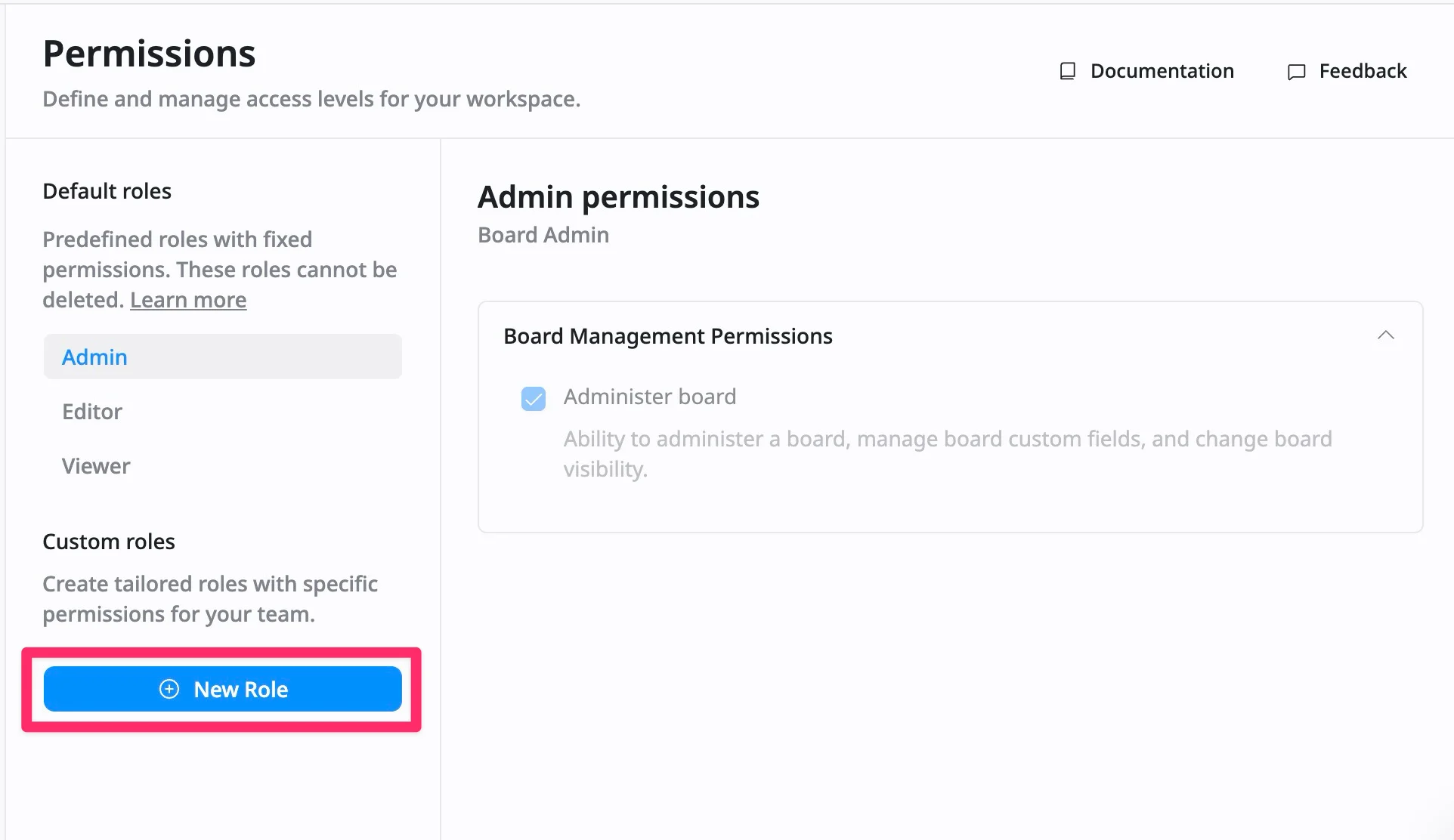
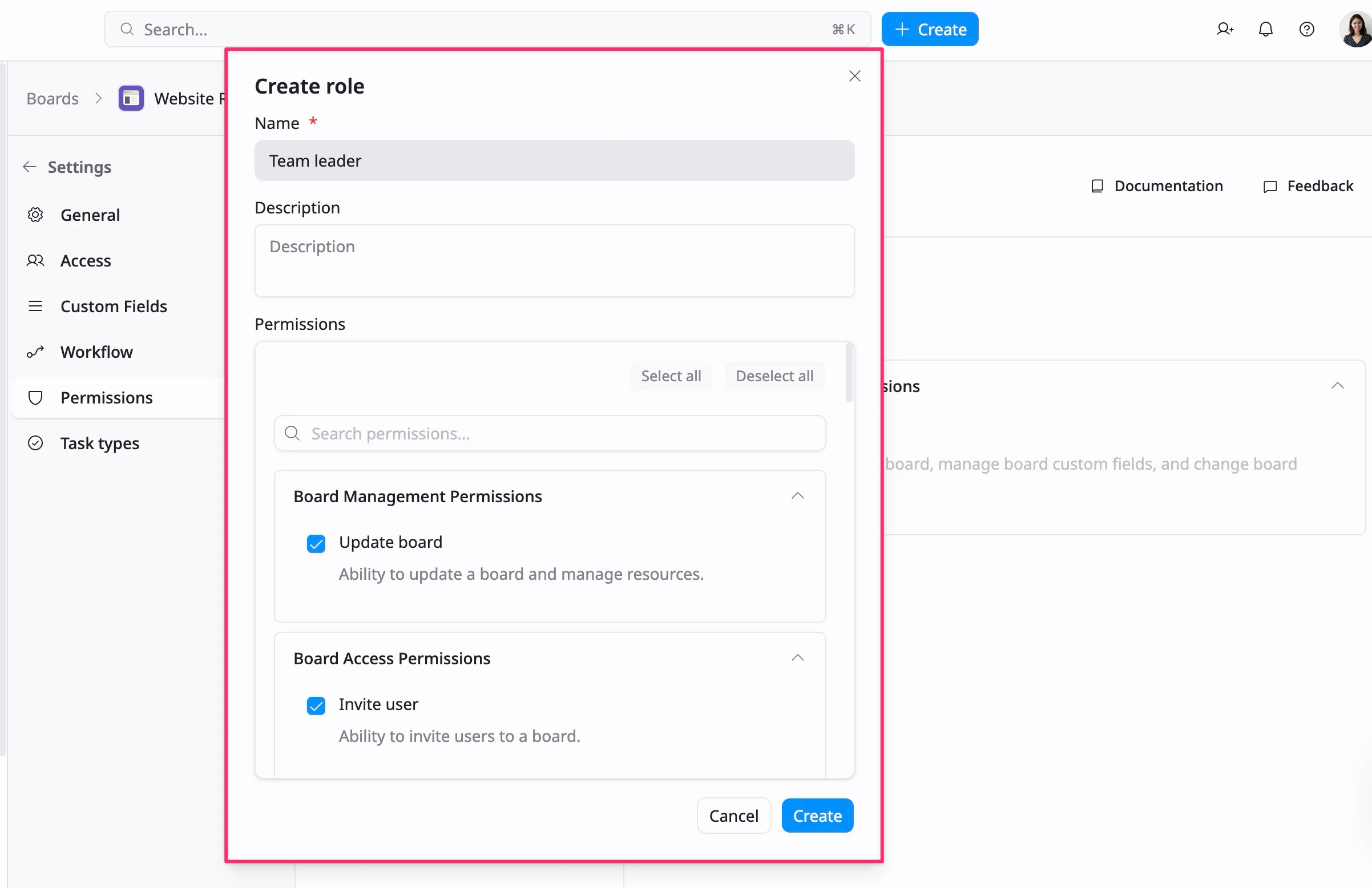
- In the Create role dialog:
- Enter a role name
- Add a description to explain the purpose of the role, such as what actions the user is allowed to take.
- Use the checkboxes in the Permissions section to select the specific access rights. Tip: Use the search bar to find specific permissions quickly.
- Click Create to finalize the new role for the board.
👉 The new role will appear in the list and can be assigned to members. You can then assign this role to board members and adjust the permissions of this role just as you would for any other permissions.
Update permissions for a custom role
You can update a custom role at any time to change what users can do.
To update permissions:
- In the left panel, select a custom role.
- In the right panel, review the list of permissions.
- Check or uncheck permissions to update access. Tip: Use the search bar to find specific permissions quickly.
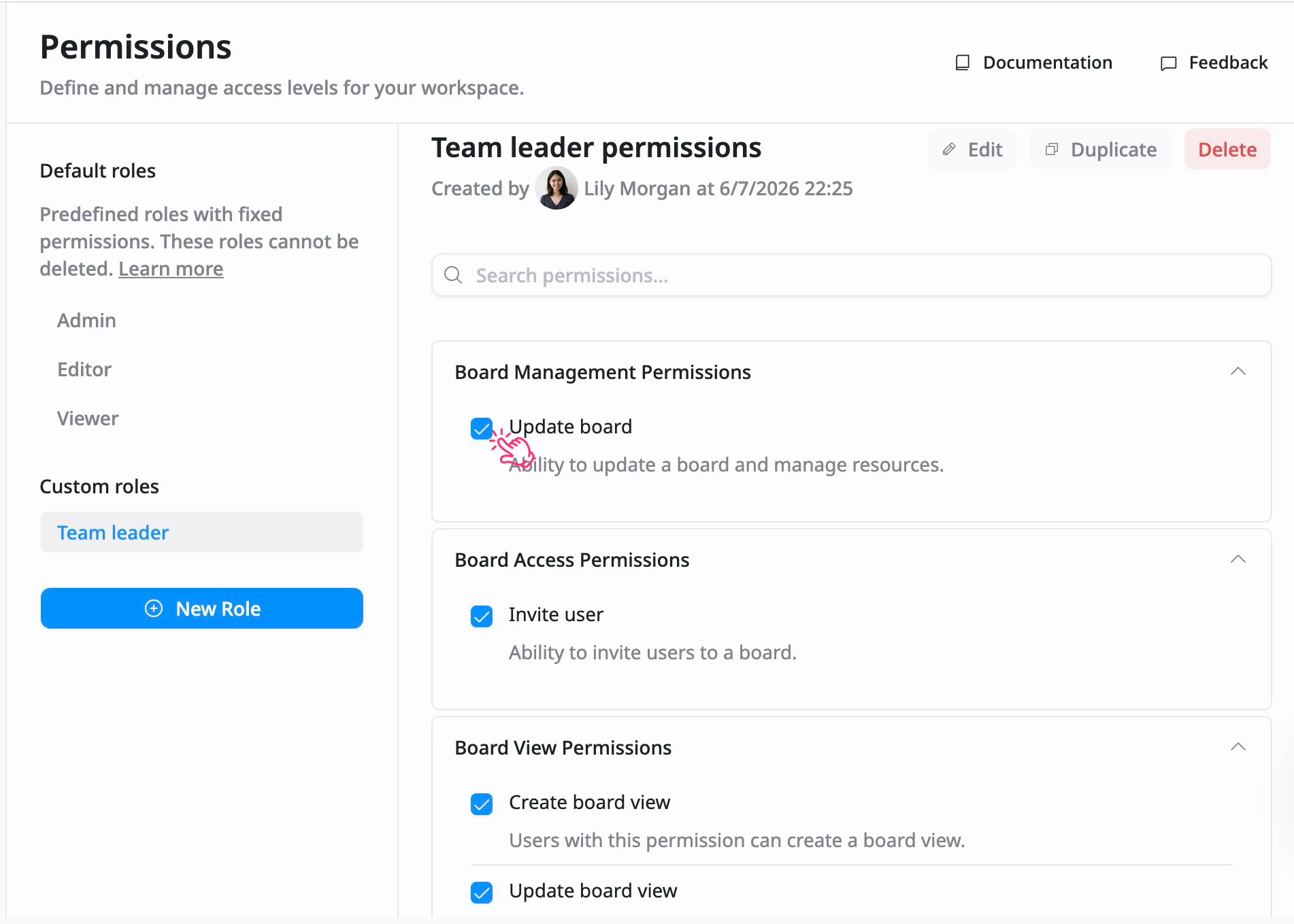
👉 Changes are applied to all users currently assigned to that role.
Default roles use fixed permissions, so only custom roles can be fully adjusted.
Edit a custom role
You can update a role’s name or description without affecting its permissions.
How to edit a custom role
- Select a custom role from the left panel.
- Click Edit in the right corner.
- In the Update role dialog, update the role name and description
- Click Save to apply your changes.
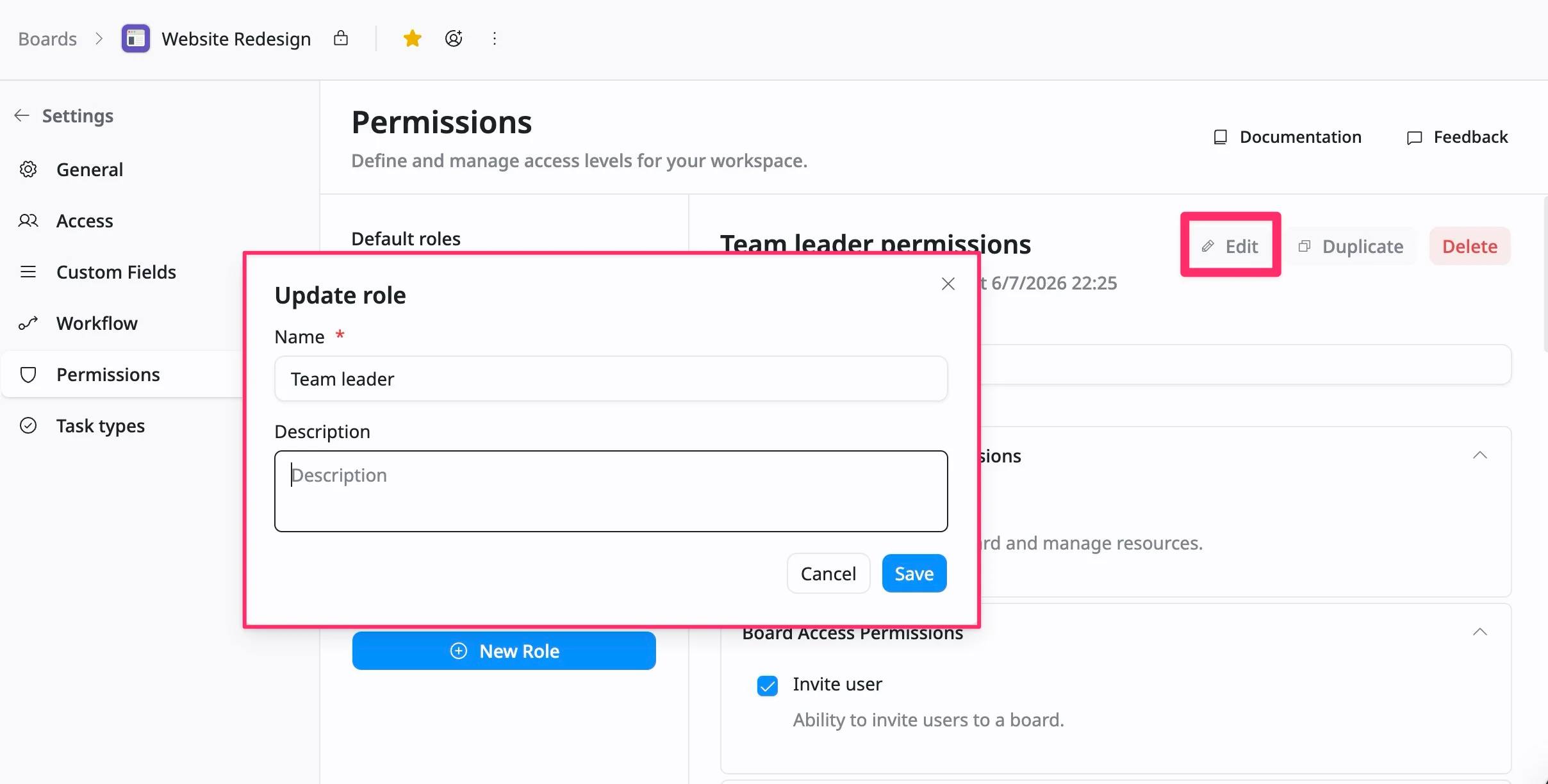
Editing a role’s name or description does not automatically change its permissions unless you update them separately.
Delete a custom role
Delete a custom role if it is no longer needed.
To delete a custom role:
- Select a custom role from the left panel.
- Click Delete in the right corner.
- In the confirmation dialog, select another role to reassign users who are currently using this role
- Click Delete to confirm.
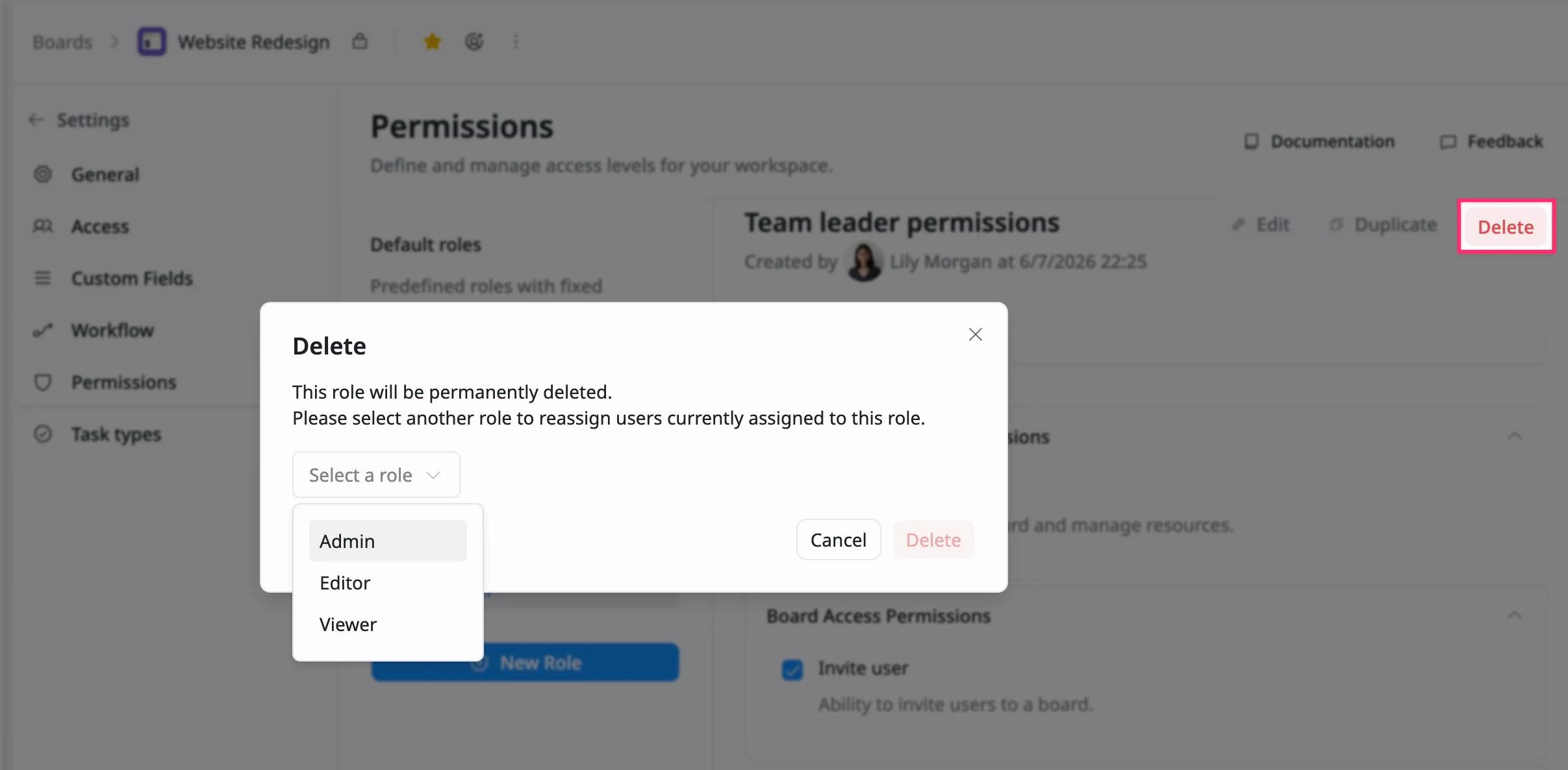
This role will be permanently deleted. You must reassign affected users before the role can be deleted.
Duplicate a role
You can quickly create a new role by duplicating an existing one. This helps you save time when setting up roles with similar permissions.
To duplicate a role:
- Select the role you want to duplicate (this can be a default or custom role).
- Click Duplicate in the right corner.
- Enter a new name for the role.
- Adjust permissions as needed.
- Click Create to finish.
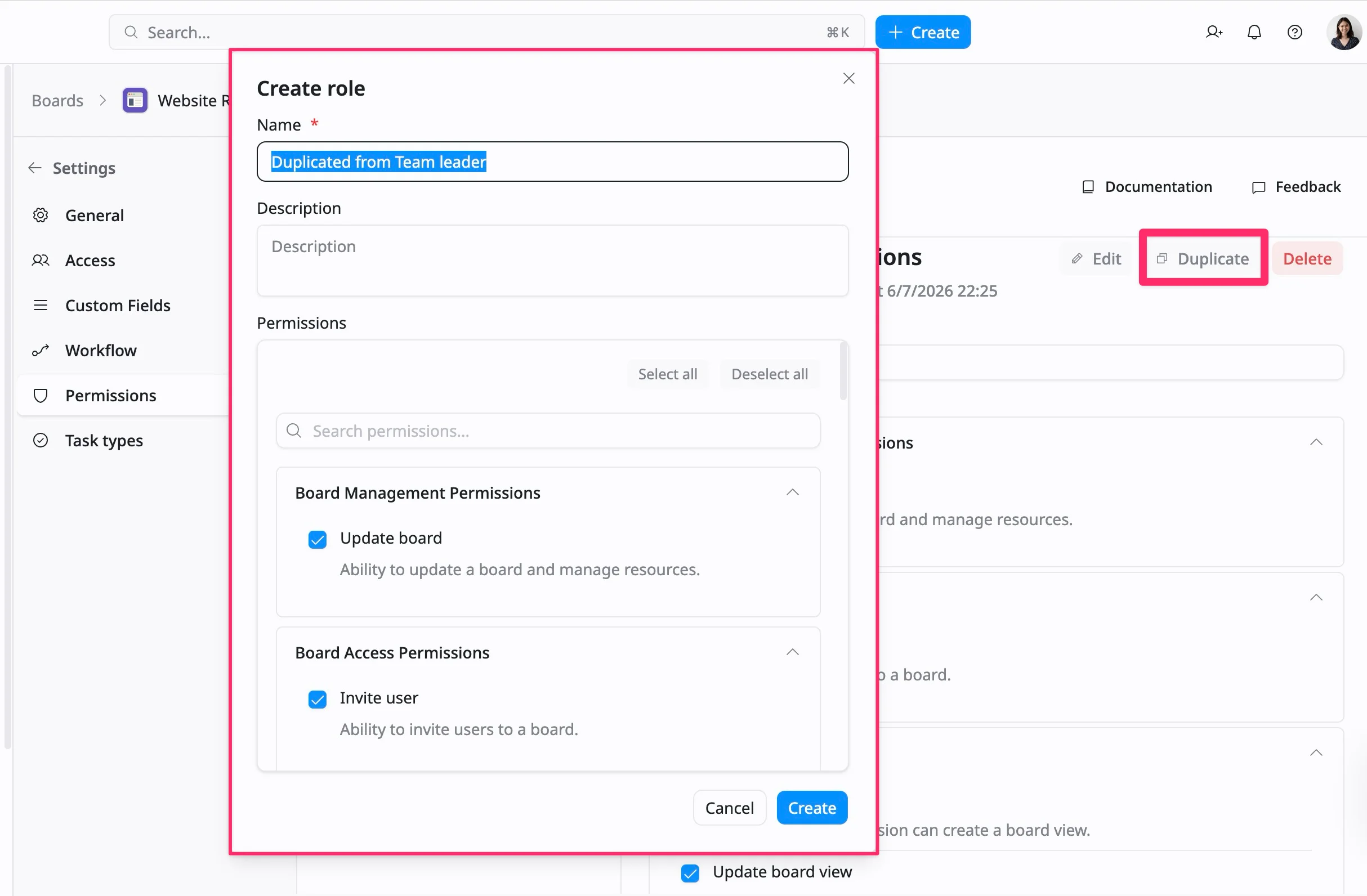
After creating a role, you can assign it to members from the Access tab