Board workflow settings
Learn how to customize and manage your board's workflow in TaskFord by adding, editing, or deleting statuses to fit your team's needs.
- Only Board Admins can access and manage board workflow settings.
A board workflow allows a board to have its own custom set of statuses, independent of the site workflow. This is useful when a team or project requires a different process than the rest of the organization.
Access board workflow
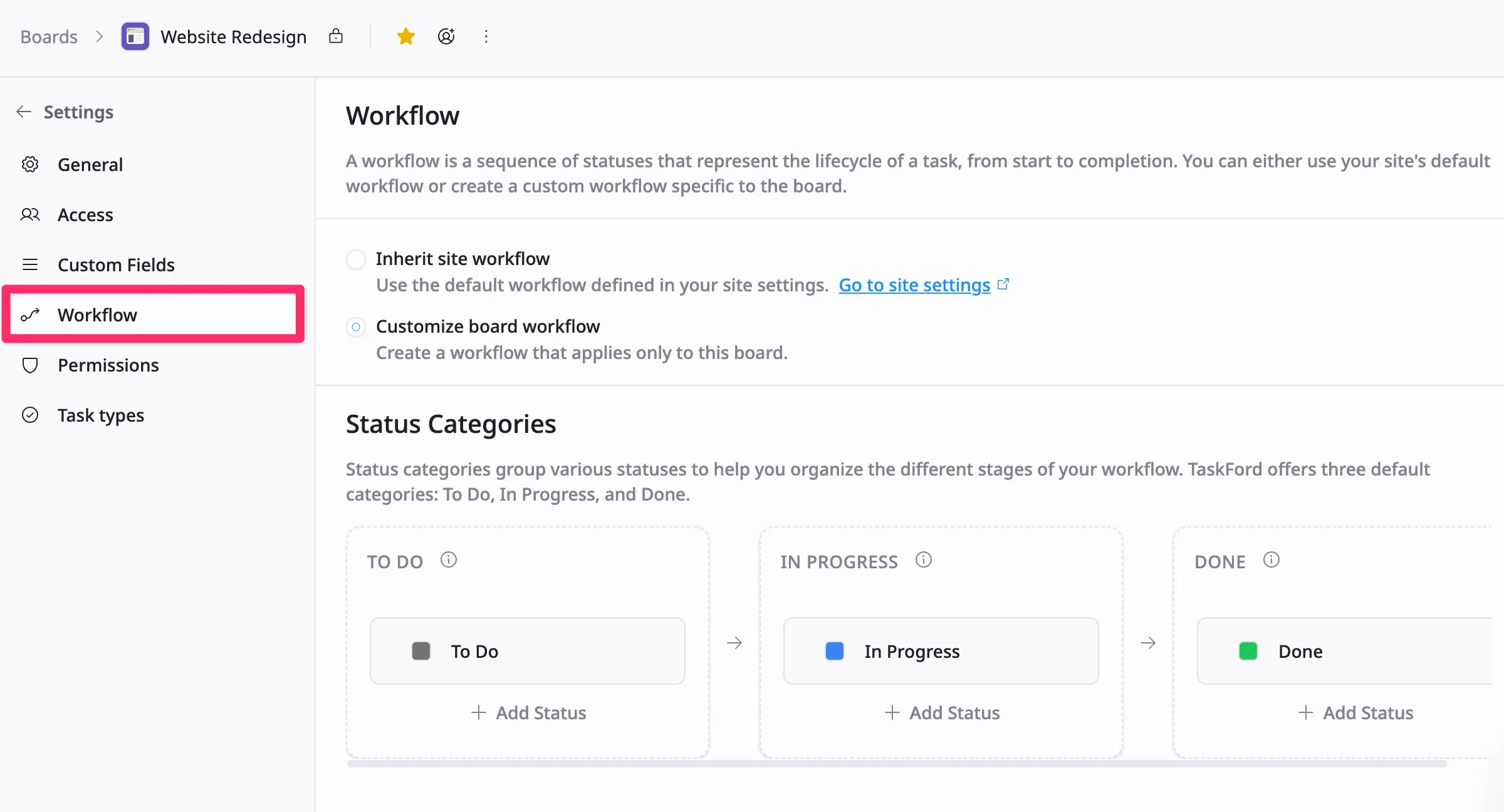
- Navigate to the Board settings page
- Select the Workflow tab from the left-hand menu.
Choose a workflow option
Option 1: Inherit site workflow
This option allows your board to use the default status workflow defined at the site level. Click Go to site settings to view or edit site-level status configurations.
When selected:
- The board automatically adopts the same statuses and workflow configured in your site settings.
- Any future updates to the site-level statuses will automatically apply to this board.
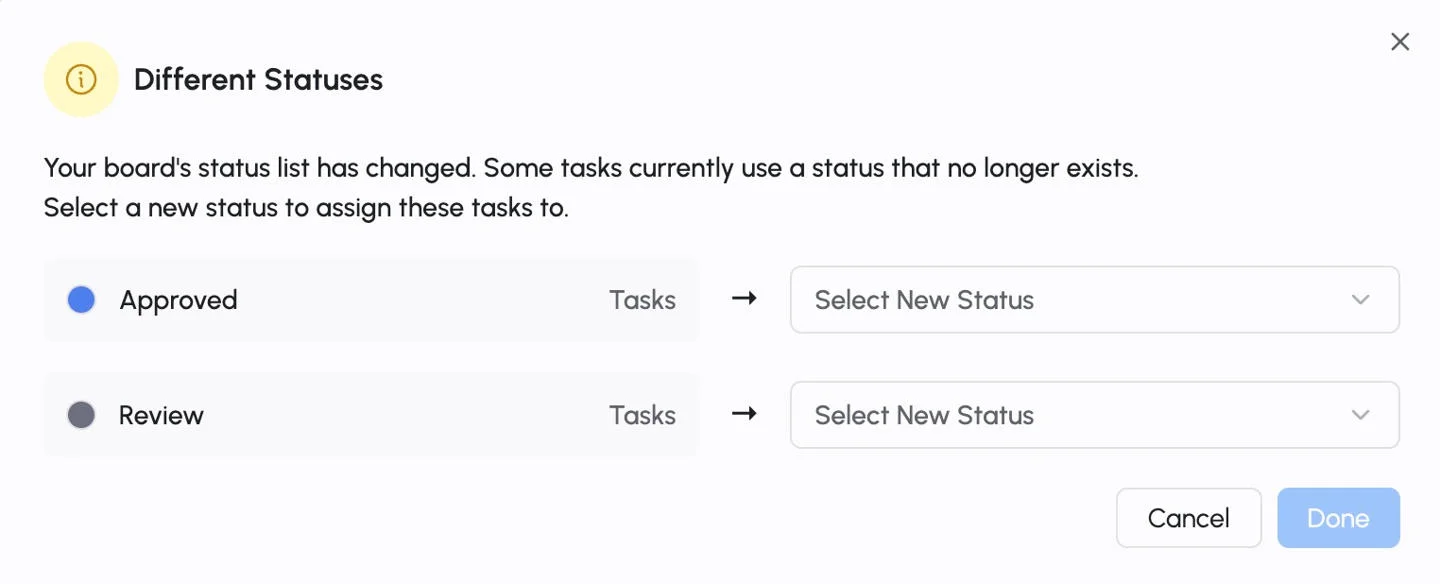
When you switch from a board workflow to a site workflow, all tasks currently assigned to statuses from the board workflow must be reassigned to an active status in the site workflow.
Simply choose the correct status for each task and click Done to update.
Option 2: Customize board workflow
This option allows you to create and manage a unique workflow specific to this board.
When selected:
- You can add, rename, or delete statuses as needed.
- You can organize statuses within three main Status categories: To Do, In Progress, and Done.
- Any changes made here will affect only this board and will not impact other boards in your workspace.
Manage board workflow
Add a new status
To add a new status to your board’s workflow:
- Navigate to the Workflow section in your board settings.
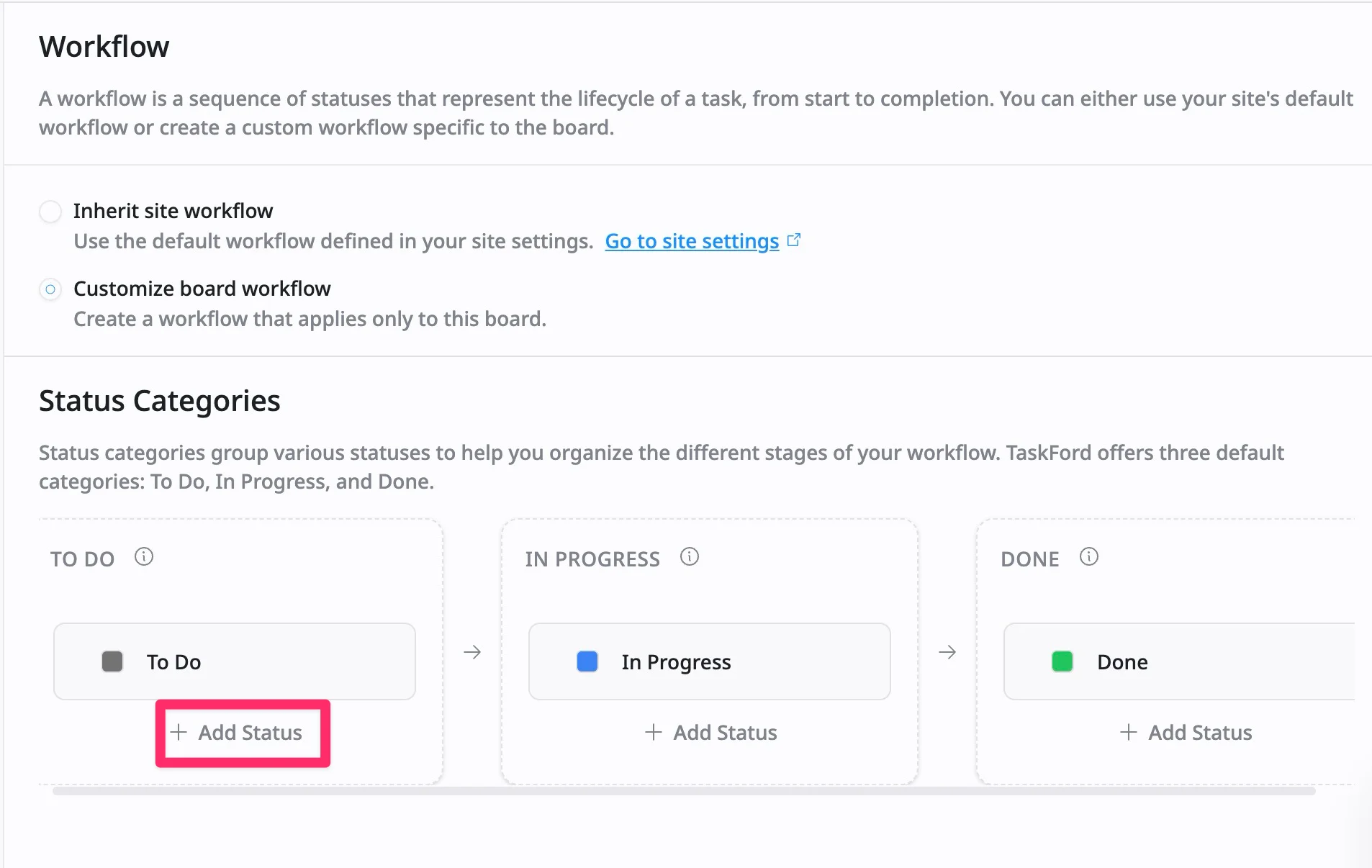
- Click + Add Status under To Do, In Progress, or Done.
- Enter the name for your new status in the field.
- Press Enter to apply the change and add the status to your workflow.
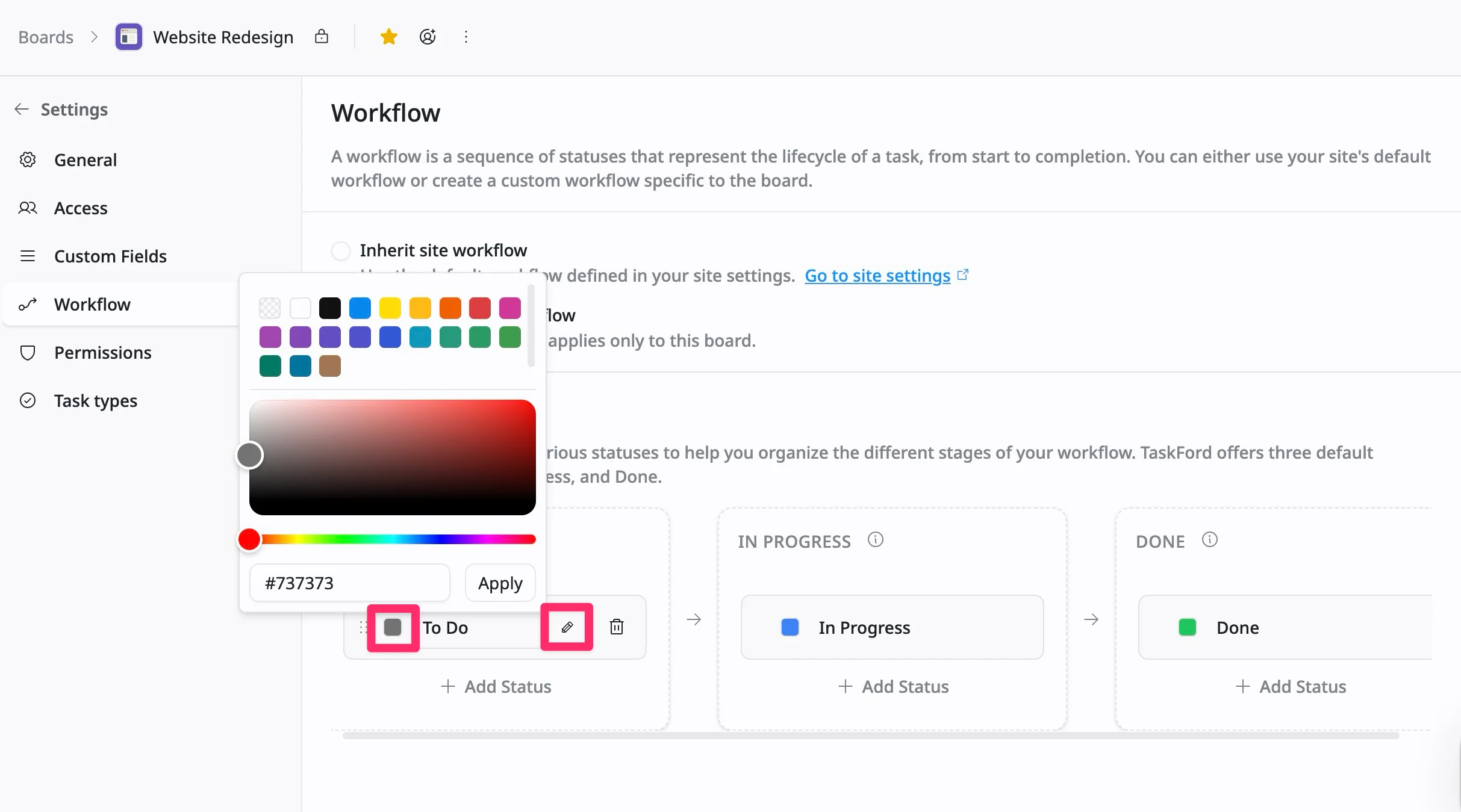
Edit a status
- Hover over the status you want to modify.
- Click on the pencil icon next to the status name to rename it.
- Click on the color box next to the status name to change the color.
Delete a status
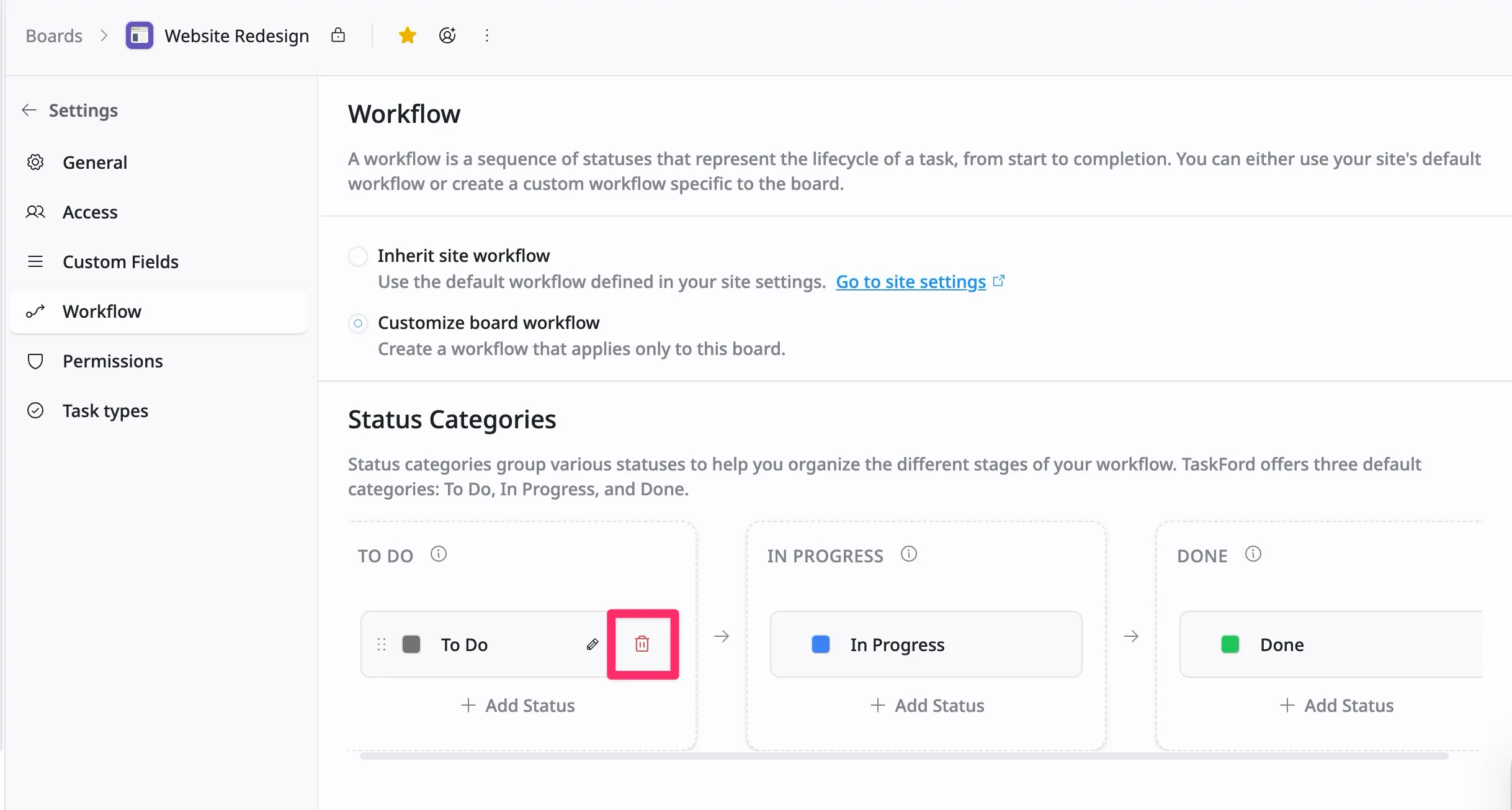
- Hover over the status you wish to remove.
- Click on the trash bin icon next to the status name to delete it.
- Confirm the deletion when prompted.
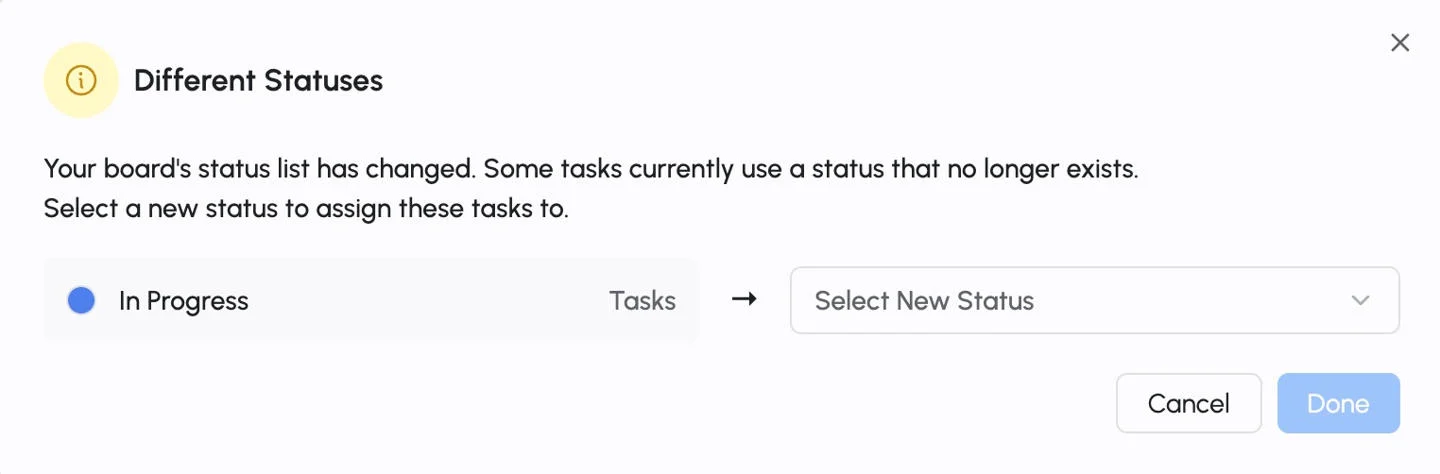
When you delete a status, all tasks that are currently assigned to that status must be reassigned to an active one. A dialog box will appear, prompting you to reassign the tasks using the deleted status.
Simply choose the existing status for each task and click Done to update.
Reorder workflow sequence
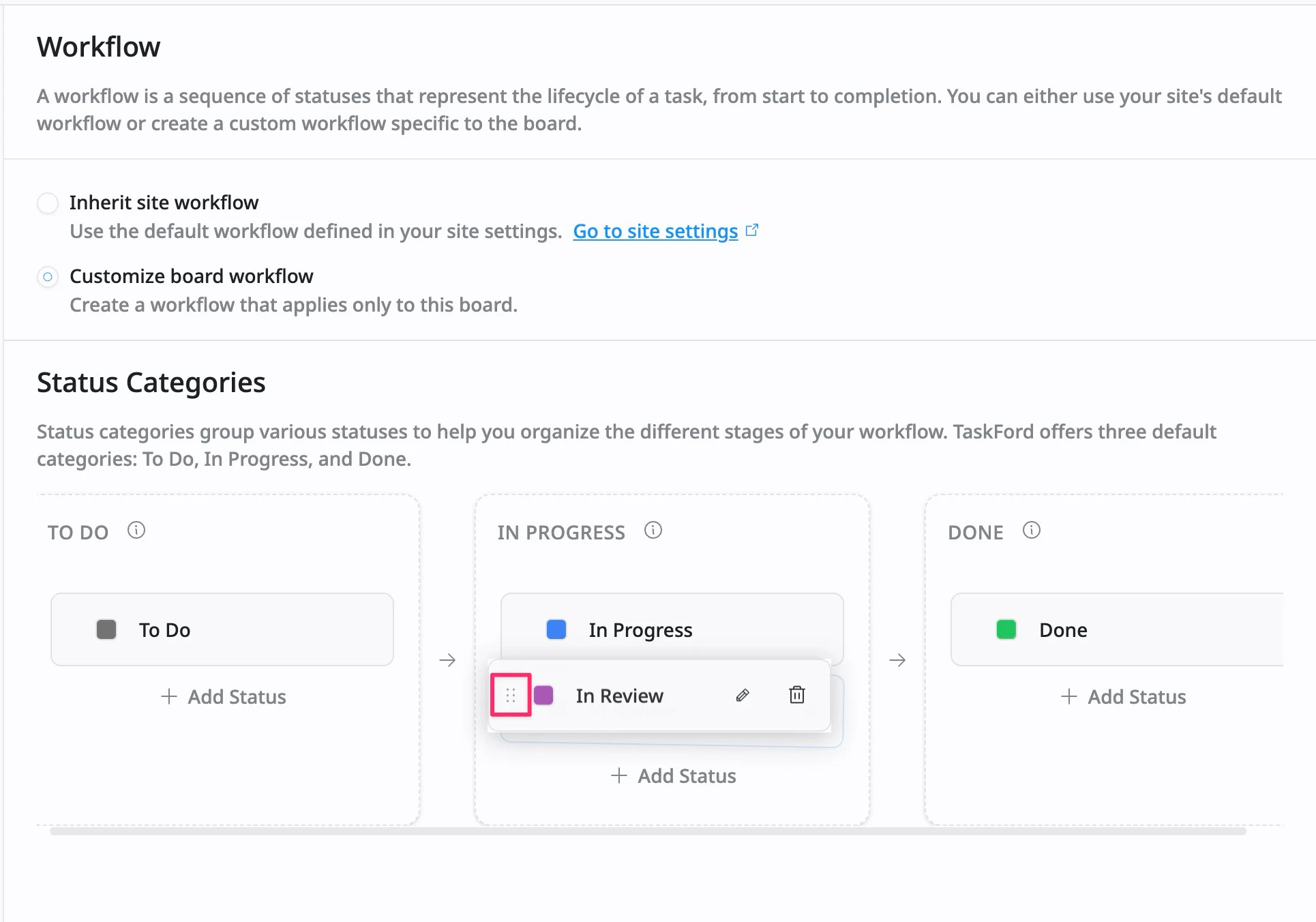
You can reorder the workflow sequence by clicking the ⋮⋮ icon and dragging status cards within or between categories. This will update the order of statuses in the Kanban site columns and the status dropdown field.