Chart types
Learn about available chart types in TaskFord dashboards and choose the best visuals to compare values, track trends, and understand data distributions.
Widgets support different chart types to help you visualize your data in a clear and meaningful way. Each chart presents data differently, so choosing the right one helps you compare values, track trends, or understand distributions more effectively.
You can select a chart type when adding or editing a widget in the Configure Data dialog.
Bar charts
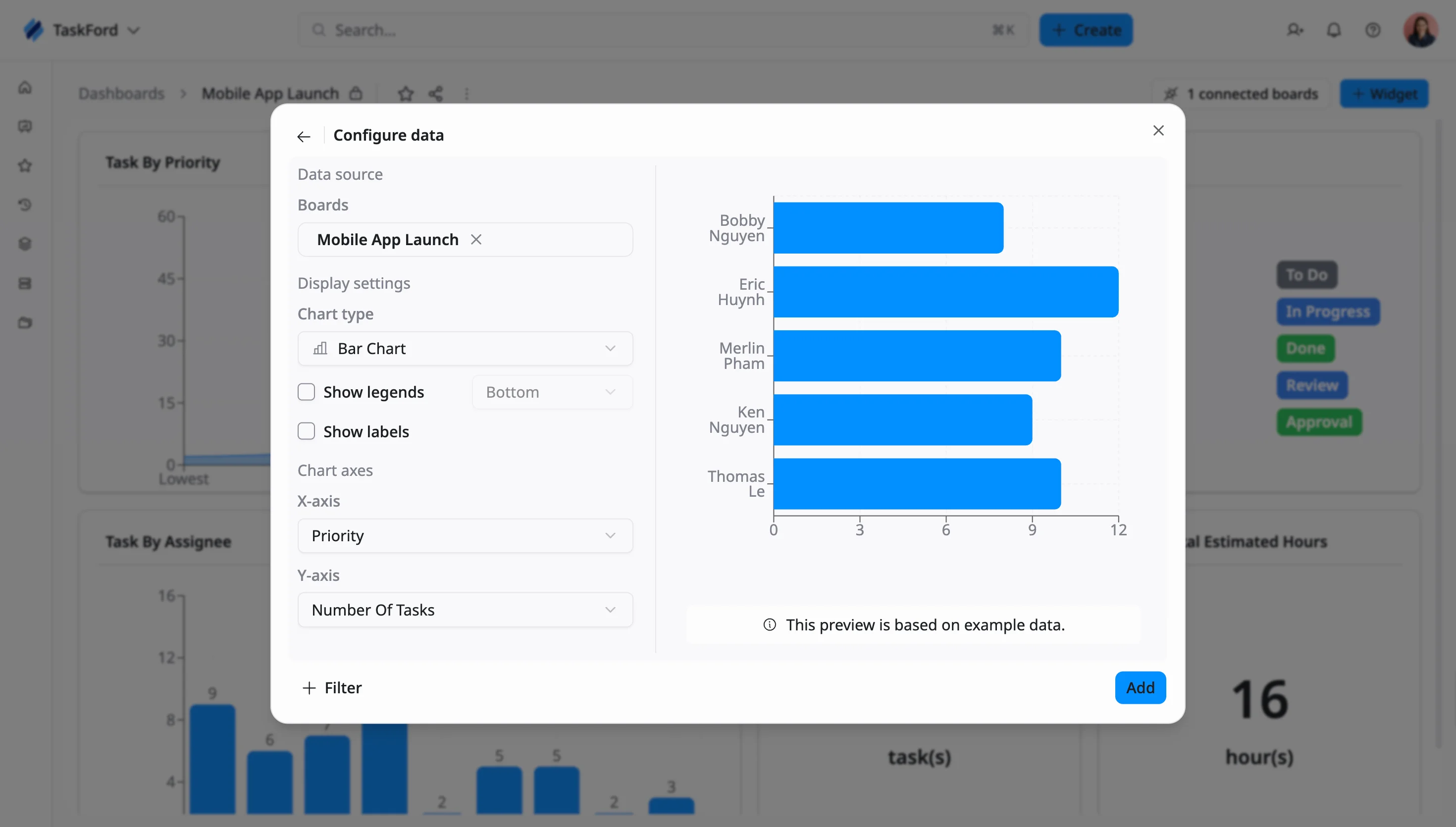
Bar charts display data using horizontal bars, where each bar represents a category, and its length reflects the value. They are best used for comparing categories, especially when labels are long.
- Bar Chart: Displays one horizontal bar per category, making it easy to compare values side by side. This works well for comparing items such as tasks by assignee.
- Stacked Bar Chart: Divides each bar into segments, showing both the total value and how it is composed. This helps you compare totals while also understanding the breakdown within each category.
- 100% Stacked Bar Chart: Shows each bar as a full length (100%), with segments representing percentage distribution. This allows you to compare proportions across categories regardless of total size.
Column charts
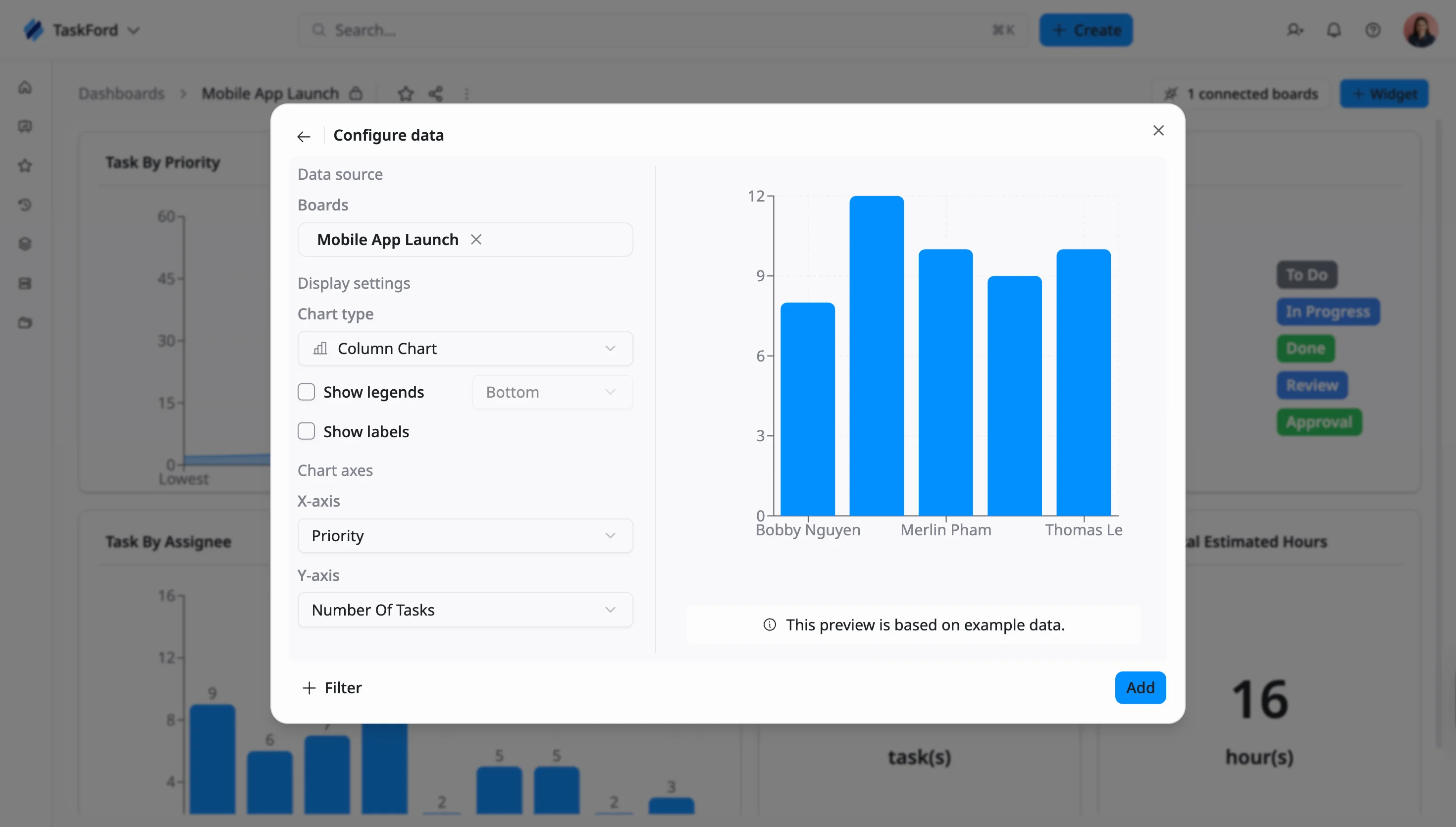
Column charts display data using vertical bars, where the height of each column represents the value. They are commonly used to compare values across categories or groups.
- Column Chart: Displays values as vertical columns, making it easy to compare categories visually. In the default template, it is used in Task by Assignee to compare workload across team members.
- Stacked Column Chart: Divides each column into segments to show both the total and how each part contributes. This is helpful when comparing totals while also seeing how values are distributed.
- 100% Stacked Column Chart: Shows each column as a full height (100%), with segments representing percentage contribution. This helps you compare how values are distributed across categories.
Line charts
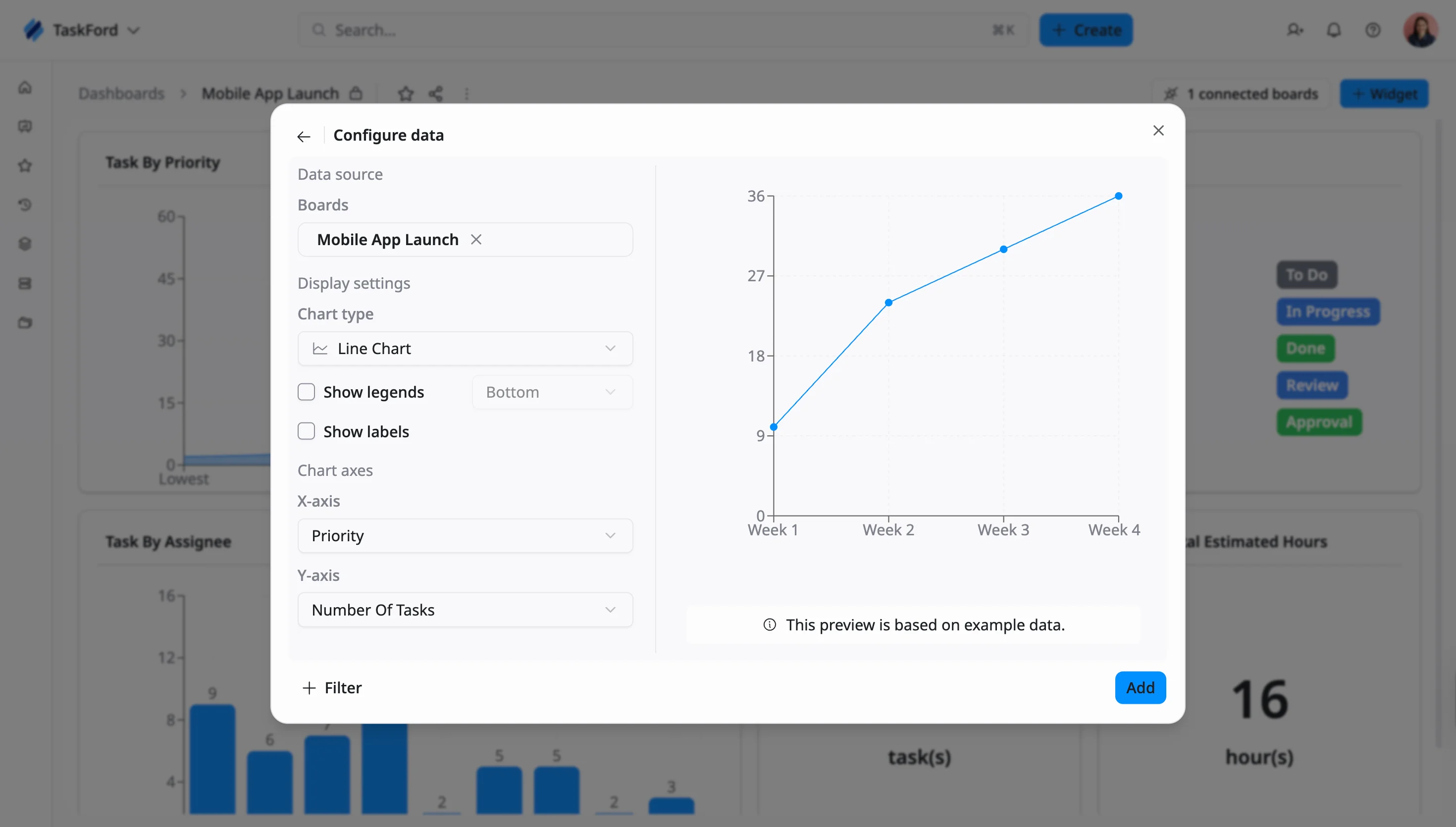
Line charts display data as points connected by lines, showing how values change over time or across a sequence. They are best suited for tracking trends and changes over time.
- Line Chart: Connects data points with straight lines to show trends over time, such as tracking tasks completed across weeks.
- Smooth Line Chart: Uses curved lines to create a more continuous and visually smooth trend, helping highlight overall patterns rather than sharp fluctuations.
- Step Line Chart: Displays values as steps, showing changes at specific points. This works well when data changes at distinct intervals rather than continuously.
Area charts
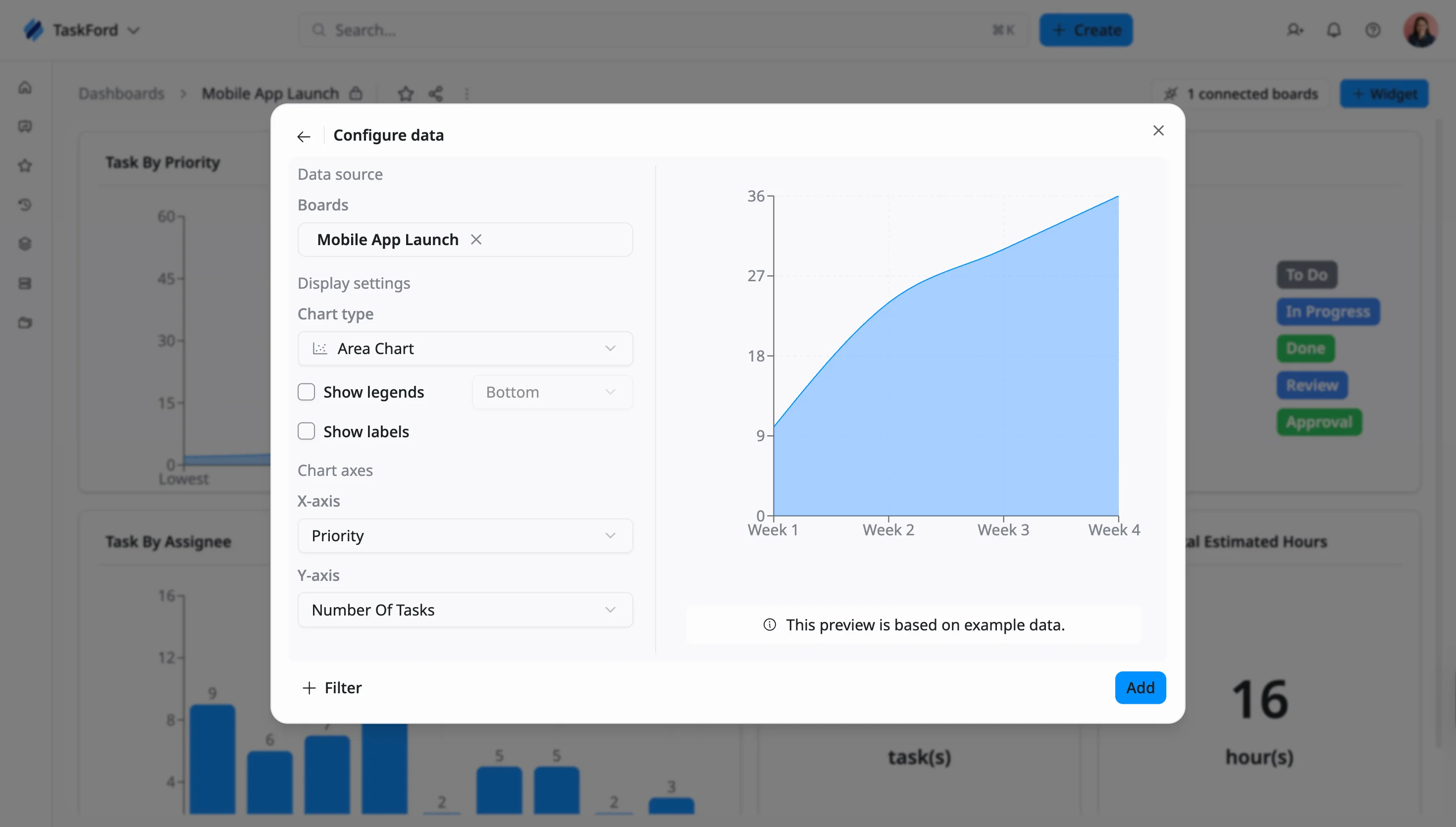
Area charts are similar to line charts, but fill the space under the line to emphasize the magnitude of values. They are useful for understanding volume and how values accumulate over time.
- Area Chart: Highlights trends by filling the area under the line, making it easier to see volume and distribution. In the default template, it is used in Task by Priority to show how tasks are distributed across priority levels.
- Stacked Area Chart: Displays multiple areas stacked on top of each other, showing both total values and how each part contributes over time. This helps compare contributions within a total.
- 100% Stacked Area Chart: Shows percentage contribution over time instead of absolute values, making it easier to compare how proportions change.
Pie charts
Pie charts display data as slices of a circle, where each slice represents a portion of the total. They are best used to show distribution at a glance.
- Pie Chart: Divides a circle into slices based on value, making it easy to understand how a total is distributed across categories.
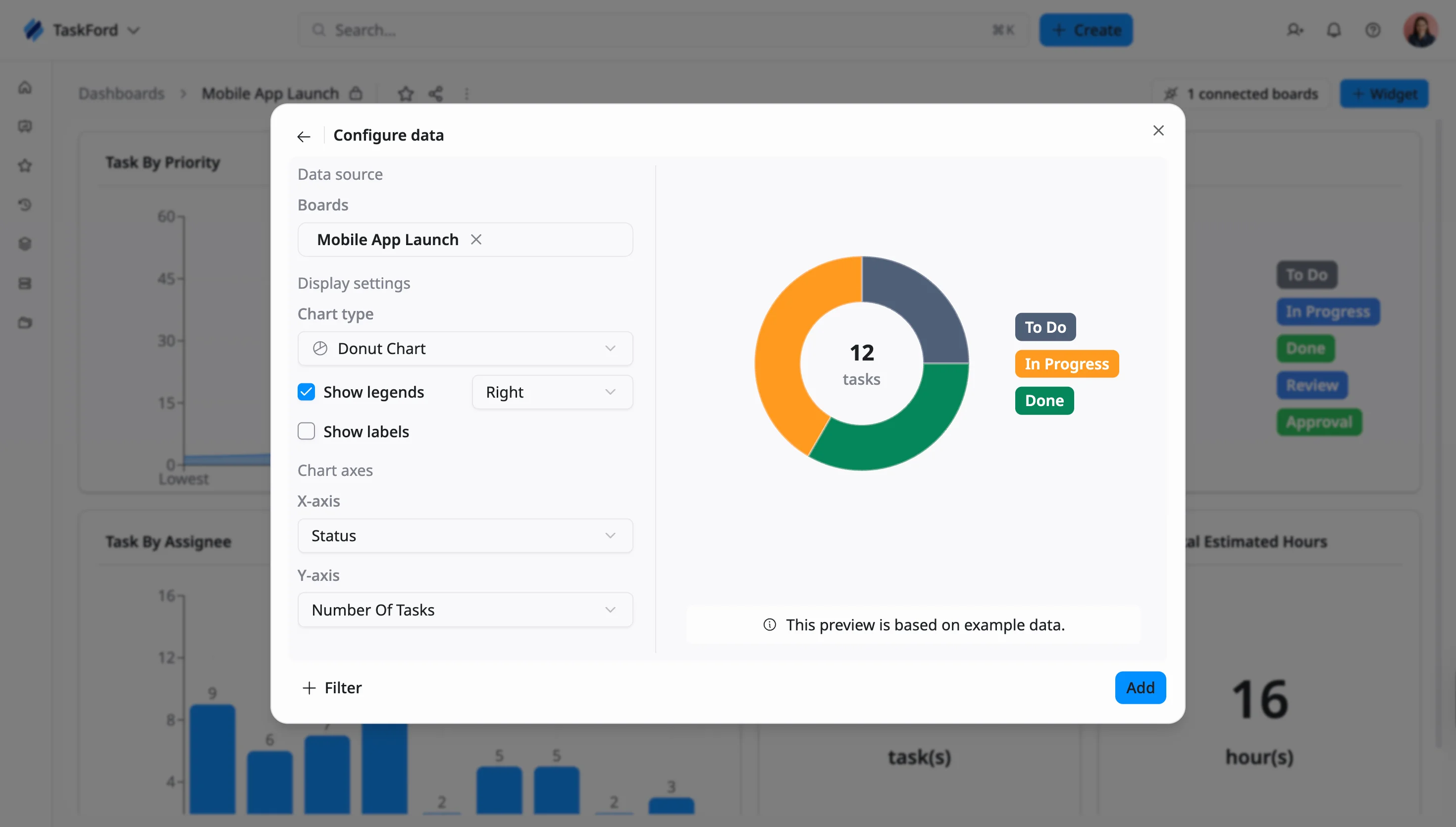
- Donut Chart: Uses a hollow center to improve readability and allow space for displaying totals. In the default template, it is used in Tasks by Status to show how tasks are distributed across statuses.
Other
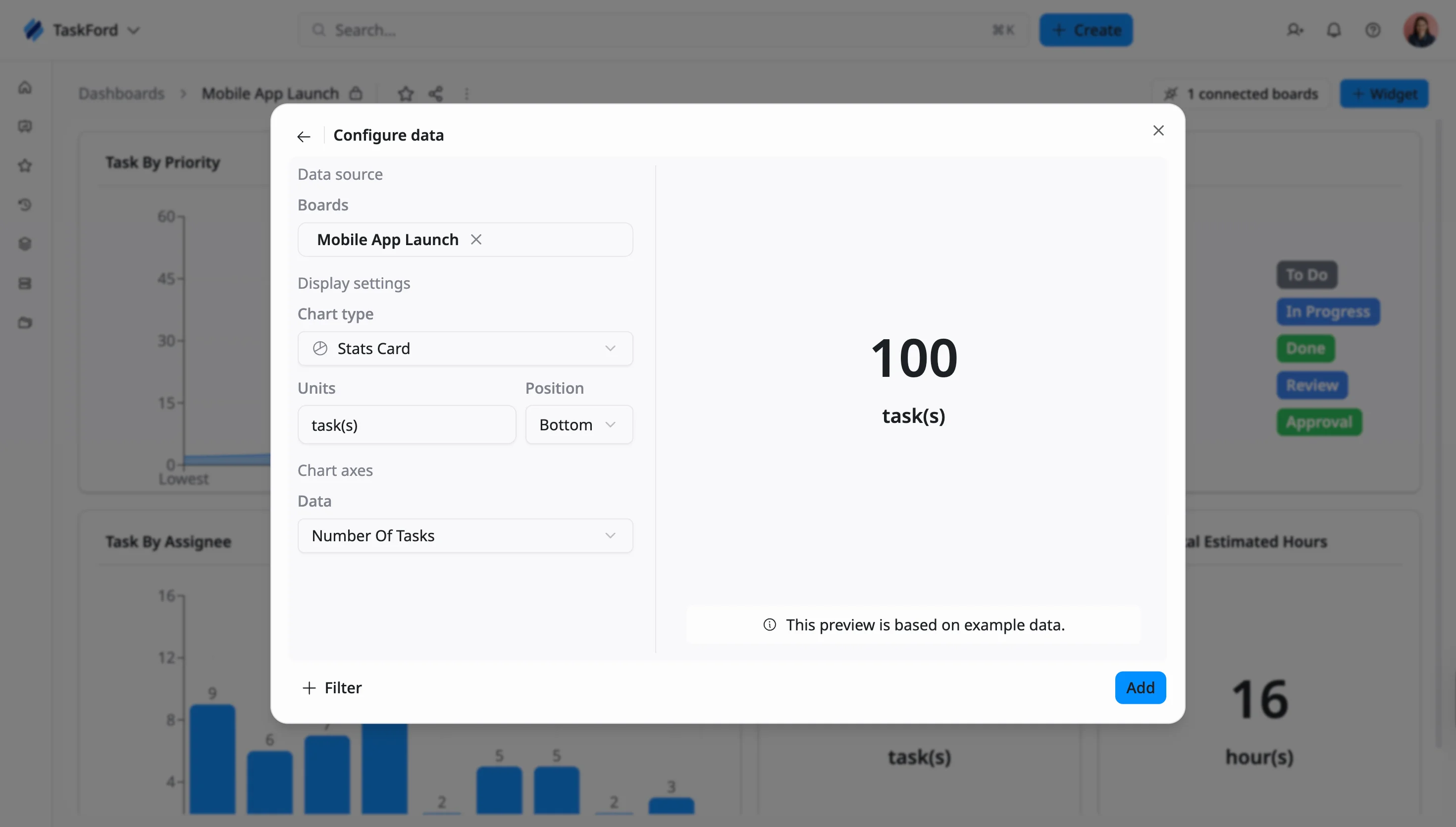
- Stats Card: Displays a single value as a large number, providing a quick summary without additional breakdown. In the default template, it is used for Your Total Tasks and Your Total Estimated Hours, making it ideal for highlighting key metrics at a glance.
- Use column charts to compare values across people or categories
- Use area charts to understand distribution or volume
- Use pie or donut charts to show proportions
- Use stats cards for quick summaries