Collaborate & communication with your team
Learn how to use TaskFord’s communication tools to collaborate effectively and stay aligned with your team on tasks and projects.
While working on a task, you’ll often need to share updates, ask questions, or clarify requirements. TaskFord provides built-in tools to help teams communicate, collaborate, and stay aligned across tasks and projects. Use the features below to keep conversations organized and ensure everyone stays informed.
Comments, mentions & reactions
Use comments, @mentions, and reactions to communicate directly within tasks. This keeps discussions in context, reduces the need for external tools, and ensures everyone involved can easily follow updates and decisions.
Add a comment
Comments help you share updates, ask questions, and document decisions directly on a task.
How to add a comment:
- Open the task details view.
- Scroll to the Comments section.
- Type your message in the comment editor.
- Click Save to post your comment.
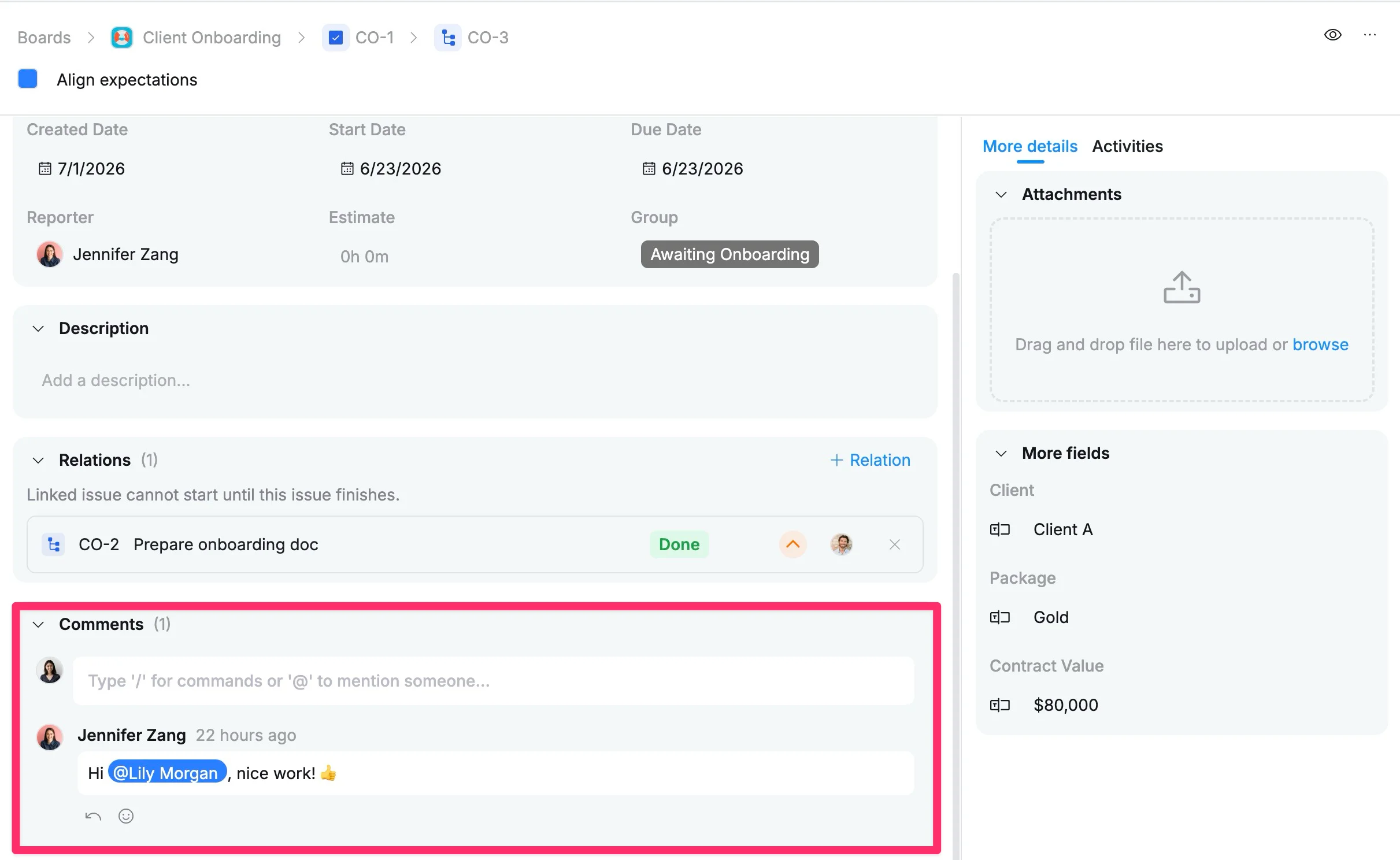
Your comment will appear in the task’s activity stream, making it visible to everyone with access.
Mention teammates
Mentions allow you to notify specific people when their attention or action is needed.
How to mention someone:
- Open the task details view.
- Type “@” followed by a member’s name or username in a comment or description to notify them.
- Select the user from the list
- Post the comment
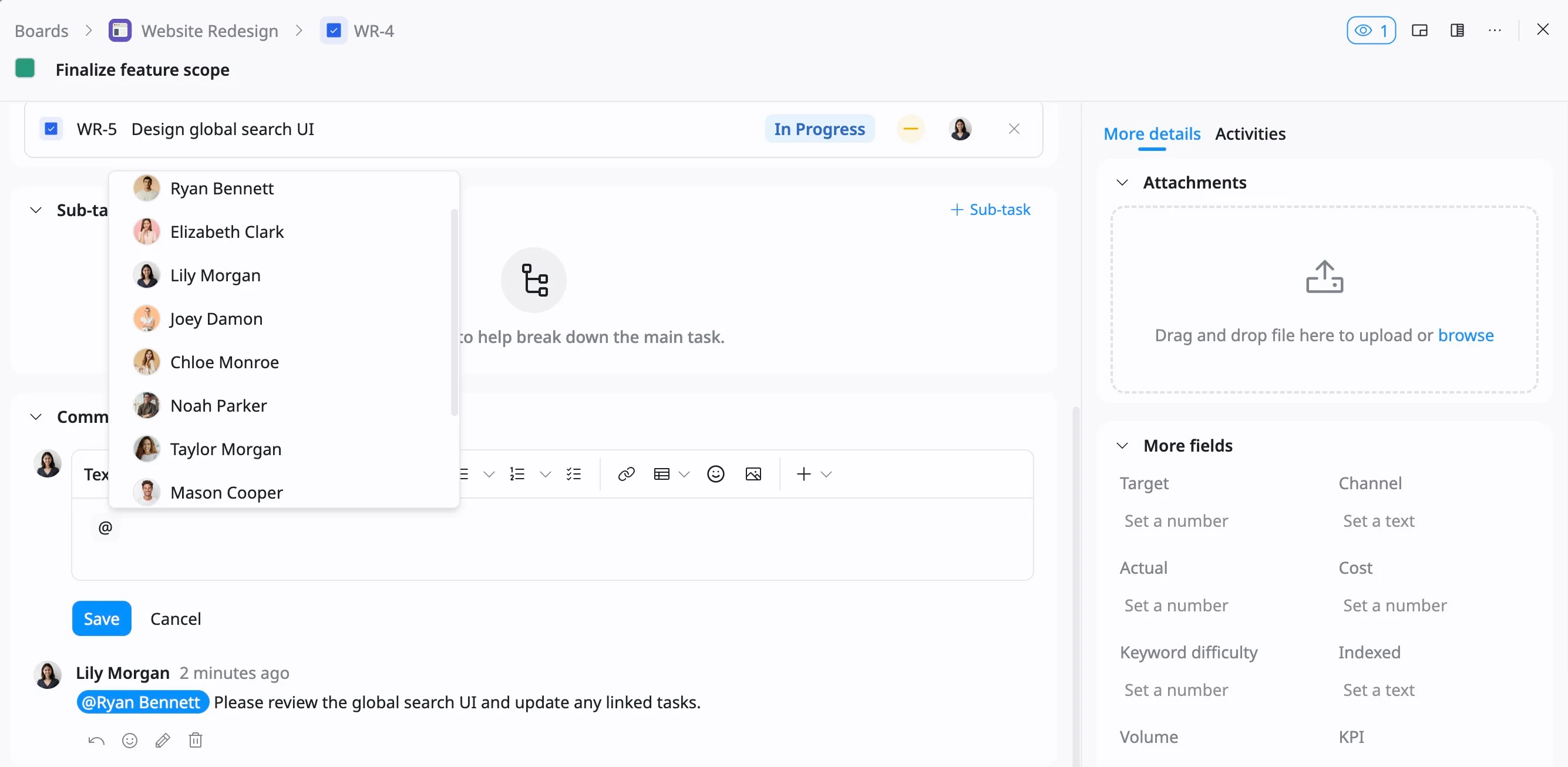
Once mentioned, they will receive a notification in their inbox (and optionally via email), helping them respond quickly.
Reply in thread
Threaded replies keep conversations organized by grouping responses under the relevant comment.
To reply to a comment
- Click Reply under a comment
- Type your response
- Click Save
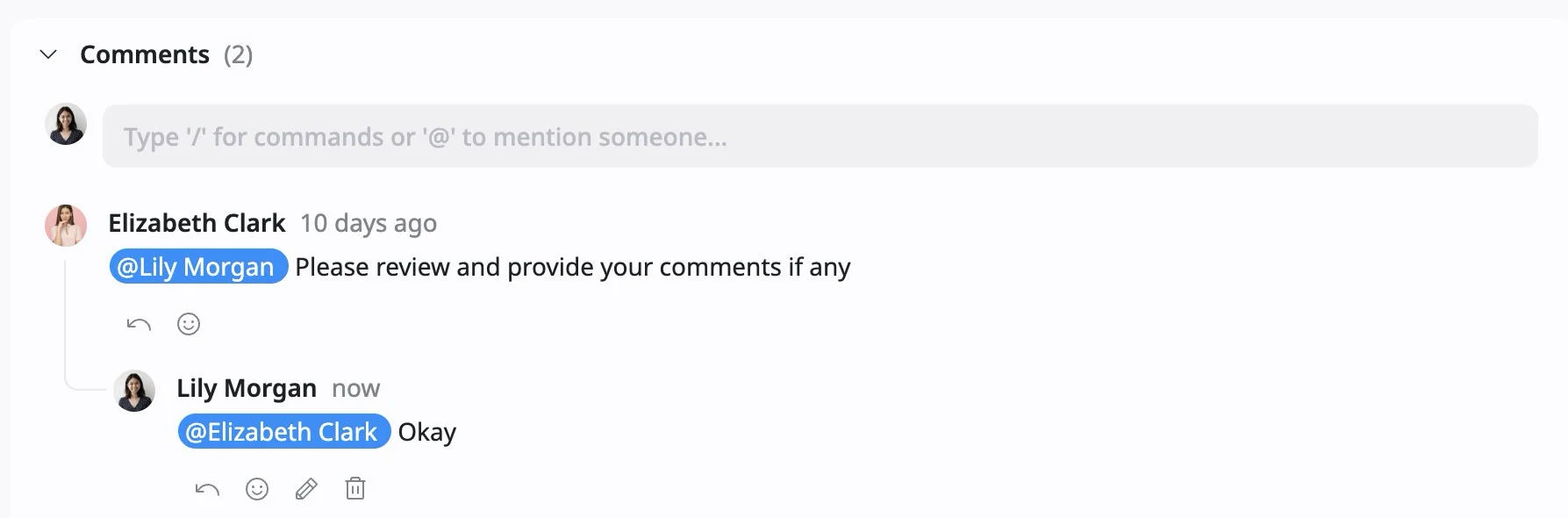
This creates a threaded conversation, making it easier to follow specific topics without cluttering the main comment feed.
Use reactions
For quick acknowledgments, reactions provide a lightweight way to respond. This allows you to confirm, agree, or show appreciation without adding unnecessary messages.
To add a reaction
- Hover over a comment
- Click the reaction icon
- Select an emoji
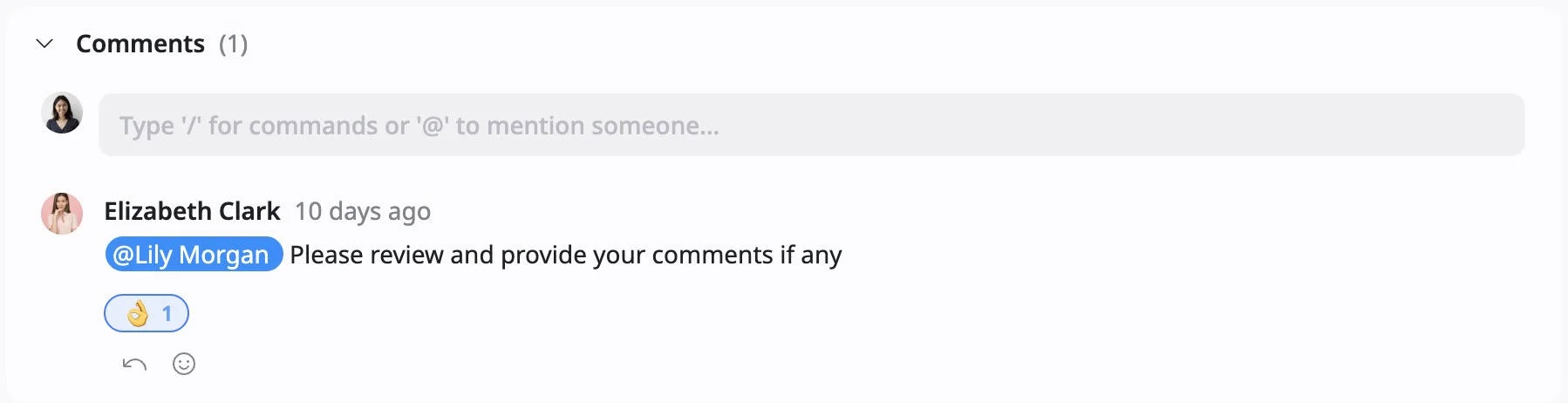
TaskFord supports a set number of emojis for reactions, including 👍, ❤️, 👏, and others.
Use the formatting toolbar to style the text. Learn more about the text formatting in TaskFord
View people’s profiles
People profiles help you learn more about and collaborate better with others in your team. You can hover over people’s avatars to quickly see what they’re working on and get in touch with them.
How to view a profile
- Hover over a teammate’s avatar
- A user preview card will appear.
- Click View profile to open the full profile.
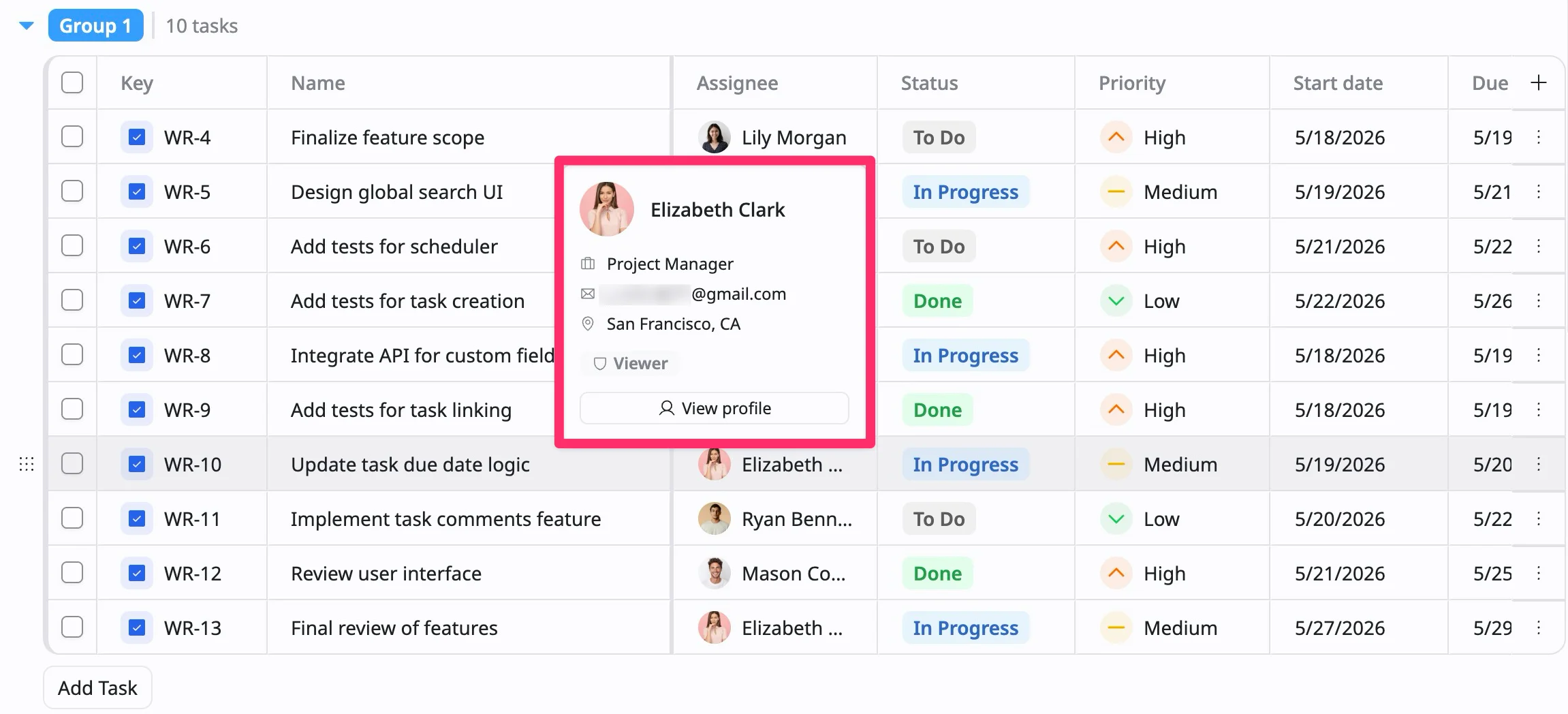
Profile information includes
- Basic information: Name and email address
- Role and status: User role and current status (e.g., Active, Viewer)
- Timezone: The user’s configured timezone
- Tasks: View all tasks overview assigned to the user in the organization
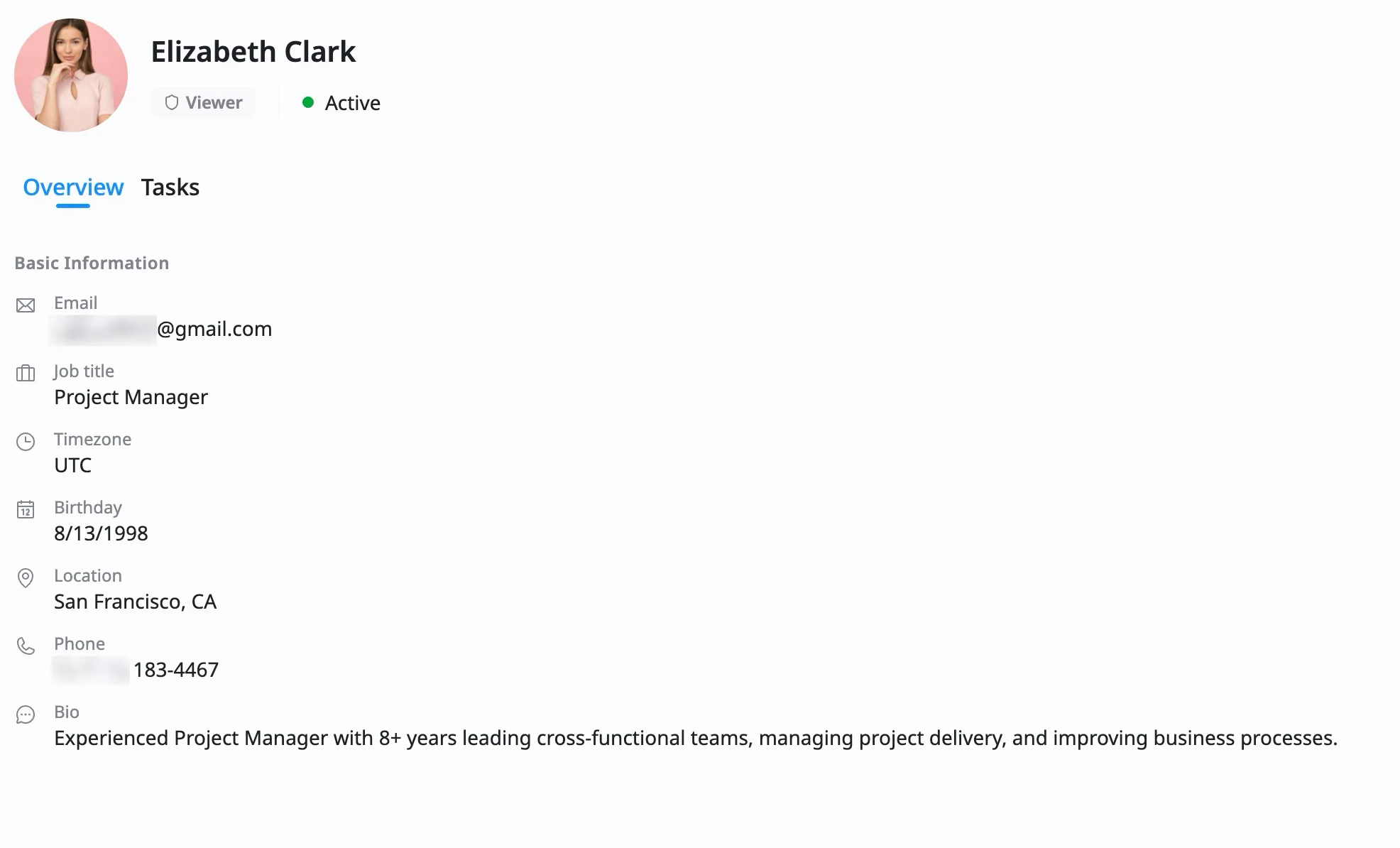
Note: The information shown in a profile depends on what the member has chosen to make visible.
The information shown in a profile depends on what the member has chosen to make visible.
Inbox & notifications
The inbox keeps you informed about important updates across your work. It helps you stay on top of changes, respond quickly, and never miss critical activity. How to view your inbox
- Click the inbox icon (🔔) in the top-right corner.
- The Notifications panel will open.
- Browse through your latest updates.
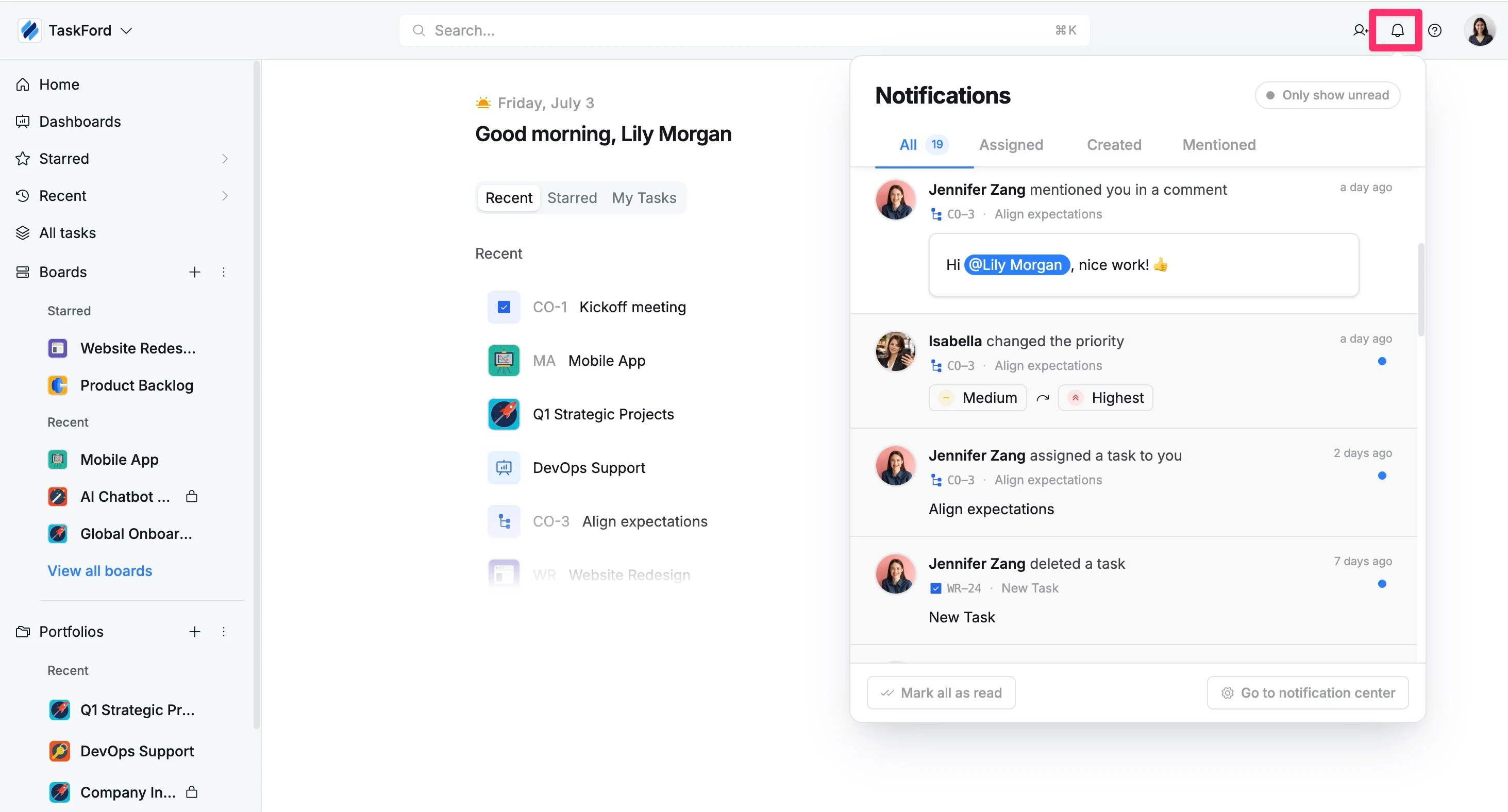
Manage notifications
- Mark as read: Click Mark all as read to clear unread notifications.
- Go to notification: Click directly on an individual notification to jump to the corresponding task, board, or comment.
- Filter notifications
- Use the tabs (All, Assigned, Created, Mentioned) to filter the notifications you want to see.
- Use Only show unread toggle to hide already read notifications.
- Go to notification center: Click Go to notification center to navigate to your notification settings and manage in-app or email alerts.
Watch a task
In some cases, you may want to follow a task without being directly assigned to it. TaskFord allows you to watch tasks so you can stay informed about their progress.
How to watch a task
- Open the task details view for the task you want to follow.
- Click the eye icon in the top-right corner.
- Select Start watching.
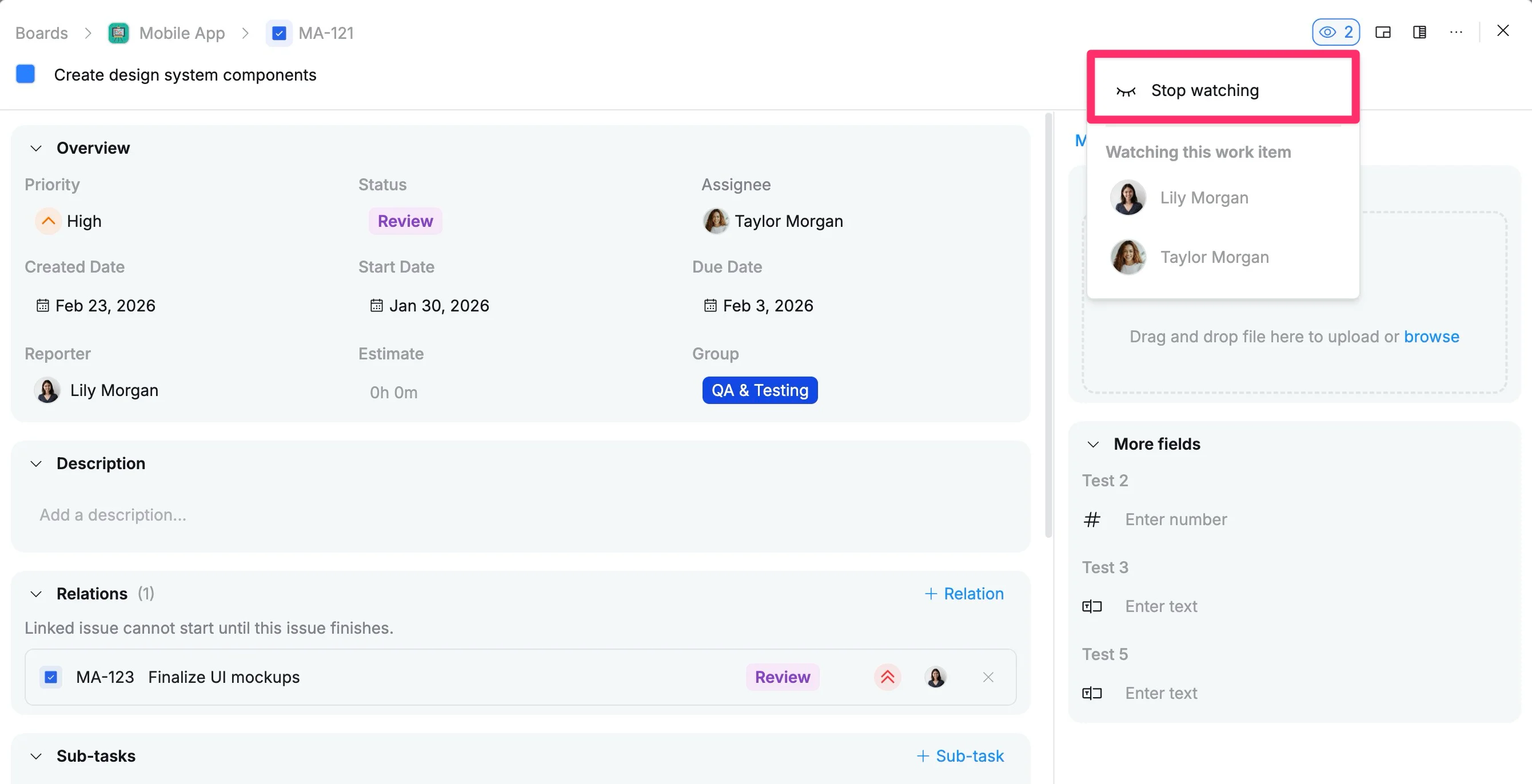
Once enabled, you will be added to the watcher list and receive notifications for any updates on the task.
Track task activities
Every task includes a detailed activity log that records all changes made over time. This provides full transparency into what happened, when it happened, and who was responsible. To view task activities:
- Open the task details view for the task you want to review.
- In the task details view, click the Activities tab.
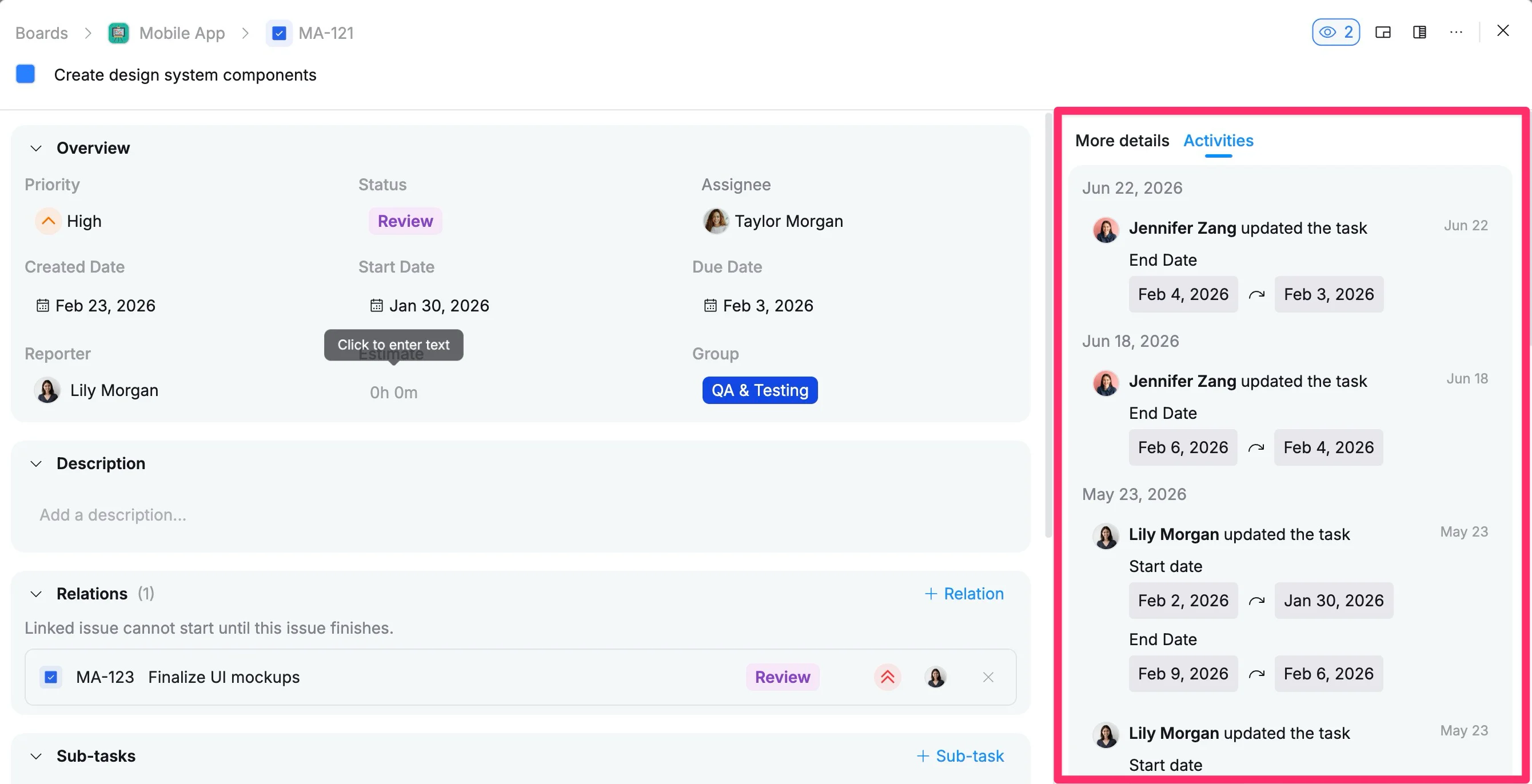
You will see a timeline of updates, including changes to status, assignments, deadlines, and other important fields.
Share tasks
Sharing tasks is simple and helps keep everyone aligned. Each task has a unique link that you can copy and send to others, whether inside or outside your immediate team.
To share a task:
- Open the task details view for the task you want to update.
- Click the three dots (⋯) in the top-right corner.
- Select Copy link from the dropdown menu.
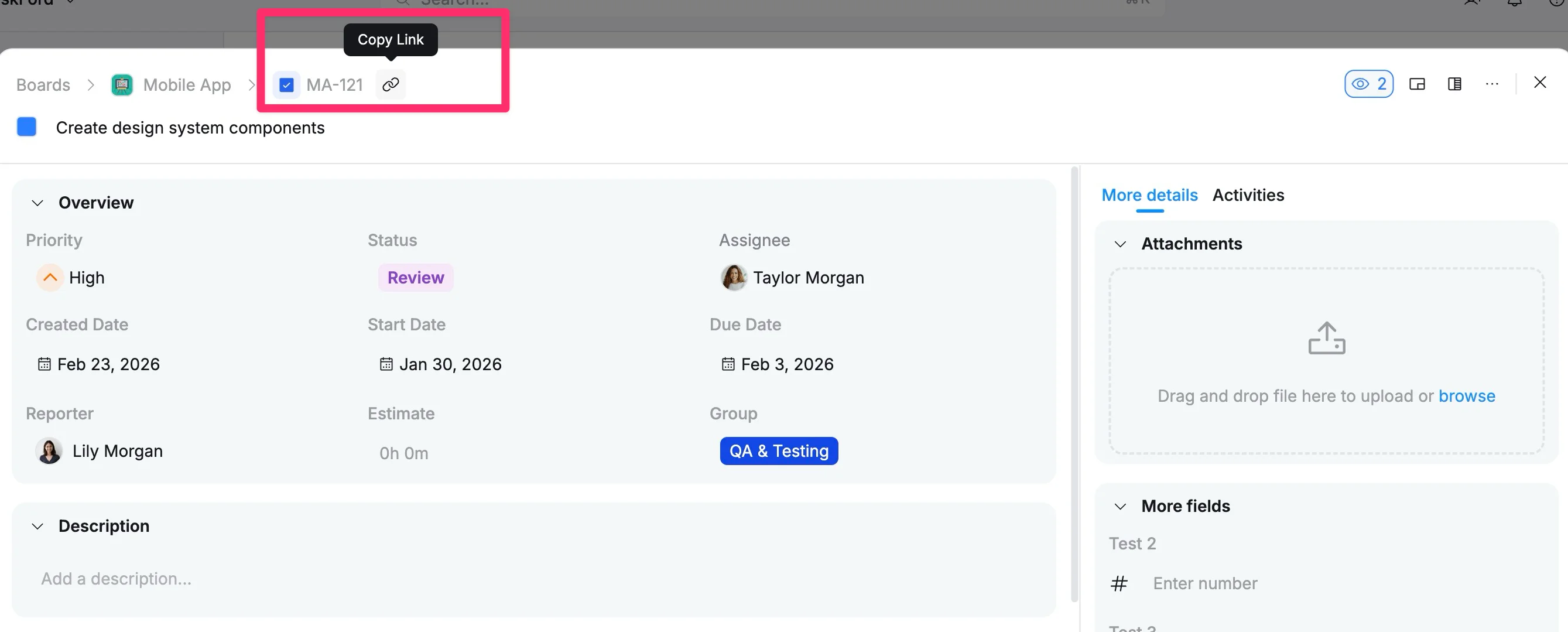
Once copied, you can paste it into messages, documents, or other tools. This makes it easy to reference work, provide context, or bring others into the conversation when needed.