Comments, mentions & reactions
Learn how to add comments, mention teammates, and use reactions in TaskFord to keep task discussions connected to the work.
Use comments, mentions, and reactions to communicate with teammates directly around your work. Share updates, bring specific people into a discussion, and acknowledge comments without creating unnecessary messages.
Comments
Comments let you discuss a task directly in TaskFord while keeping the conversation connected to the work.
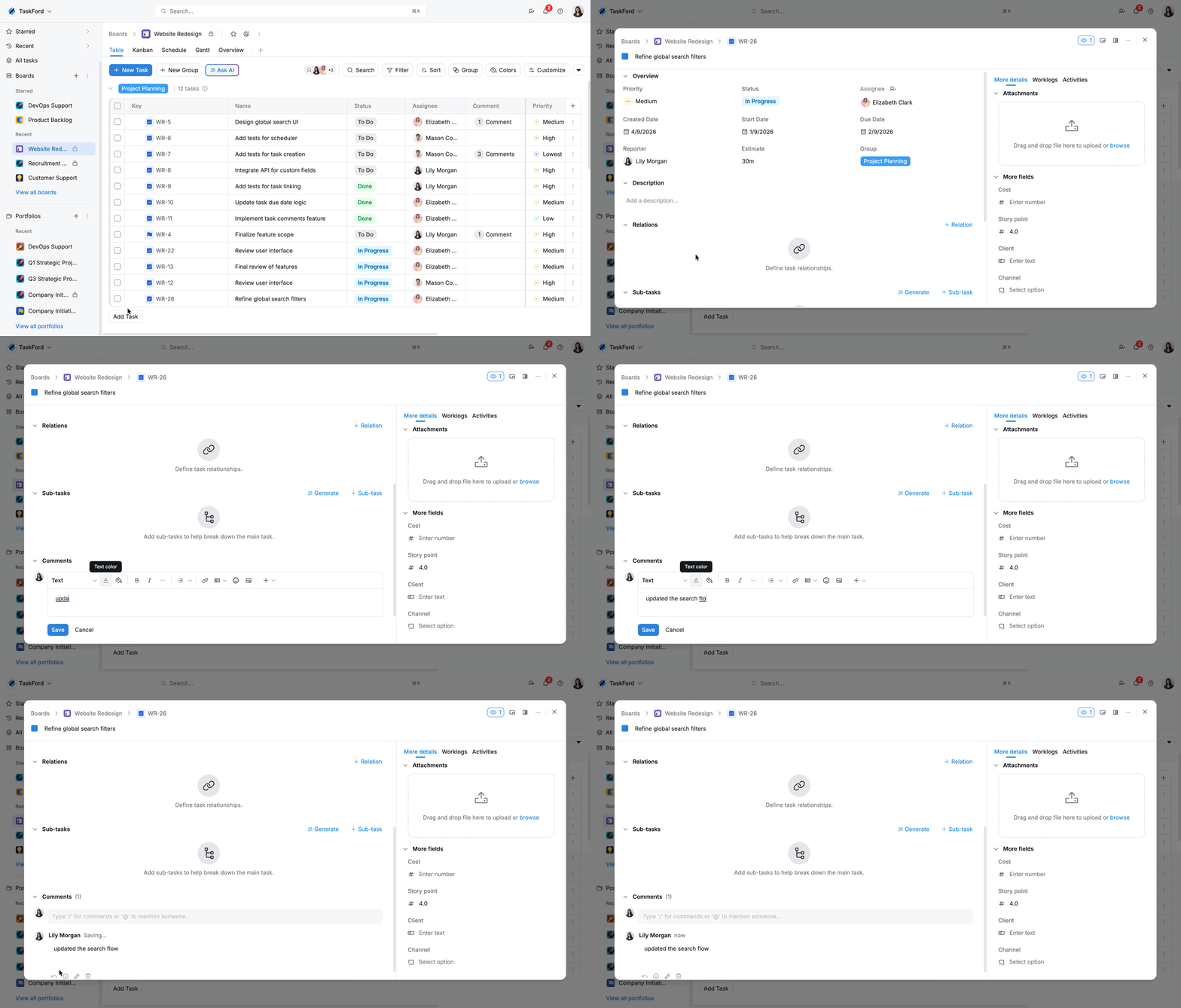
You can use comments to:
- Share updates
- Ask questions
- Give feedback
- Clarify details
- Record decisions
Add a comment from task details
- Open the task.
- Scroll to the Comments section.
- Enter your comment.
- Use the formatting options if needed.
- Click Save.
Your comment is added to the task conversation and is visible to members who can access the task.
Add a comment from the Comments panel
You can open the Comments panel from Table view or the List view in Gantt by adding the Comment column.
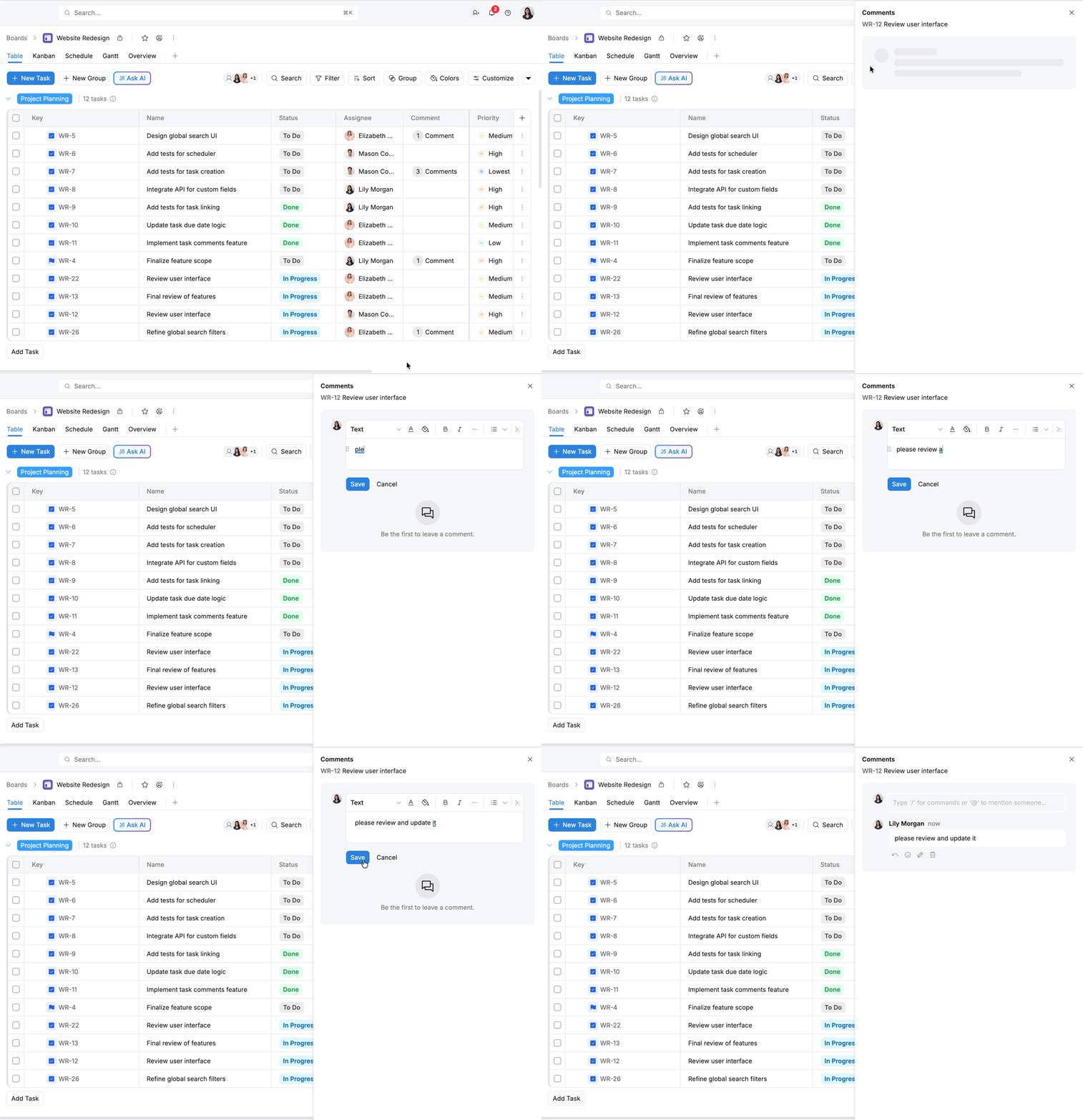
To open the Comments panel:
- Open Table view or the List view in Gantt.
- Add the Comment column to the table.
- Find the task you want to comment on.
- Click the Comment field for that task.
- The Comments panel opens on the right side.
From the panel, you can review existing comments and add a new one without opening the full task details.
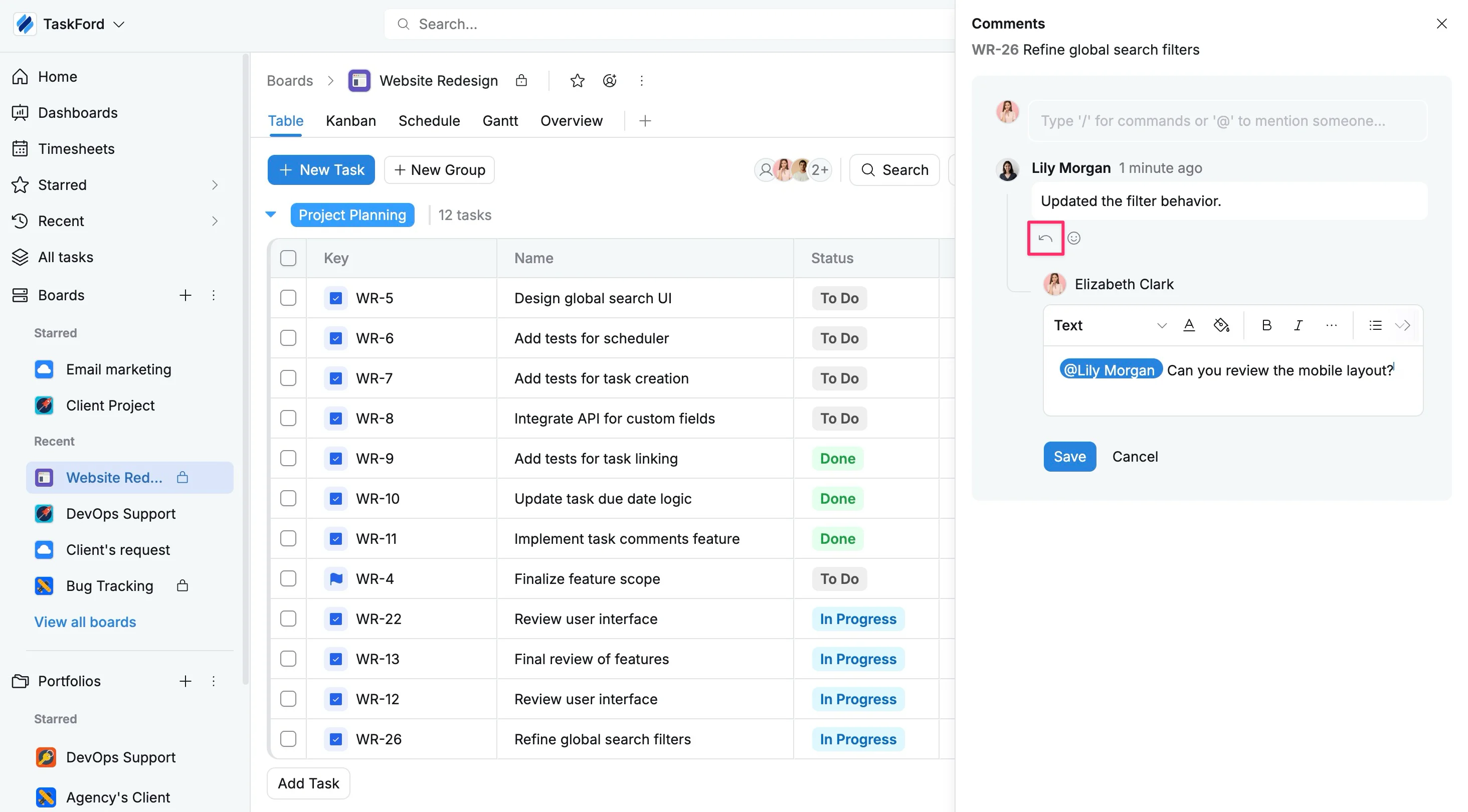
Reply to comments
Replies let you continue a specific discussion without creating a separate conversation. Use them to respond directly to a comment, answer a question, or follow up on feedback.
To reply to a comment:
- Find the comment you want to respond to.
- Click Reply.
- Enter your response.
- Click Save.
Replies stay grouped with the original comment, making the conversation easier to follow.
Mentions
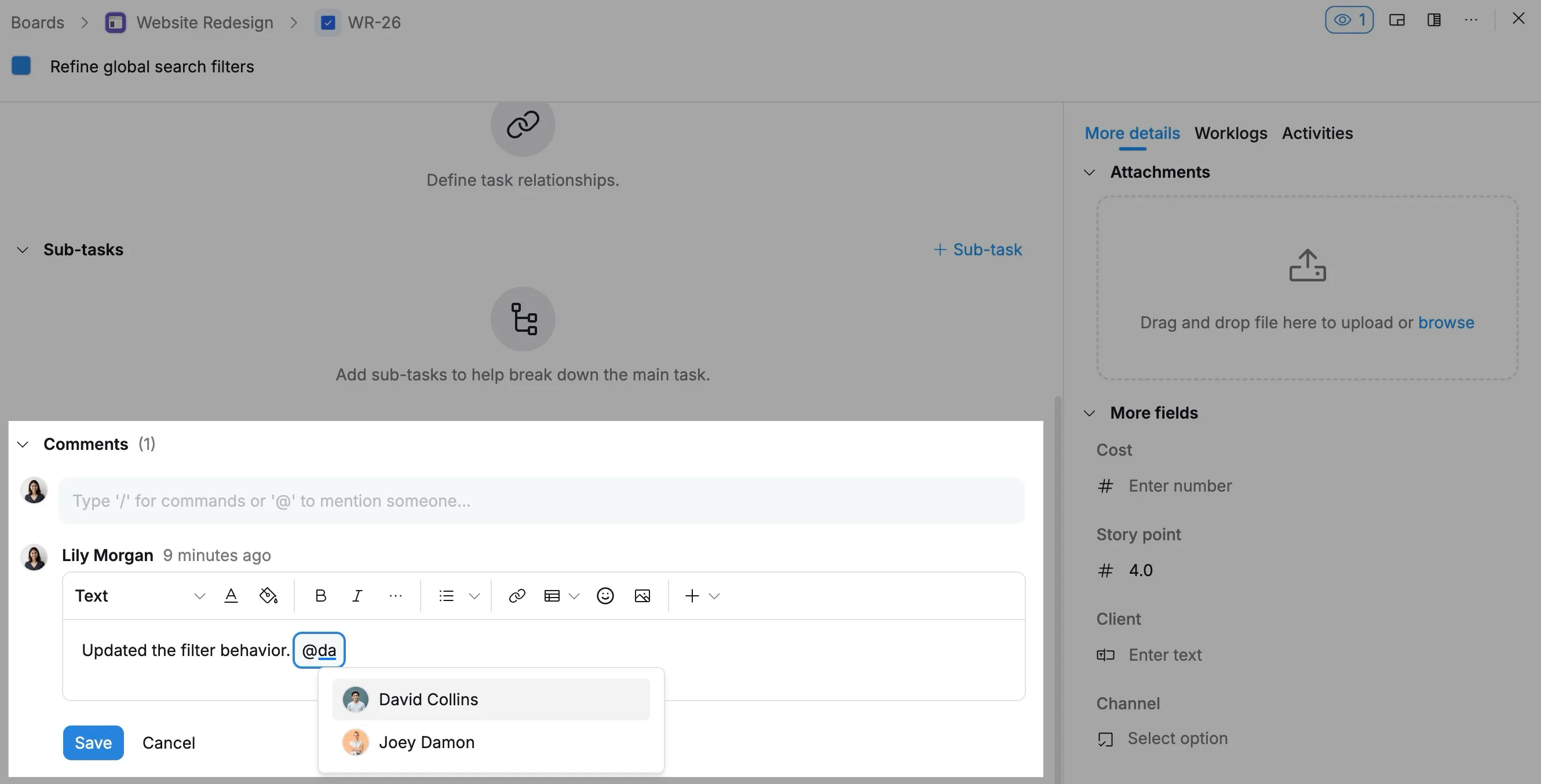
Use an @mention when you want to bring a specific teammate’s attention to something.
Mentions are useful when you need someone to review work, answer a question, make a decision, or take action.
Mention someone in a comment
- Open the task’s comments.
- Type @.
- Start typing the member’s name.
- Select the member from the suggestions.
- Click Save.
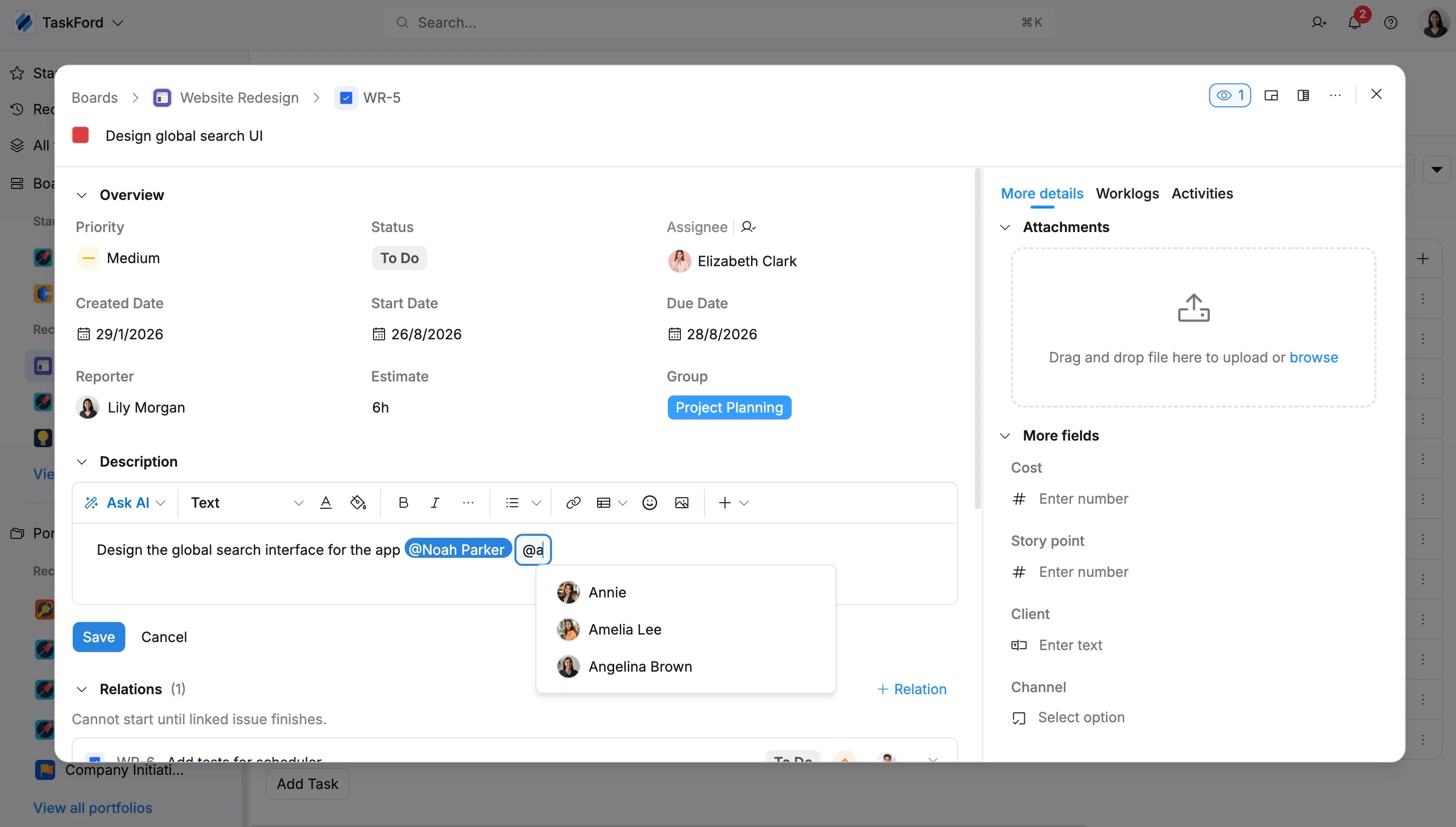
Mention someone in a task description
You can also mention teammates directly in the task description.
- Open the task description.
- Type @.
- Search for and select the member.
- Click Save.
Find mentions of you
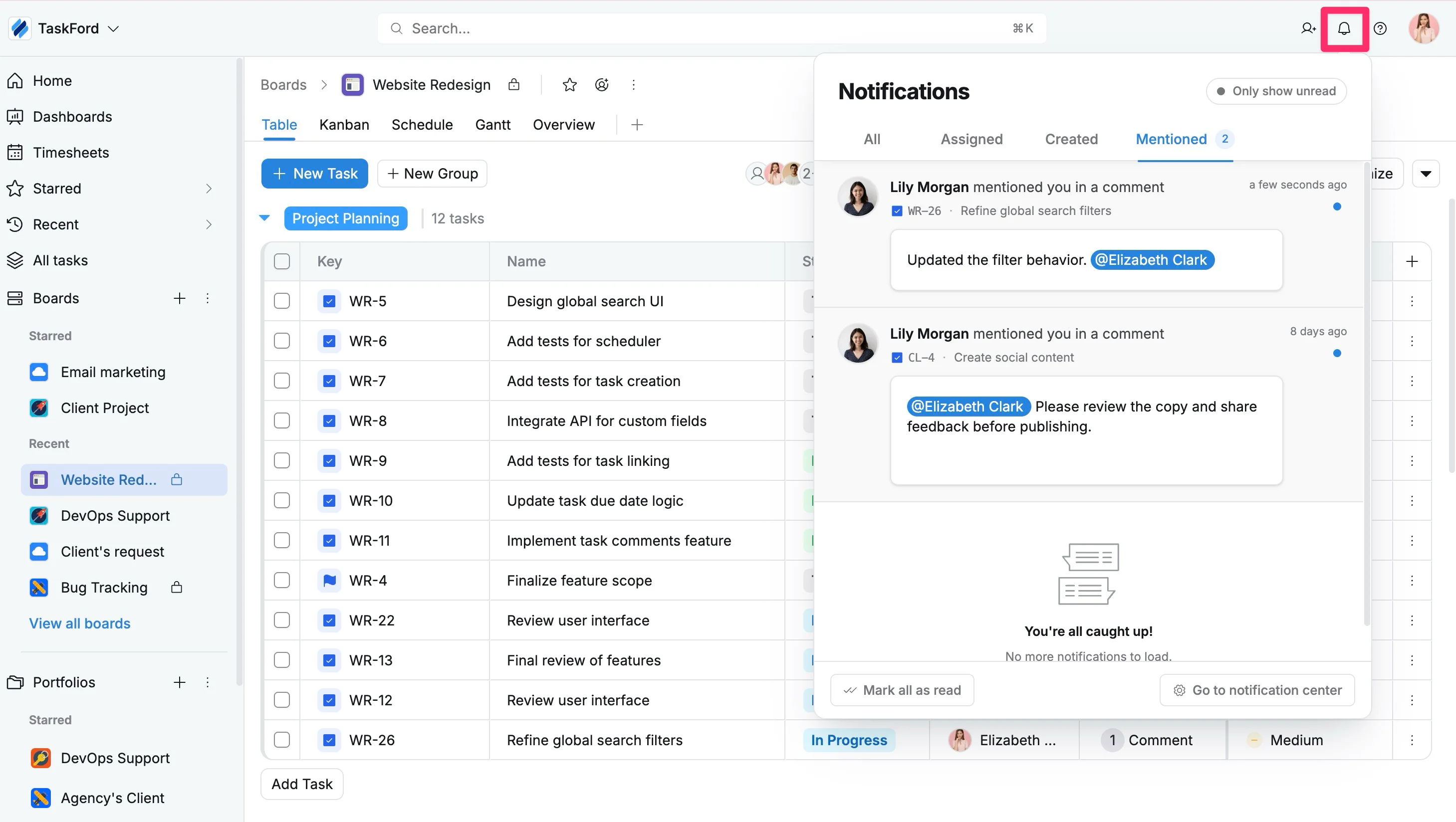
When another member mentions you, TaskFord adds the update to your notifications.
- Click the Notifications icon in the top-right corner.
- Select the Mentioned tab.
- Click a notification to open the related task or content.
For more information about notification settings, see Manage notifications.
Reactions
Reactions give you a quick way to respond to a comment without adding another message.
You can use a reaction to acknowledge an update, agree with a suggestion, confirm that you have seen something, or show appreciation.
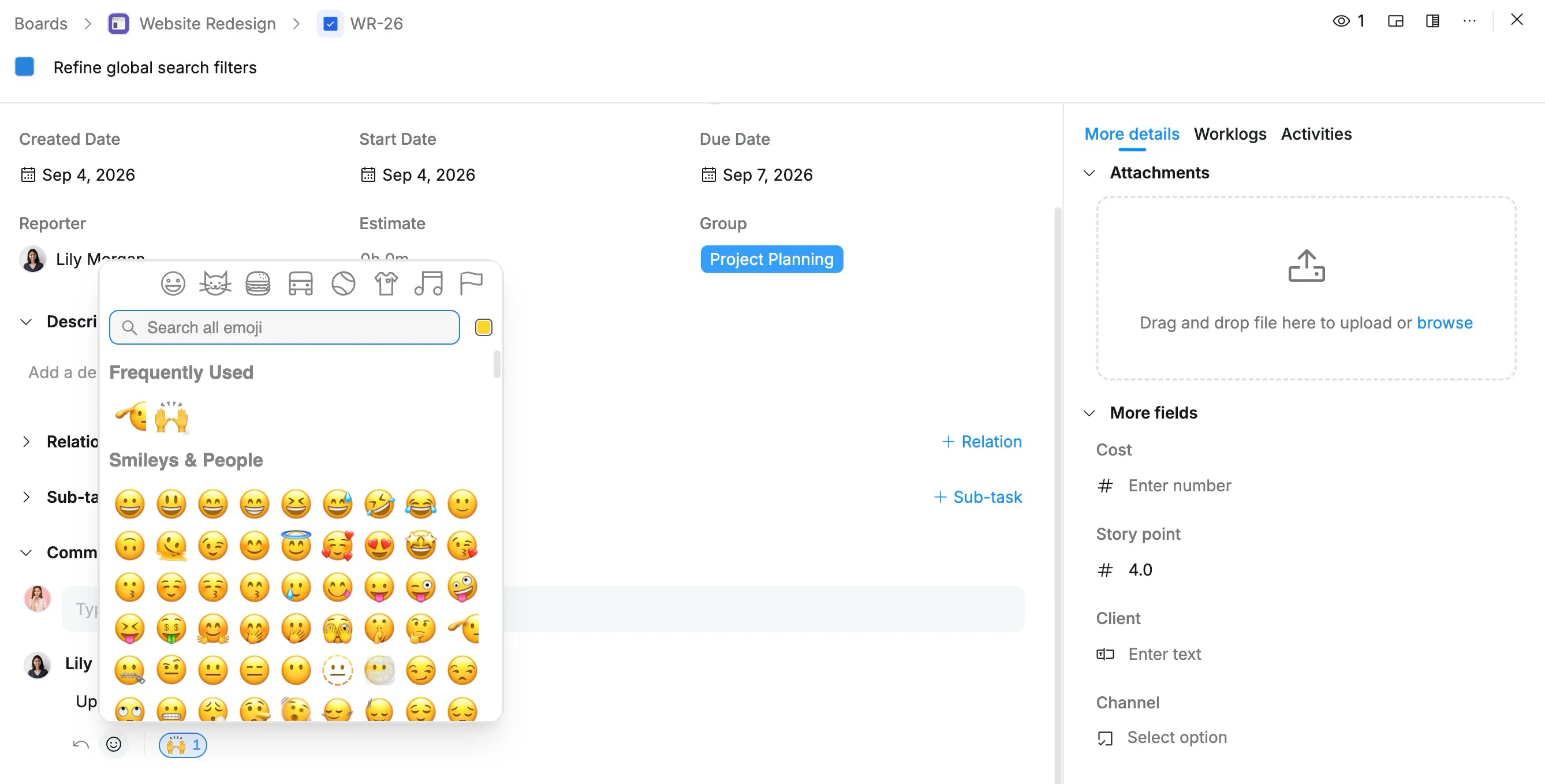
To add a reaction:
- Find the comment you want to react to.
- Click the Reaction icon below the comment.
- Select a reaction.
The reaction appears on the comment and is visible to other members who can access the task.
When someone reacts to your comment, TaskFord can also notify you about the activity. You can manage supported notification types from your notification settings. Manage notifications