Configure your personal settings
Learn how to configure your personal settings in TaskFord to complete your profile, customize preferences, and start collaborating efficiently with your team.
Welcome to the team! As a new member in TaskFord, your goal is to get set up quickly, understand your work, and start collaborating with your team.
To begin, you’ll need access to your team’s site. When you’re invited to TaskFord, you’ll receive an email with a link to join.
- If you’re new to TaskFord: You will need to create an account first. Once completed, you will automatically be added to the site.
- If you already have a TaskFord account: Simply accept the invitation and join the site.
Learn more: How to join a Site and access your account
Once you’ve joined your site, take a few minutes to configure your personal settings before you start working with your team. This helps you complete your profile and tailor your TaskFord experience to your needs.
Access your personal settings
To open your personal settings:
- Click your profile picture in the top-right corner.
- Select Settings from the dropdown menu.
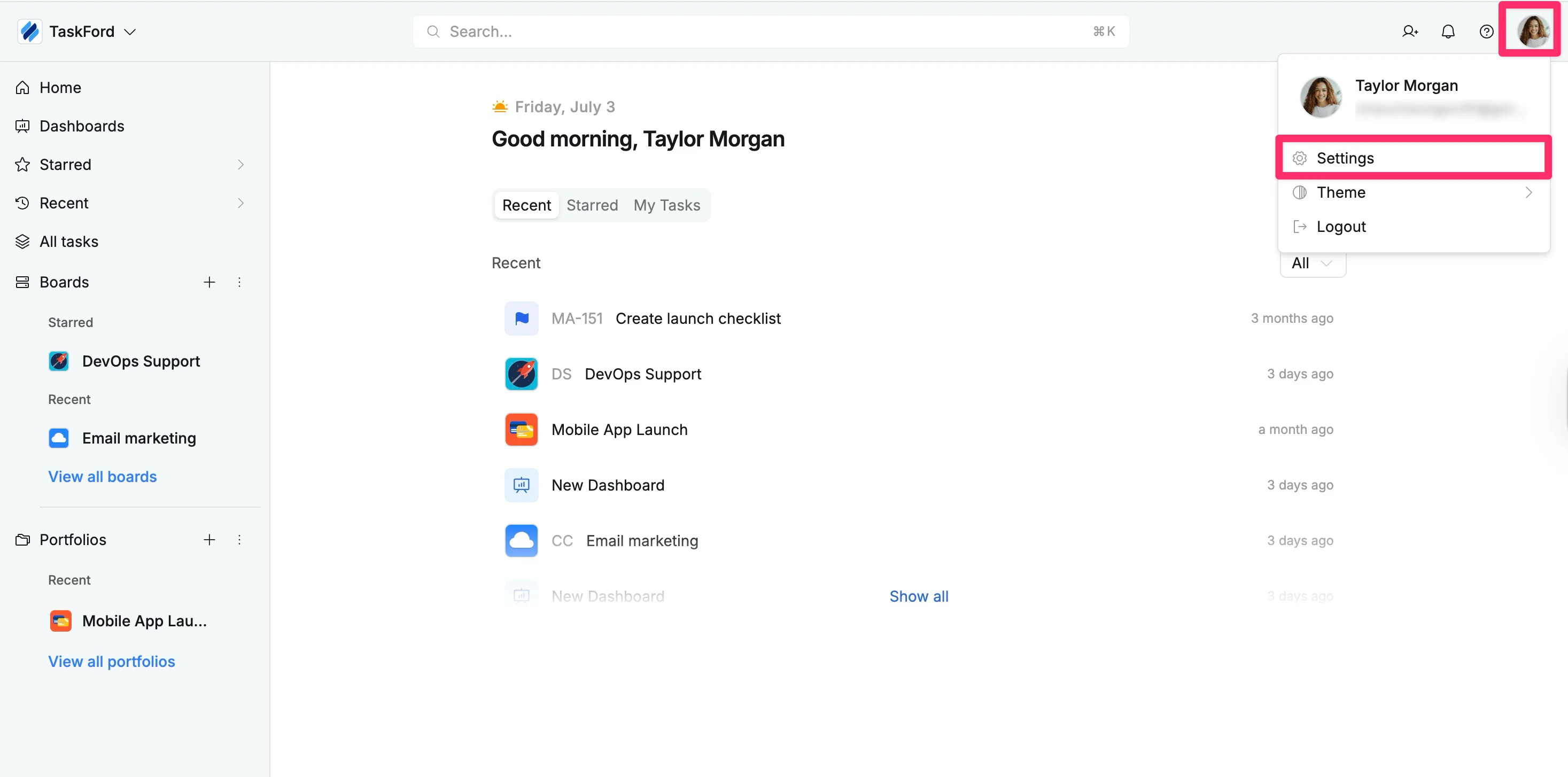
This will take you to your Settings page, where you can manage your personal information and preferences.
What you can configure
From the left-hand panel, you can access the following sections:
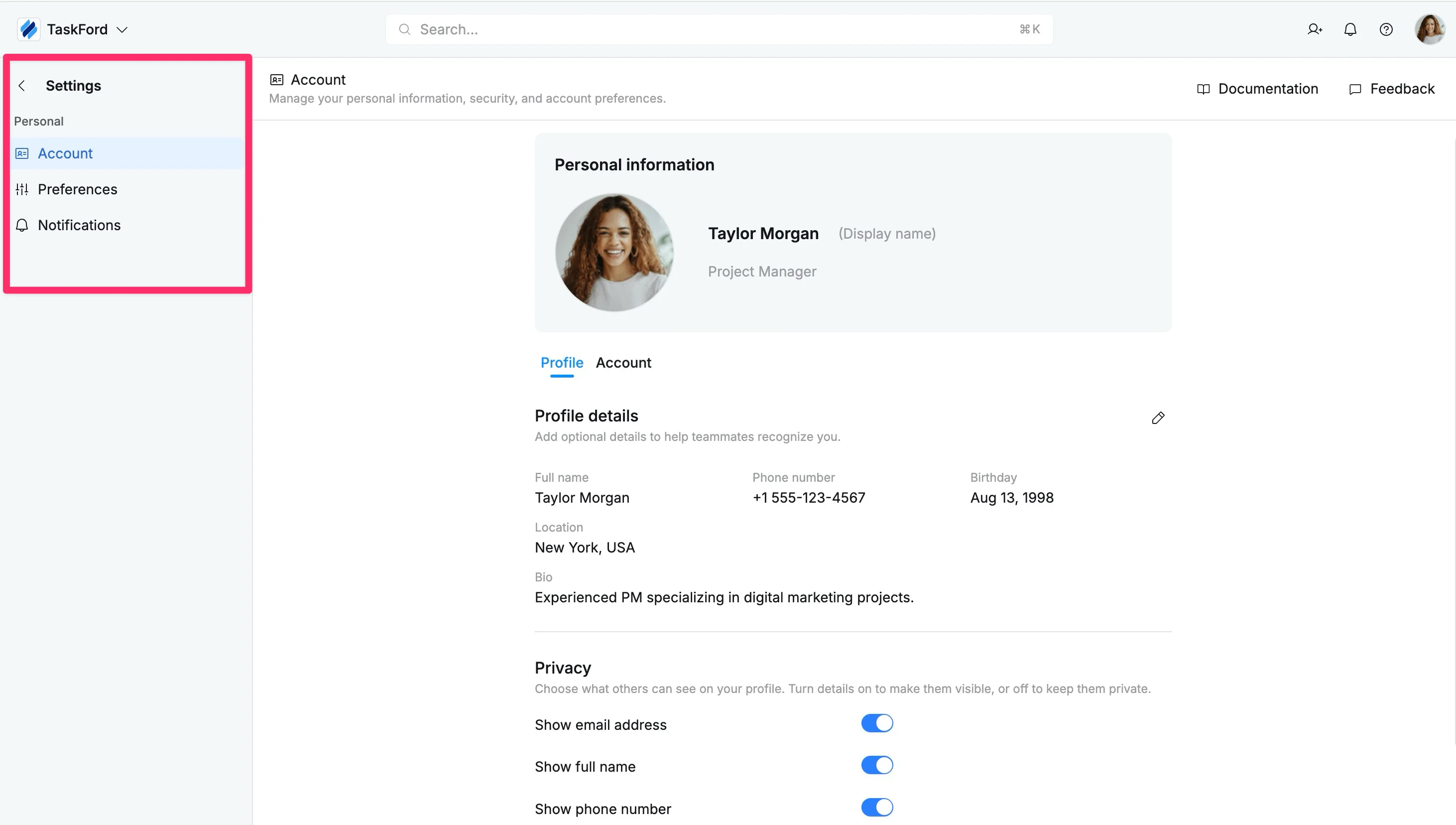
Account
- Update your display name, profile picture, title, and bio to help your team recognize you.
- Manage your account details, such as email and login information.
Preferences: Customize how TaskFord works for you by adjusting settings such as language and display preferences.
Notifications: Control how and when you receive updates about tasks, activity, and board changes.