Copy and share links
Learn how to copy and share direct links to boards, views, tasks, and documents in TaskFord.
Members who can access an item can copy its link.
Sharing a link does not give someone access to the item. The person opening the link must already have permission to access the related board or content.
Copy direct links to boards, views, tasks, and documents in TaskFord so you can quickly reference and share work with your team.
A copied link takes members directly to the related item, making it easier to share context in comments, documents, messages, or other collaboration tools.
Copy a board link
You can copy a direct link to a board from several places in TaskFord.
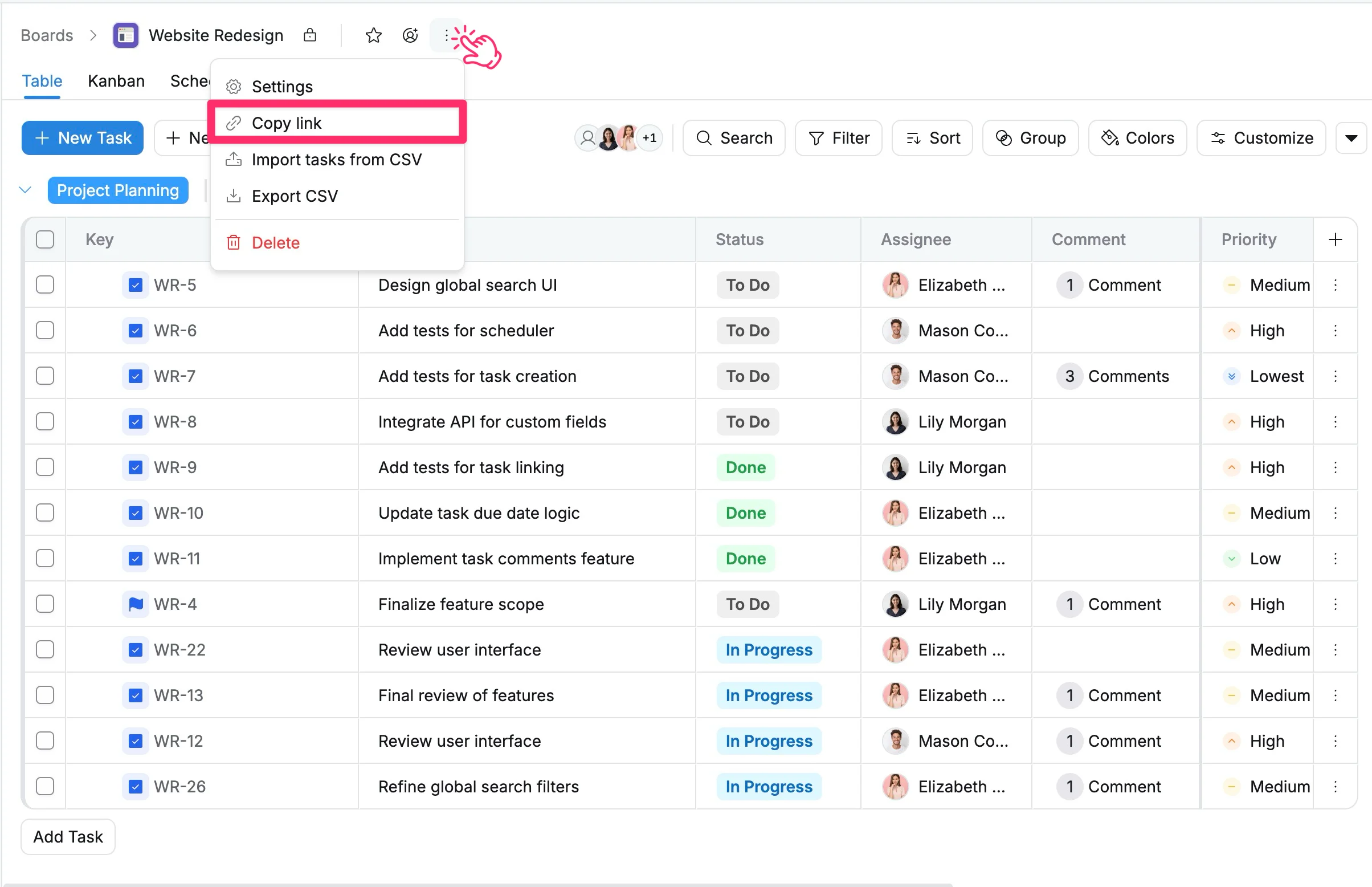
From the board header
- Open the board you want to share.
- Click the three dots (⋮) next to the board name.
- Select Copy link.
The board link is copied to your clipboard and ready to share.
From the sidebar
You can also copy a board link directly from the sidebar.
- Find the board under Starred or Recent.
- Click the three dots (⋮) next to the board name.
- Select Copy link.
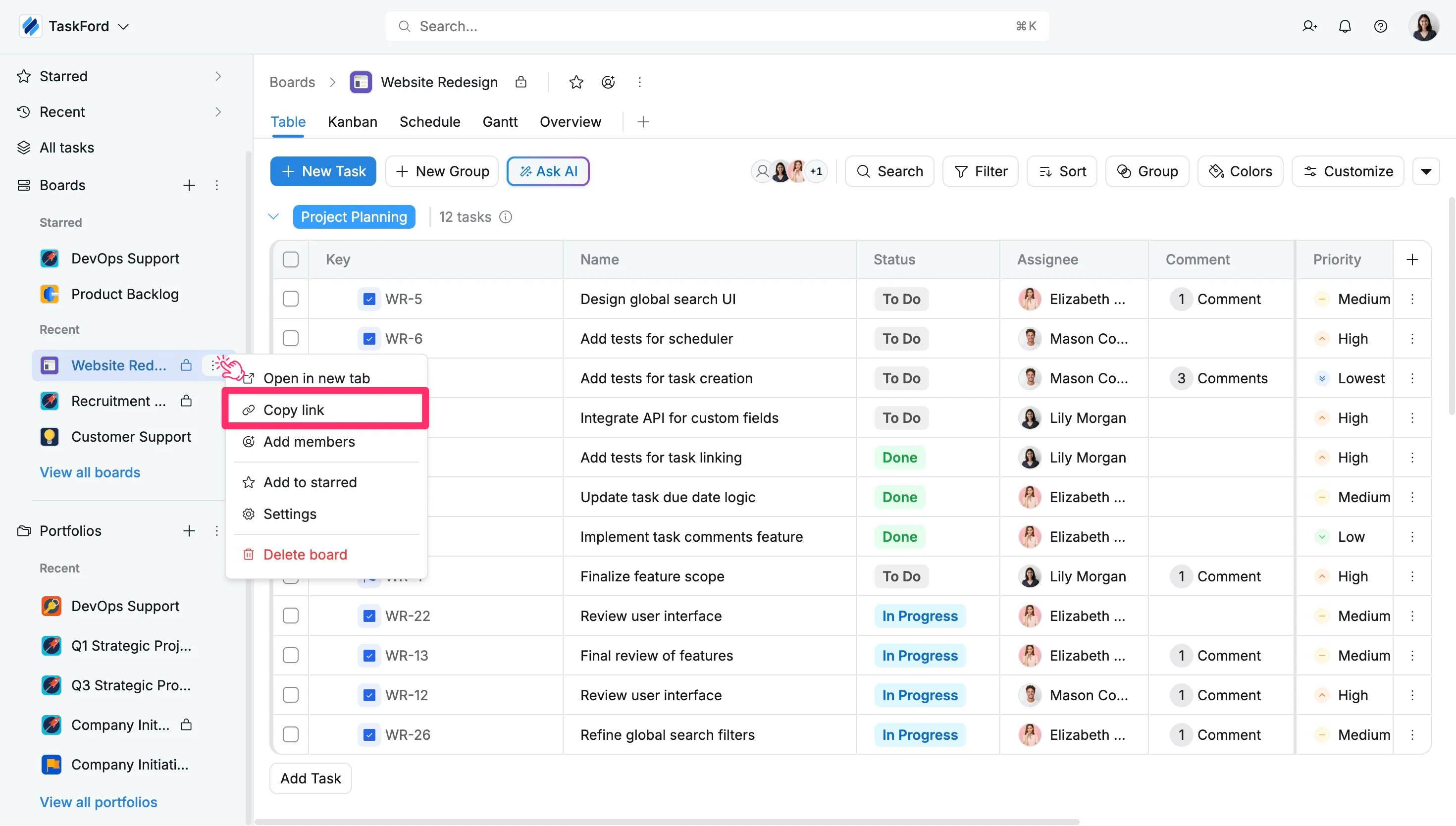
This is useful when you want to share a board without opening it first.
From View all boards
You can also copy a board link from the full boards list.
- In the sidebar, click View all boards.
- Find the board you want to share.
- Click the three dots (⋮) in the Actions column.
- Select Copy link.
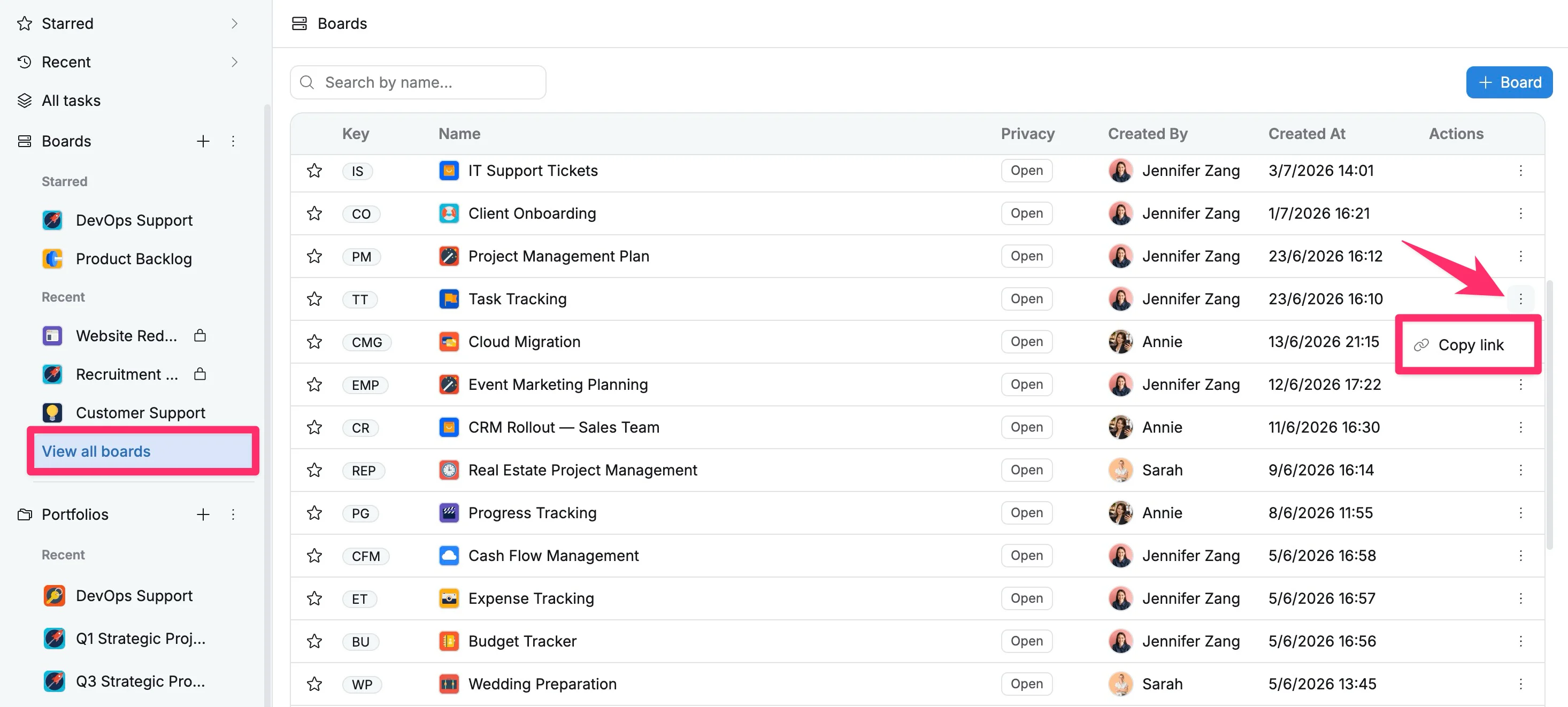
The board link is copied to your clipboard and ready to share.
Copy a view link
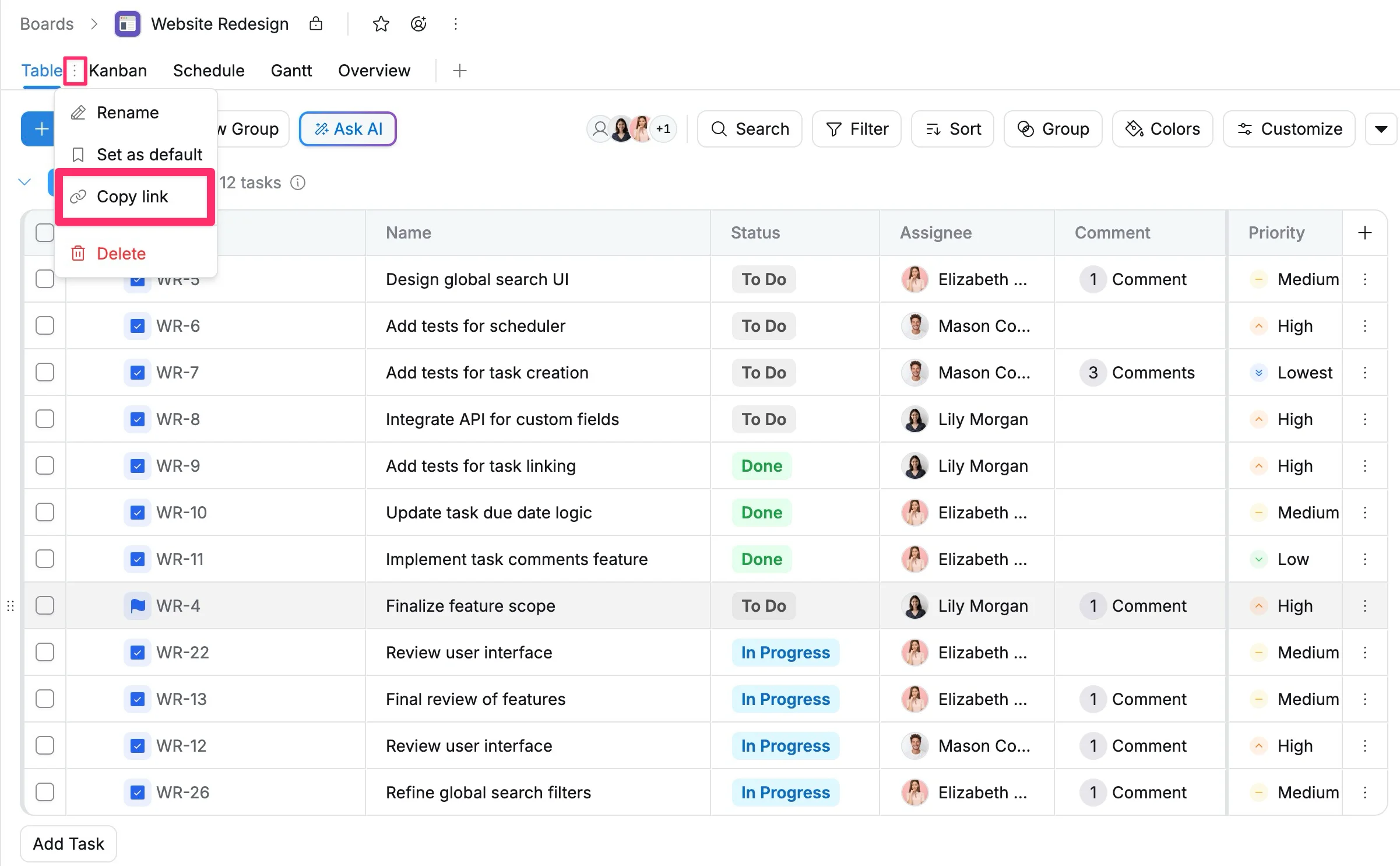
You can copy a direct link to a specific board view, such as Table, Kanban, Schedule, Gantt, or Overview.
- Open the board.
- Hover over the view name.
- Click the three dots (⋮) next to the view name.
- Select Copy link.
Copy a task link
Each task has its own direct link, so you can point teammates to a specific piece of work instead of sending them to the whole board.
You can copy a direct link to a task from Table view or the task details view.
From Table view
- Find the task in Table view.
- Hover over the task key.
- Click the Copy link icon.
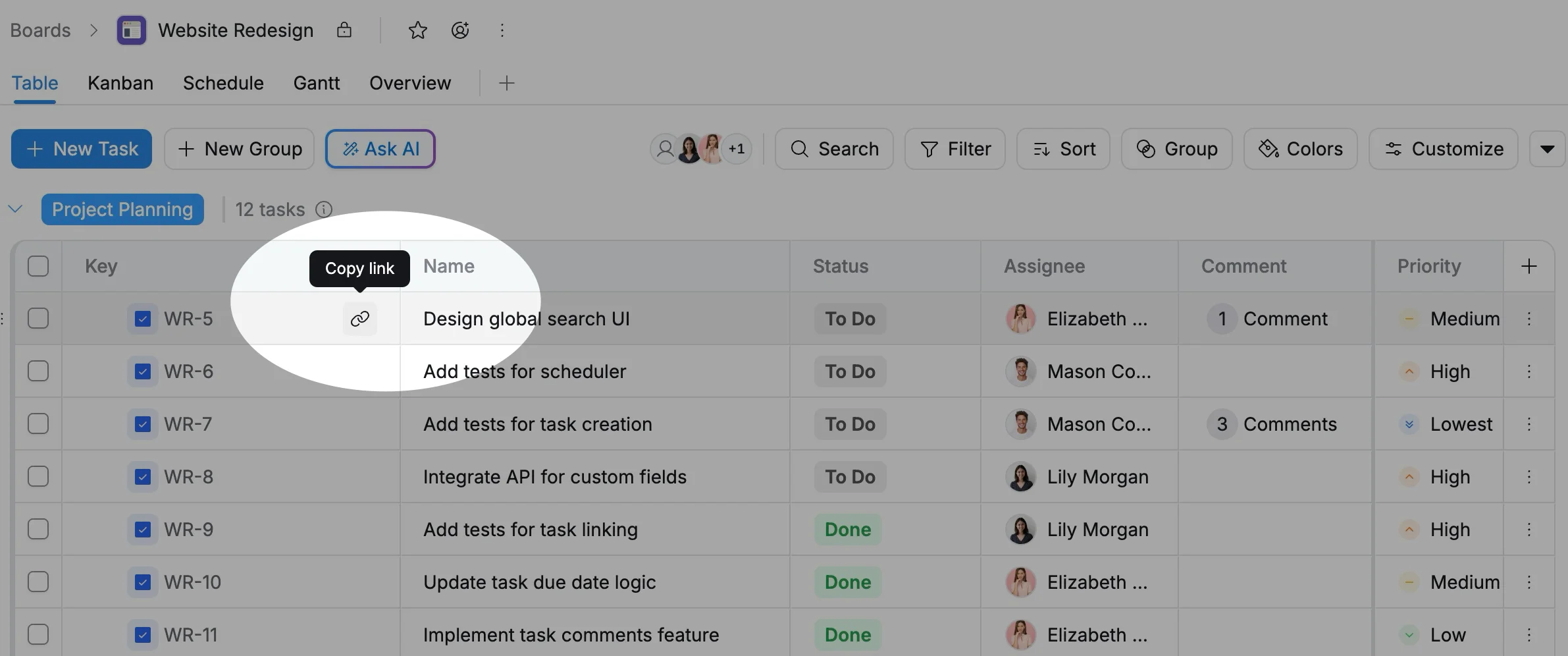
From the task details view
- Open the task details view.
- Click the Copy link icon next to the task key at the top.
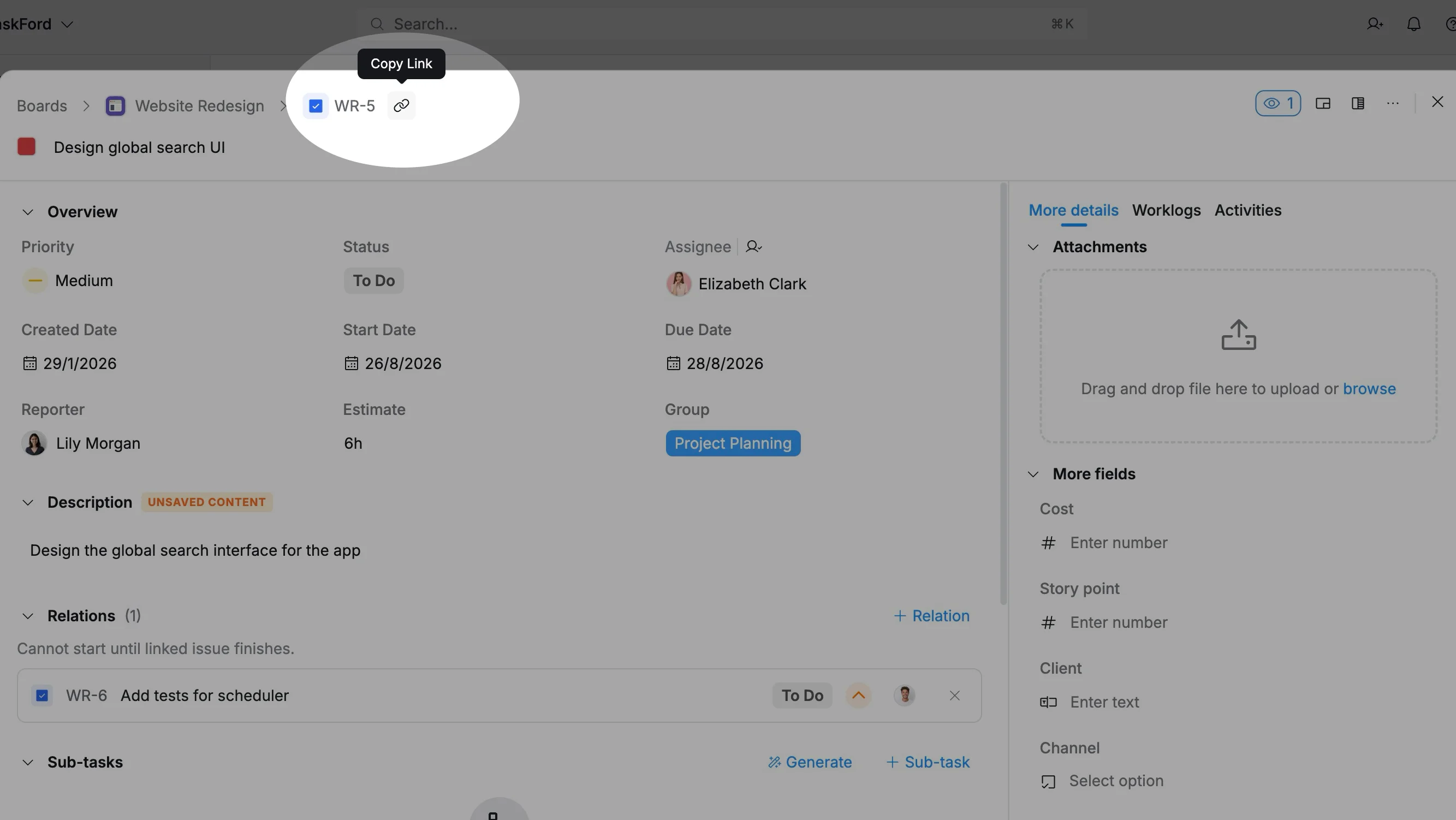
The task link is copied to your clipboard. You can then paste the link into a comment, document, message, or another place where you want to reference the task.