Log in & Log out
Learn how to log in to TaskFord using different sign-in methods to access your workspace, switch between sites, and manage your account securely.
Log in to TaskFord
Log in from the login page
Once your account has been created, you can log in at any time to access your site.
- Navigate to https://taskford.app/auth/signin
- Select your sign-in method:
- Enter your email and password.
- Continue with Google or Microsoft if your account is linked.
- Click Sign in.
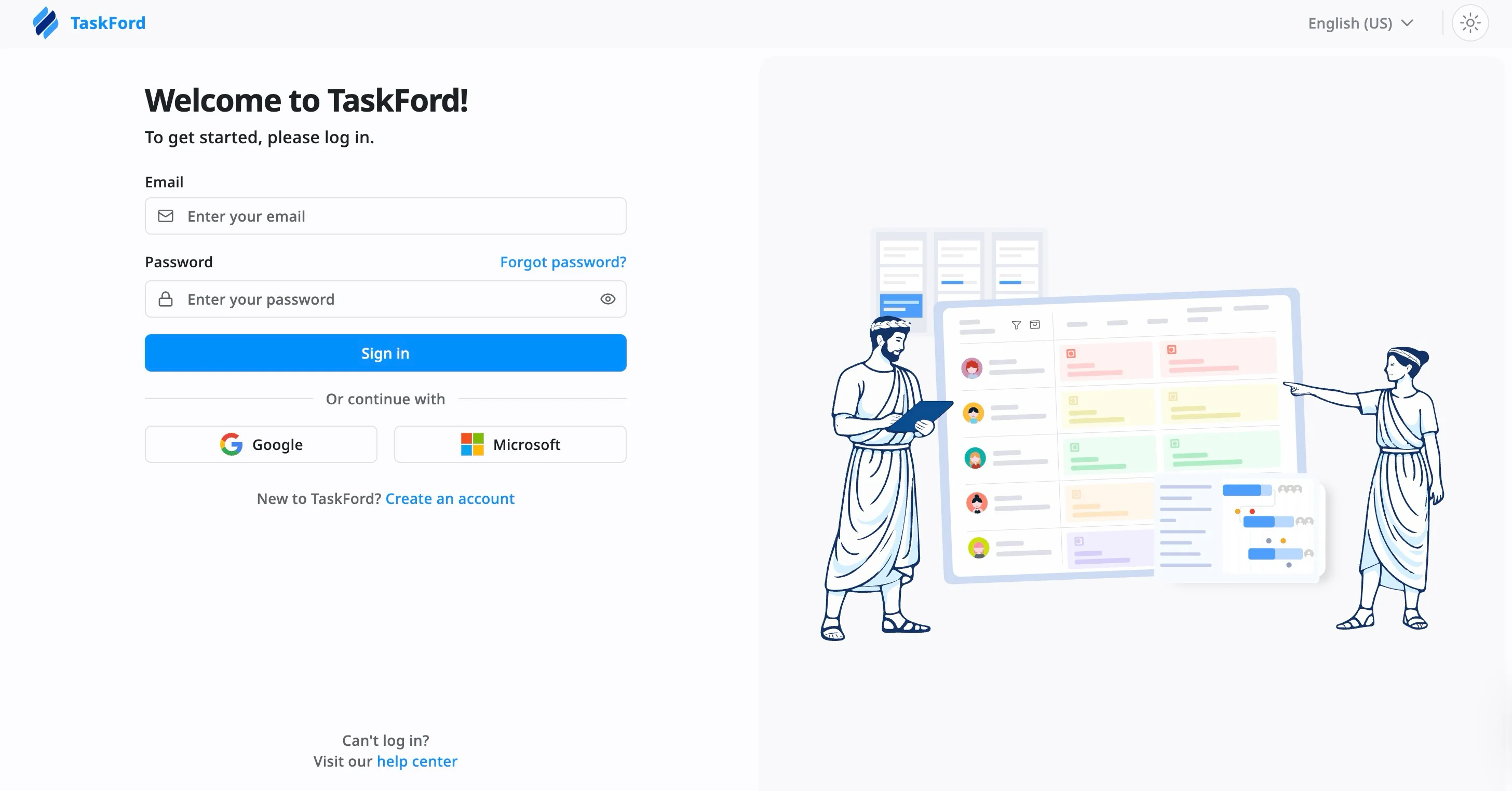
If your site requires two-factor authentication (2FA), you will be prompted to enter a 6-digit authentication code to sign in.
After signing in successfully, you will be redirected to a page showing all the sites you belong to. From there, you can select the site you want to access.
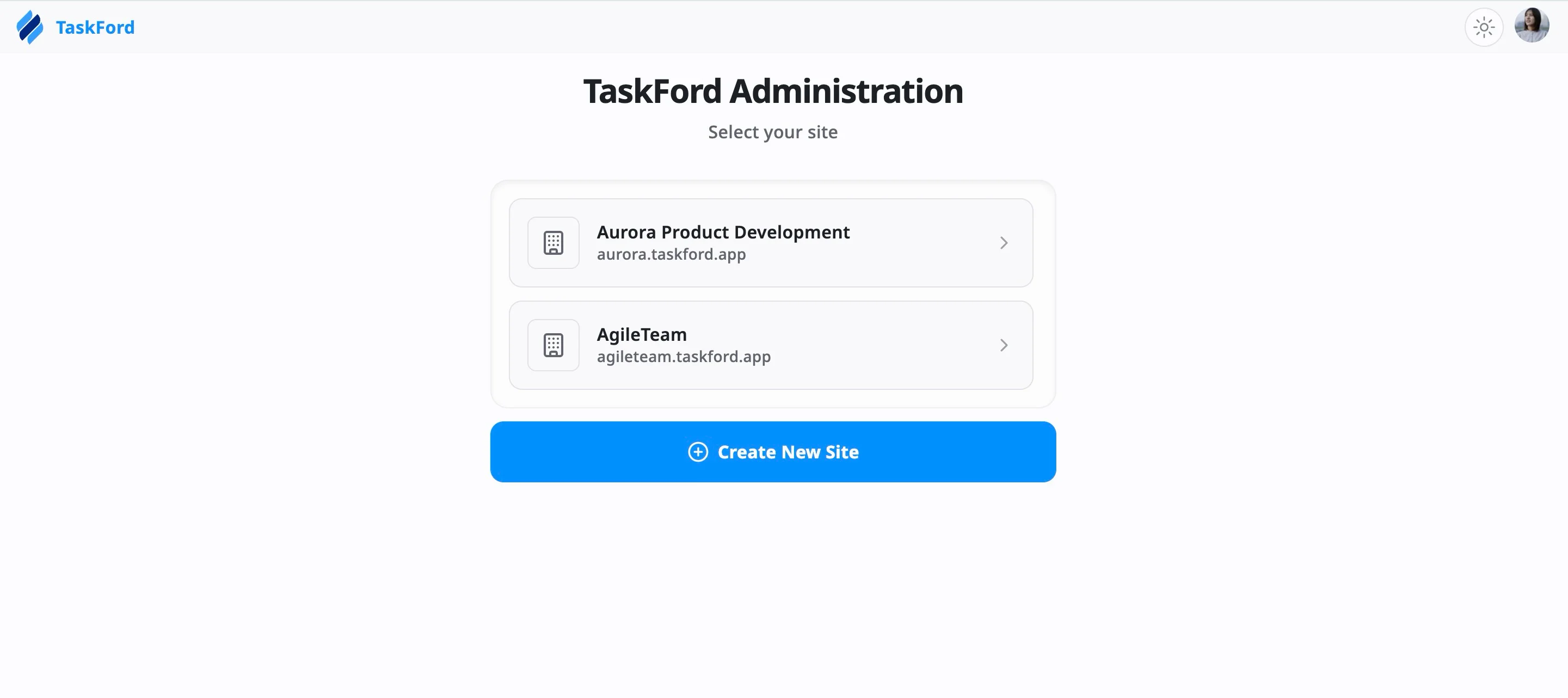
A single TaskFord account can be used to access multiple sites, allowing you to switch between teams without creating separate accounts.
Bookmark your site login page for faster access in the future.
Log in via a Site URL
If your team shares a direct site link, you can use it to sign in and access that site directly.
To log in using a site URL:
- Open the site URL provided by your team.
- Verify the site name displayed at the top of the page.
- Select your sign-in method:
- Enter your email and password.
- Continue with Google or Microsoft if your account is linked.
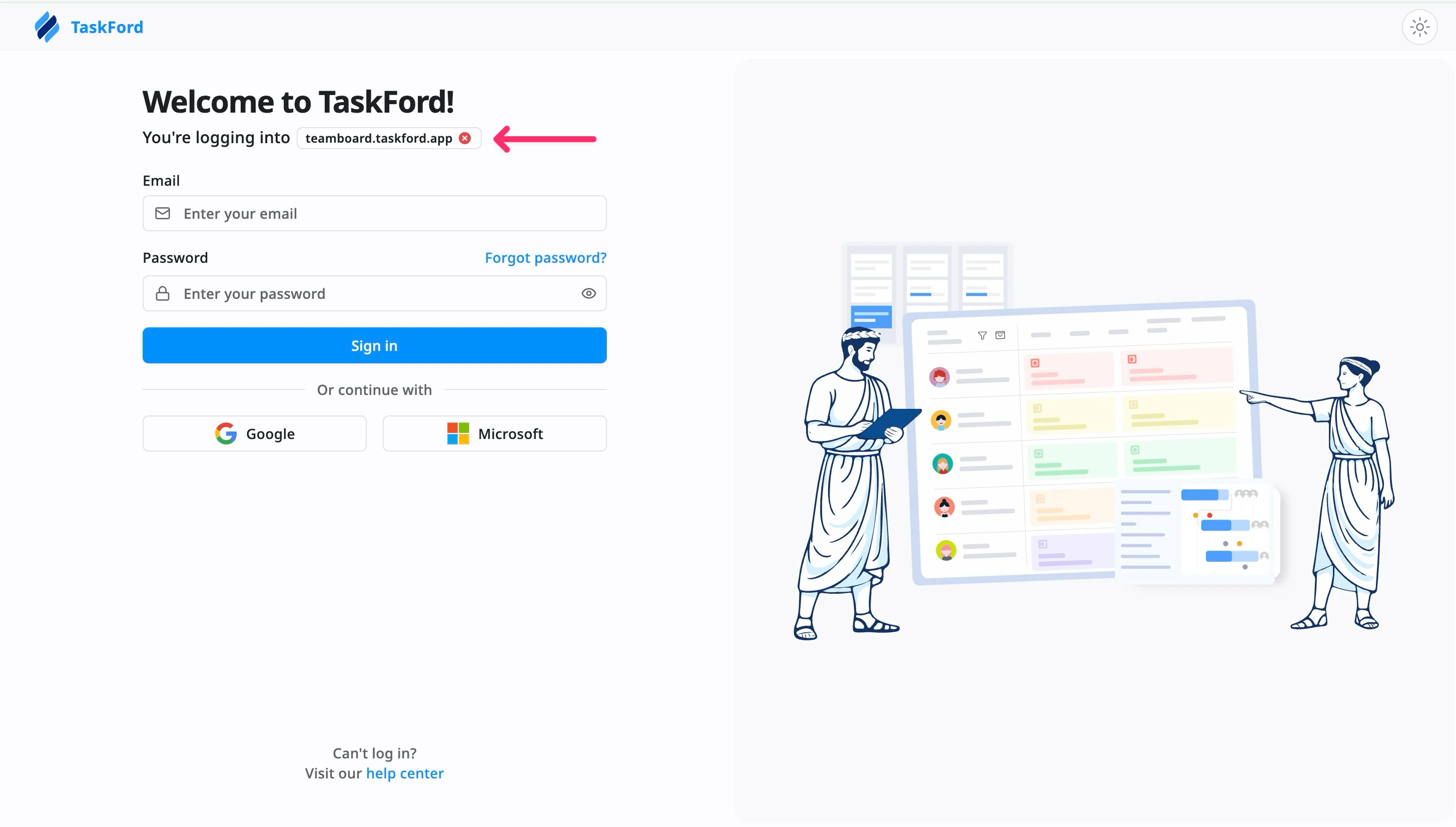
Once you sign in with an authorized account, you will be automatically redirected to the site.
You can only access and join a site if you have been invited or granted permission. If you are not authorized, please contact your site administrator to request access.
Log out
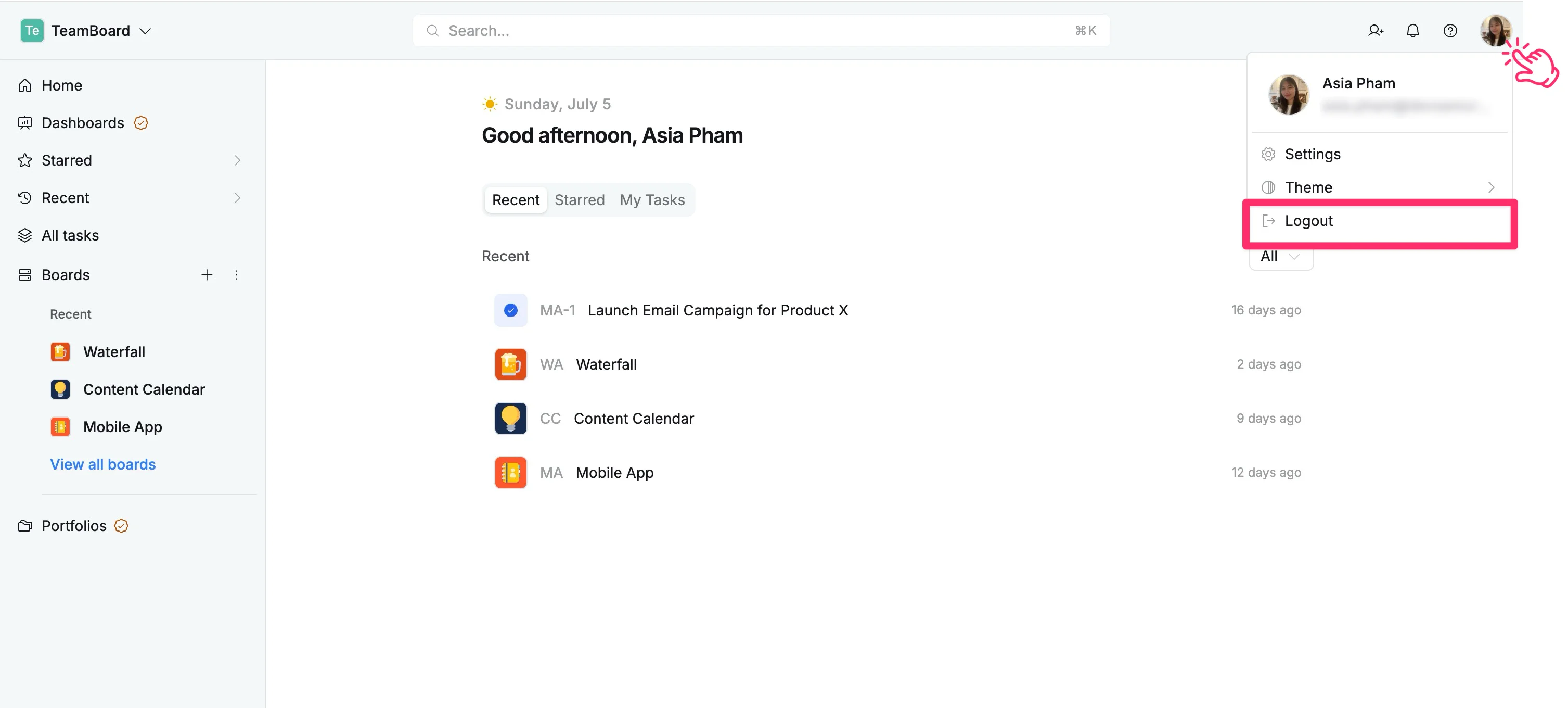
To sign out of your account:
- Click your profile picture in the top-right corner.
- Select Log out from the dropdown menu.
Troubleshooting sign‑in issues
You forgot your password
If you can’t remember your password :
- Click Forgot password? on the sign‑in page.
- Enter your registered email address.
- Follow the instructions in the password reset email to create a new password.
You are not receiving emails
If you do not receive sign‑in or password reset emails:
- Check that you entered the correct email address.
- Look in your spam or junk folder.
- If your organization uses email filtering, ask your IT team to allow emails from TaskFord’s domain.
You did not receive a 2FA verification code
If 2FA is enabled but you are not receiving or cannot access your code:
- Make sure your authenticator app is installed and synced with your device time.
- Use your saved recovery code if available.
- Contact your workspace administrator to help you regain access if you no longer have your authenticator device.
You signed in with Google or Microsoft, but cannot access your site
Make sure you are using the same email address that was originally used to create or join the workspace. If you have multiple accounts, try signing out and selecting the correct one during authentication.
Still having trouble? If you continue to experience issues signing in, please contact our Support Team for further assistance.