Create boards
This guide walks you through creating a board in TaskFord from different areas of the app and setting up key details to start organizing and managing your work.
Who can use this feature?
- App Admins / App Editors can create boards
- App Viewers cannot create boards
Creating a board allows you to set up a dedicated space for organizing work, tracking tasks, and collaborating with your team.
You can create a board in two different ways, depending on where you are in the app:
Option 1: From the sidebar
- In the sidebar, navigate to the Boards section.
- Click the (+) button next to Boards.
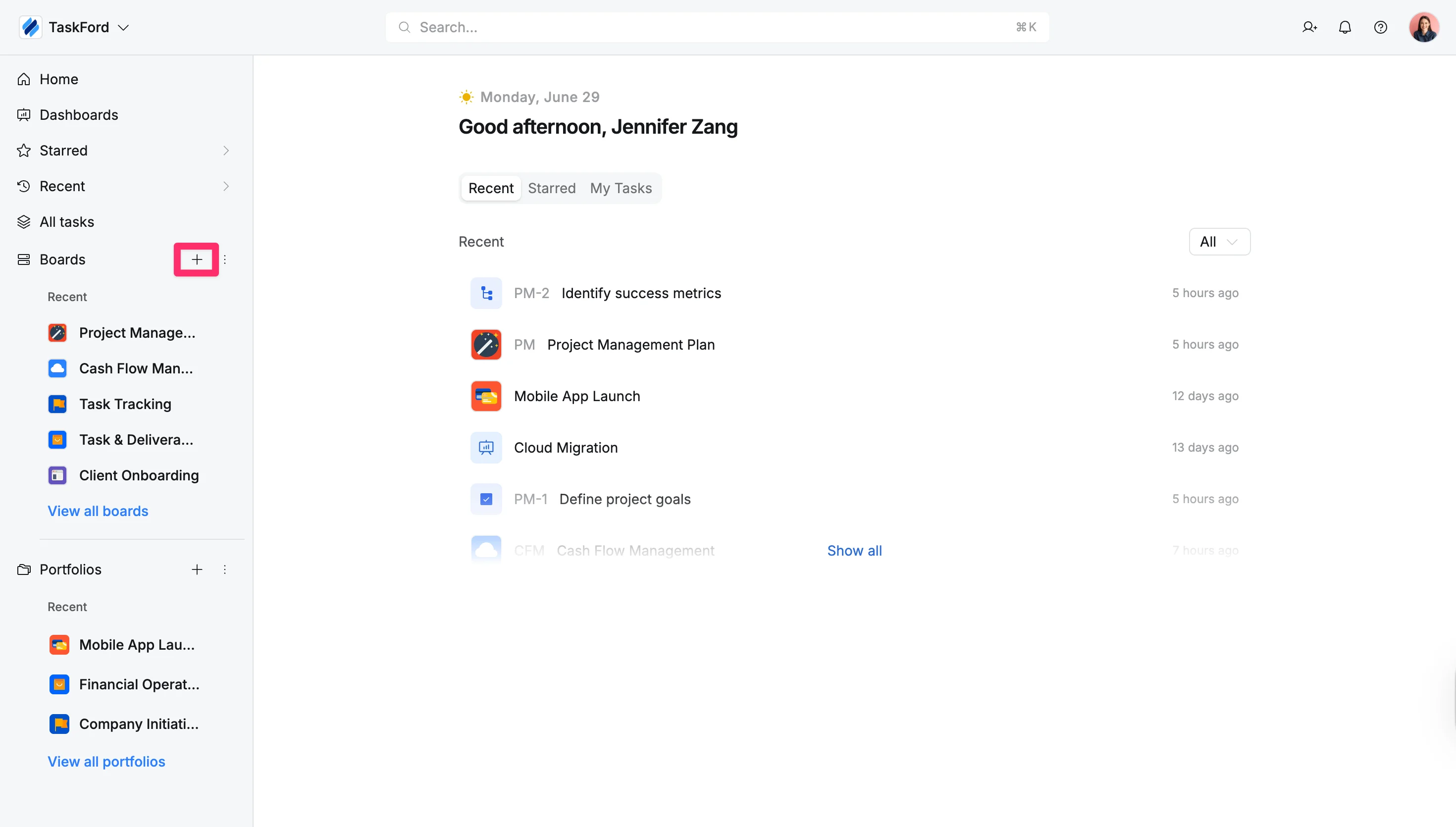
- A pop-up window will next give you the option to add your board details.
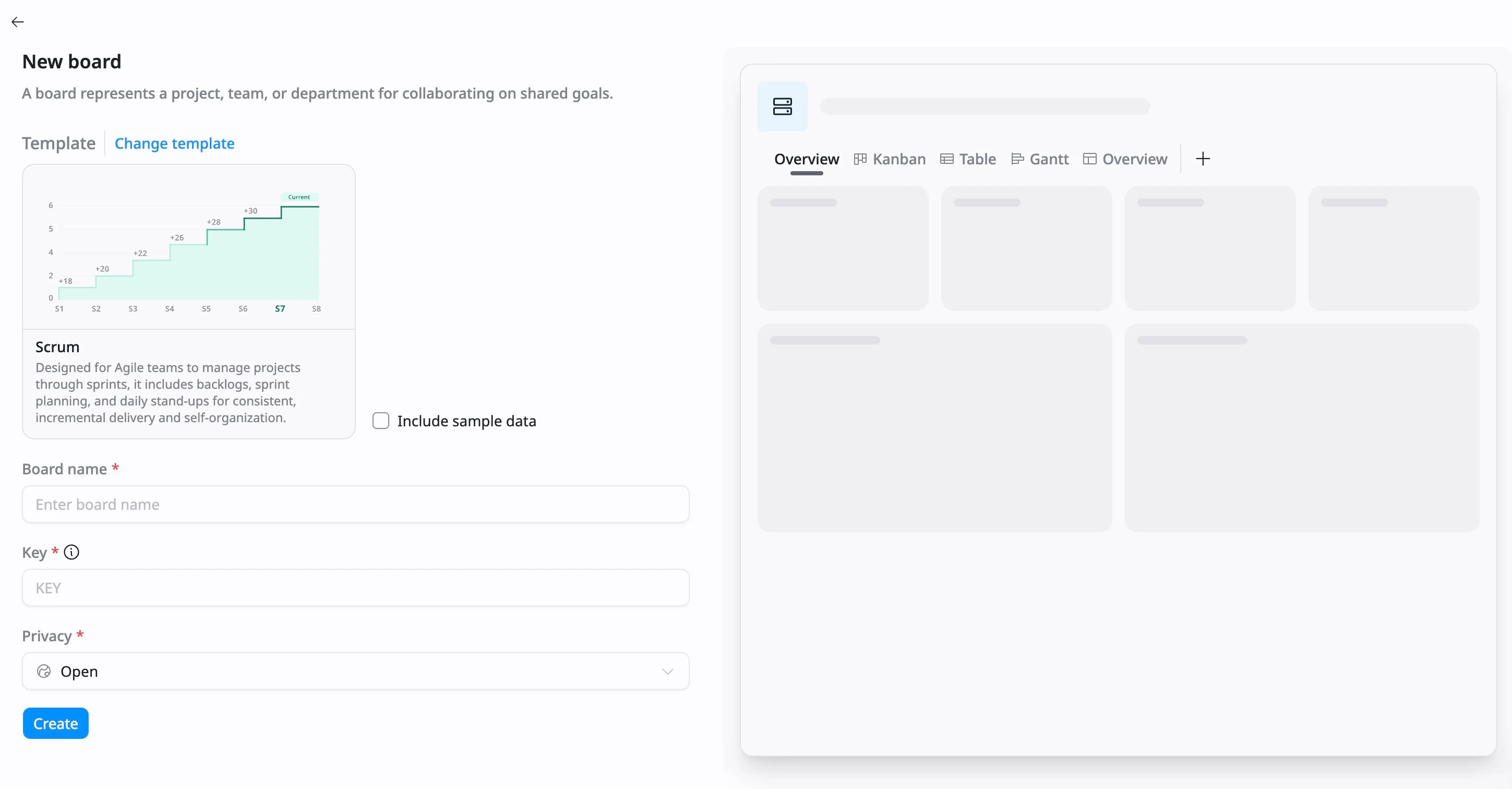
From the board details screen, you can:
- Template: Start from scratch or click Change template to apply a predefined structure. You can optionally check a box to include sample data.
- Board name: Enter a board name.
- Key: Define a unique, short identifier (e.g., “
MKT”) used as a prefix for all tasks created on this board. - Privacy: Choose a privacy level to control who can access this board
- Open: Open access for everyone within your site.
- Limited: Visible to everyone, but only invited members can create or edit tasks.
- Private: Restricted access; visible only to admins and invited members.
- Click Create.
Your new board will open in the main workspace and appear in the sidebar.
Option 2: From the ‘All boards’ screen
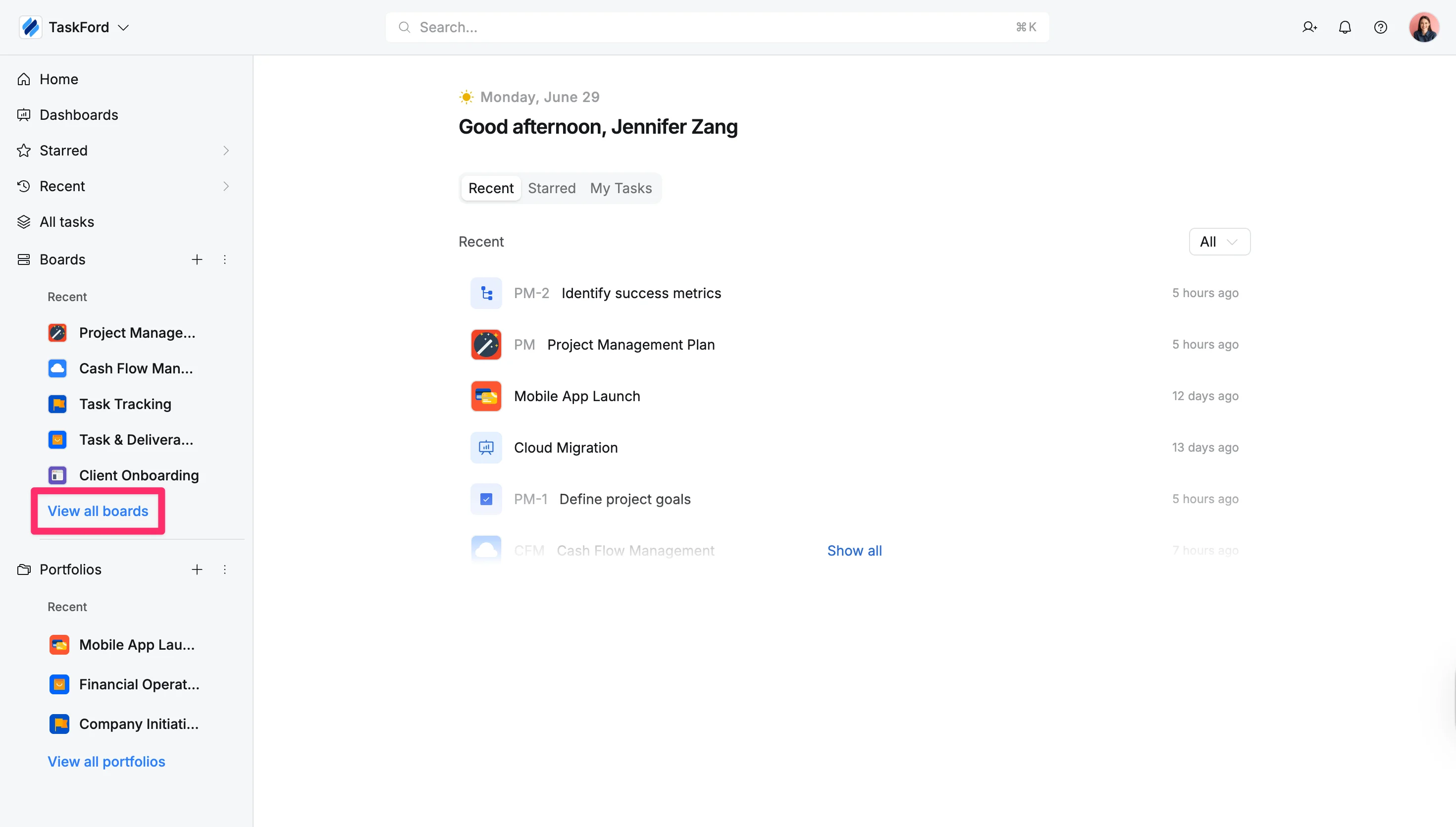
- From the sidebar, navigate to the Boards section.
- Click View all boards.
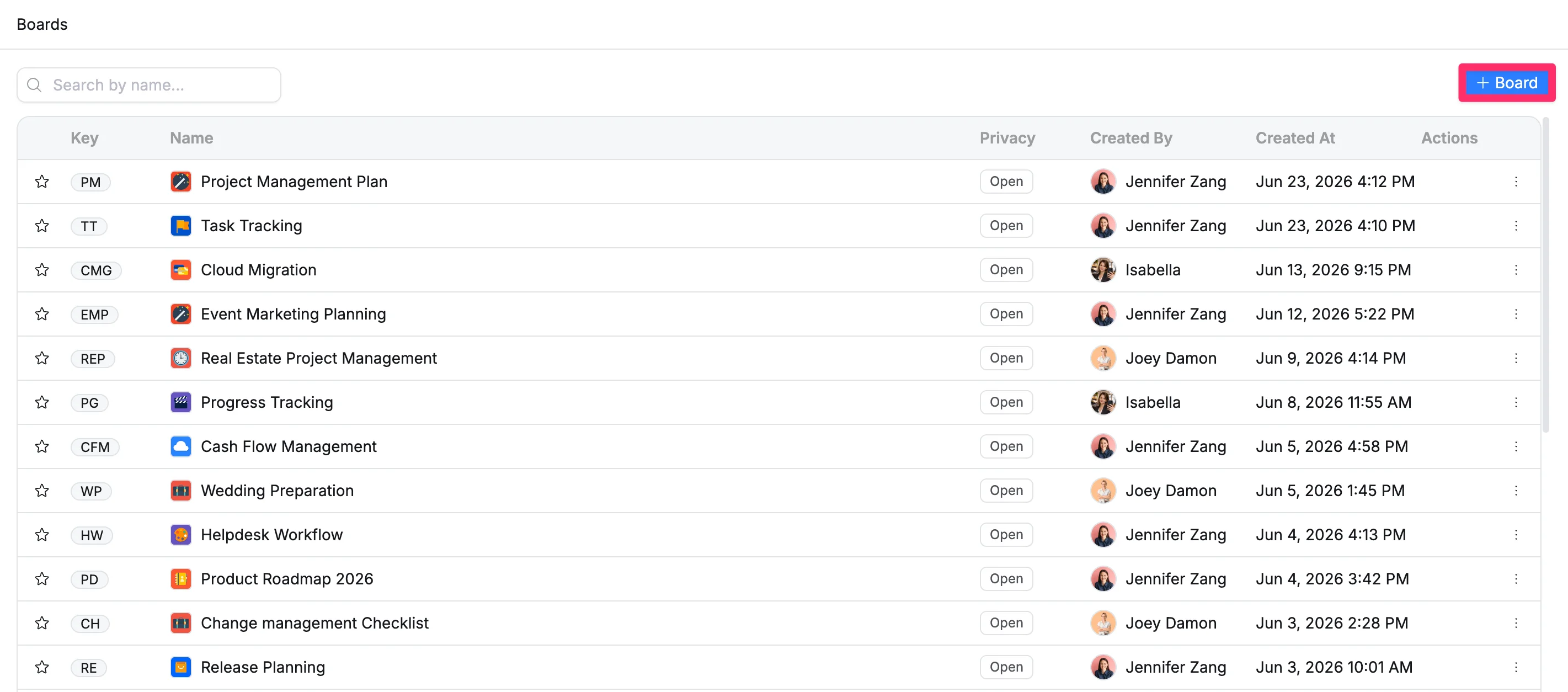
- In the All boards screen, click Create board in the top-right corner.
- A pop-up window will next give you the option to add your board details.
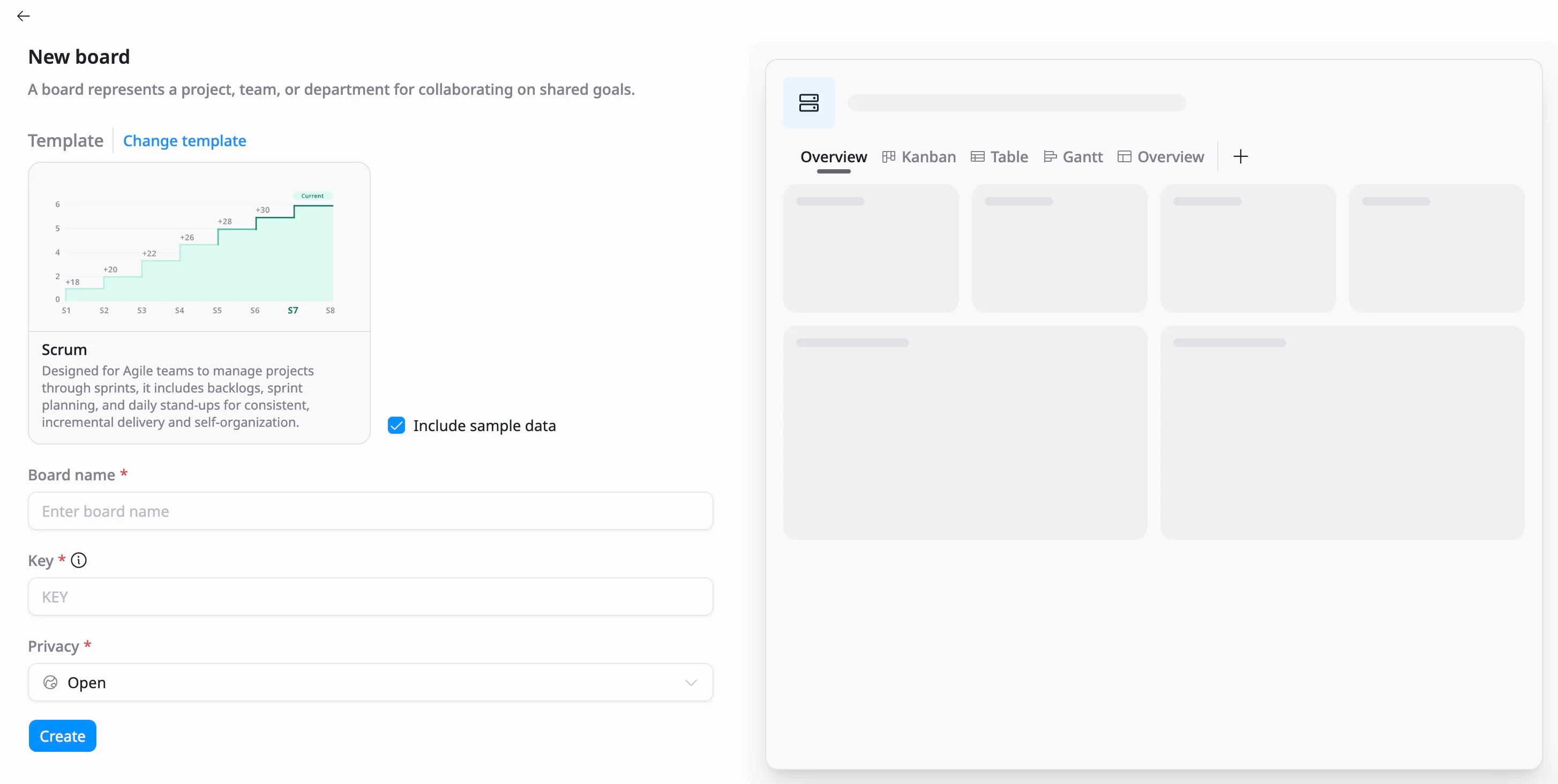
From the board details screen, you can:
- Template: Start with a blank board or click Change template to choose a predefined structure.
- Board name: Enter a board name.
- Key: Define a unique, short identifier (e.g., “
MKT”) used as a prefix for all tasks created on this board. - Privacy: Choose a privacy level to control who can access this board
- Open: Open access for everyone within your site.
- Limited: Visible to everyone, but only invited members can create or edit tasks.
- Private: Restricted access; visible only to admins and invited members.
- Click Create