Create custom fields
Learn how to create and manage custom fields, capturing additional task information and tailoring workflows to meet your team's needs.
Custom fields allow you to capture additional information beyond standard task attributes, helping you tailor TaskFord to your team’s workflow and reporting needs.
As an admin, you can create global custom fields that are available to all boards.
Access custom fields settings
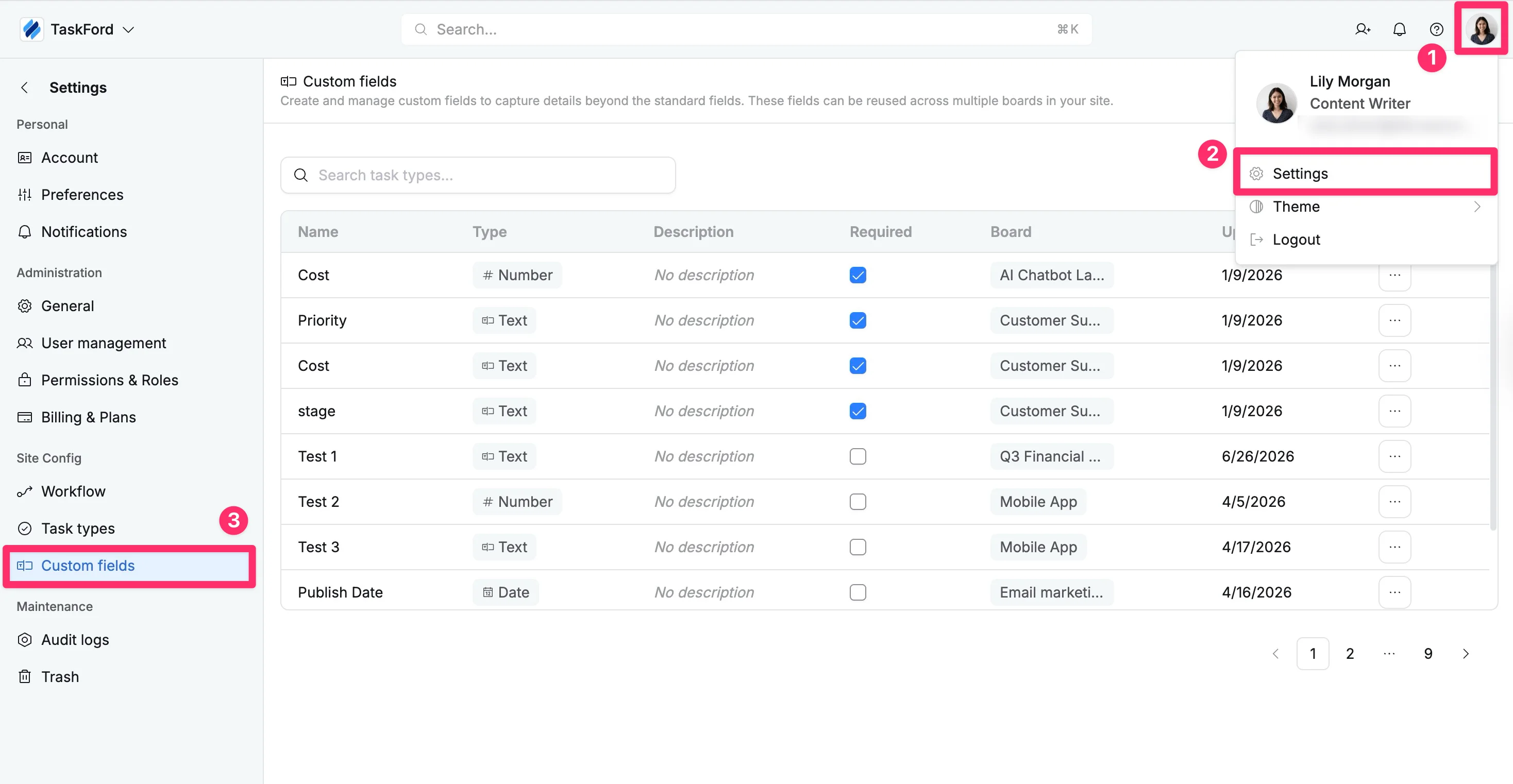
- Click your profile picture in the top-right corner.
- Select Settings from the dropdown menu
- In the left-hand panel, under Site Config, click Custom fields
This is where you can view, manage, and create all custom fields in your site.
Create a new custom field
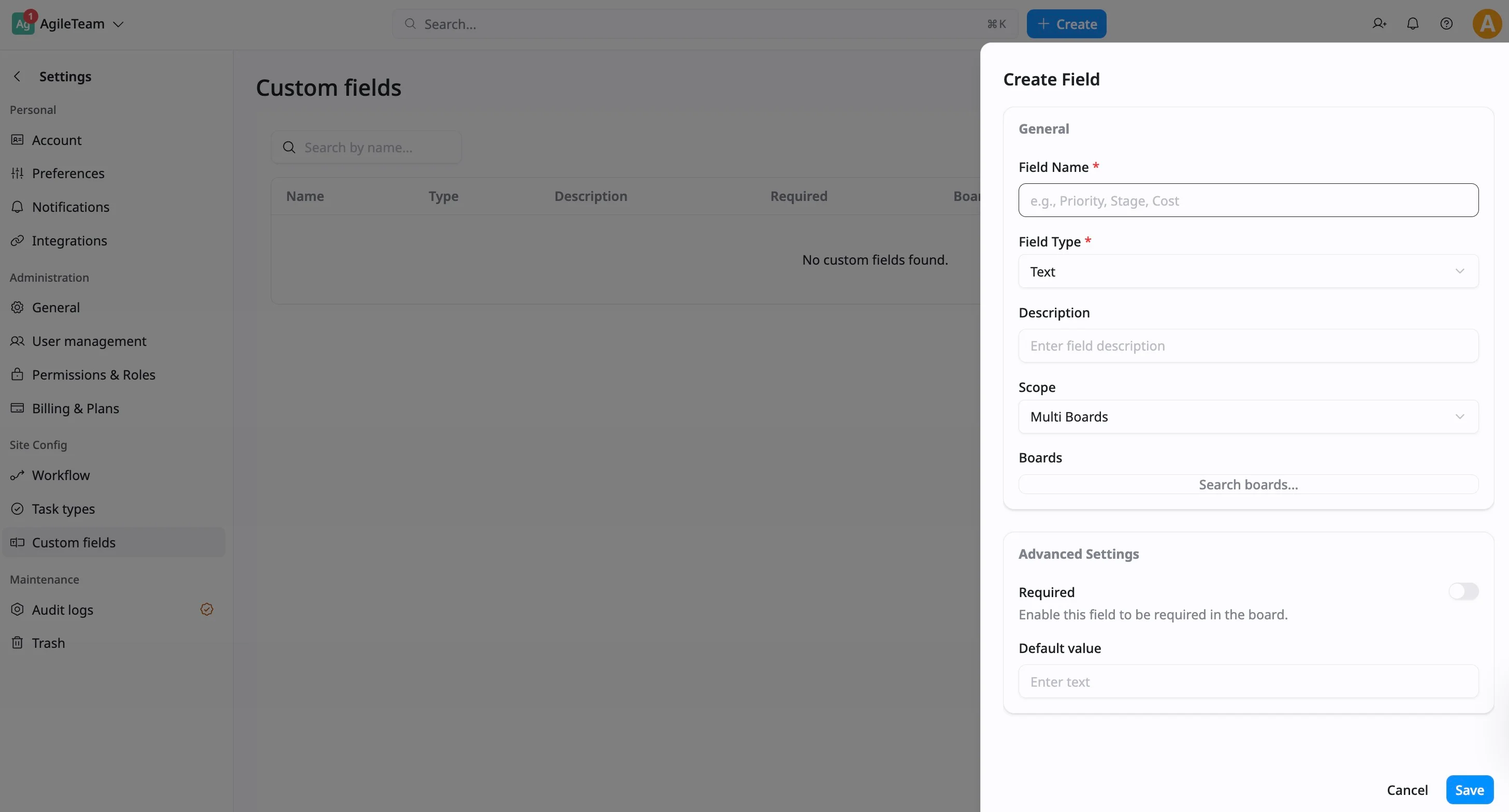
- Click + Custom Field in the top-right corner.
- The Create Field panel will open:
- Field name: Enter a clear and descriptive name (e.g., Priority, Budget, Client)
- Field type: Choose the format for the data you want to capture. Common types include:
- Text: For free-form input such as notes or names
- Number: For numeric values like cost, effort, or quantity
- Date: For deadlines, milestones, or important dates
- Description (optional): Add context to help your team understand how to use this field.
- Scope: Decide where this field should be visible:
- Multi Boards Select this option to use the field across multiple boards. You can then choose specific boards where the field will apply.
- Global Make the field available across all boards in your site. This is useful for standardized data used organization-wide.
- Advanced settings
- Required: Enable this option to make the field mandatory when creating or updating tasks
- Default value: Set a predefined value to standardize task data
- Click Save to finalize the field.
Learn more