Create your first board
Learn how to create and customize your first board in TaskFord to define your project's scope and organize tasks for efficient collaboration.
As a board administrator, your responsibility is to set up and organize the board so your team can plan, execute, and collaborate effectively.
Start by creating a board to define the scope of your project or team. This will be the central workspace where all tasks, updates, and collaboration take place.
You can set up your boards from scratch or use a template designed for a specific use case.
Create a new board
Option 1: From the sidebar
- From the sidebar, navigate to the Boards section.
- Click (+) button next to Boards.
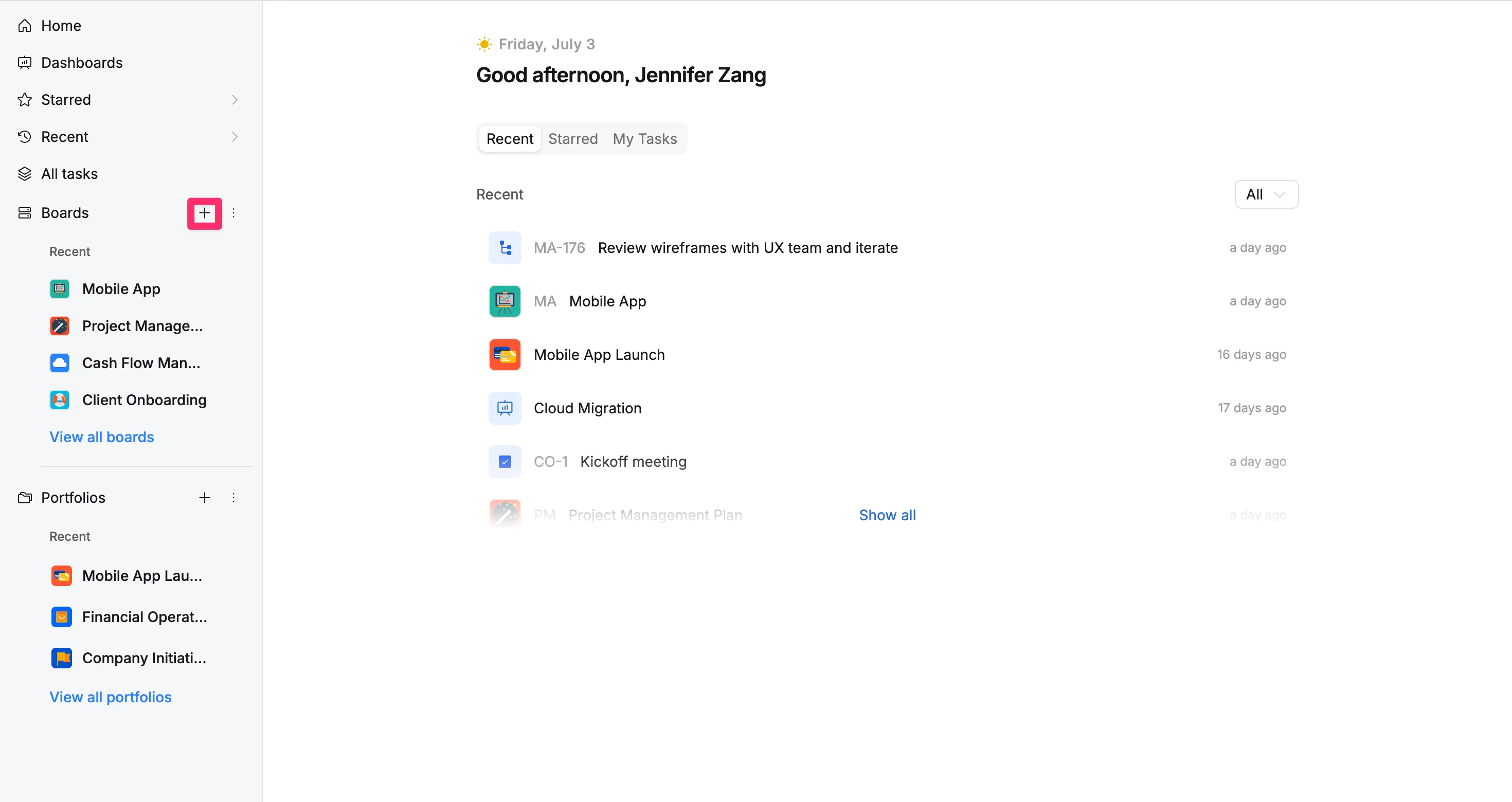
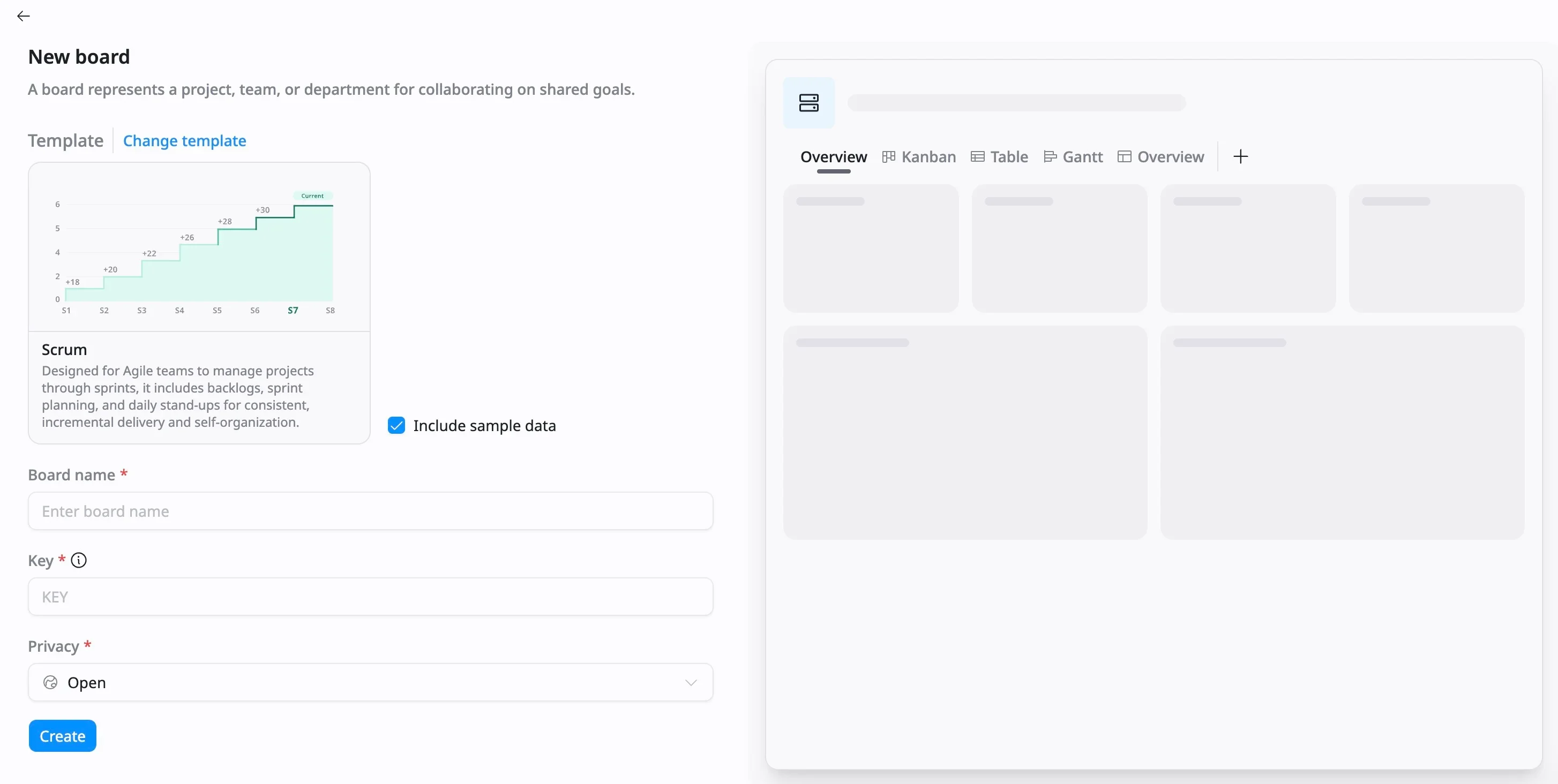
- A pop-up window will next give you the option to add your board details.
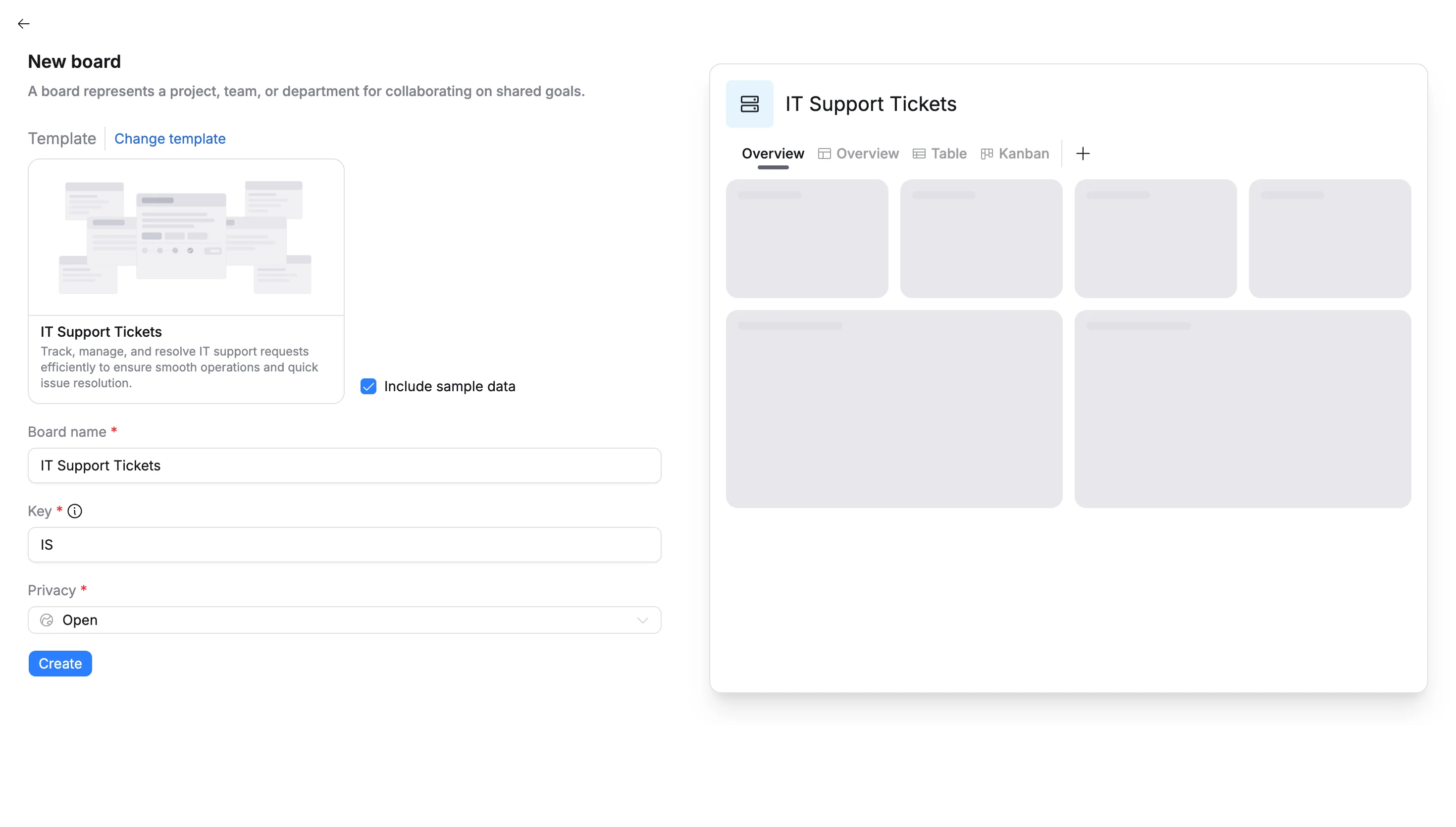
From the board details screen, you can:
- Template: Start from scratch or click Change template to apply a predefined structure. You can optionally check a box to include sample data.
- Board Name: Enter a board name.
- Key: Define a unique, short identifier (e.g., “MKT”) used as a prefix for all tasks created on this board.
- Privacy: Choose a privacy level to control who can access this board
- Open: Open access for everyone within your site.
- Limited: Visible to everyone, but only invited members can create or edit tasks.
- Private: Restricted access; visible only to admins and invited members.
- Click + Create to create a new board.
Your new board will load in the main workspace and appear in the sidebar, under the “Boards” section for easy access.
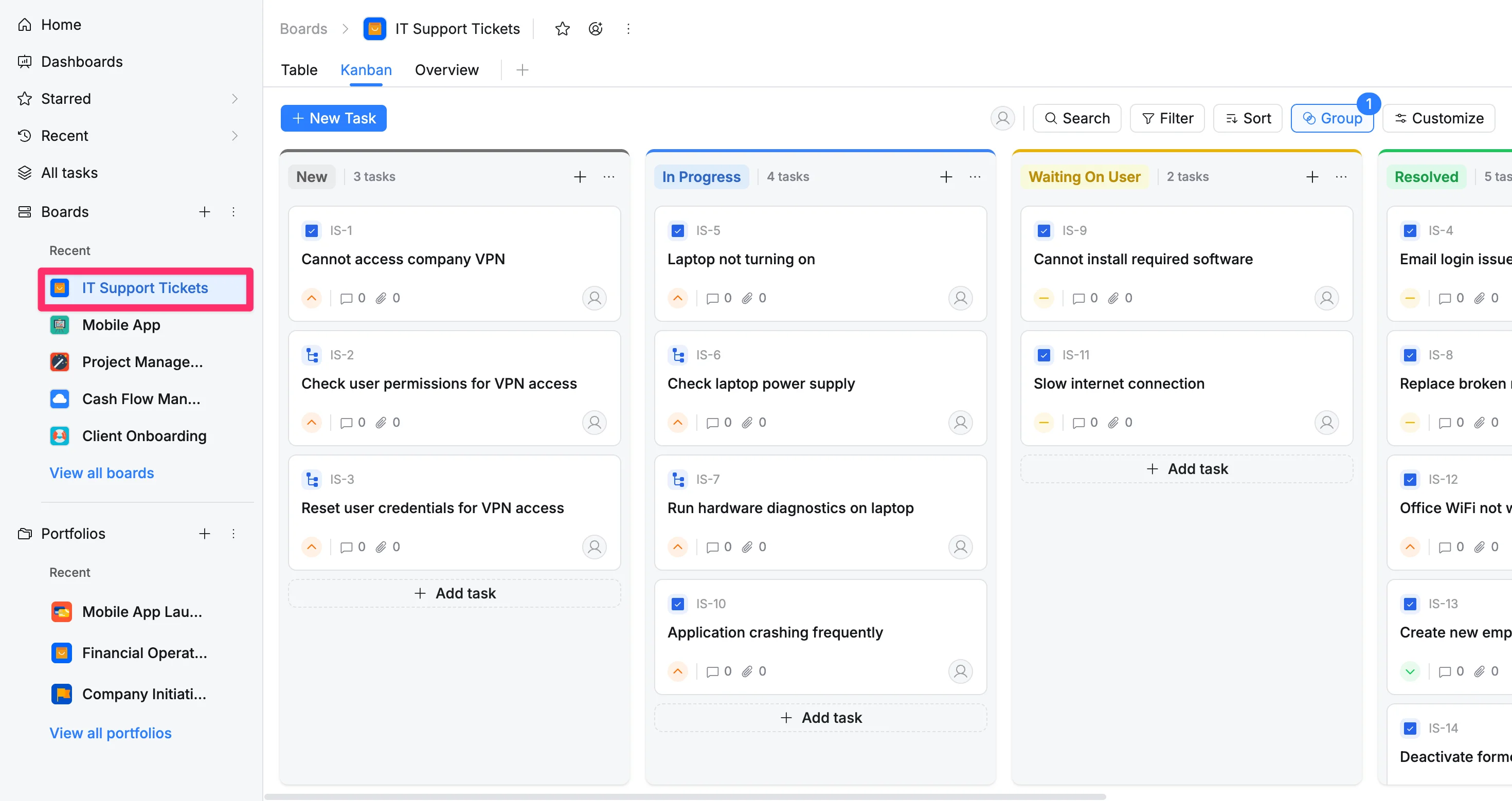
Option 2: From the ‘All boards’ screen
- From the sidebar, navigate to the Boards.
- Click View all boards.
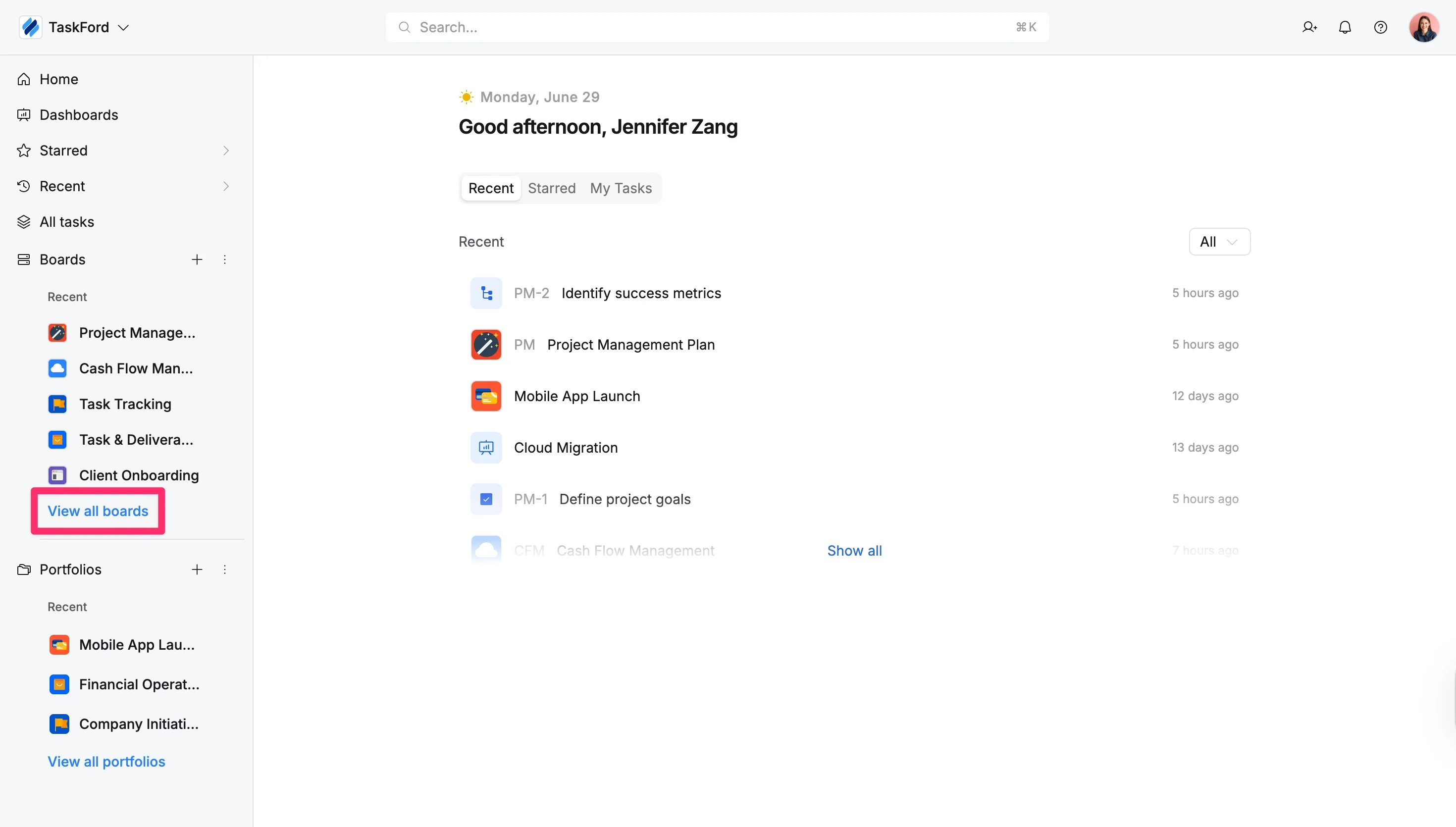
- In the All boards screen, click Create board in the top-right corner.
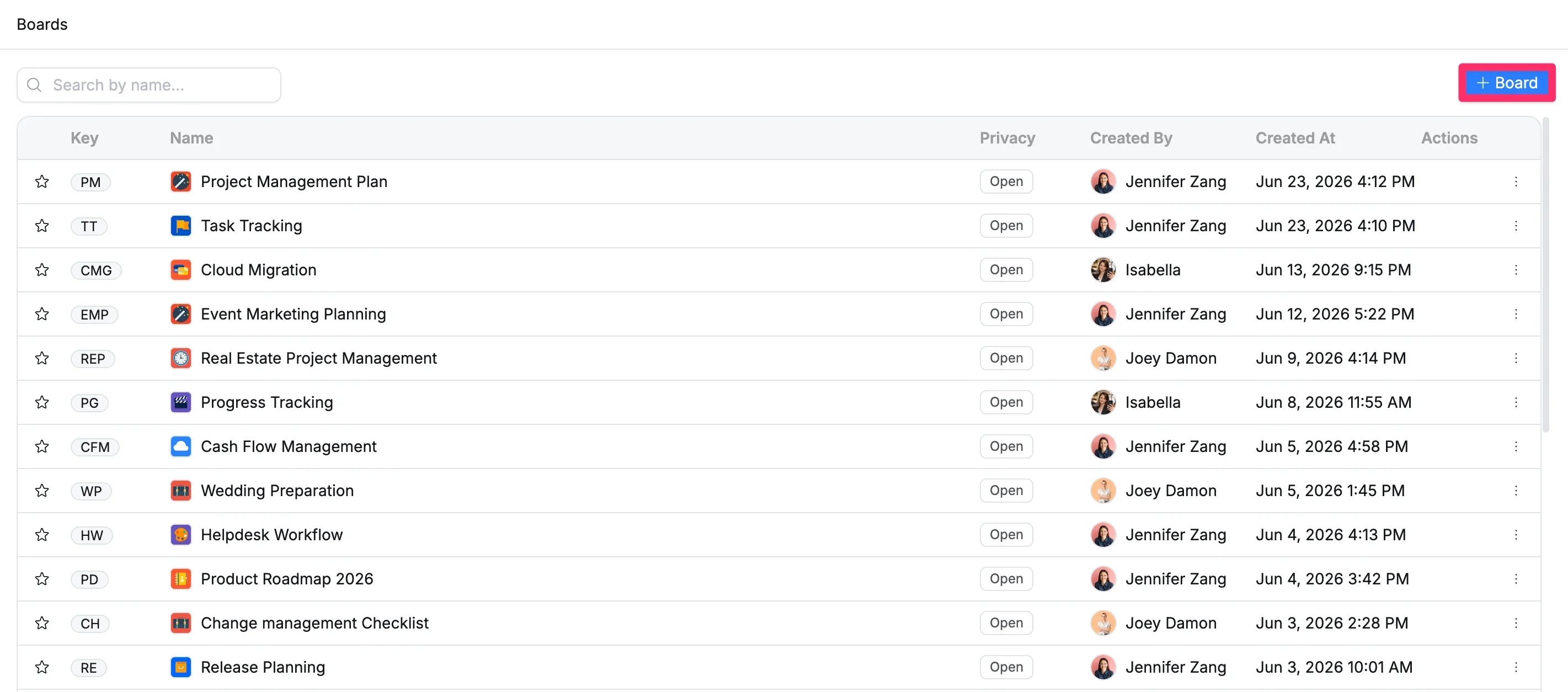
- A pop-up window will next give you the option to add your board details.
Congratulations, you have just created your first board! Let’s go ahead and customize it!