Create portfolios
Create a portfolio in TaskFord to group related boards, manage projects at a high level, and track progress across multiple teams and workflows.
Who can use this feature?
- Only App Admins / App Editors can create portfolios.
- App Viewers do not have permission to create portfolios.
Creating a portfolio allows you to group multiple related boards into one place for high-level tracking and coordination. You can create a portfolio in two different ways, depending on where you are in the app.
Method 1: From the sidebar
- In the sidebar, navigate to the Portfolios section.
- Click the (+) button next to Portfolios.
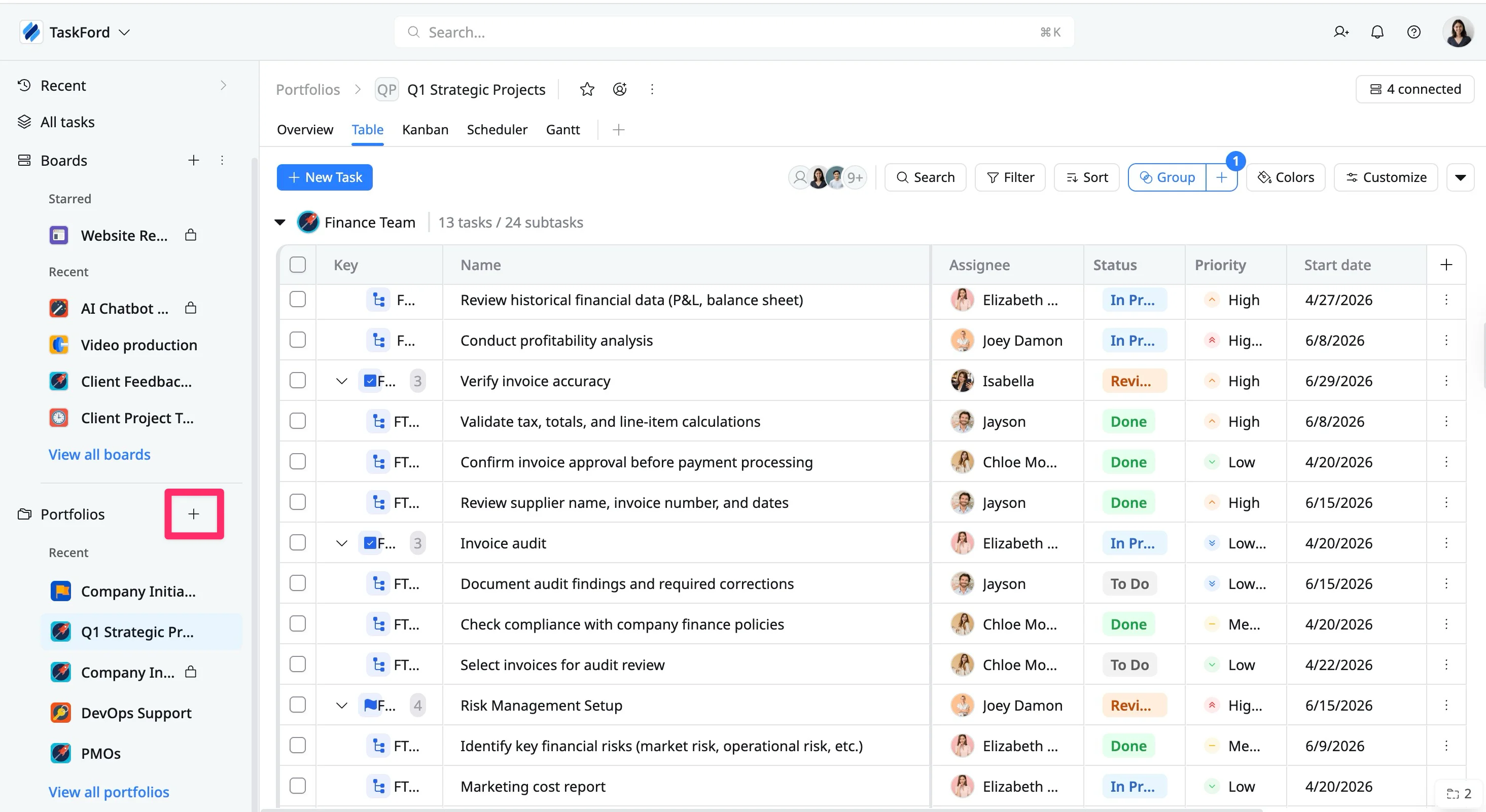
- A pop-up window will next give you the option to add your portfolio details.
From the Create portfolio screen, you can configure the following:
- Name: Enter a descriptive name for the portfolio.
- Privacy: Choose who can access the portfolio:
- Open: Visible to all site members.
- Private: Accessible only to invited members and admins.
- Boards: Select one or more Boards you wish to add to the Portfolio.
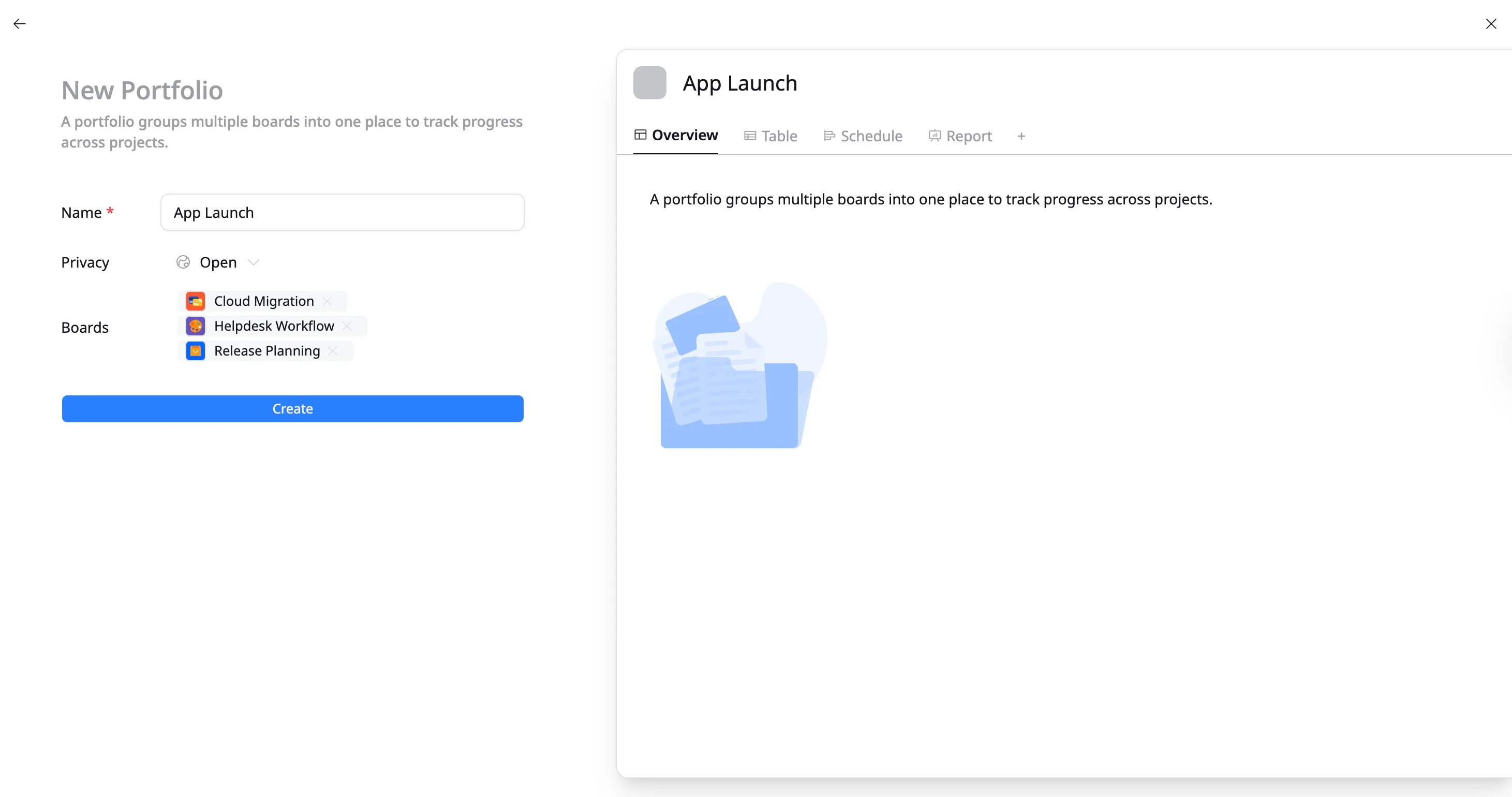
- Click Create to create a new Portfolio.
Your new portfolio will open automatically and appear in the sidebar under Portfolios, ready for you to add boards and begin organizing your work.
Method 2: From the All Portfolios
- From the sidebar, navigate to the Portfolios section.
- Click View all portfolios to open the All Portfolios screen.
- Click + Create in the top-right corner.
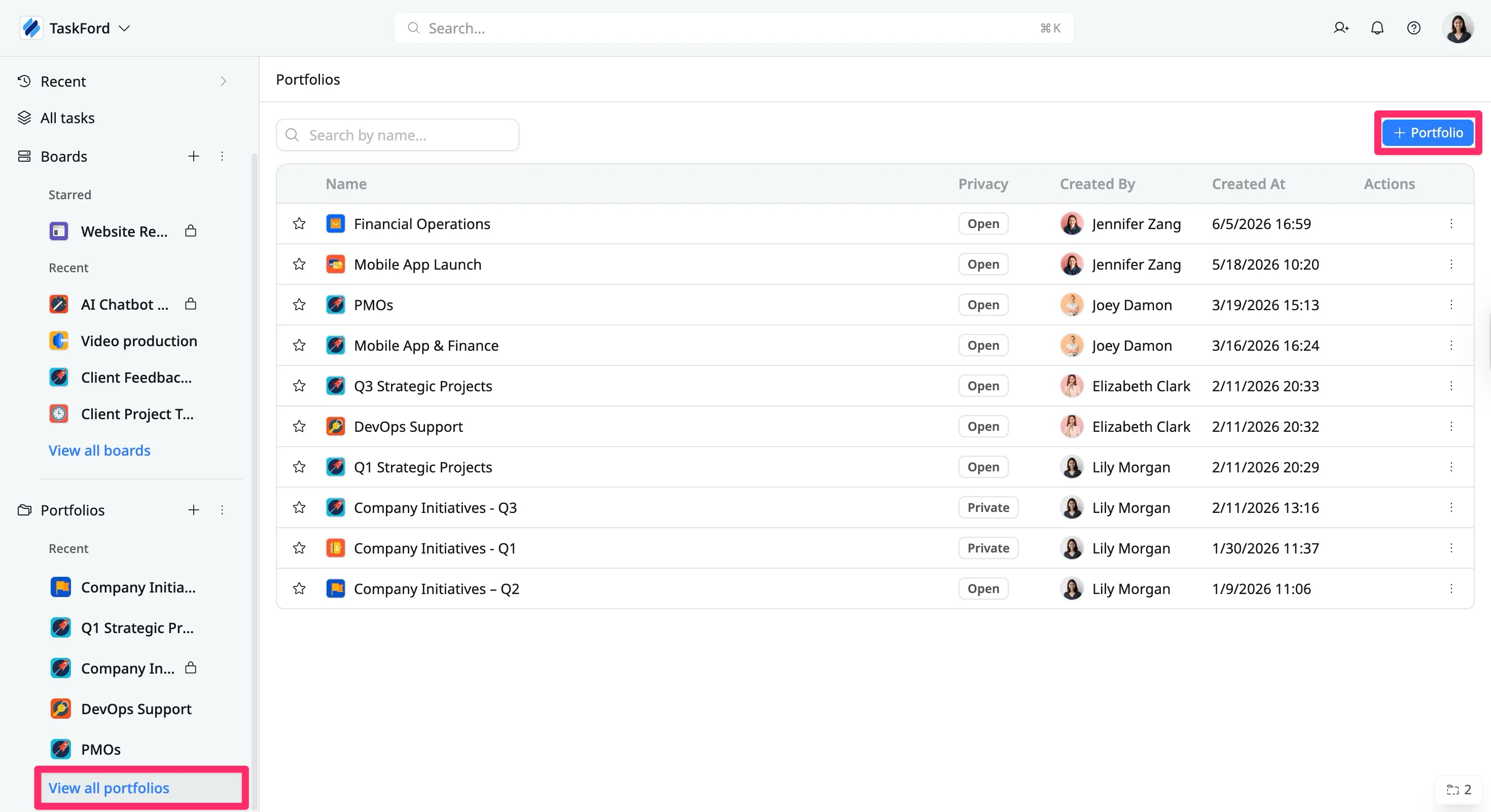
- A pop-up window will next give you the option to add your portfolio details.
From the Create portfolio screen, you can configure the following:
- Name: Enter a descriptive name for the portfolio.
- Description (optional): Add a short summary to explain the purpose of the portfolio.
- Privacy: Choose who can access the portfolio:
- Open: Visible to all site members.
- Private: Accessible only to invited members and admins.
- Boards: Select one or more Boards you wish to add to the Portfolio.
- Click Create to create a new Portfolio.