Create tasks
Learn how to create tasks in TaskFord from various locations and views within your workspace for seamless workflow management.
- Board Admins / Board Editors can create tasks.
- App Admins / Editors can create tasks only on Open boards.
In TaskFord, you can create a task from different locations in your workspace, giving you flexibility depending on your workflow.
There are two main ways to create tasks:
Create tasks from the All tasks page
To create tasks from the All tasks page, follow these steps:
- Navigate to the All Tasks page.
- Click + Task on the top right of the Task List.
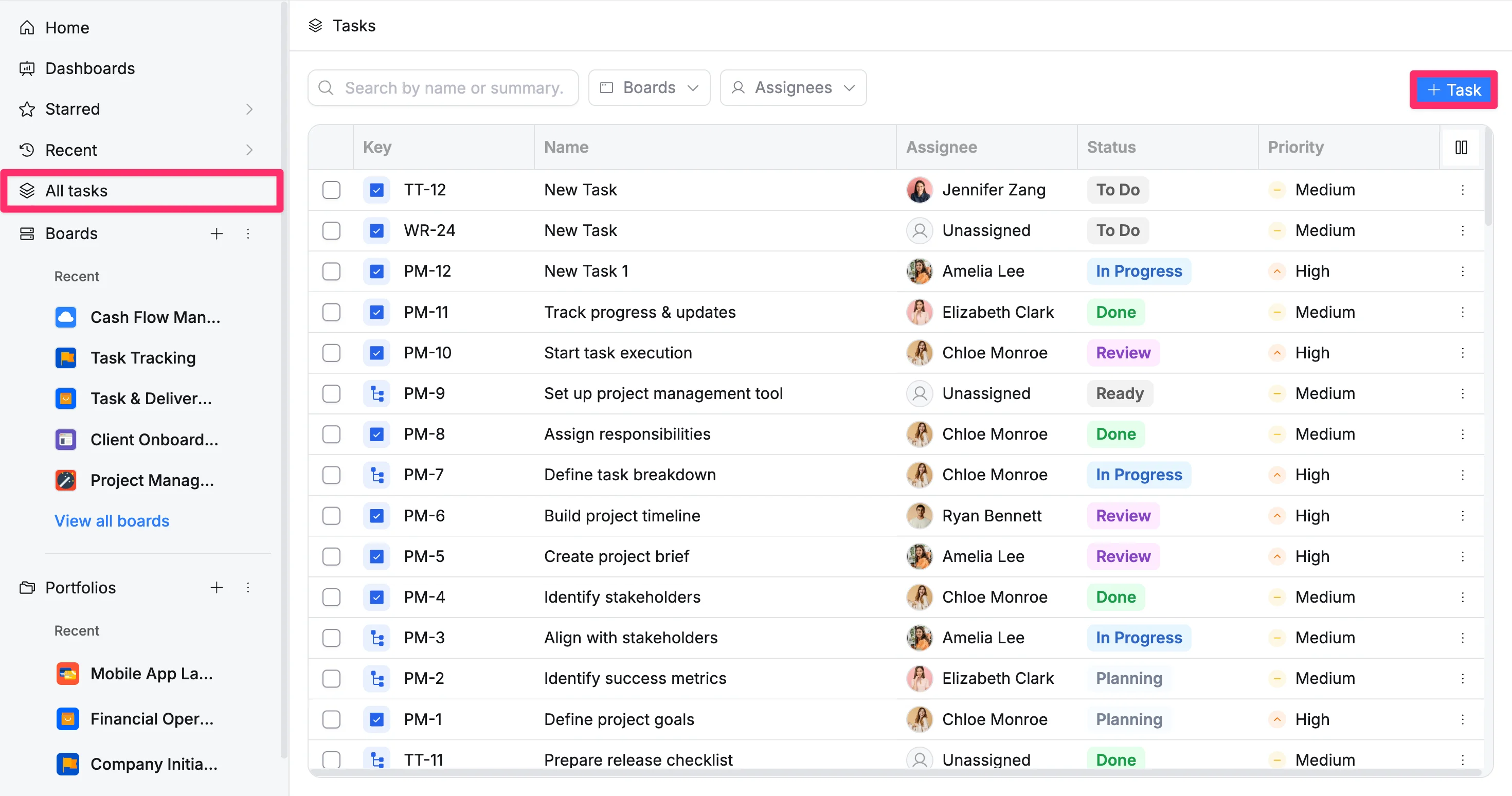
- In the Task Details Panel, choose the Board where the task should belong.
- Enter the task name, description, assignee, due date, and any additional details such as priority or status.
- Click + Create to save the task.
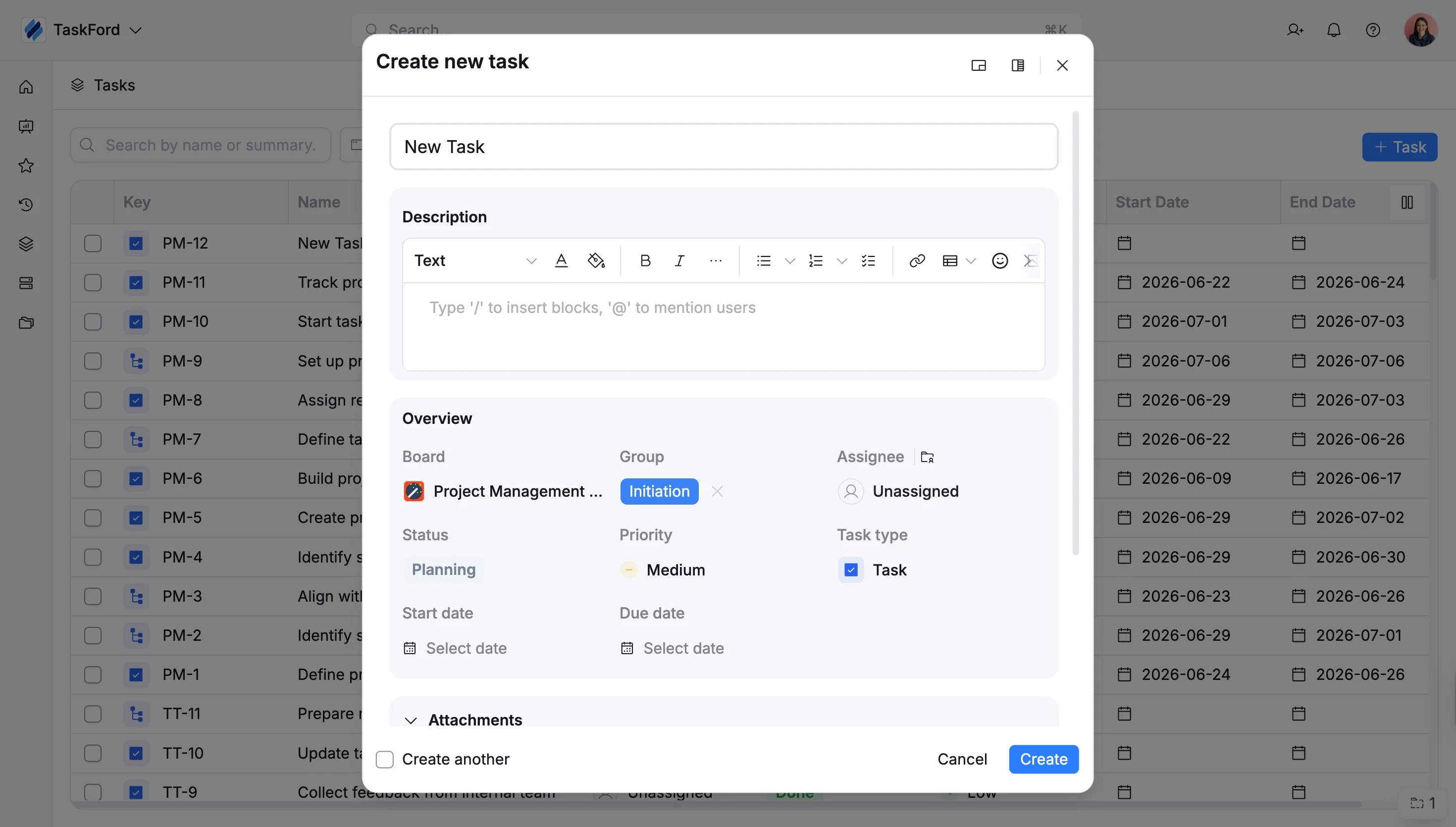
Tasks created this way are not tied to a specific board, so you will need to select the appropriate board during setup.
Create tasks within a board
Use these options when you’re working inside a board and want to quickly add new tasks without leaving your current view.
The available options include creating a task from the toolbar and from board views:
Option 1: From the toolbar
- Click + New Task in the top-left corner of a toolbar view (Table, Kanban, Schedule, or Gantt)
- This will open the Task Details as a side panel on the right or as a modal pop-up.
- Enter the task name. You can also add optional task details such as: assignee, start date, due date, priority, or group as needed.
- Click Create to add the task.
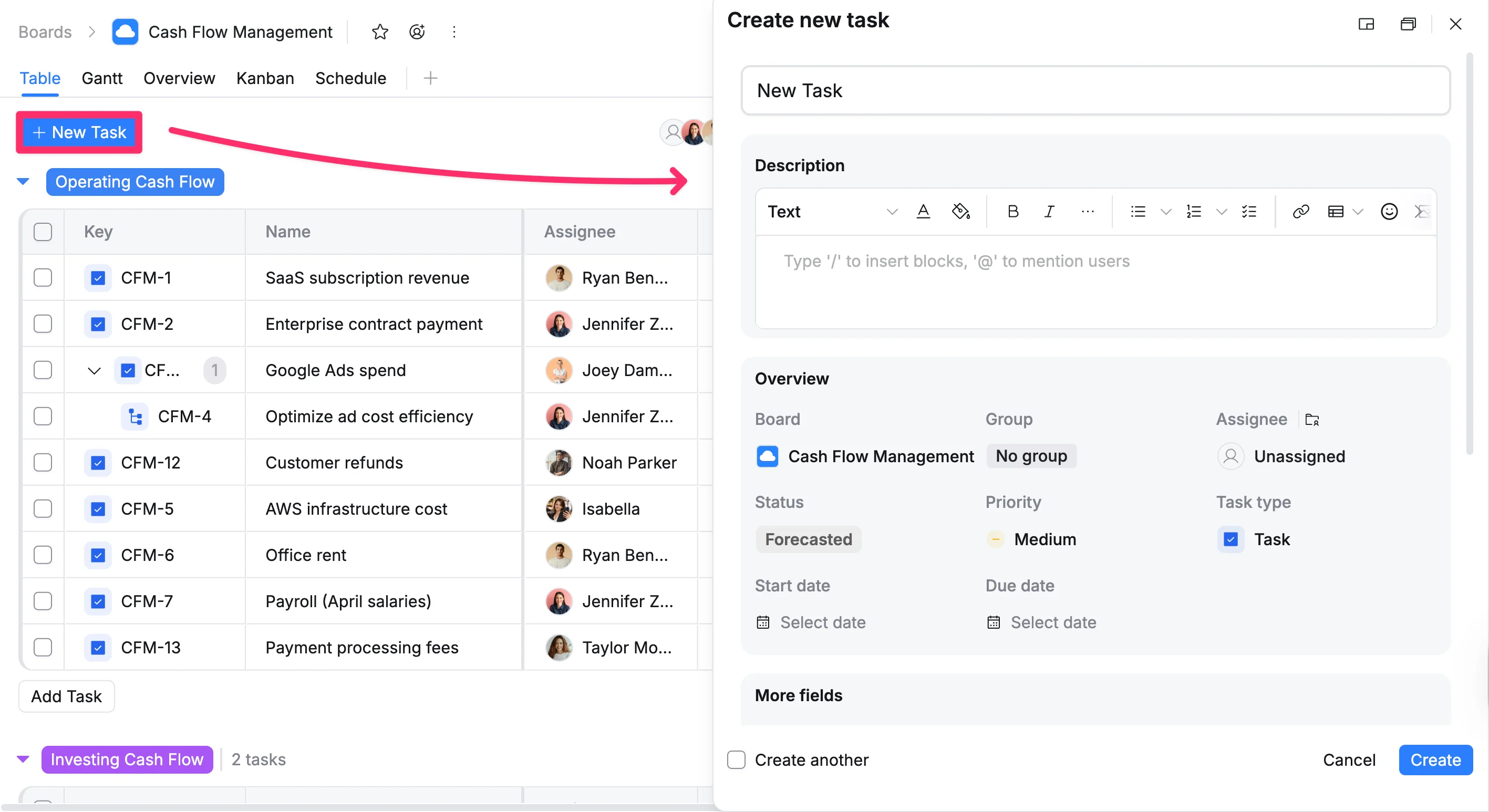
Tasks created this way are automatically added to the current board.
Option 2: From board views
You can create tasks in multiple views, including:
Table view
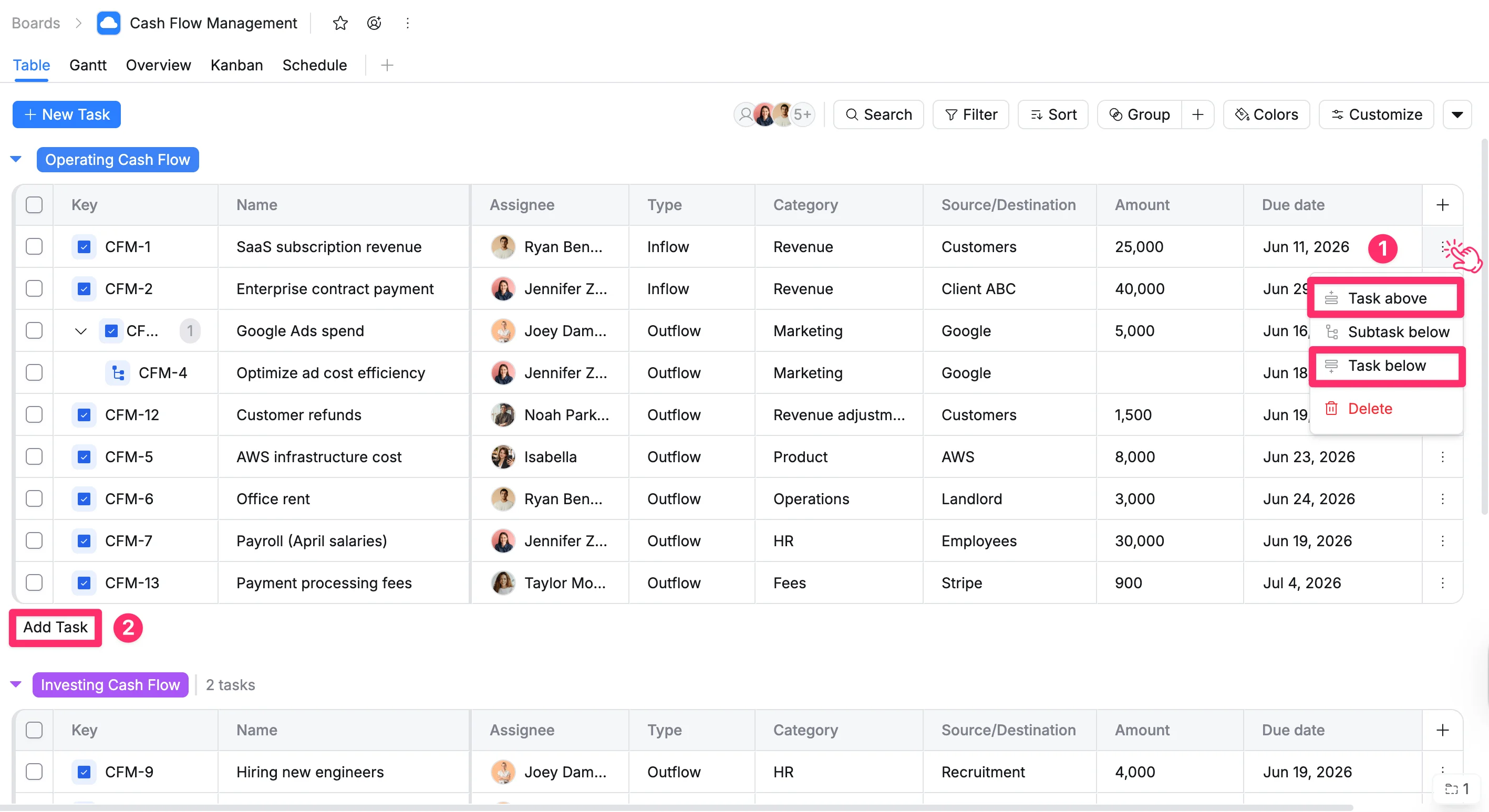
You can create a task directly from the Table view in two ways, depending on your workflow.
Option 1: From a task row
To quickly insert a new task above or below an existing task in the Table view, follow these steps:
- Click the three vertical dots (⋮) on the task row where you want to insert a new task.
- Select Task above or Task below from the dropdown menu.
- When the new row appears, enter the task name.
- Press Enter to add the task.
Option 2: From the bottom of the table
To add a new task, follow these steps:
- Click Add task at the bottom of the table.
- Type the name of the task directly into the text field.
- Press Enter to create the task. A new row will appear in the table for your task.
Once created, you can add additional details in the corresponding columns, such as assignee, start date, due date, and more.
Kanban view
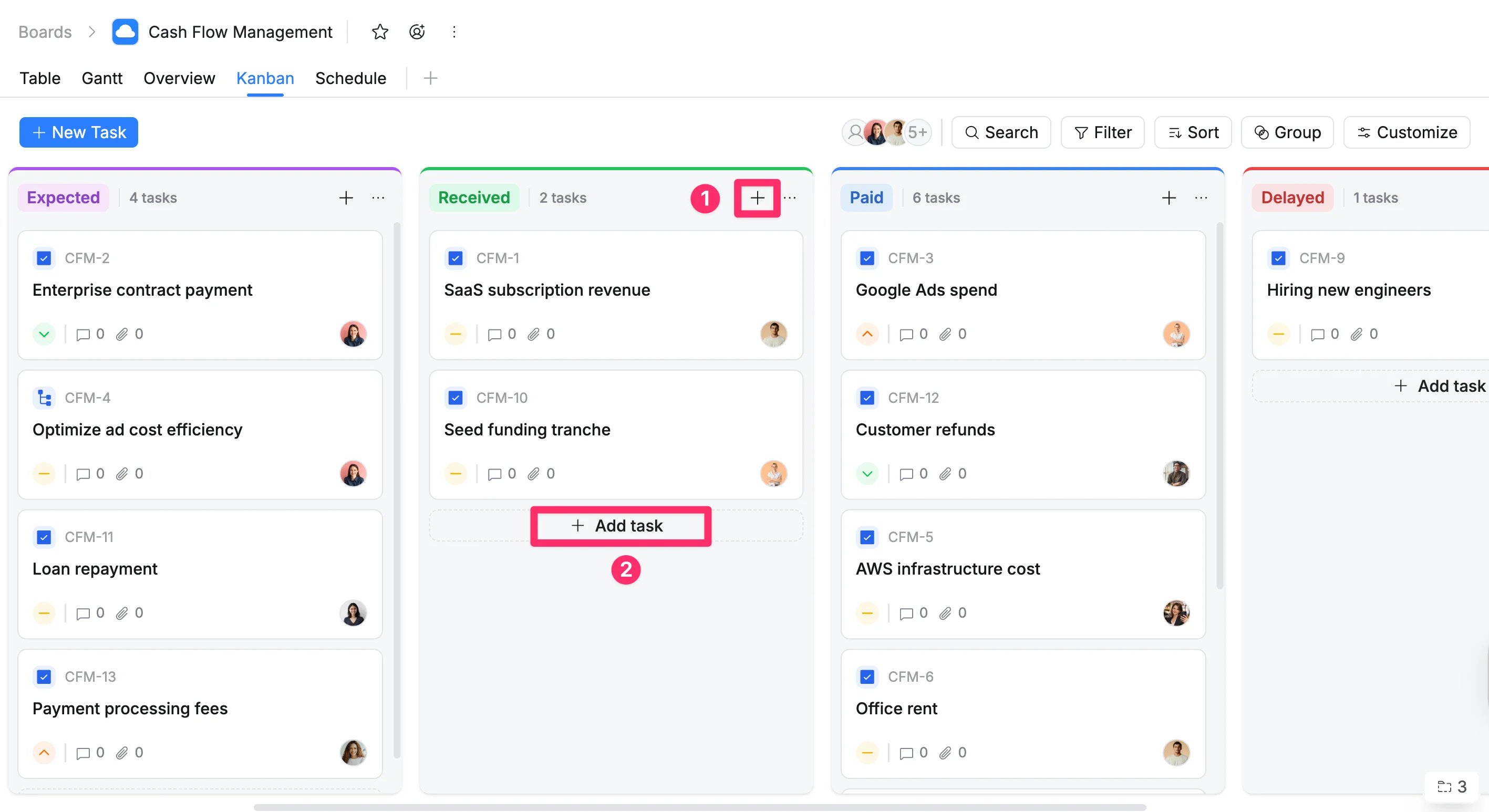
You can create a task directly from the Kanban view in two different ways, depending on how you prefer to work.
Option 1: From the column header
- Click the + icon in the header of the desired column.
- Enter the task name in the field provided. Optionally, select a Task type, Assignee, Priority, or Group.
- Press Enter or click Add to create the task.
Option 2: Inline task creation
You can quickly add tasks directly within a column, without opening the full Task Details panel:
- Scroll to the bottom of the column where you want to add the task.
- Click + Add task at the bottom of the column.
- Enter the task name in the field provided. Optionally, select a Task type, Assignee, Priority, or Group.
- Press Enter or click Add to create the task.
Gantt view
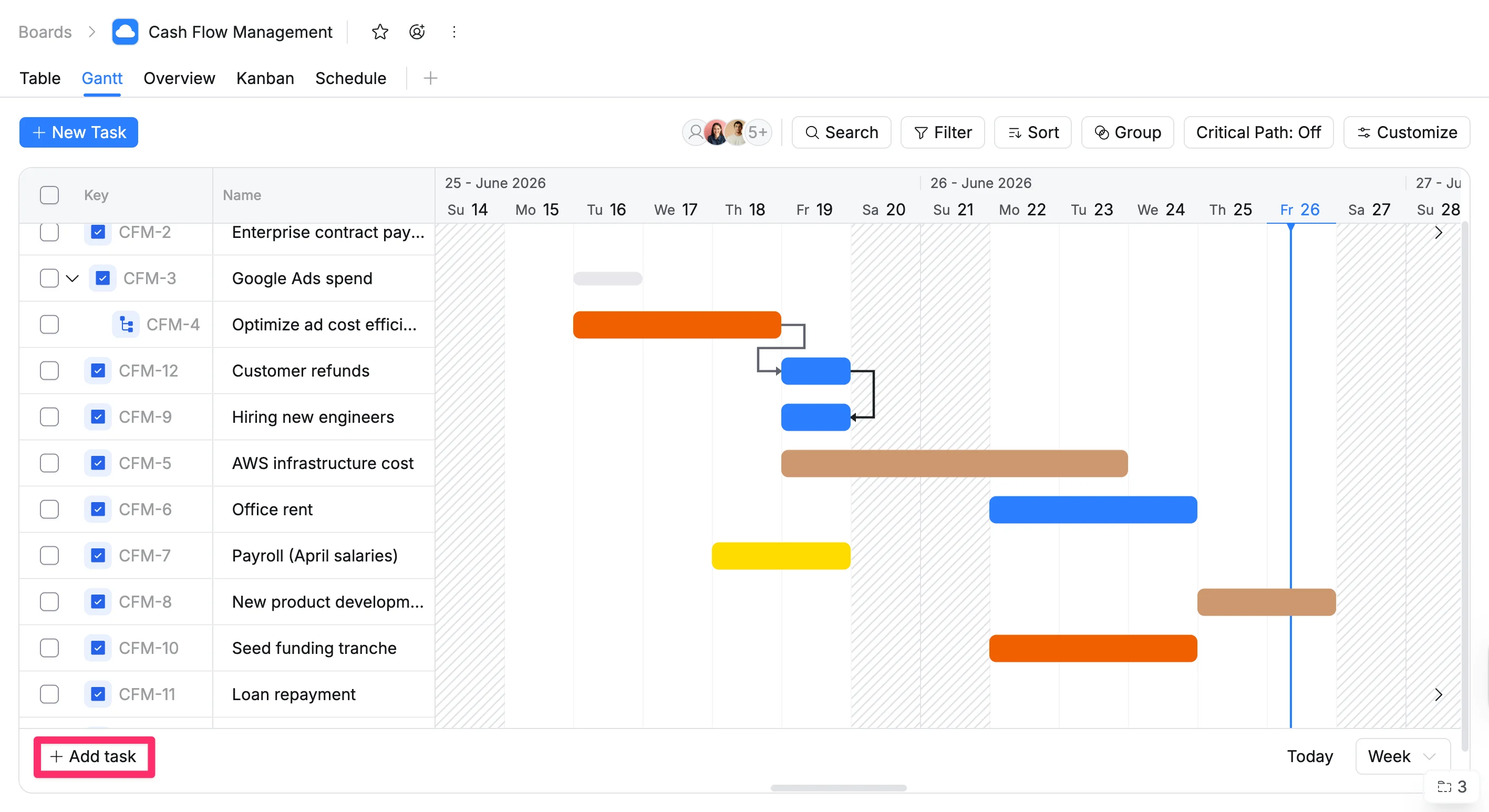
To add a new task in the Gantt view, follow these steps:
- Scroll to the bottom of the task list.
- Click + Add task in the bottom-left corner.
- Type the name of your new task in the input field.
- Press Enter to create the task.
Create tasks continuously
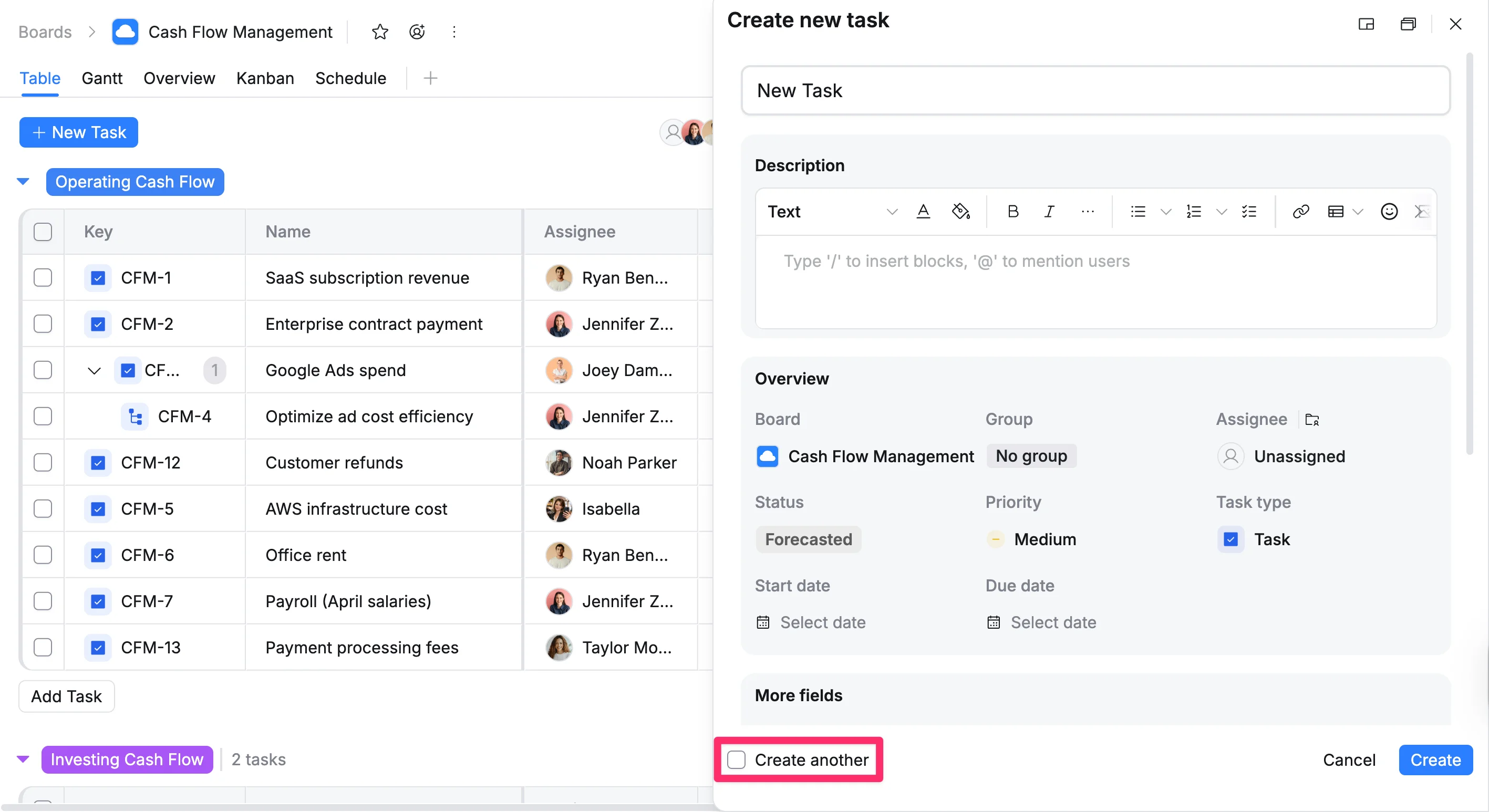
When creating a task, you can use the Create another option to speed up your workflow.
In the task details view, check the Create another box to continue creating tasks without reopening the panel each time. After you click Create, the task details view will remain open so you can immediately create the next task.
If the option is not selected, the task details view will close after creating a task.