Create your first site
This guide will walk you through setting up your first site in TaskFord to get started quickly.
As the leader of your organization, the first step is to create a site for your team. When you create a new site in TaskFord, you automatically become the Site Owner, with full control over user management, security policies, and global settings.
If you haven’t already, sign up to get started with TaskFord. Once your account is verified, you’ll be directed to create your first site.
Create your site
A site typically represents one organization where you and your team can organize projects, manage tasks, and track progress in one place.
Follow these steps to create a new site:
- Enter your site name: Choose a name for your site, usually your company or team name.
- Enter your domain: This is the unique web address (URL) used to access your site (e.g., yourcompany.taskford.app).
- Click “Create Site”: This will create your site and take you to the initial setup flow.
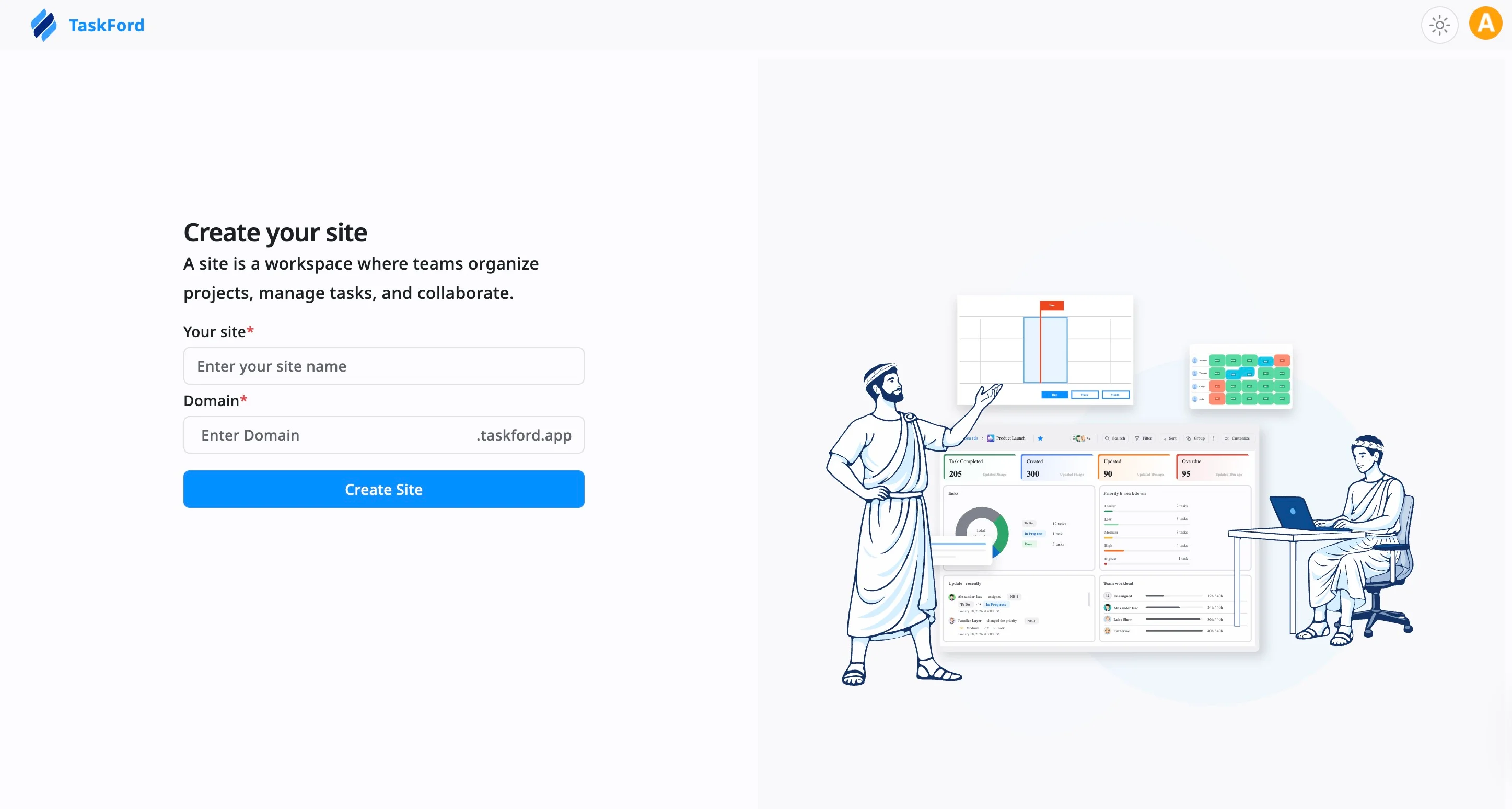
To change your site domain after the initial setup, you must upgrade to the Enterprise plan. Contact us for assistance.
Complete initial setup options
After creating your site, TaskFord will guide you through the first steps of setting up your site and getting your team on board.
Step 1: Set up your first board
Boards act as the central hub for your projects, teams, or specific workflows.
- Enter a board name: Give your project a clear title (e.g., Marketing Plan, Product Launch, or Sprint Backlog).
- Click Next to proceed to the next step.
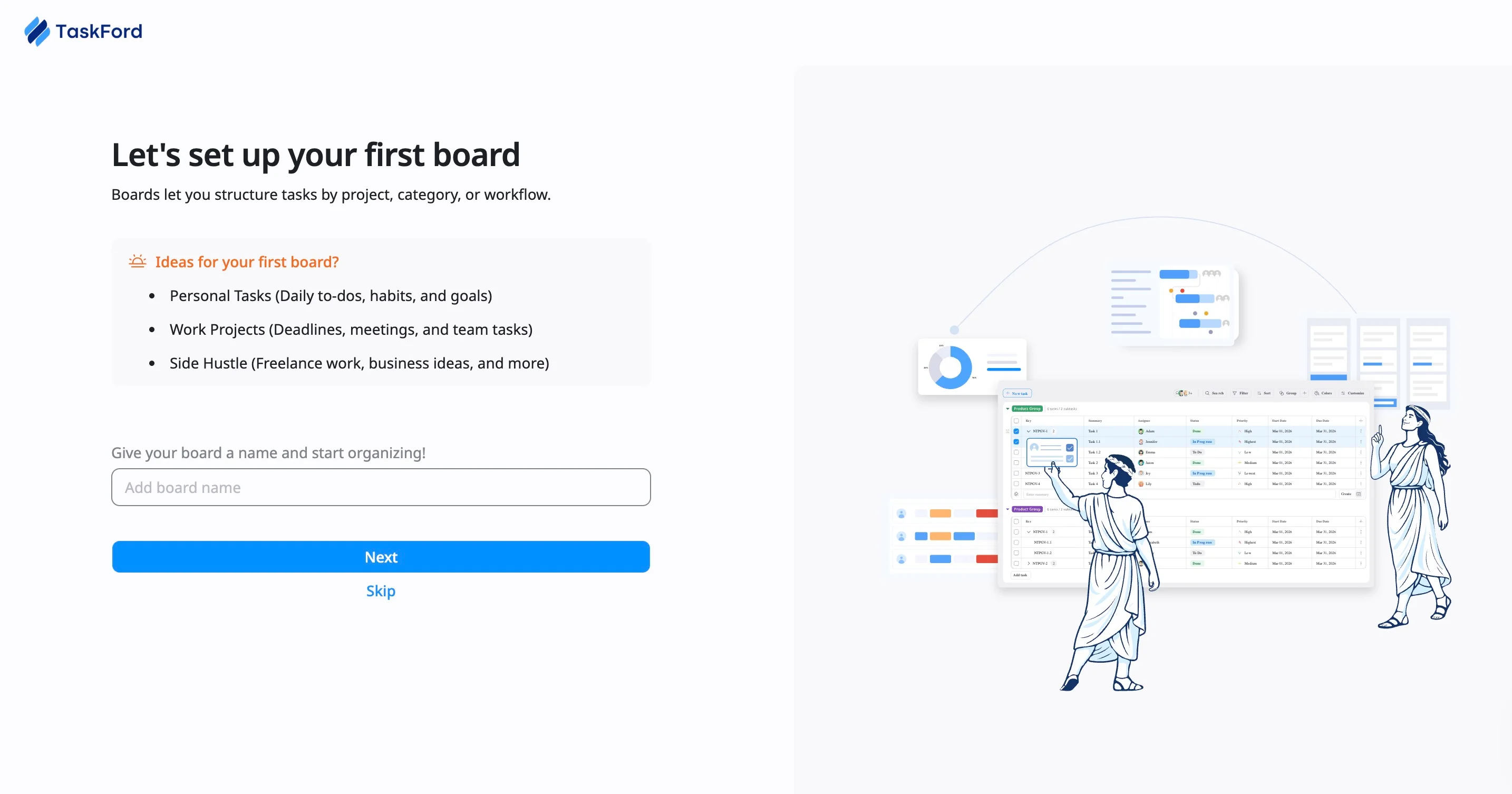
Click Skip if you prefer not to create a board right now, which will immediately take you to the “Invite Members” step.
Step 2: Add your first tasks
Tasks are the core units of work. You can always add more details—like assignees and due dates—once you’re inside the board.
- Enter task name: Type the name of your task (e.g., “Design Homepage”) directly into the input field.
- Add more: Hit Enter after each task to quickly add multiple items.
- Click Next to proceed to the next step.
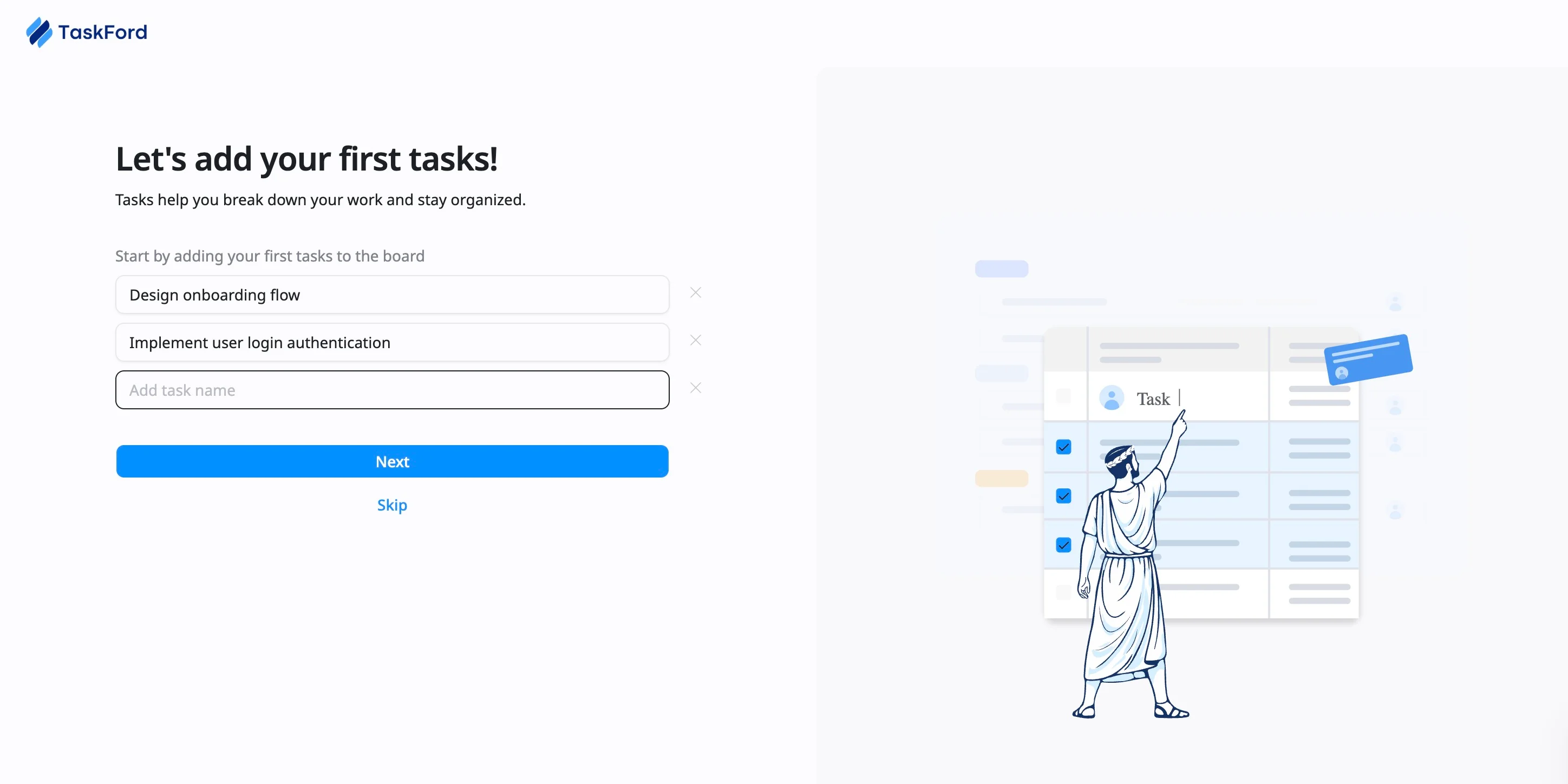
Click Skip if you prefer to add tasks later once inside your board.
Step 3: Choose your views
Select how you want to visualize your work. You can change or add views at any time.
- Overview: Ideal for viewing board metrics at a glance.
- Table: Ideal for bulk-editing and sorting data like a spreadsheet.
- Kanban: Ideal for tracking task progress through stages.
- Gantt: Ideal for visualizing project timelines, milestones, and dependencies.
- Schedule: Ideal for planning resources and balancing team workload.
Click Next to proceed to the next step.
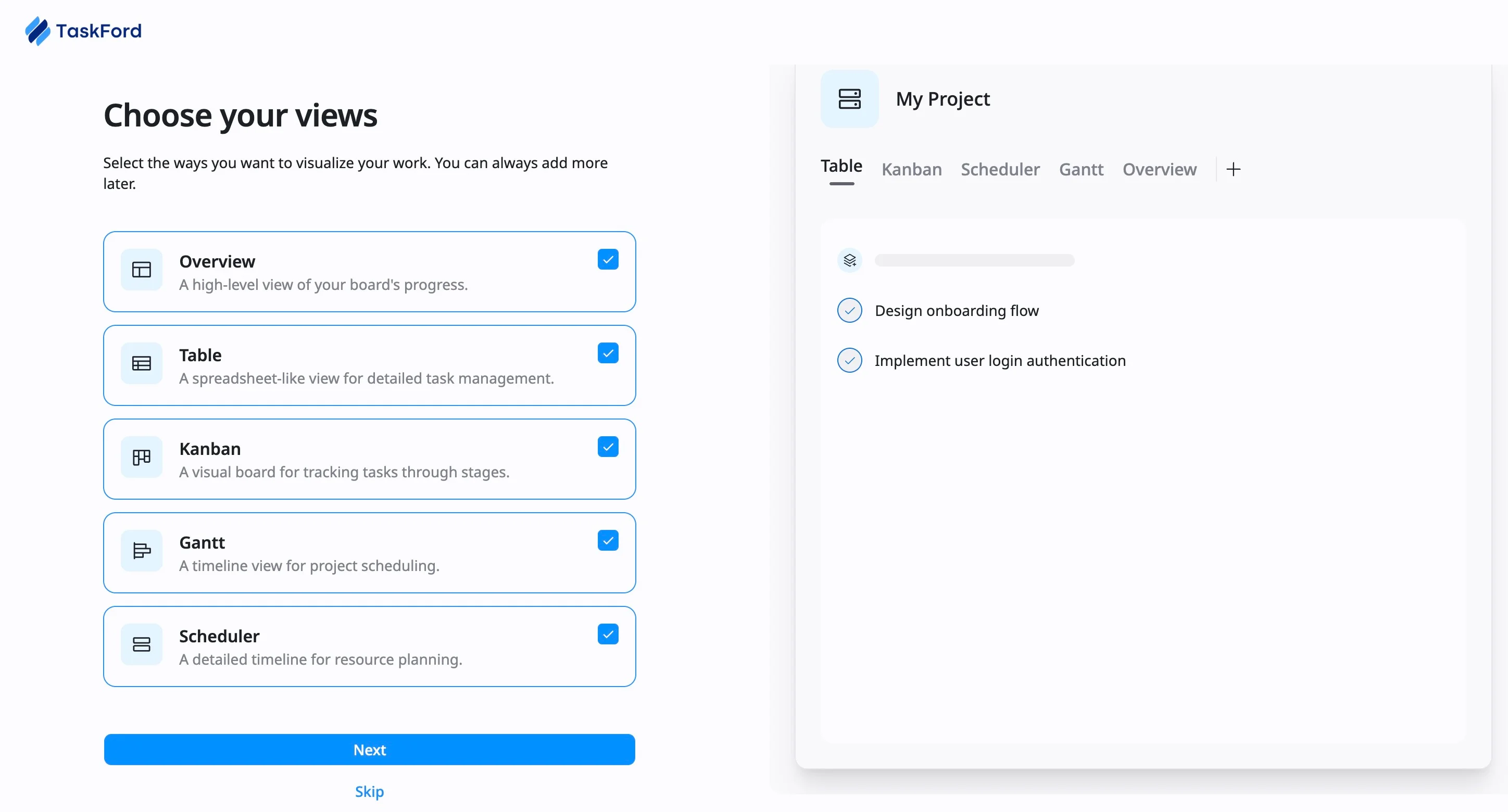
Click Skip if you want to choose a view later. The Table view will be applied by default.
Step 4: Invite your team to collaborate
Bring your teammates into the workspace to start assigning tasks.
- Enter email addresses: Add the email addresses of the team members you want to invite.
- Click + Member: Add more members if needed.
- Click ‘Send Invite’: Invitations will be sent, and members can join once they accept.
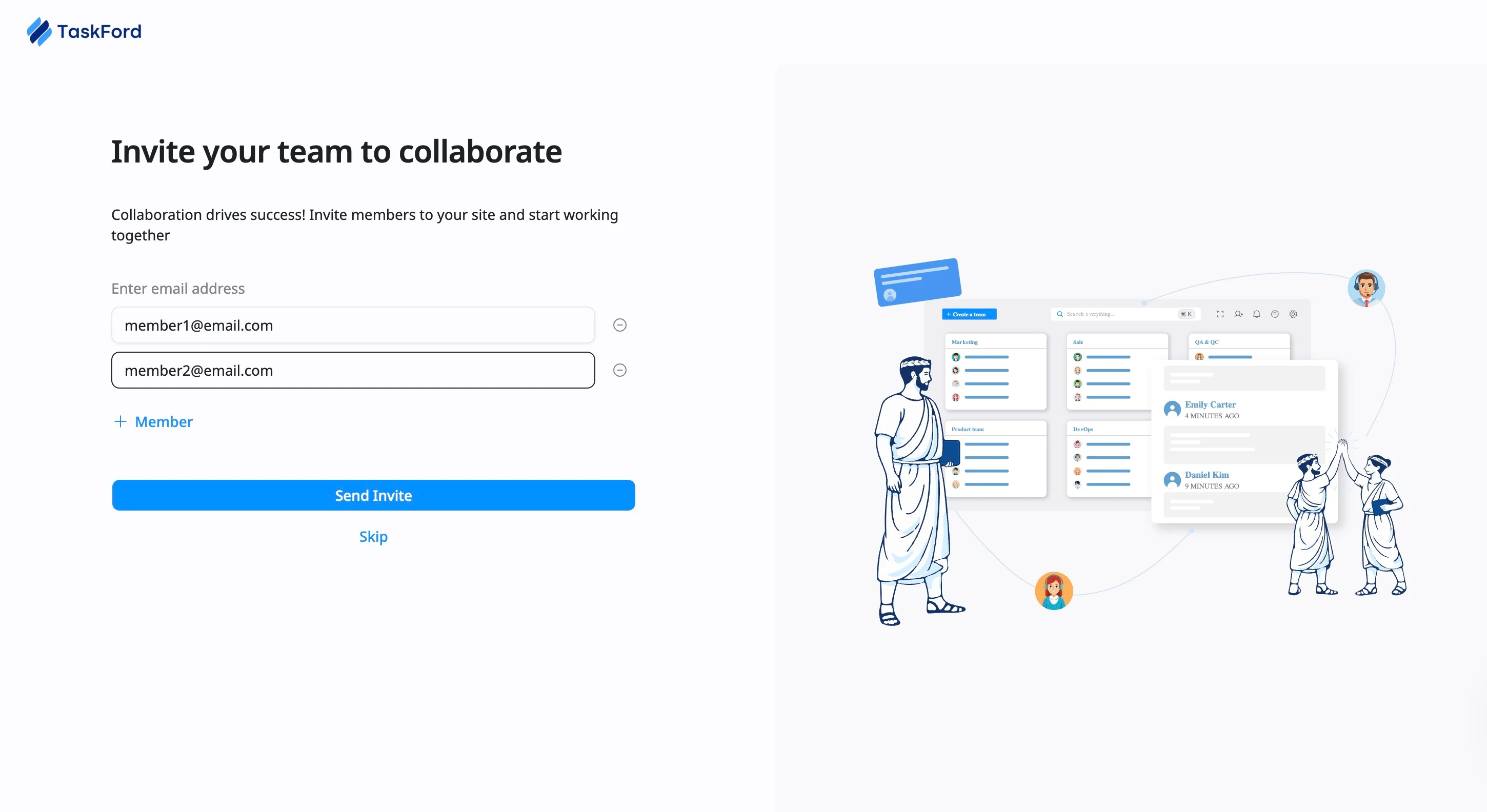
You can also click Skip and invite members later.
You’re all set 🎉
By following these steps, you’ve successfully created your TaskFord site and completed the initial setup. You’re now ready to organize and manage your projects efficiently.