Custom fields
Capture and manage additional task information in TaskFord using custom fields to standardize data across boards or track project-specific details.
Custom fields in TaskFord help you capture the extra details your team needs to manage work properly. Instead of keeping project-specific information in separate spreadsheets or notes, you can add fields directly to tasks and track details like budget, client name, effort, KPI, campaign channel, approval date, or any data your team relies on.
Custom fields can be used across your site or limited to specific boards, depending on how your team works. This helps keep task information consistent, easier to filter, and more useful for reporting.
Types of custom fields
TaskFord supports multiple field types for different kinds of data:
- Text: For labels, notes, or short information (e.g., Client name, Channel)
- Number: For numeric values such as cost, ranking, volume, or estimated effort
- Date: For deadlines, milestones, or scheduled events
Custom field scope
Custom fields can be configured at different levels depending on how broadly you want them to be used.
Global fields
Use global fields when you want to standardize information across your entire site.
- Available on all boards
- Useful for shared reporting and consistent workflows
- Ideal for organization-wide fields such as Department, Client, or Budget
Board-specific fields
Use board-specific fields when information is only relevant to a particular board.
- Only visible within the selected board
- Helps keep boards focused and uncluttered
- Ideal for project-specific tracking, such as Campaign KPI, Sprint Score, or SEO Metrics
Show Custom Fields in tasks and views
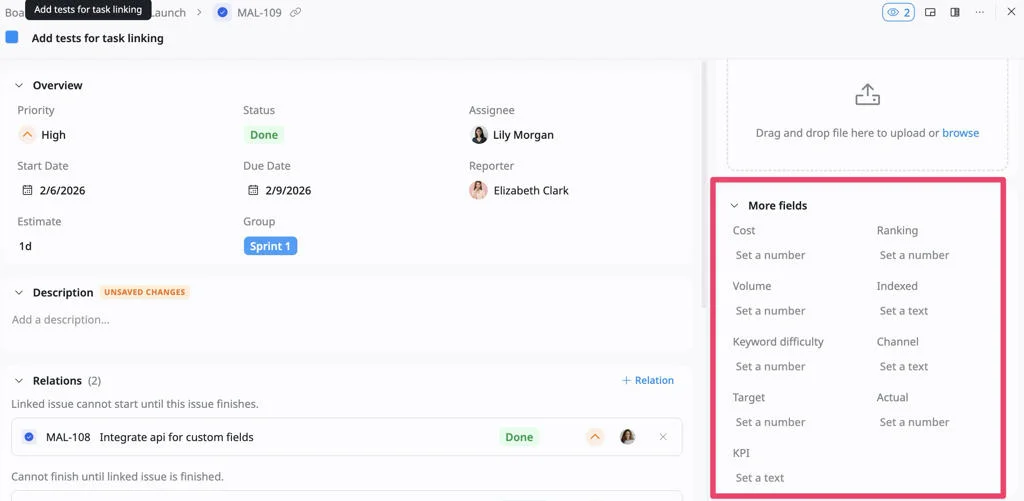
Show in the task details view
In the task details view, custom fields appear under the More fields section, allowing you to view and update project-specific information directly within a task.
This makes it easy for team members to access important context while working, without switching between different tools or documents.
Show as a column in Table view
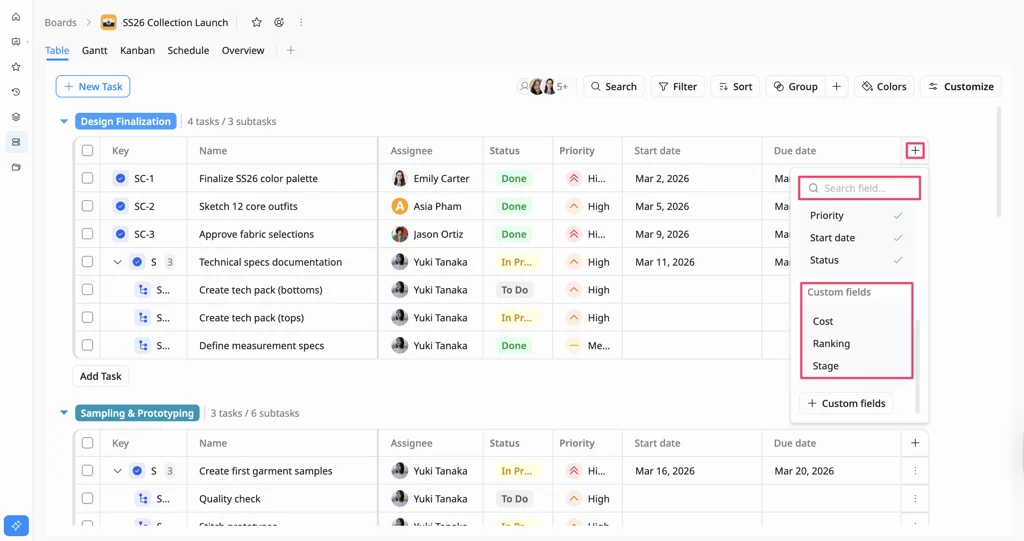
After creating custom fields, you can now display them as a column in the Table view to make additional task information easier to view and manage.
-
Open the board in Table view.
-
Click the + icon on the right side of the table header.
-
Find the custom field you want to show:
- Scroll through the list, or
- Use the search bar to search for the field by name.
-
Select the custom field to add it as a column.
To create or manage custom fields, click + Custom fields from the same menu. This opens the Custom Fields tab in Board settings, where you can create a new custom field or manage existing board-specific custom fields.
Manage custom fields in TaskFord
Custom fields can be managed from both Site settings and Board settings, depending on the scope you need.