Customize your preferences
This guide helps you manage preference settings in TaskFord, including date and time formats, week start day, and appearance mode, to personalize your workspace experience.
The Preferences page allows you to personalize how TaskFord looks and how date and time information is displayed throughout the platform. These settings are personal and apply only to your own account.
Use this page to customize your workspace experience, improve readability, and match TaskFord to your preferred regional or visual settings.
From the Preferences page, you can manage:
- Week start day for calendars and scheduling views
- Time format (12-hour or 24-hour clock)
- Date format used across TaskFord
- Appearance mode including Light, Dark, or System theme
Access preference settings
To open your Preferences page:
- Click your profile picture in the top-right corner.
- Select Account from the drop-down menu.
- In the left-hand menu, choose Preferences.
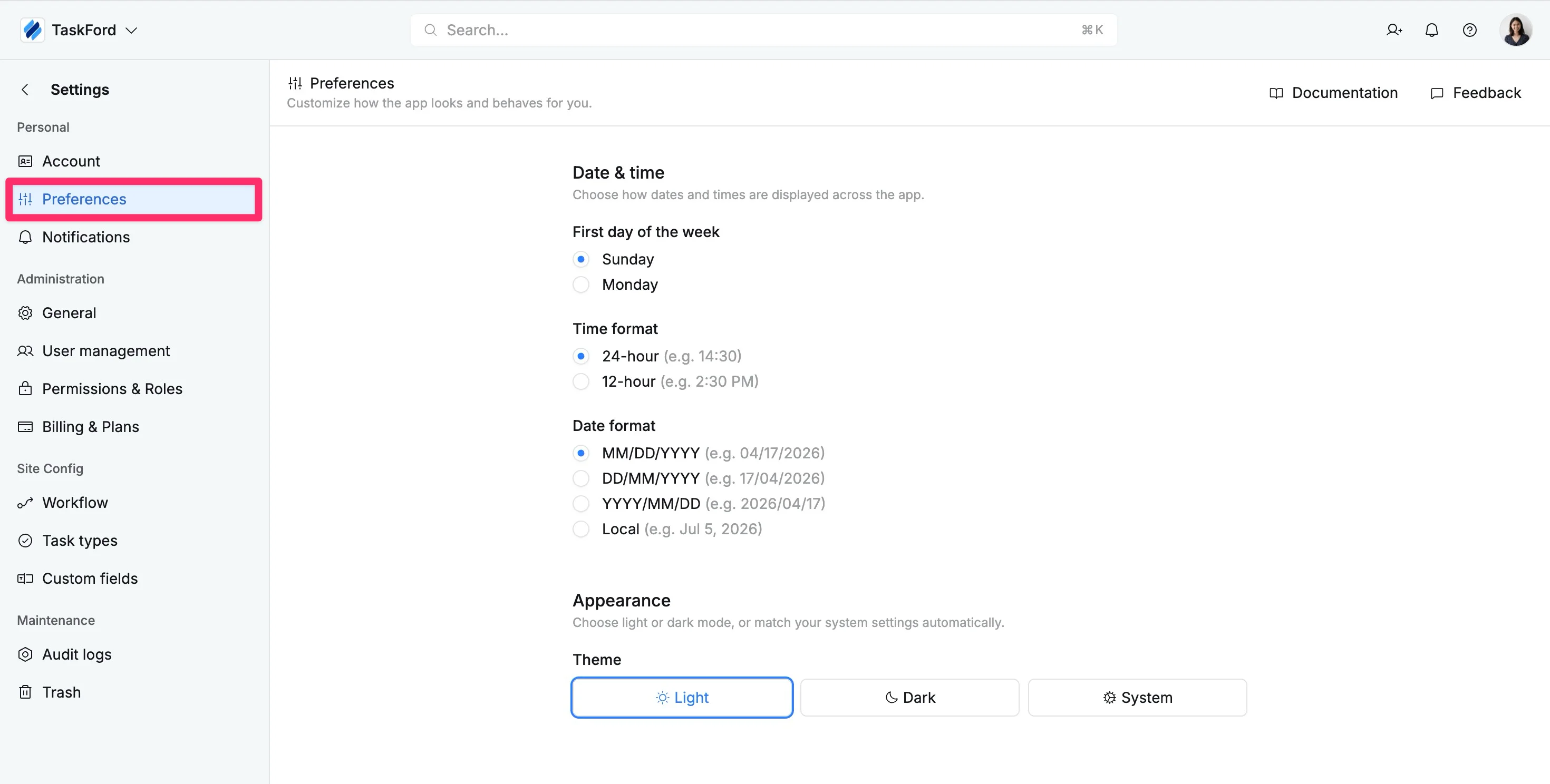
Time & Date settings
The Time & Date section allows you to control how calendar views, schedules, deadlines, and timestamps are displayed throughout TaskFord. Updating these preferences helps ensure dates and times appear in the format most familiar to you.
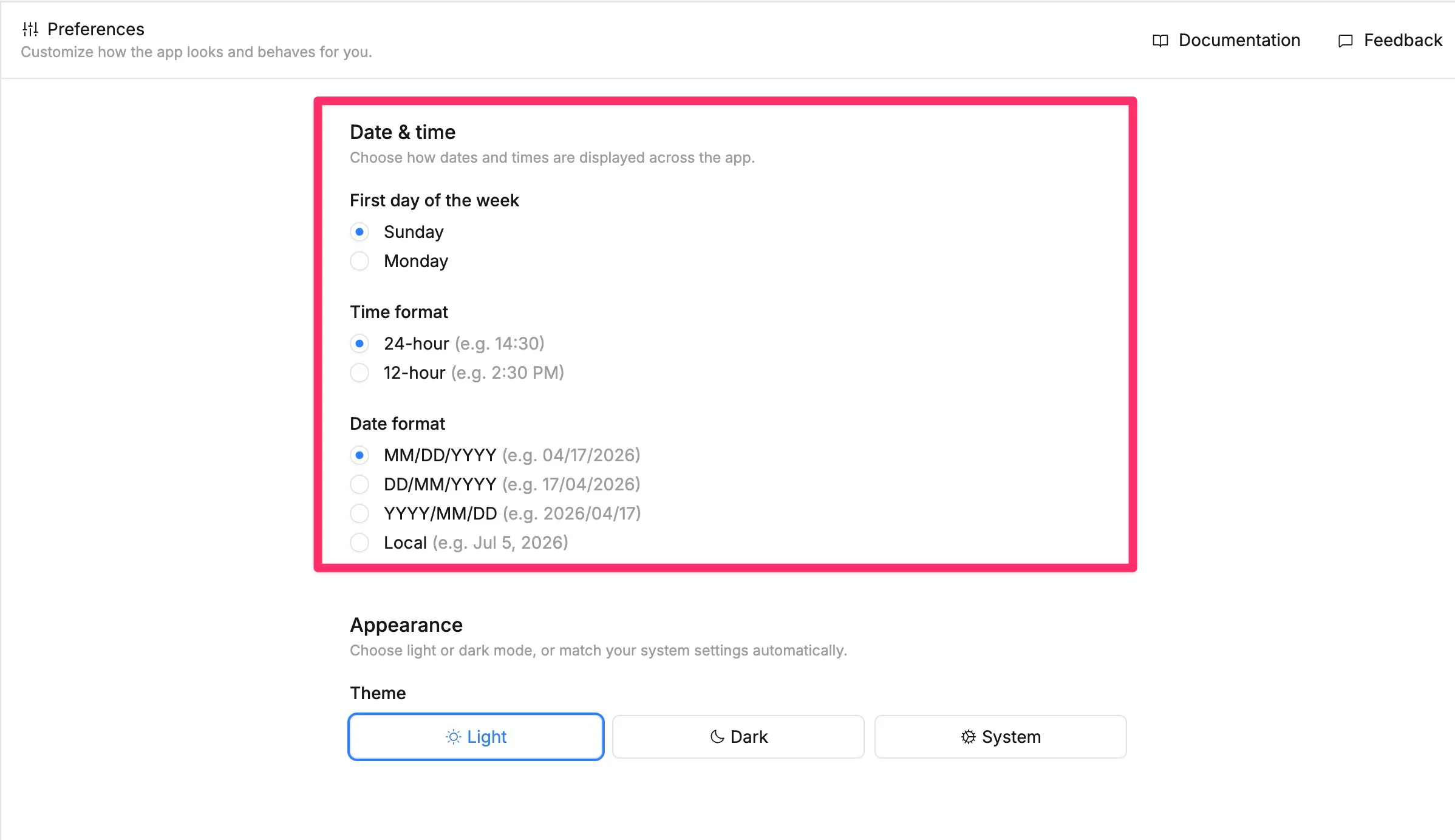
Set the first day of the week
Choose which day appears as the first day of the week in Calendar views and date pickers. This helps align TaskFord with your preferred workweek or regional standard.
Available options:
- Sunday
- Monday
This setting affects calendar layouts, planning views, and scheduling tools.
Change time format
Choose how time is shown across TaskFord.
This setting determines how task schedules, reminders, meeting times, and activity logs are displayed.
Available options:
- 24-hour format – Example:
14:30 - 12-hour format – Example:
2:30 PM
Use 24-hour format if you prefer military/international time notation, or 12-hour format for standard AM/PM display.
Change date format
Choose how dates appear across TaskFord.
Available options:
- MM/DD/YYYY (Example:
04/17/2026) - DD/MM/YYYY (Example:
17/04/2026) - YYYY/MM/DD (Example:
2026/04/17) - Local (Example:
Apr 29, 2026)
Appearance settings
The Appearance section allows you to control TaskFord’s visual theme. Changing your display mode helps create a more comfortable viewing experience based on your environment and personal preference.
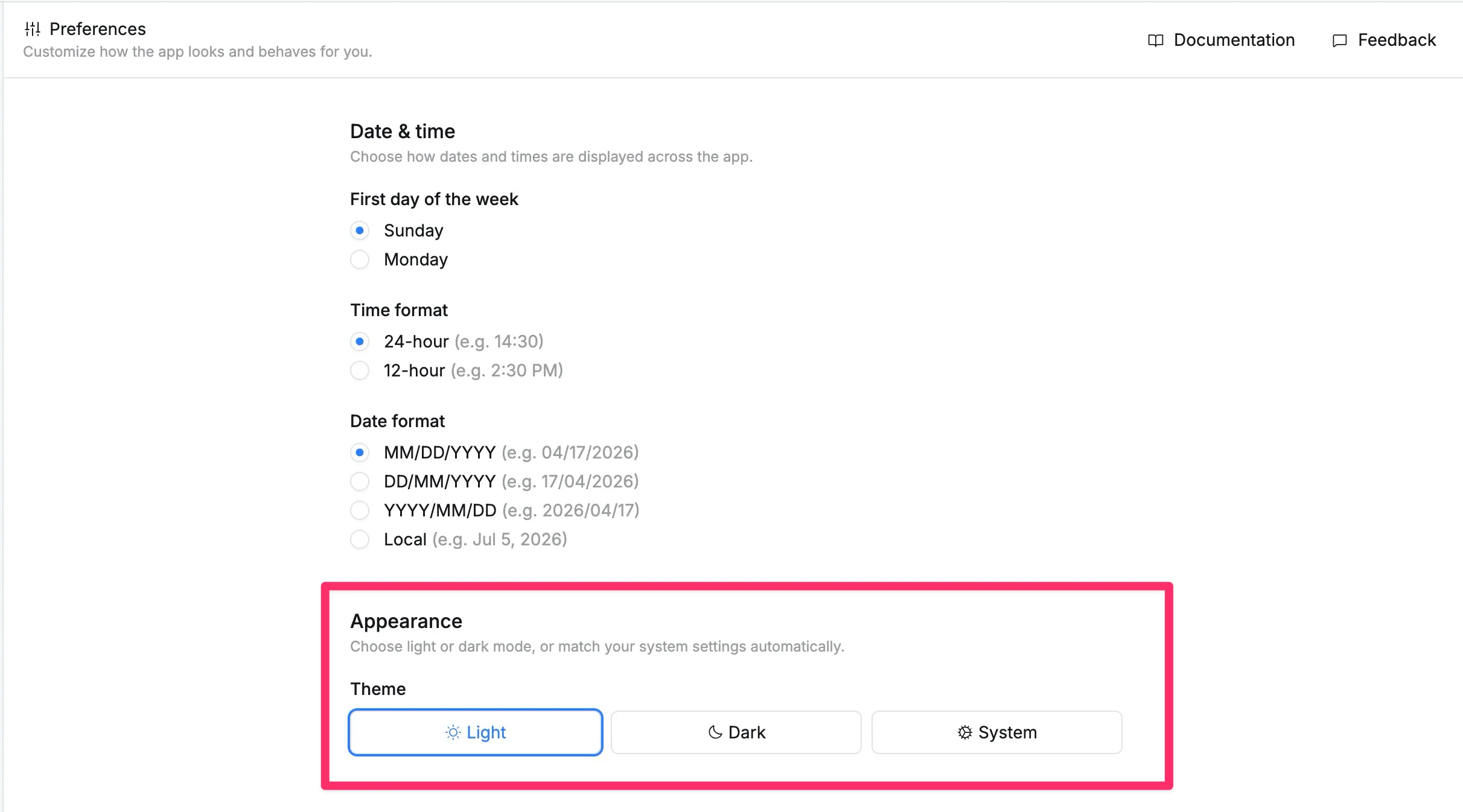
Select display mode
Choose one of the following themes:
- Light – Bright interface for daytime use
- Dark – Darker interface to reduce eye strain
- System – Automatically matches your device theme settings
You can also quickly switch themes directly from the profile menu without opening the Preferences page.
To customize appearance from the profile menu:
- Click your profile picture in the top-right corner of the screen.
- In the drop-down menu, locate the Theme section.
- Select Light, Dark, or System.