Customize your site
Follow these steps to personalize your TaskFord site by updating the name, domain, and visual identity to match your team's branding and workflow.
Once your site is ready, you can personalize it by updating the name, domain settings, and visual identity to better reflect your team and how you work.
Customize your site details
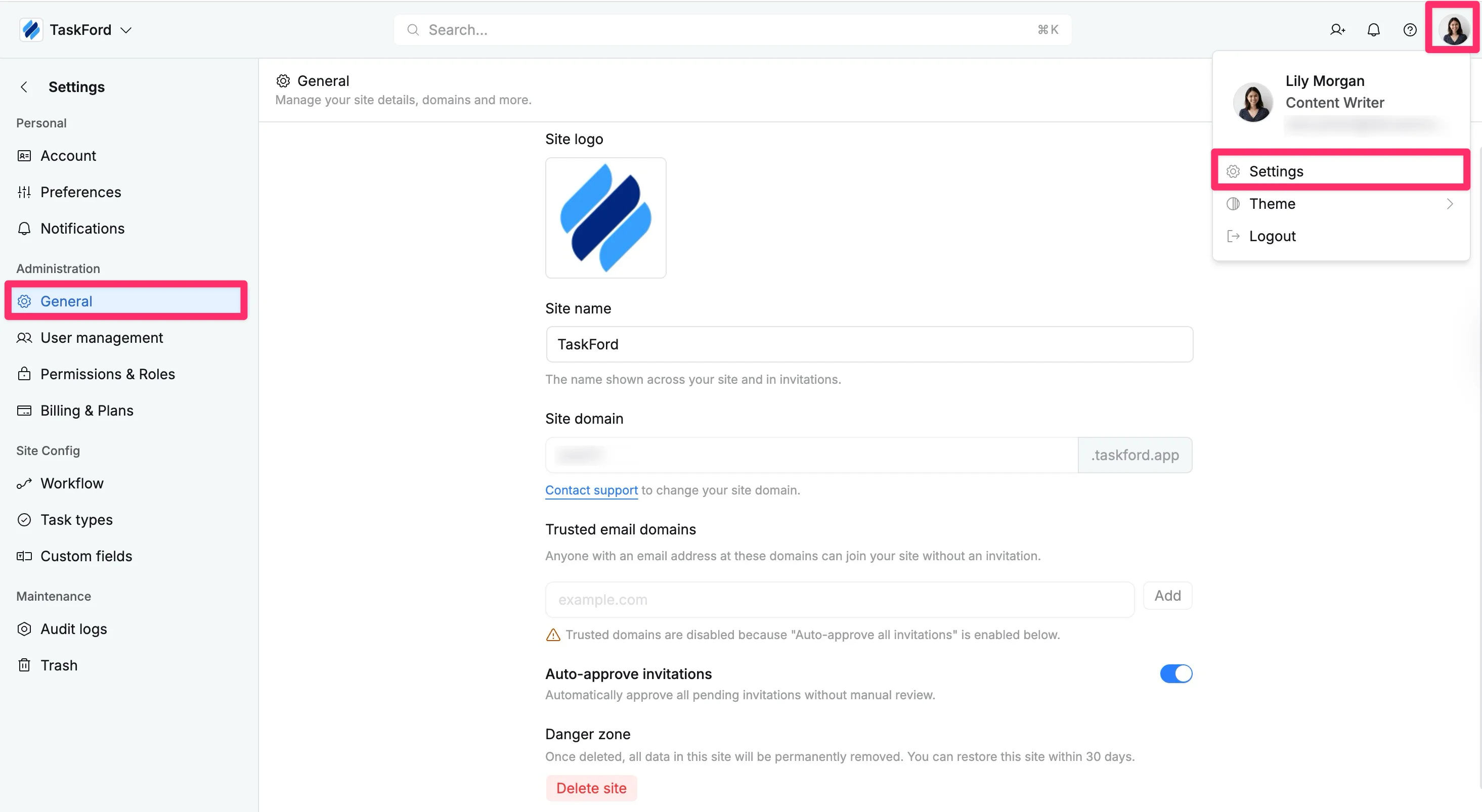
Follow these steps to access and update your site details:
- Click your profile picture in the top-right corner.
- Select Settings from the dropdown menu
- In the left-hand panel, under the Administration section, select the General tab.
What you can customize
Within the General page, you can update your site details:
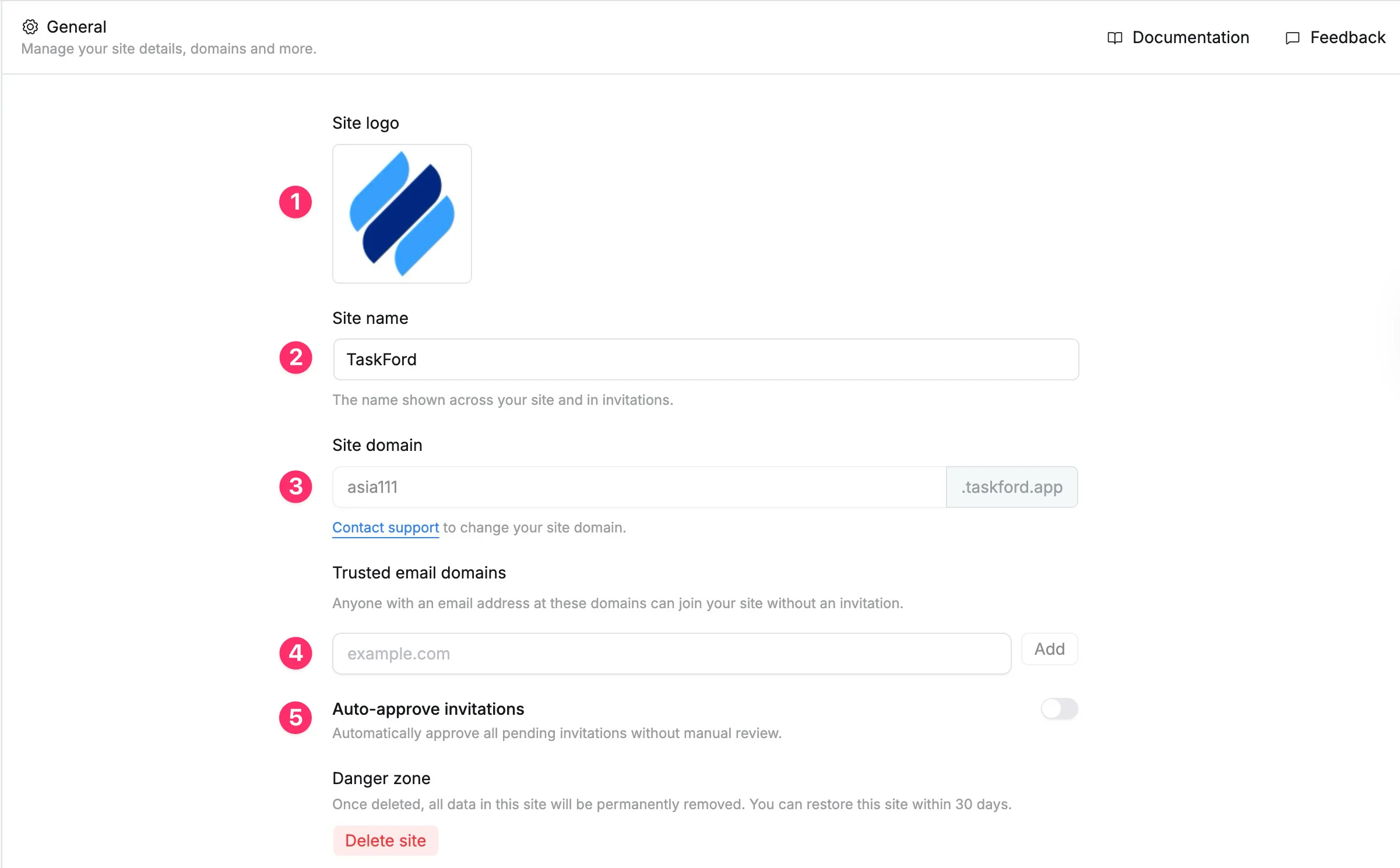
- Site picture
Upload a company logo or site icon to make your workspace easily recognizable in the Site Switcher.
- Site name
Update the display name for your organization to ensure clear identification across the platform.
- Site domain
View your site’s unique URL. The domain helps users access your site securely.
To change your site domain or set up a custom branded URL, you’ll need to upgrade to the Enterprise plan. Contact us for assistance.
- Trusted Email Domains
Automatically approve users with emails from specific domains to join your site without manual review.
- Invitations
Control how new users join your site:
- Auto-approve invitations: Toggle this option on to automatically approve all pending invitations without manual review.
- Manual approval: Leave the toggle off to require administrator approval for each invitation.