Portfolio general settings
Access General settings to manage your portfolio’s basic details, including its name, icon, and deletion options.
The General tab allows you to manage your portfolio’s basic information. Use this section to keep your portfolio clearly identified and aligned with your team’s goals.
Access the General tab
To access general settings:
- Navigate to the Portfolio settings page
- Select the General tab from the left-hand menu.
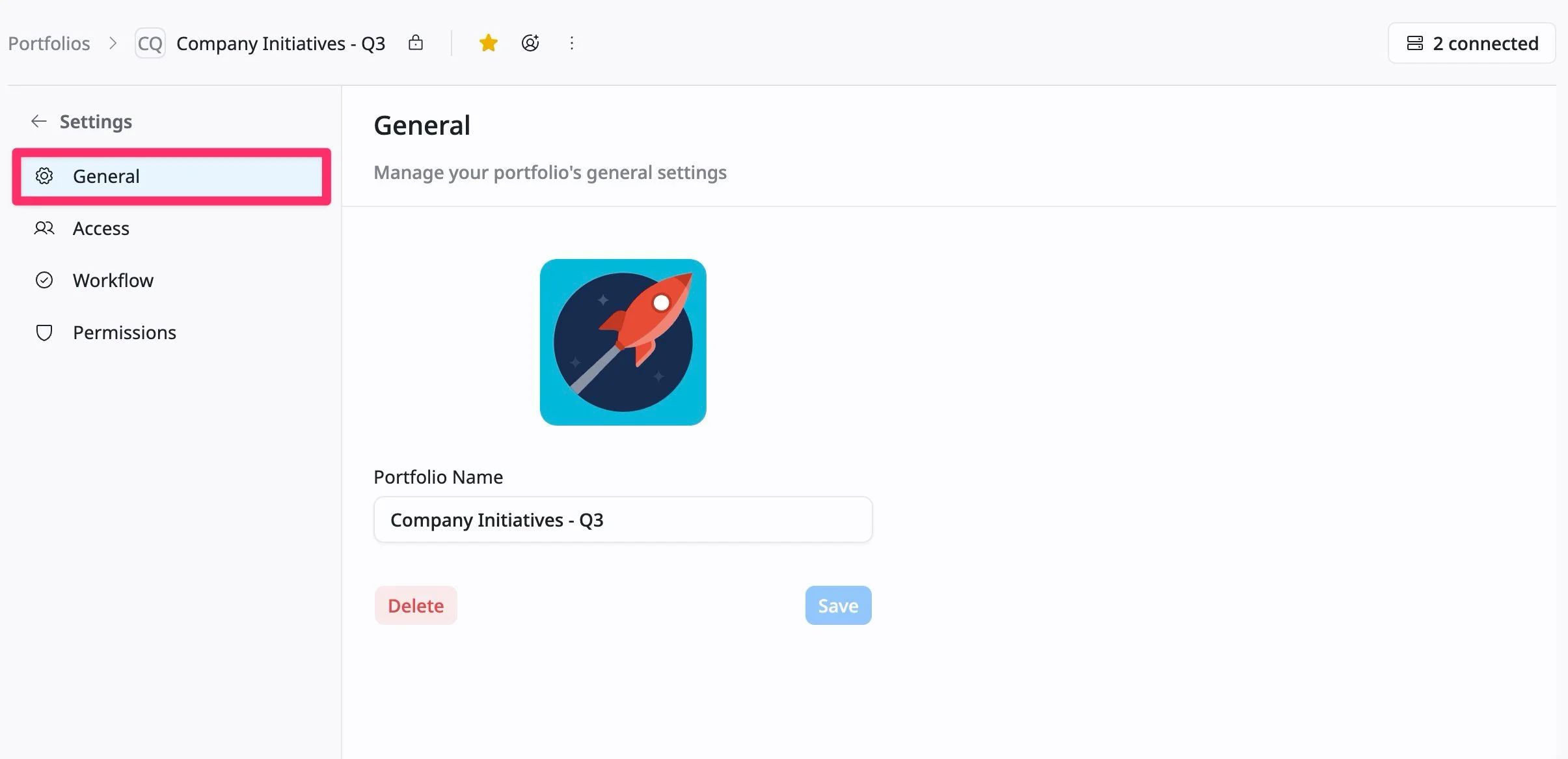
From here, you can manage your portfolio’s basic details, including its name, icon, and deletion settings.
Change portfolio icon
The portfolio icon helps visually distinguish your portfolio across the app.
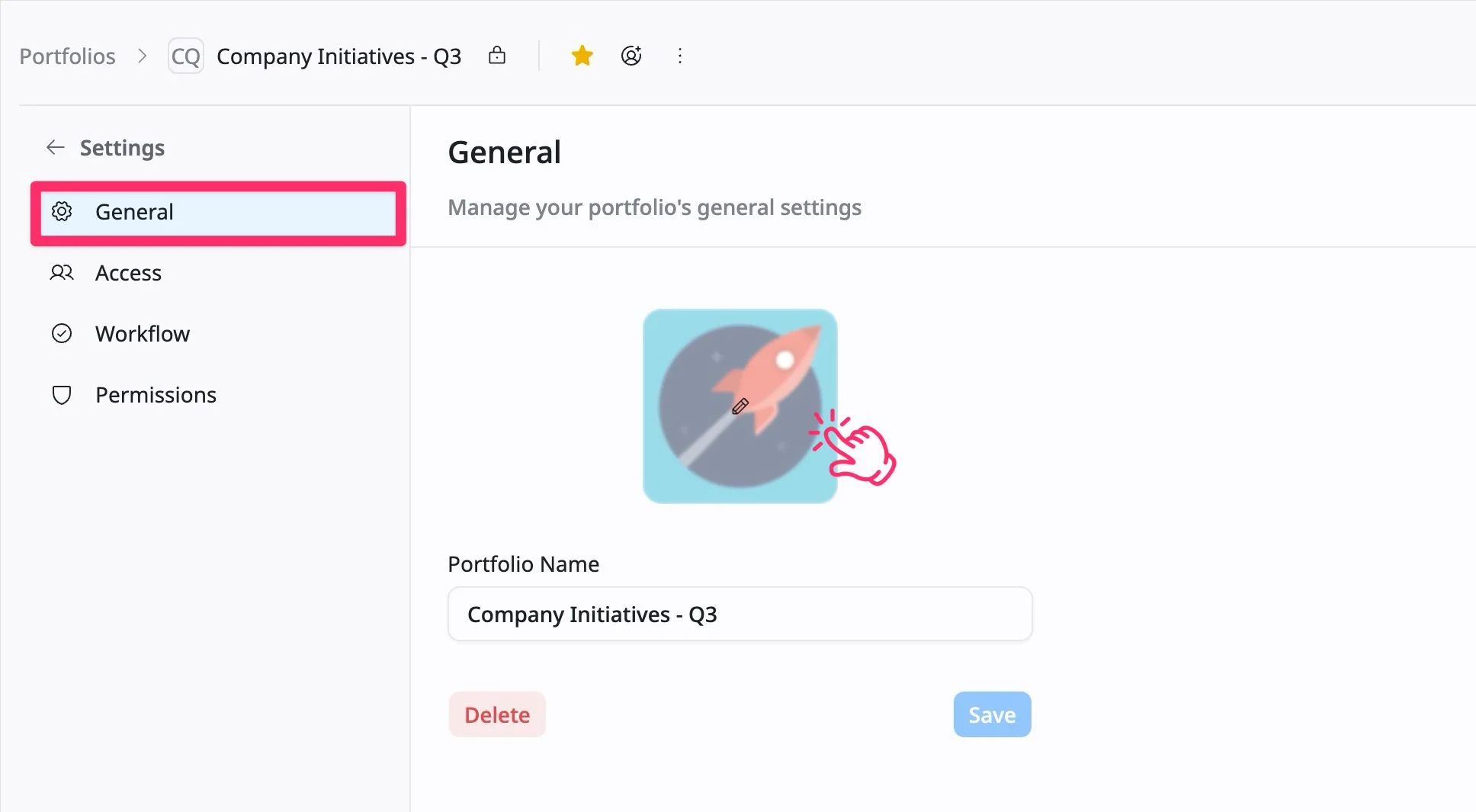
How to change the portfolio icon:
- Hover your cursor over the current portfolio icon and click it directly.
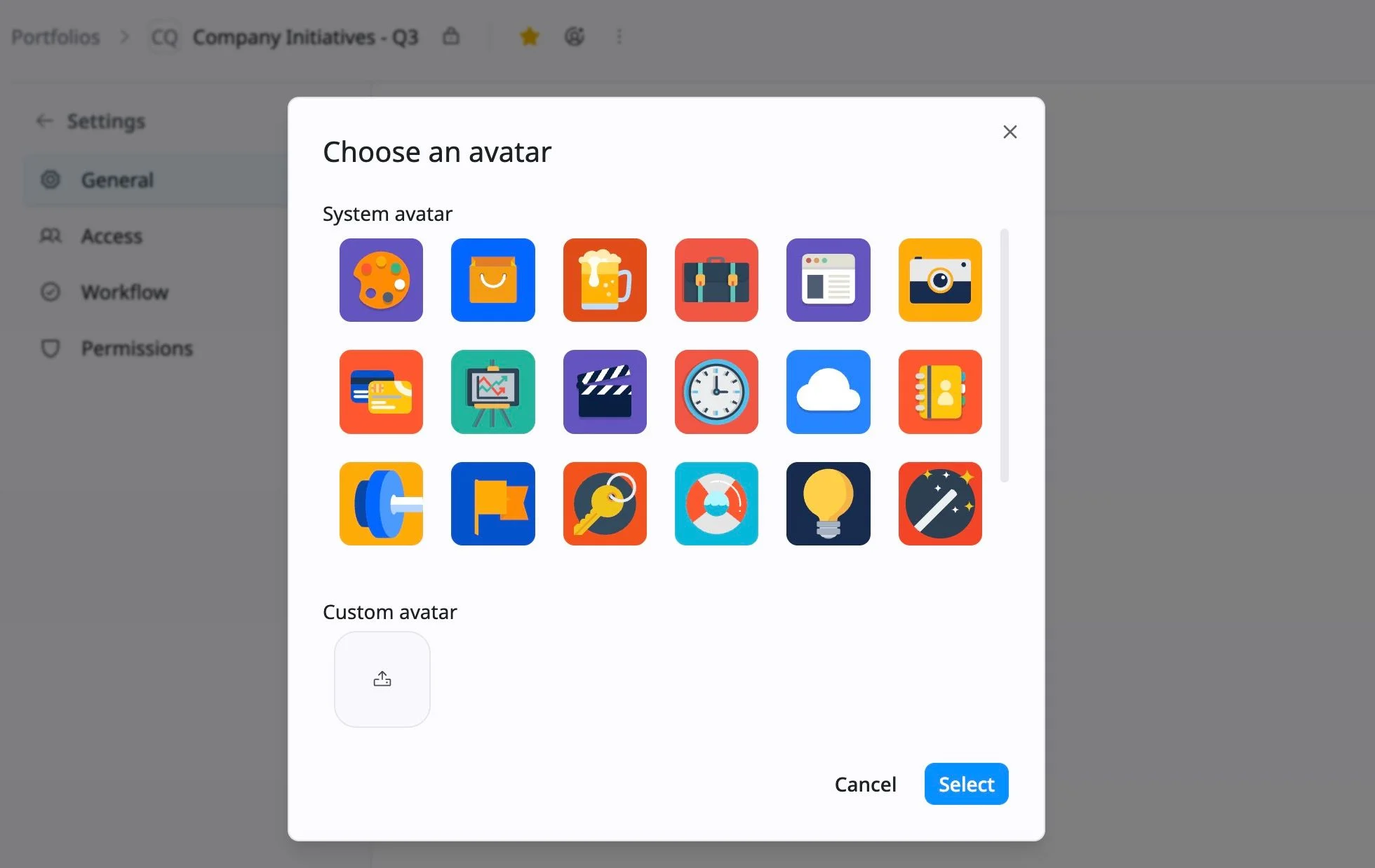
- A selection window will appear. You can:
- Choose from the available system avatars
- Upload a custom image using the upload option
- Click Select to apply the new icon.
👉 The updated icon will be visible across the site.
Update portfolio name
The portfolio name helps your team quickly identify the purpose of the portfolio.
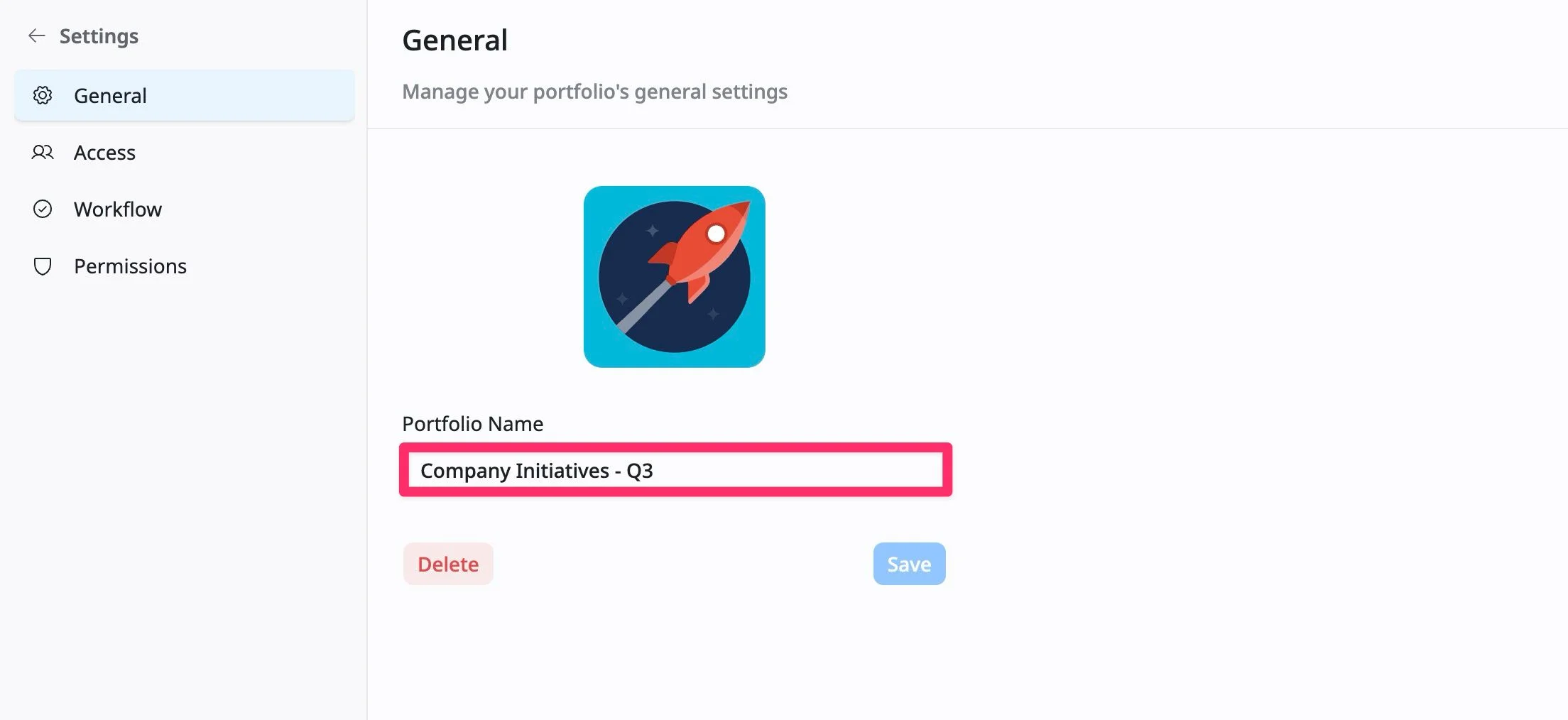
How to update the portfolio name:
- In the Portfolio name field, enter a new name.
- Click Save to apply the changes.
Delete a portfolio
You can delete a portfolio if it is no longer needed.
- Click the Delete button at the bottom-left of the page.
- A confirmation dialog will appear.
- Click Delete again to confirm, or click Cancel to stop the action.
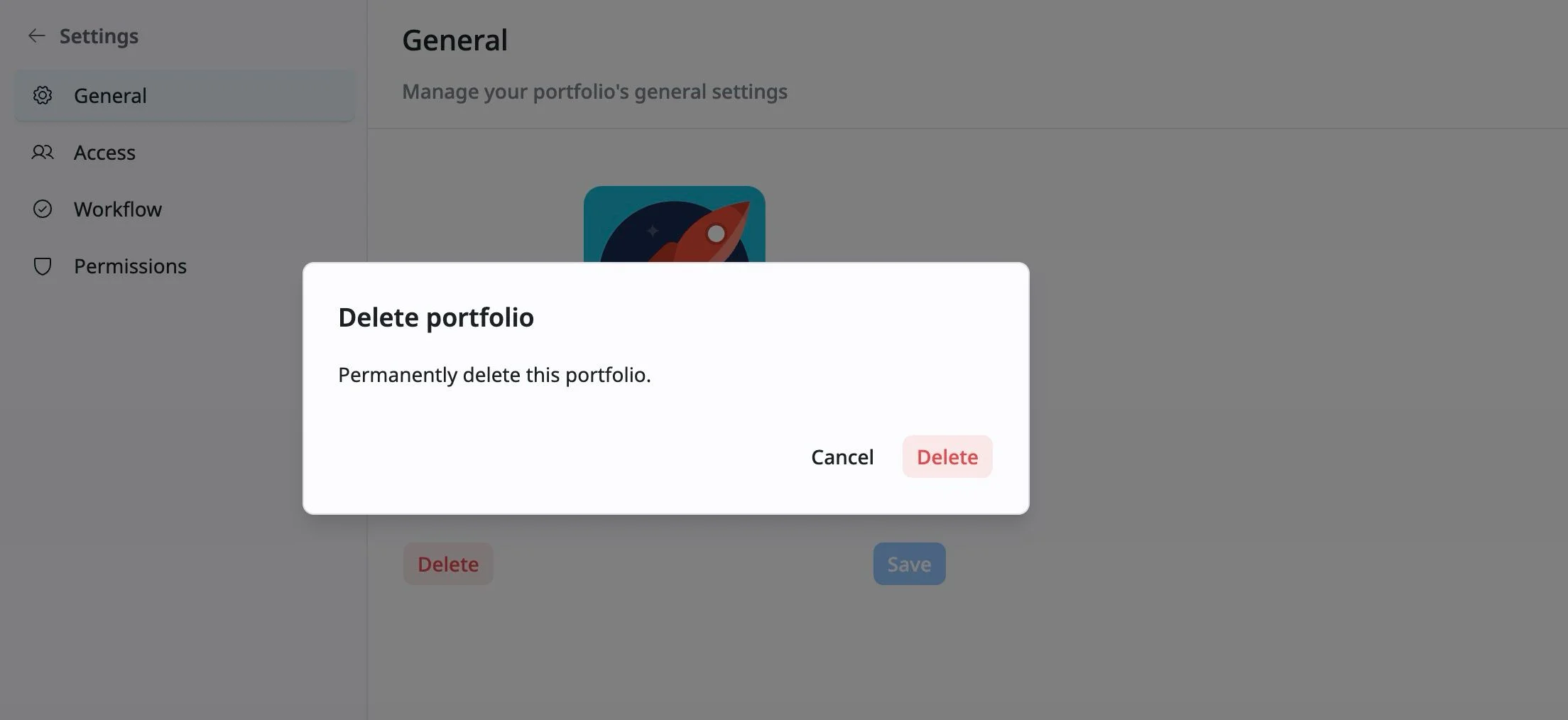
Deleting a portfolio is permanent and cannot be undone. Please ensure you have backed up any necessary data before proceeding.