How to get a HAR file and console logs
Learn how to capture HAR files and console logs to help TaskFord Support troubleshoot issues.
If you’re reporting an issue in TaskFord, our support team may ask for a HAR file and browser console log. These files help us investigate loading issues, failed requests, UI errors, and unexpected behavior.
- A HAR file records network activity between your browser and TaskFord, such as page requests, loading errors, or failed actions.
- A browser console log captures technical messages and errors generated while TaskFord is running in your browser.
Together, these files help our team identify what happened during the issue and troubleshoot it more efficiently.
Before you start
Open TaskFord in your browser and navigate to the page where the issue occurs.
Then open your browser developer tools:
- Windows: Press F12 or Ctrl + Shift + I
- macOS: Press Fn + F12 or Cmd + Option + I
Open the Network tab
In Developer Tools:
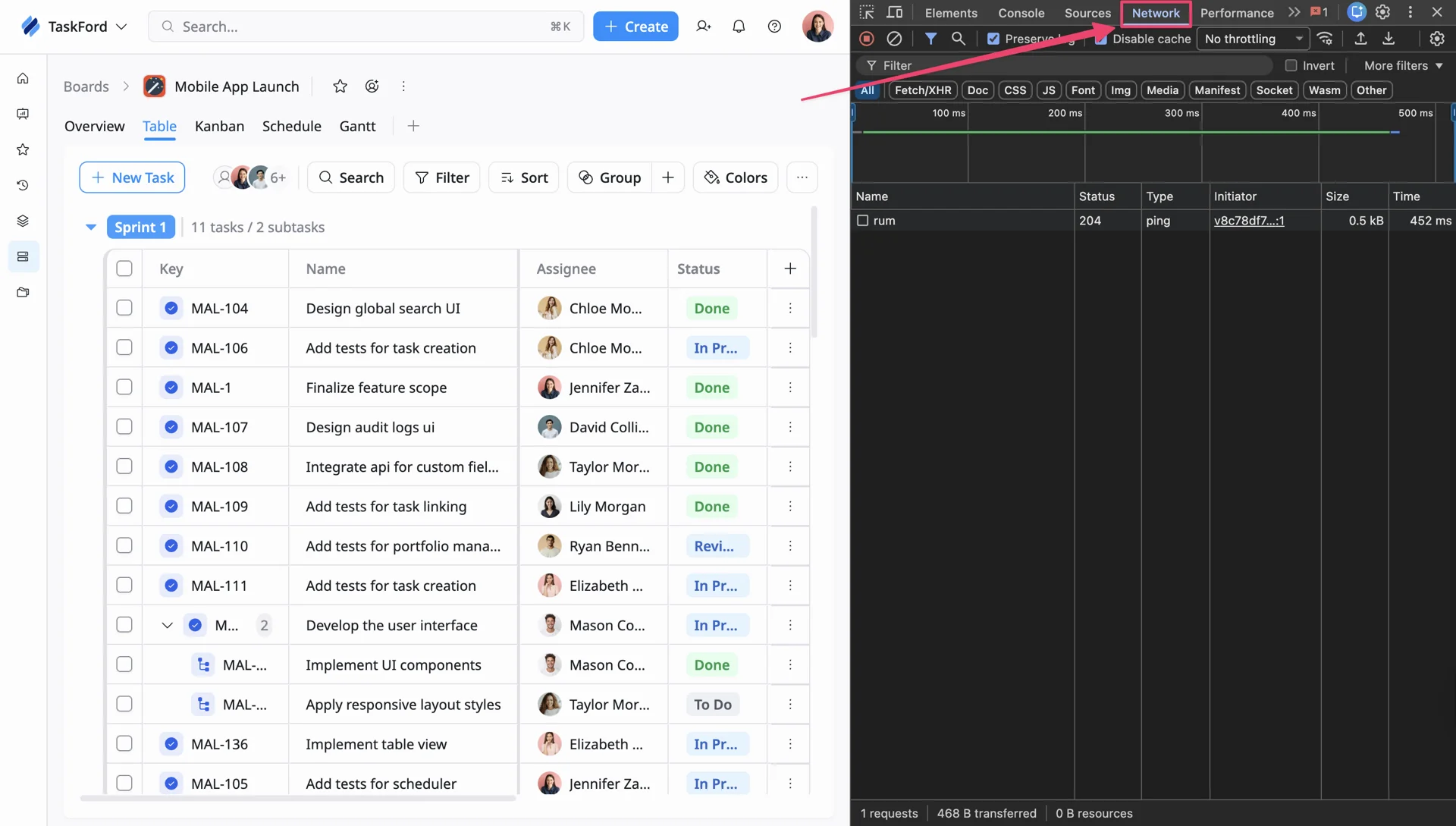
- Select the Network tab.
- If the tab is hidden, click the >> icon to find more tabs.
Enable logging options
Before reproducing the issue:
- Enable Preserve log
- Enable Disable cache
These options ensure all requests and errors are captured correctly.
Open the Console
To capture browser errors:
- Open the Developer Tools menu (⋮).
- Select Show console drawer or open the Console tab.
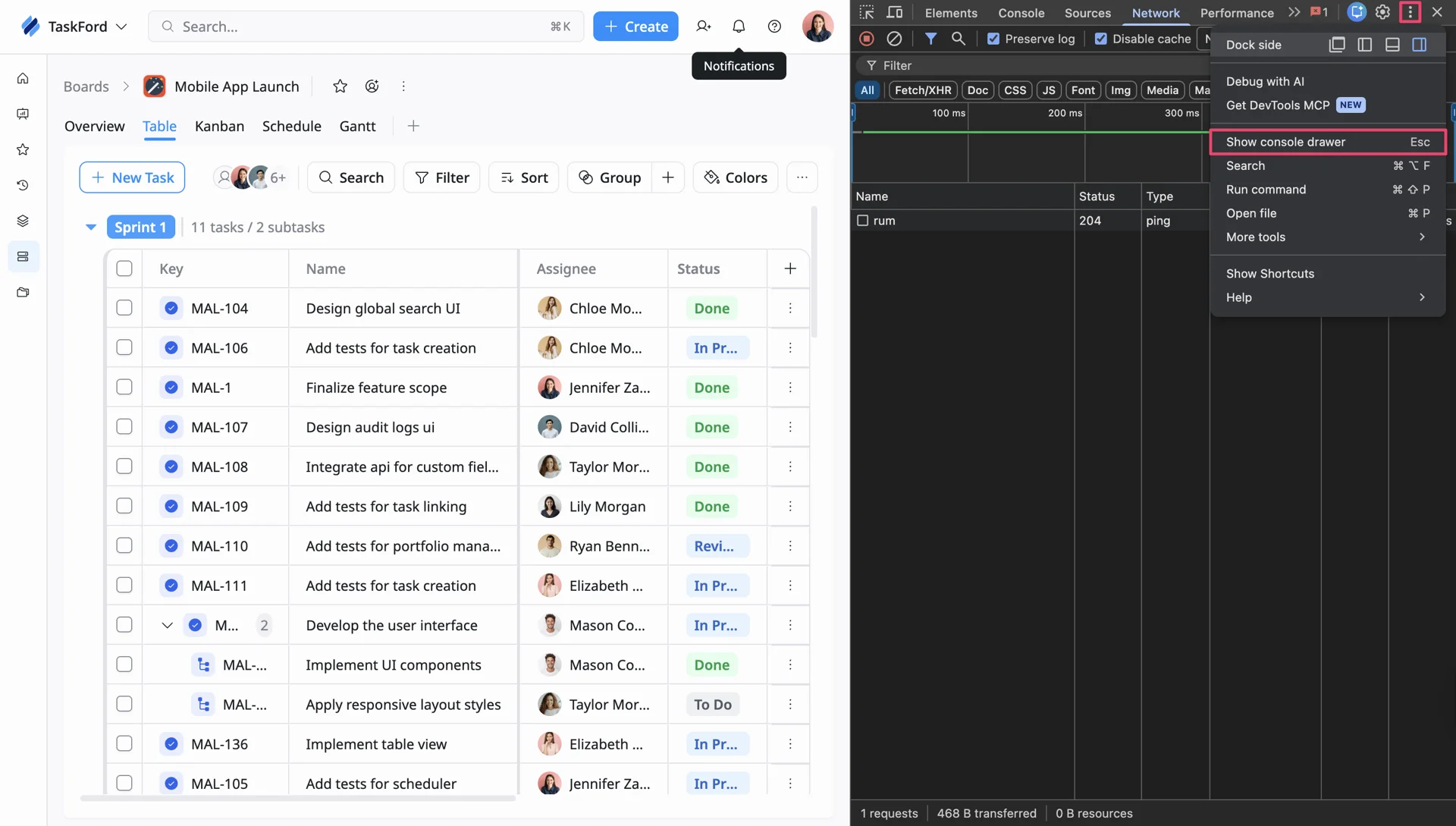
Keep both the Network and Console panels open while reproducing the issue.
Reproduce the issue
Repeat the same actions that caused the issue in TaskFord.
For example:
- Open the affected site or board
- Reload the page
- Perform the action that triggered the error
Download the HAR file
After reproducing the issue:
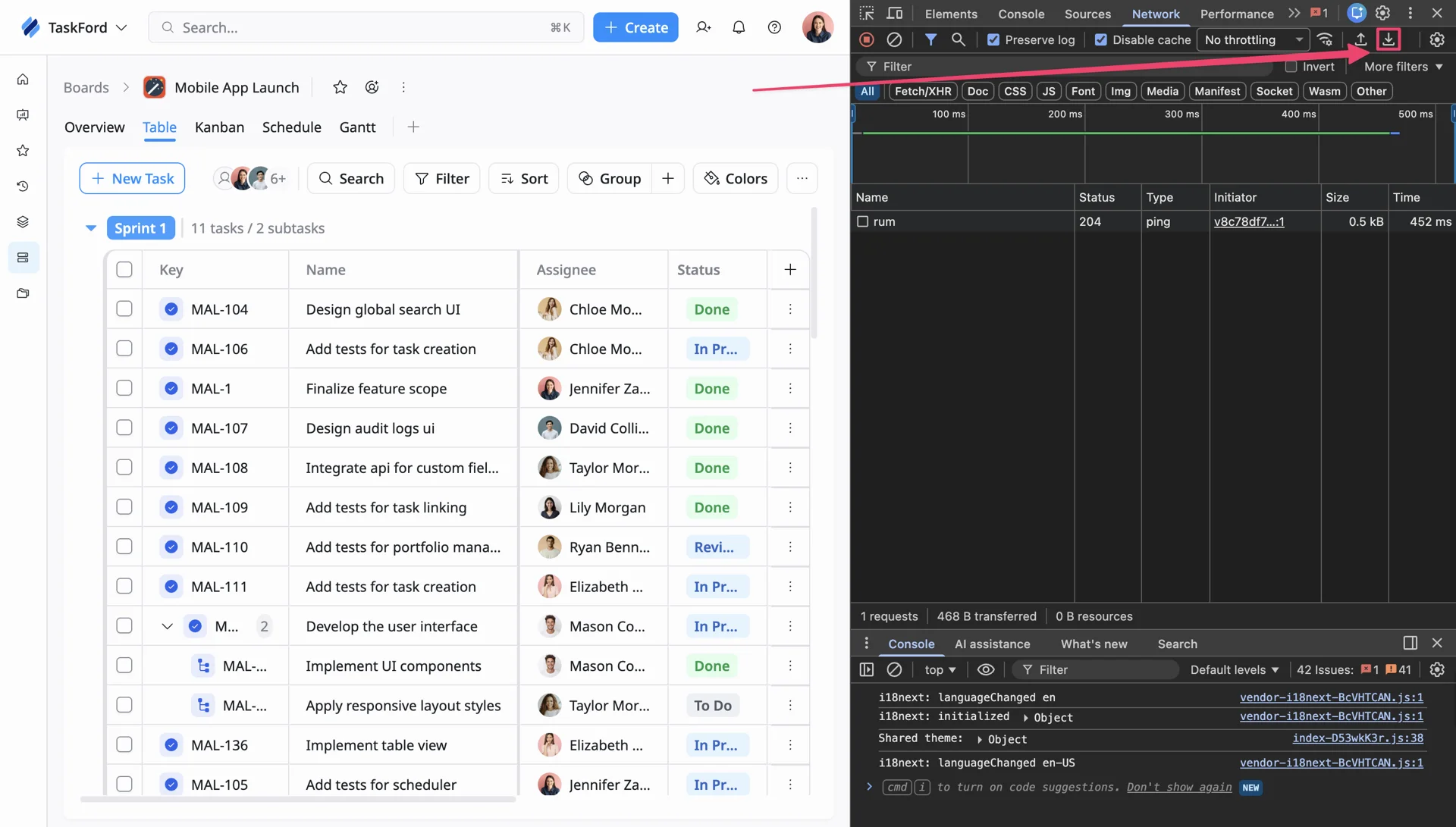
- Return to the Network tab.
- Click the download/export button to save the HAR file.
The file will usually be saved with a .har extension.
Save the console log
To save browser console logs:
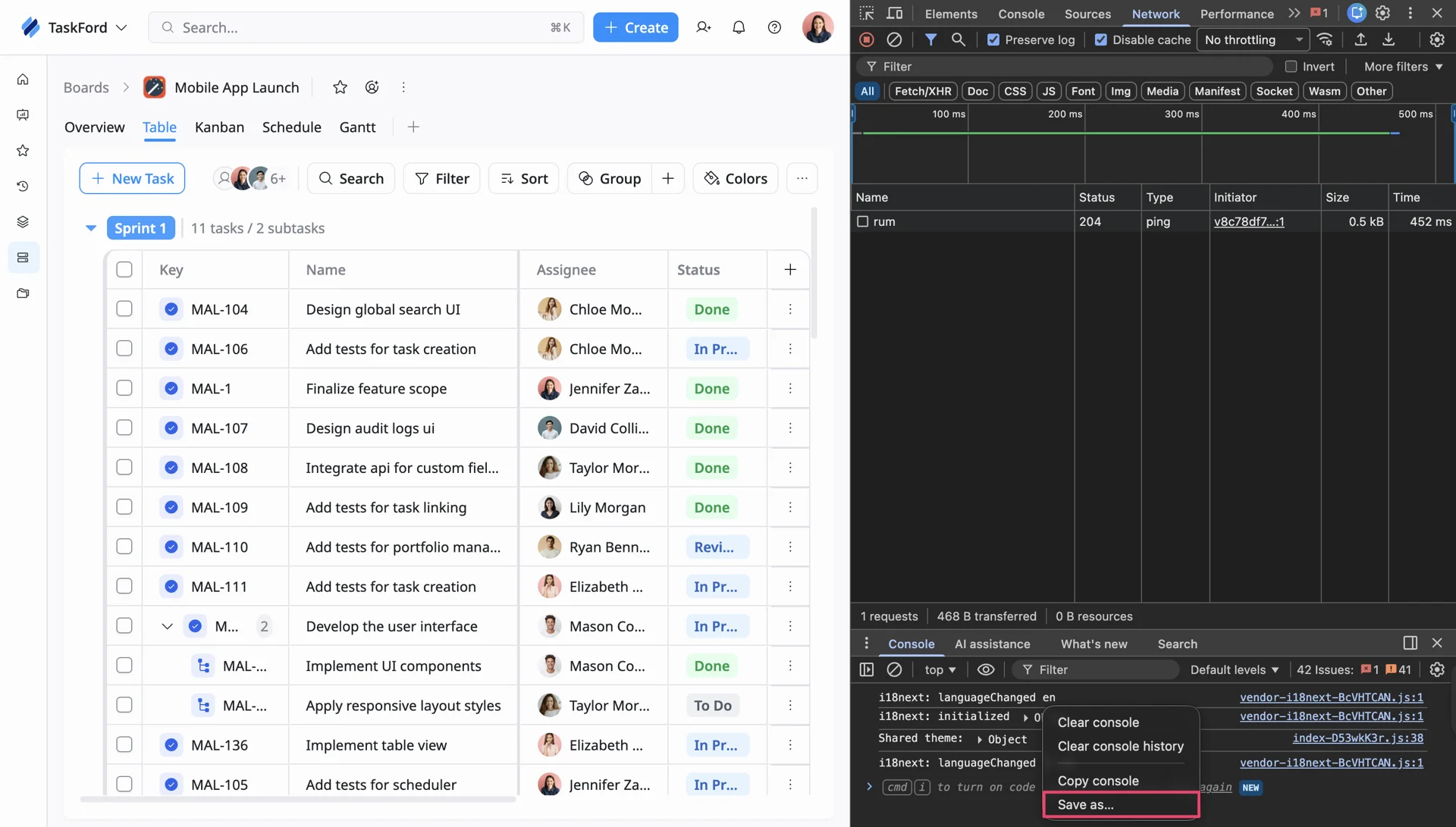
- Right-click inside the Console panel.
- Select Save as…
- Save the log file to your device.
Send the files to support
Attach the following files when contacting TaskFord Support:
- HAR file (.har)
- Console log file
- Screenshots or screen recordings (optional)
Include details about:
- What you were trying to do
- The affected site or board
- Any error messages shown on screen
- The browser and operating system you’re using
This information helps us investigate and resolve the issue more efficiently.
If you’re unable to generate the HAR file or console log or need help reproducing the issue, please contact us with details about the problem you’re experiencing.