Holiday calendar
Learn how to create and manage holiday calendars in TaskFord—add country or custom holidays, set a default, assign members, and edit or delete calendars.
This feature is available on Pro, Premium, and Enterprise plans.
Only App Admins can access and manage holiday calendar settings.
Manage holiday calendars in TaskFord to define public and custom holidays for your team. You can create multiple calendars for different countries, offices, departments, or working arrangements, assign one or more calendars to members, and set a default calendar as a fallback.
How holiday calendars work
Holiday calendars define the non-working holidays that TaskFord uses when planning work, managing workload, and scheduling tasks.
A holiday calendar is a set of holidays that can be assigned to one or more members. You can create different calendars for different countries, offices, teams, or other working arrangements.
How holiday calendars work:
- A member can be assigned to one or more holiday calendars.
- The default holiday calendar acts as a fallback for members who are not assigned to any other holiday calendar.
- When you assign a member to a specific holiday calendar, they are removed from the default calendar automatically. You can still add the member back to the default calendar.
- If a member is assigned to multiple calendars, the holidays from those assigned calendars apply to the member.
The default calendar is a fallback, not an additional calendar automatically applied to every member. If a member needs both the default holidays and another holiday scheme, you can manually assign them to both calendars.
Access holiday calendar settings
To access holiday calendar settings:
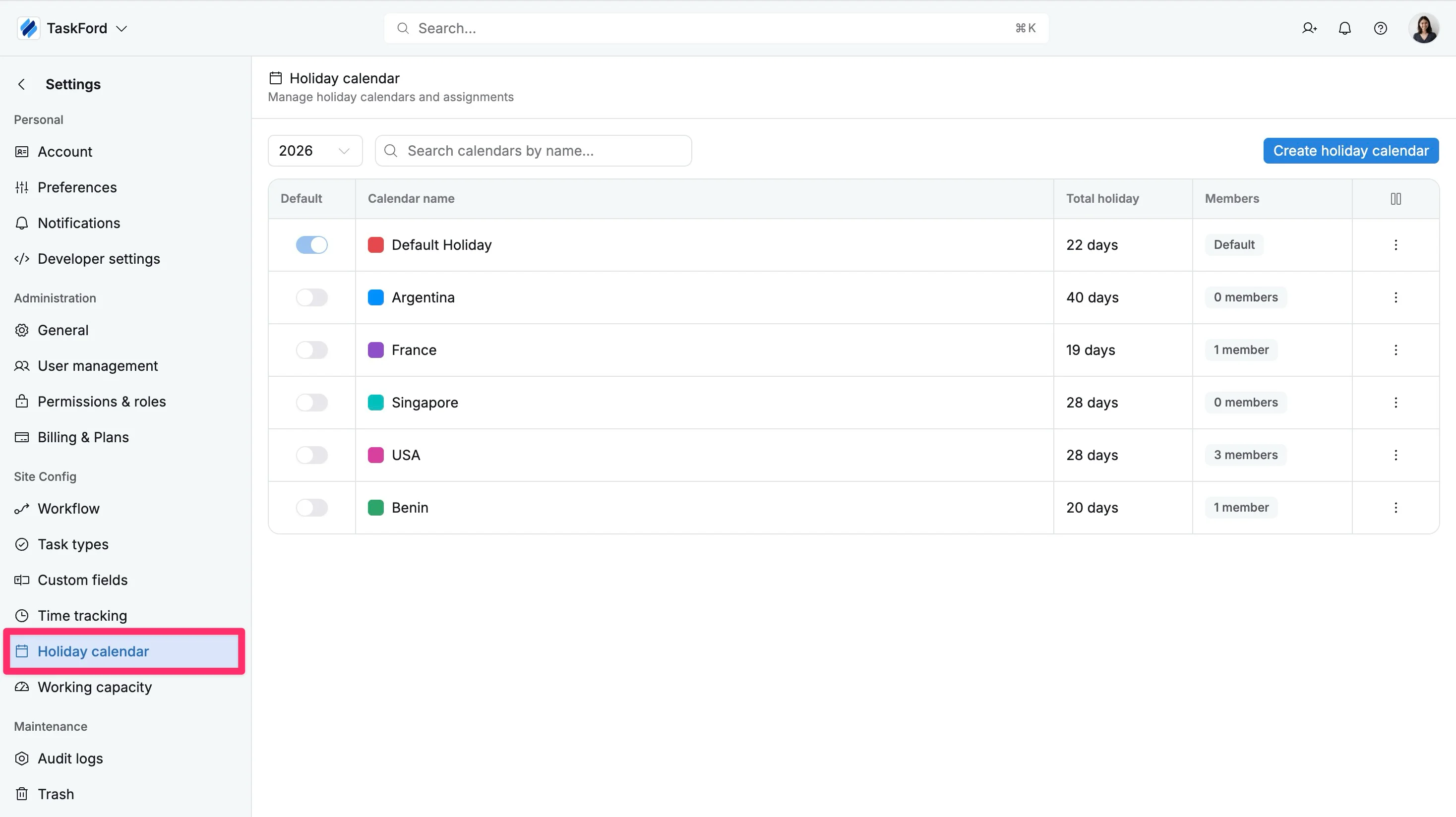
- Navigate to Settings.
- Under Site Config, select Holiday calendar.
The Holiday calendar page lets you create, view, edit, assign, and delete holiday calendars.
Create a holiday calendar
Create separate holiday calendars when different groups of members follow different holiday schedules.
To create a holiday calendar:
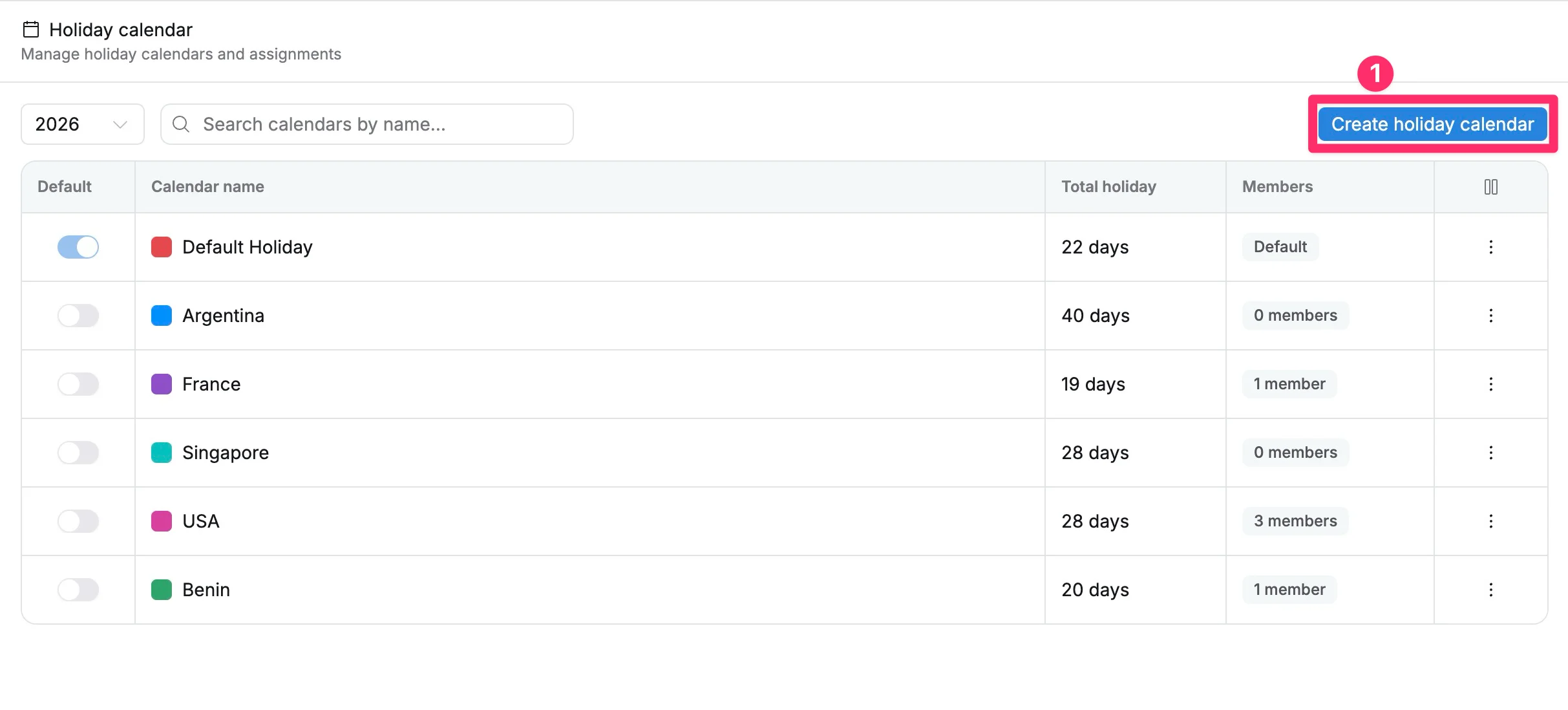
- On the Holiday calendar page, select Create holiday calendar.
- Under Main info, enter the calendar details:
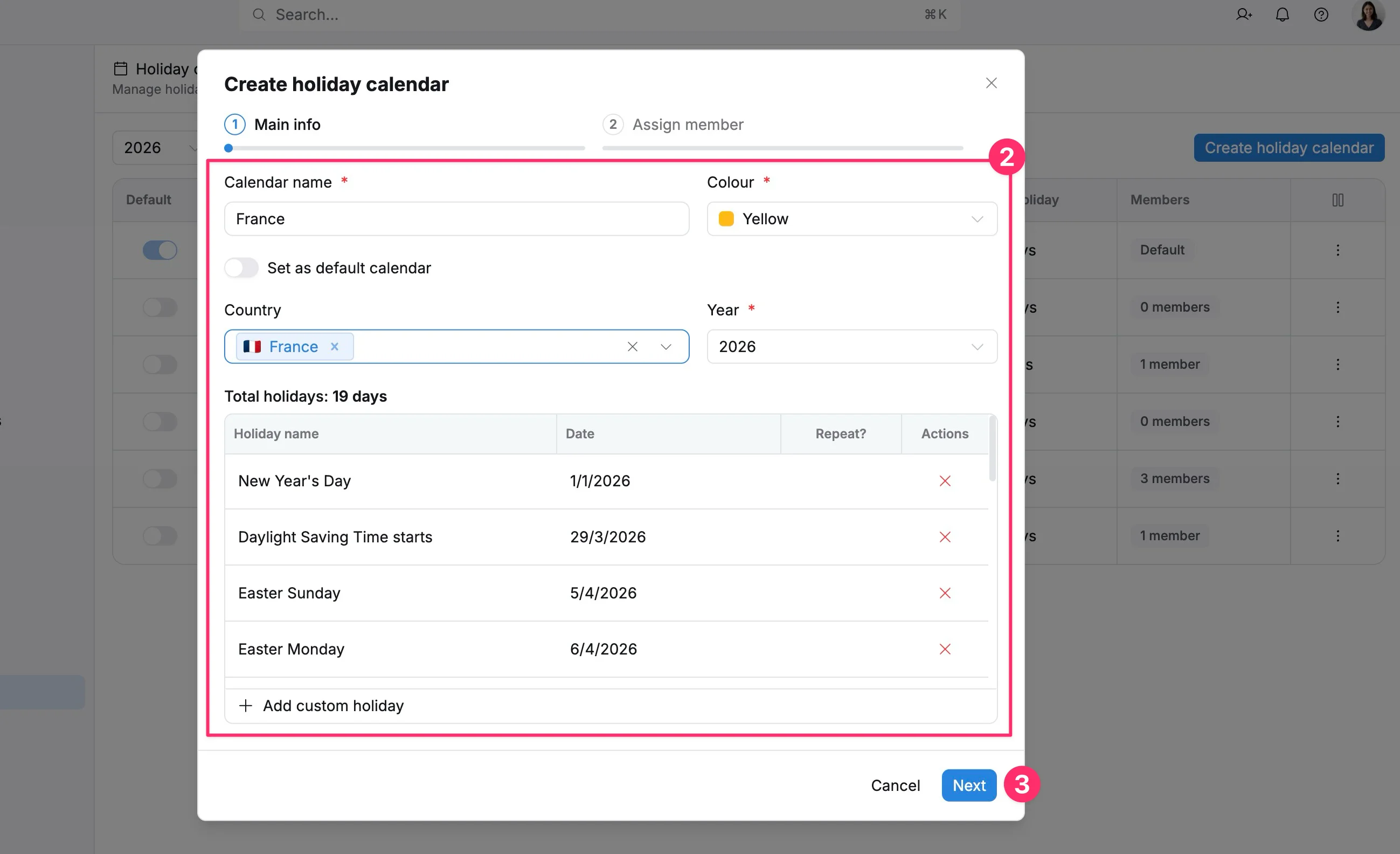
- Calendar name: Enter a clear name for the calendar.
- Colour: Select a colour to identify the calendar.
- Set as default calendar: Turn this on if the calendar should be the organization’s default.
- Country: Select one or more countries to load their public holidays.
- Year: Select the year for the calendar.
Review the loaded holidays and update them as needed:
- Turn on Repeat? for holidays that recur each year.
- Remove holidays that do not apply.
- Select Add custom holiday to add additional holidays.
- Select Next to move to member assignment.
- Under Assign member, assign the members who should follow this calendar.
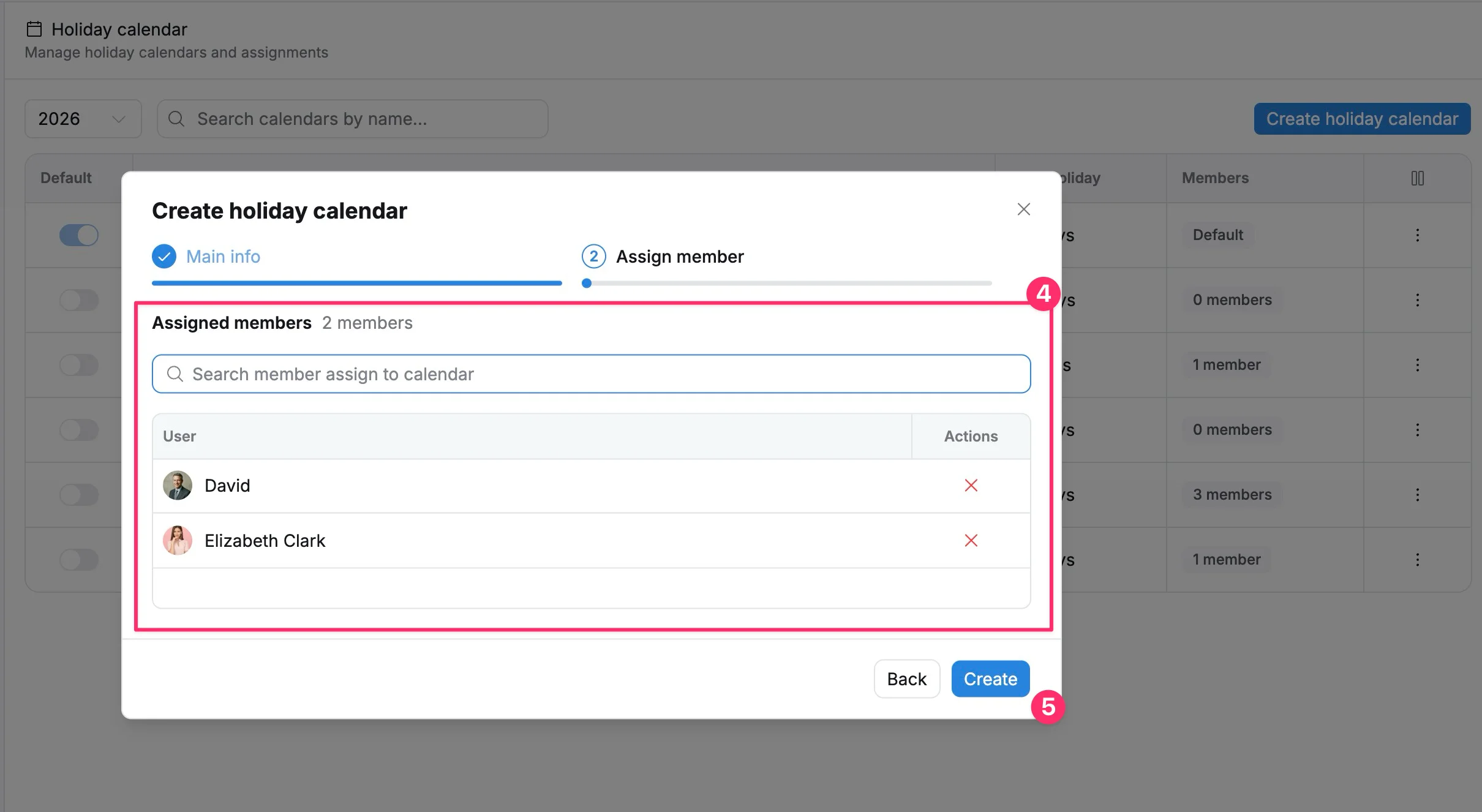
- Select Create to save the holiday calendar.
Use multiple calendar assignments when a member needs holidays from more than one holiday scheme, such as a company-wide calendar plus a country-specific calendar.
Set a default holiday calendar
The default holiday calendar is used as a fallback for members who are not assigned to another holiday calendar.
When creating a calendar
- On the Holiday calendar page, select Create holiday calendar.
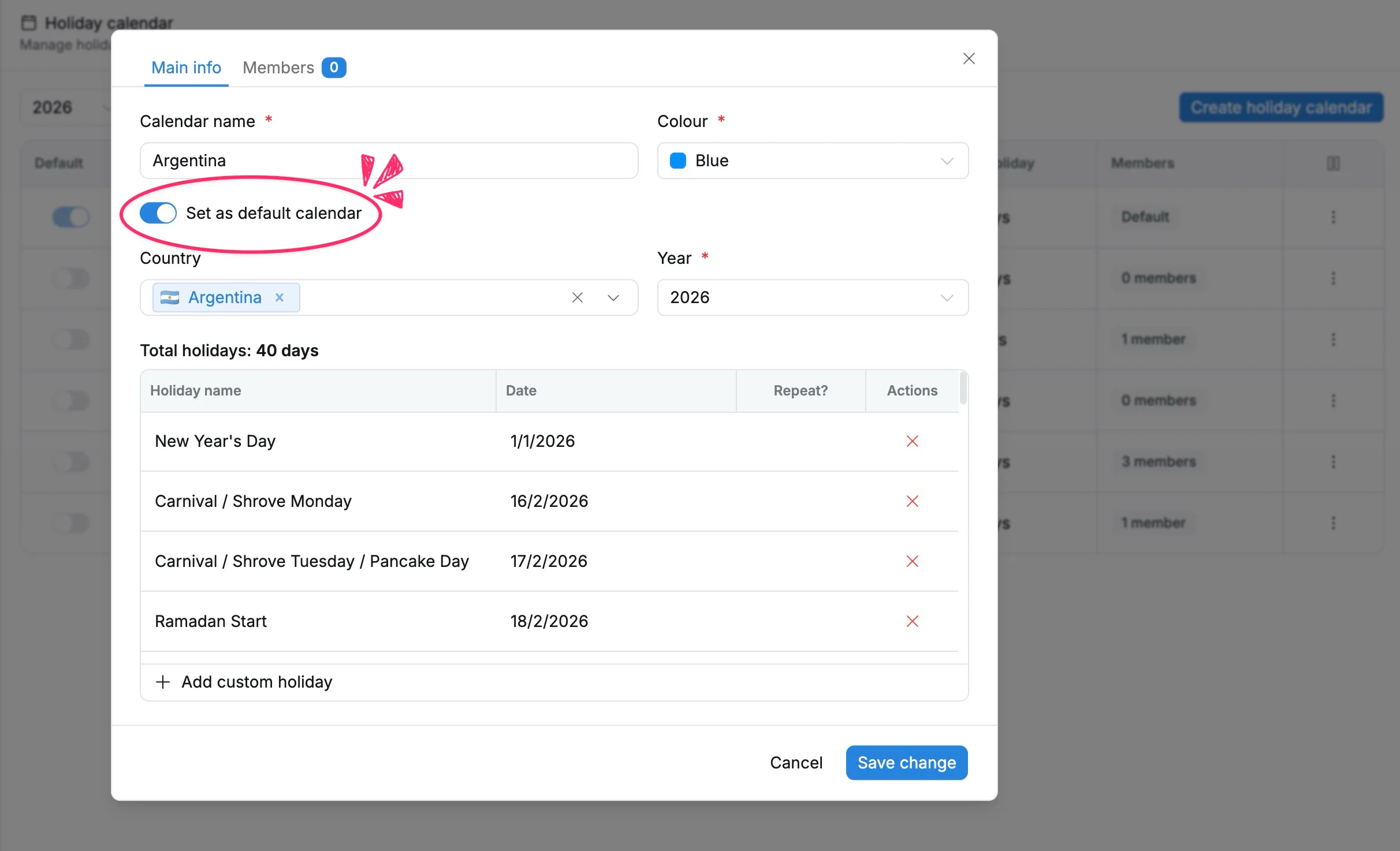
- Under Main info, turn on Set as default calendar.
- Complete the calendar setup and select Create.
From the holiday calendar list
- Go to Settings → Holiday calendar.
- Find the calendar you want to use as the default.
- Turn on the toggle in the Default column.
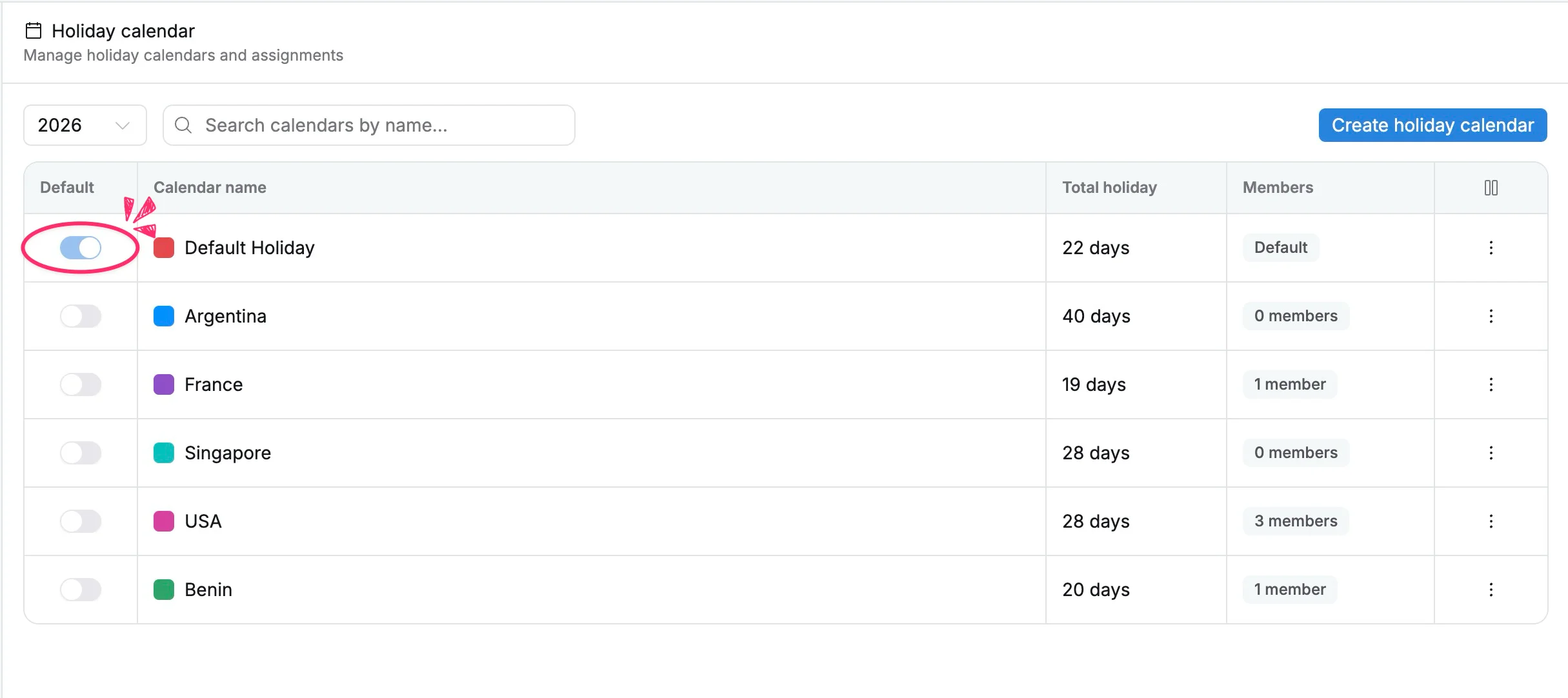
Only one calendar can be the default at a time. Setting another calendar as default replaces the current default.
- The default calendar applies only to members who are not assigned to another holiday calendar.
- If a member is assigned to a specific calendar, they are removed from the default calendar automatically. You can manually assign the member to the default calendar again if they need both sets of holidays.
- The default calendar cannot be deleted while it is set as the default.
Edit a holiday calendar
You can update a calendar’s details, holidays, or assigned members at any time.
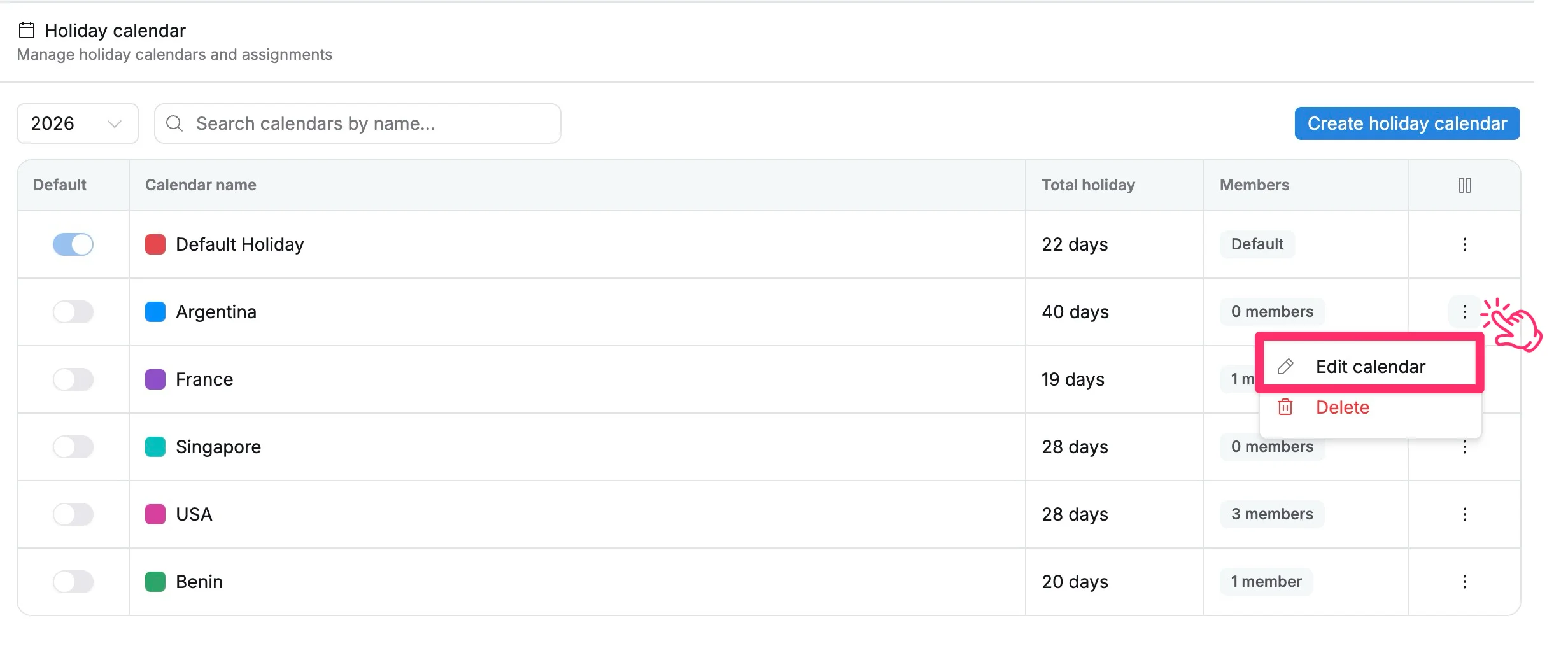
- Go to Settings → Holiday calendar.
- Find the calendar you want to update.
- Select (⋮) in the Actions column.
- Select Edit calendar.
- Update the calendar details, holidays, or assigned members.
- Select Save change.
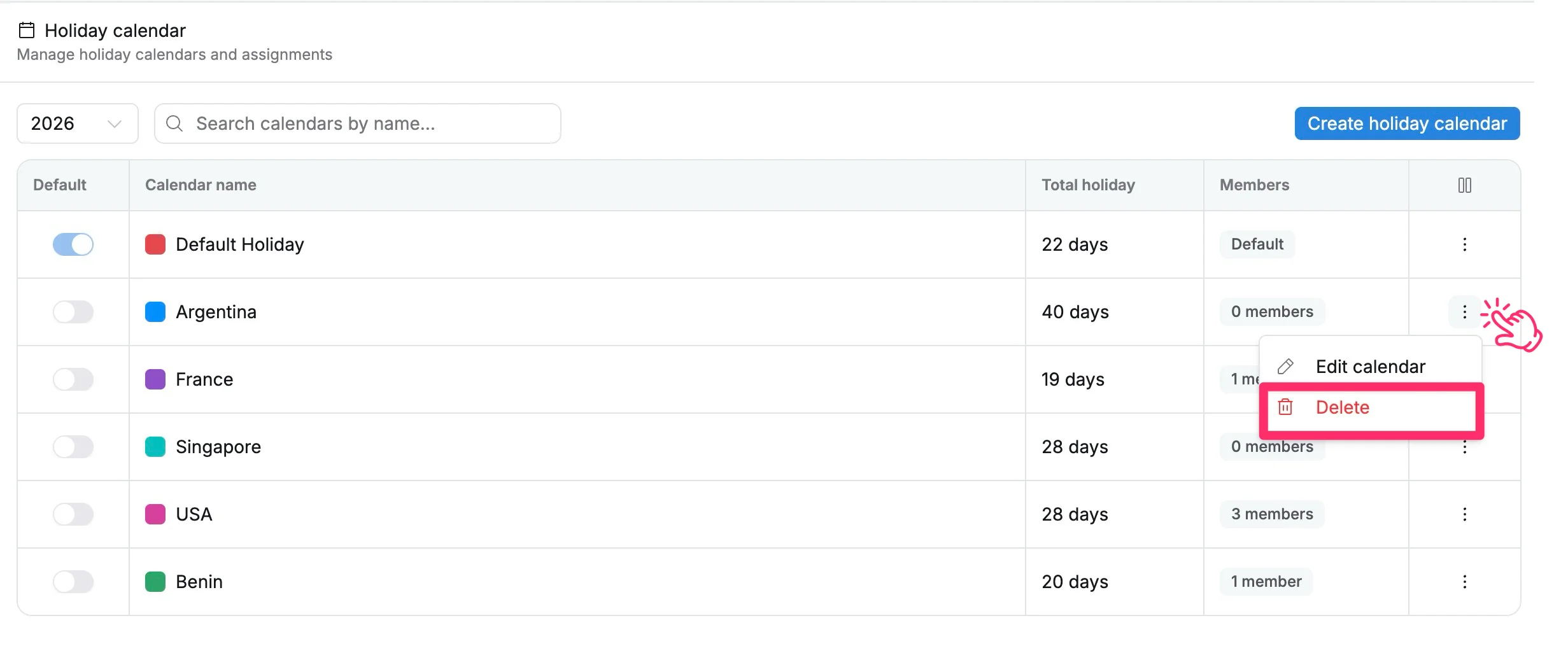
Delete a holiday calendar
To delete a holiday calendar:
- Go to Settings → Holiday calendar.
- Find the calendar you want to remove.
- Select ⋮ in the Actions column.
- Select Delete.
- Confirm the deletion.
- The default holiday calendar cannot be deleted.
- To delete the current default, first set another calendar as the default.
- Members assigned to a deleted calendar will follow the default holiday calendar.
View holiday calendars
Once holiday calendars are assigned, their holidays are reflected in TaskFord’s planning views.
Holiday information appears in:
- Schedule
- Gantt
- Calendar
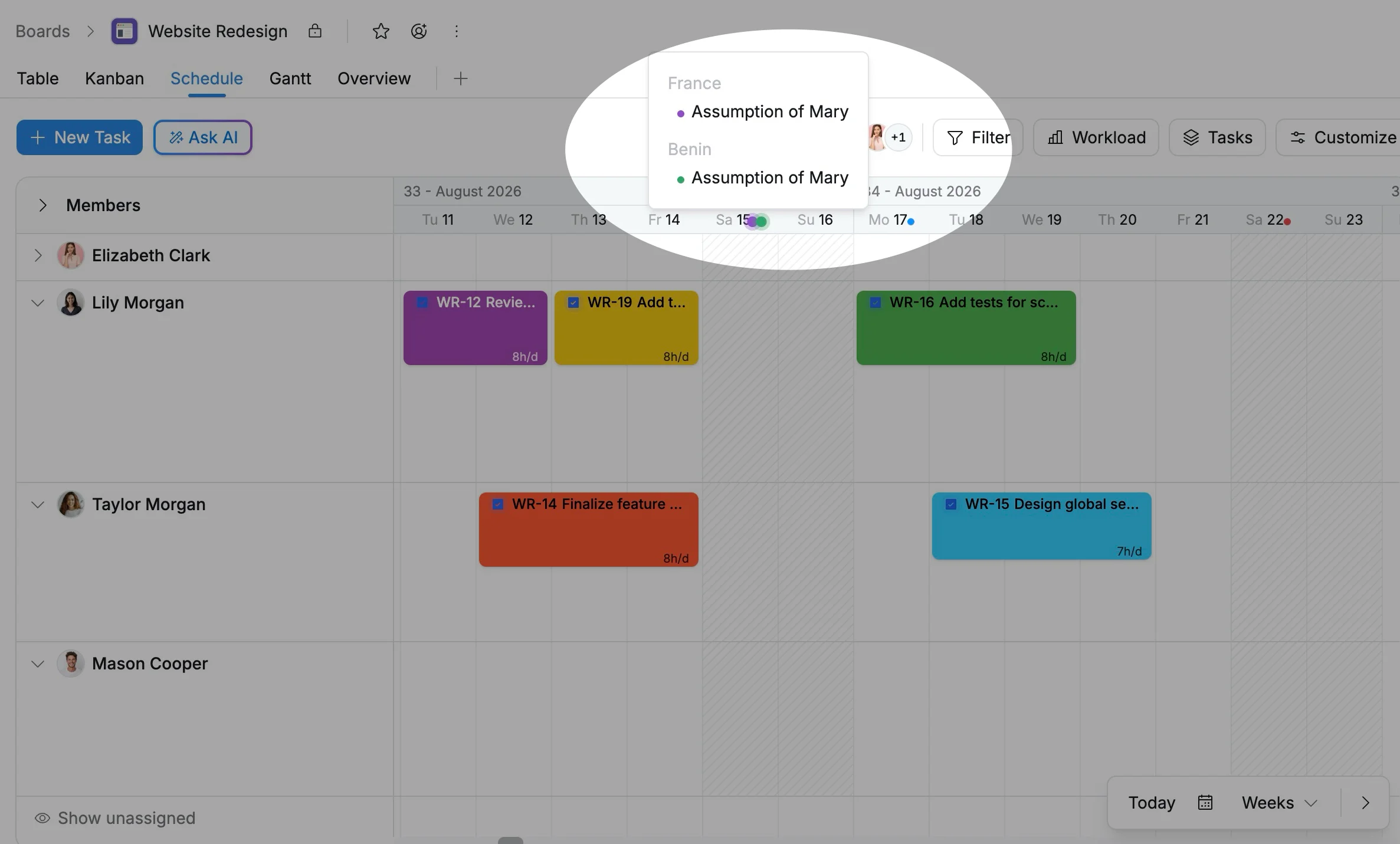
Each holiday is displayed as a coloured dot on the corresponding date. The dot uses the colour assigned to the holiday calendar, making it easier to distinguish holidays across teams or locations.
Hover over a holiday indicator to see the holiday name and calendar.