How to add board views
Learn how to add and customize board views in TaskFord to visualize tasks and manage projects effectively.
Next, choose how you want to visualize your work. Add different views (Table, Kanban, Gantt, Schedule, Overview) so your team can manage tasks in the format that works best for them.
- Table: This view allows you to see all tasks in a spreadsheet-like format, making it the most efficient way to manage bulk data and custom fields.
- Kanban: This view is ideal for visualizing task progress in a workflow. Tasks are represented as cards that move across columns, representing different stages of the process (e.g., To Do, In Progress, Done).
- Gantt: The Gantt view is perfect for project planning and tracking timelines. It shows tasks along a timeline, making it easy to see dependencies, milestones, and deadlines.
- Schedule: Displays tasks in a calendar format, helping you plan schedules, manage resources, and balance workload.
- Overview: Provides a high-level executive summary. This is where you track overall project progress and key performance metrics at a glance.
How to add a board view
To add a new view to your board:
- Navigate to the board where you want to add a view.
- Click the + icon next to the view tabs to open the Board Views menu.
- Select the view you want to add from the available options.
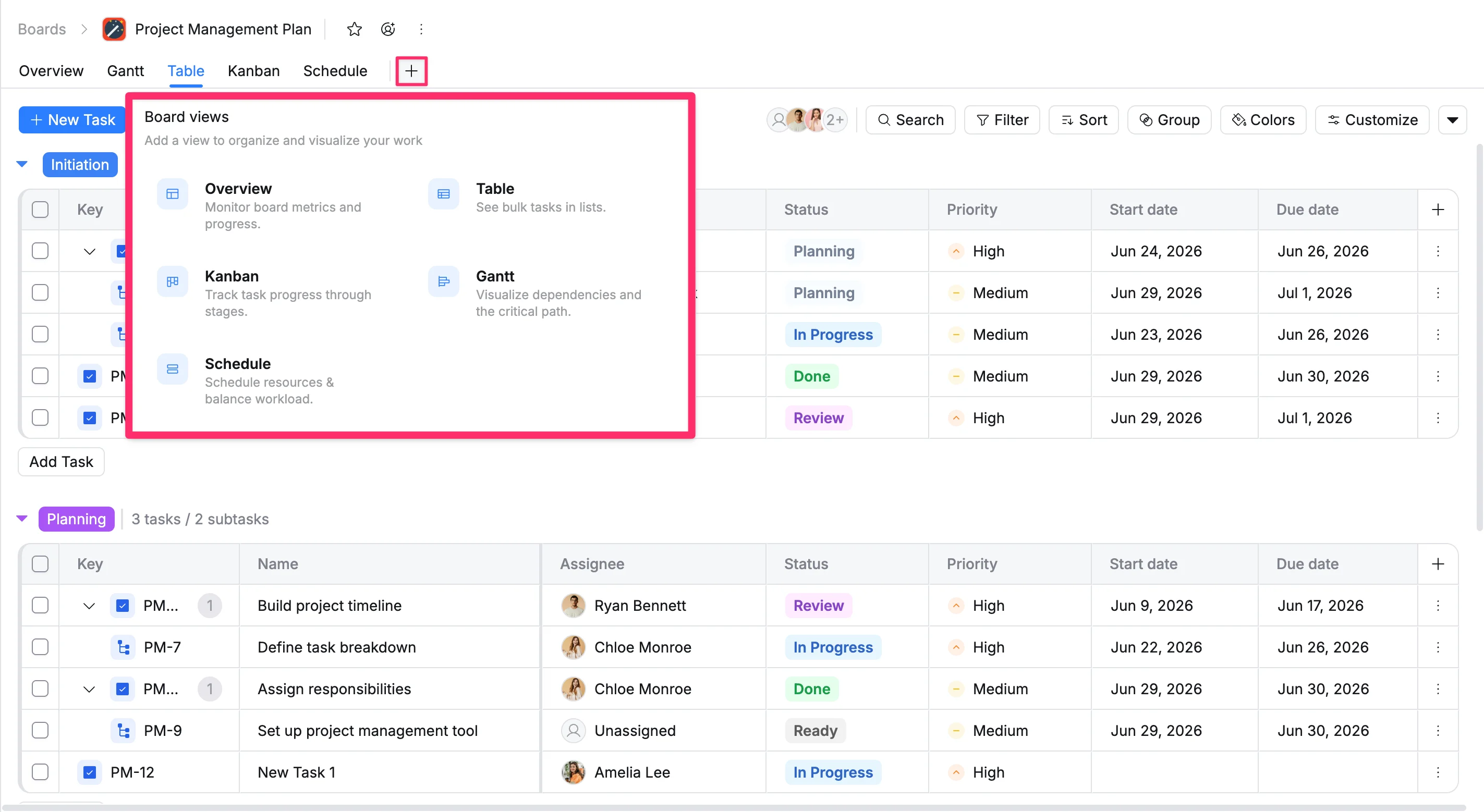
Once you have added multiple views, you can switch between views by clicking the corresponding tab at the top of your board
Learn more