Invite new members to TaskFord
Learn how to invite team members to TaskFord and manage access to ensure efficient collaboration and task management.
To start collaborating in TaskFord, you need to invite your team members to your site. Once invited, they can access shared boards, update tasks, and track progress in one place.
As a site administrator, you control how users join and the level of access they receive using Account Types and App Roles.
Account type
Account type defines a user’s authority at the site administration level. It determines what they can manage across the entire site — including organizational settings, user management, and billing. Every user is assigned one account type when added to the site:
- Regular Member: Access TaskFord and use all core features based on their assigned app role. No access to site administration.
- Billing Manager: Restricted to managing invoices, billing details, and payment methods.
- Site Admin: Manage users, assign roles, and configure site-wide settings, including subdomains and SSO.
- Site Owner: Full authority over the entire site — including billing, settings, ownership transfer, and site deletion.
App role
App Roles define what a user can do in their daily work across boards, portfolios, and dashboards. A user can have multiple roles simultaneously:
TaskFord provides three default roles, and you can also create custom roles with specific permissions.
- App Admin: Full administrative access — manage all boards, portfolios, dashboards, members, and app-level settings across the site.
- App Editor: Create and manage boards, portfolios, and dashboards. Cannot manage site settings or assign roles.
- App Viewer: Read-only access to all public site content.
- Custom roles: A tailored set of permissions designed to fit specific team workflows or organizational needs beyond the three default roles.
Invite people to TaskFord
You can invite collaborators via email to add them directly to your site. There are two ways to access the invitation modal:
Option 1: From the user management section
Use this method to manage users and global configurations at the site level.
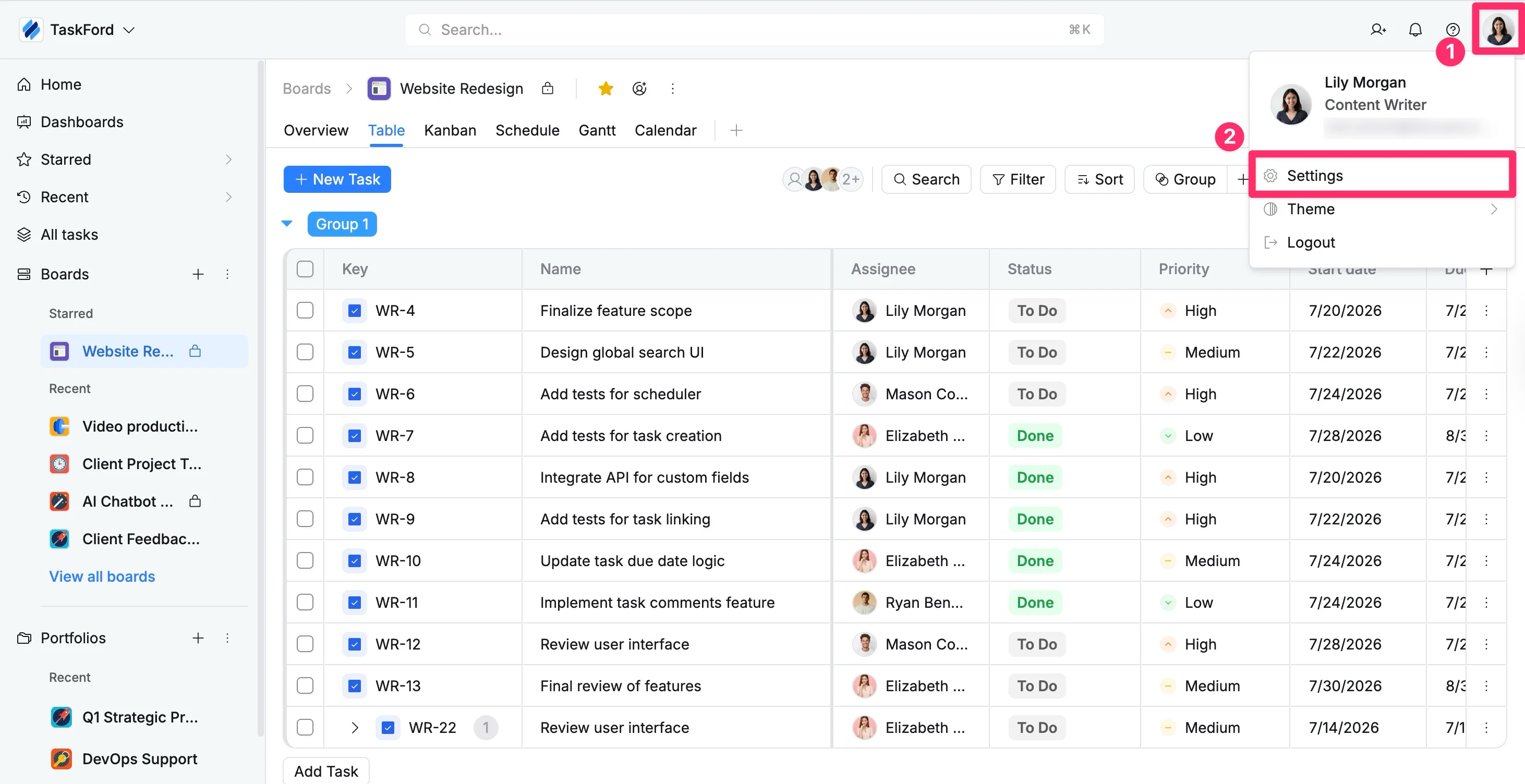
- Click your profile picture in the top-right corner.
- Select Settings from the dropdown menu
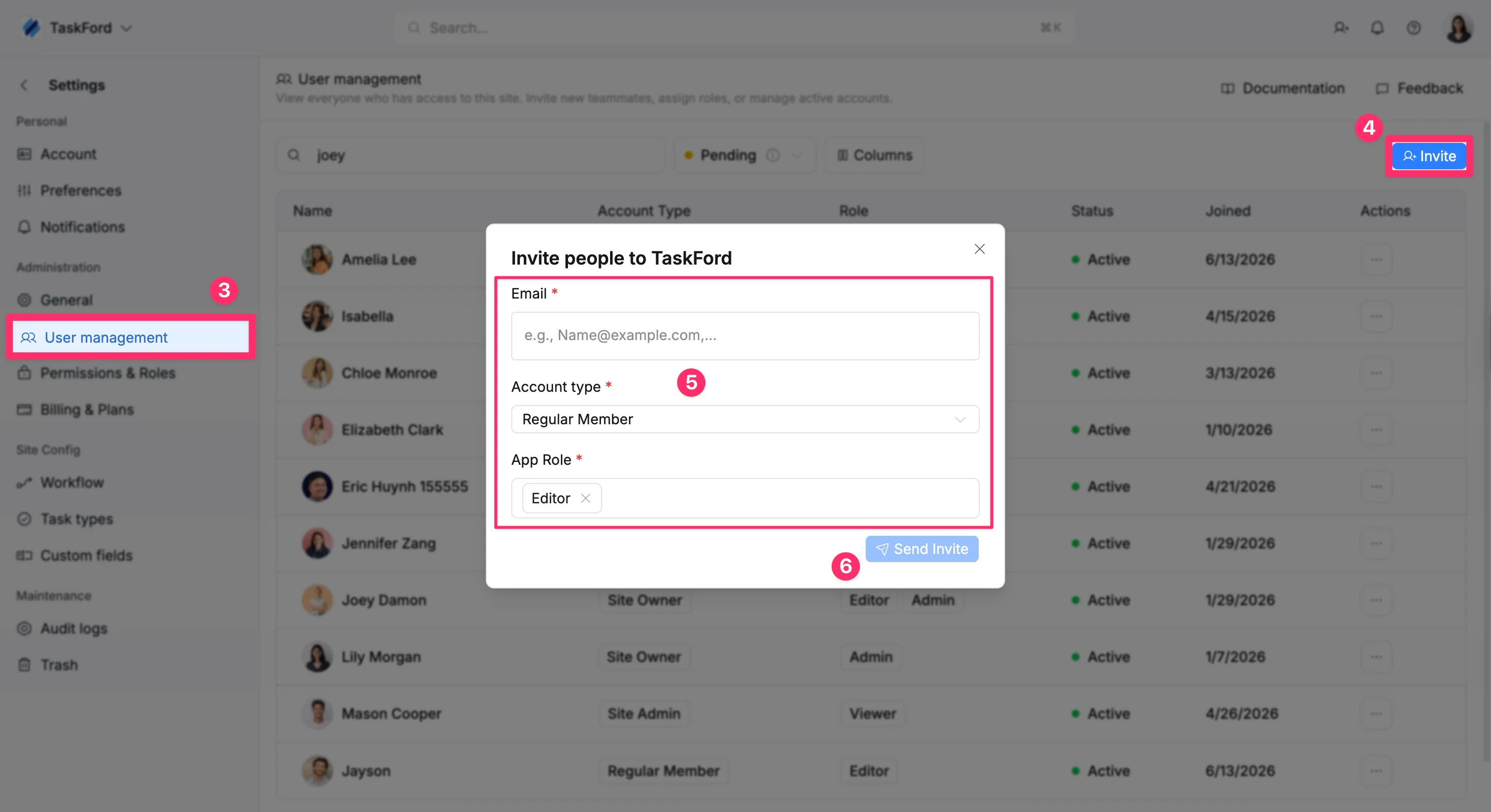
- In the left panel under Administration, click User management
- Click Invite button located in the top-right corner.
- Once the “Invite people” pop-up appears, configure the following:
- Email: Enter one or more email addresses (separated by commas).
- Account type: Select the appropriate global status.
- Role: Choose one or more roles to define their work permissions.
- Click the “Send Invite” button to send the email notification.
Option 2: From within the site
Use this method for quick invitations while actively working inside a project.
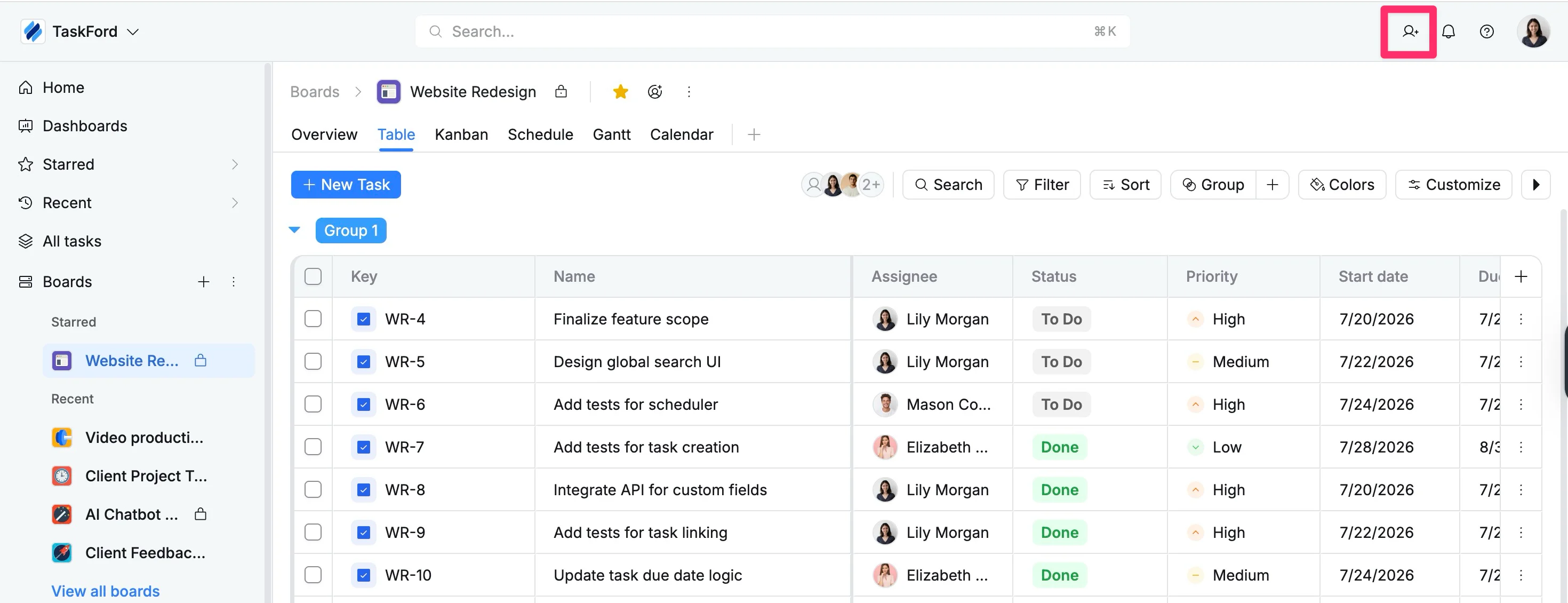
- Click the Invite button in the top-right corner of the site.
- Once the “Invite people” pop-up appears, configure the following:
- Email: Enter one or more email addresses (separated by commas).
- Account type: Select the appropriate global status.
- Role: Choose one or more roles to define their work permissions.
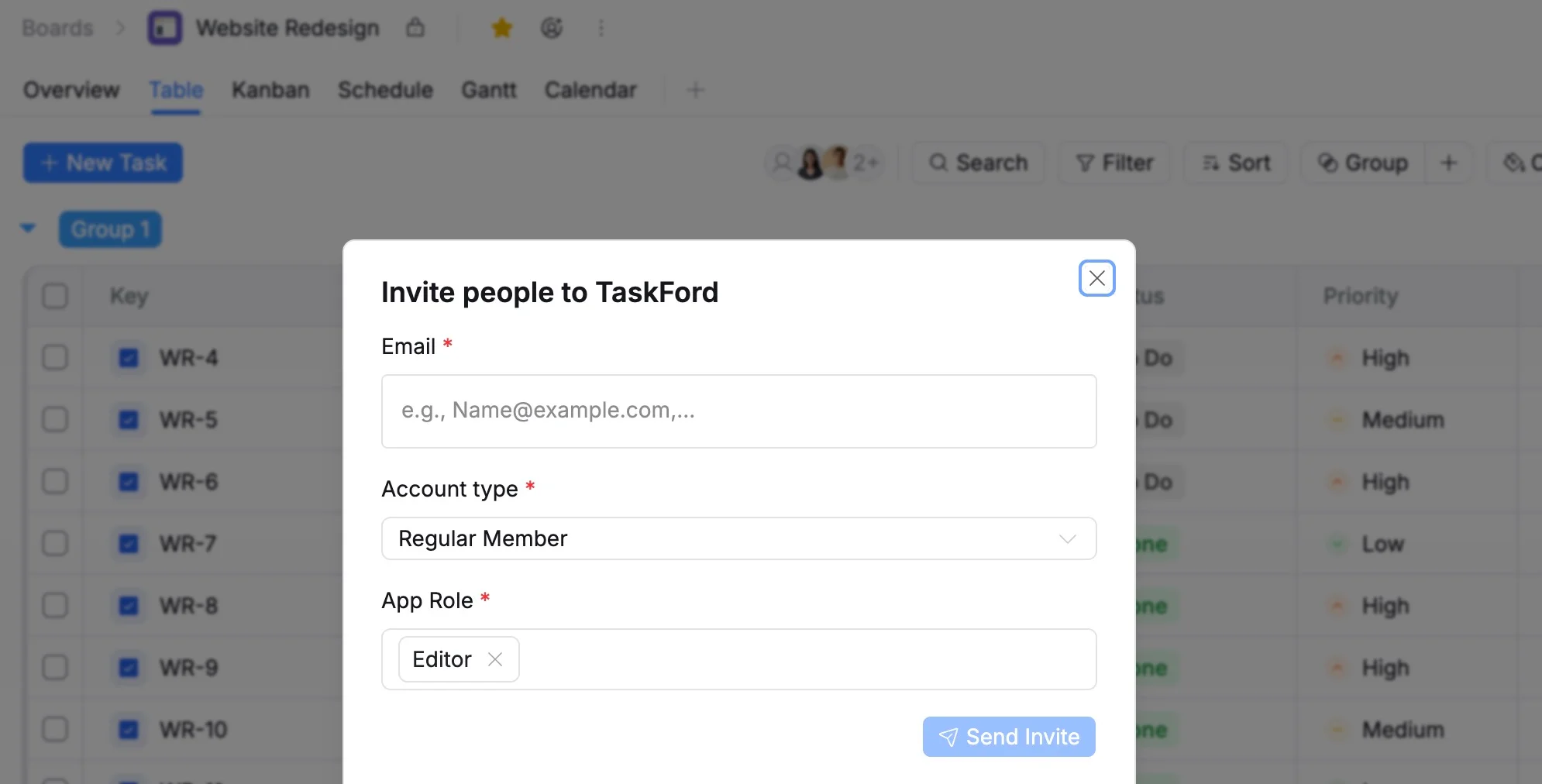
- Click the “Send Invite” button to send the email notification.