Join a site
This guide walks you through how to accept an invitation to join a TaskFord workspace quickly and start collaborating right away.
When someone invites you to TaskFord, you will receive an email with a link to join their organization. Follow the steps below to accept your invitation and get started.
If you don’t have a TaskFord account
If you are new to TaskFord, you will need to create an account before you can join the site.
- Open the invitation email sent by TaskFord.
- Click Accept Invitation

- You will be directed to a landing page. Click Open App to proceed to the registration page.

- Complete the registration form:
- Full name: Enter your name as you would like it to appear in TaskFord.
- Email: Provide a valid email address.
- Password: Create a secure password that meets the following requirements:
- At least 8 characters
- Includes both uppercase and lowercase letters
- Contains at least one number
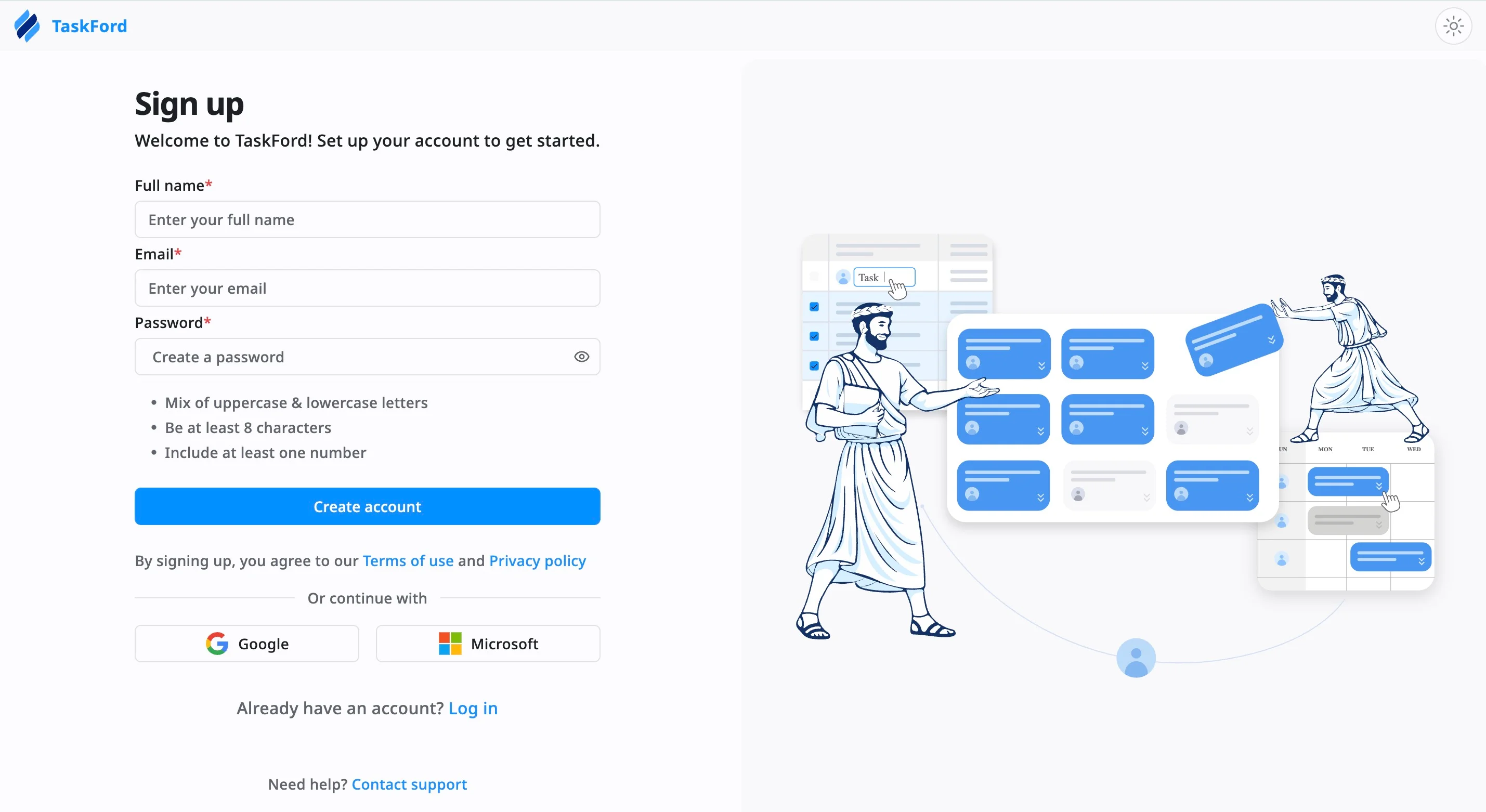
- Click Create account to finish creating your account.
Once your account is created, you will be added to the site and can start collaborating with your team immediately.
If you cannot find the invitation email, check your Spam or Junk folder, or ask the person who invited you to resend it.
A single TaskFord account can be used to join multiple sites, so you do not need to create a separate account for each team.
If you already have a TaskFord account
If you already use TaskFord, you can join a new site instantly without creating a new password or account.
Option 1: Join via invitation email
- Open the invitation email sent by TaskFord.
- Click Accept Invitation
- You will be directed to a page where you can access the site. Click Open App to join.
You will be automatically added to the new site without needing to complete the registration form again.
Option 2: Join from the TaskFord app
If you are already logged in to TaskFord, you can view and manage all site invitations directly in the app.
- Click the site switcher located in the top-left corner of the sidebar.
- Look under your site list for any invitations marked with an Invited label.
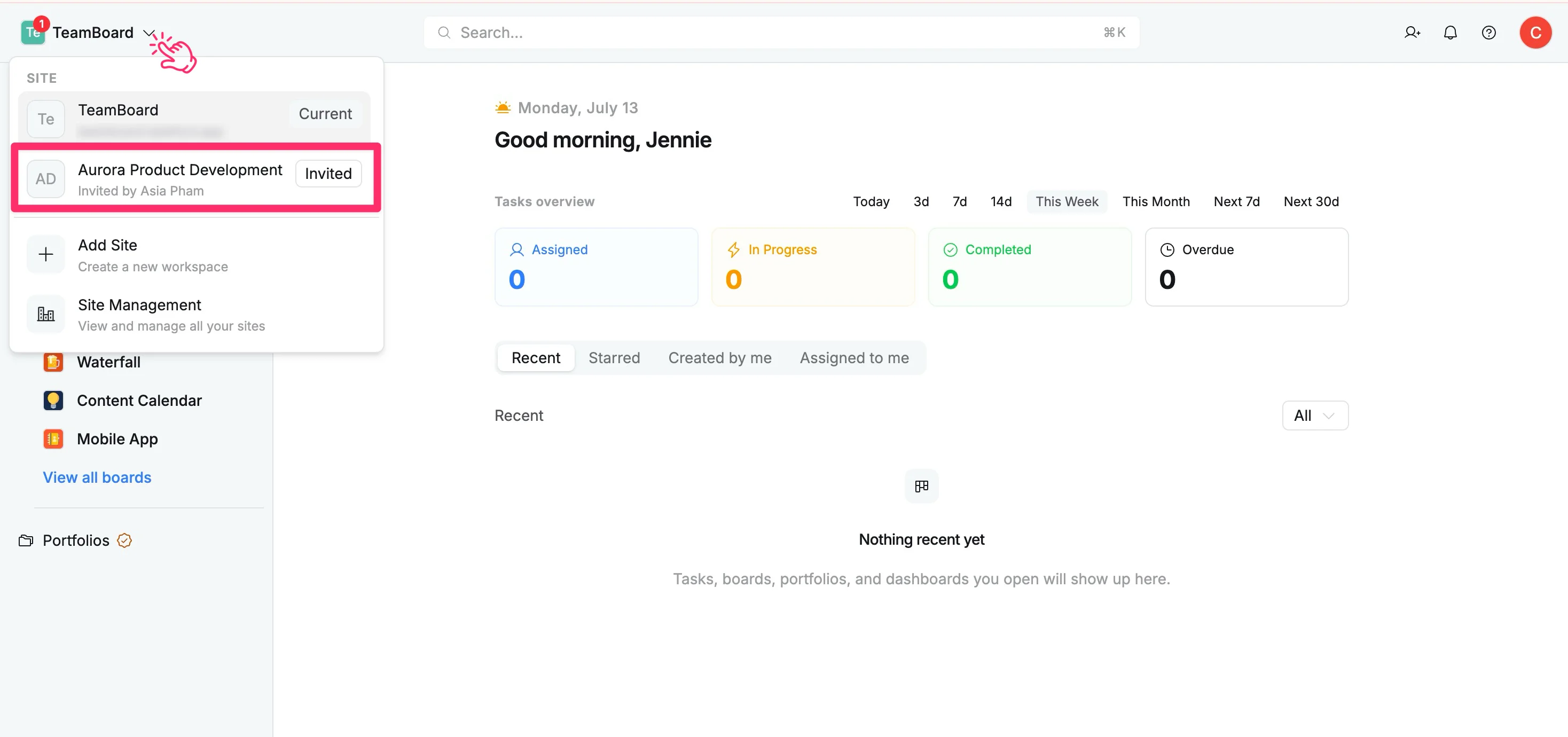
- Click on the invited site to open the invitation details dialog.
- Review the information and click Accept to join the site.
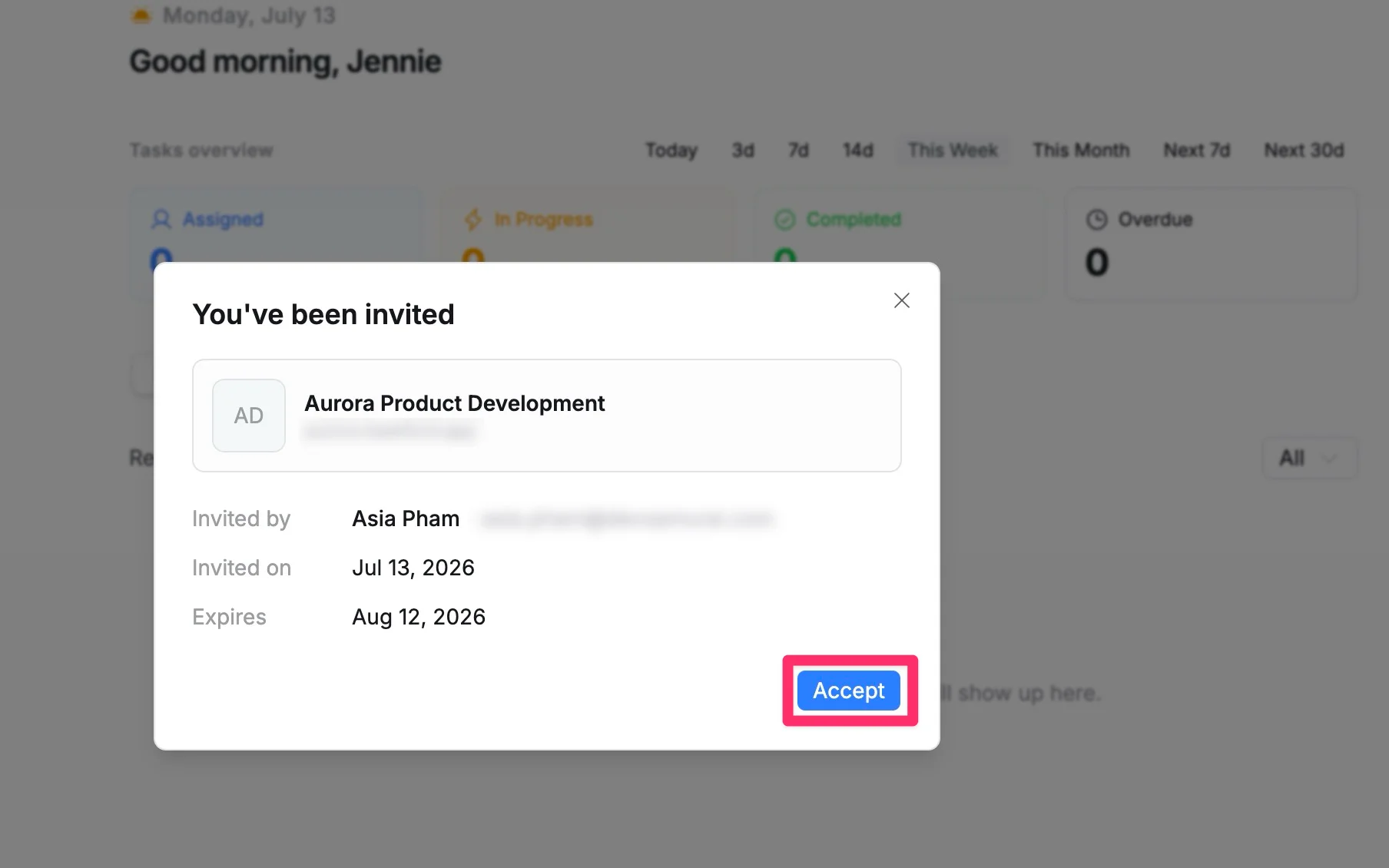
Once accepted, the site will instantly be added to your site switcher list, giving you immediate access to its boards, projects, and resources.