Manage account information
This guide helps you manage your account information in TaskFord, including your email address, password, connected accounts, and Two-Factor Authentication (2FA).
The Account information tab allows you to manage the core settings related to signing in and securing your TaskFord account. Keeping this information up to date helps protect your account and ensures you can access TaskFord without interruption.
From this page, you can manage:
- Email address
- Password
- Connected accounts
- Two-Factor Authentication (2FA)
Access account information
To access your account information:
- Click your profile picture in the top-right corner and select Account from the dropdown menu.
- In the left-hand menu, select Account.
- Click the Account tab to view and manage your personal account information.
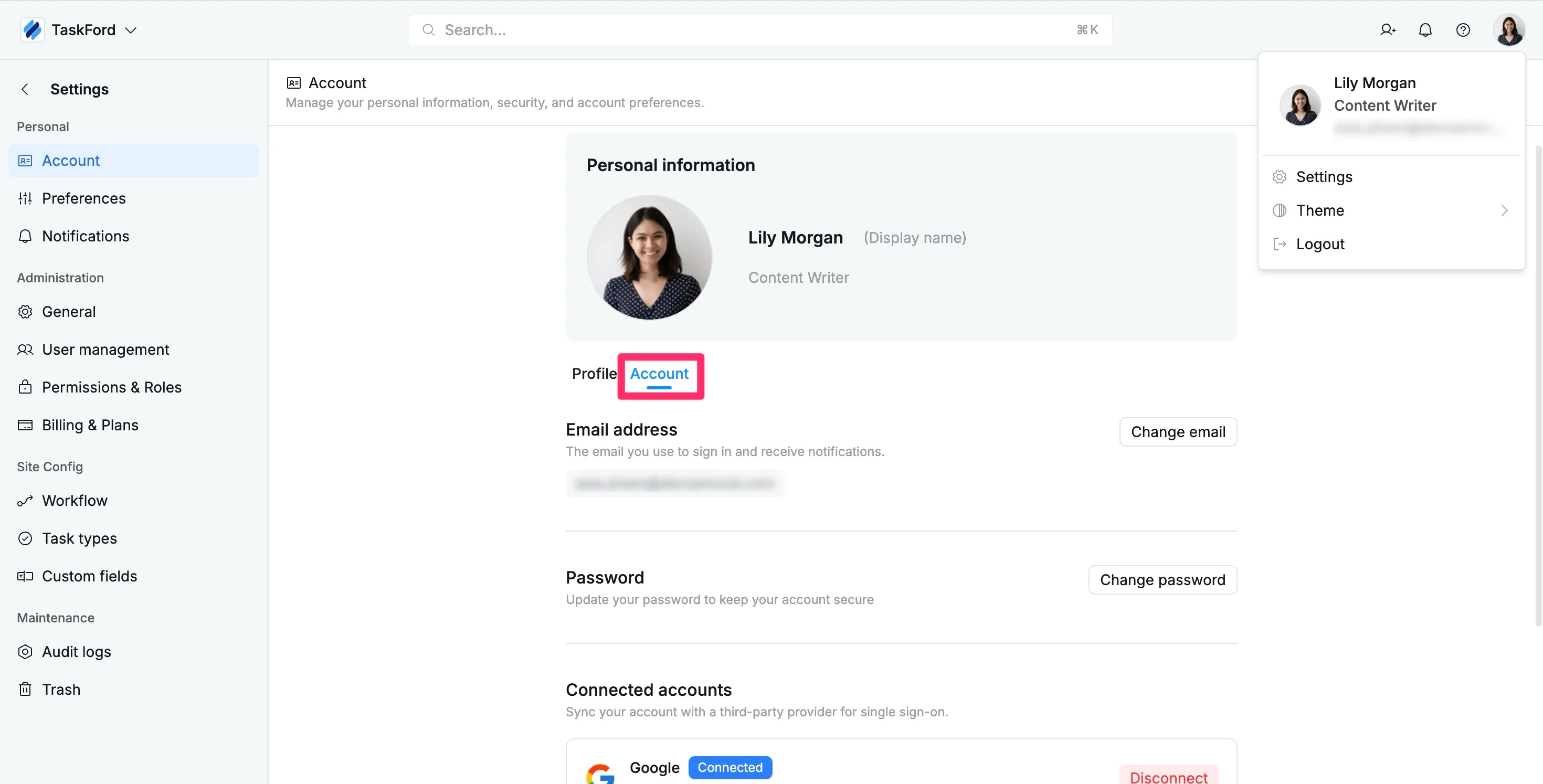
From here, you can update your sign-in details, manage connected login providers, and control security settings.
Change email address
Your email address is used for signing in, password recovery, notifications, and account verification.
How to change your email address:
- Navigate to your Account settings.
- Select the Account tab.
- In the Email address section, click Change email.
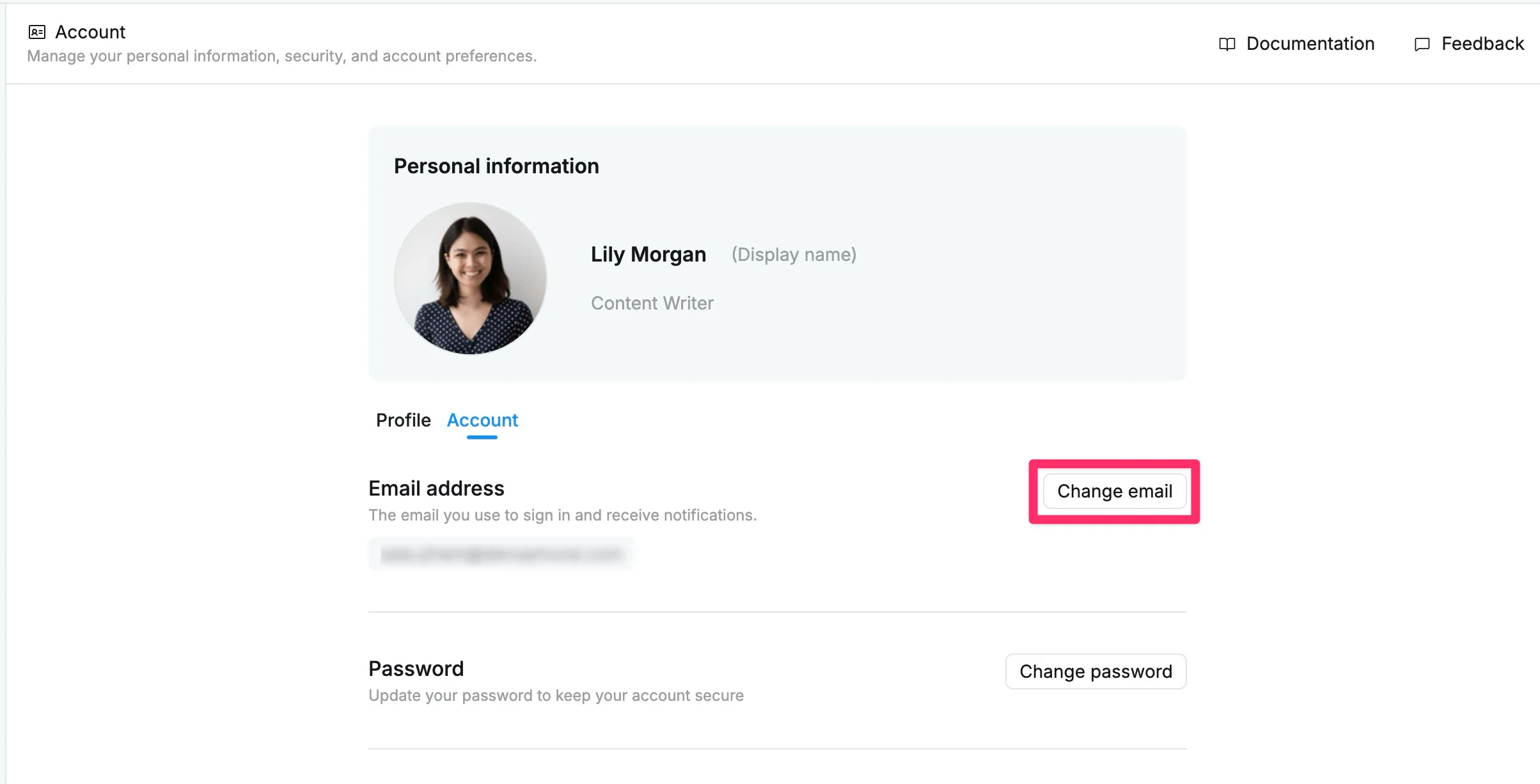
- In the pop-up window, enter your new email address.
- Click Send verification email.
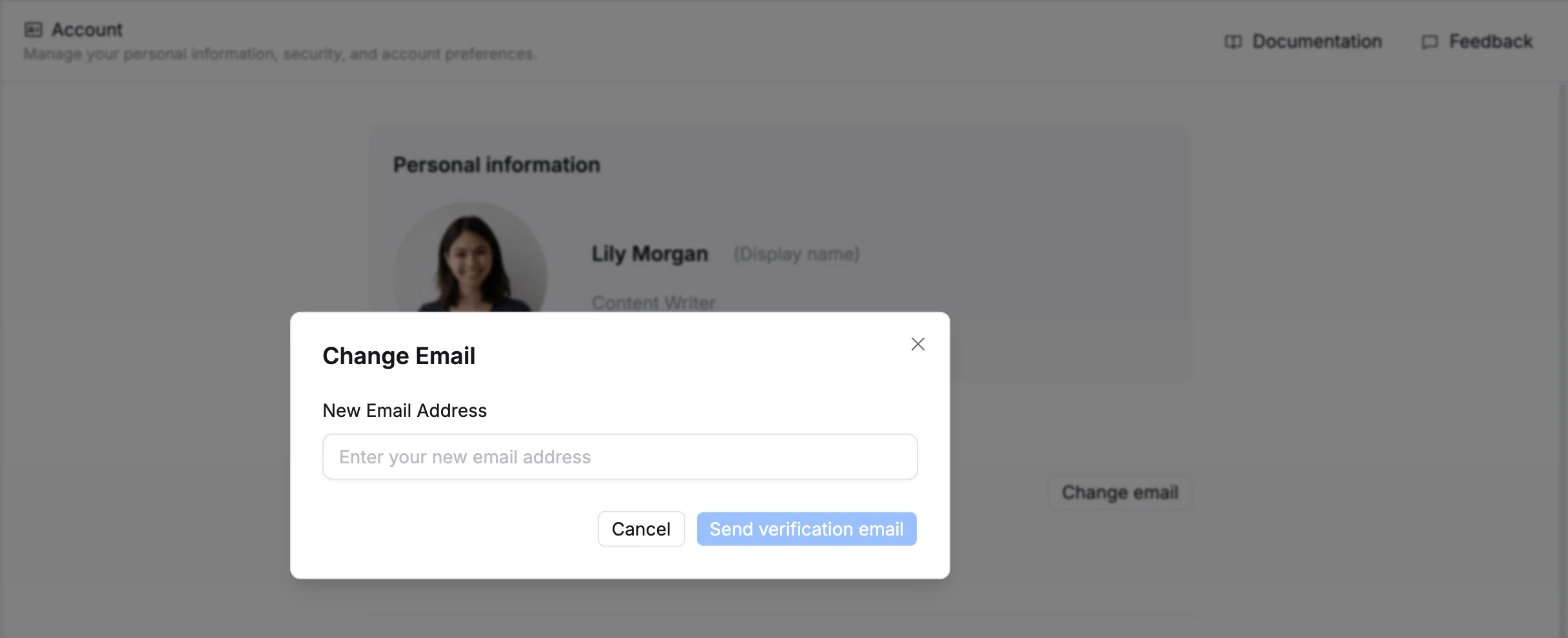
If Two-Factor Authentication (2FA) is enabled, you must disable it before changing your email address.
Check your inbox and follow the instructions in the verification email to complete the change. Once updated, your new email address will be used for future sign-ins and account notifications.
Change password
Updating your password regularly helps keep your account secure.
How to change your password:
- Navigate to your Account settings.
- Select the Account tab.
- In the Password section, click Request to change password.
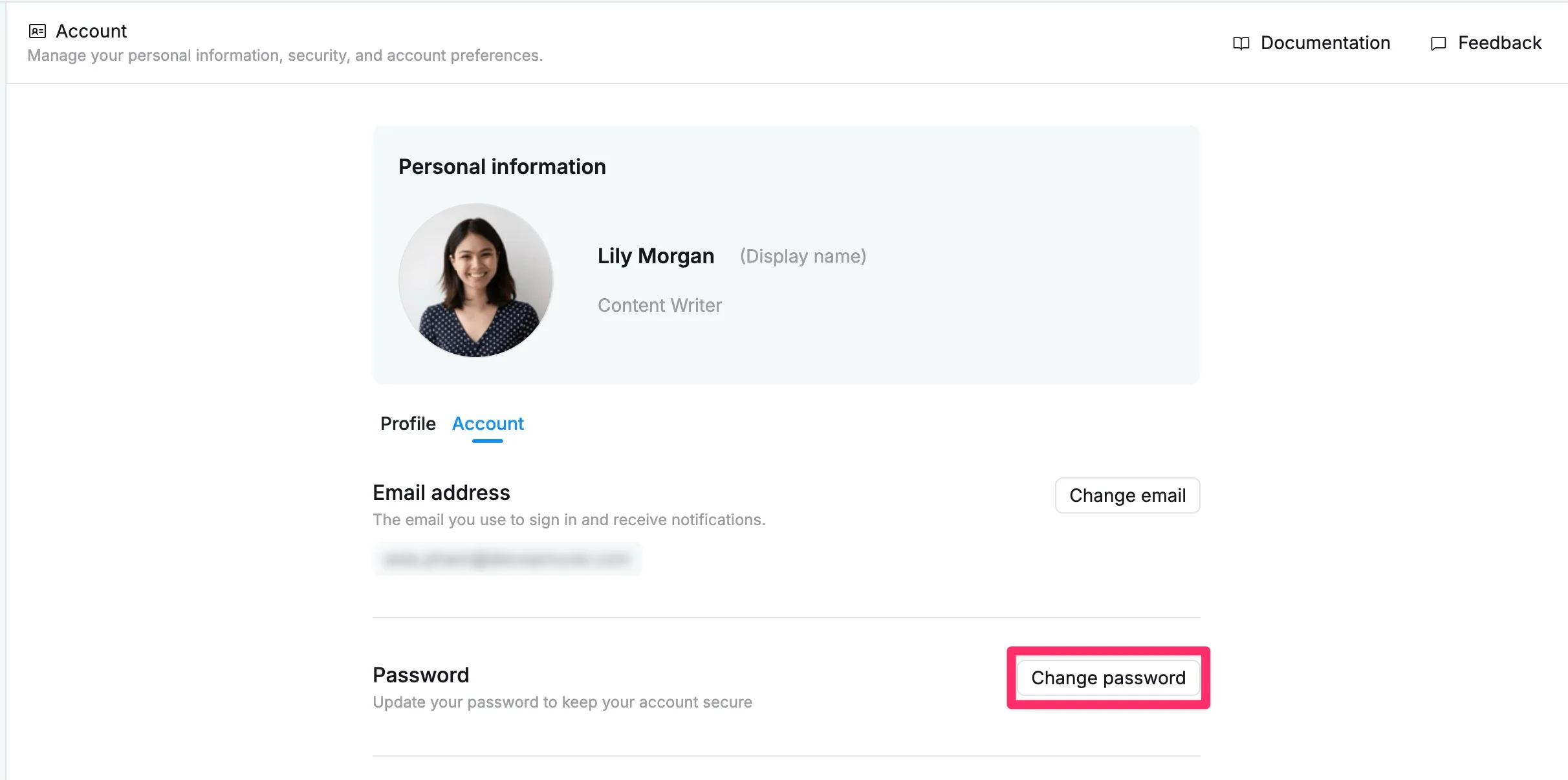
Check your registered email inbox and follow the instructions provided in the email to create a new password.
Manage connected accounts
Connected accounts allow you to sign in quickly using trusted providers such as Google or Microsoft. This gives you more flexibility when accessing TaskFord.
Connect an account
- Navigate to your Account settings.
- Select the Account tab.
- Scroll down to the Connected accounts section.
- Choose Google or Microsoft.
- Click Connect.
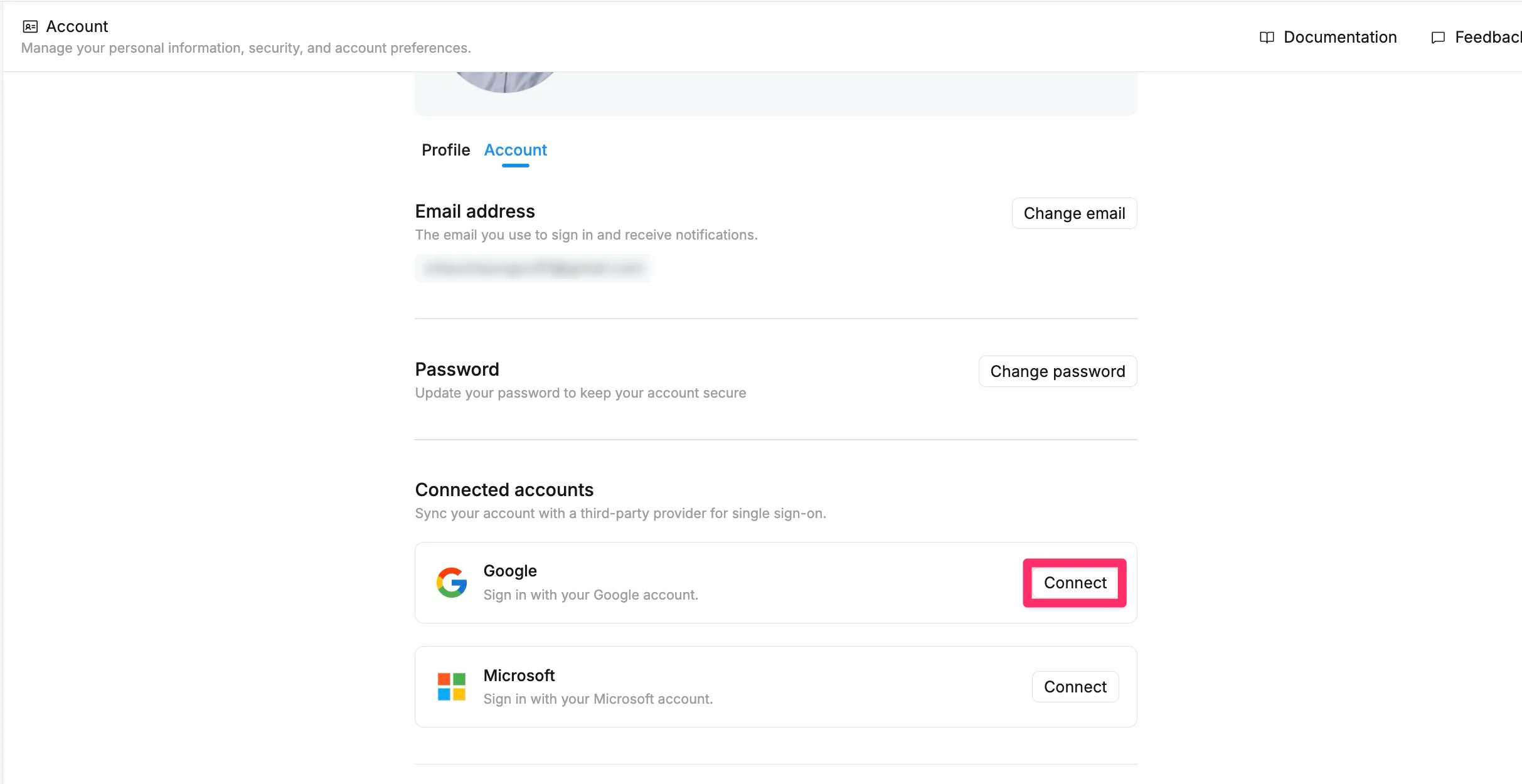
Once connected, you can sign in using that provider in the future.
Disconnect an account
- Navigate to your Account settings.
- Select the Account information tab.
- Scroll down to the Connected accounts section.
- Find the linked provider.
- Click Disconnect.
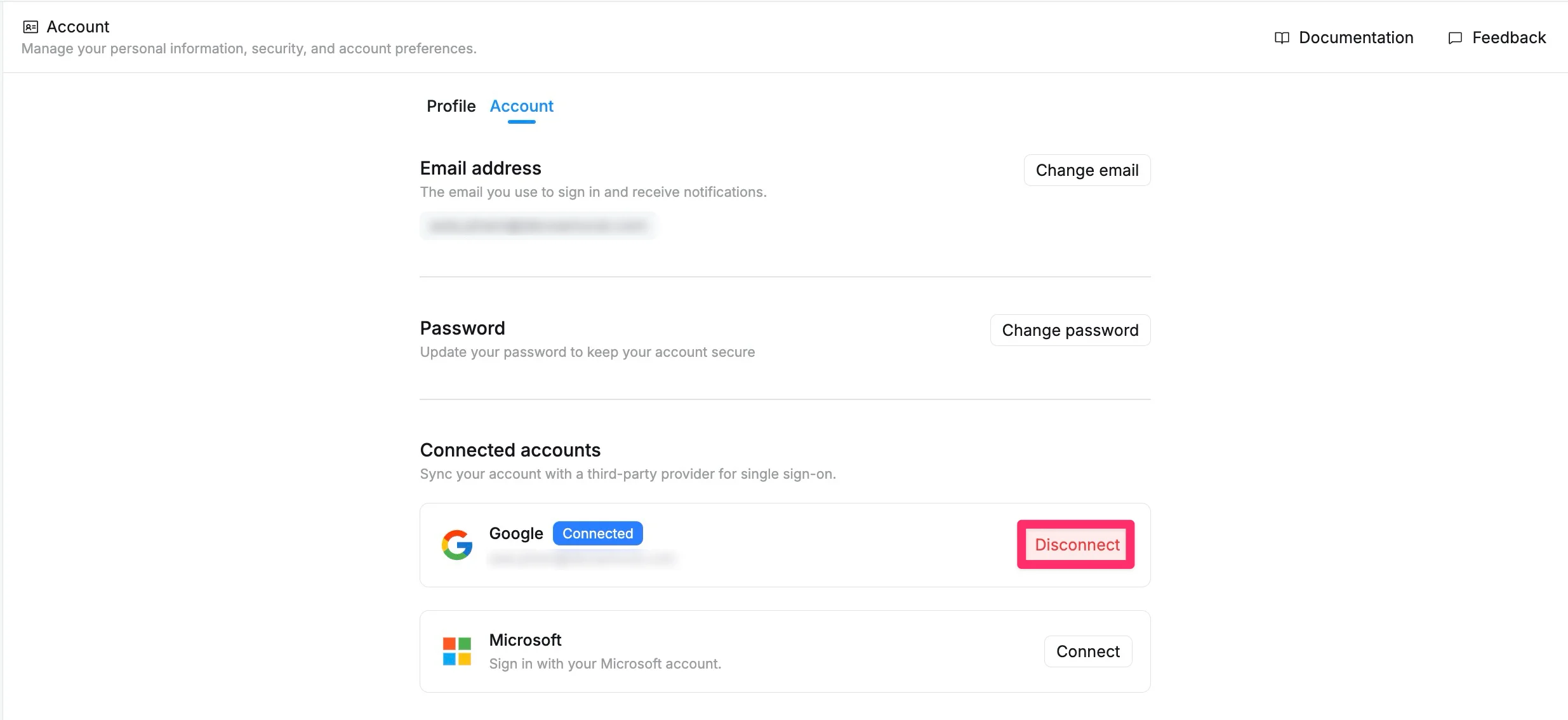
After disconnecting, you can continue signing in with your email and password if available.
Manage Two-Factor Authentication (2FA)
Two-Factor Authentication adds an extra layer of security by requiring a verification code during sign-in. This helps reduce the risk of unauthorized access, even if your password is compromised.
Enable 2FA
- Go to the Two-Factor authentication section.
- Turn on the toggle.
- Follow the setup steps to connect your authenticator app.
- Enter the verification code generated by the app.
- Complete setup.
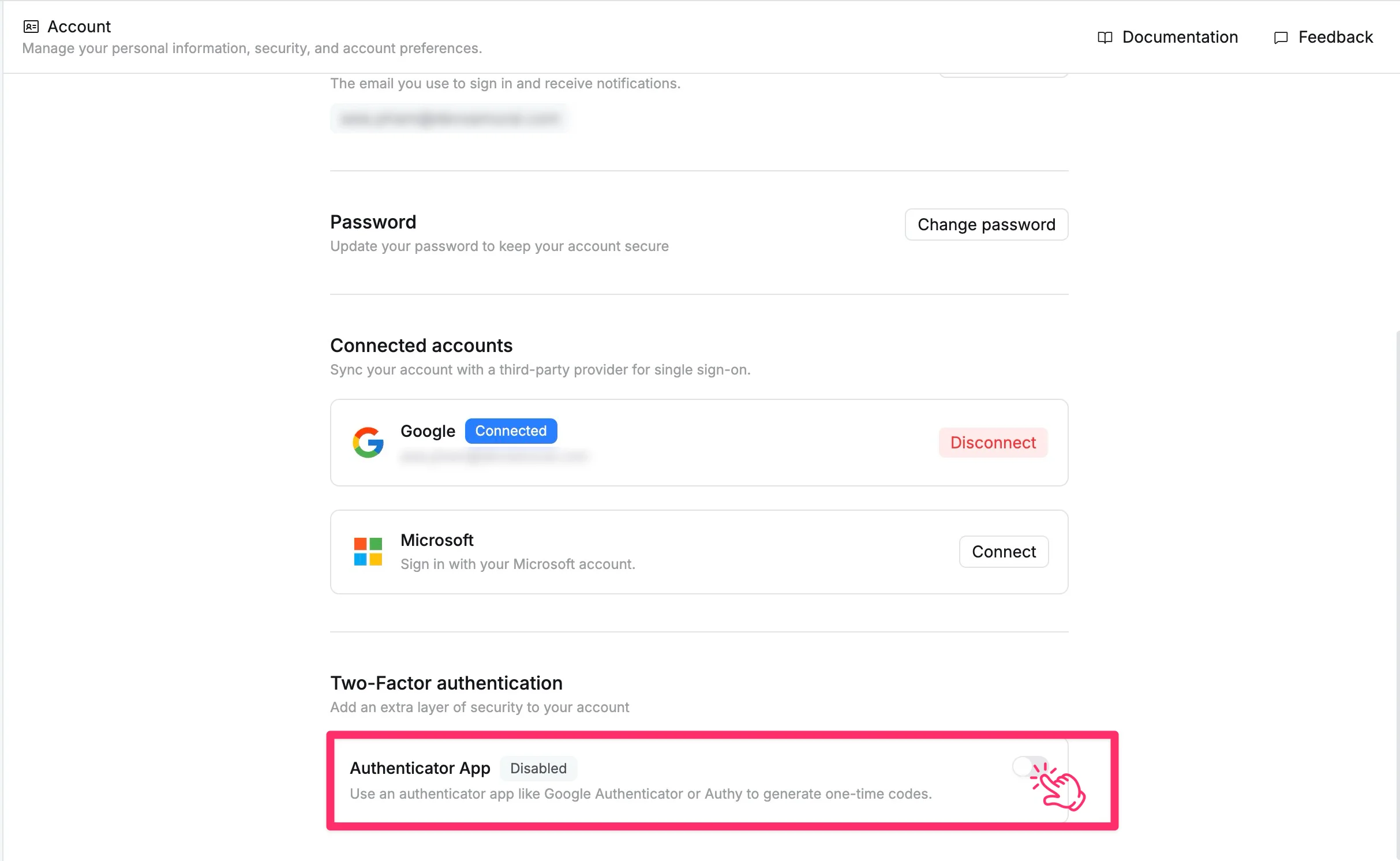
Once enabled, you will need a verification code each time you sign in.
Disable 2FA
- In the Two-Factor authentication section, turn off the toggle.
- Enter your current verification code if required.
- Confirm to disable Two-Factor Authentication.
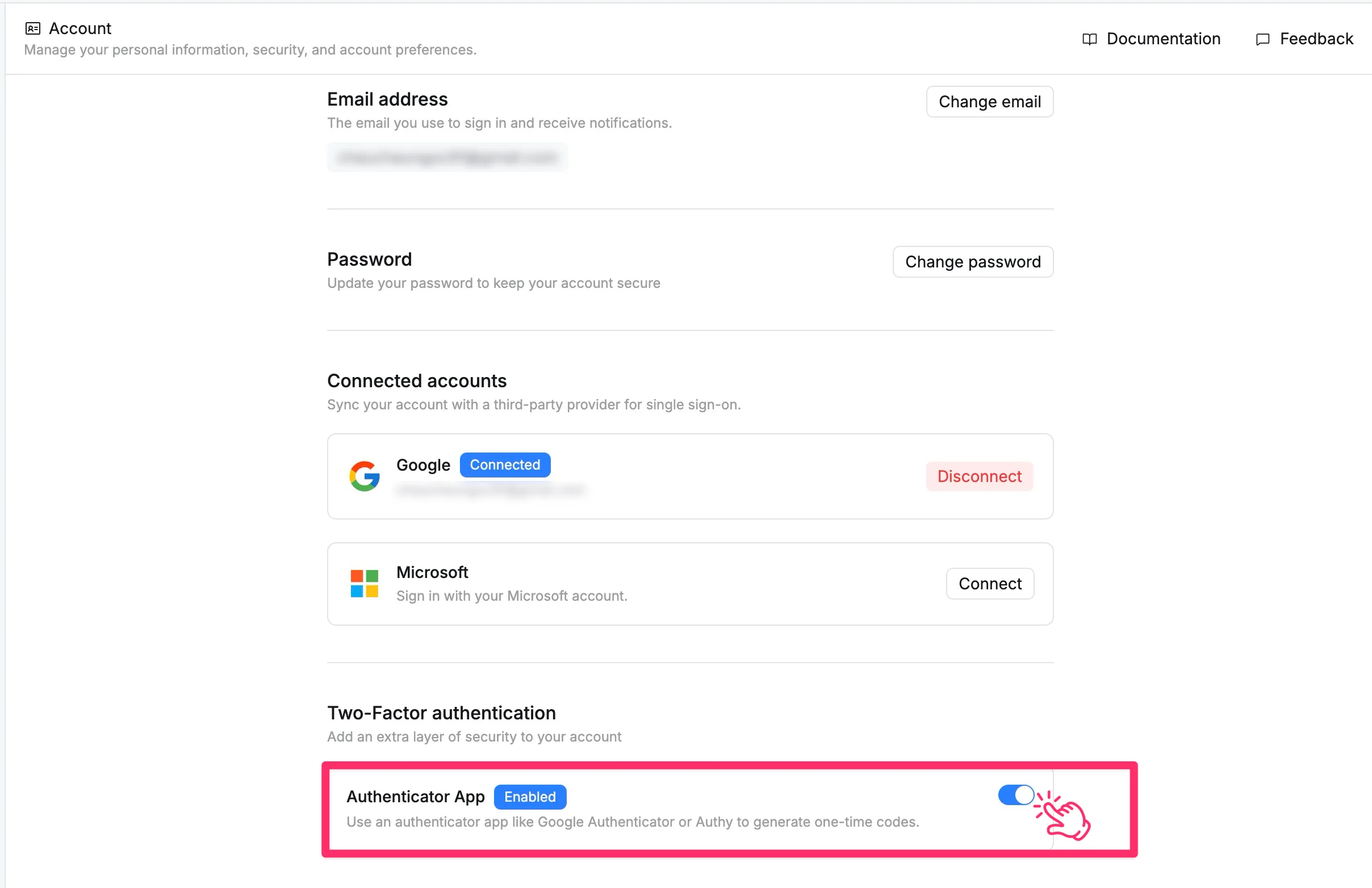
Only disable 2FA if you no longer wish to use additional sign-in security.