Manage board members
Manage board members by inviting users, assigning roles, and controlling access to ensure effective collaboration and secure permissions within your board.
- Board Admins can invite members and assign any role (Admin, Editor, Viewer) from the sidebar, board header, or Board settings
- Board Editors can invite members, but only assign the Editor role, and only from the sidebar or board header
- App Admins / App Editors can invite members, but only assign the Editor role, and only from the sidebar or board header
You can invite both existing site members and external users.
- Internal users – Existing site members are added to the board immediately
- External users – When you invite someone outside your organization, a site invitation is sent. They must accept the invitation to join the site before they can access the board.
Managing board members allows you to invite people to collaborate, assign roles to control what they can do, and remove members when they no longer need access. This helps keep collaboration focused, permissions up to date, and sensitive board actions restricted to the right people.
Add members to a board
You can add members to a board in three ways, depending on where you are in the app.
Option 1: From the sidebar
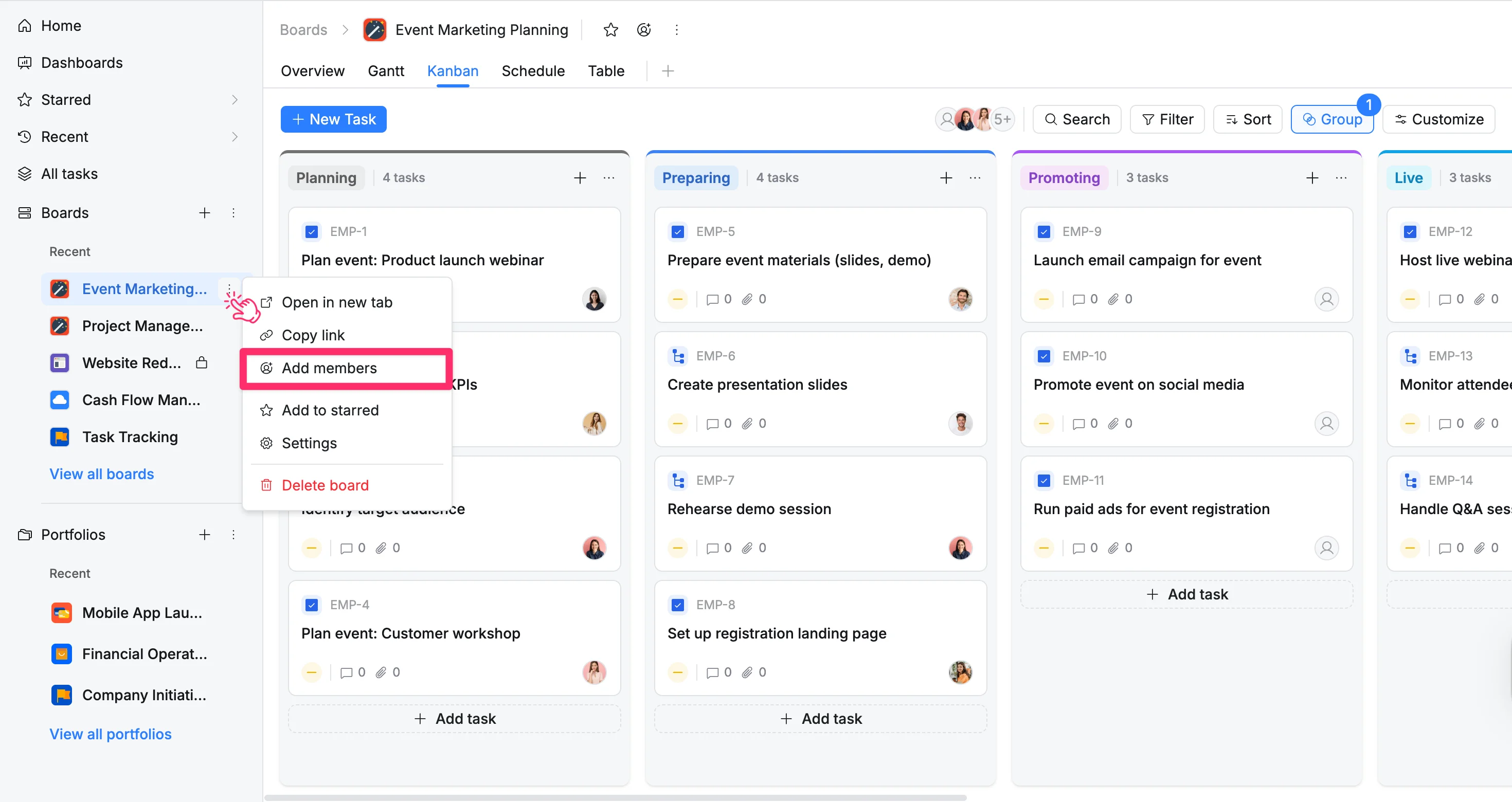
- In the sidebar, locate the board you want to share.
- Click the three vertical dots (⋮) next to the board name.
- Select Add members from the dropdown menu.
- The Add members modal opens. From here:
- Enter a user’s name or email address. You can add multiple users at once.
- Select a Role (Admin, Editor, or Viewer) to define what each user can do on the board:
- Admin – Full control to manage the board, configure settings, and delete the board
- Editor – Can create, edit, and delete board items
- Viewer – Can view and search board items only
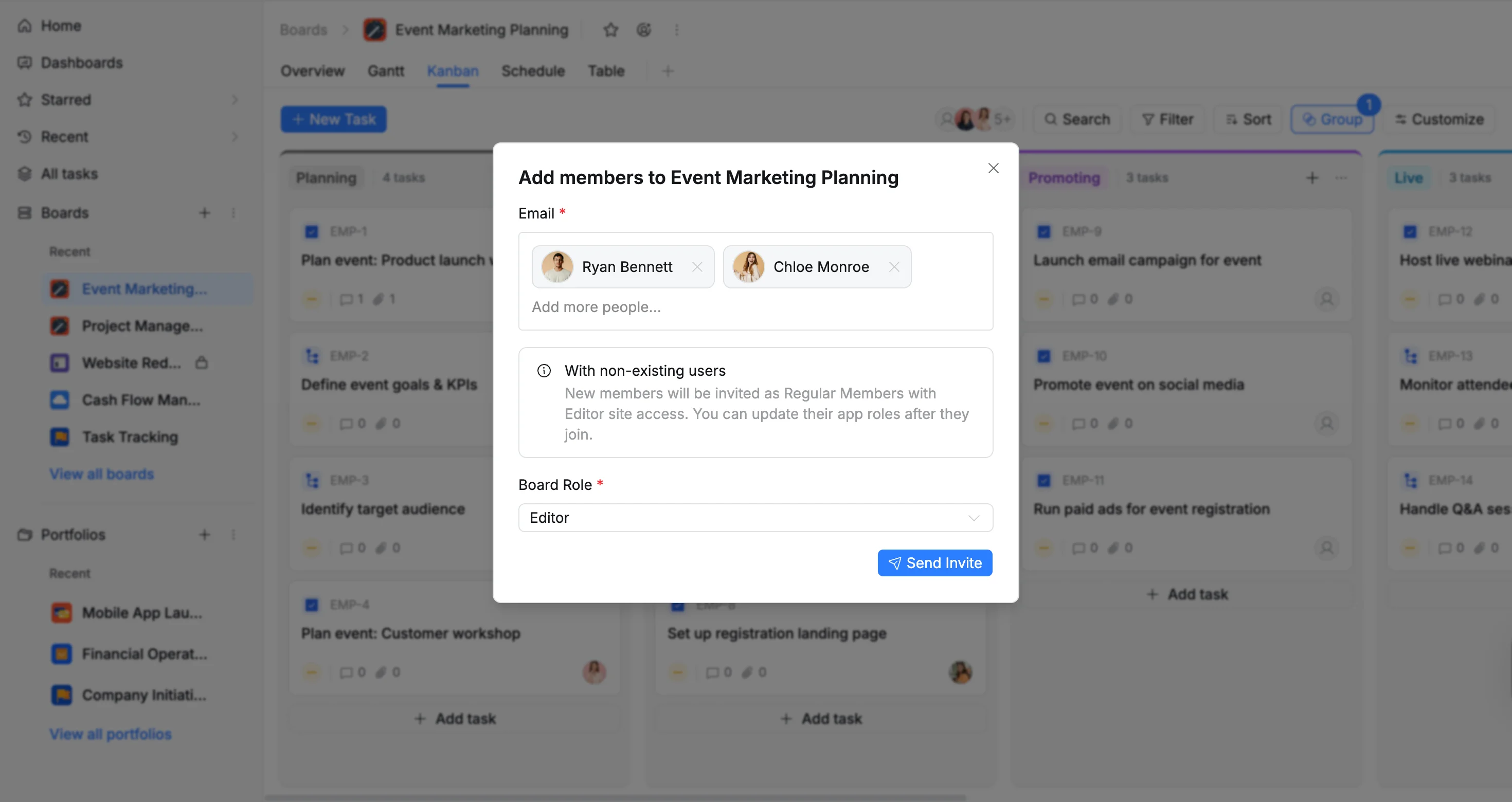
- Click Send invite to grant access.
New users not already in your site will be added as Regular Members with an Editor app role by default. You can update their roles after they join.
Option 2: From the board header
- Open the board you want to share.
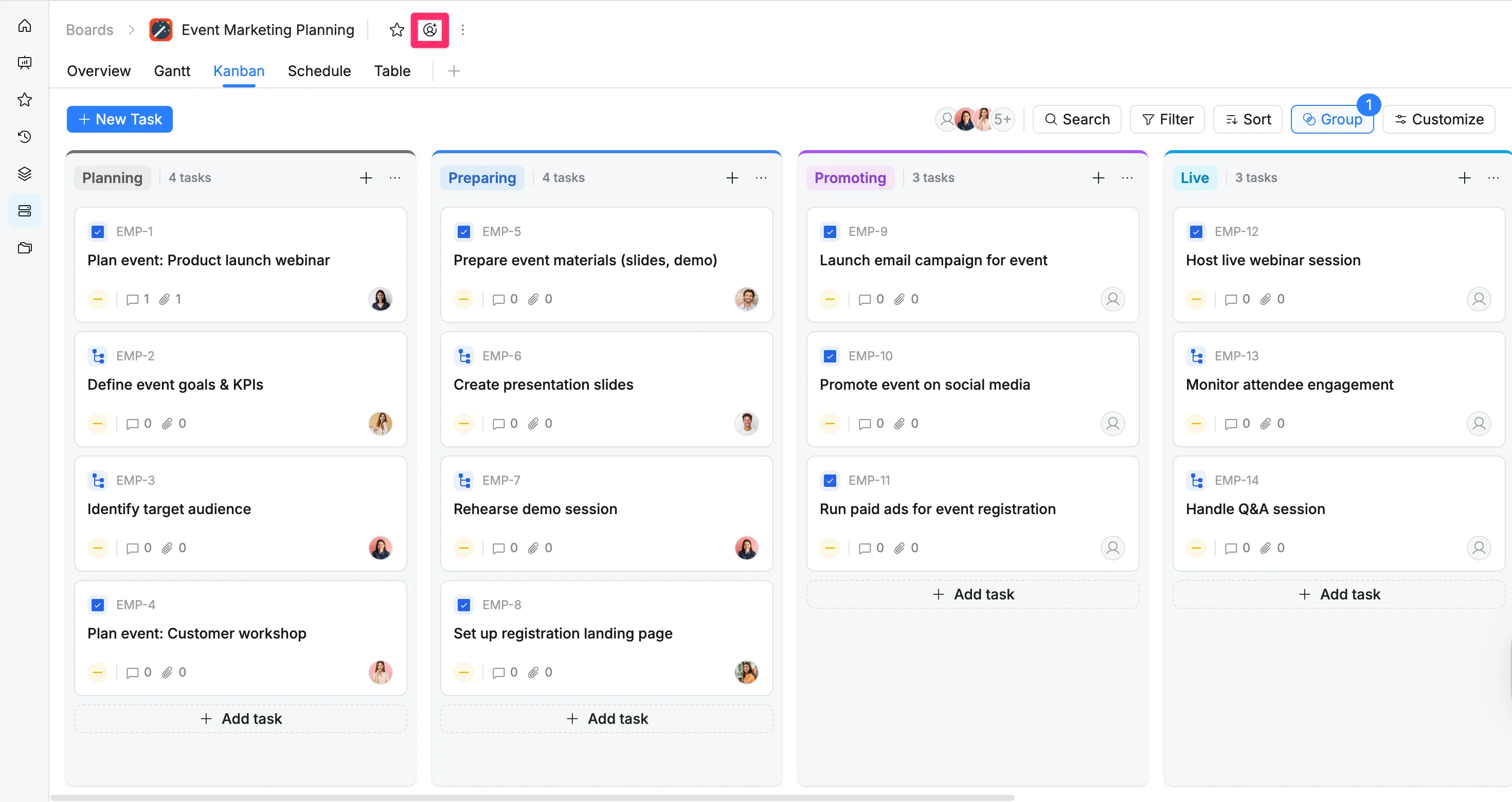
- In the board header, click the Add members icon.
- The Add members modal opens. From here:
- Enter a user’s name or email address. You can add multiple users at once.
- Select a Role (Admin, Editor, or Viewer) to define what each user can do on the board.
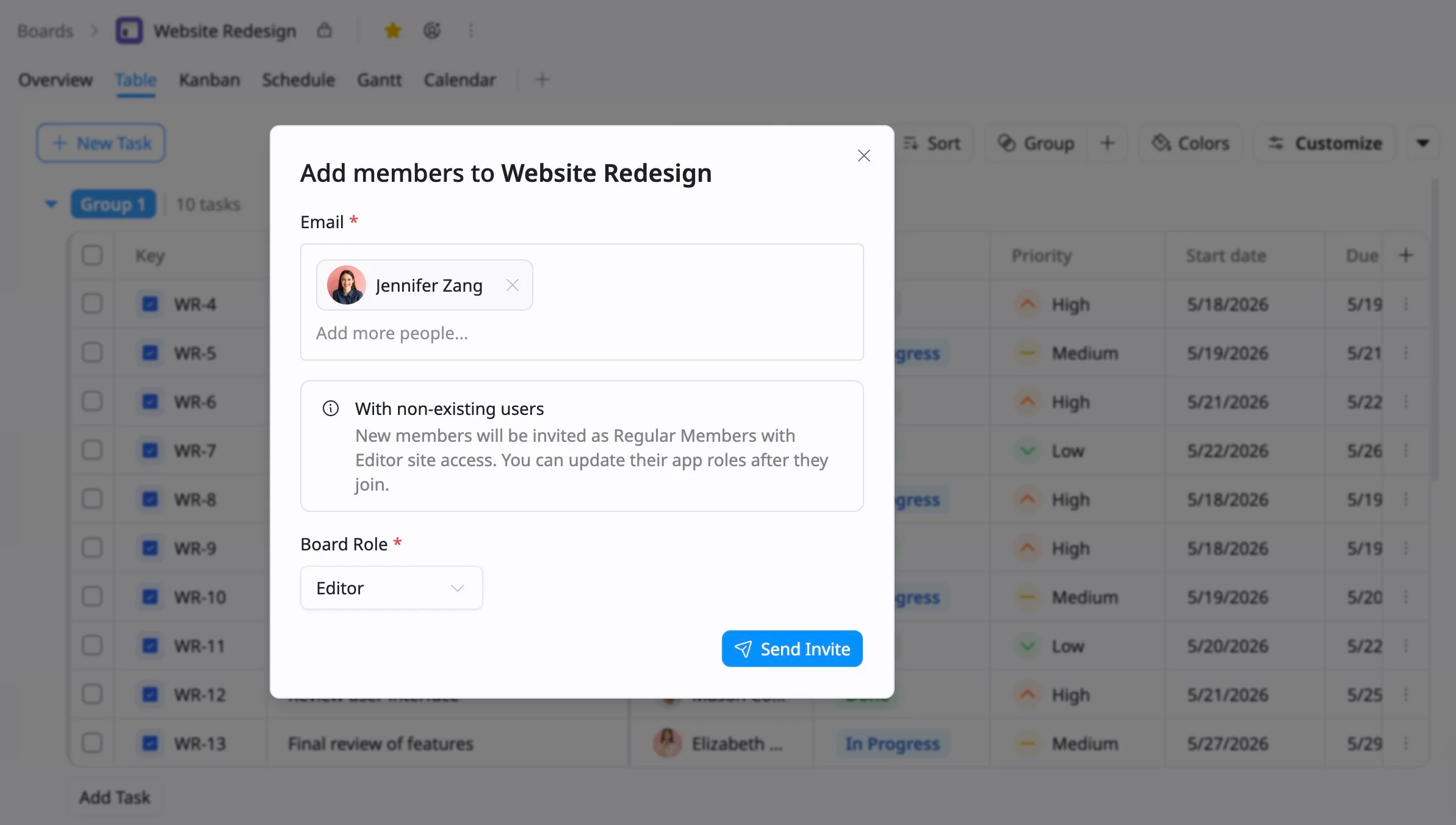
- Click Send invite to grant access.
Option 3: From Board settings
- Access ‘Board settings’ in two ways:
Option 1: From the sidebar
- In the sidebar, locate the desired Board.
- Click the three vertical dots (⋮) that appear next to the board name.
- Select Settings from the dropdown menu.
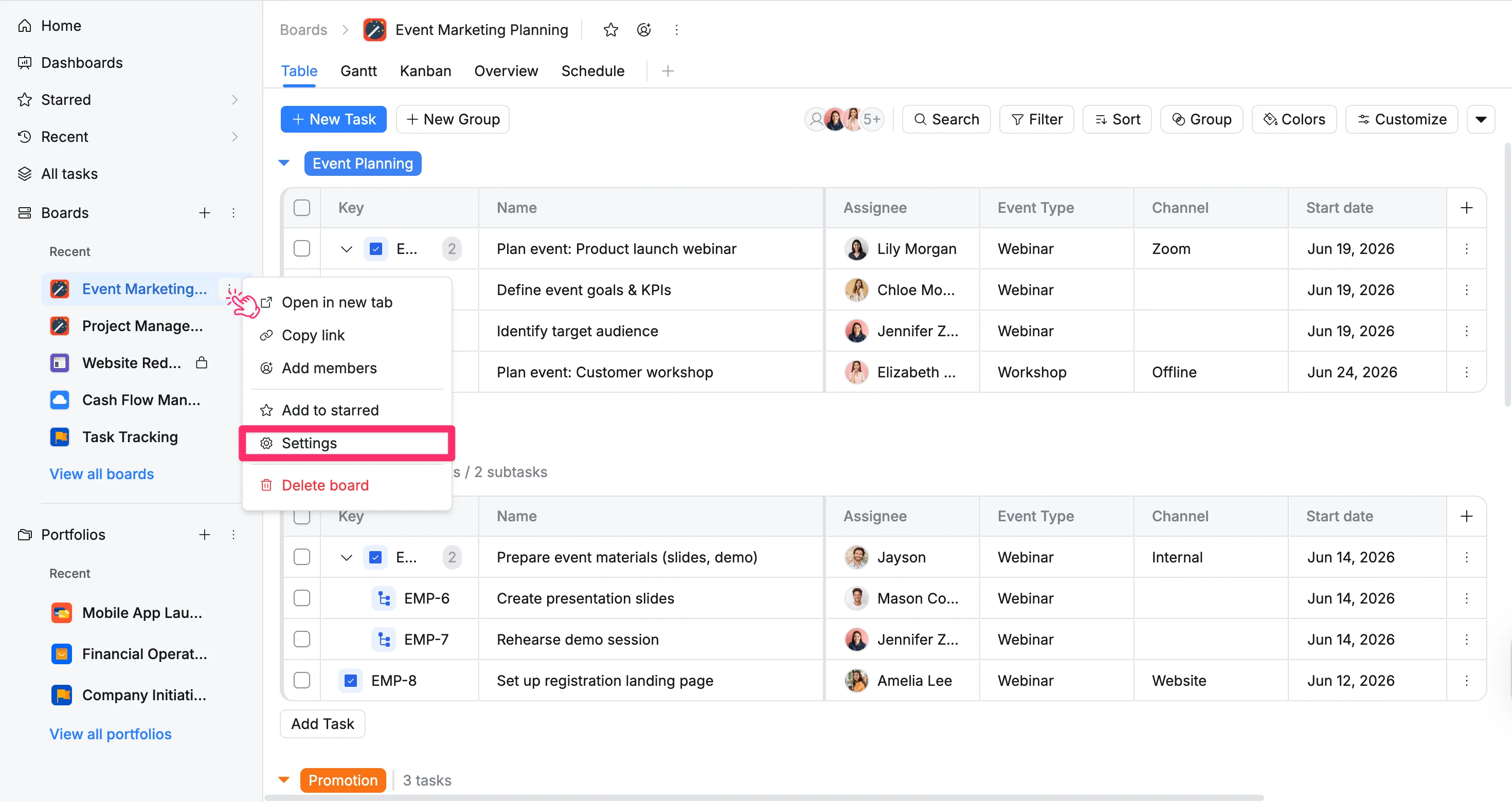
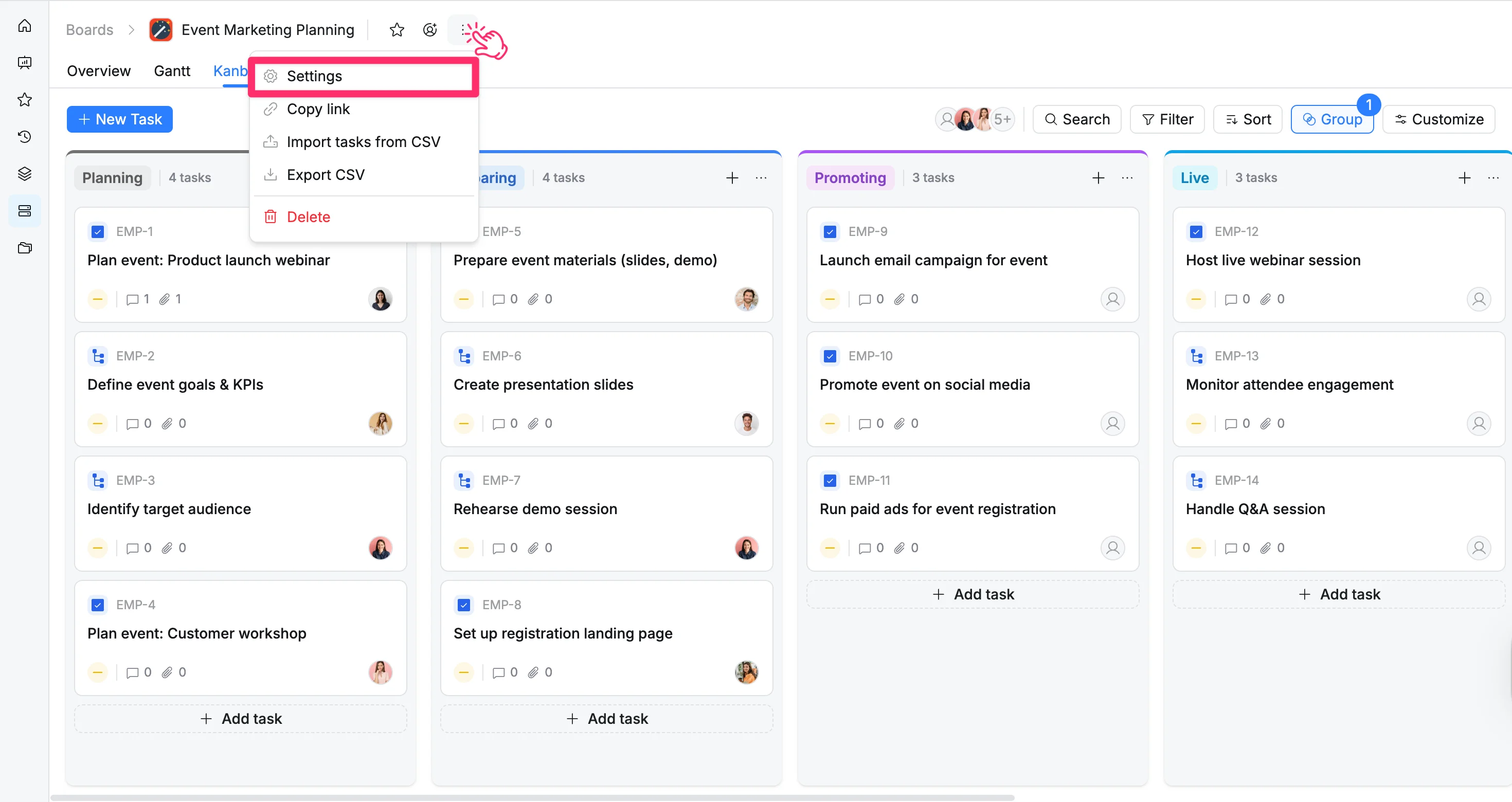
Option 2: From the Board header
- Go to the desired Board space.
- Click the vertical dots (⋮) in the board header.
- Select Settings from the dropdown menu.
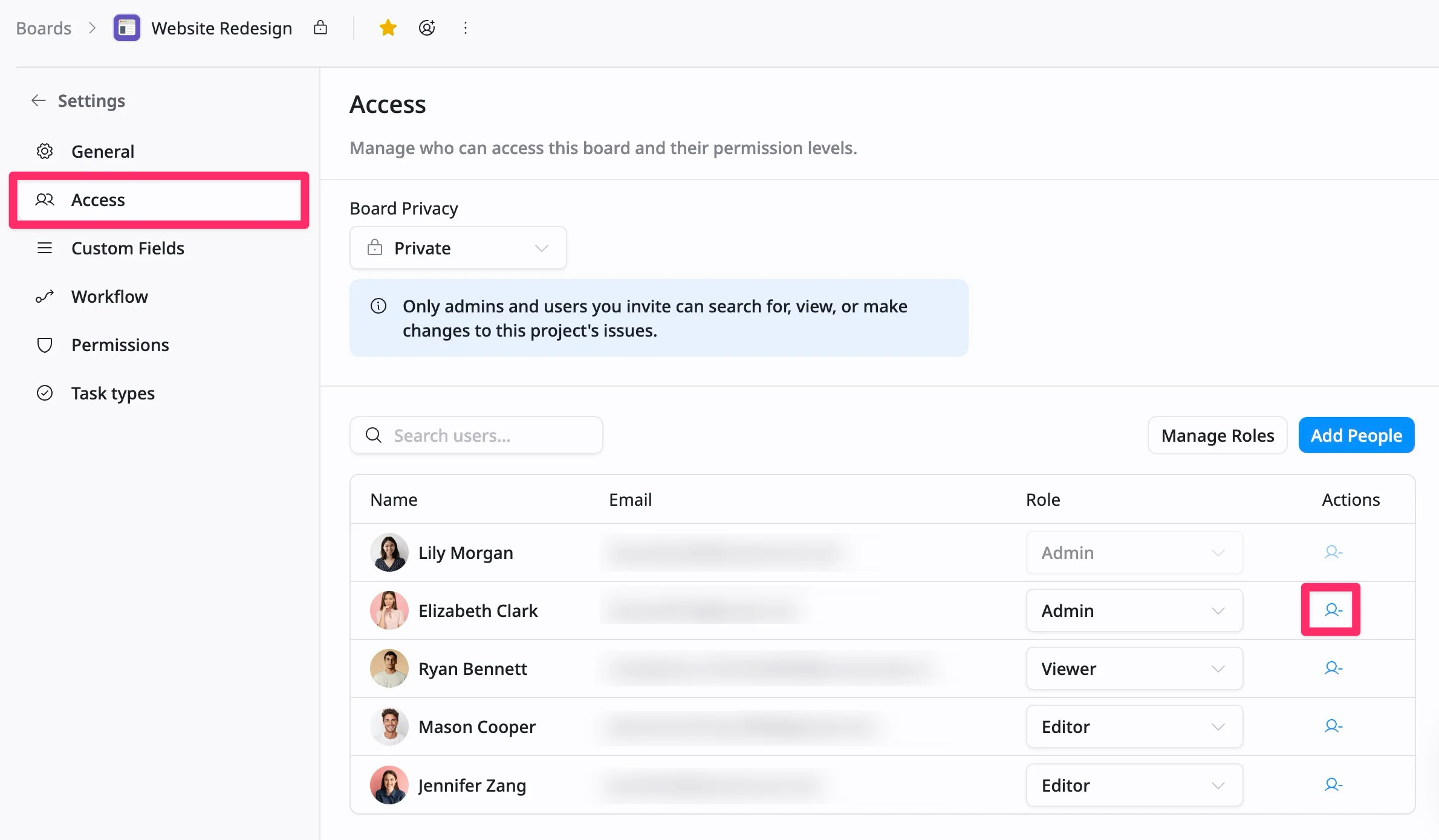
- In the left panel of Board settings, select the Access tab.
- Click Add members.
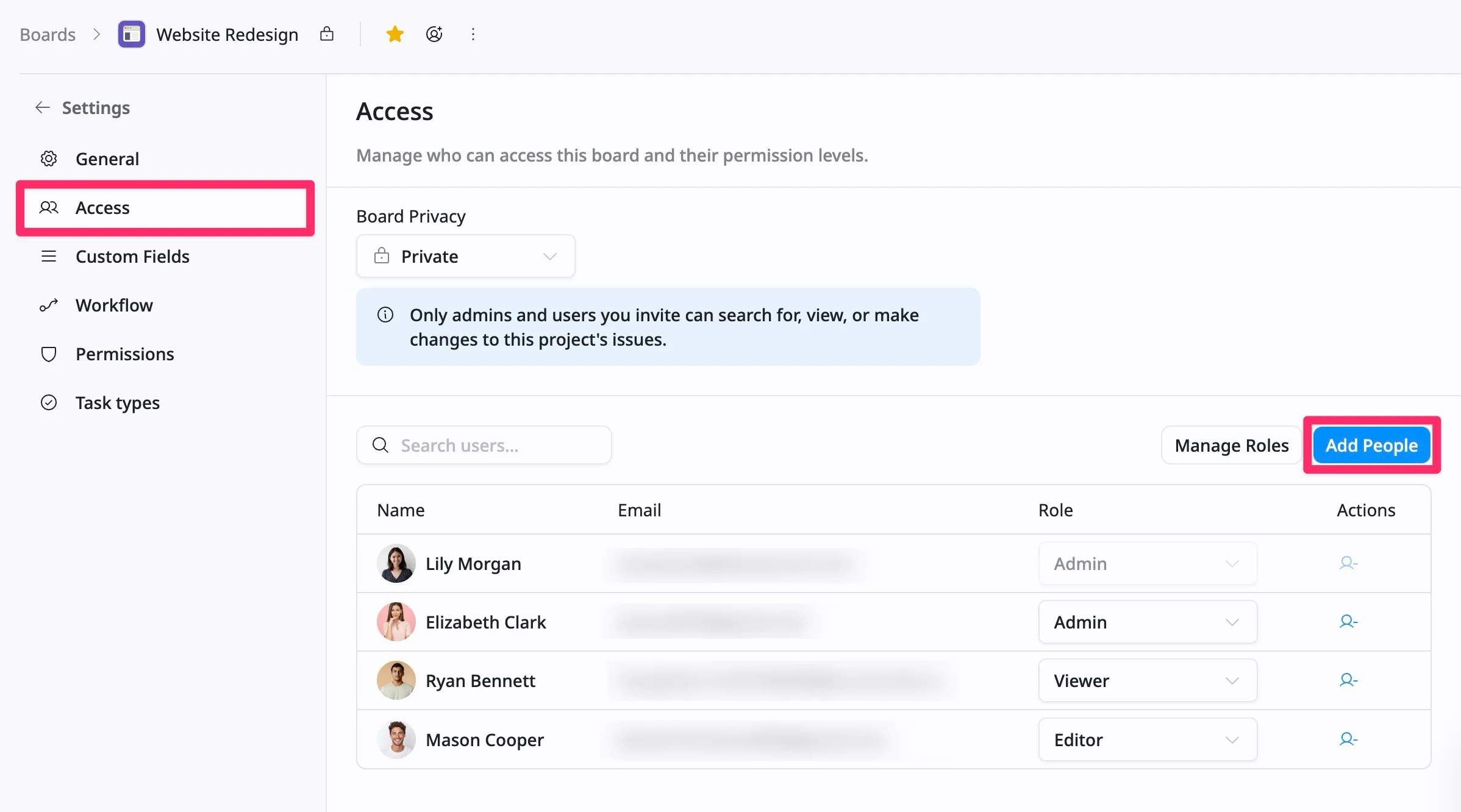
- The Add members modal opens. From here:
- Enter a user’s name or email address. You can add multiple users at once.
- Select a Role (Admin, Editor, or Viewer) to define what each user can do on the board.
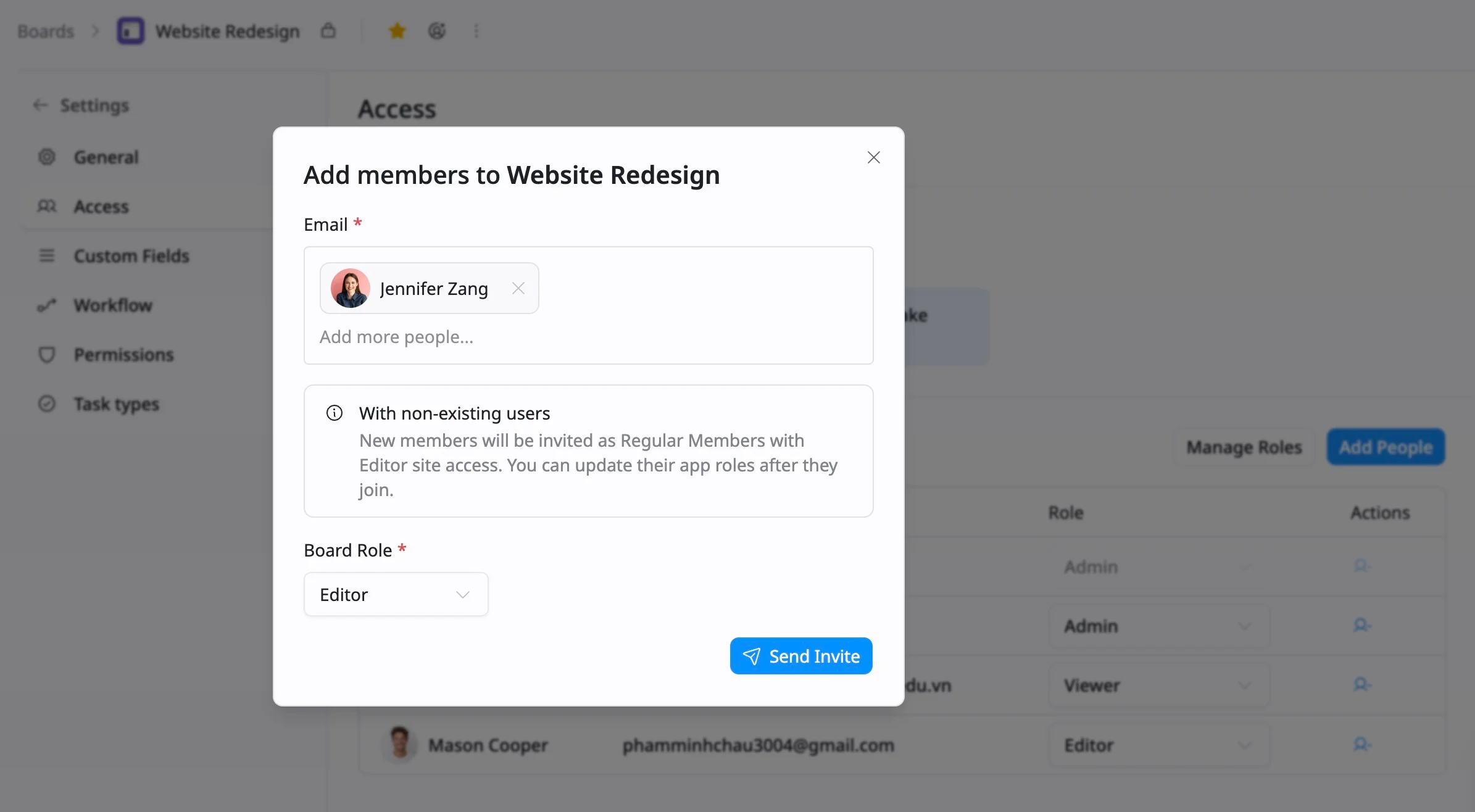
- Click Send invite to grant access.
Remove members from a board
Only Board Admins can remove members from a board.
When a member no longer works on a board, Board Admins can remove them to keep access up to date and collaboration focused.
To remove a member from the board:
- Access ‘Board settings’ in two ways:
Option 1: From the sidebar
- In the sidebar, locate the desired Board.
- Click the three vertical dots (⋮) that appear next to the board name.
- Select Settings from the dropdown menu.
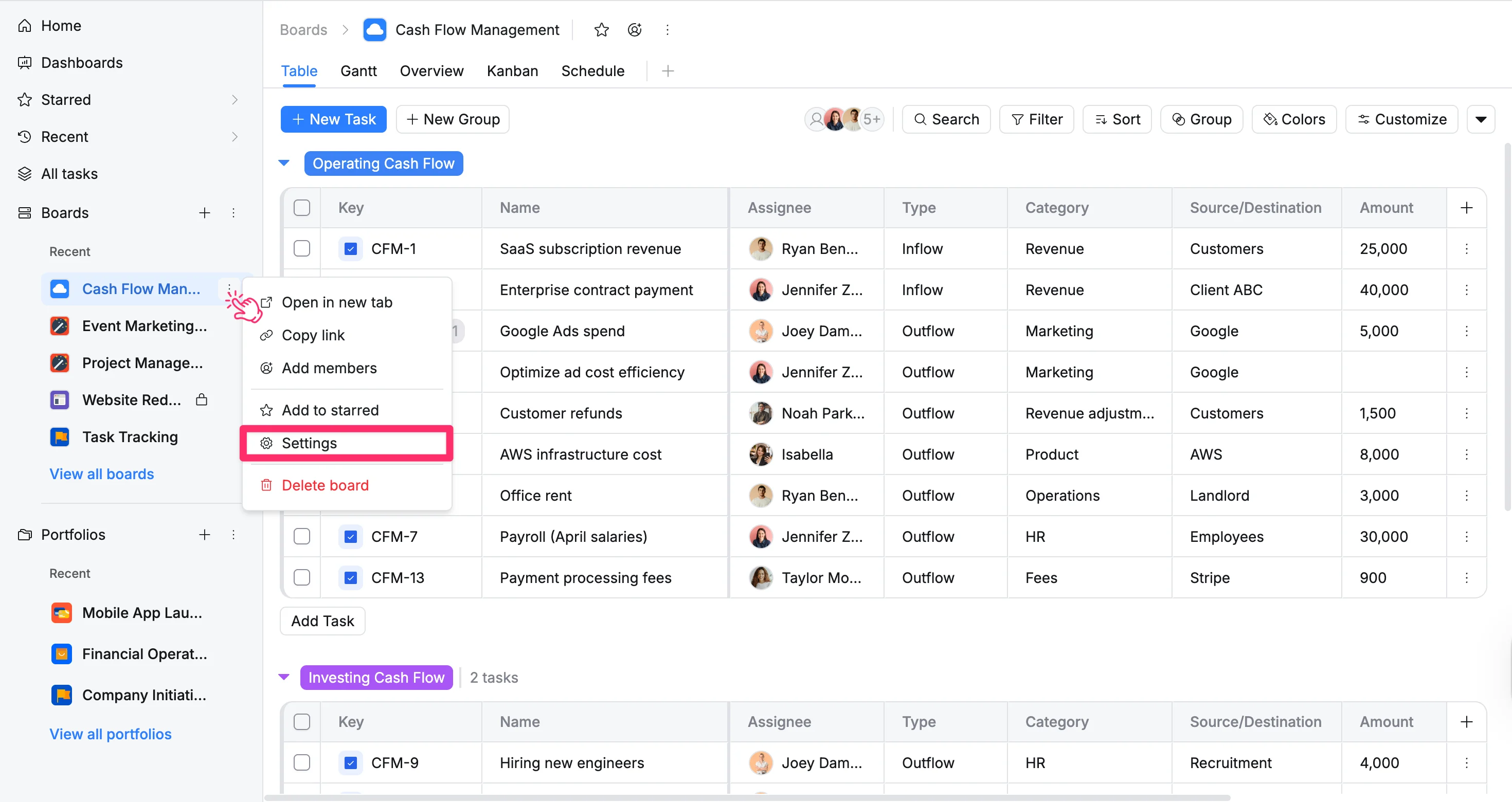
The sidebar displays only starred and recently accessed boards. If a board is missing, click “View all boards” at the bottom of the sidebar to access the full list.
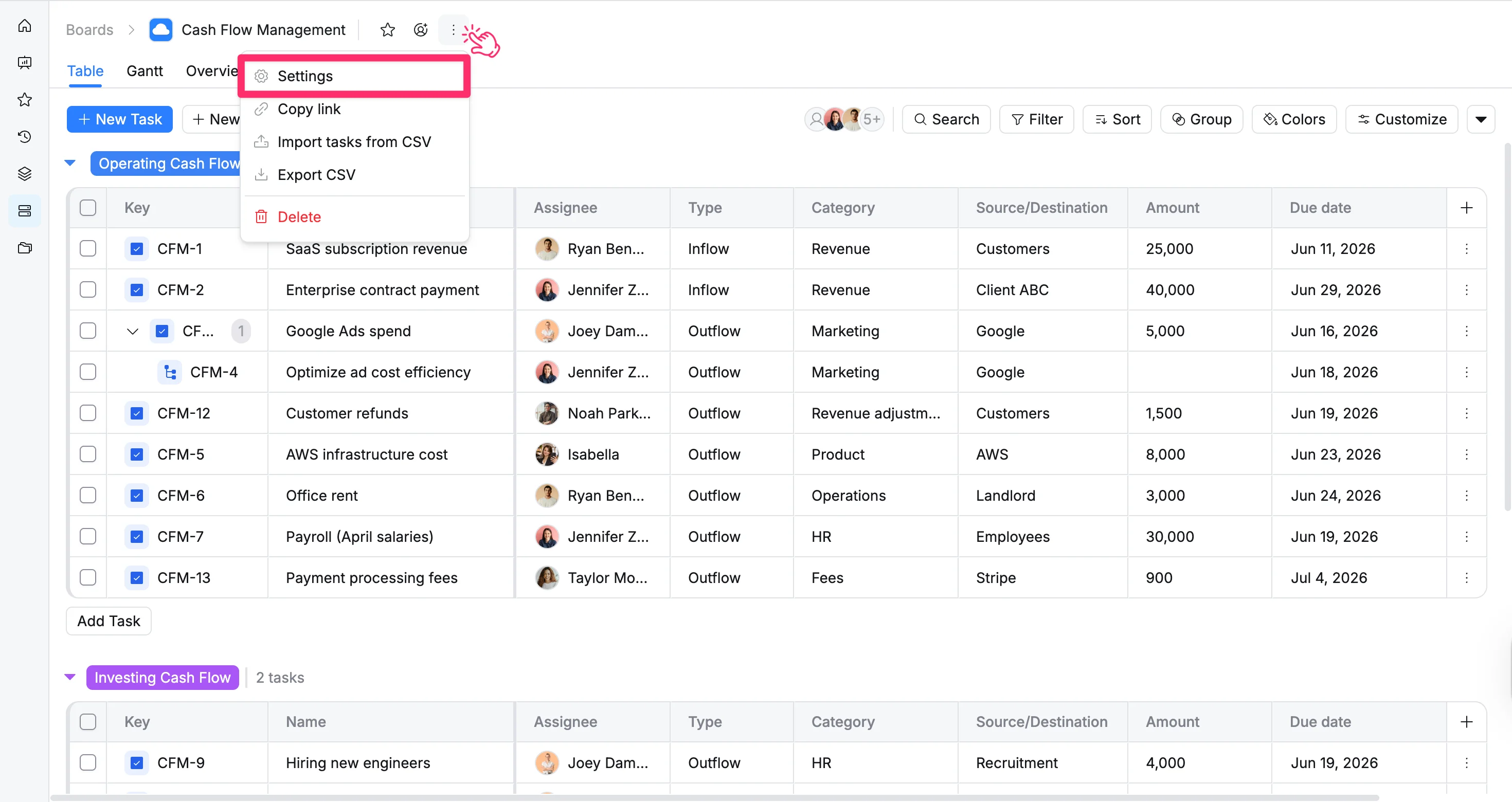
Option 2: From the Board header
- Go to the desired Board space.
- Click the vertical dots (⋮) in the board header.
- Select Settings from the dropdown menu.
- In the left panel of Board settings, select the Access tab.
- In the Actions column, click the Remove icon next to the member you want to remove.
- Confirm the removal when prompted