Manage board views
Manage board views by switching layouts, reordering tabs, renaming views, setting defaults, sharing links, and customizing how your team works with board data.
Board views allow you to display and manage the same board data in different layouts, such as Schedule, Kanban, Gantt, or Table. Each view helps you focus on different aspects of your work, whether you want to track progress, visualize timelines, or organize tasks in a structured list.
You can manage board views by switching between them, reordering tabs, renaming views, setting a default view, sharing view links, or deleting views. This flexibility helps you customize how your team interacts with the board and access the information most relevant to your workflow.
Available views
- Schedule
- Kanban
- Gantt
- Table
Switch between views
Anyone with access to a board can switch between views in the board.
Once you’ve added views to a board, they appear as tabs at the top of the board. To switch between views, simply click the view name you want to open.
Each view shows the same board data in a different layout, helping you focus on the information that matters most.
Reorder a view
- Board Admins / Board Editors can reorder board views
- App Admins / App Editors can reorder board views only on Open boards
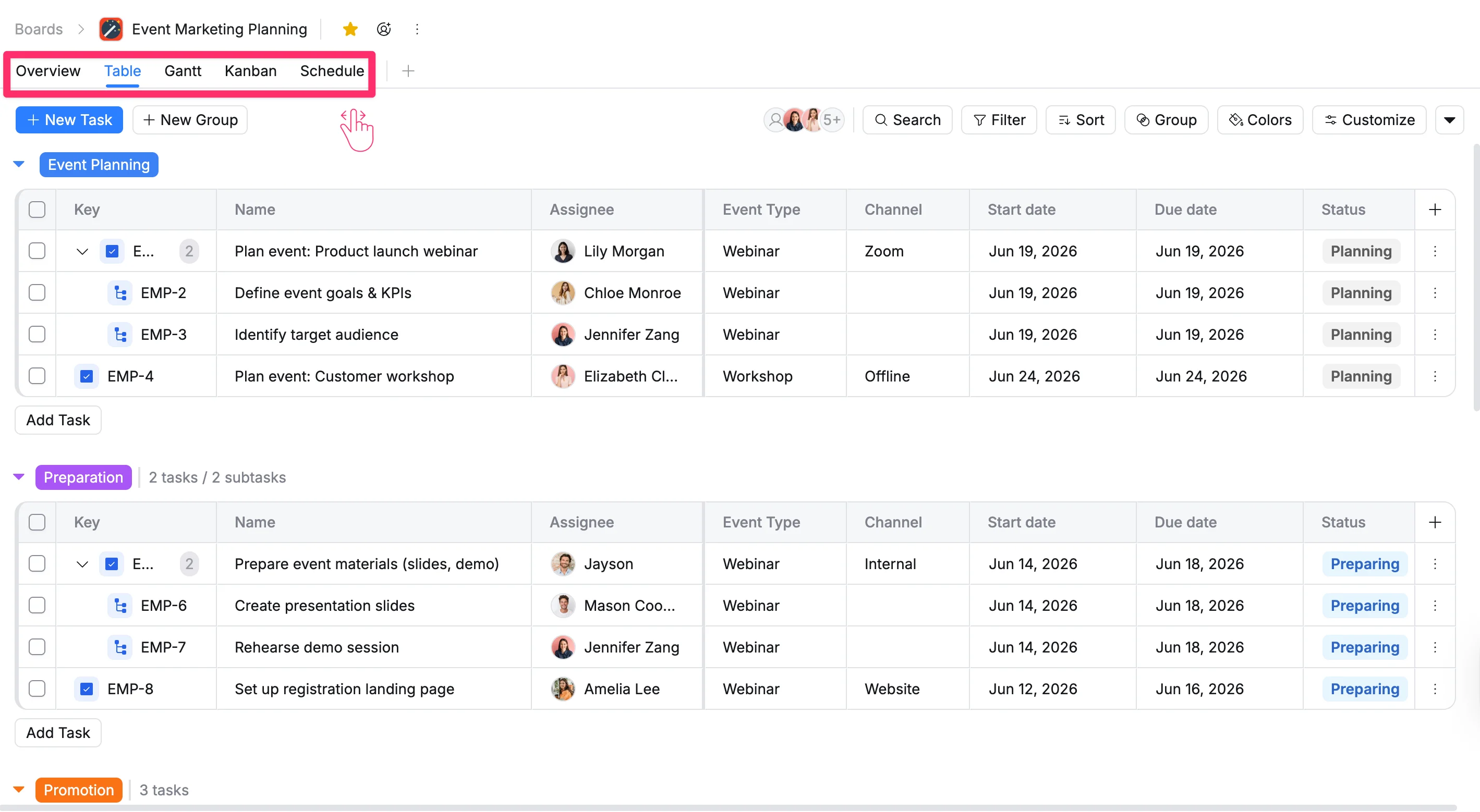
You can customize the order of board views to better match your workflow. This change will apply to all members of the board.
To reorder views, simply drag and drop the view tabs into your preferred position.
Rename a view
- Board Admins / Board Editors can rename board views
- App Admins / App Editors can rename board views only on Open boards
You can rename a view in three ways:
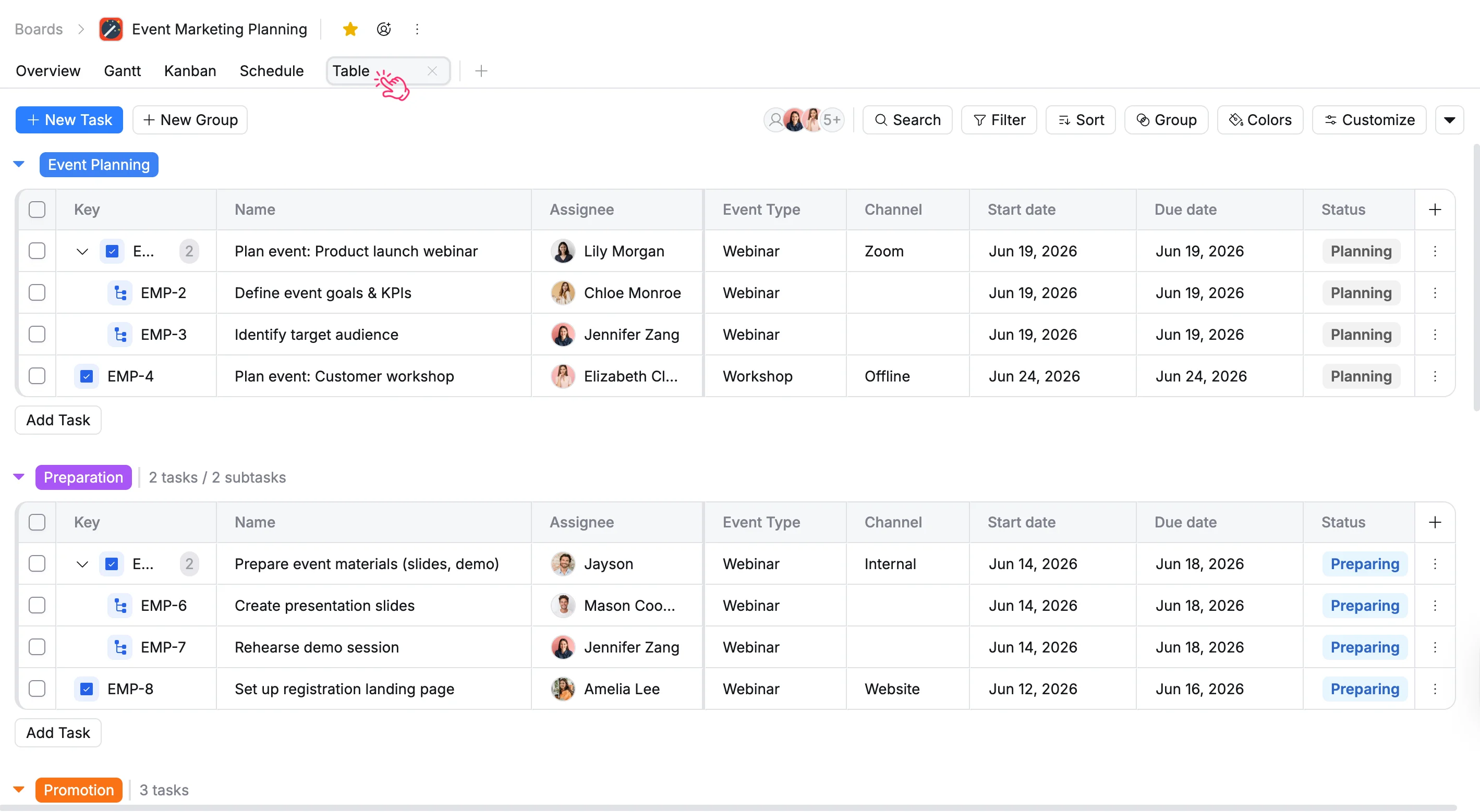
- Option 1: Double-click the view tab you want to rename, then enter the new name.
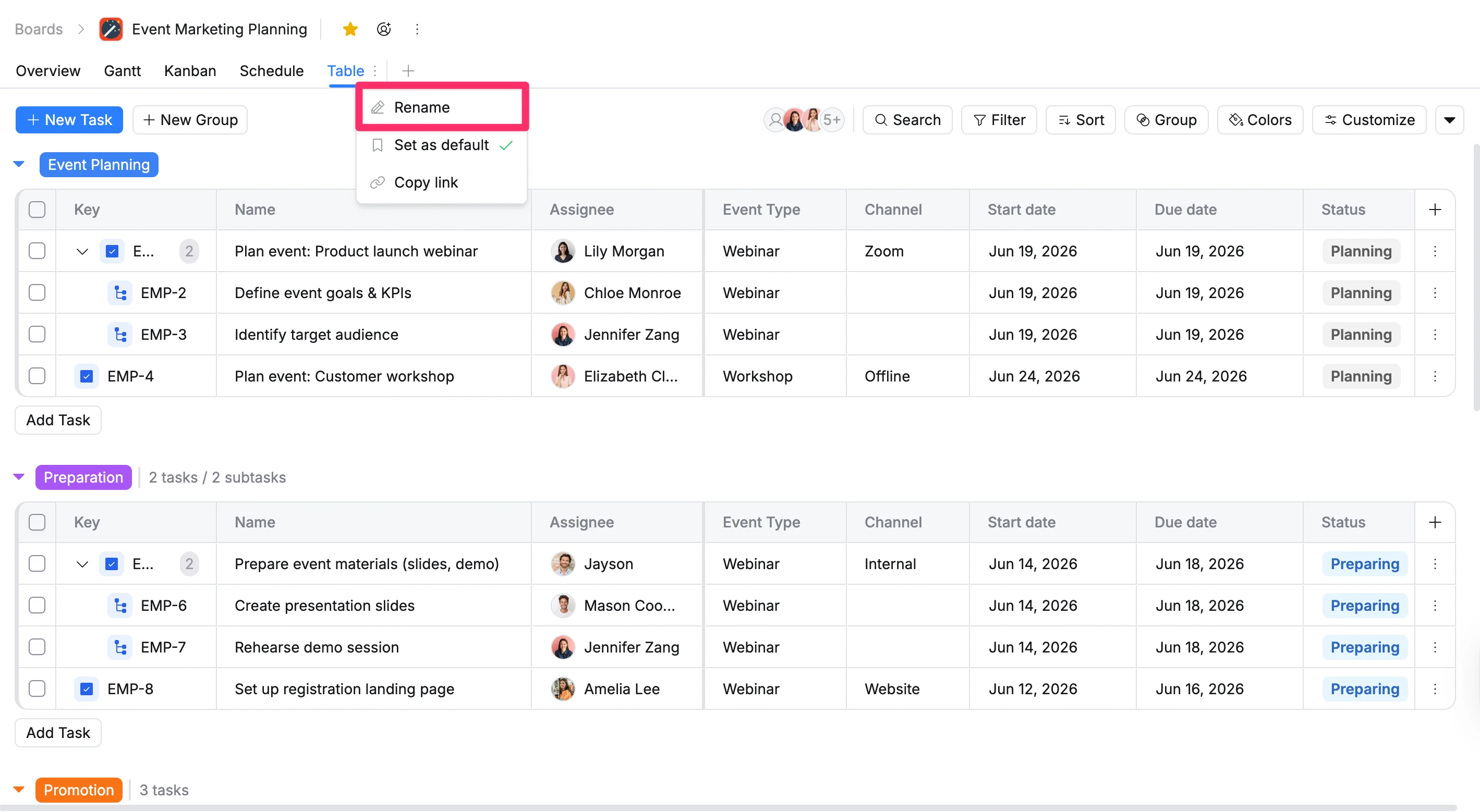
- Option 2: Right-click the view tab and select Rename from the menu.
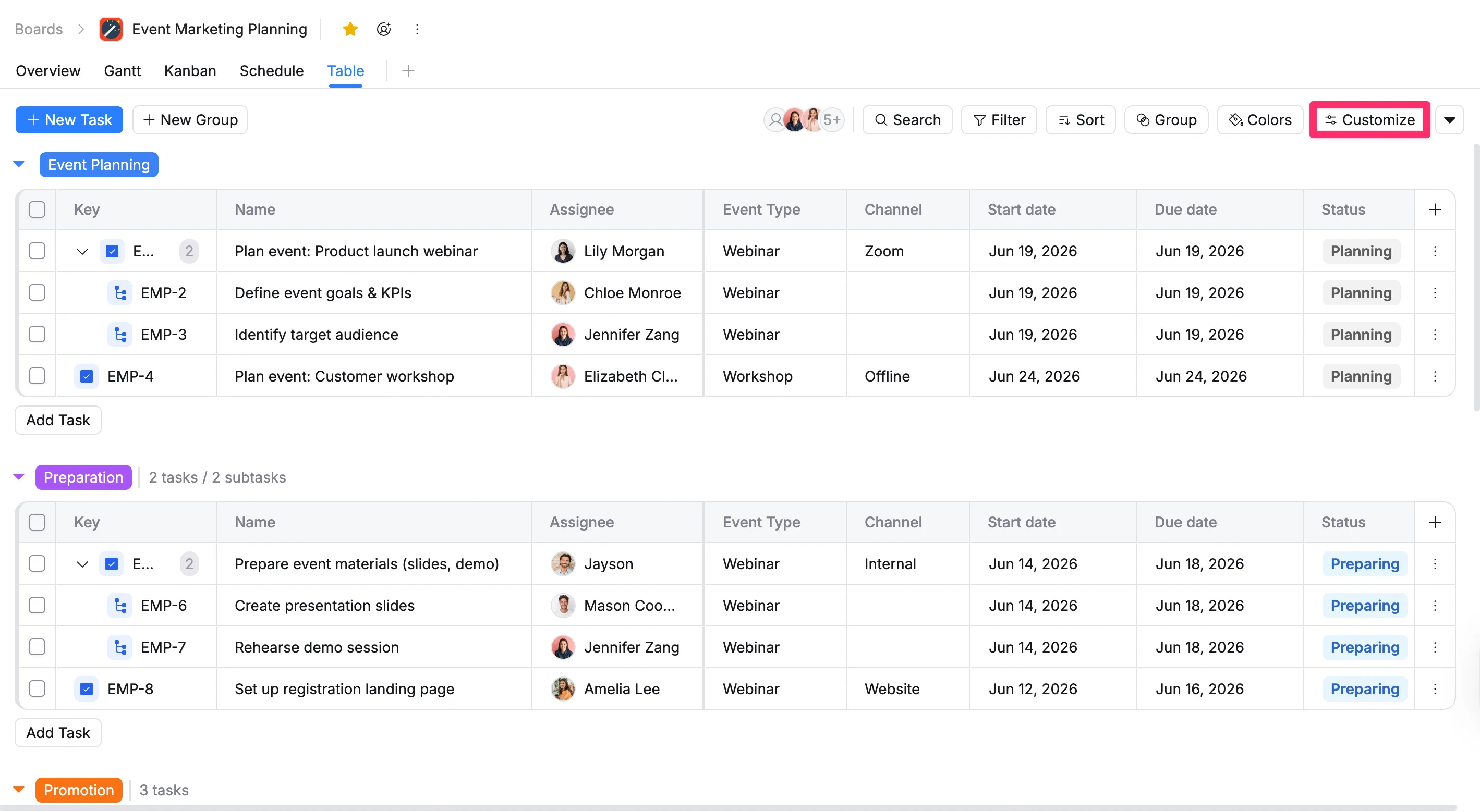
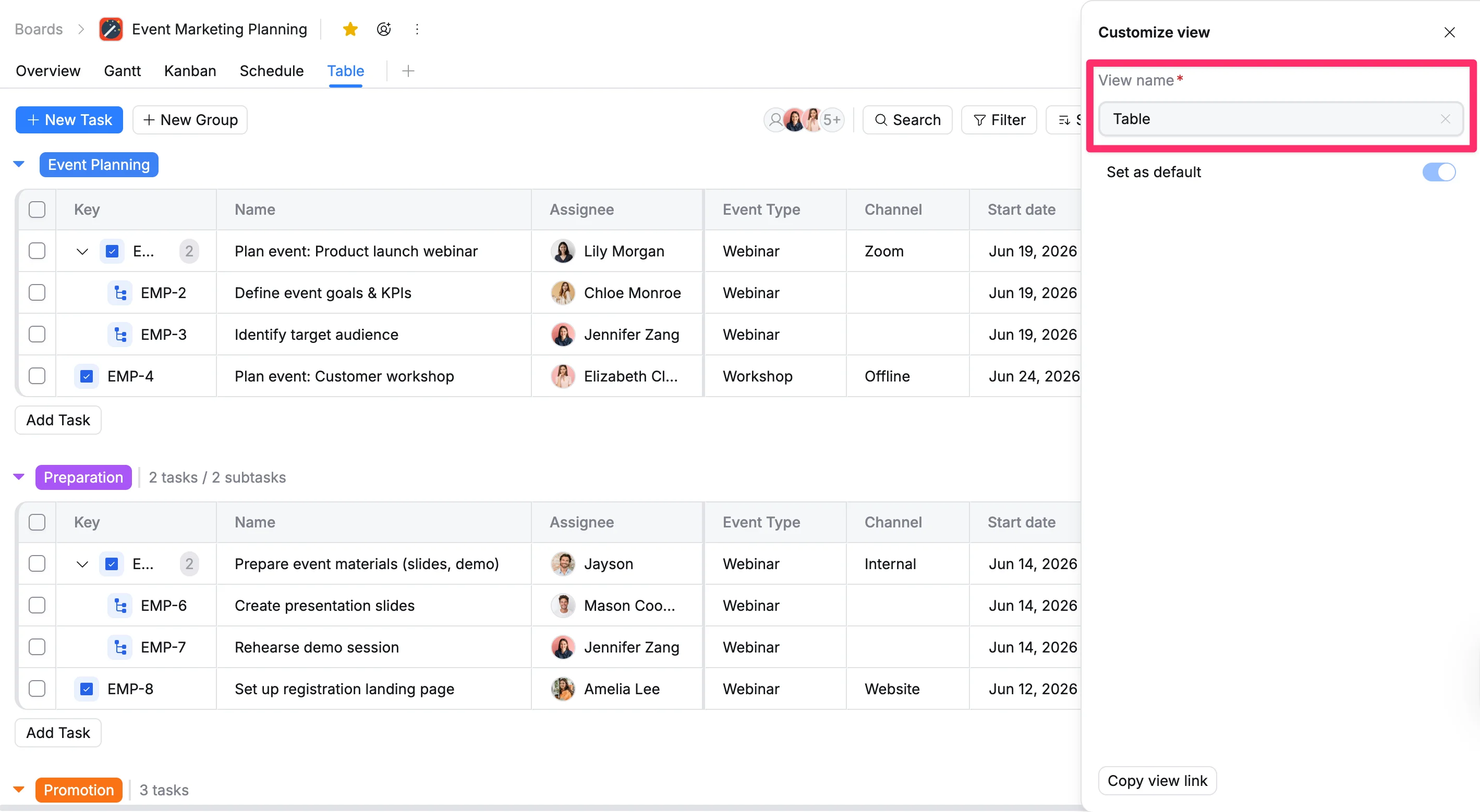
- Option 3: Click Customize in the toolbar, then update the name in the View name field in the Customize view panel.
Set a view as the default
Only Board Admins can set a board view as the default.
To set a view as the default that opens automatically on a board:
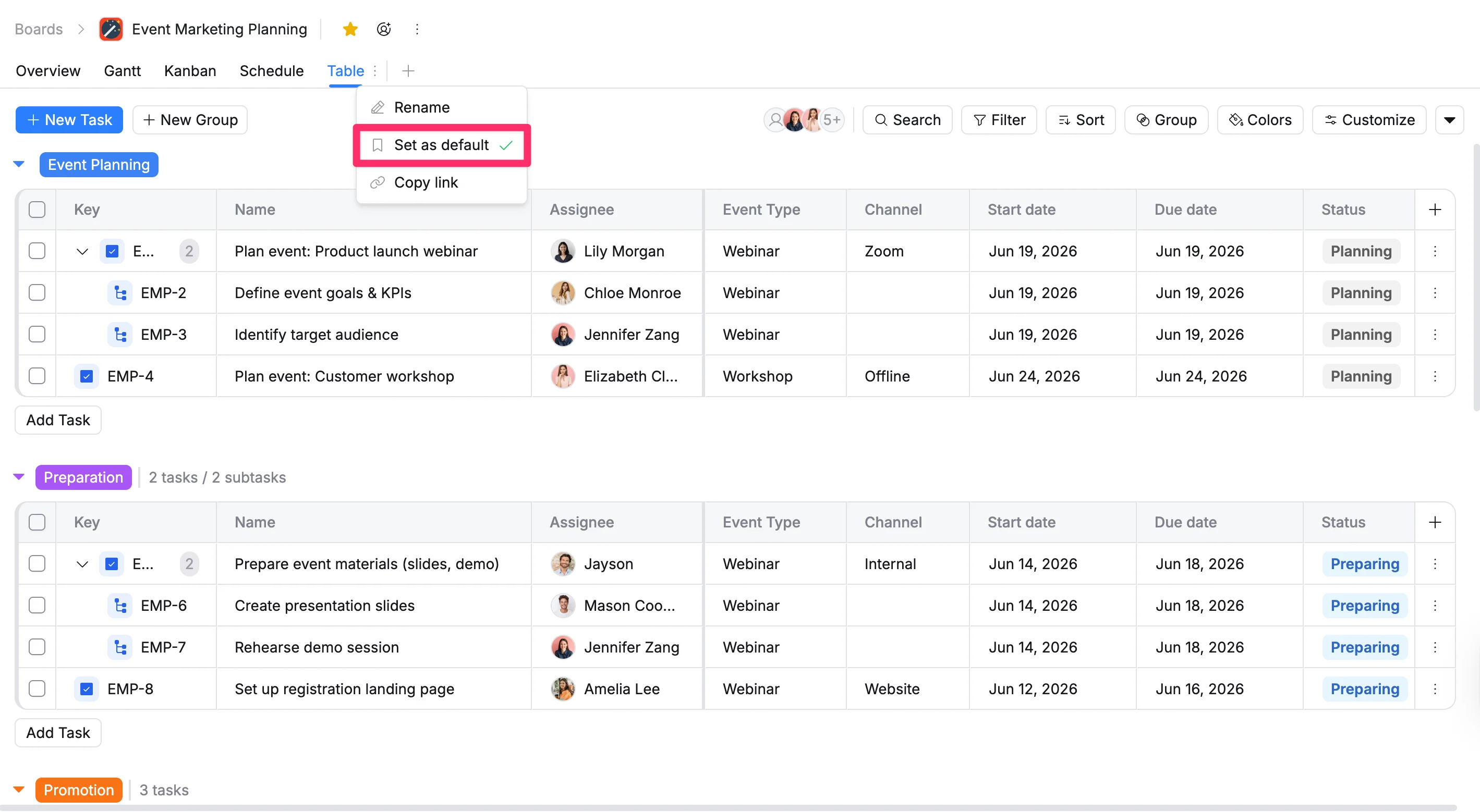
- Option 1: Right-click the view tab and select Set as default from the menu.
- Option 2: Click Customize in the toolbar, then toggle Set as default in the Customize view panel.
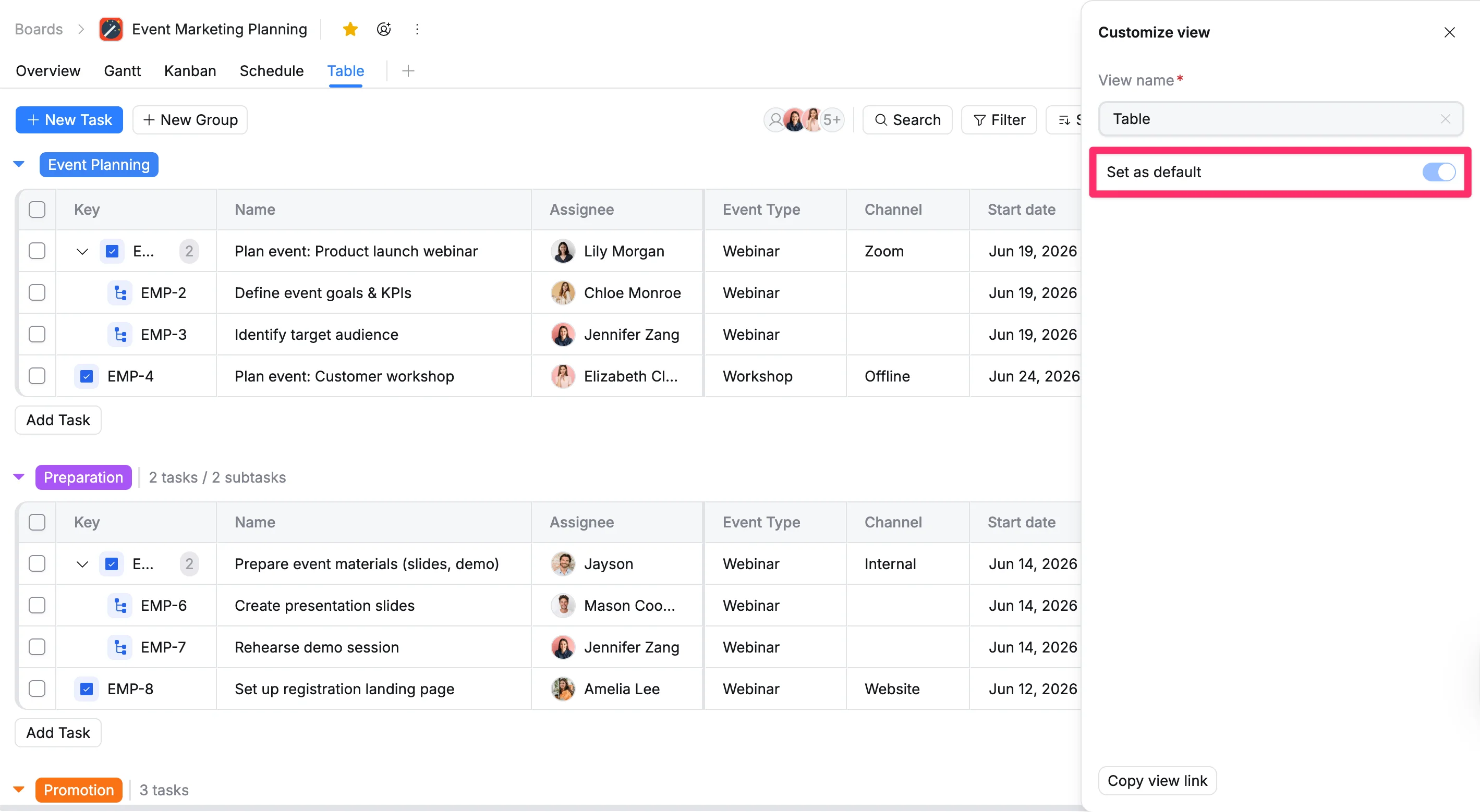
This action saves the selected view as the default for that board, ensuring it loads automatically for all team members when the board is opened. The board view that is set as the default cannot be deleted by anyone.
Copy a view link
Anyone with access to a board can copy the board link.
A shareable link can only be viewed by users who have access to the board.
You can copy a link in two ways:
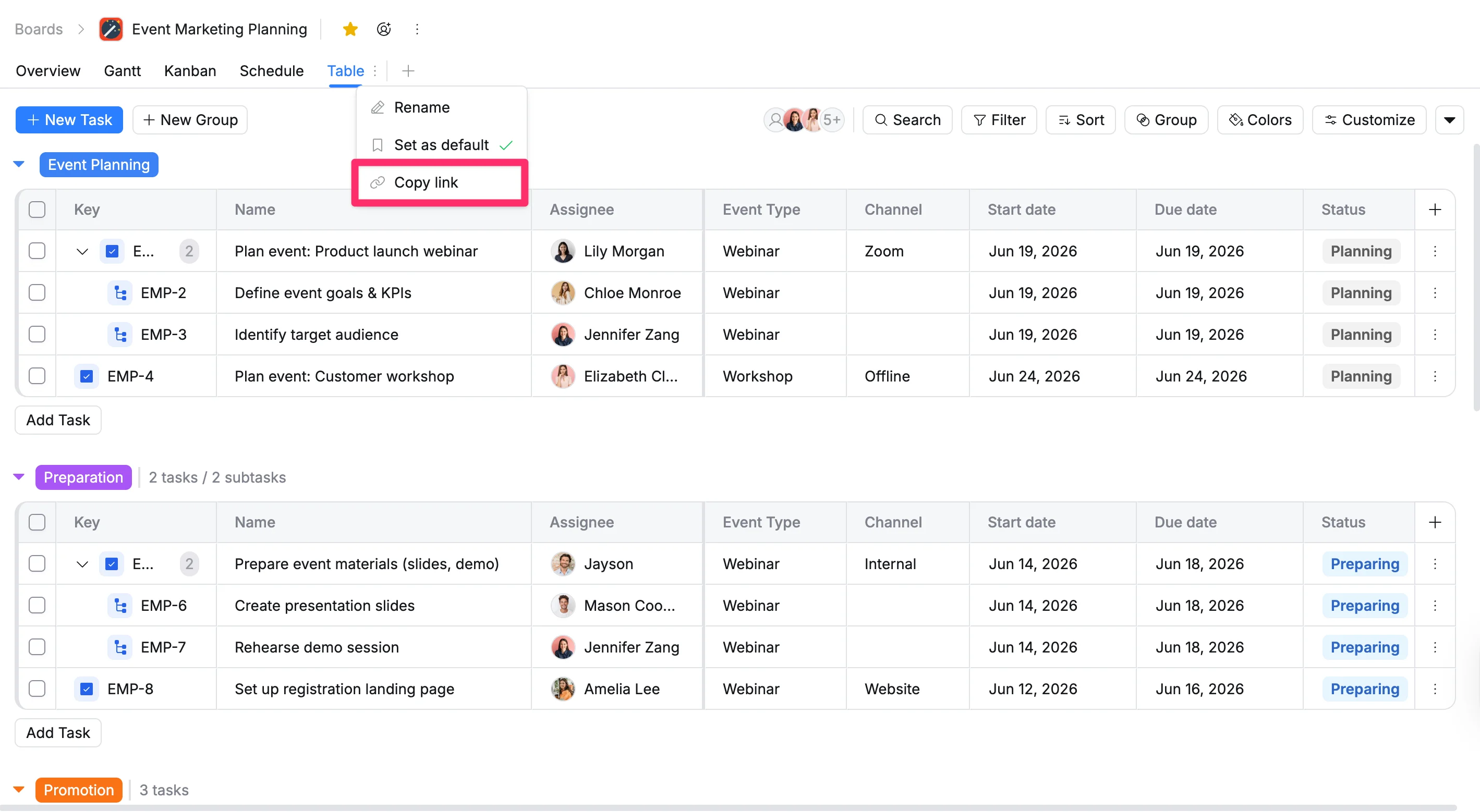
- Option 1: Right-click the view tab and select Copy link from the menu.
- Option 2: Click Customize in the toolbar, then click Copy view link in the Customize view panel.
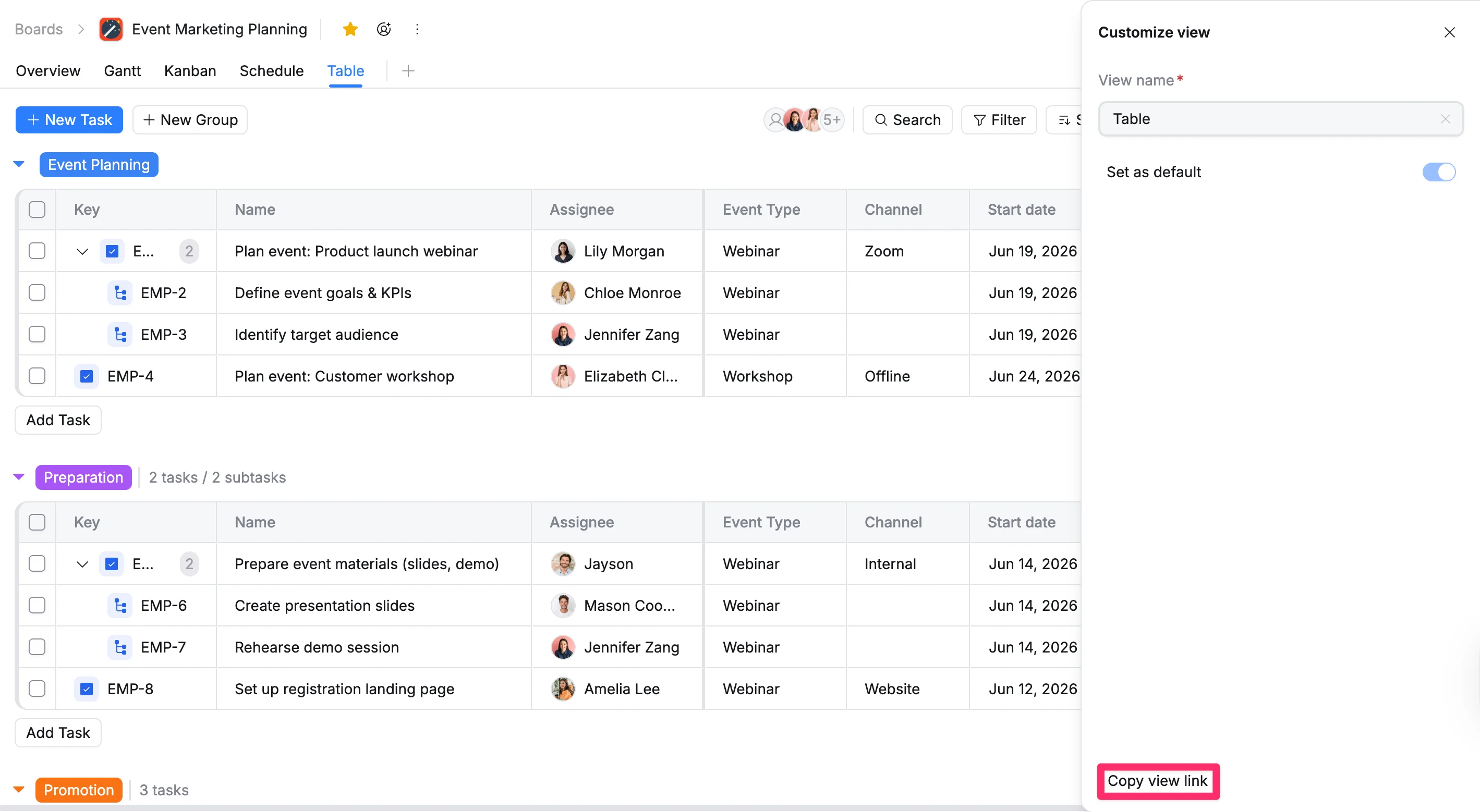
This action copies the view’s URL to your clipboard, allowing you to paste and share it wherever needed.
Delete a view
- Board Admins / Board Editors can delete board views
- App Admins / App Editors can delete board views only on Open boards
There are two ways to delete a view:
- Option 1: Right-click the view tab and select Delete from the menu.
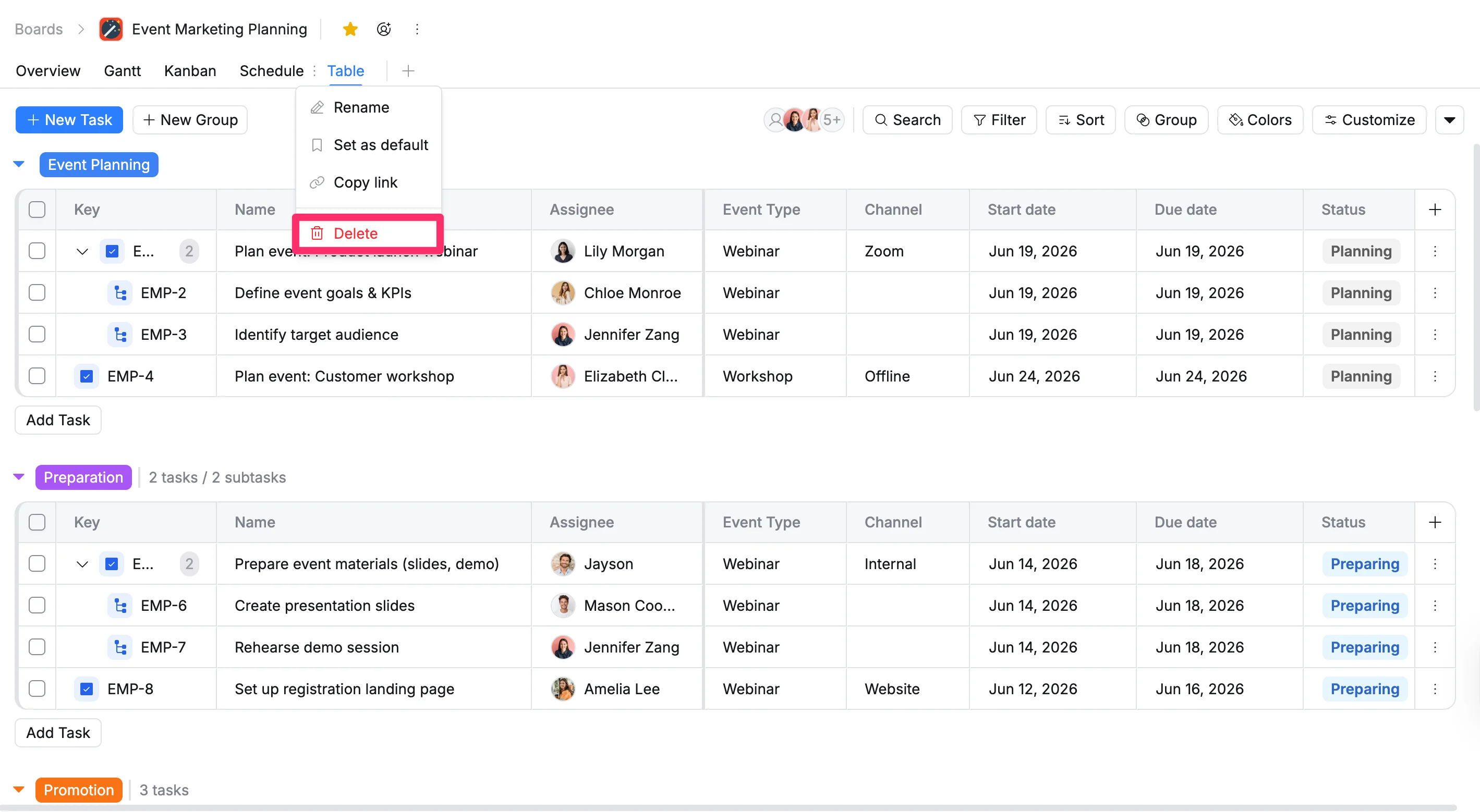
- Option 2: Click Customize in the toolbar, then click Delete in the Customize view panel.
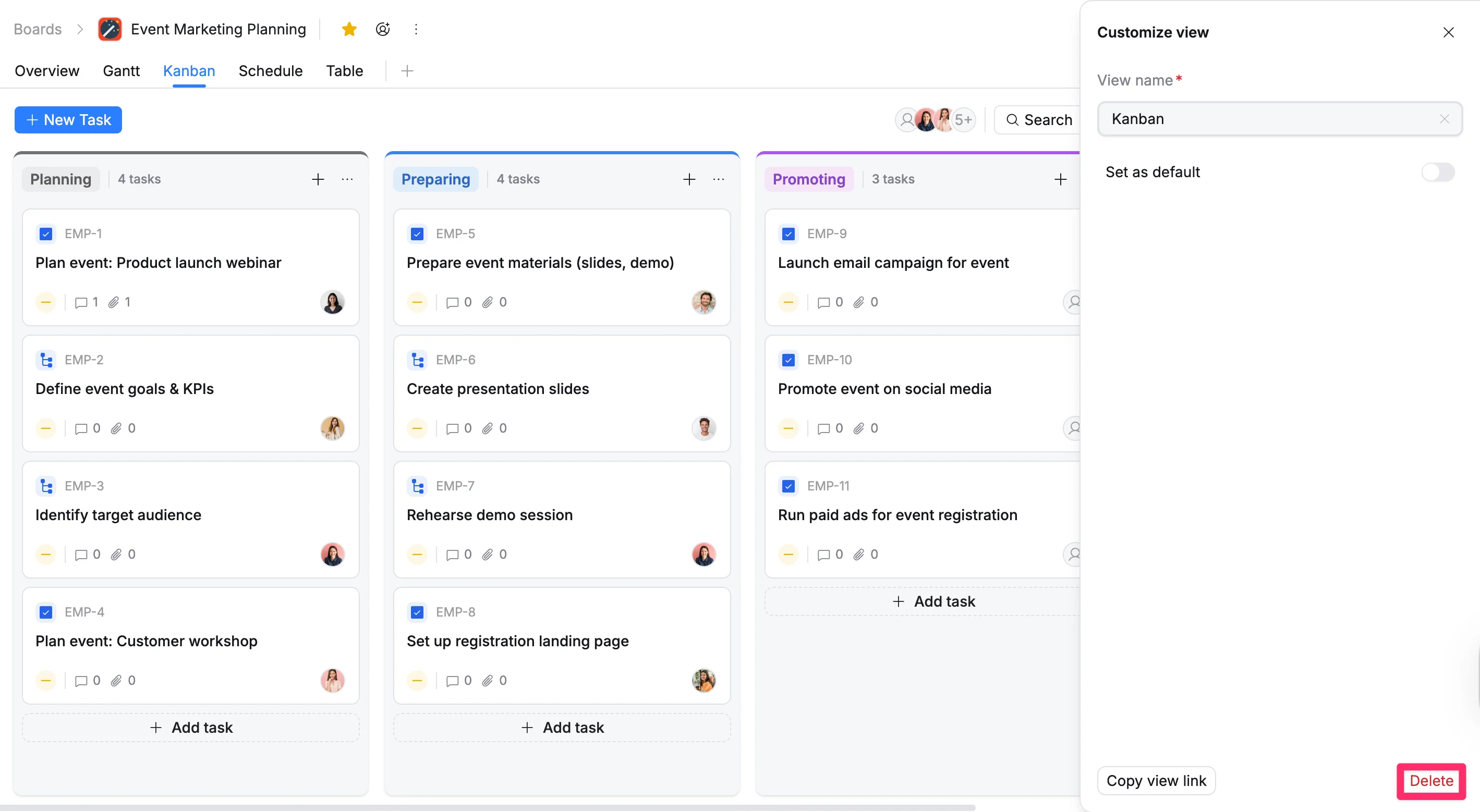
You cannot delete a board view that is currently set as the default view.