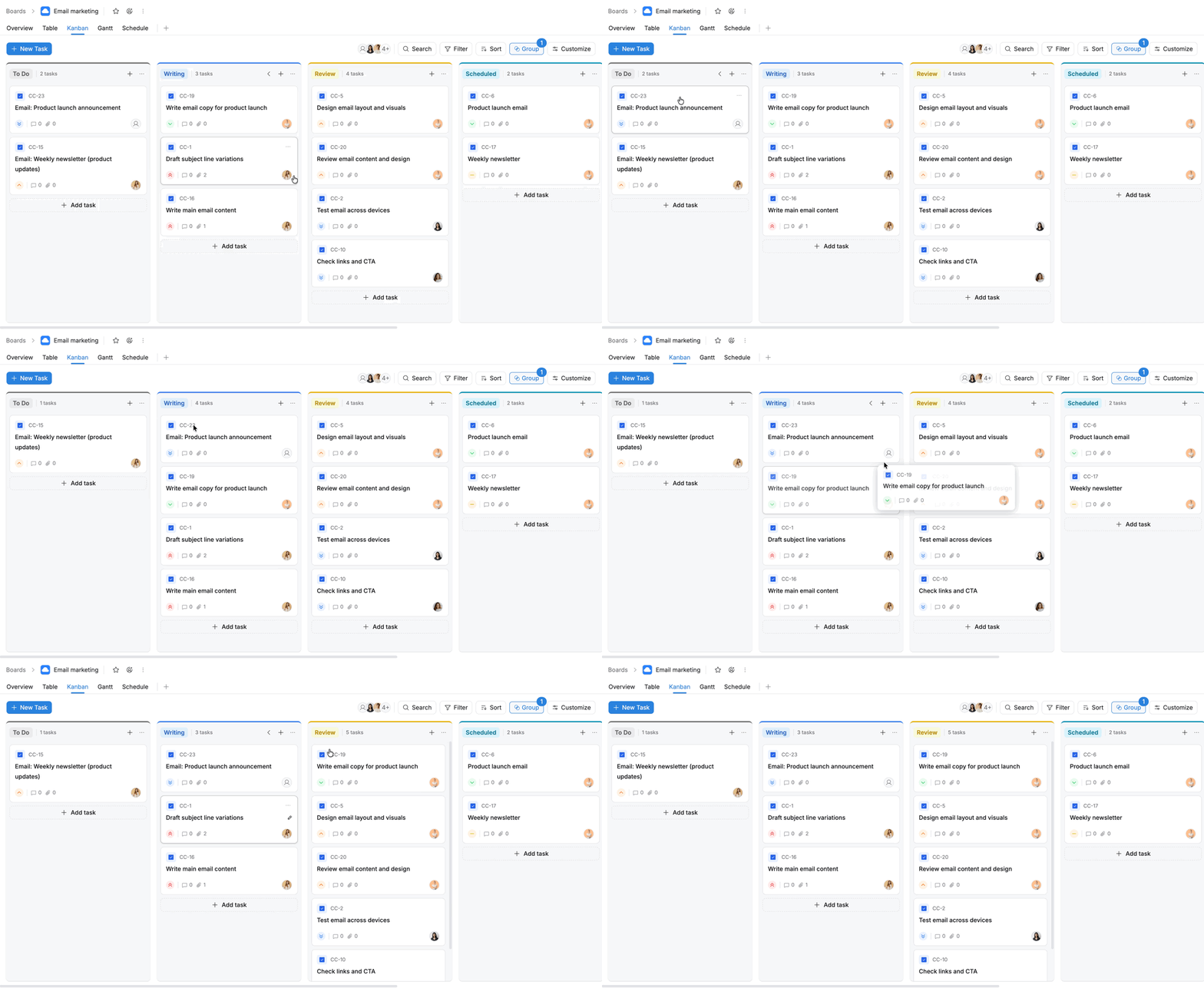
Manage columns in Kanban view
Manage columns in Kanban view to add workflow stages, reorder columns, and collapse or expand them for better task visualization.
Who can use this feature?
- Board Admins / Board Editors can manage columns in the Kanban view.
- App Admins / App Editors can manage columns in the Kanban view only on Open boards.
In the Kanban view, columns represent workflow stages (such as To Do, In Progress, or Done). They help visualize how tasks move through different phases of work.
Add a column
You can add a new column to represent an additional stage in your workflow.
To add a column:
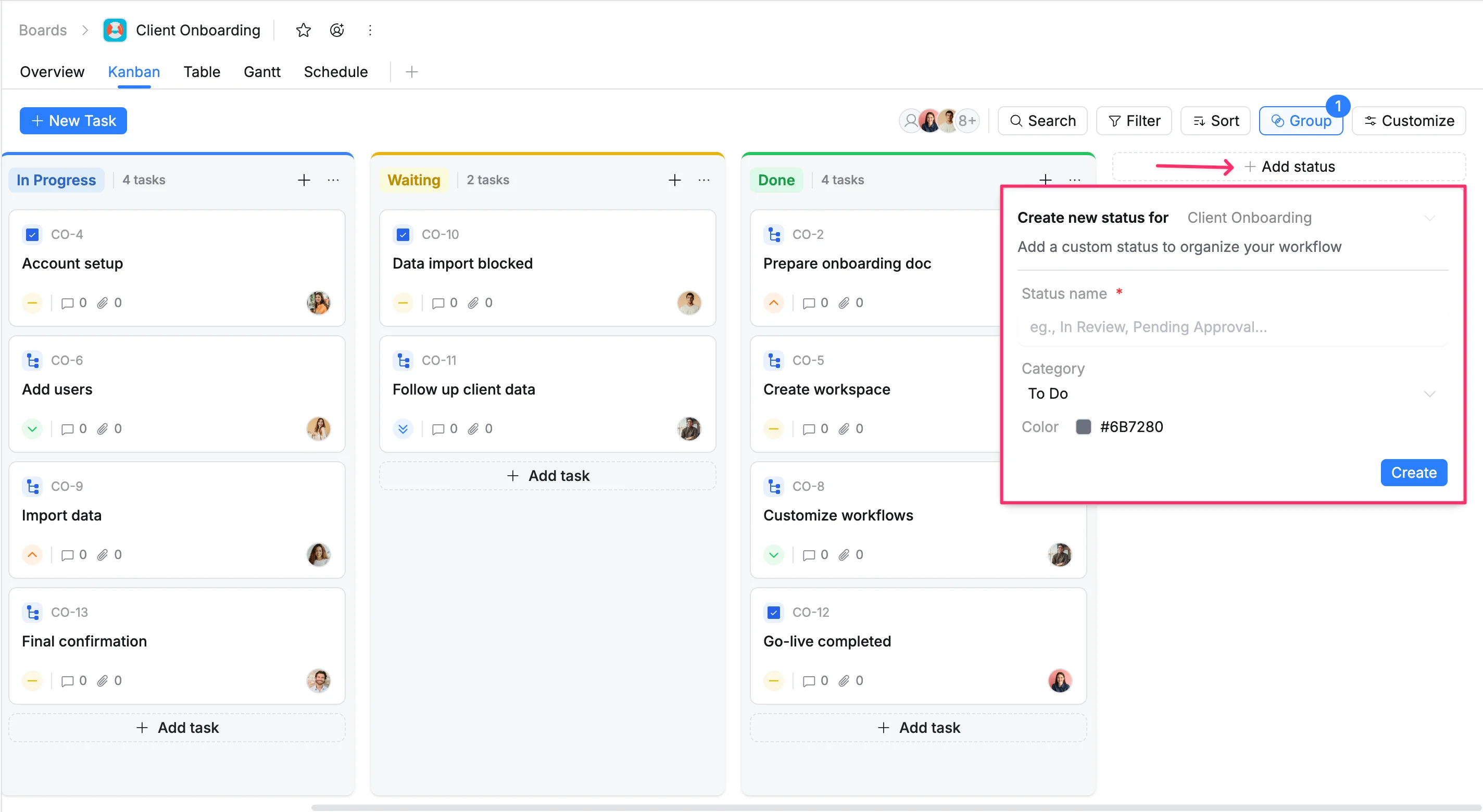
- Click the (+) Add Status button at the end of your Kanban columns.
- Select the appropriate Category (such as To Do, In Progress, or Done).
- Enter the new Status name.
- Click Create to add the column to your board.
Collapse/expand a column
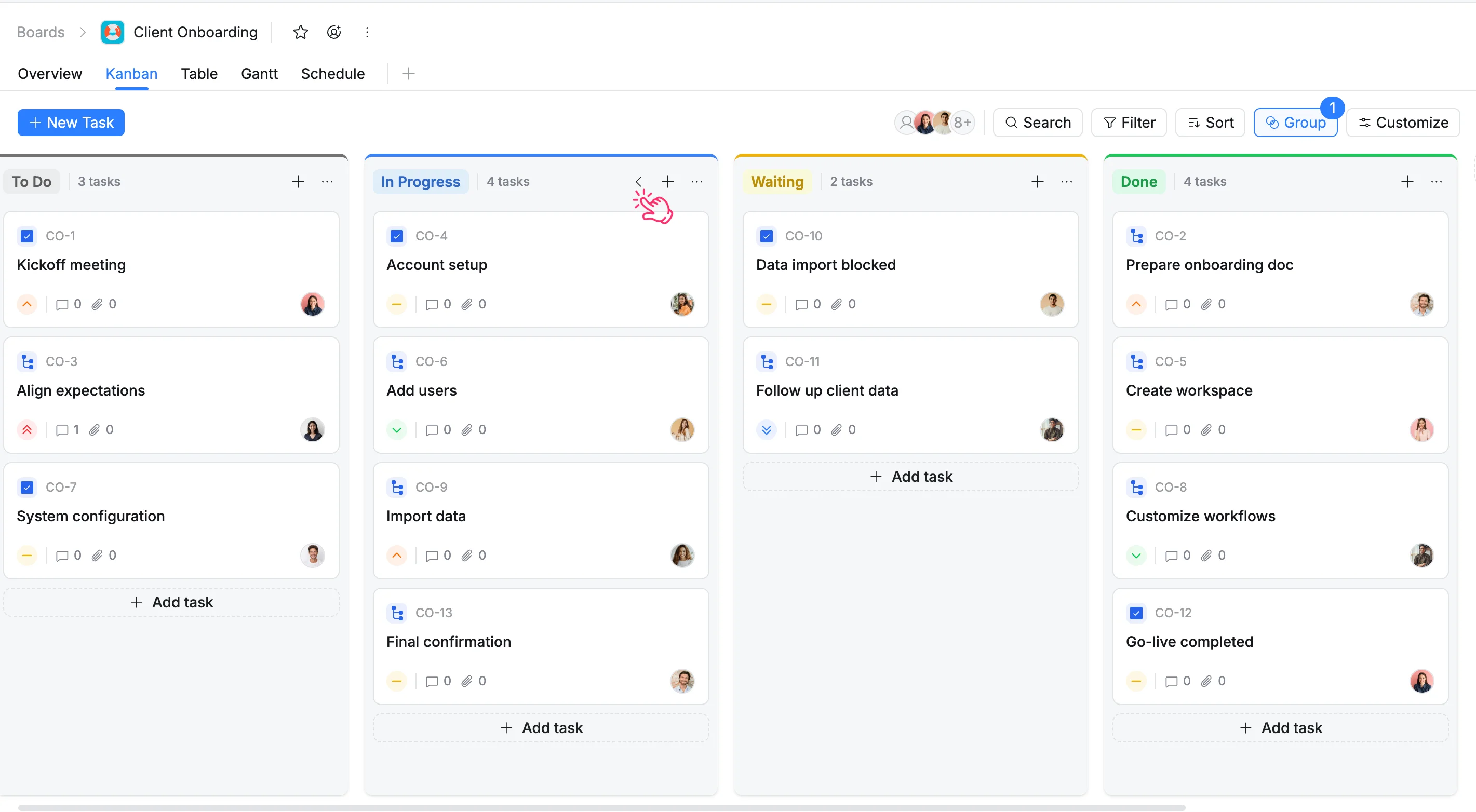
To reduce clutter and focus on specific stages, you can collapse columns.
- Collapse a column: Click the Collapse arrow on the column header. The column will shrink to save space.
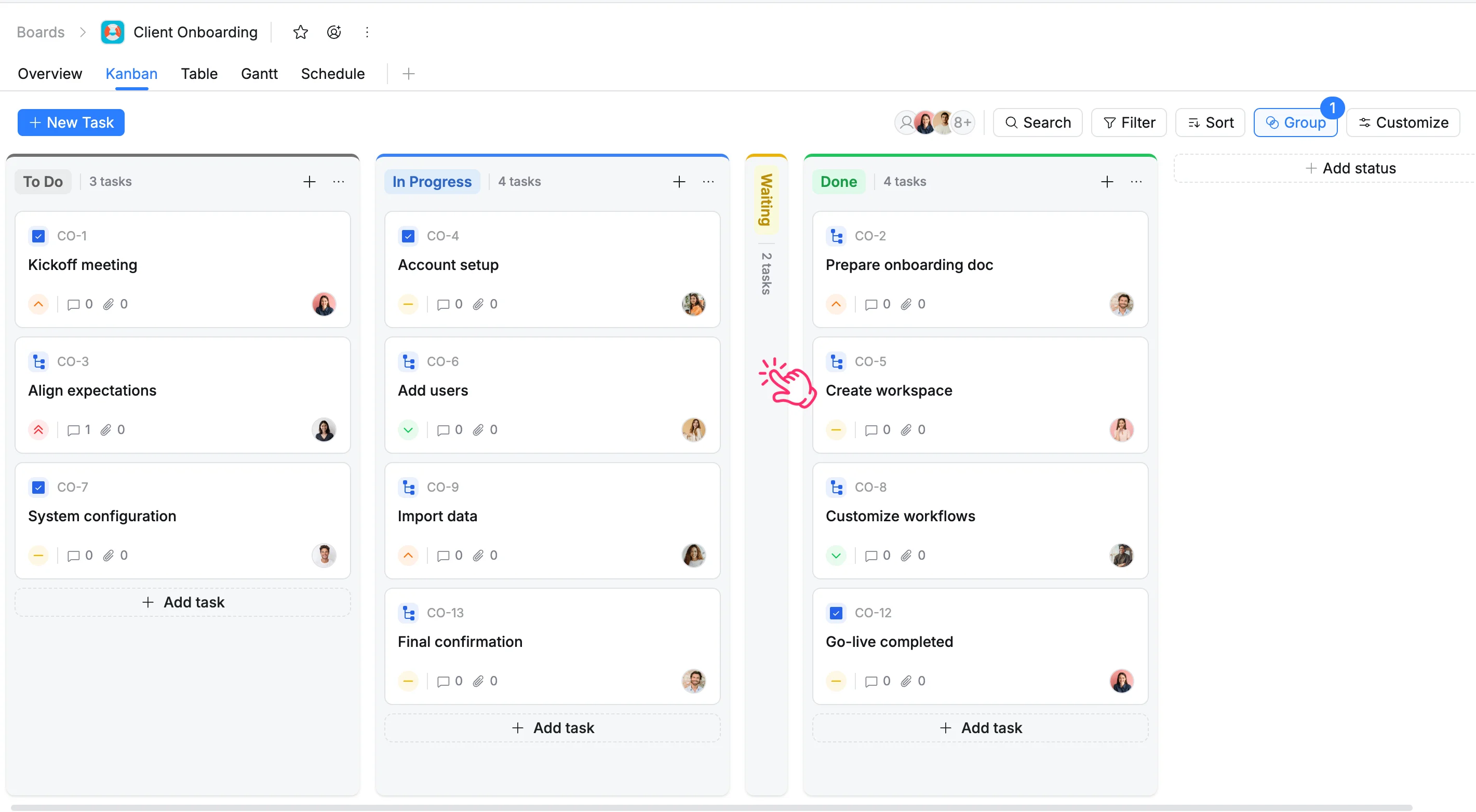
- Expand a column: Click the collapsed column header to restore it.
Reorder a column
You can reorder a column to match your workflow.
- Click and hold the column header.
- Drag it left or right to the desired position.
- Release to drop it into place.