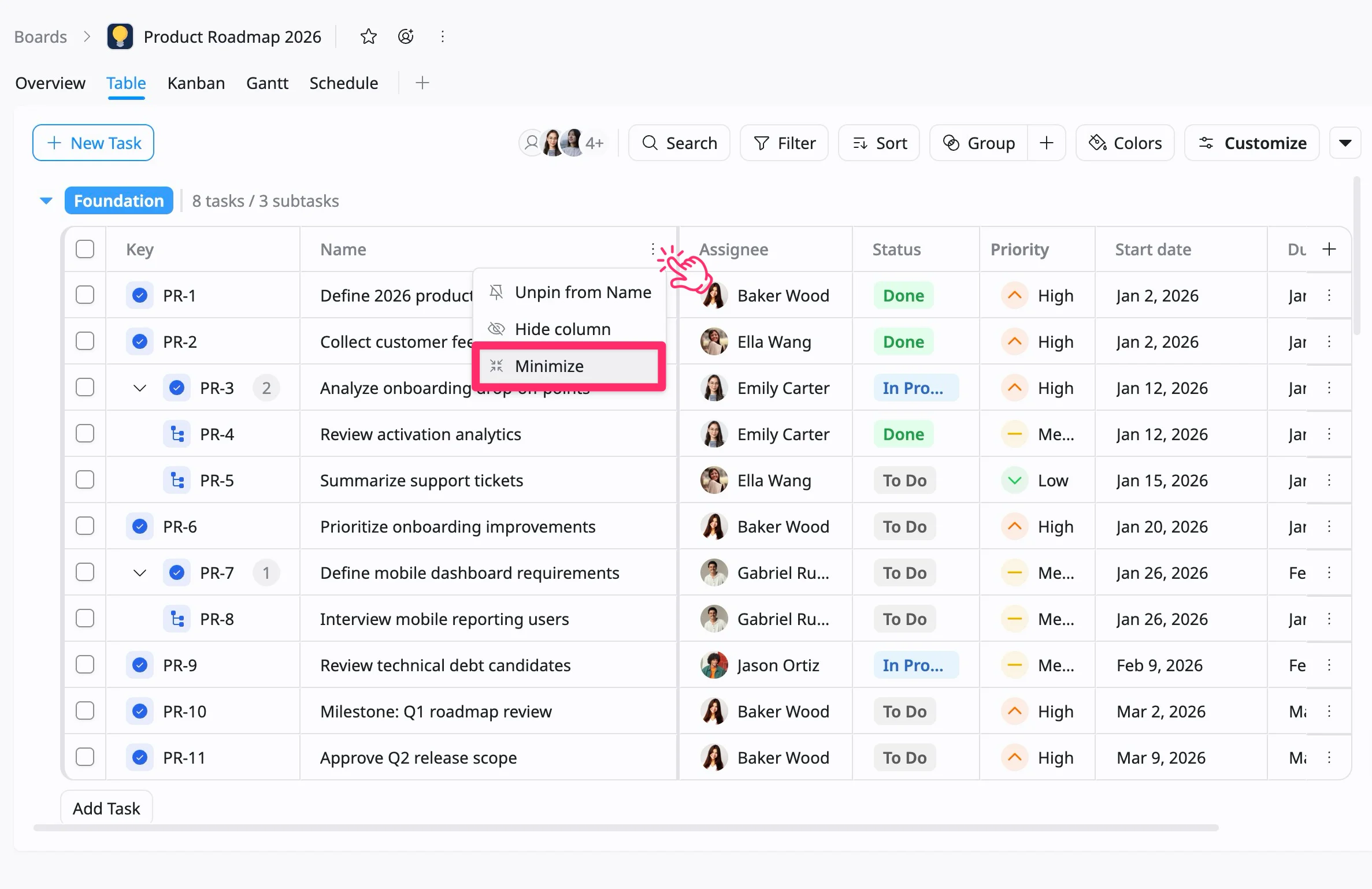
Manage columns in Table view
Customize columns in Table view by adding, hiding, resizing, and organizing them to fit your workflow.
- Board Admins / Board Editors can manage columns in the Table view.
- App Admins / App Editors can manage columns in the Table view only on Open boards.
In the Table view, each column represents a task field such as Assignee, Status, or Due date. You can customize columns to control what information is displayed and how it is arranged.
You can show, hide, reorder, resize, add, remove, pin, or unpin columns to create a layout that best fits your workflow.
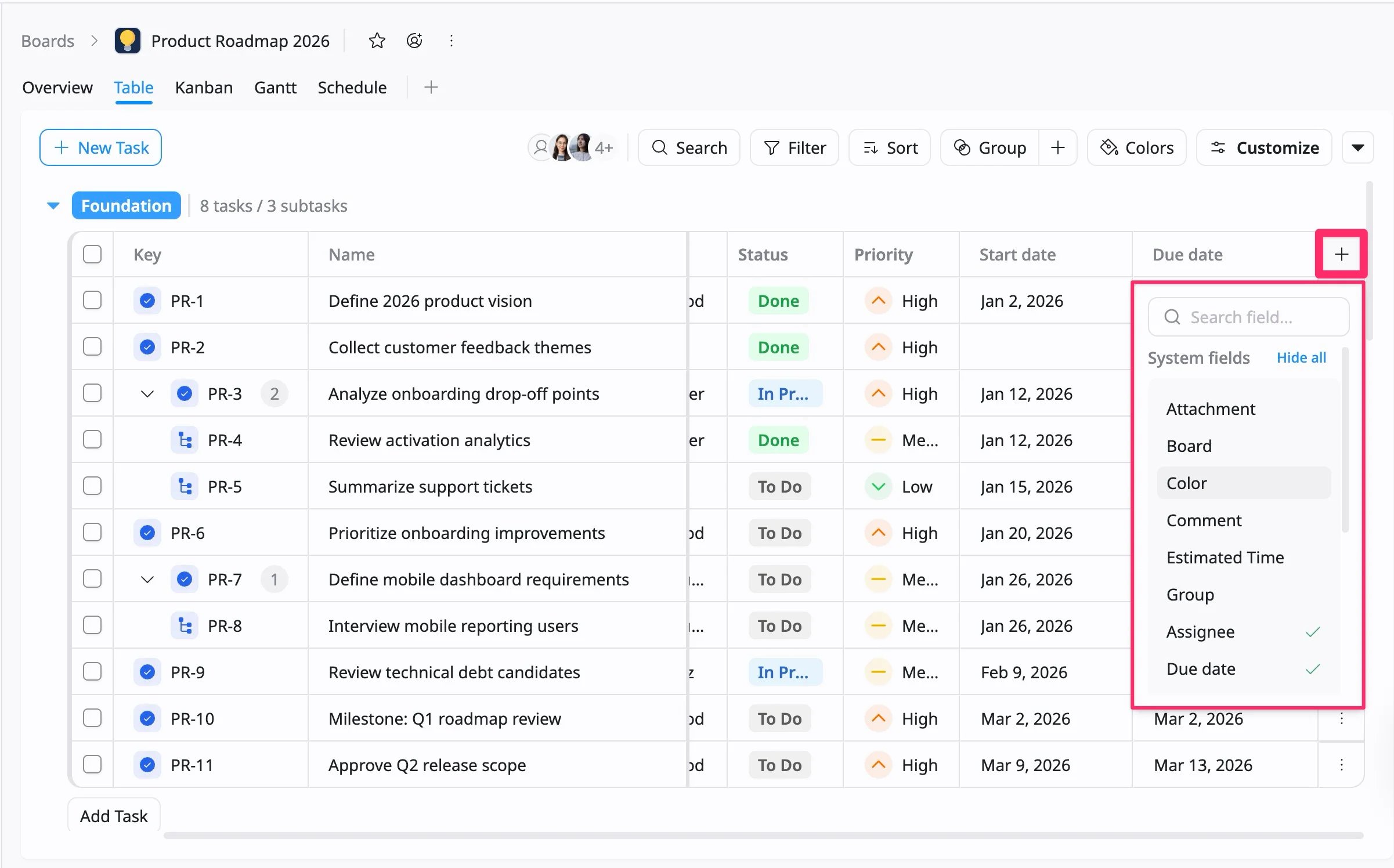
Add a column
To add a column:
- Click the (+) icon at the top-right corner of the table header.
- Browse the list of available system fields or use the search bar.
- Click a field name to add it as a new column.
Reorder a column
To reorder a column:
- Hover over a column header until the move cursor appears.
- Click and hold the column header.
- Drag the column left or right to the desired position.
- Release to drop it into place.
Resize a column
To resize a column:
- Hover over the border between two column headers.
- When the resize arrow (↔) appears, click and drag left or right.
- Release when the column reaches the desired width.
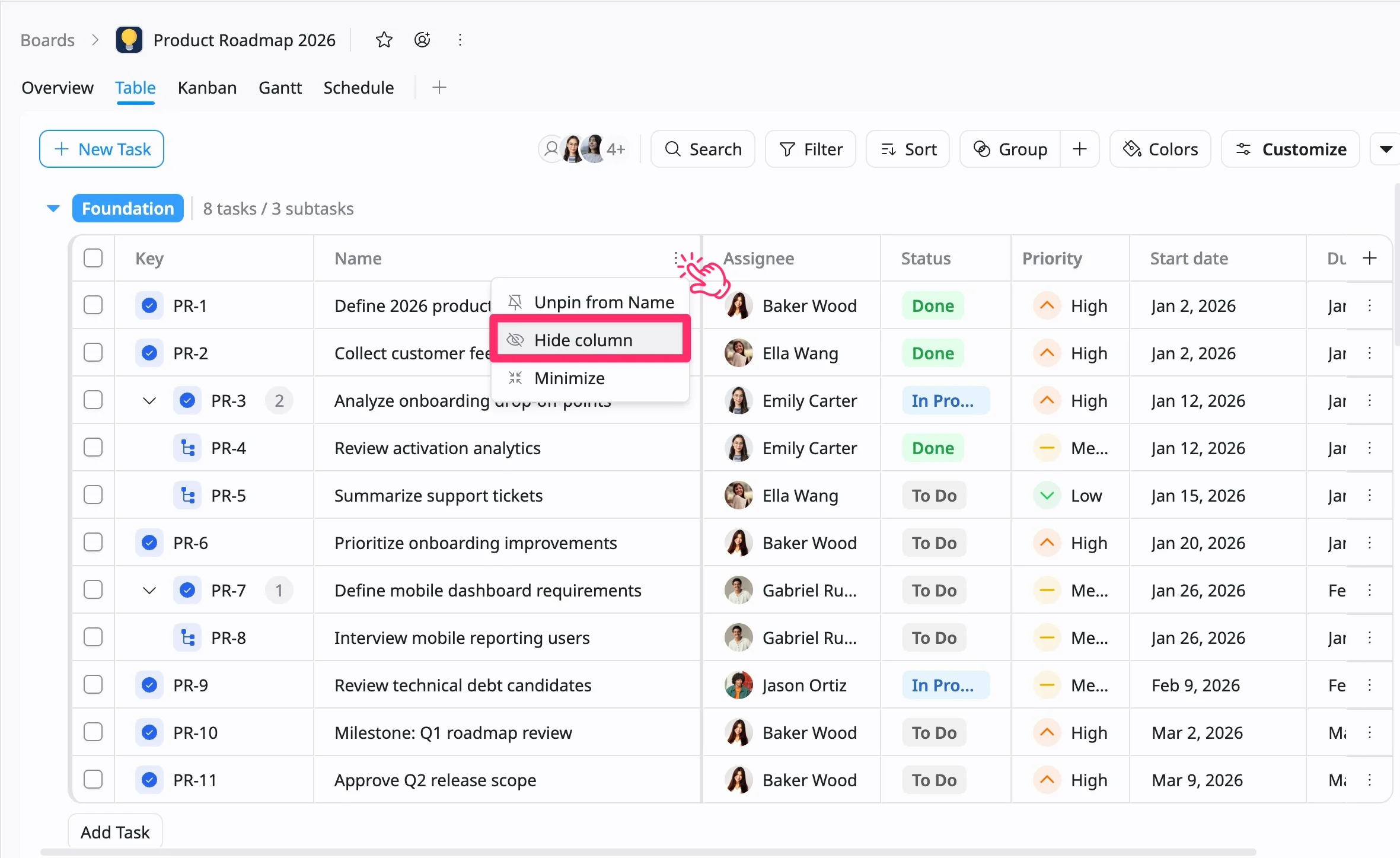
Hide a column
To hide a column:
- Hover over the column header you want to hide.
- Click the three vertical dots (⋮) next to the column name.
- Select Hide column from the menu.
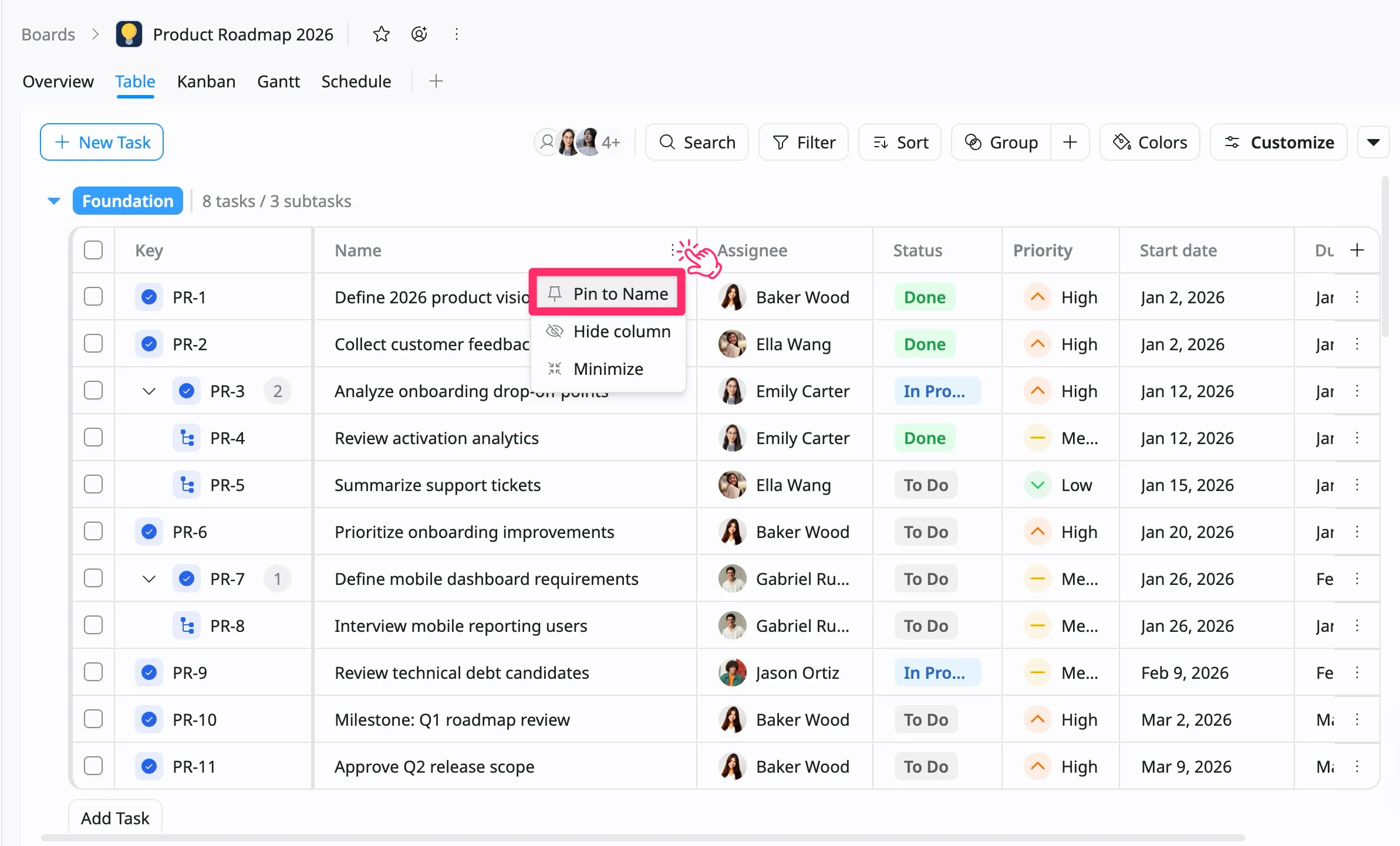
Pin a Column
Pinning a column keeps it fixed on the left side of the Table view, so it remains visible while you scroll horizontally.
To pin a column:
- Hover over the column header you want to pin.
- Click the three vertical dots (⋮) next to the column name.
- Select Pin icon from the dropdown menu.
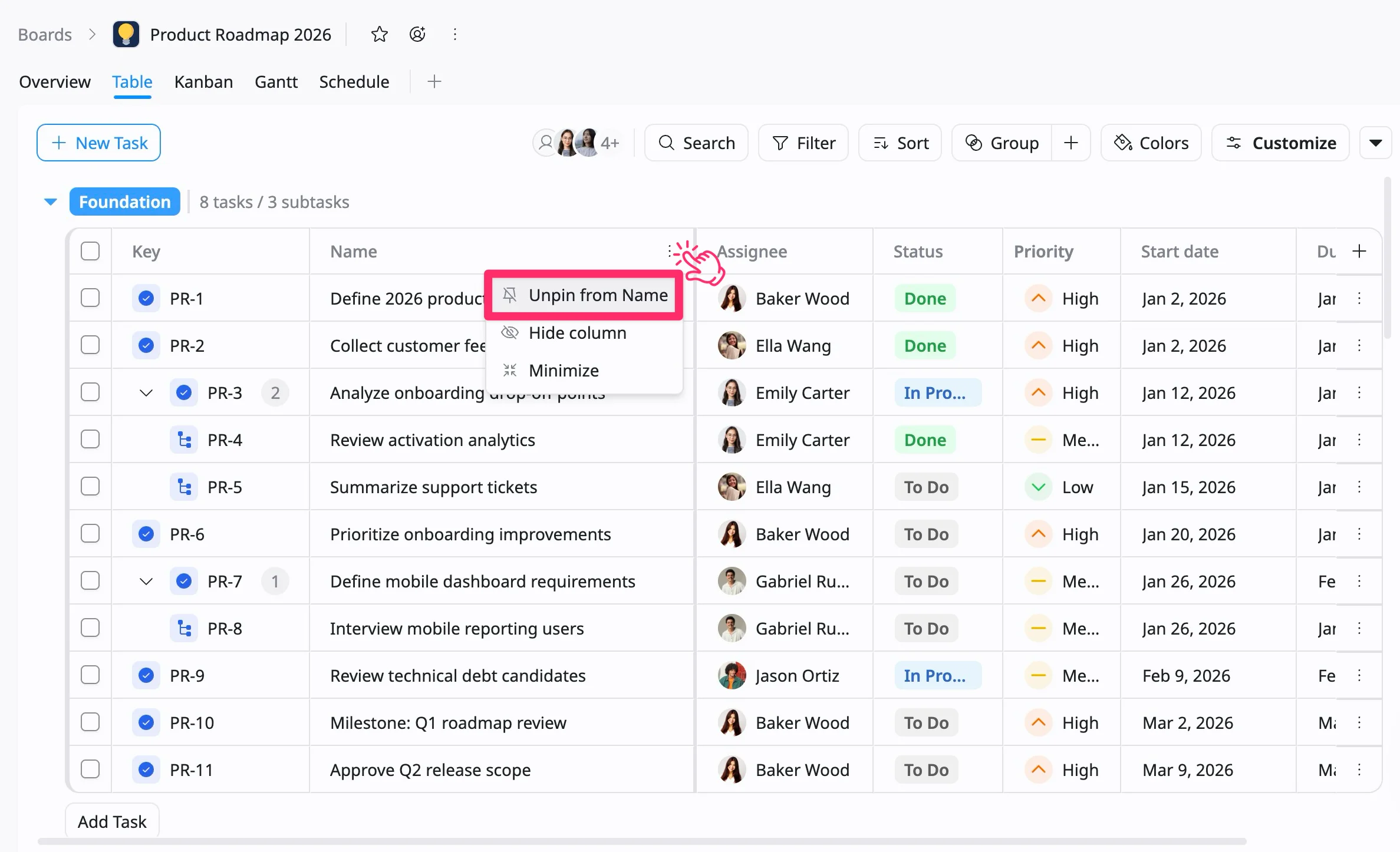
Unpin a Column
Unpinning returns the column to its normal position in the table.
To unpin a column:
- Hover over the pinned column header.
- Click the three vertical dots (⋮) next to the column name.
- Select Unpin icon from the dropdown menu.
Minimize a column
Minimizing a column reduces its width to a compact size while keeping it visible in the Table view. This helps you save space and focus on more important fields without completely hiding the column.
To minimize a column:
- Hover over the column header you want to adjust.
- Click the three vertical dots (⋮) next to the column name.
- Select Minimize from the dropdown menu.