Manage dashboard data sources
Learn how to configure dashboard data in TaskFord, connect boards, update data sources, and customize widgets to display the information you need.
Only Dashboard Admins can update the data source for a dashboard.
Dashboard data determines which boards and tasks are used to generate the information shown in your dashboard widgets.
In TaskFord, dashboards use connected boards as their data source. You can choose which boards provide data for a dashboard and configure each widget to display the exact metrics you need.
Connect boards to a dashboard
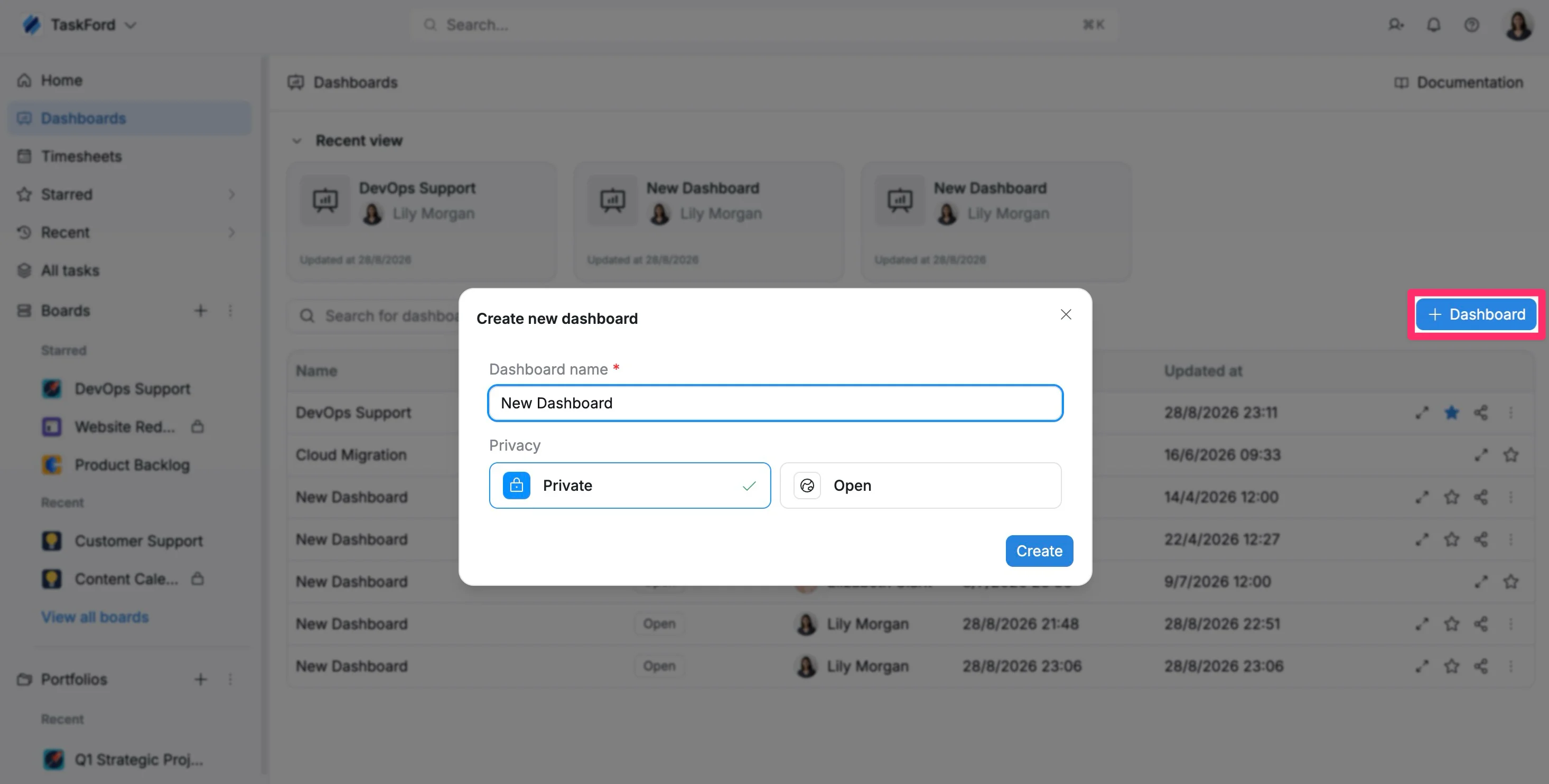
When you create a new dashboard, you select the boards to use as its data sources.
To connect boards:
- Create a new dashboard.
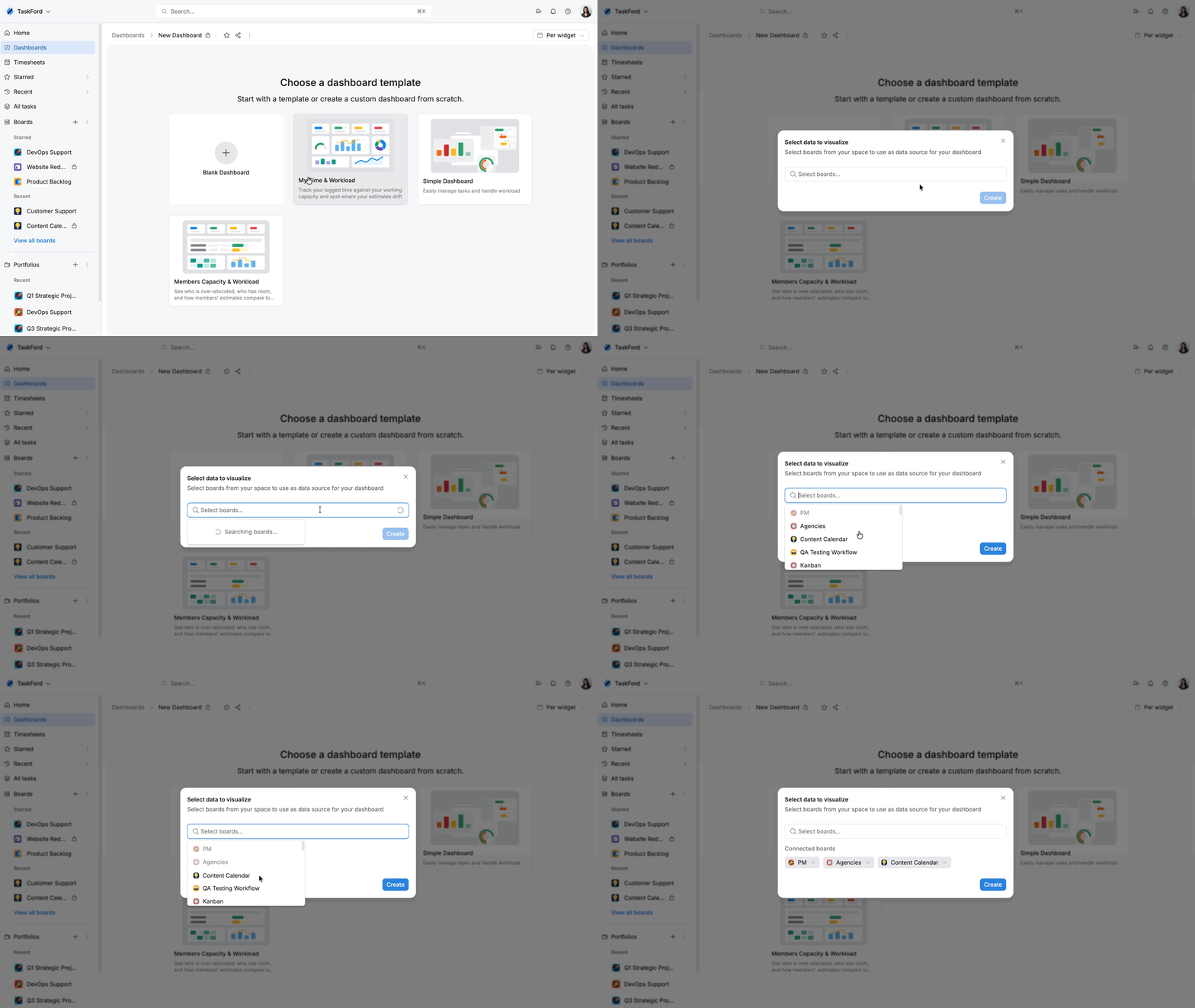
- Select a dashboard template, or create a custom dashboard.
- In the Select data to visualize window, search for and select the boards you want to connect.
- Click Create.
The connected boards will provide data for your dashboard widgets.
Update connected boards
You can add or remove connected boards on an existing dashboard at any time.
To update connected boards:
- Open the dashboard.
- Click Connected boards at the top-right corner of the dashboard.
- Select or remove boards.
- Click Apply.
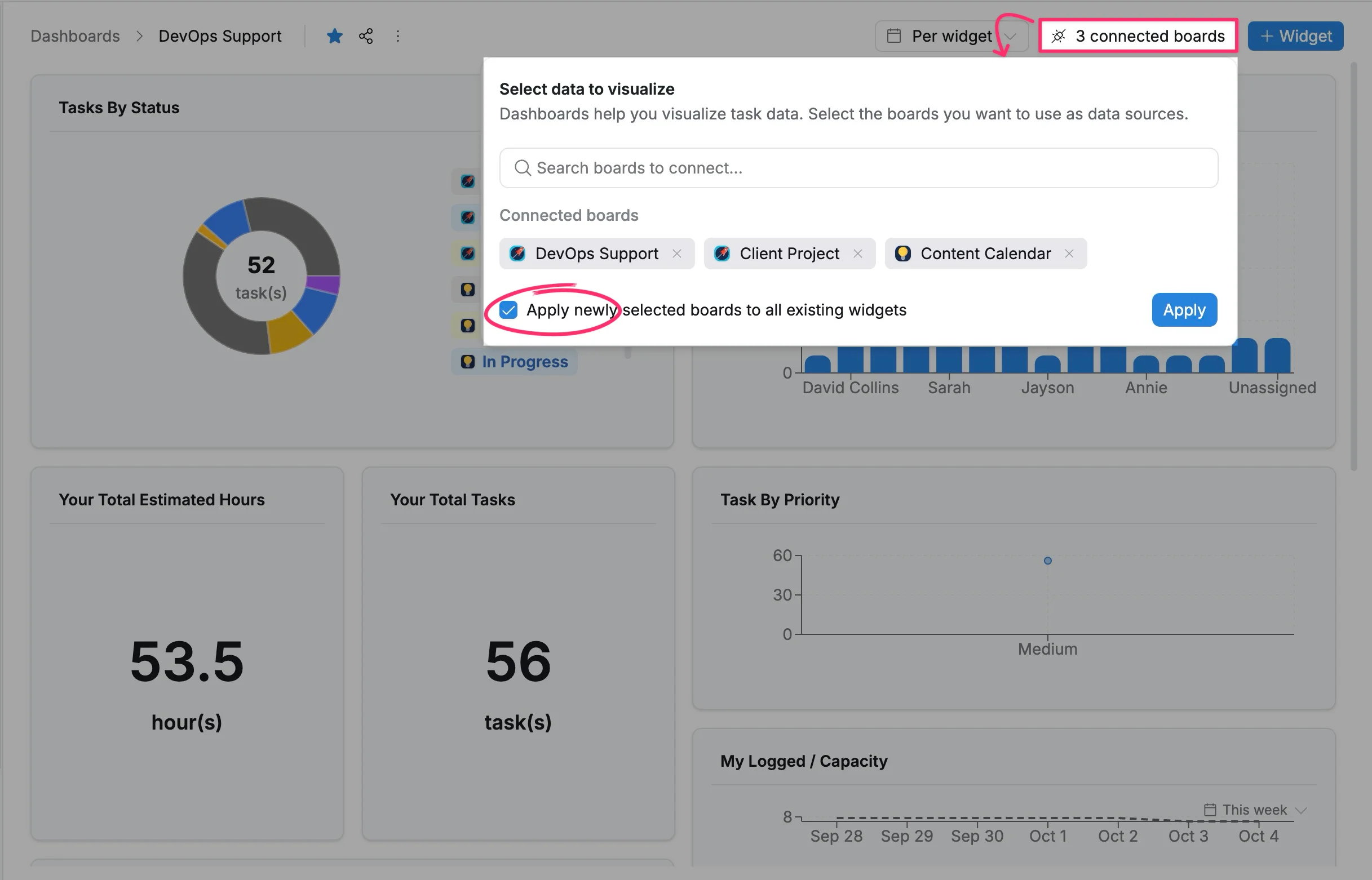
When you add new boards, you can choose whether to apply them to existing widgets:
- Apply new boards to all existing widgets: Includes the newly connected boards in every existing widget. This option is enabled by default.
- Do not update existing widgets: Adds the boards as available data sources only. Existing widgets keep their current configuration, and you can update each widget individually when needed.
Configure data for individual widgets
Each widget can have its own data configuration, so different widgets on the same dashboard can display information from different boards.
To configure a widget:
- Open the dashboard.
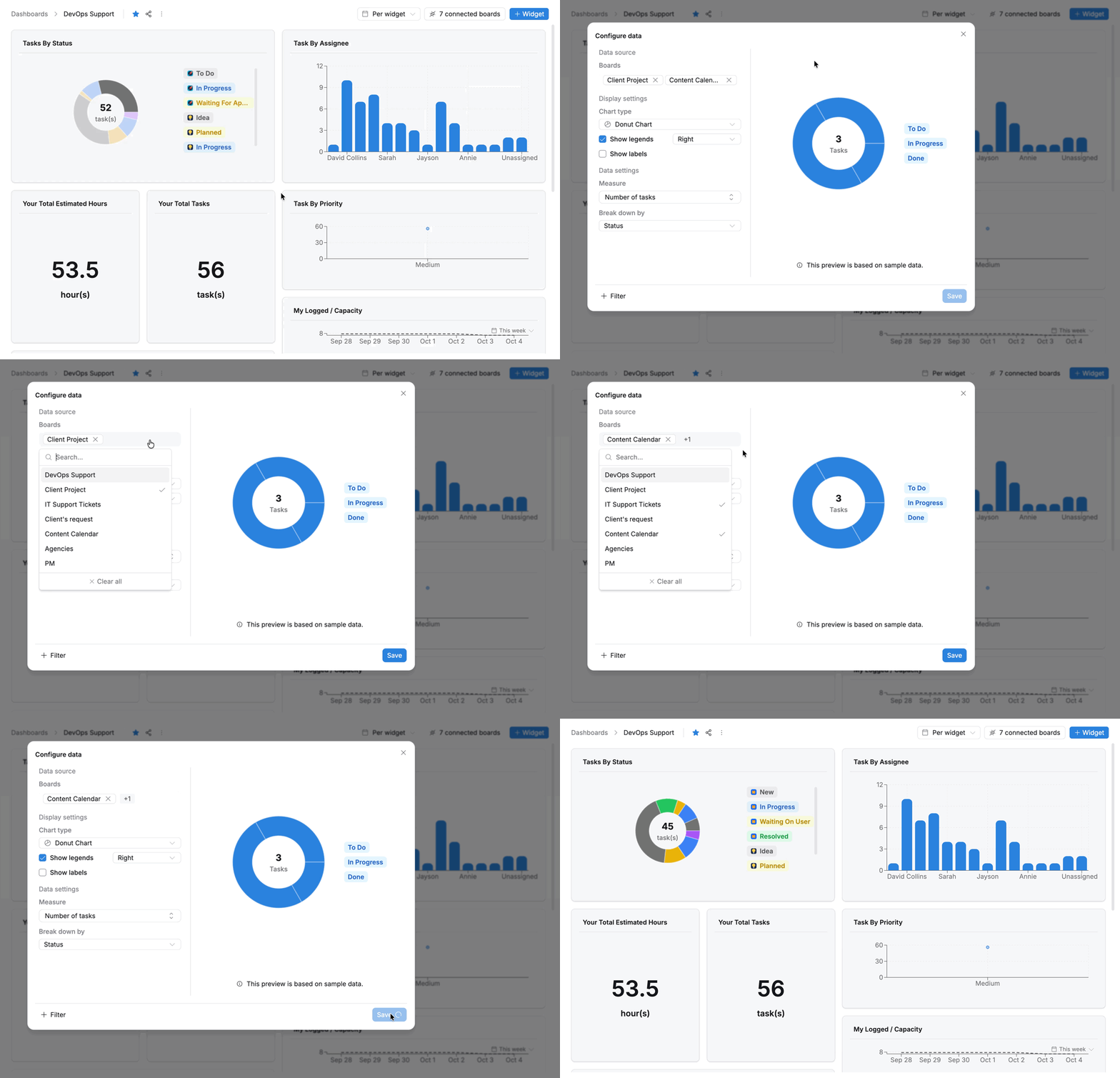
- Select Edit on the widget.
- Open Configure data.
- Select the boards you want to include.
- Save your changes.
The widget will update based on the selected data.
Dashboard widgets can only use data from boards selected as the dashboard’s data source.
To use another board, add it to the dashboard’s connected boards first.
Dashboard data permissions
Dashboard widgets display data from connected boards. To view dashboard metrics, users must have permission to access the connected boards used as the dashboard data source.
If a user cannot see data from a connected board, check their board access permissions.