Manage dashboards
Create, share, organize, and manage dashboards in TaskFord with options to update settings, control access, and keep your workspace organized.
Create a dashboard
Site Admins / Site Editors can create dashboards.
- Go to Dashboards from the left sidebar.
- On the Dashboards page, click + Dashboards in the top-right corner of the screen.
- In the pop-up, enter a name and set privacy for your new dashboard.
- Click Create to generate the new dashboard.
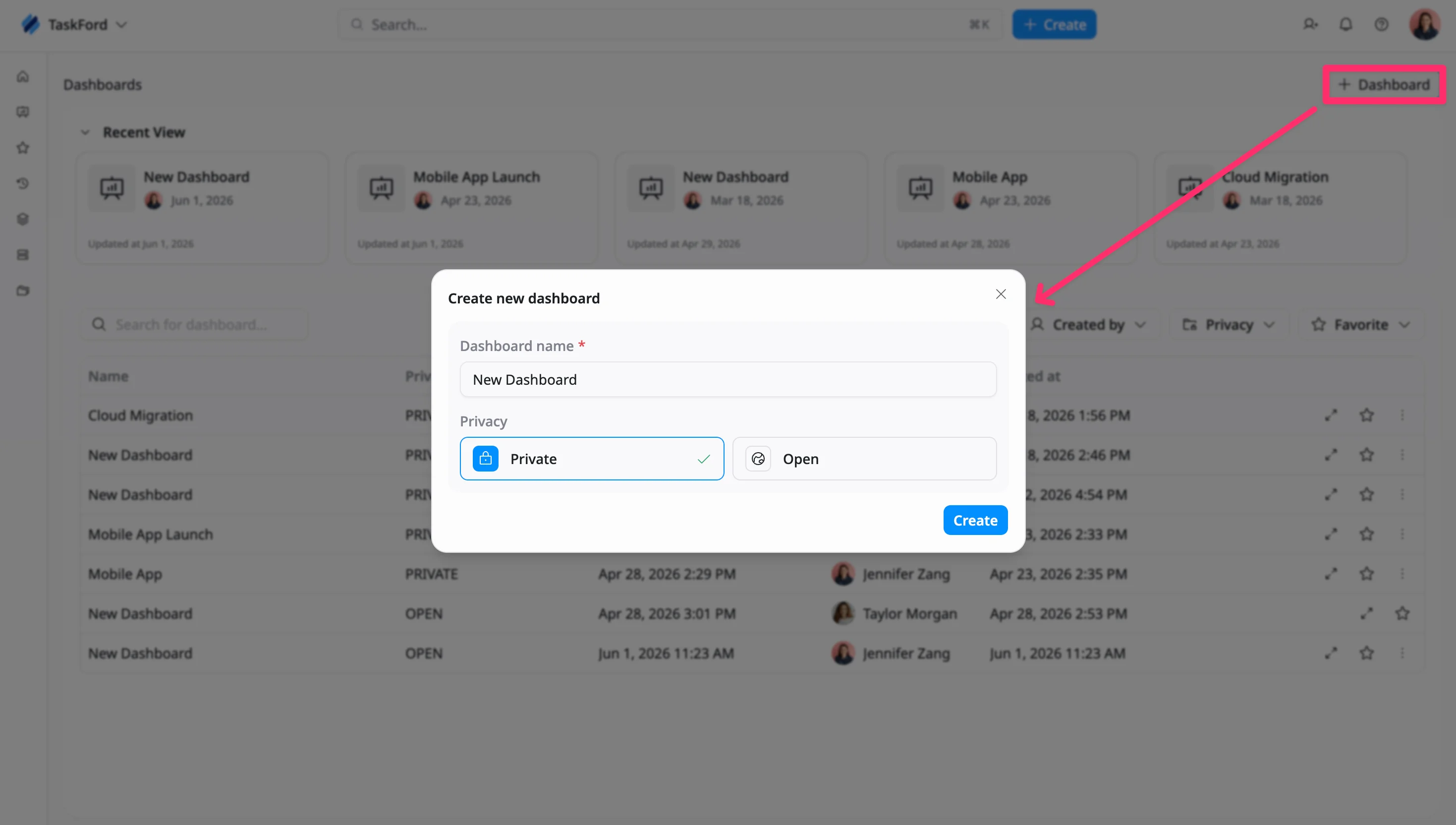
Your dashboard is now created and displayed in the Dashboards page.
Choose a dashboard template
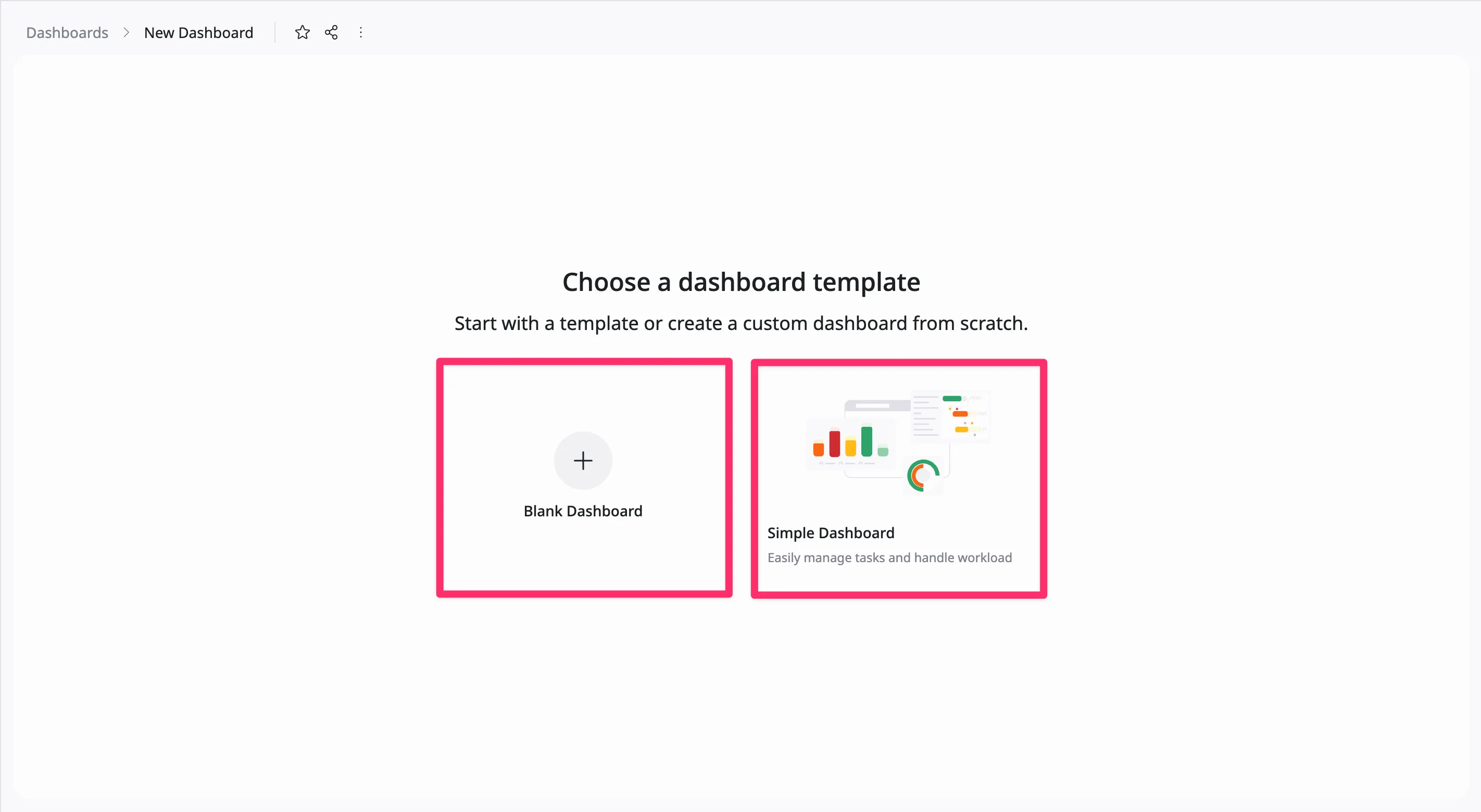
After creating a dashboard, choose how you want to set it up and connect it to your data.
-
Select how you want to start:
- Blank Dashboard: Start from scratch and add, resize, and configure widgets manually
- Simple Dashboard: Start with a pre-configured template
- Select data source
Select one or more boards from your space as the dashboard’s data source. Dashboard pulls data from your connected boards to display in widgets.
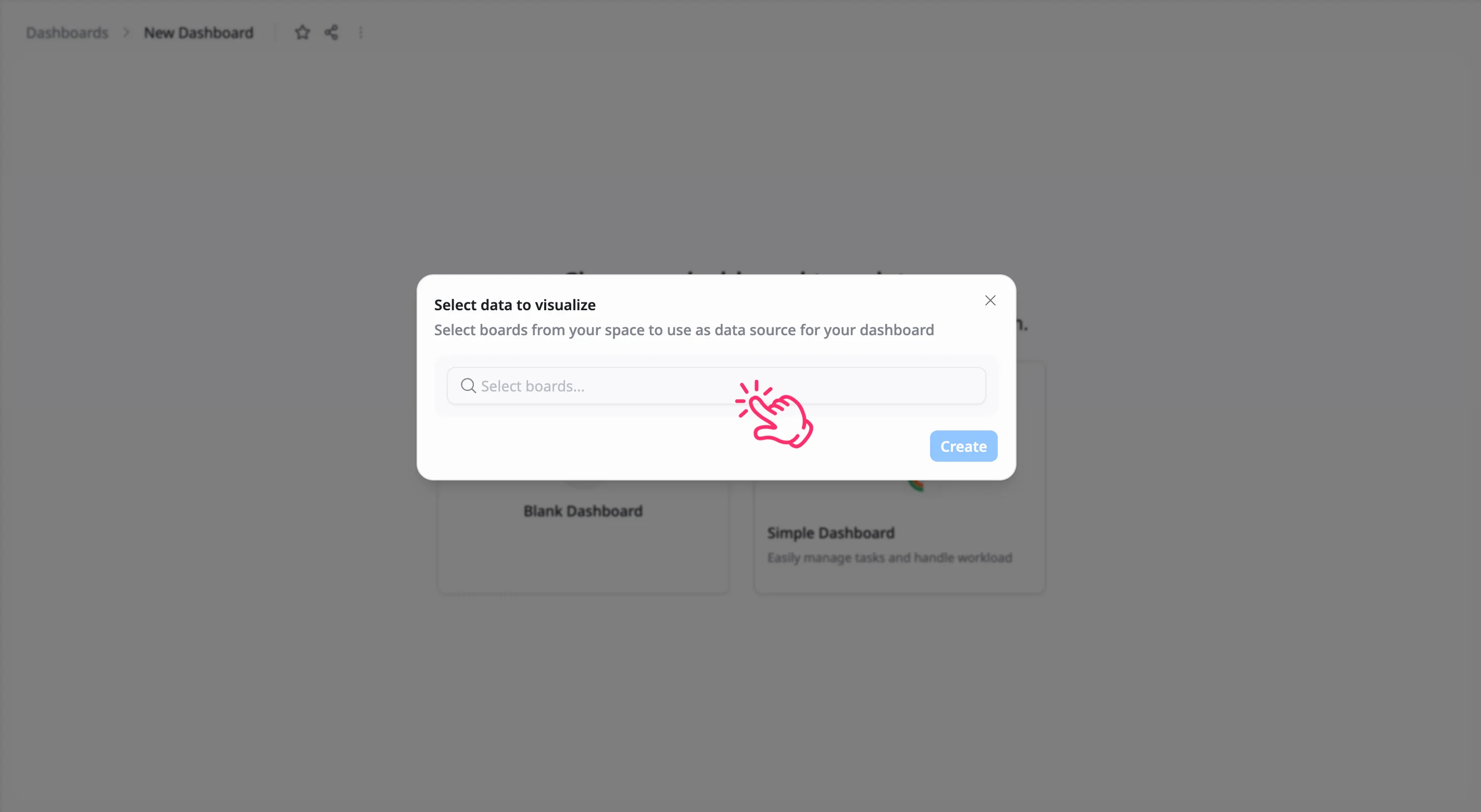
- Click Create to complete the setup and open your dashboard.
Update data source
Only Dashboard Admins can update the data source for a dashboard.
Update the data source to control which boards can be used across your widgets.
To update the data source:
- Open the specific dashboard you wish to update.
- Click the connected boards button in the top-right corner of the dashboard.
- In the Data source dropdown:
- Add boards: Select additional boards from the dropdown list.
- Remove boards: Click the × next to a board name or deselect it from the list.
- Search: Use the search field to locate specific boards.
- Apply newly selected boards to all existing widgets
- Click Apply to save the changes.
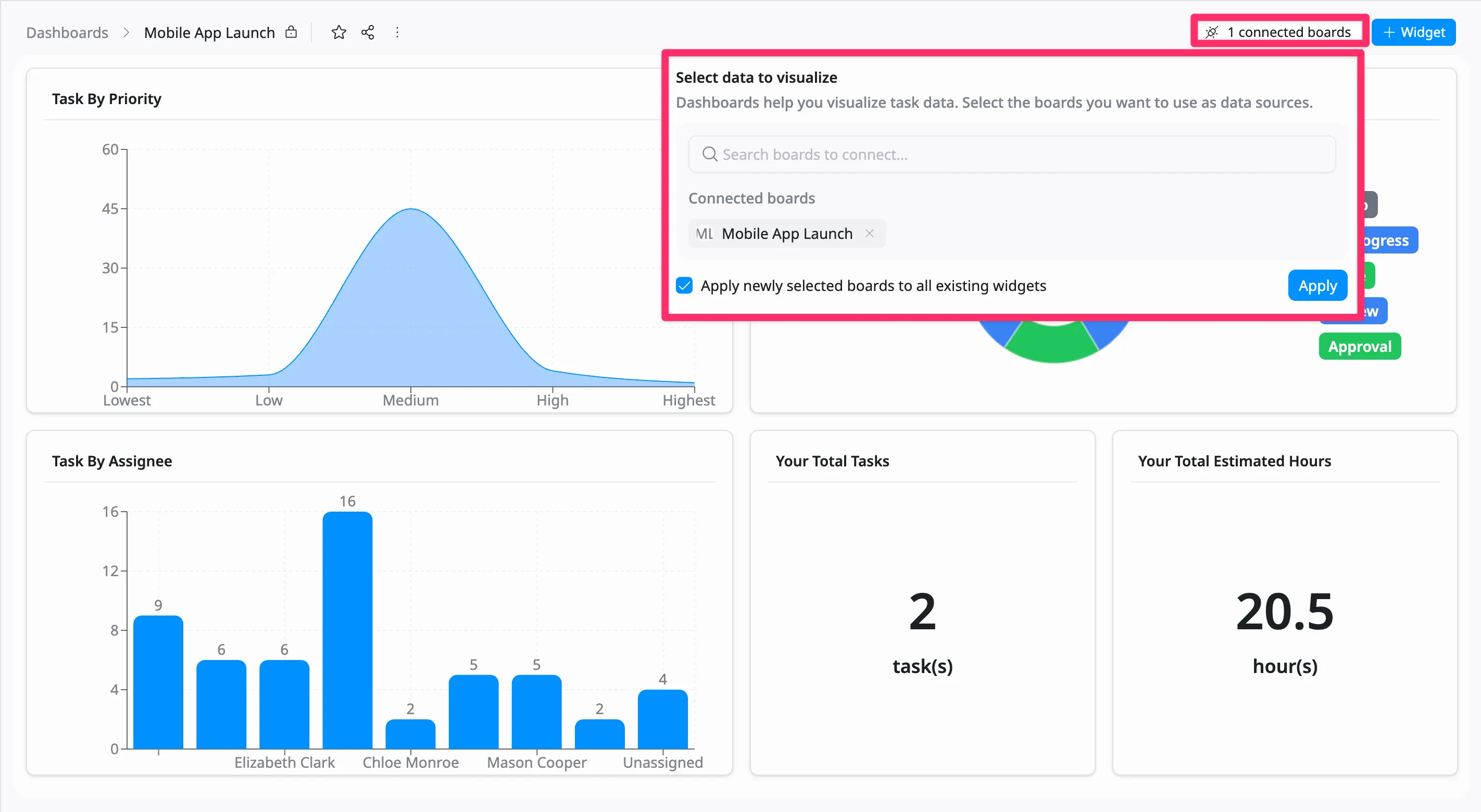
Widgets can only use data from the boards selected as the dashboard’s data source. To use other boards, update the data source first.
If a team member can’t access some connected boards, you’ll need to subscribe them to view Board content. If the Dashboard admin isn’t the board admin, they must contact the admin to grant access.
Open a dashboard
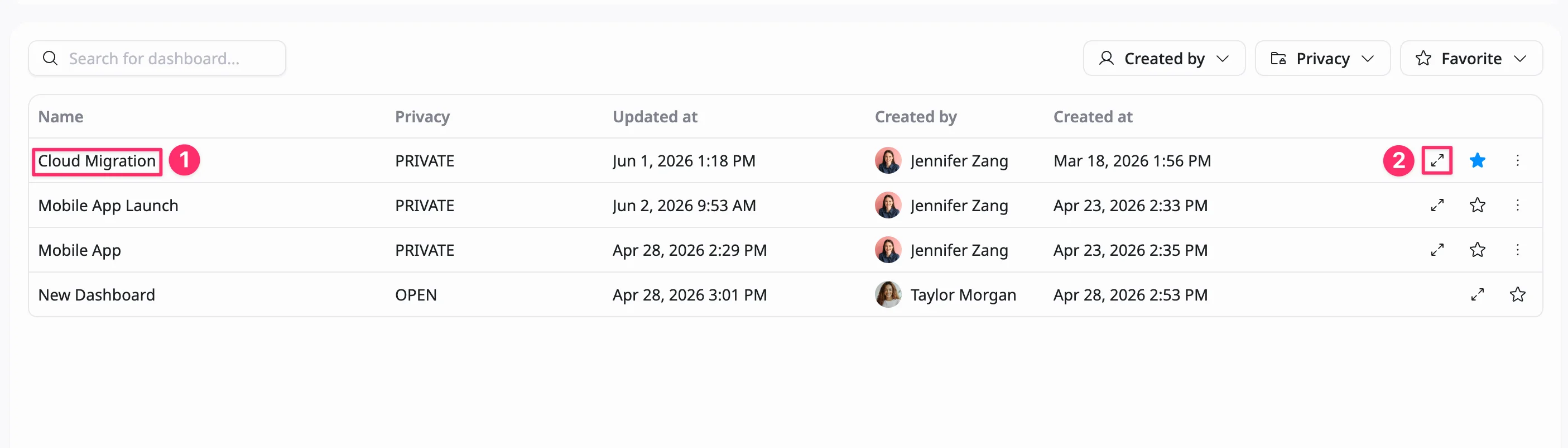
You can open a dashboard from the Dashboards page in two ways:
- Click the dashboard name.
- Click the Open icon on the dashboard row.
The dashboard will be opened in a detailed view.
Star a dashboard
Anyone with access to a dashboard can star a dashboard.
You can star a dashboard to mark it as important and quickly find it later using the Favorite filter. Your Starred list is personal; other members in your workspace can’t see your favorites.
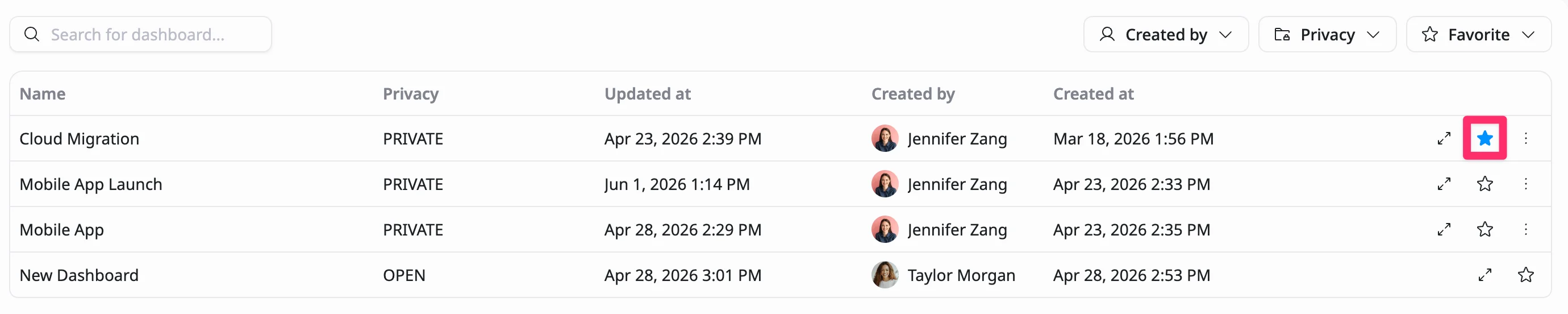
You can star a dashboard in two ways:
Option 1: From the Dashboards list
- Locate the dashboard you want to star in the list.
- Click the Star icon next to the dashboard name.
Option 2: From within the dashboard
- Open the dashboard you want to star.
- Click the Star icon in the top bar.
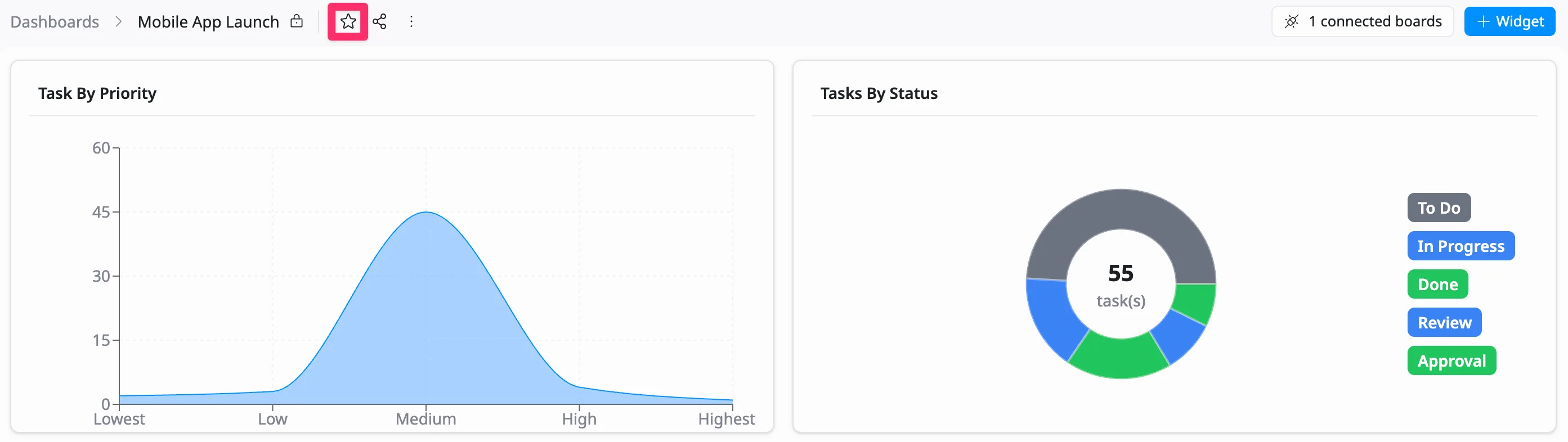
The star will be highlighted, indicating the dashboard has been added to your favorites.
Rename a dashboard
Only Dashboard Admins can rename a dashboard.
You can rename a dashboard to better reflect its purpose or content, making it easier to identify and manage.
There are two ways to rename a dashboard:
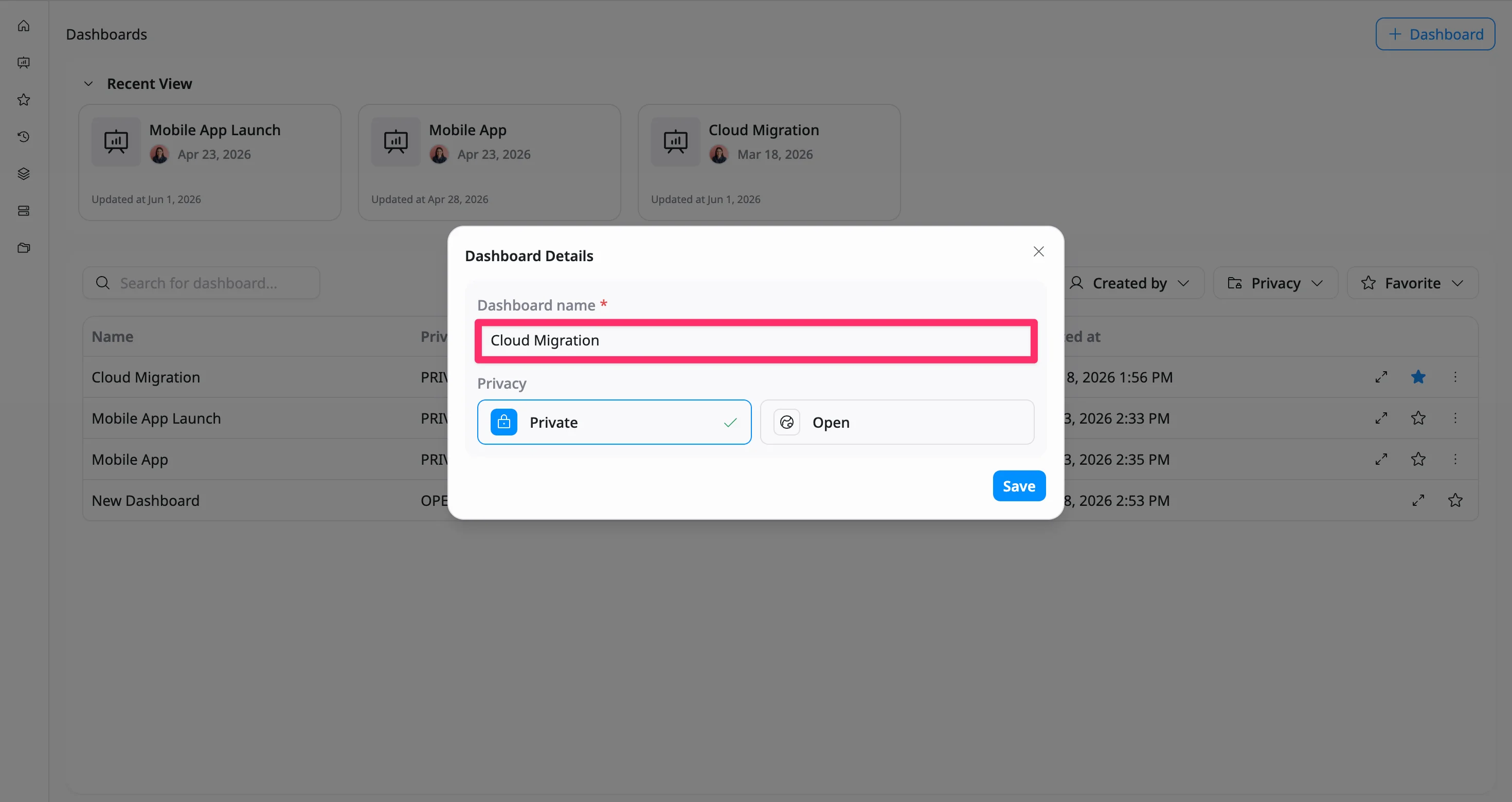
Option 1: From the Dashboards list
- Locate the dashboard you want to rename in the list.
- Click the three vertical dots (⋮) on the dashboard row.
- Select Edit from the dropdown menu.

- In the Dashboard Details dialog, update the name in the Name field.
- Click Save to apply the changes.
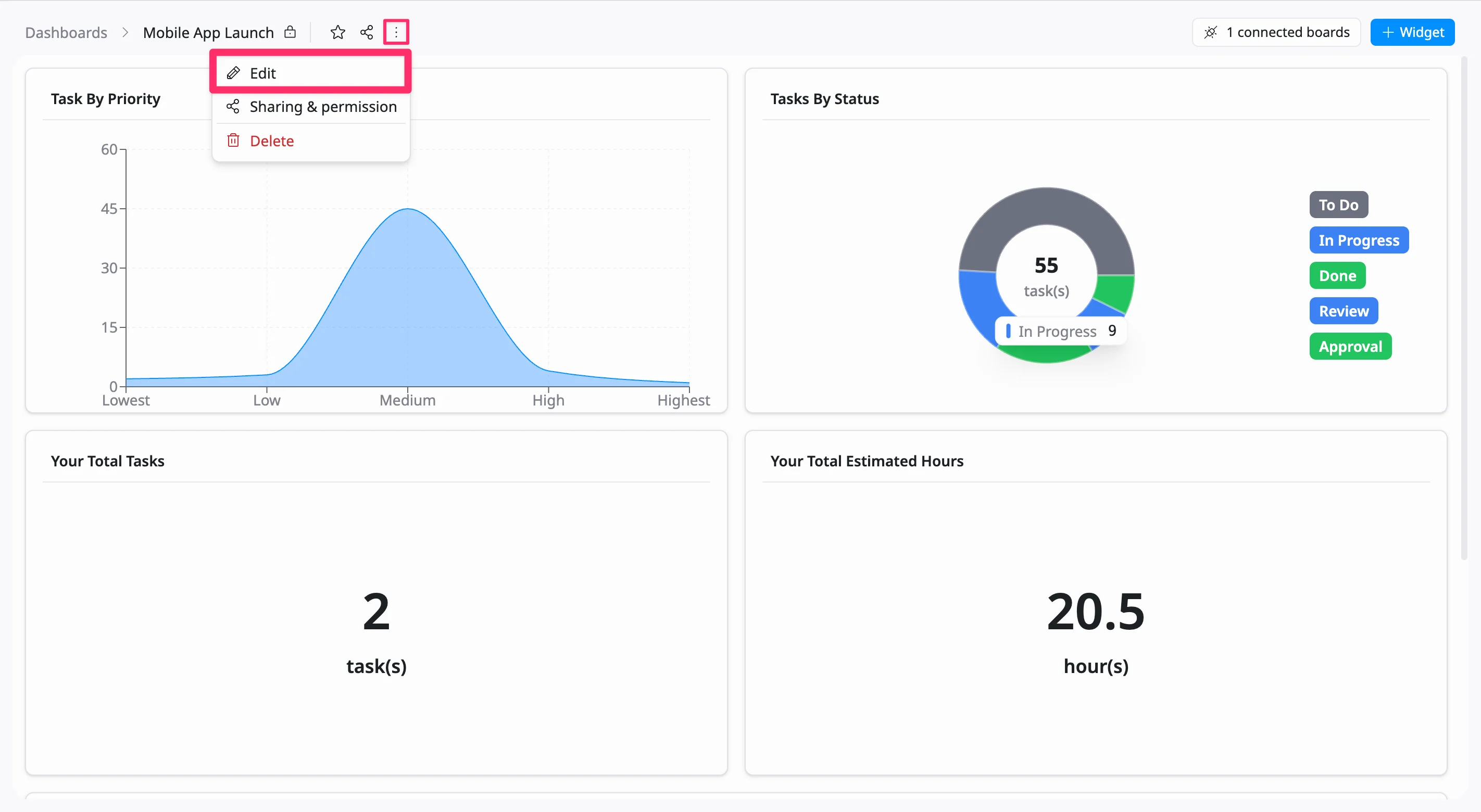
Option 2: From within the dashboard
- Open the dashboard.
- Click the three vertical dots (⋮) in the top bar.
- Select Edit from the dropdown menu.
 on
on
- In the Dashboard Details dialog, update the name in the Name field.
- Click Save to apply the changes.
Set dashboard privacy
Only Dashboard Admins can set dashboard privacy.
Privacy settings allow you to control who can access your dashboard and how widely it is shared within your site.
- If a dashboard is set to Open, it is visible to everyone in your workspace.
- If a dashboard is set to Private, it is visible only to you and the specific members you invite.
You can update dashboard privacy in two ways.
Option 1: From the Dashboards list
- Go to the Dashboards page.
- Locate the dashboard you want to update.
- Click the three vertical dots (⋮) on the dashboard row.
- Select Edit from the dropdown menu.
-
In the Dashboard Details dialog, choose a privacy setting:
- Open – accessible to anyone on your Site
- Private – visible only to you and invited members
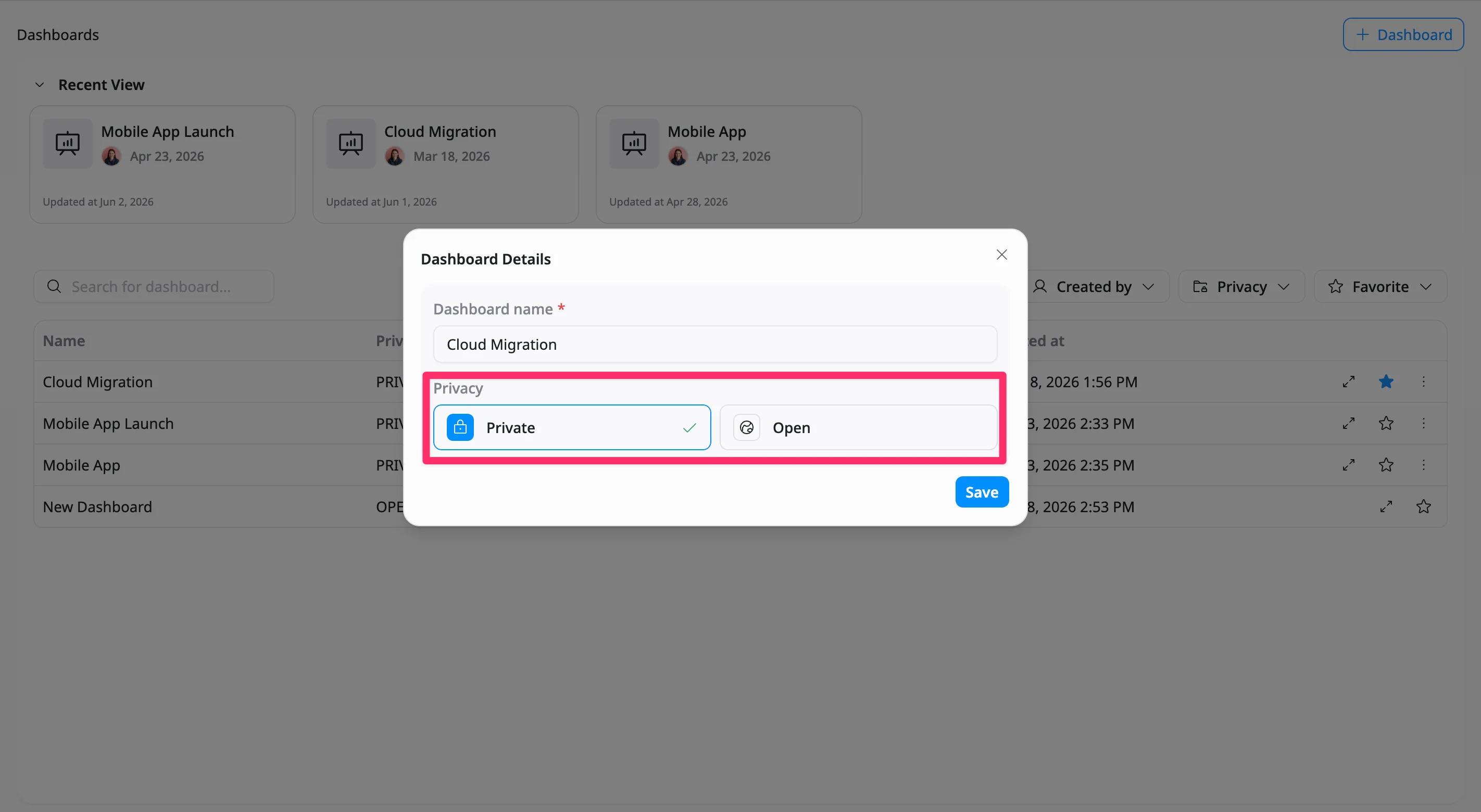
- Click Save to apply the changes.
Option 2: From within the dashboard
- Open the specific dashboard.
- Click the three vertical dots (⋮) in the top bar.
- Select Edit from the dropdown menu.
- In the Dashboard Details dialog, choose a privacy setting (Open or Private).
- Click Save to apply the changes.
Share a dashboard
Dashboard Admins / Dashboard Editors can share a dashboard.
You can invite both existing site members and external users to a dashboard
- Internal users: Existing site members are added to the dashboard immediately.
- External users: When you invite someone outside your organization, a site invitation is sent. They must accept the invitation to join the site before they can access the dashboard.
Share a dashboard with your team to control who can access, view, or edit its data.
There are two ways to share a dashboard:
Option 1: From the Dashboards list
- Locate the desired dashboard in the list.
- Click the three vertical dots (⋮) on the dashboard row.
- Select Sharing & permission from the dropdown menu.
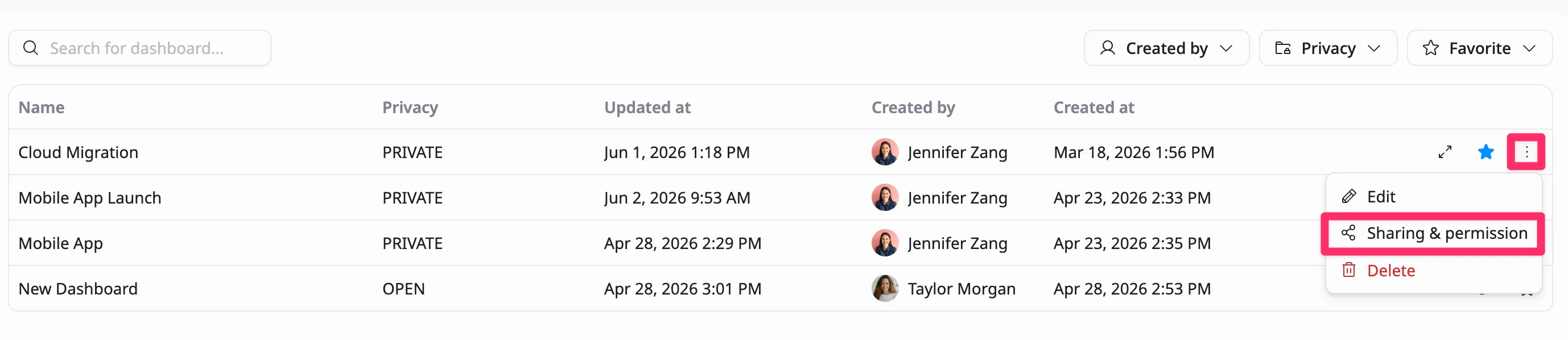
- The Sharing & permissions dialog will open.
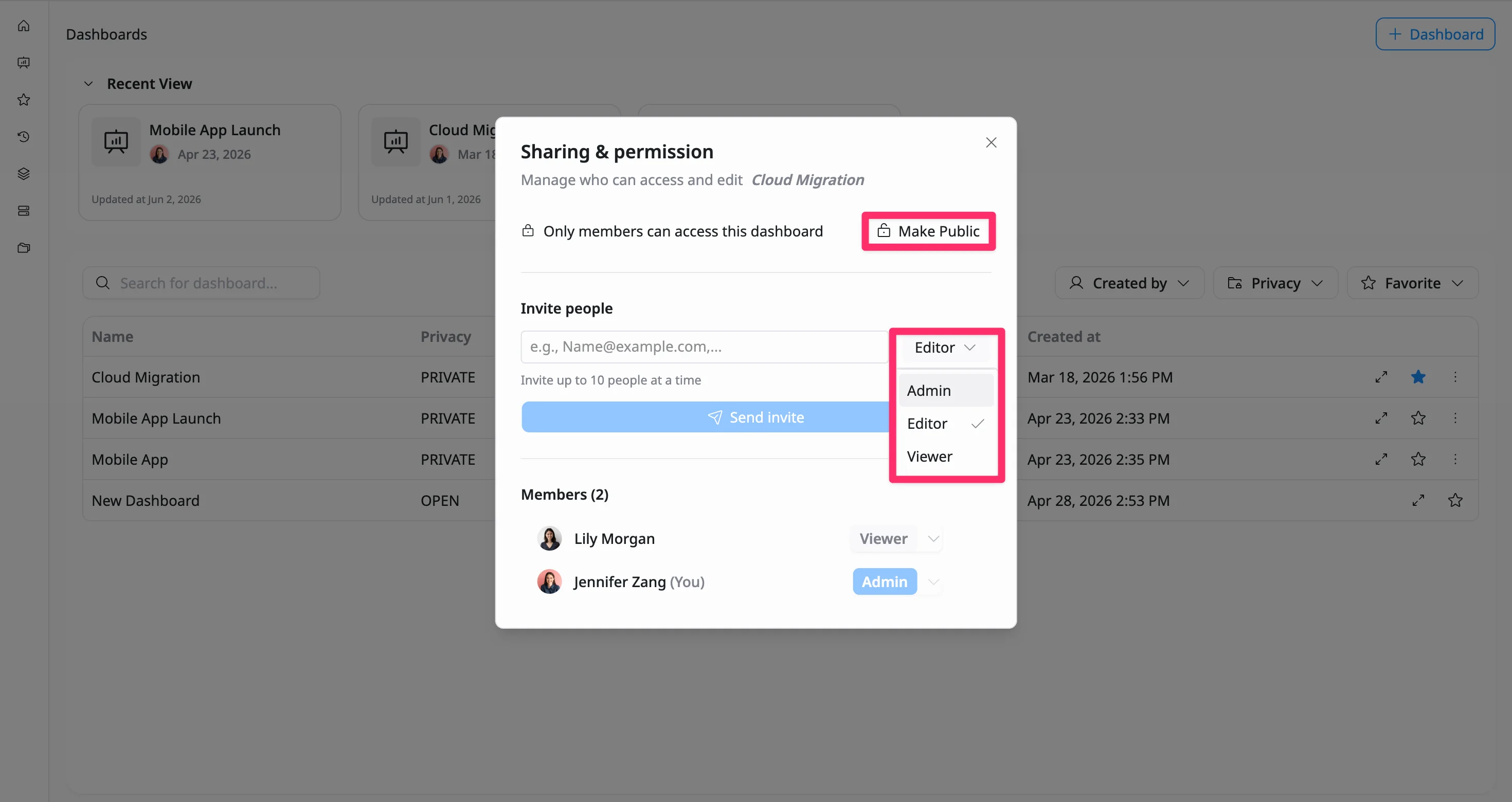
- Manage access as needed
- Set privacy: Click the Make Private / Make Public toggle to switch between Open and Private (Only Dashboard Admins can set dashboard privacy)
- Invite people: Enter a member’s name or email
- Assign a role: Select Admin, Editor, or Viewer
- Click Send invite to grant access.
Option 2: From within the dashboard
- Open the desired dashboard.
- Click the Link icon in the top-left corner.
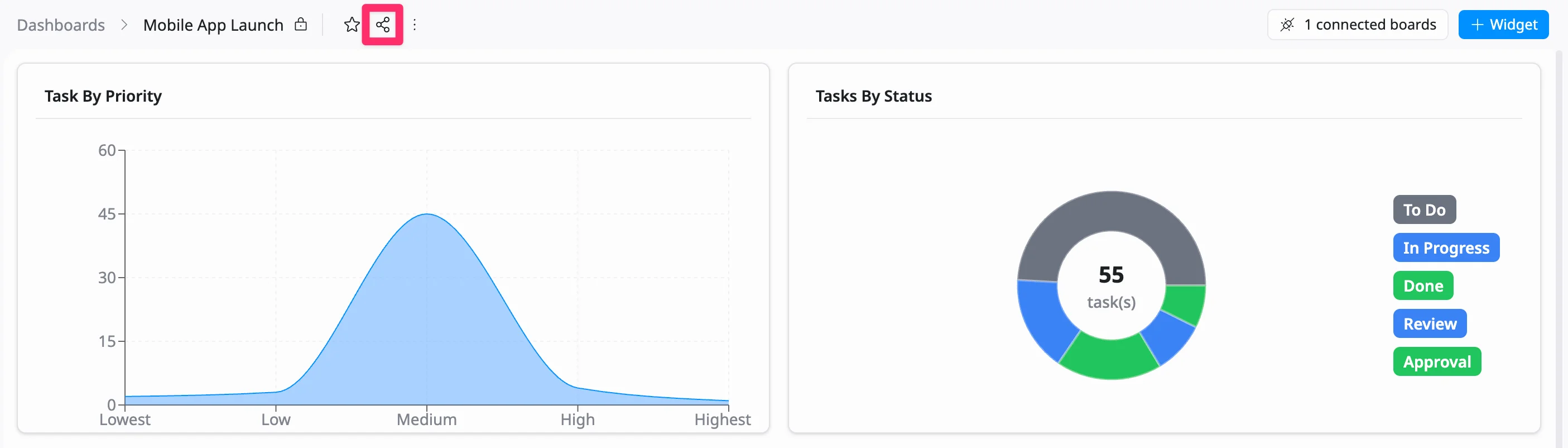
- The Sharing & permissions dialog will open.
- Manage access (privacy, invites, and roles).
- Click Send invite to grant access.
Roles (Admin, Editor, Viewer) determine what users can do on a dashboard. See Permissions for more details.
Delete a dashboard
Only Dashboard Admins can delete a dashboard.
Delete dashboards that are no longer relevant to keep your workspace organized and focused. You can remove a dashboard in two ways:
Option 1: From the Dashboards list
- Locate the dashboard you want to delete in the list.
- Click the three vertical dots (⋮) on the dashboard row.
- Select Delete from the dropdown menu.
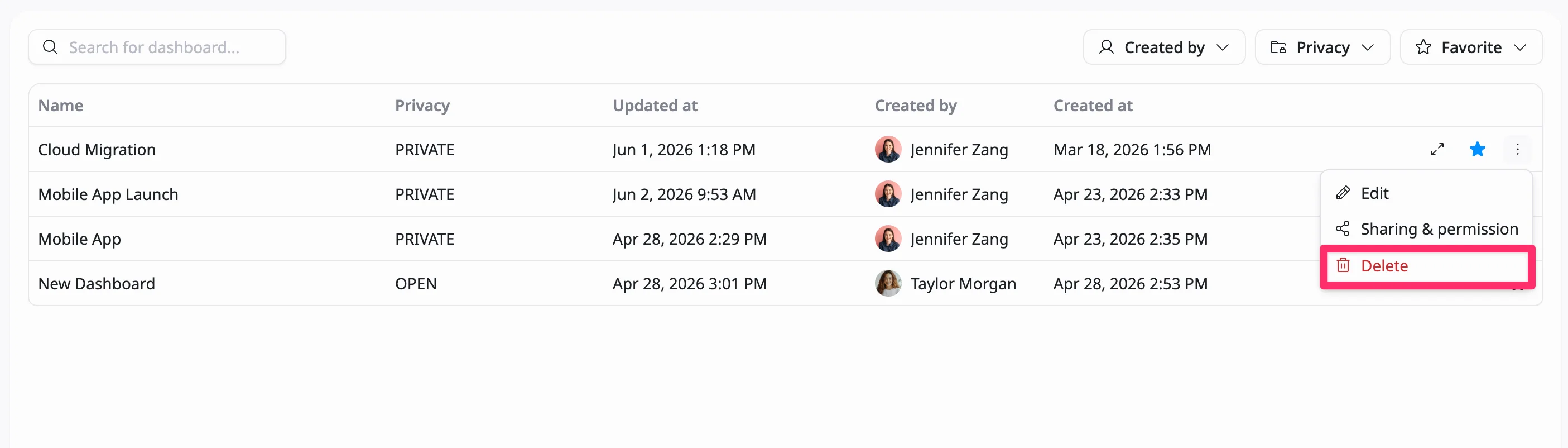
- In the confirmation dialog:
- Click Delete to remove the dashboard permanently
- Click Cancel to keep the dashboard
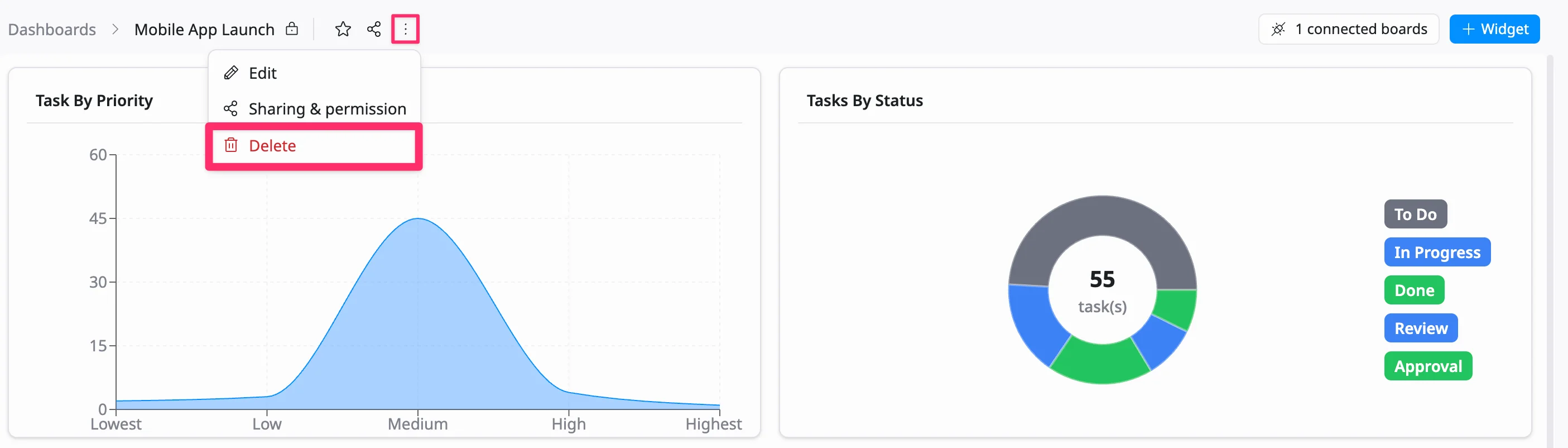
Option 2: From within the dashboard
- Open the dashboard you want to delete.
- Click the three vertical dots (⋮) icon in the top bar.
- Select Delete from the dropdown menu.
- Confirm the deletion in the dialog.
Deleting a dashboard is permanent and cannot be undone.