Manage payment methods
Learn how to securely add, update, and manage payment methods in TaskFord using the Stripe Customer Portal.
Only the Site Owner or users with Billing Manager permission can change billing cycle settings.
The Payment method page lets billing administrators add, update, or manage the card used for a TaskFord paid subscription. TaskFord uses the Stripe Customer Portal to securely manage payment details, so you may be redirected to Stripe when adding or updating a card.
Access the Payment method
To open payment method settings:
- Go to the Billing & Plans page.
- Select Payment methods in the left-hand menu.
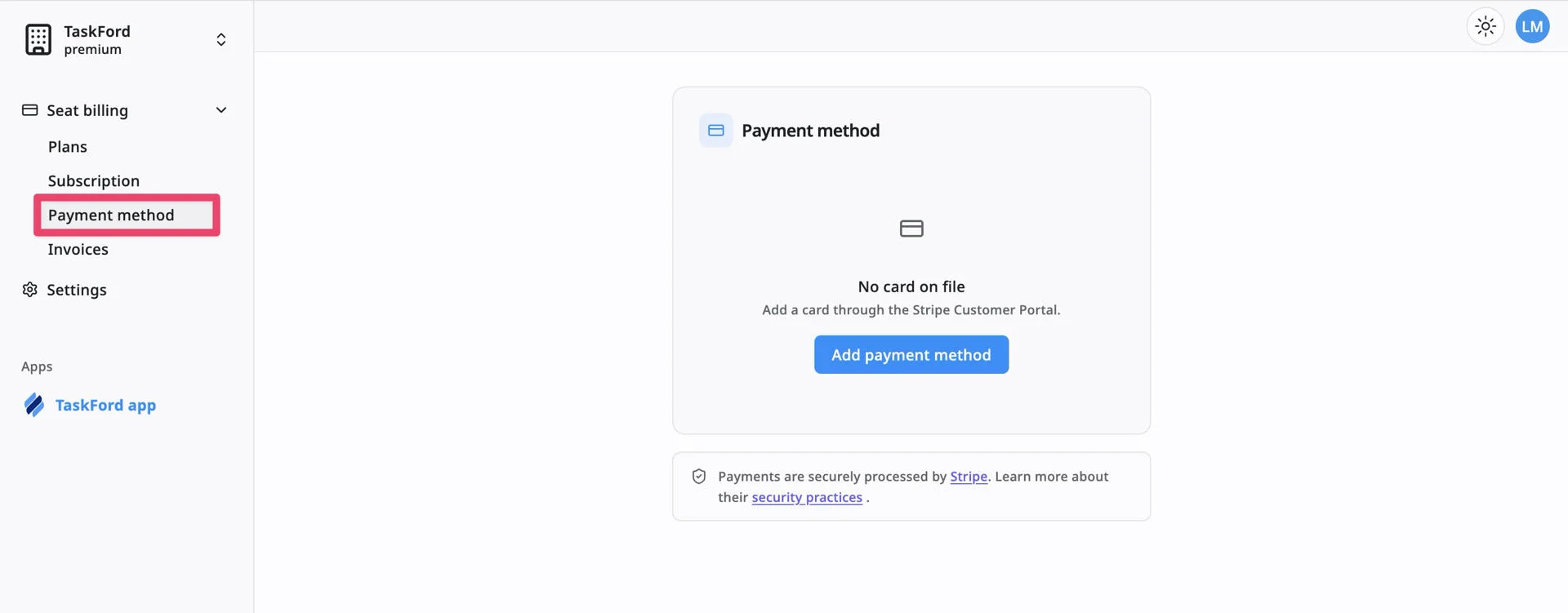
From this page, you can check whether a card is already on file, review the billing address, and manage the saved payment method.
Add a payment method
If no payment method has been added, the Payment method page shows “No card on file.”
To add a payment method, follow these steps:
- Navigate to the Payment method page.
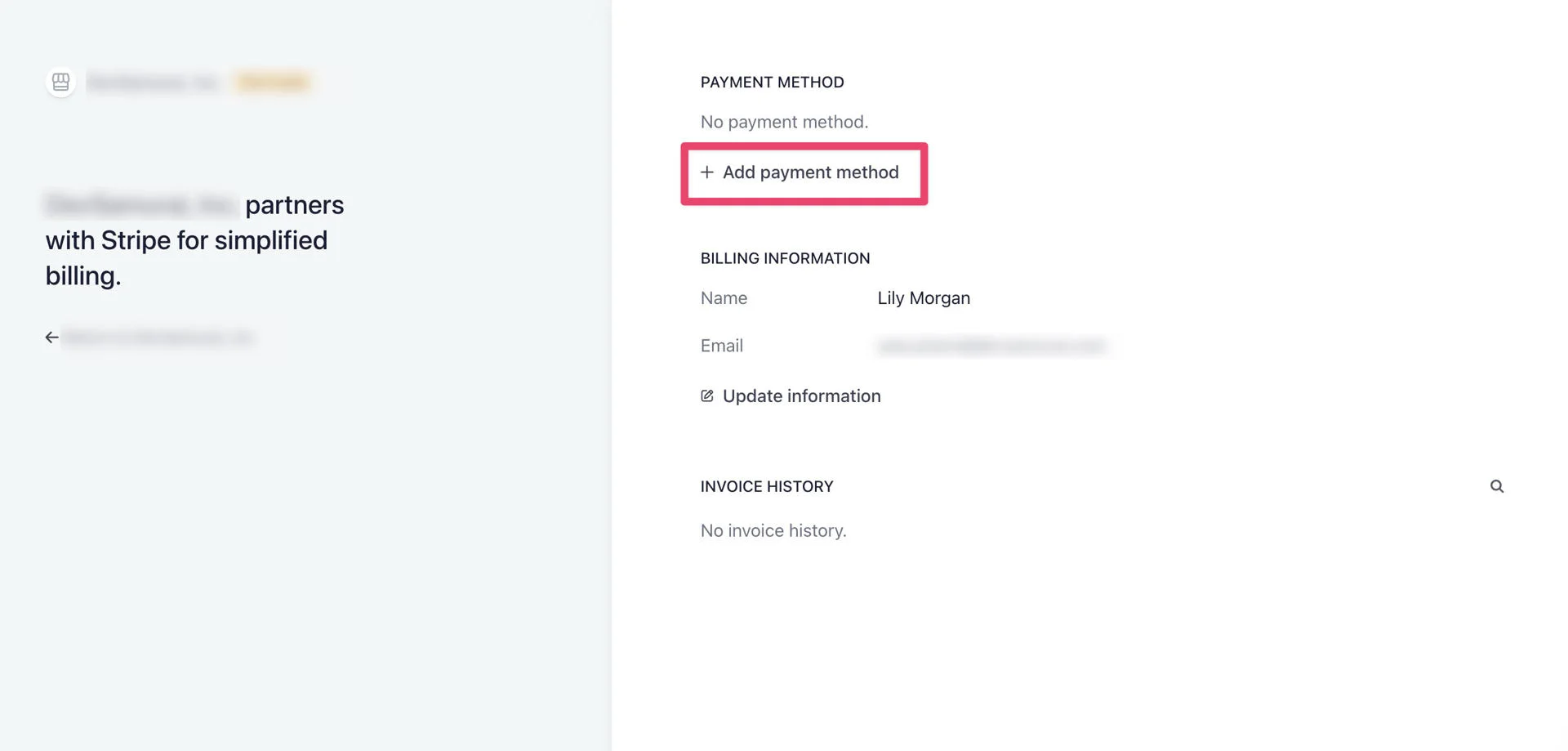
- Click Add payment method. This will direct you to the Stripe Customer portal, where you can modify your payment details, such as adding a new credit card or updating existing credit card information.
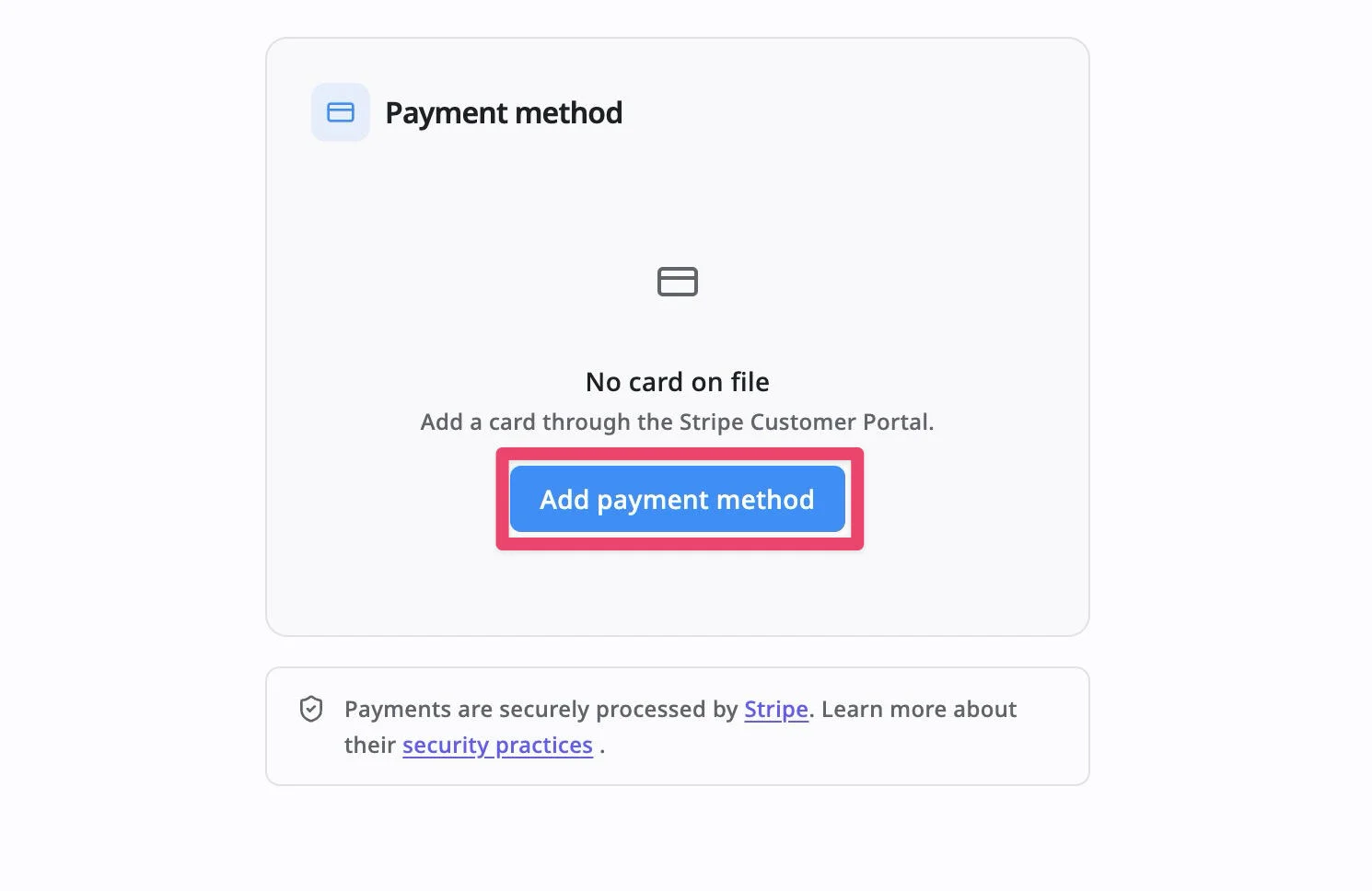
- In Stripe Customer portal, click the ‘Add payment method’ button.
 4. Input your new credit card details, including:Card number_Expiration date_Security code / CVC****Country or region
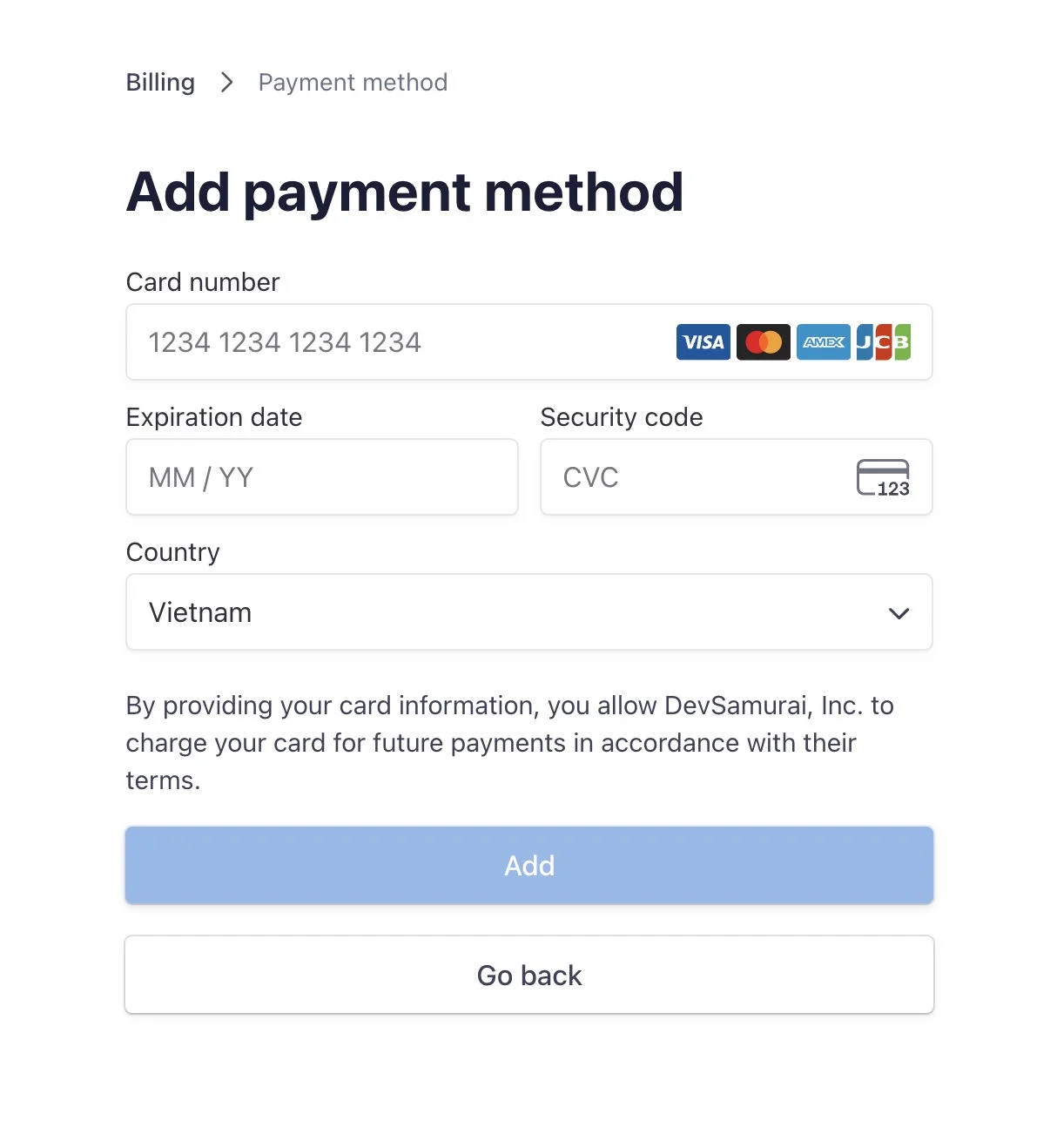 5. Review the authorization message. Click Add to save the payment method.
After the card is added, it can be used for future subscription charges, renewals, seat purchases, plan upgrades, and trial conversions.
You can add multiple payment methods by following the same steps above. After adding a new payment method, choose which one should be used as the default for future subscription payments.
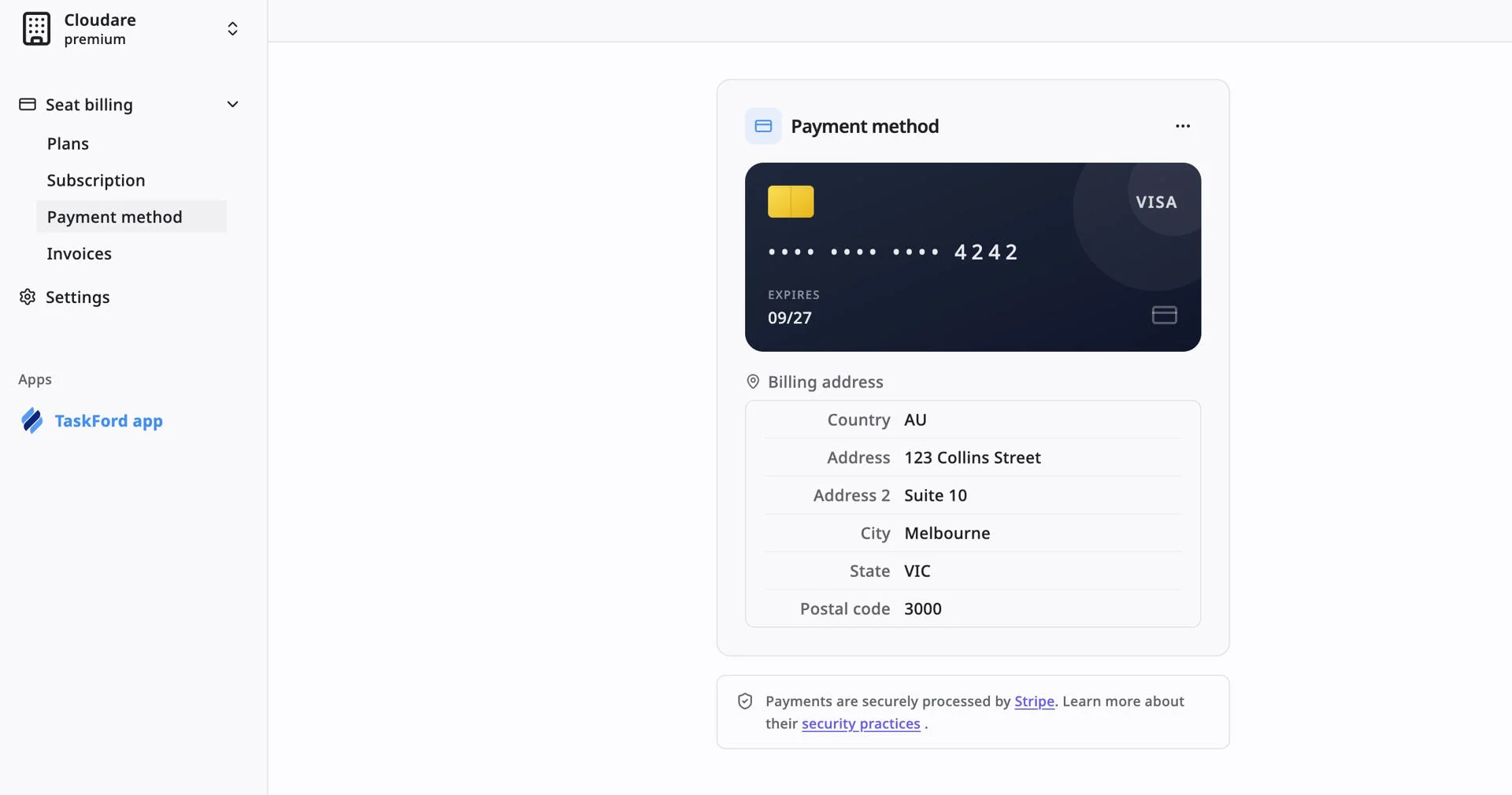
After a payment method is added successfully, the Payment method page shows the saved card and billing address.
Change the default payment method
If you have more than one payment method, you can choose which one Stripe should use for future TaskFord charges.
To change the default payment method:
- Open the Stripe Customer Portal.
- Go to the Payment Methods section.
- Find the card you want to use for future payments.
- Click the more options menu next to that card.
- Select Make default.
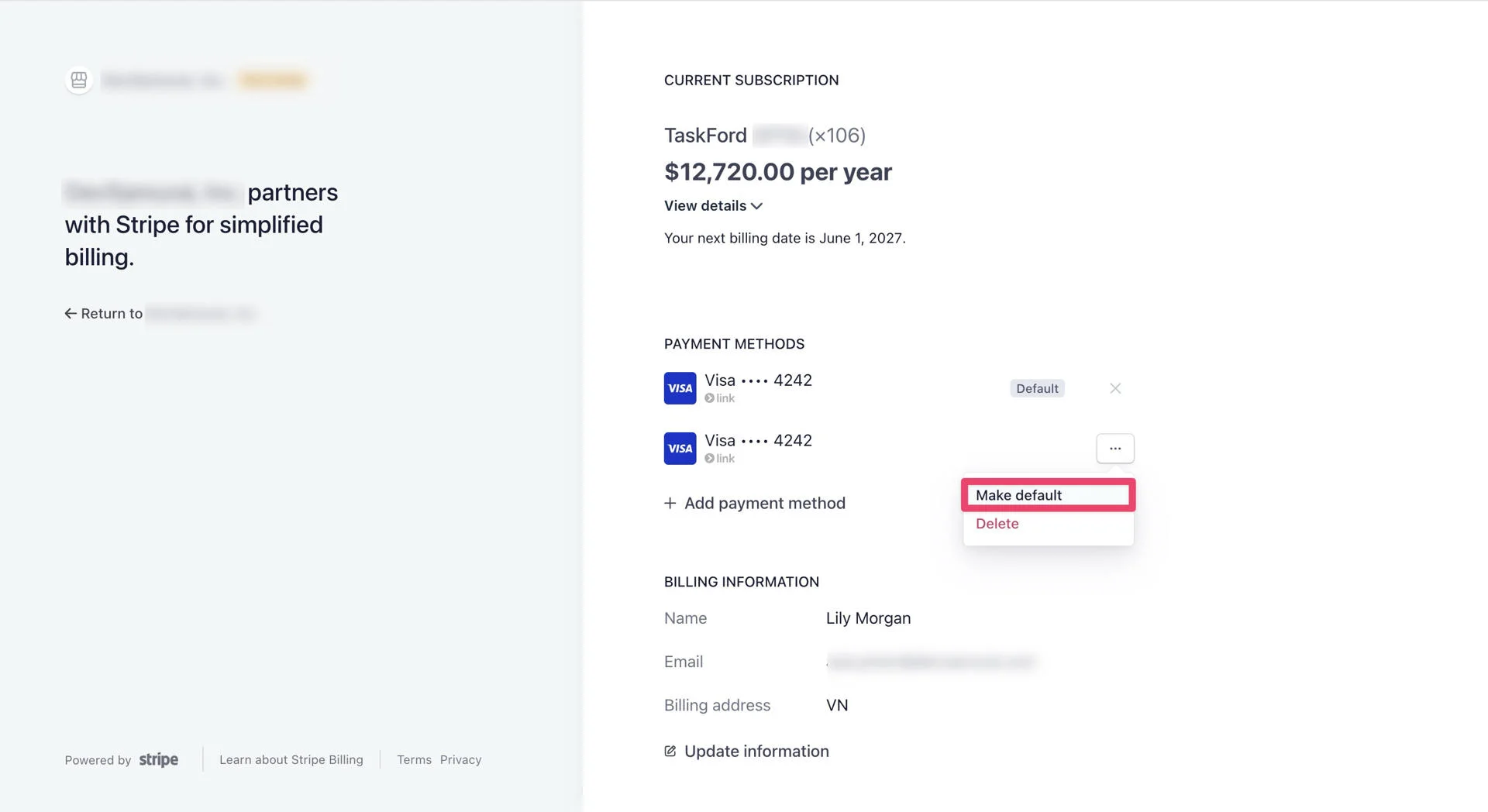
After the change is saved, the selected card becomes the default payment method for future TaskFord charges.
Delete a payment method
To delete an unneeded payment method from your TaskFord account, you can either remove it directly from your Payment method page or through the Stripe Customer Portal.
Note that if the card is tied to an active subscription, you must first add and set a new default card.
Option 1: From the Payment method page
Use this option when you want to quickly remove the saved card from TaskFord.
To delete a payment method:
- Navigate to the Payment method page.
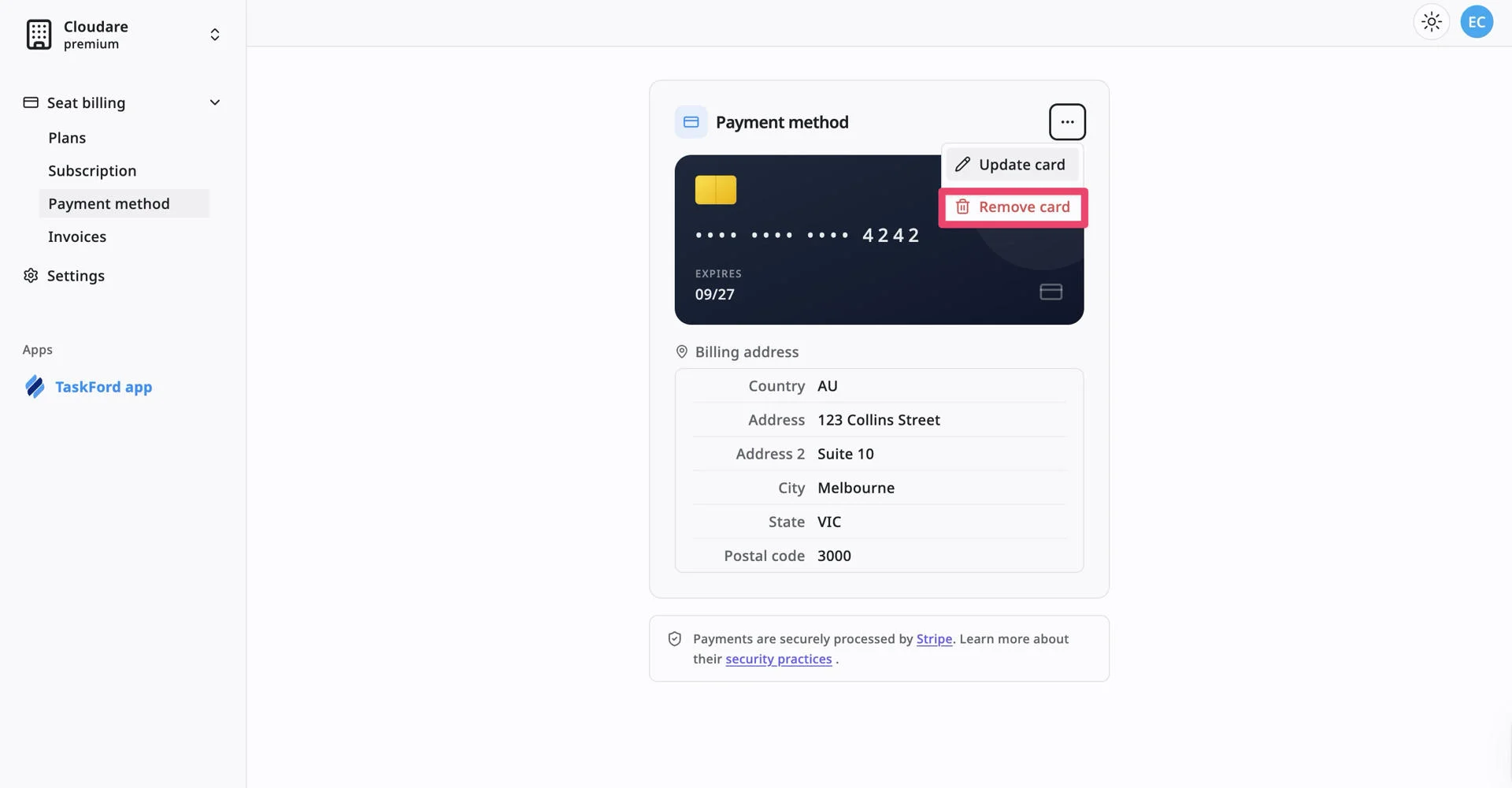
- Click the more options menu on the saved card.
- Select Remove card.
- Confirm the removal if prompted.
Option 2: Delete from the Stripe Customer Portal
Use this option when you are already managing billing details in Stripe.
To delete a payment method:
- Open the Stripe Customer Portal.
- Go to the Payment Methods section.
- Find the card you want to remove.
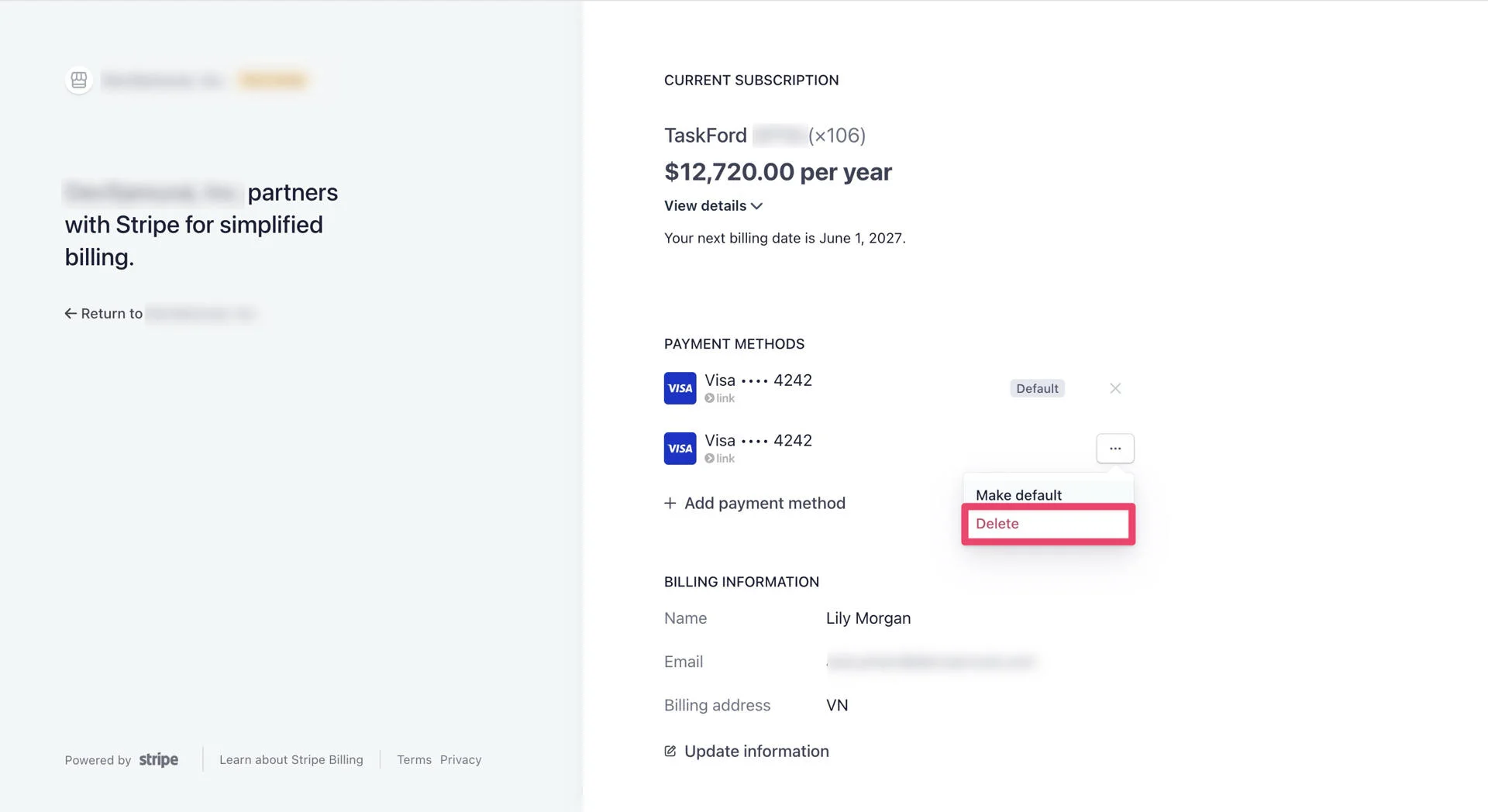
- Click the more options menu next to that card.
- Select Delete.
- Confirm the deletion if prompted.
If Stripe prevents you from deleting the card, it is likely your default payment method on an active paid subscription. To resolve this:
- Add a new payment method to your account.
- Set the new card as your default payment method.
- Proceed to delete the old card.
Frequently Asked Questions (FAQs)
Do I need a payment method to start a free trial?
No. TaskFord free trials do not require a credit card.
Why am I redirected to Stripe?
TaskFord uses Stripe to securely manage payment methods, subscription charges, invoices, and receipts.
Can I replace an expired card?
Yes. You can update the expiration date and billing details of a saved card. To change the card number, you must delete the old card and add a new one.
Will changing my payment method affect my plan?
No. Updating your payment method does not change your plan, seat count, billing cycle, or subscription status. It only changes how future charges are paid.