Manage portfolio boards
Control portfolio boards in TaskFord by adding or removing boards to keep your portfolio organized and aligned with active projects.
Who can use this feature?
- Portfolio Admins can add, remove, or manage portfolio boards.
- Portfolio Editors / Viewers can view connected boards but cannot make changes.
Managing portfolio boards allows you to control which boards are included in a portfolio. You can add existing boards, remove boards that are no longer needed, and keep the portfolio aligned with current projects and priorities. This ensures the portfolio always reflects the work you want to track.
Add boards to a portfolio
You can add boards to a portfolio in two ways: during portfolio creation or after the portfolio has been created.
Option 1: Add boards when creating a portfolio
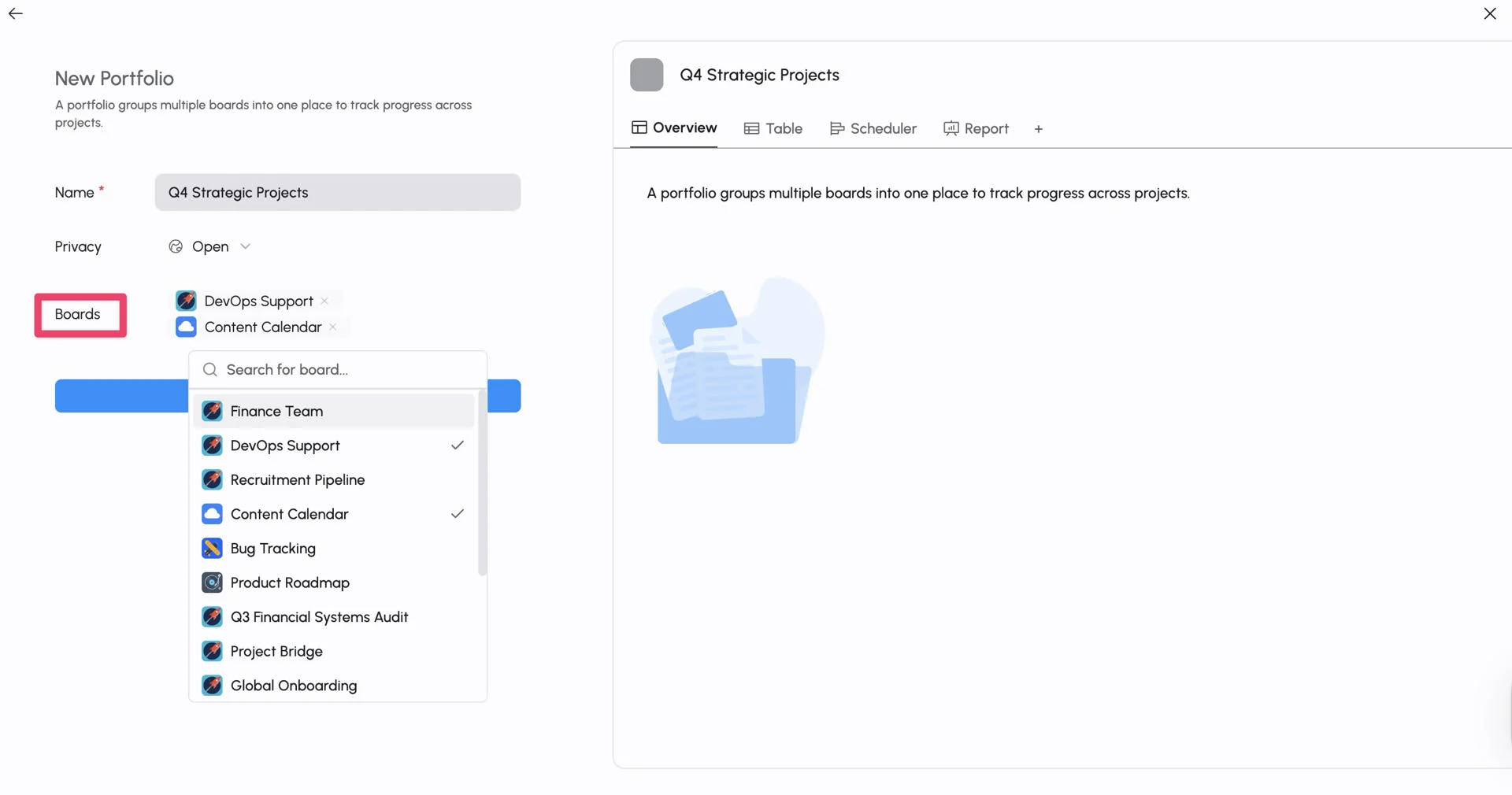
When creating a new portfolio, you can immediately connect boards:
- Open the Create Portfolio screen.
- Enter the portfolio name and set privacy.
- In the Boards field, search for and select one or more existing boards.
- Click Create to create a new Portfolio.
Option 2: Add boards to an existing portfolio
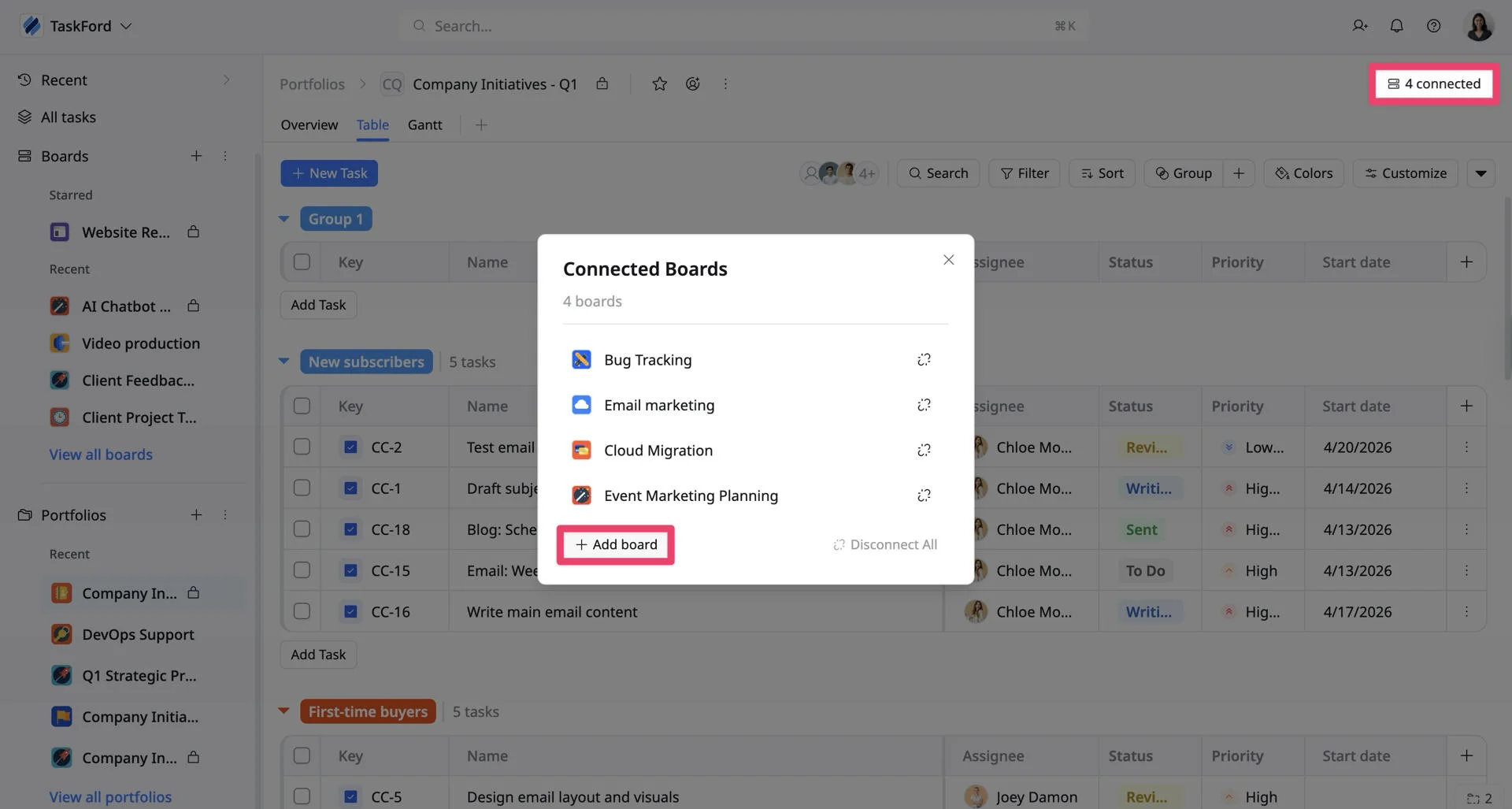
- Open the portfolio you want to update.
- In the top-right corner, click Connected boards.
- In the pop-up window, click + Add board.
- Search for and select one or more boards from the list.
Remove boards from a portfolio
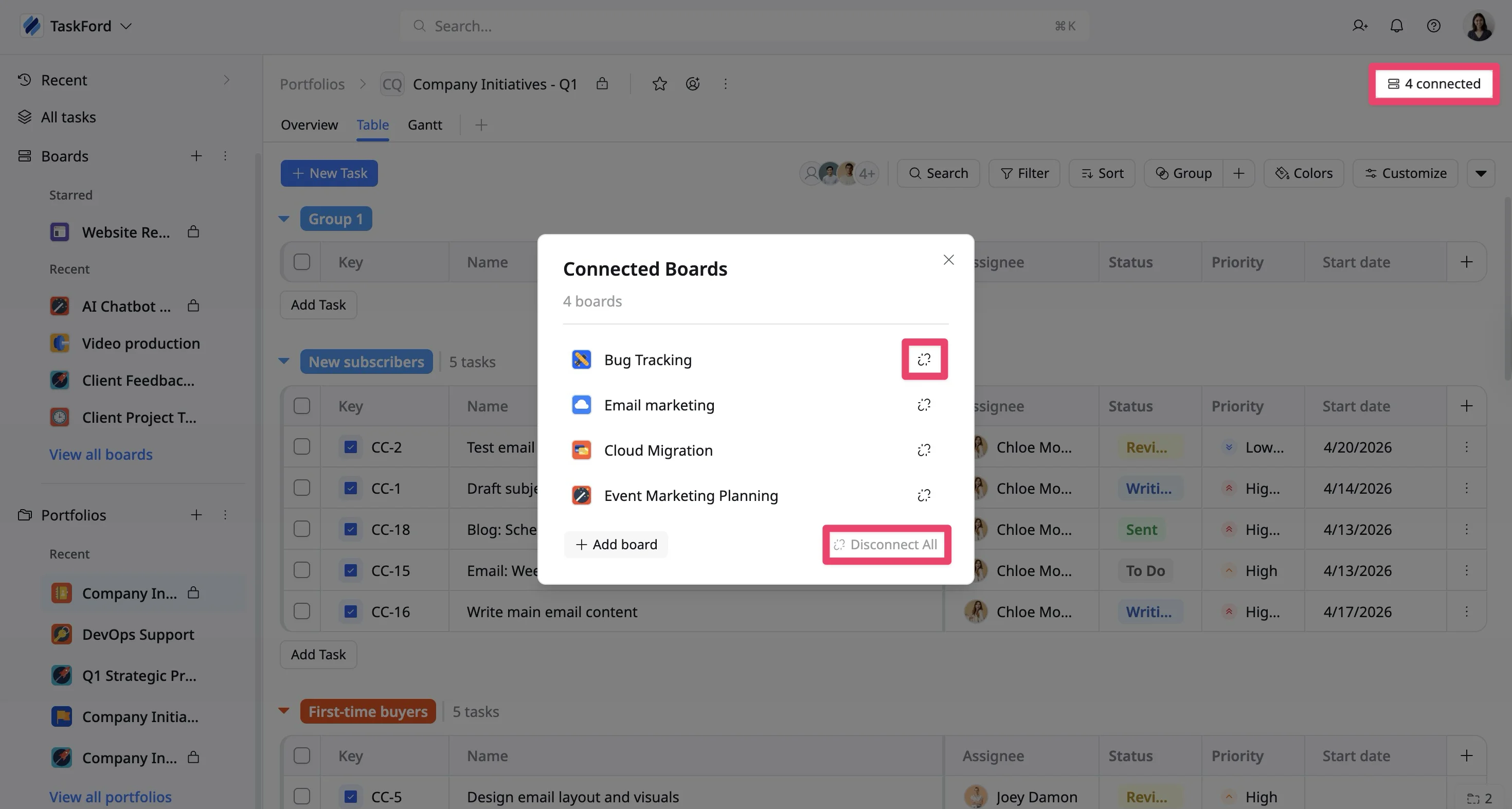
Removing a board disconnects it from the portfolio but does not delete the board or its tasks.
- Open the portfolio you want to update.
- In the top-right corner, click Connected boards.
- In the list of connected boards:
- Click the Disconnect icon next to a board to remove it individually, or
- Click Disconnect all to remove all boards at once.