Manage portfolio members
Learn how to manage members in a portfolio, including assigning roles with permissions to ensure the right people have appropriate.
- Portfolio Admins: Can invite members and assign any role (Admin, Editor, or Viewer) from the sidebar, portfolio header, or Portfolio settings.
- Portfolio Editors: Can invite members, but only assign the Editor role, and only from the sidebar or portfolio header.
- App Admins / App Editors: Can invite members as Portfolio Editor, but only on Open portfolios.
You can invite both existing site members and external users.
- Internal users: Existing site members are added to the portfolio immediately.
- External users: When you invite someone outside your organization, a site invitation is sent. They must accept the invitation to join the site before they can access the portfolio.
Manage portfolio members by inviting users, assigning roles, and controlling access to ensure smooth collaboration across all connected boards while maintaining individual board-level permissions.
Portfolio membership controls access to the portfolio itself. Access to tasks within each connected board is still governed by individual board permissions — users will only see tasks from boards they already have access to.
Add members to a portfolio
You can add members to a portfolio in three ways.
Option 1: From the sidebar
- In the sidebar, locate the portfolio you want to share.
- Click the three vertical dots (⋮) next to the portfolio name.
- Select Add members from the dropdown menu.
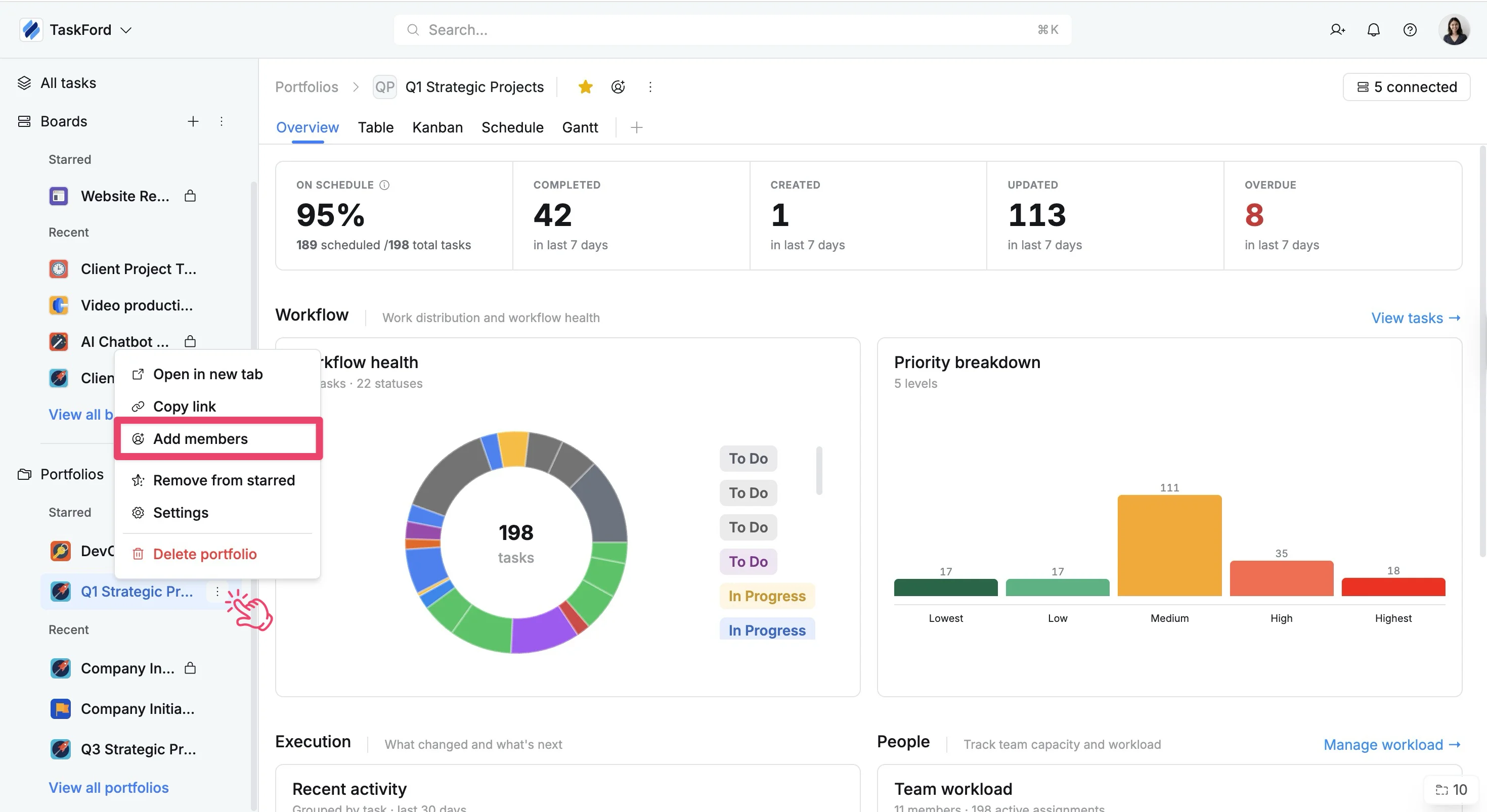
- The Add members modal opens. From here:
- Enter a user’s name or email address. You can add multiple users at once.
- Select a Role (Admin, Editor, or Viewer) to define what each user can do on the portfolio:
- Admin – Full control to manage the portfolio, configure settings, and delete the portfolio
- Editor – Can create, edit, and delete portfolio content
- Viewer – Can view and search portfolio content only
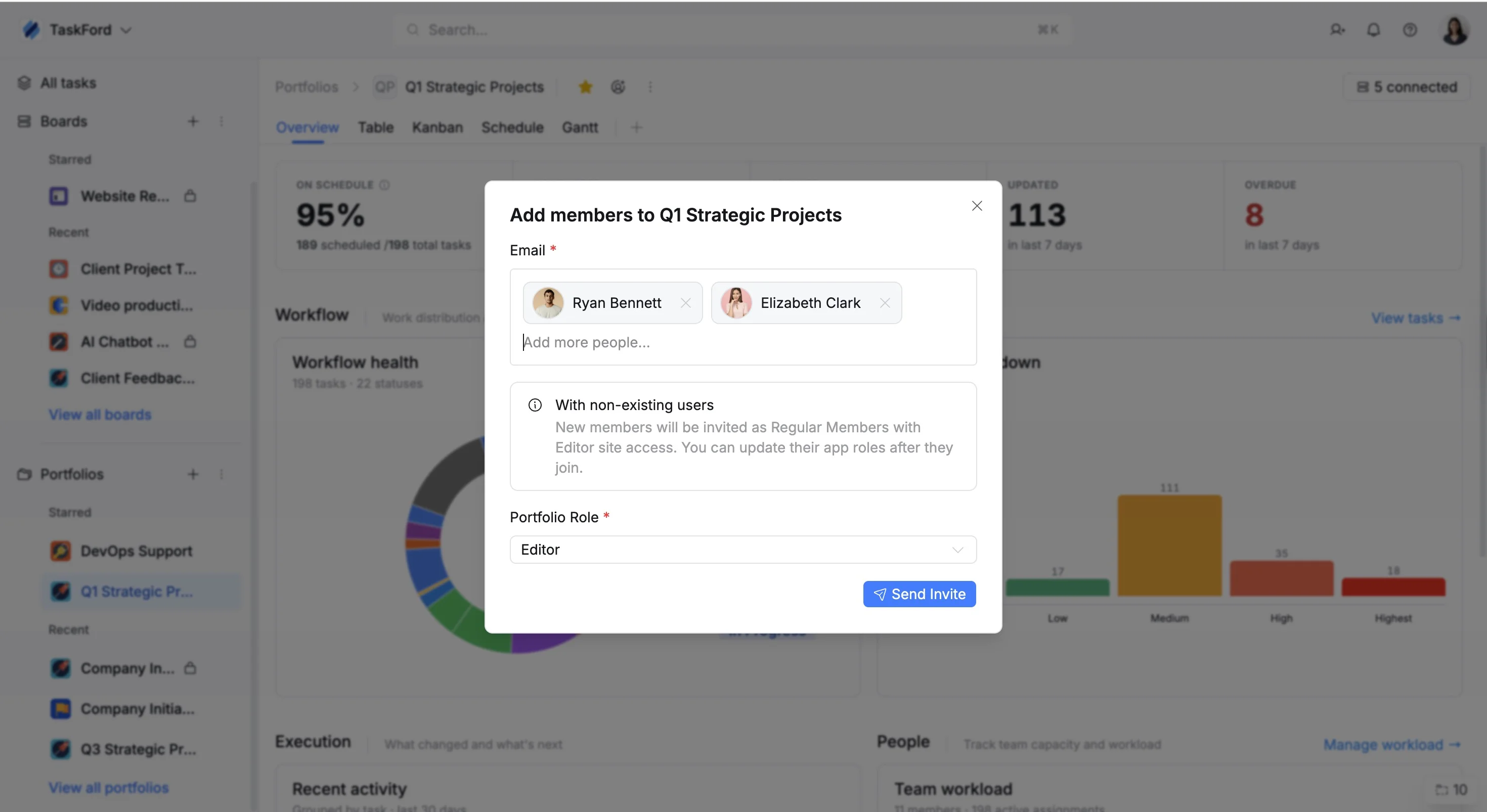
- Click Send invite to grant access.
New users not already in your site will be added as Regular Members with an Editor app role by default. You can update their roles after they join.
Option 2: From the portfolio header
- Open the portfolio you want to share.
- In the portfolio header, click the Add members icon.
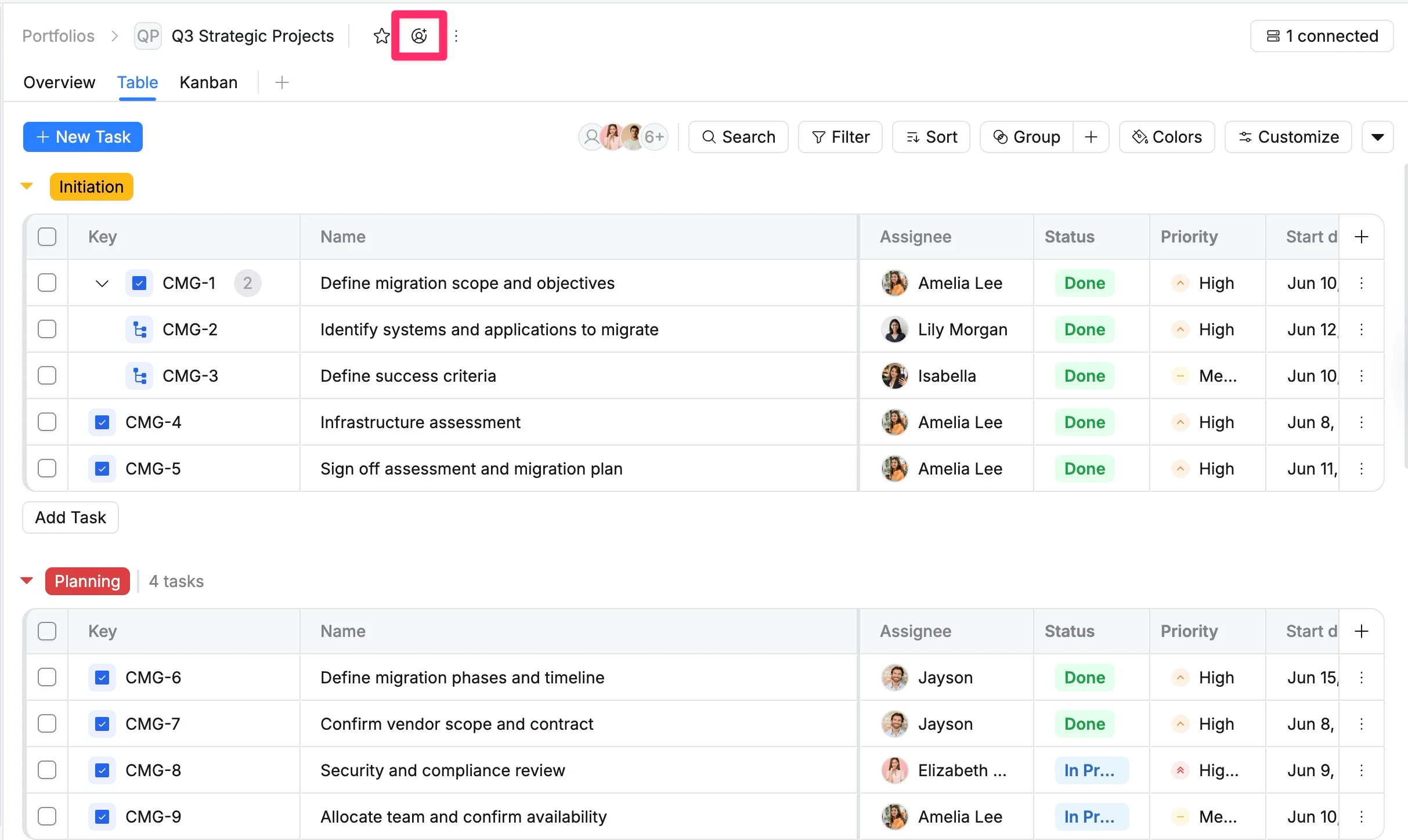
- The Add members modal opens. From here:
- Enter a user’s name or email address. You can add multiple users at once.
- Select a Role (Admin, Editor, or Viewer) to define what each user can do on the portfolio.
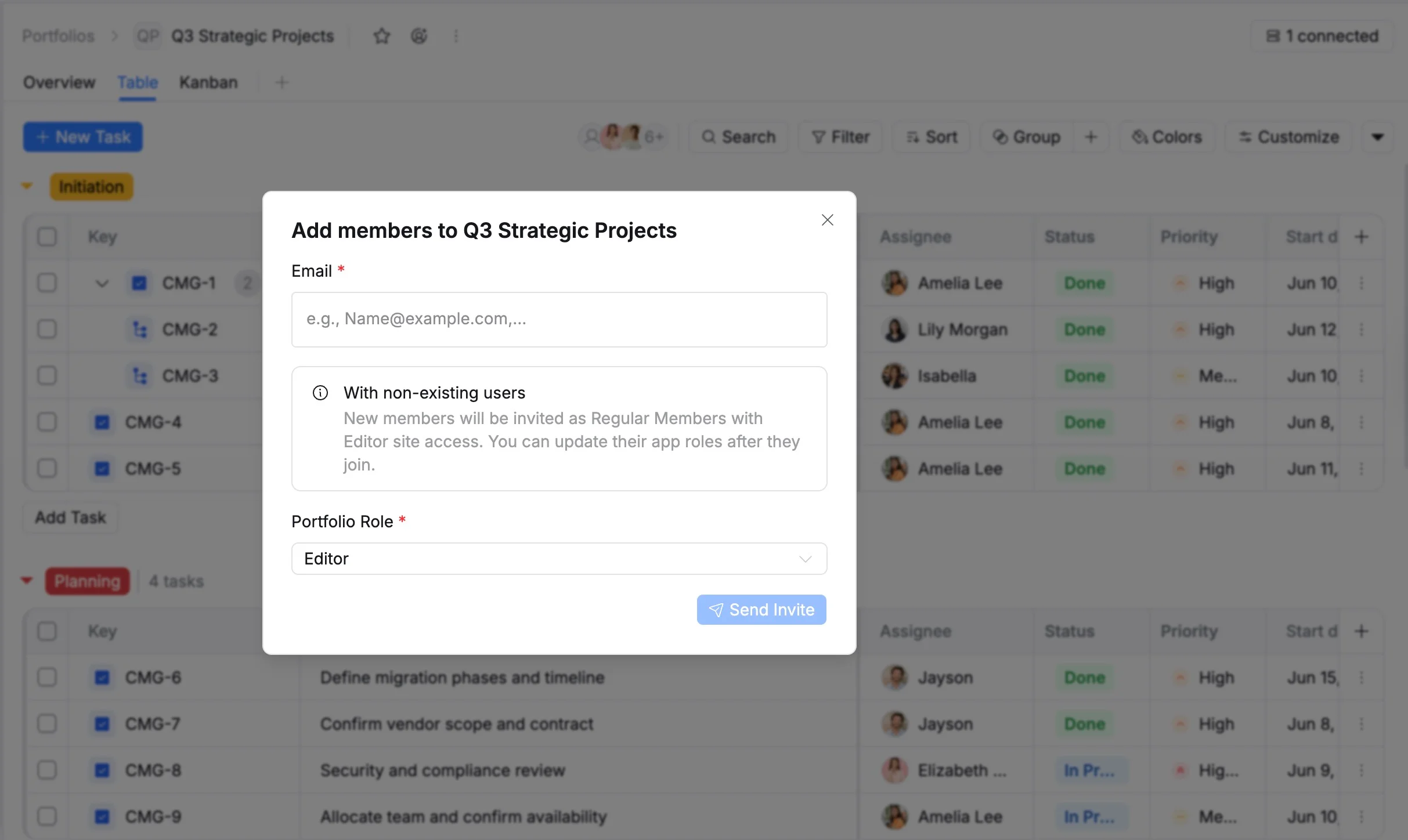
- Click Send invite to grant access.
Option 3: From Portfolio settings
- Access Portfolio settings in two ways:
Option 1: From the sidebar
- In the sidebar, locate the desired Portfolio.
- Click the three vertical dots (⋮) that appear next to the Portfolio name.
- Select Settings from the dropdown menu.
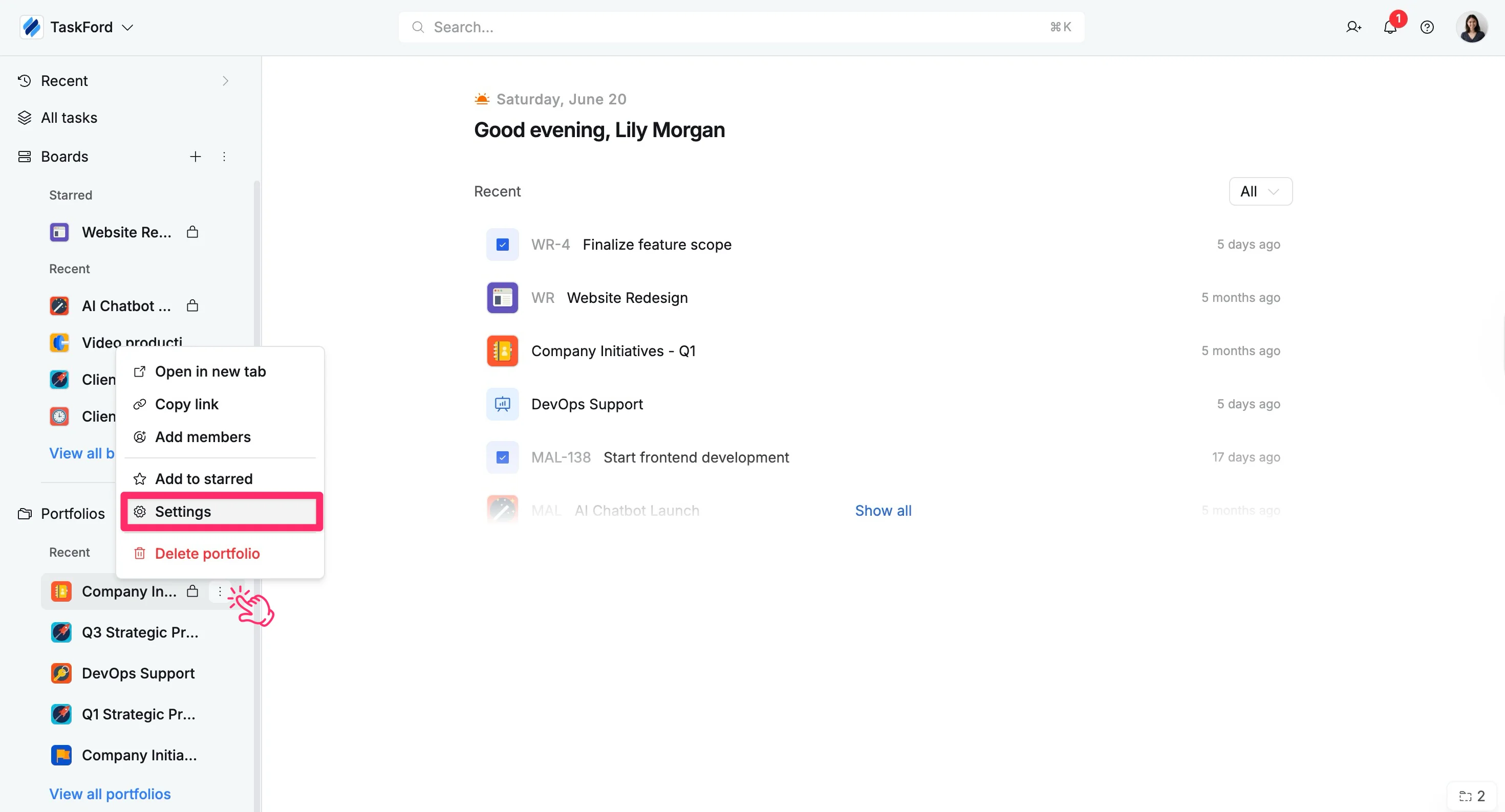
Option 2: From the Portfolio header
- Go to the desired Portfolio space.
- Click the vertical dots (⋮) in the Portfolio header.
- Select Settings from the dropdown menu.
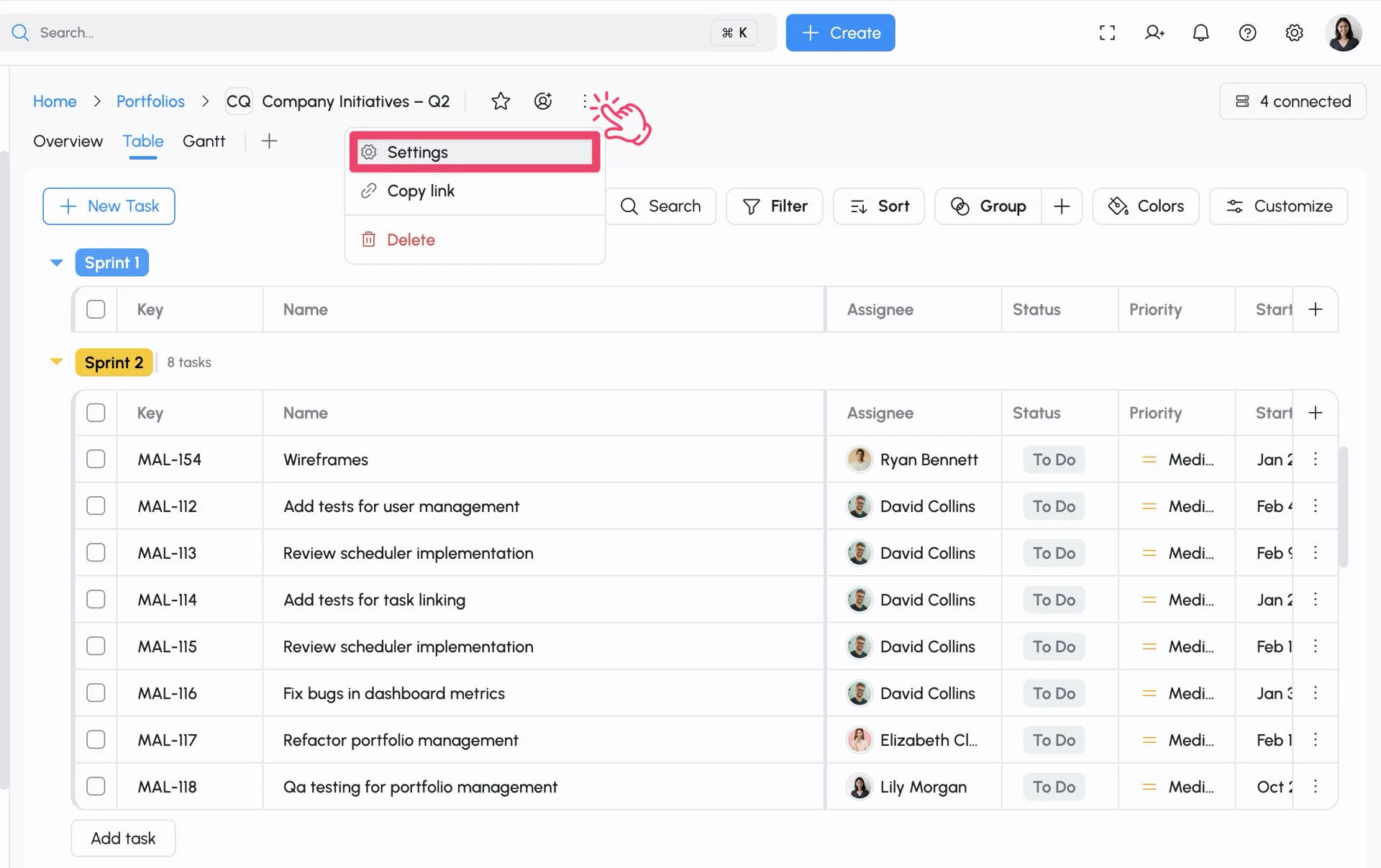
- In the left panel of Portfolio settings, select the Access tab.
- Click Add members in the Access page.
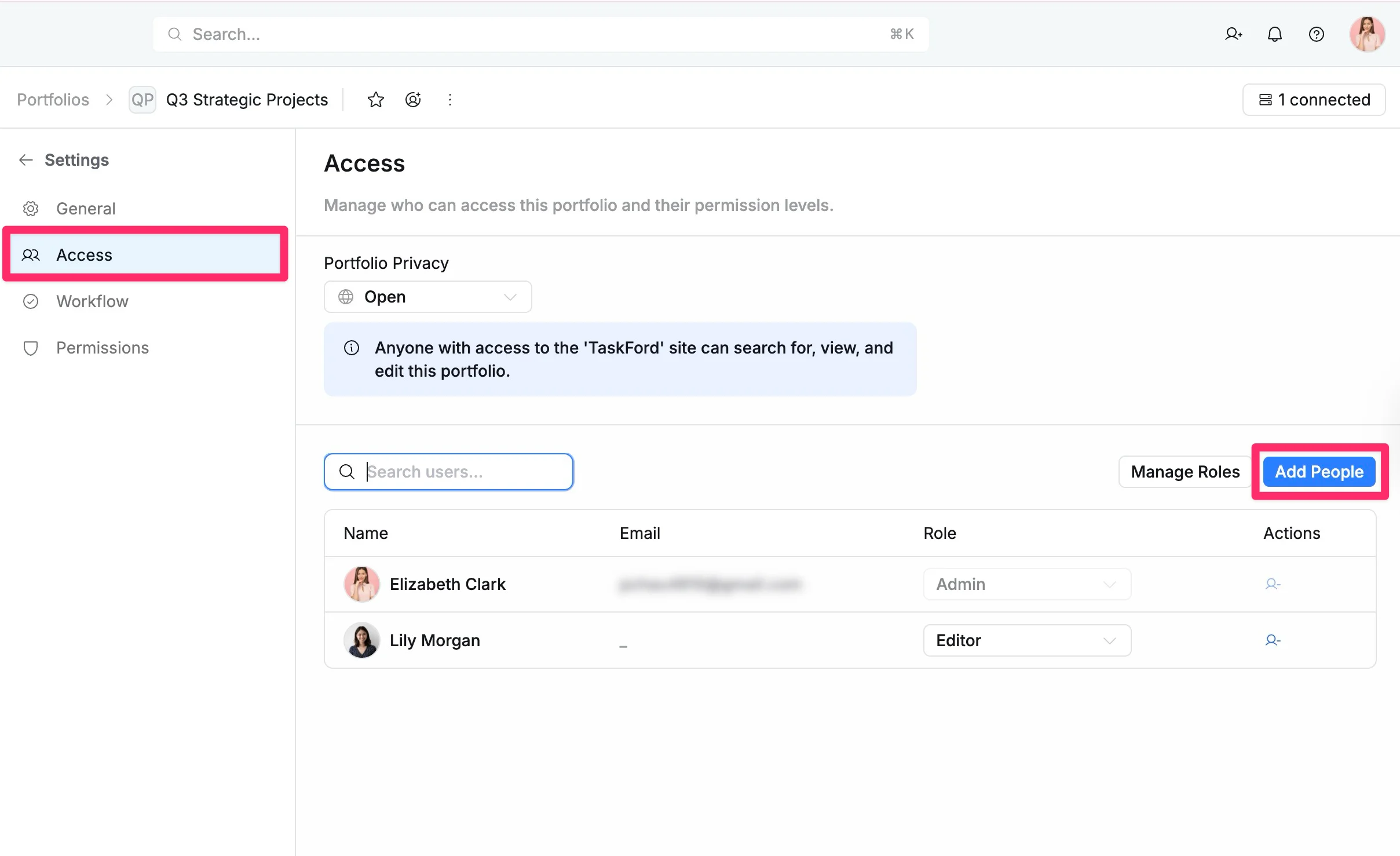
- The Add members modal opens. From here:
- Enter a user’s name or email address. You can add multiple users at once.
- Select a Role (Admin, Editor, or Viewer) to define what each user can do on the portfolio.
- Click Send invite to grant access.
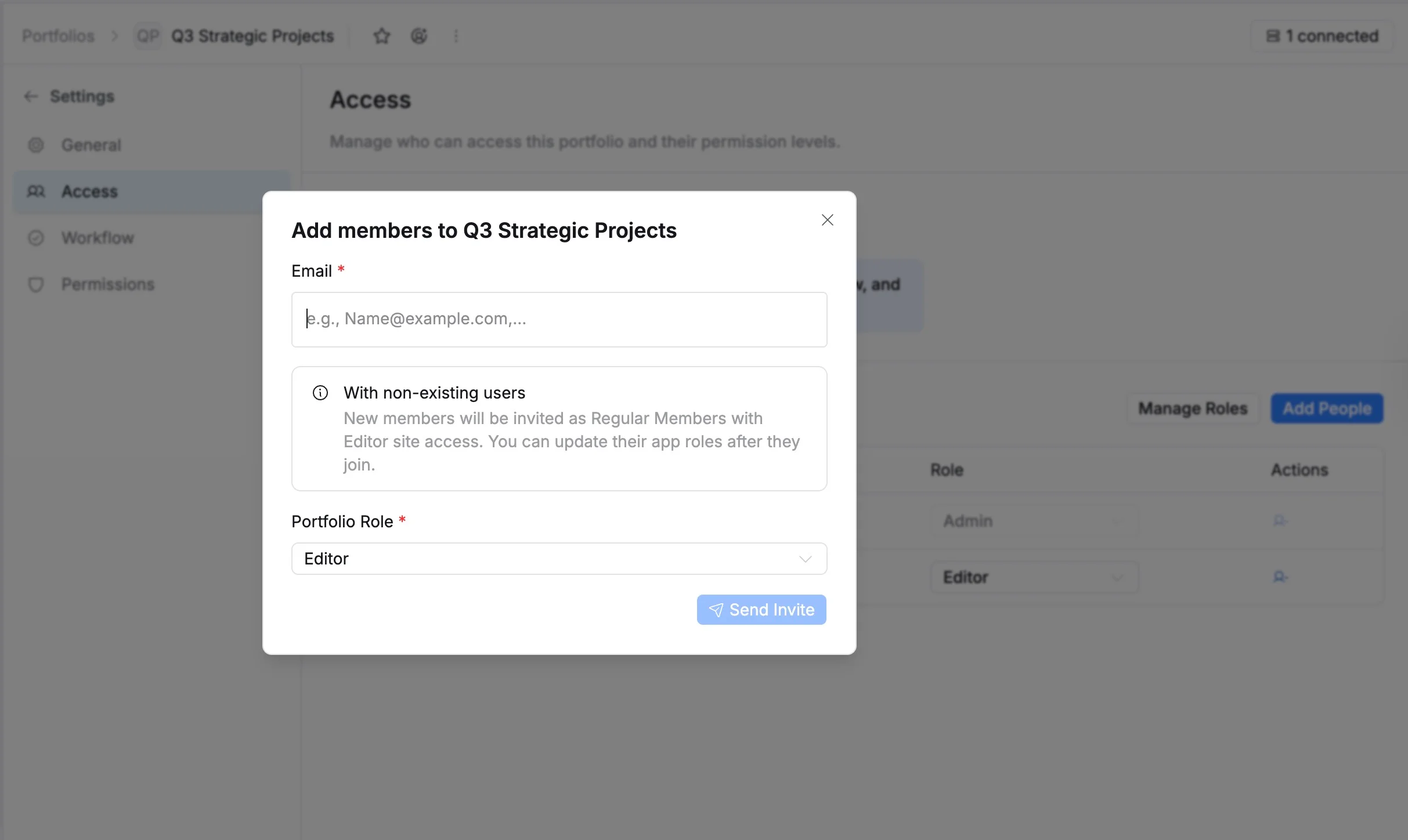
Remove members from a portfolio
Only Portfolio Admins can remove members from a portfolio.
When a member no longer works on a portfolio, Portfolio Admins can remove them to keep access up to date and collaboration focused.
To remove a member from the portfolio:
- Access Portfolio settings in two ways:
Option 1: From the sidebar
- In the sidebar, locate the desired Portfolio.
- Click the three vertical dots (⋮) that appear next to the Portfolio name.
- Select Settings from the dropdown menu.
Option 2: From the Portfolio header
- Go to the desired Portfolio space.
- Click the vertical dots (⋮) in the Portfolio header.
- Select Settings from the dropdown menu.
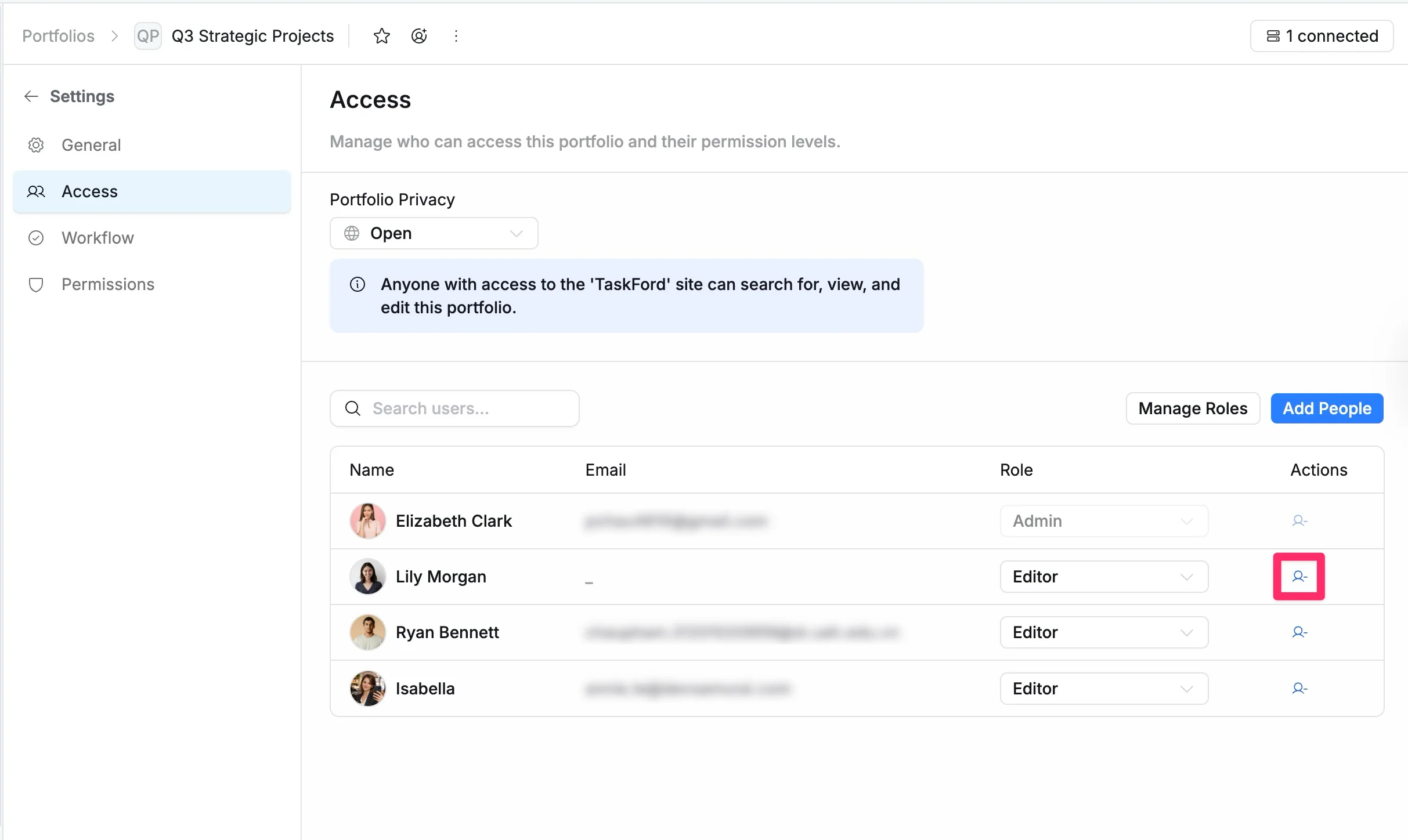
- In the left panel of Portfolio settings, select the Access tab.
- In the Actions column, click the Remove icon next to the member you want to remove.
- Confirm the removal when prompted
Removing a member from a portfolio does not affect their access to individual boards. Their board-level permissions remain unchanged.