Manage portfolio views
Learn how to manage Portfolio Views in TaskFord to track, visualize, and organize tasks across multiple connected boards.
- Portfolio Admins / Editors can add, remove, or manage portfolio views.
- Portfolio Viewers can only view portfolio views.
- App Admins / App Editors can manage portfolio views for Open portfolios only.
Portfolio views in TaskFord function similarly to board views, but they aggregate data from multiple connected boards into a single, high-level workspace. This allows you to manage, track, and visualize work across several projects without switching between boards.
For detailed step-by-step instructions, refer to Manage board views.
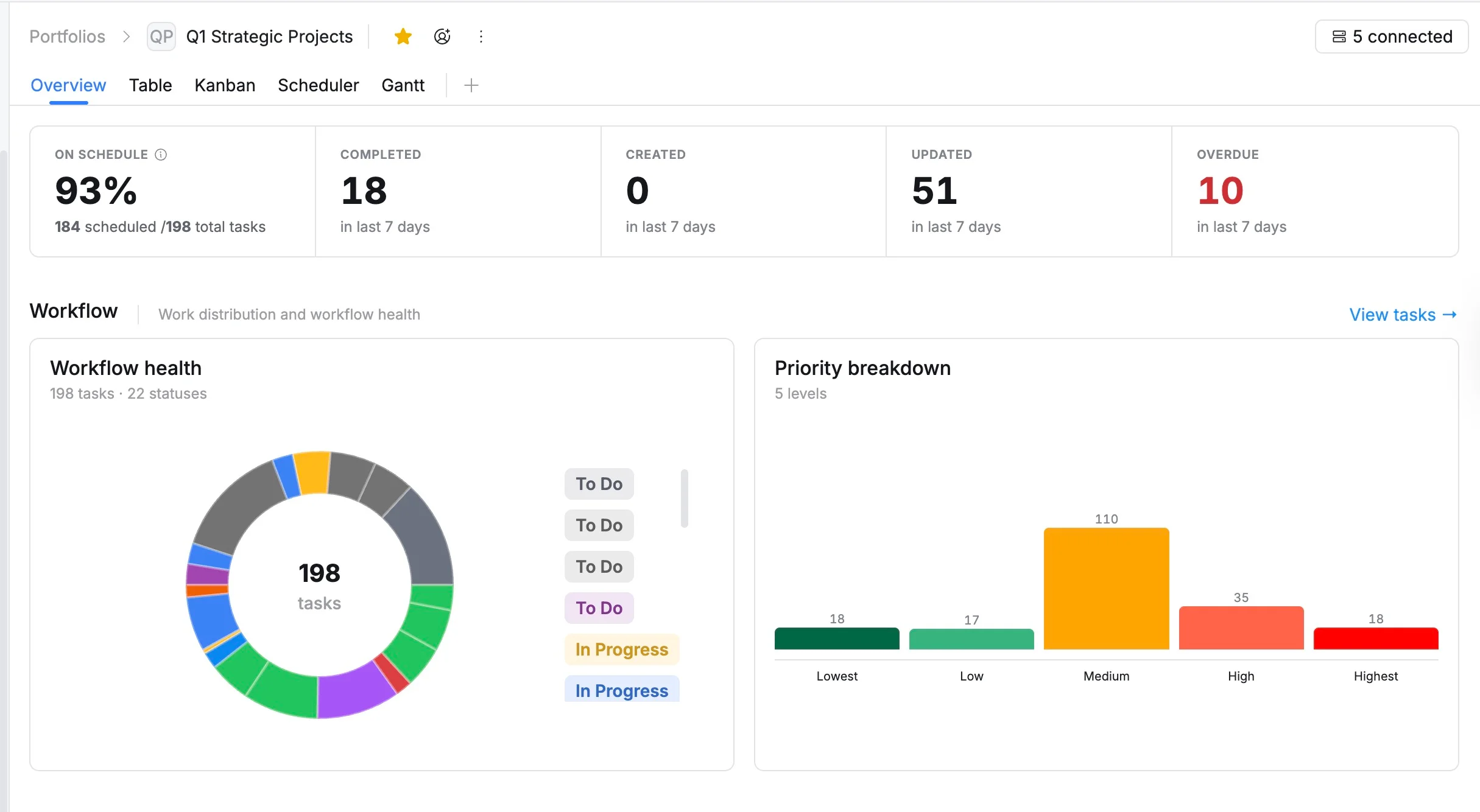
Portfolio Overview
The Portfolio Overview provides a high-level snapshot of all connected boards in one workspace. It displays aggregated progress metrics, task counts by status, and overall portfolio health.
This view is ideal for executive reporting, team standups, or strategic check-ins because it surfaces the essential information without opening each individual board. Use it to quickly identify at-risk projects, bottlenecks, and cross-board trends.
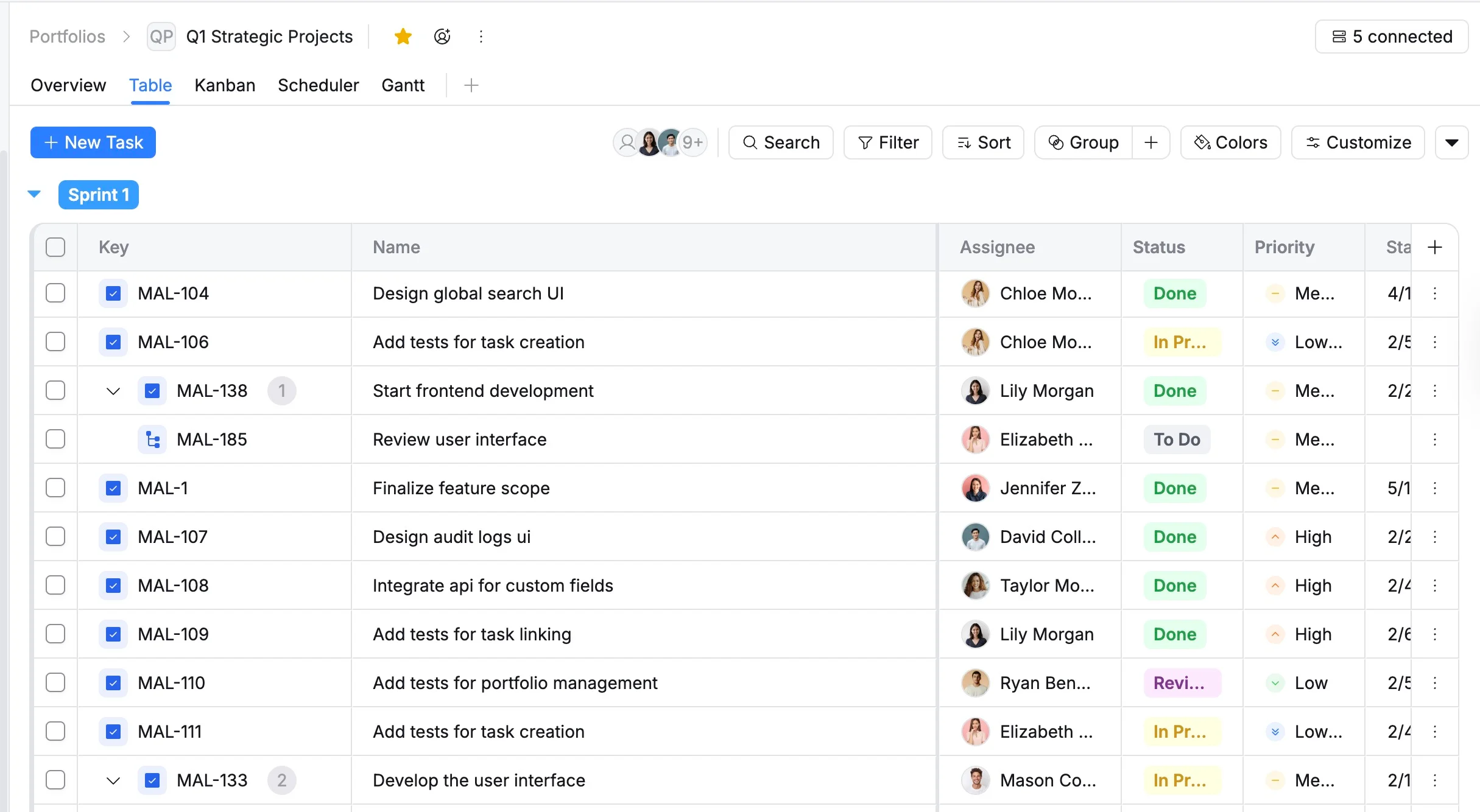
Portfolio Table view
The Portfolio Table view offers a structured, spreadsheet-style summary of tasks from all connected boards. It consolidates key project information — including task names, assignees, statuses, due dates, and custom fields — into a single, scannable grid.
Use this view to sort, filter, and edit tasks in bulk, monitor progress, track assignments, and manage deadlines across multiple projects efficiently.
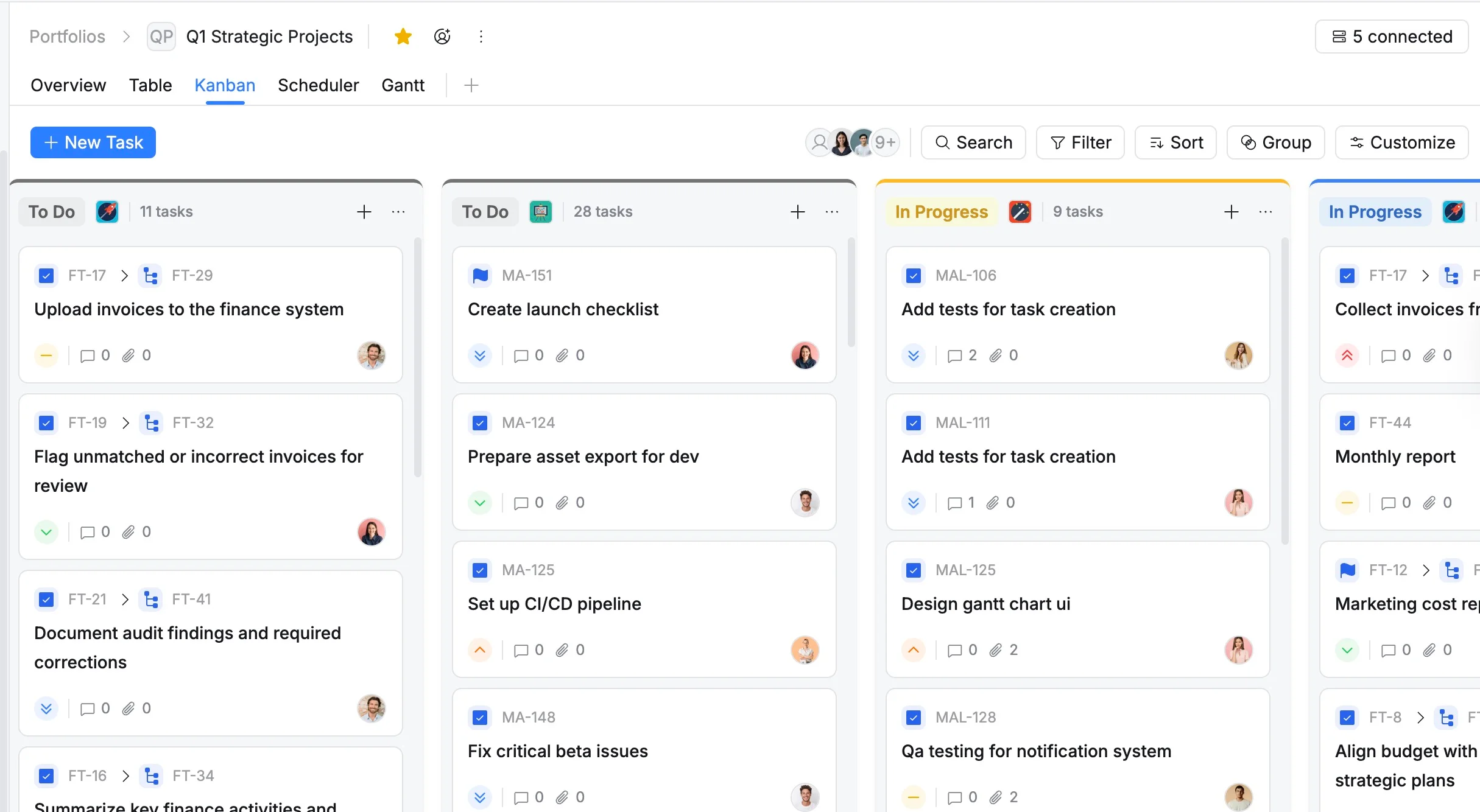
Portfolio Kanban view
The Portfolio Kanban view centralizes workflow tracking across multiple projects. Tasks from all connected boards are aggregated into shared status columns, providing a unified snapshot at the organizational level.
Each connected board’s tasks appear in their own set of status columns. For example, “To Do” tasks from Project A are grouped in Project A’s columns, while Project B’s “To Do” tasks appear in Project B’s columns.
Cards display which board they belong to, allowing you to track cross-project workflow while maintaining context for each project. Tasks can be moved between statuses within their own board, with updates syncing automatically.
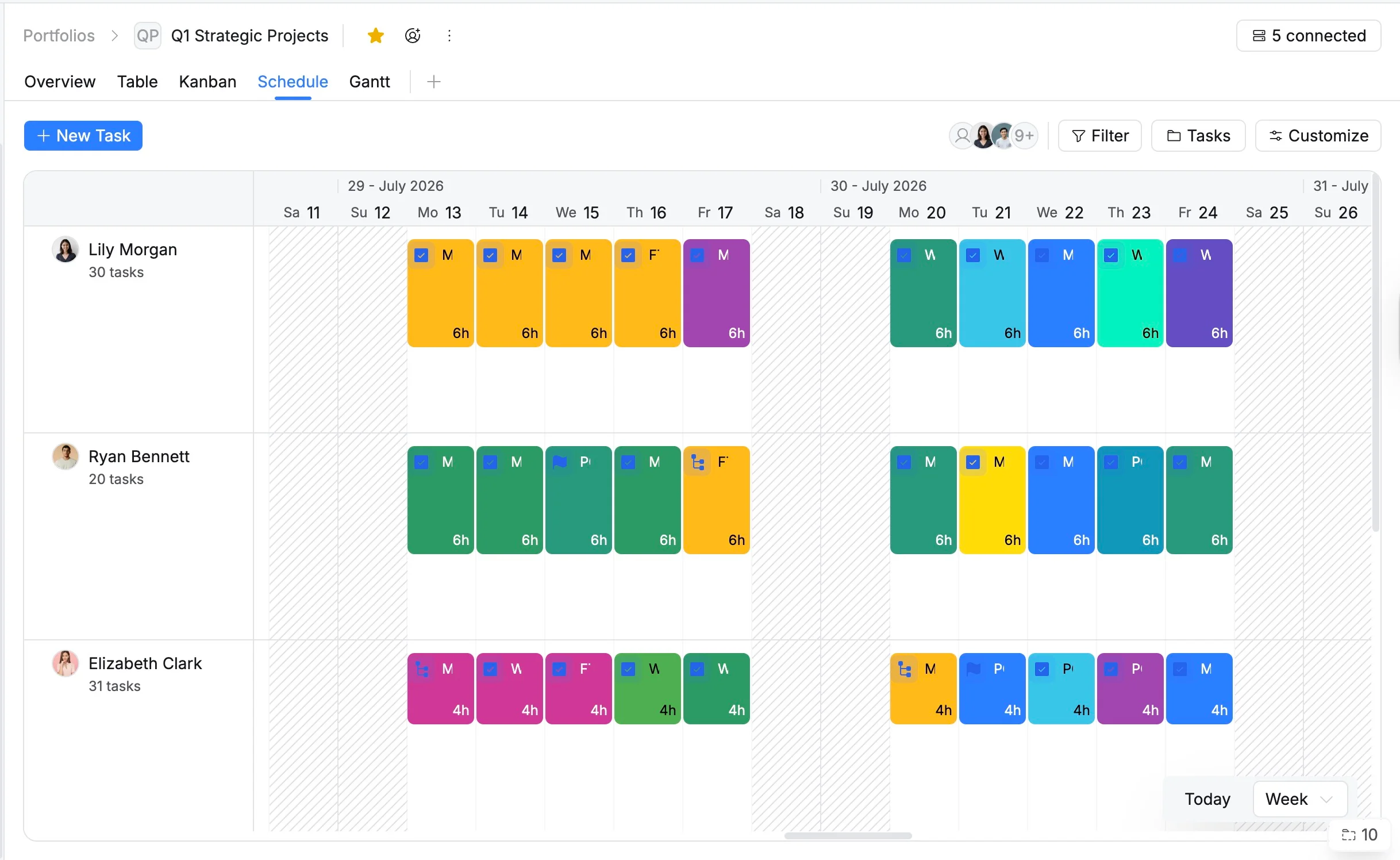
Portfolio Schedule view
The Schedule view lays out tasks from all connected boards on a time-based grid, showing start and end dates for every task.
This view helps plan resources, monitor workloads, and identify scheduling conflicts across multiple projects before they become blockers. It is ideal for portfolio managers needing a high-level timeline of all ongoing initiatives.
Portfolio Gantt view
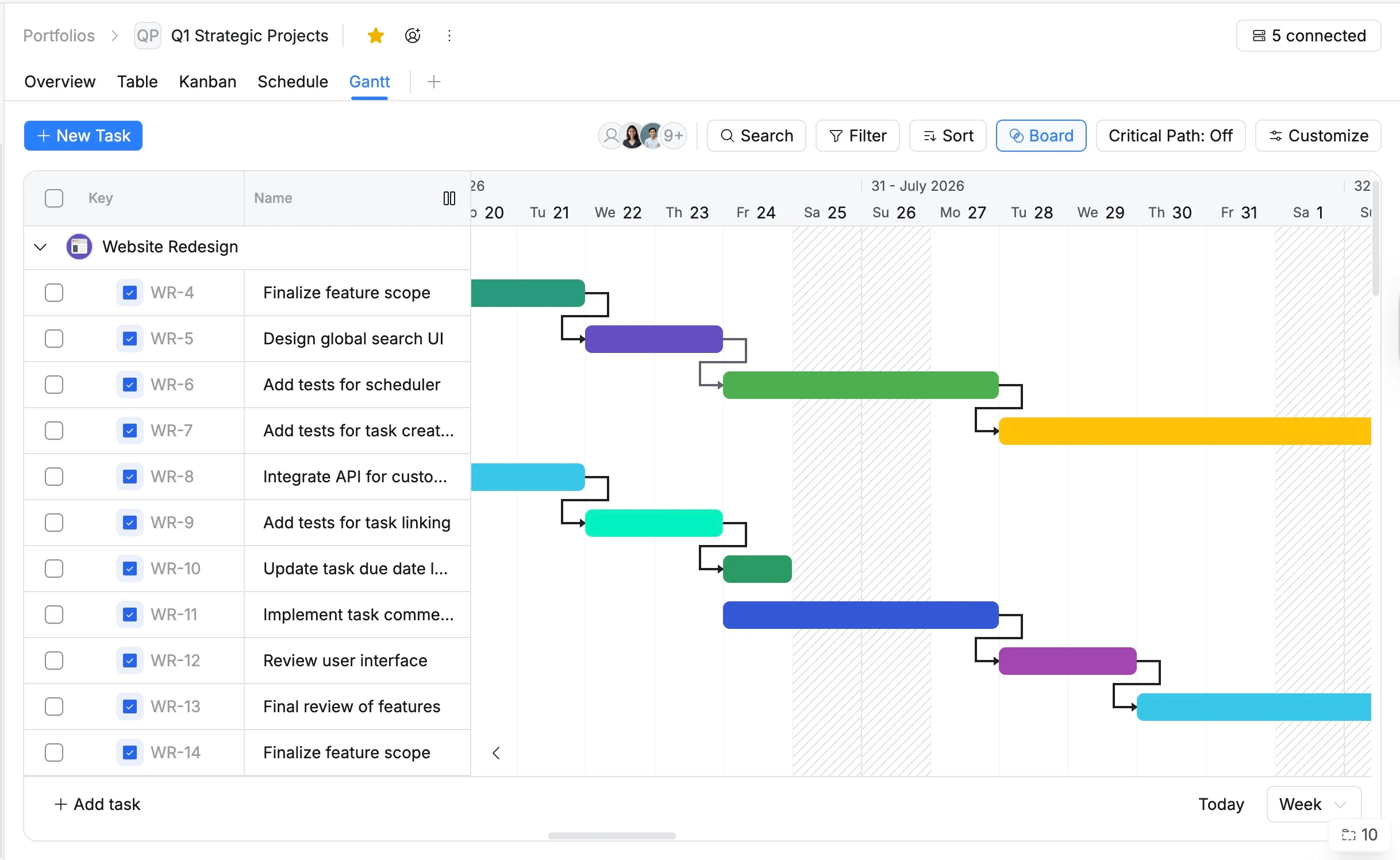
The Portfolio Gantt view consolidates tasks, milestones, and dependencies from multiple boards into a single, interactive timeline. It allows you to visualize cross-project dependencies, track critical paths, and spot delays that may affect other projects.
This view is perfect for planning complex workflows, managing resource allocation, and keeping teams aligned across multiple projects.
Portfolio Calendar view
The Portfolio Calendar view displays tasks from all connected boards in a familiar calendar format, helping you visualize events, milestones, and deadlines across multiple projects. This view is fully interactive and supports advanced filtering, adjustable settings, and multiple display options — including month, week views.
It provides a comprehensive way to plan work, track important dates, and manage cross-project schedules from a single, high-level perspective.