Manage sites in TaskFord
Learn how to update site details, and manage site deletion or restoration in TaskFord for efficient workspace management.
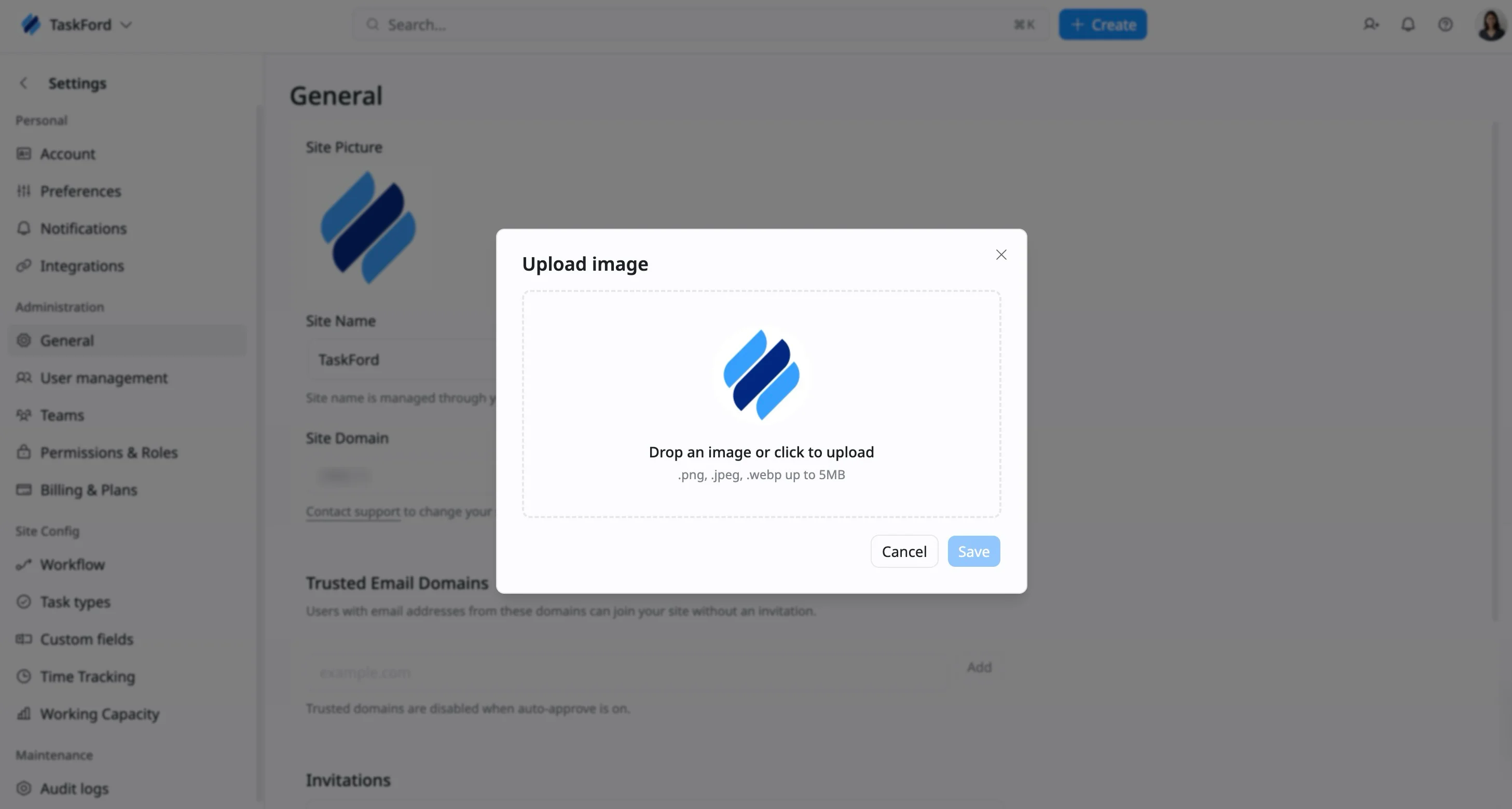
Change the site picture
To make your site easily identifiable, you can update its avatar. This feature helps with branding and ensures a unique, recognizable appearance across your site.
To change your site’s picture, please follow these steps:
- Navigate to the Site settings page
- Select the General tab under the Administration section from the left-hand menu.
- In the General settings, locate the Site Picture section and click on the current image.
- Select a new image from your computer, or drag and drop the file into the upload box.
- Once selected, click Save to update the site picture.
Change the site name
If you need to update the name of your site, you can easily do so from the site settings.
To change your site’s name, please follow these steps:
- Navigate to the Site settings page
- Select the General tab under the Administration section from the left-hand menu.
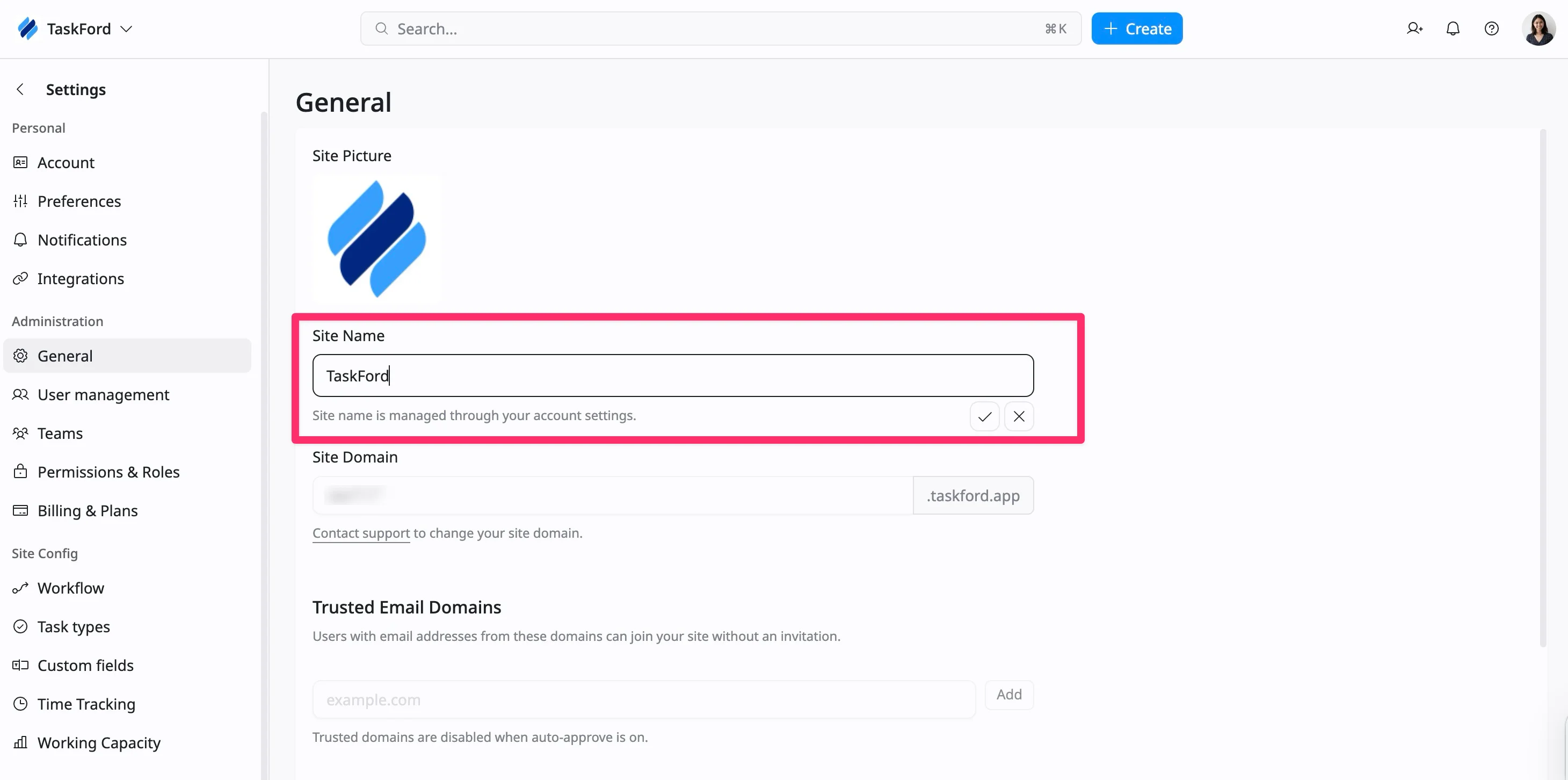
- Find the Site Name field in the General settings page.
- Click on the Site Name field and enter the new name for your site.
- Once you’ve entered the new name, click the checkmark to save the changes.
Change site domain
The site domain represents the unique URL that identifies your workspace. Changing your domain allows you to customize your site URL to match your branding or preferences.
- Navigate to the Site settings page
- Select the General tab under the Administration section from the left-hand menu.
- Find the Site Domain section in the General settings page.
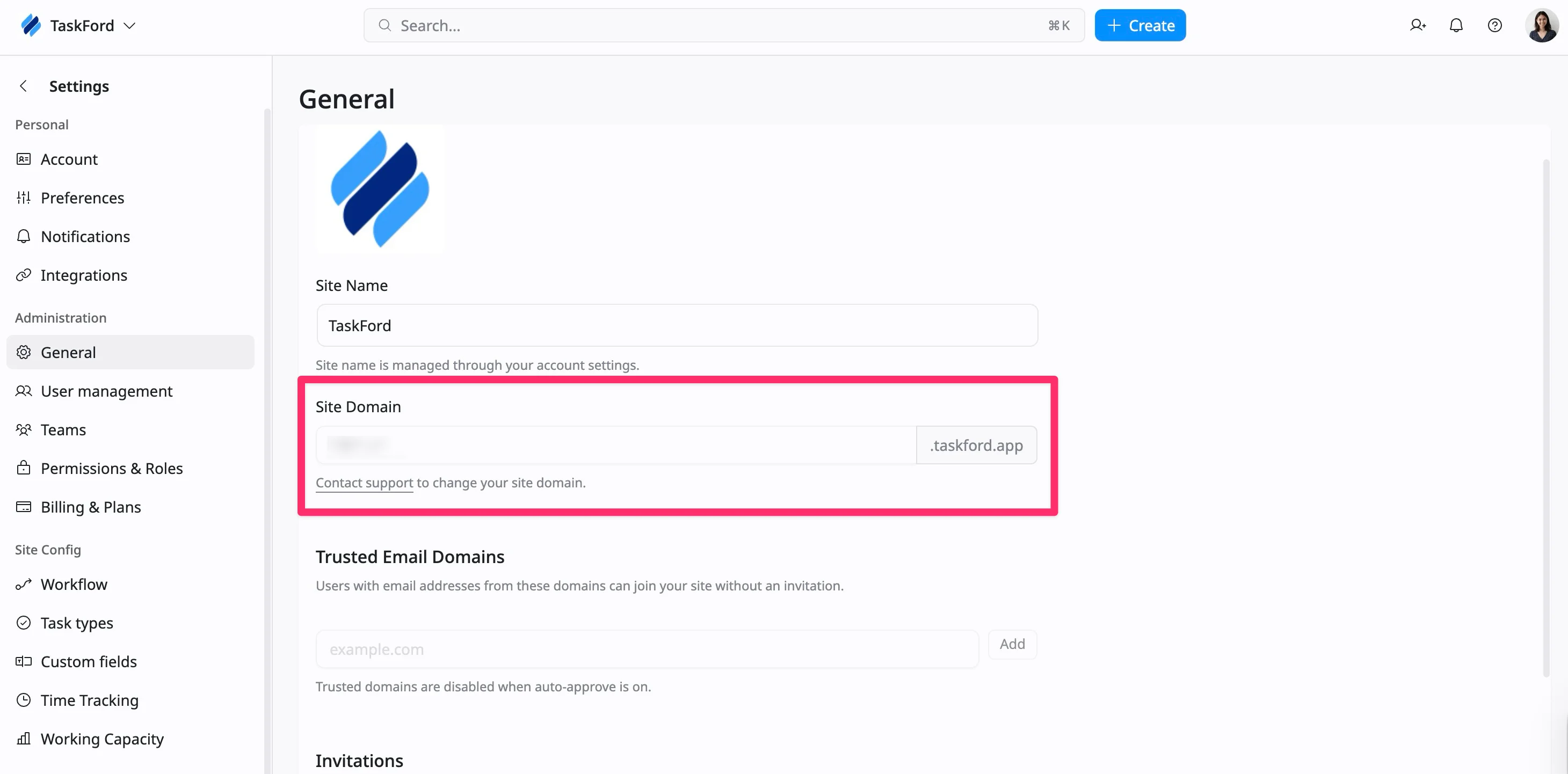
Custom domain changes are available on Enterprise plans. To request a domain change, click the contact support link to reach the TaskFord support team.
Delete the site
Deleting your site will remove all data, including tasks, boards, and user information. This action is irreversible after a 30-day grace period.
How to delete the site
- Navigate to the Site settings page
- Select the General tab under the Administration section from the left-hand menu.
- Scroll to the bottom of the General settings page to find the Danger Zone section.
- Click the Delete Site button to begin the process.
- You will be prompted to confirm the deletion by typing the site name in the confirmation box.
- After typing the name, click Delete Site again to confirm.
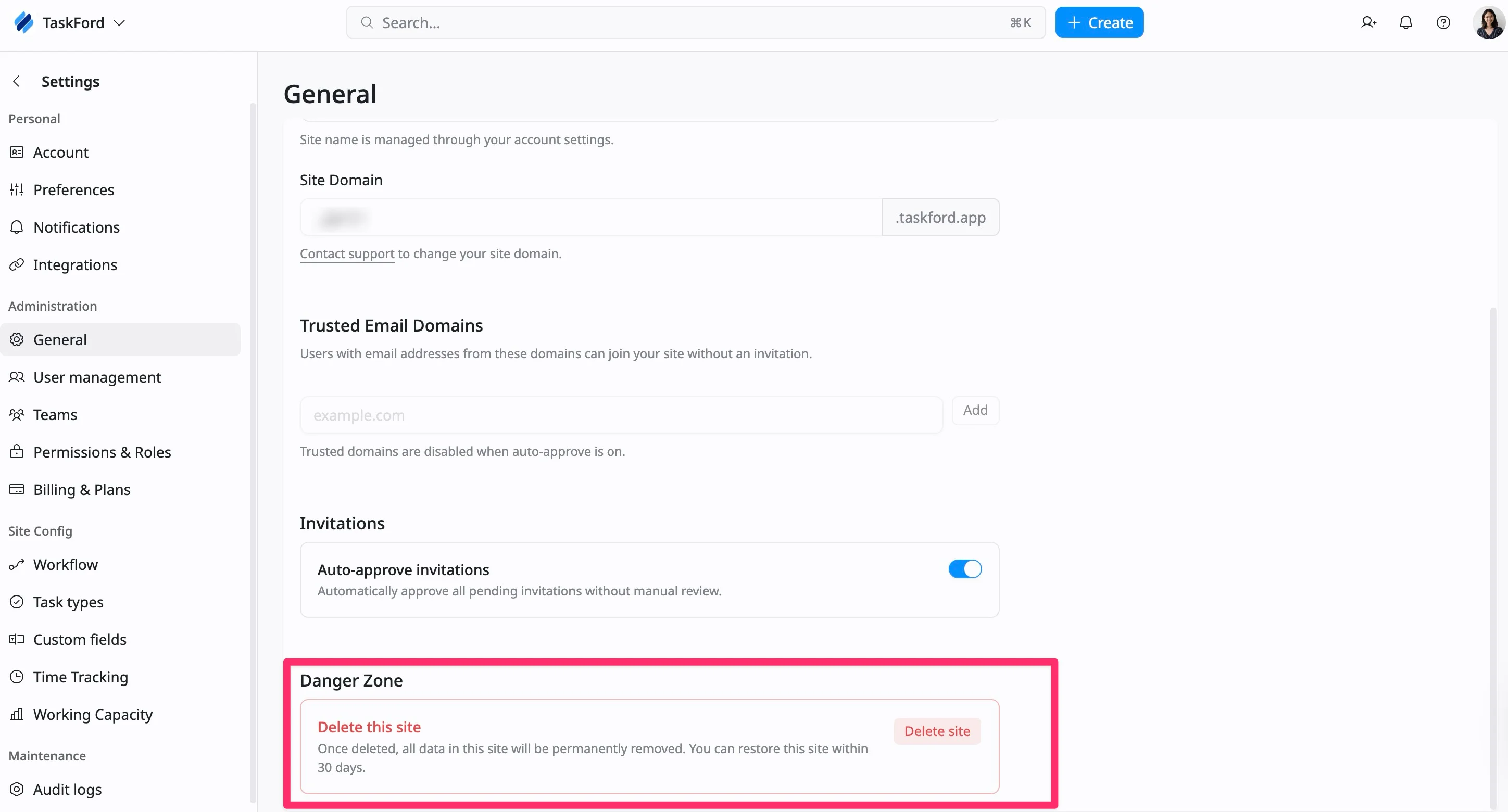
Once deleted, the site will be moved to the deletion queue, and you have 30 days to restore it. After the 30-day grace period, the site deletion is permanent, and the data cannot be recovered.
Restore a deleted site
If your site is deleted, it enters a 30-day grace period during which you can restore it. After 30 days, the deletion becomes permanent.
How to restore a deleted site
- Navigate to the TaskFord Administration center, where all your sites are listed.
- Deleted sites appear in a disabled state. The site name and URL are greyed out with a strikethrough, indicating that the site is no longer active.
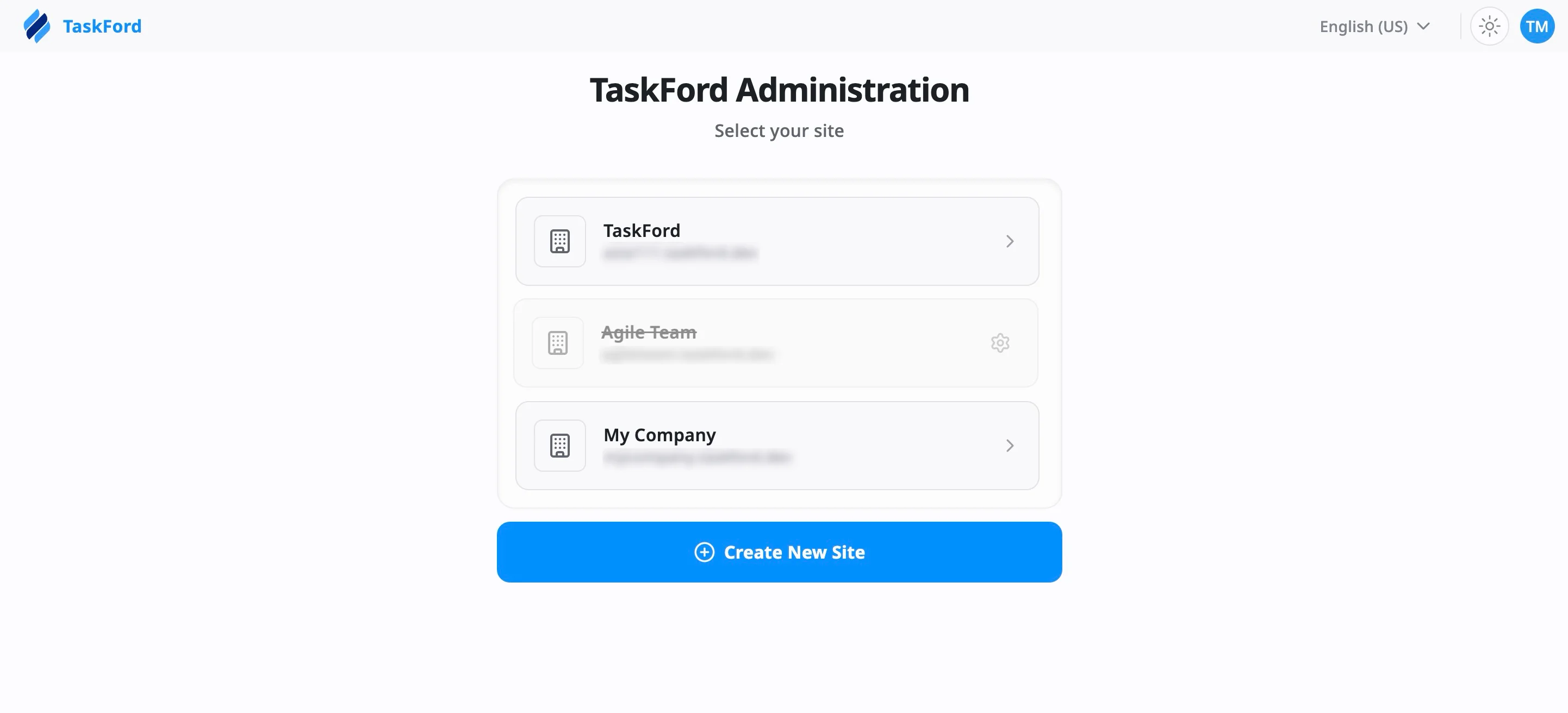
- Click the settings icon on the deleted site to open its details page. A notification will indicate that the site is currently in the deletion process.
- To restore the site, click Cancel Deletion and Restore Site.
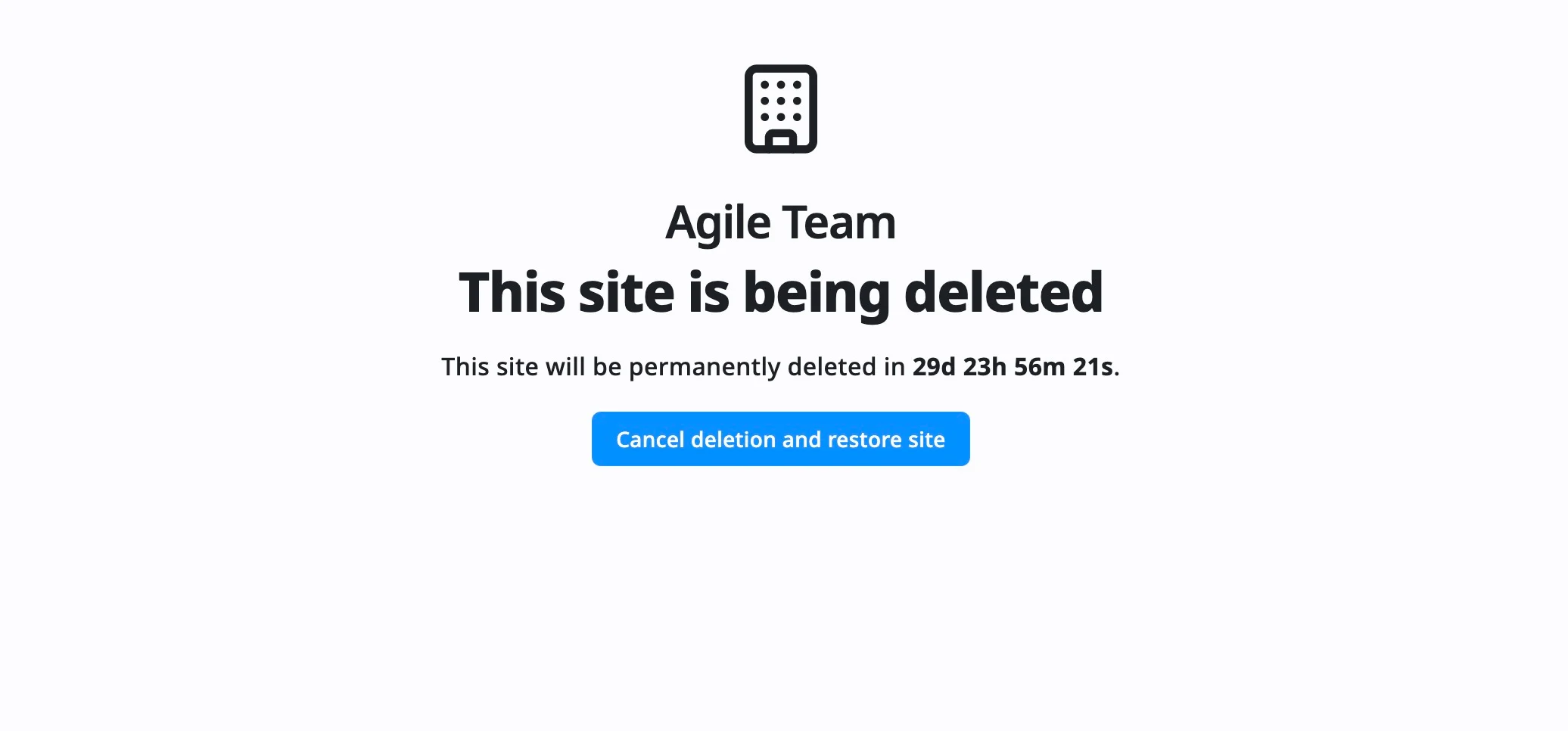
Once restored, the site will be brought back, and you’ll regain access to all data and settings.