Manage tasks
Manage tasks in TaskFord by editing details, assigning work, setting schedules, attaching files, and tracking progress through customizable fields and relations.
- Board Admins / Board Editors can manage tasks.
- Site Admins / Site Editors can manage tasks only on Open boards.
- Site Viewers / Board Viewers can only watch tasks, view activity history, and share tasks.
This guide walks you through how to manage and update tasks from the task details view, including editing fields, assigning work, setting schedules, and more.
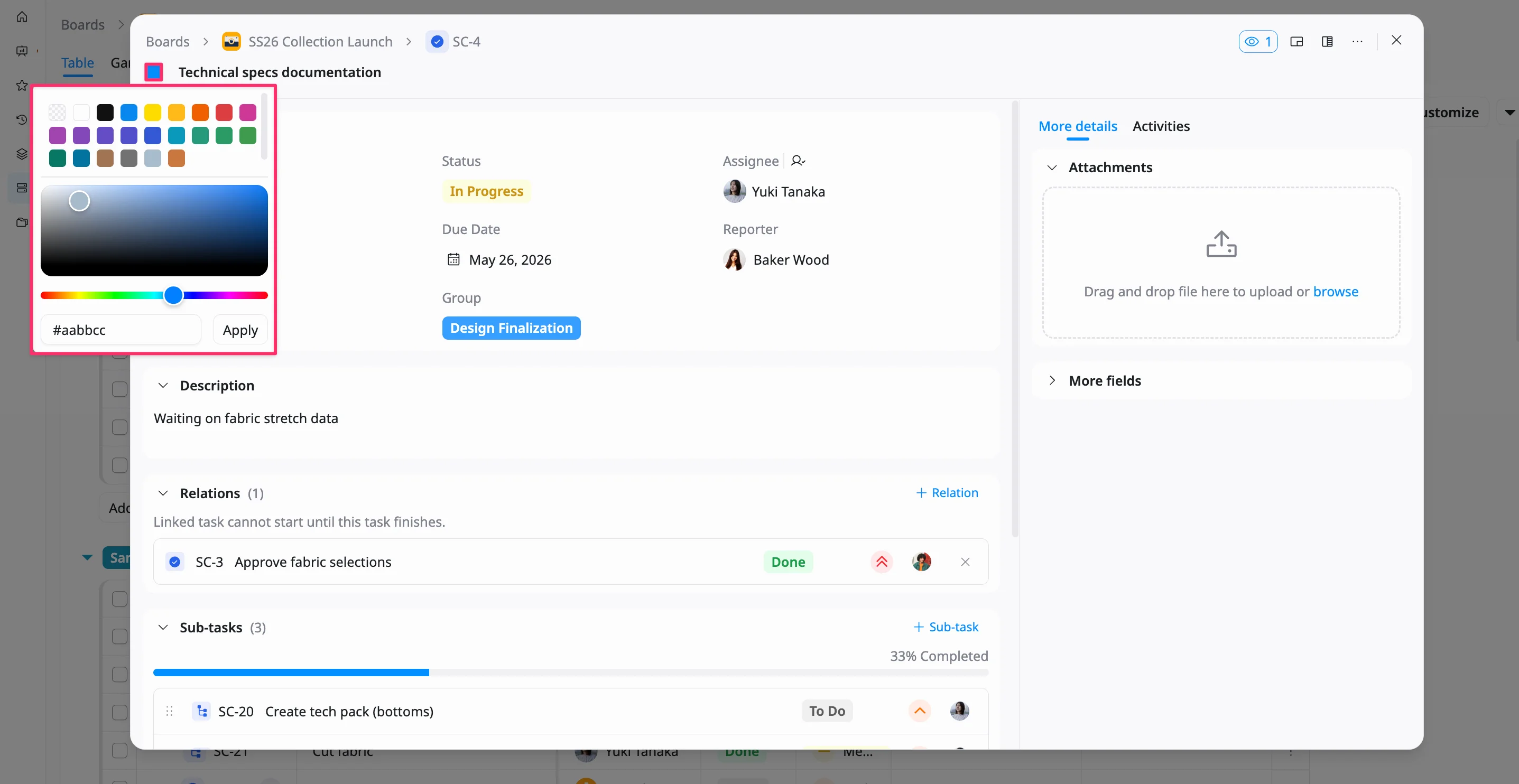
Change a task’s color
Changing a task’s color helps you visually identify tasks more easily in the Schedule view.
From the task details view, you can customize the task’s color for quick recognition on the timeline.
To change a task’s color:
- Open the task details view for the task you want to update.
- Click the color box next to the task name.
- Select a color from the palette, or choose a custom color.
- Click Apply to save your selection.
The selected color will be applied in the Schedule view, making it easier to distinguish tasks at a glance.
Rename a task
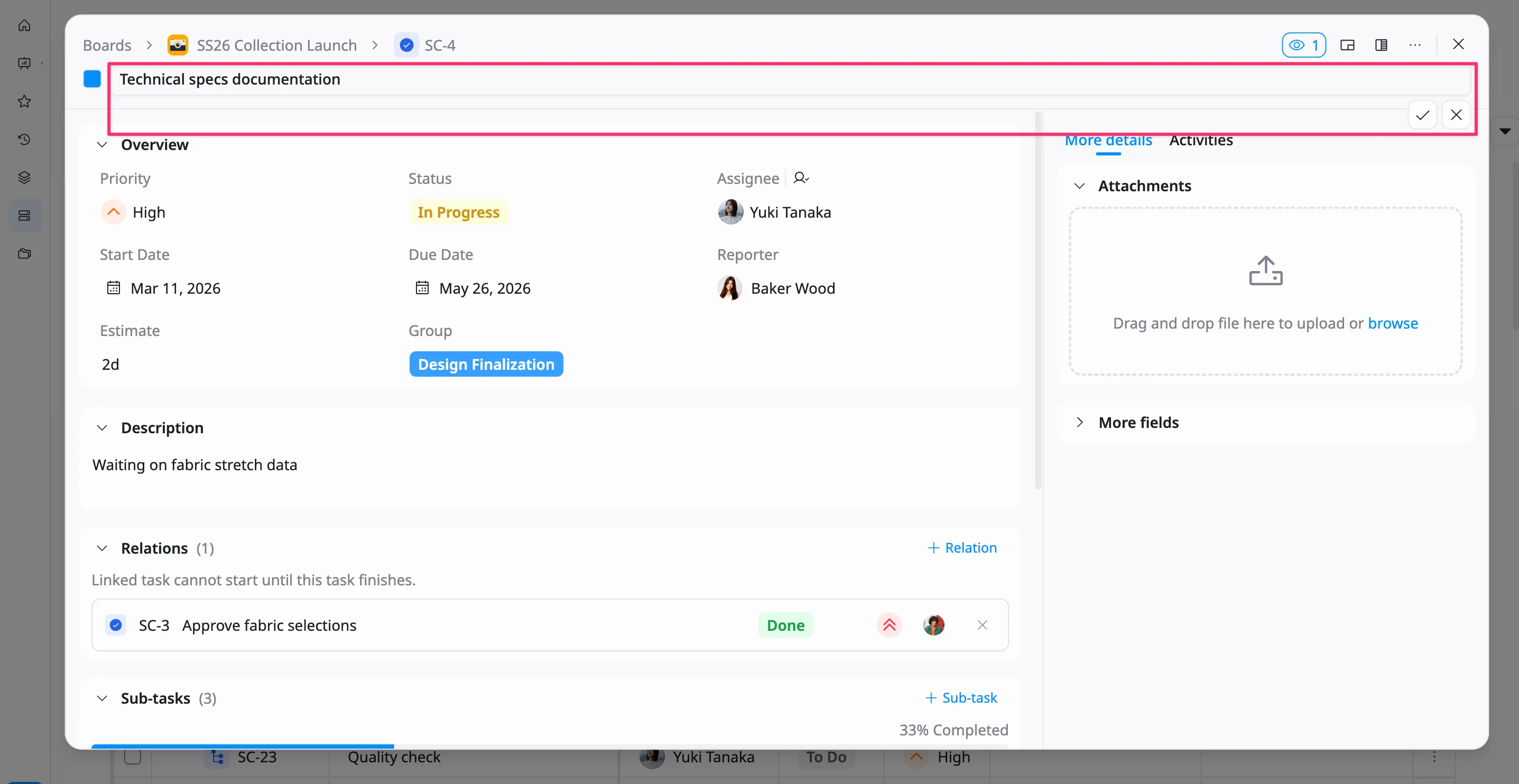
You can rename a task directly from the task details view to keep titles clear and up to date.
To rename a task:
- Open the task details view for the task you want to update.
- Click on the task name at the top-left corner.
- Edit the task name.
- Press Enter or click the ✓ (check) icon to save the changes.
To discard your changes, click the ✕ (close) icon.
Change a task type
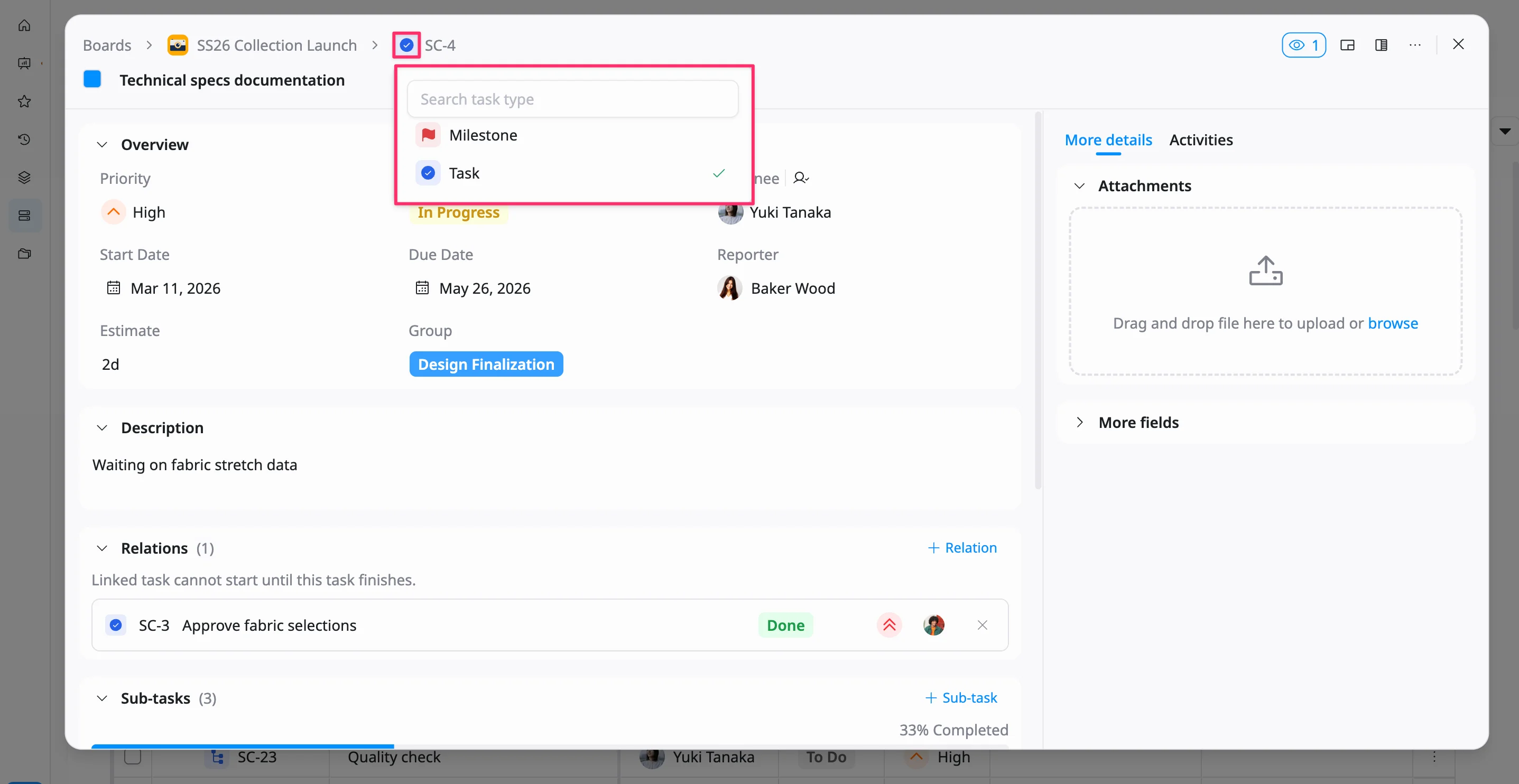
You can update a task type directly from the task details view to better reflect the nature of the work.
To change a task type:
- Open the task details view for the task you want to update.
- Click the Type field.
- Select a type from the list.
The task will be updated immediately based on your selection.
By default, TaskFord provides Task, Subtask, and Milestone types. Your site may also include additional custom task types configured in Site settings.
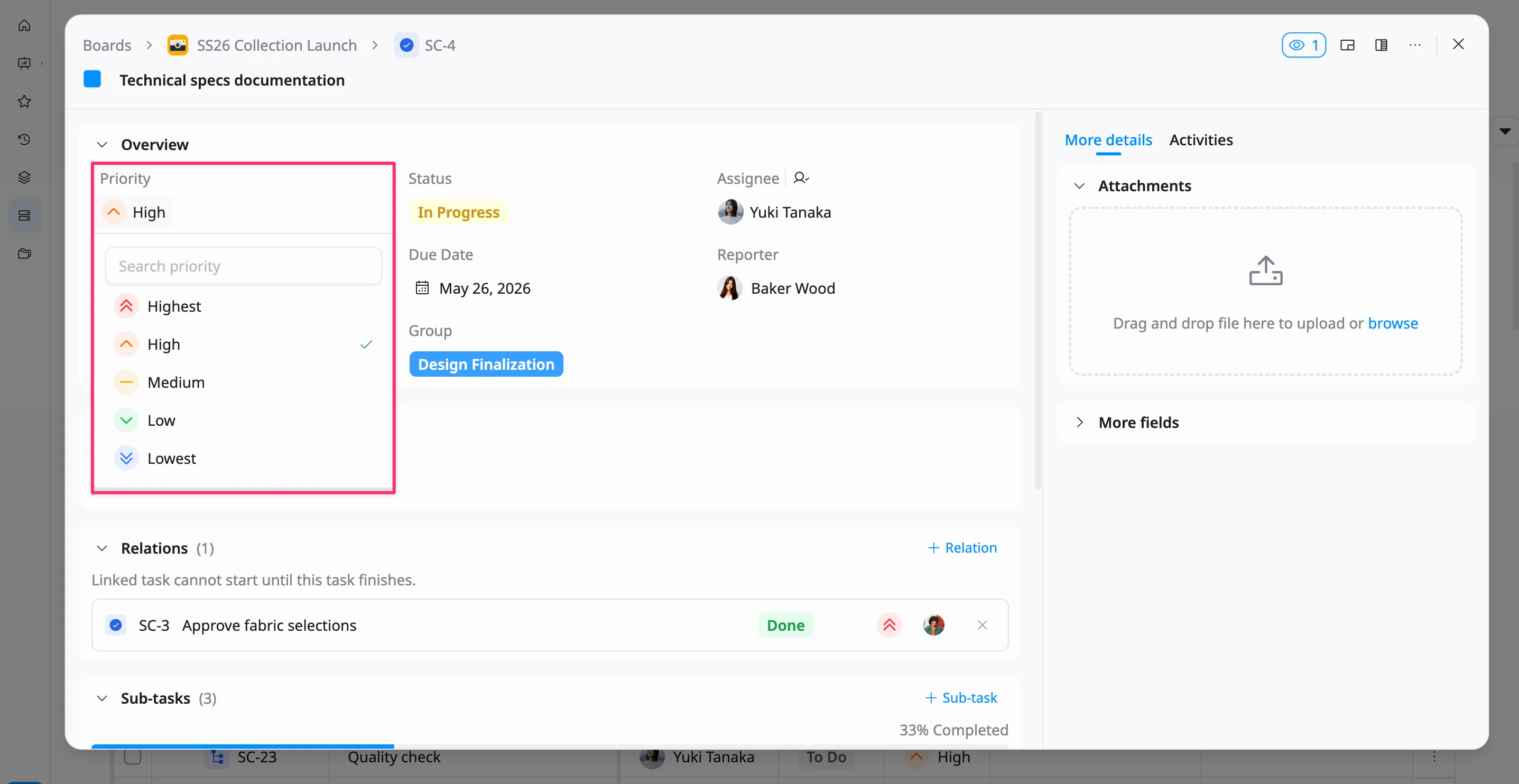
Change a task’s priority
Updating a task’s priority helps your team focus on what matters most and aligns work with urgency.
From the task details view, you can easily adjust the priority whenever things change.
To change a task’s priority:
- Open the task details view for the task you want to update.
- Click the Priority field.
- Select a priority level from the dropdown menu.
Assign a task
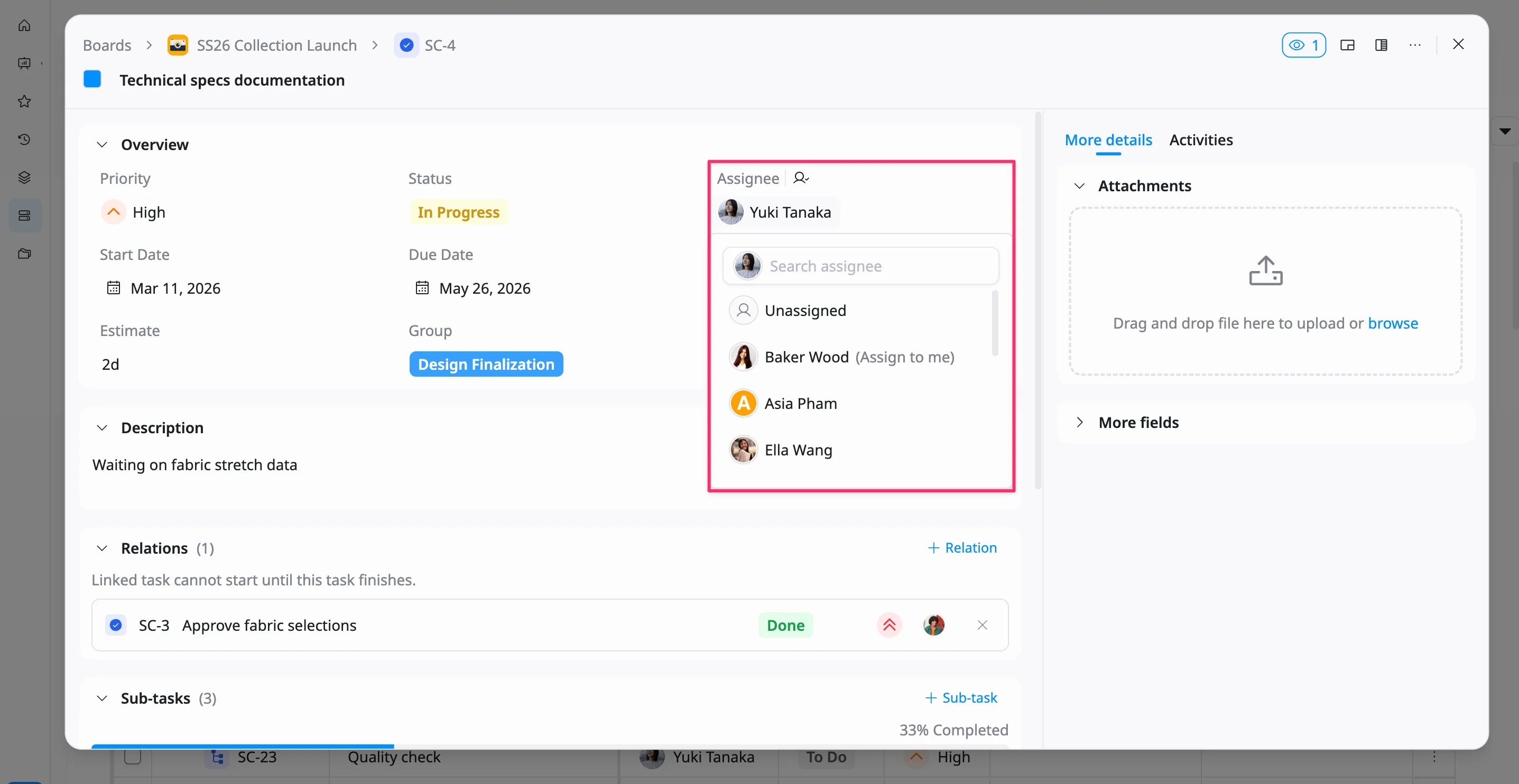
To assign a task:
- Open the task details view for the task you want to update.
- Click the Assignee field.
- Select a person from the list, or search by name and choose them from the result.
To remove an assignee, select Unassigned from the list.
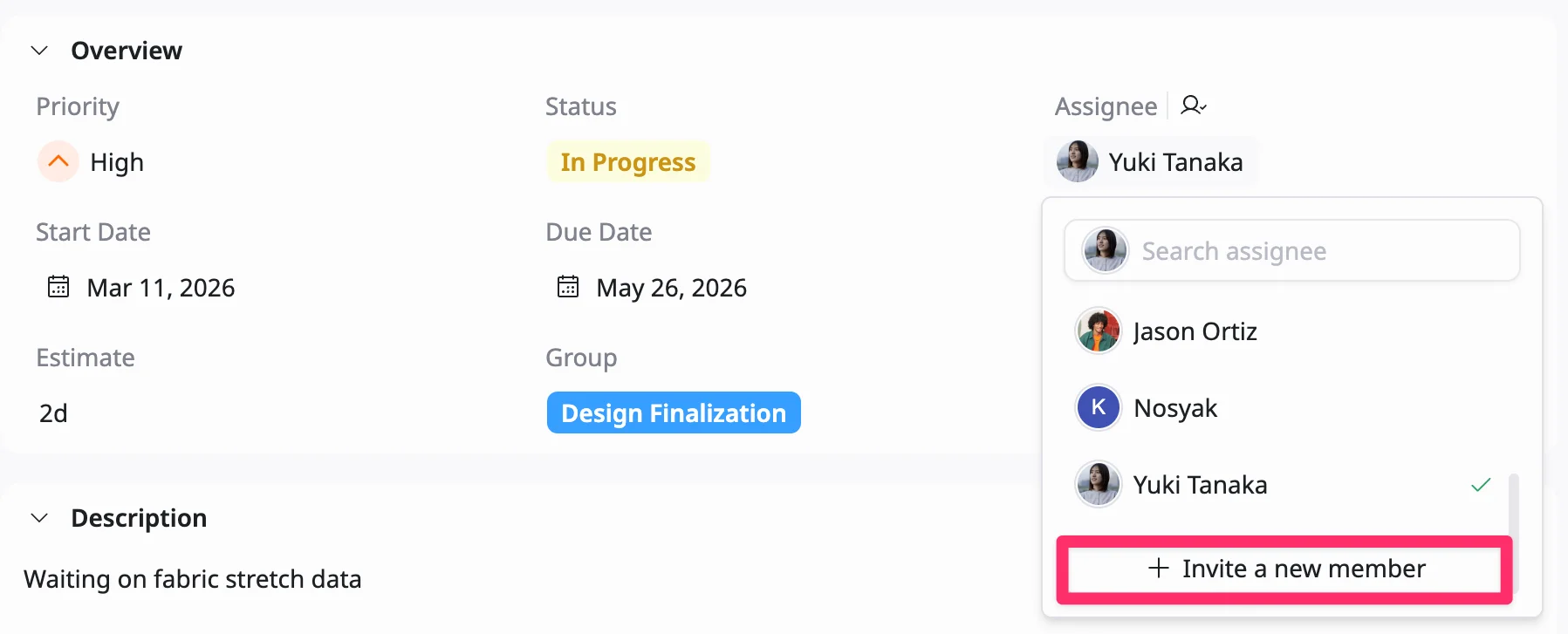
If the person is not in your workspace, you can click Invite a new member to TaskFord at the bottom of the list to add them before assigning.
Change a task’s status
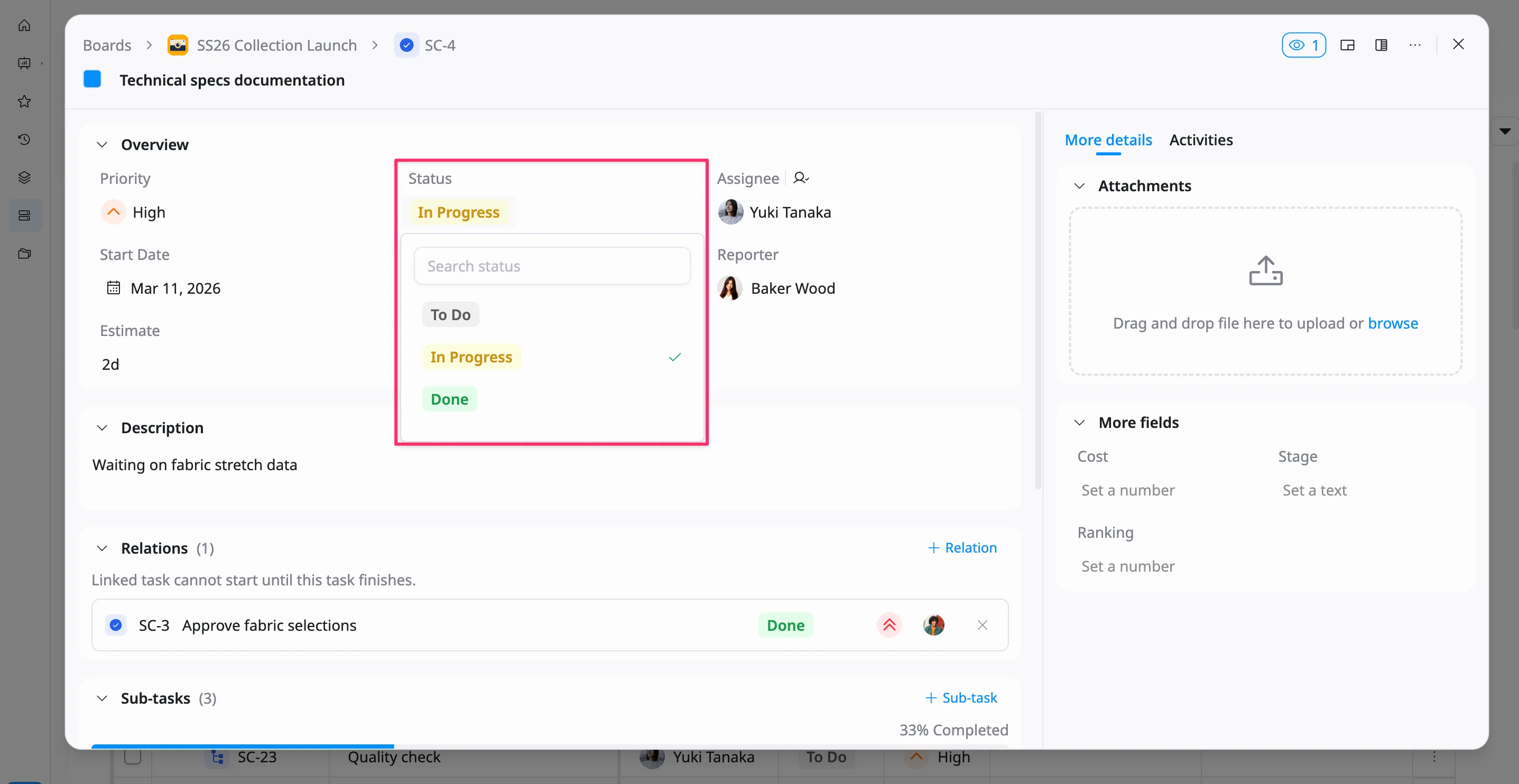
Updating a task’s status helps reflect progress and keeps everyone aligned on what stage the work is in.
From the task details view, you can quickly update the status as work progresses.
To change a task’s status:
- Open the task details view for the task you want to update.
- Click the Status field.
- Select a new status from the dropdown menu.
The task status is updated immediately and reflected across all views.
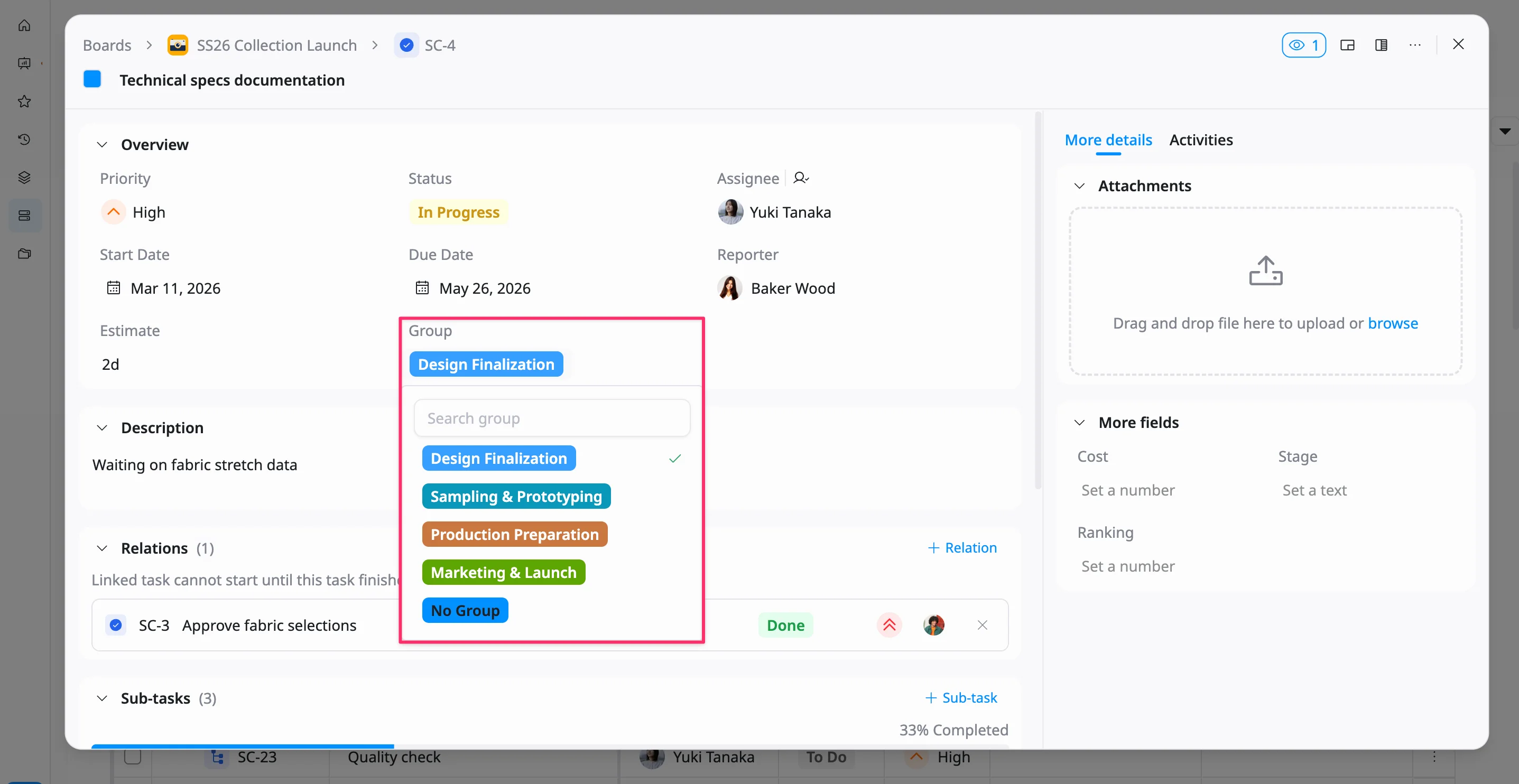
Change a task’s group
Changing a task’s group helps you keep work organized and group-related tasks under the right phase or category.
From the task details view, you can quickly move a task to another group as plans change.
To change a task’s group:
- Open the task details view for the task you want to update.
- Click the Group field.
- Select a group from the dropdown menu, or choose No Group if needed.
The task will be updated and reflected in the selected group across all views.
Schedule a task
You can schedule a task from the task details view to clearly define when work should start, when it is due, and how long it is expected to take.
To schedule a task:
- Open the task details view for the task you want to update.
- In the Overview section, click the Start Date field and select a date.
- Click the Due Date field and select a date.
- (Optional) Click the Estimate field and enter the estimated time.
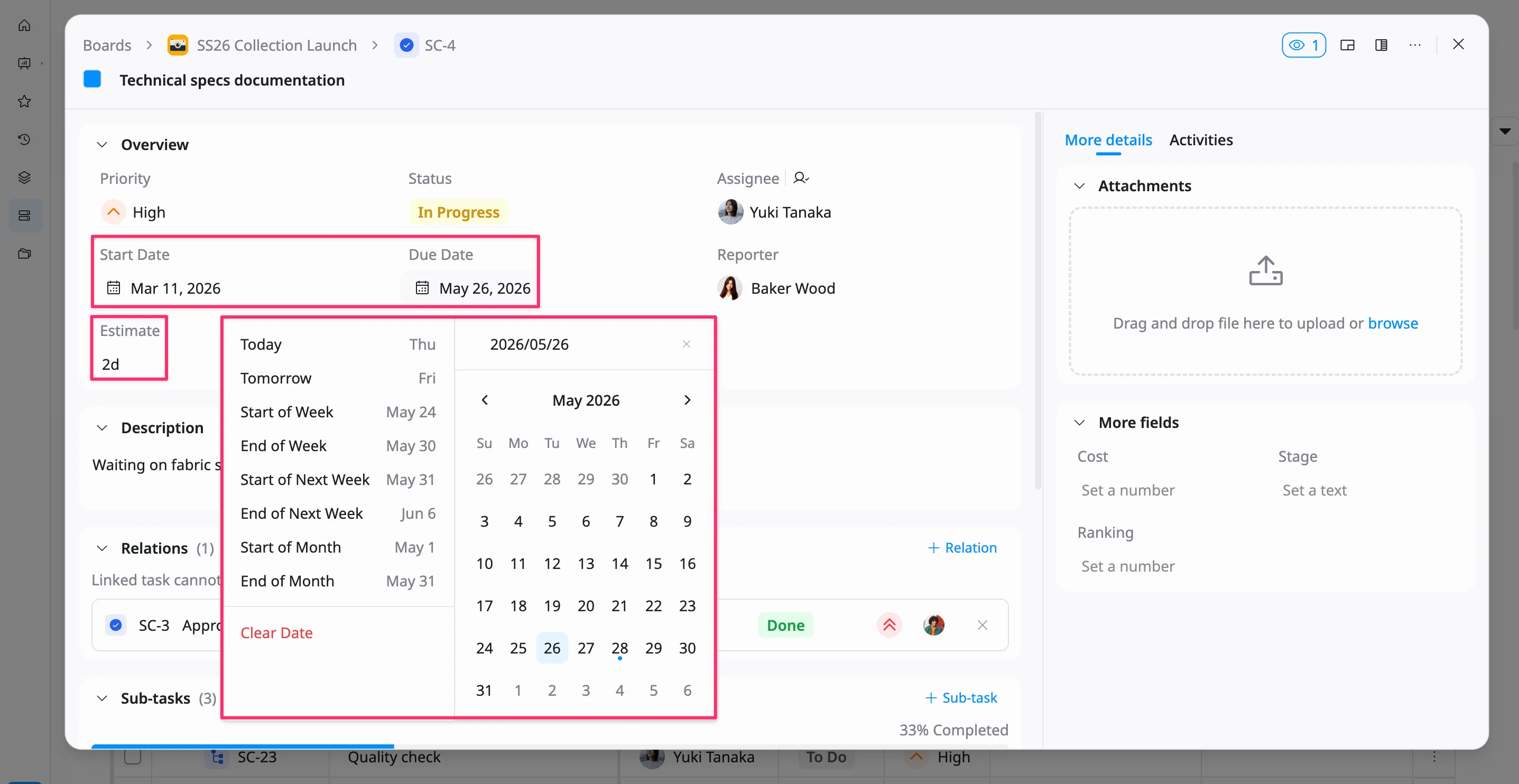
You can use predefined options such as Today or Tomorrow to quickly set a date. Selecting these options will automatically apply the date and close the picker.
To remove a date, click the field and select Clear Date.
If you clear the Start date or Due date, the task will be removed from the Schedule and Gantt views and marked as unplanned.
Add a task description
Adding a description helps provide context, clarify requirements, and ensure everyone understands what needs to be done.
From the task details view, you can add and update task details anytime.
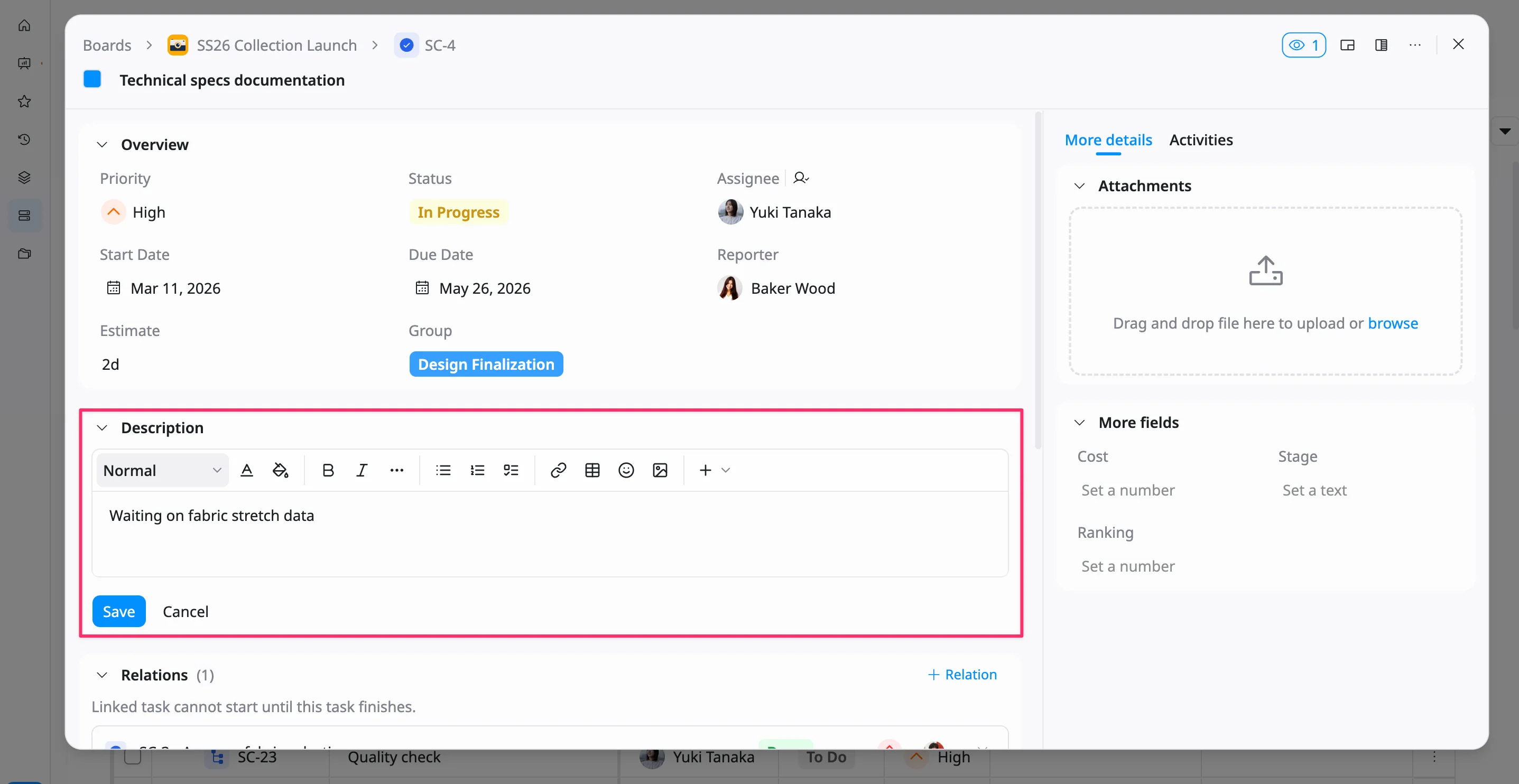
To add or update a task description:
- Open the task details view for the task you want to update.
- In the Description section, click into the field.
- Enter the task details.
- Click Save to apply changes, or Cancel to discard them.
To edit an existing description:
- Click the Description field, update the content, then click Save to apply changes.
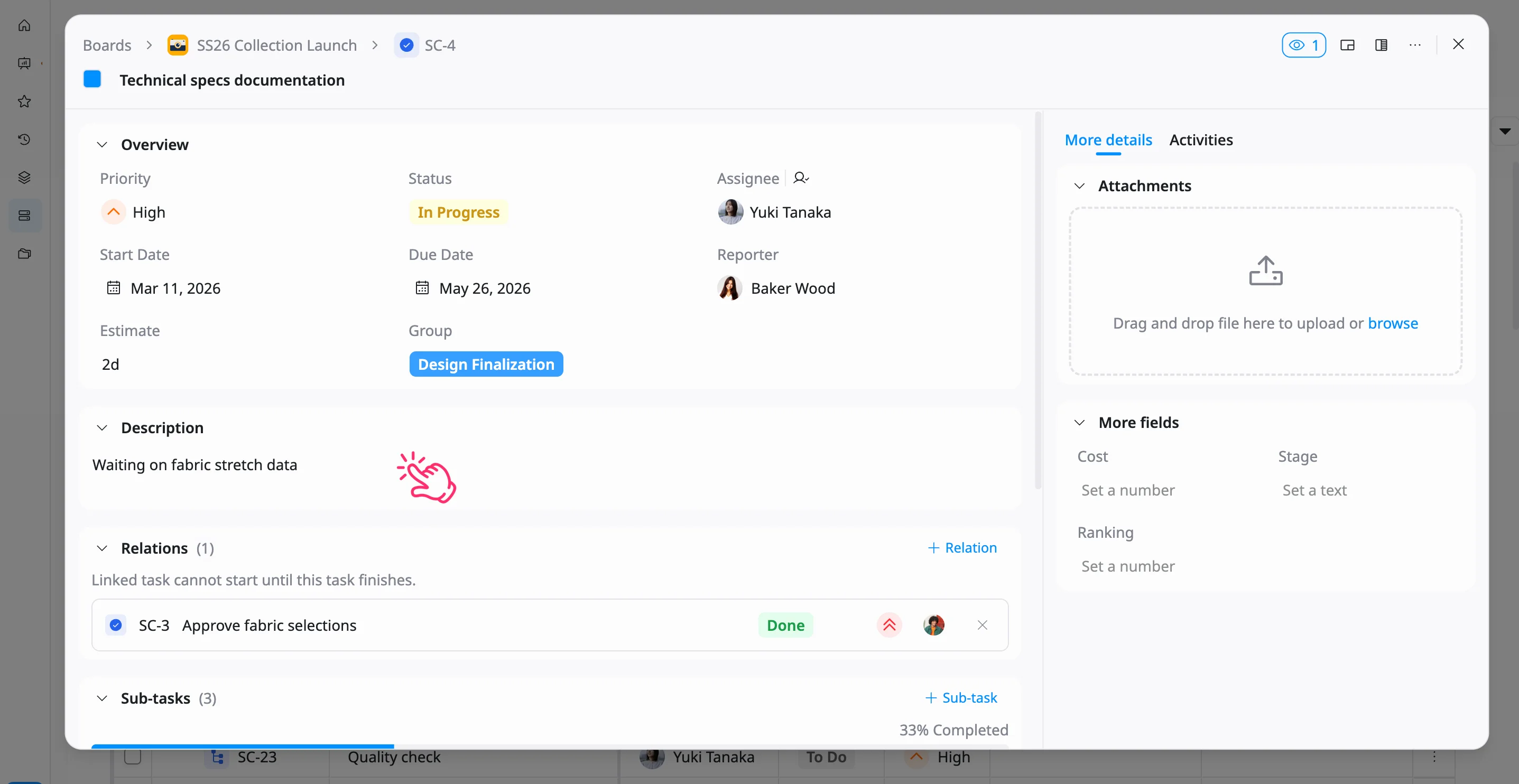
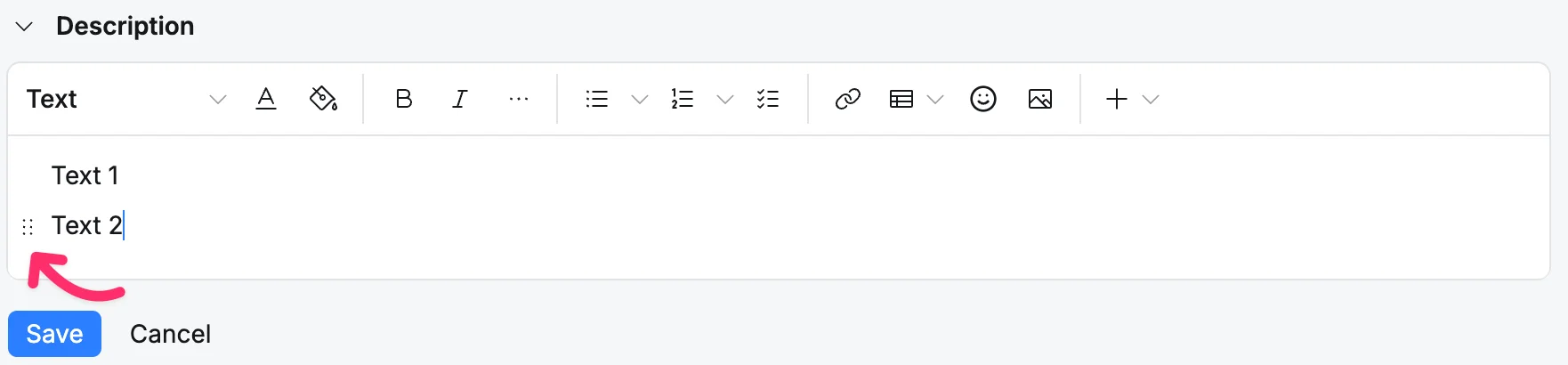
You can reorder lines in the Description field by hovering over a line until the six-dot drag icon appears, then drag the line to where you want it.
Create a task relation
Task relations help you connect related work and define dependencies between tasks, so you can manage execution more effectively.
To create a task relation:
- Open the task details view for the task you want to link.
- In the task details view, go to the Relations section.
- Click + Relation.
- Select the relationship type (for example: blocks, is blocked by, relates to).
- Search for and select the task you want to link.
- Click Add to create the relation.
The linked task will appear in the Relations list with the selected relationship.
To cancel creating a relation:
- Click the minus (–) icon next to the Add button to remove the relation input.
To remove an existing task relation:
- In the Relations section, locate the linked task.
- Click the Remove (×) icon next to it.
- In the confirmation dialog, click Delete to remove the relation, or Cancel to keep it.
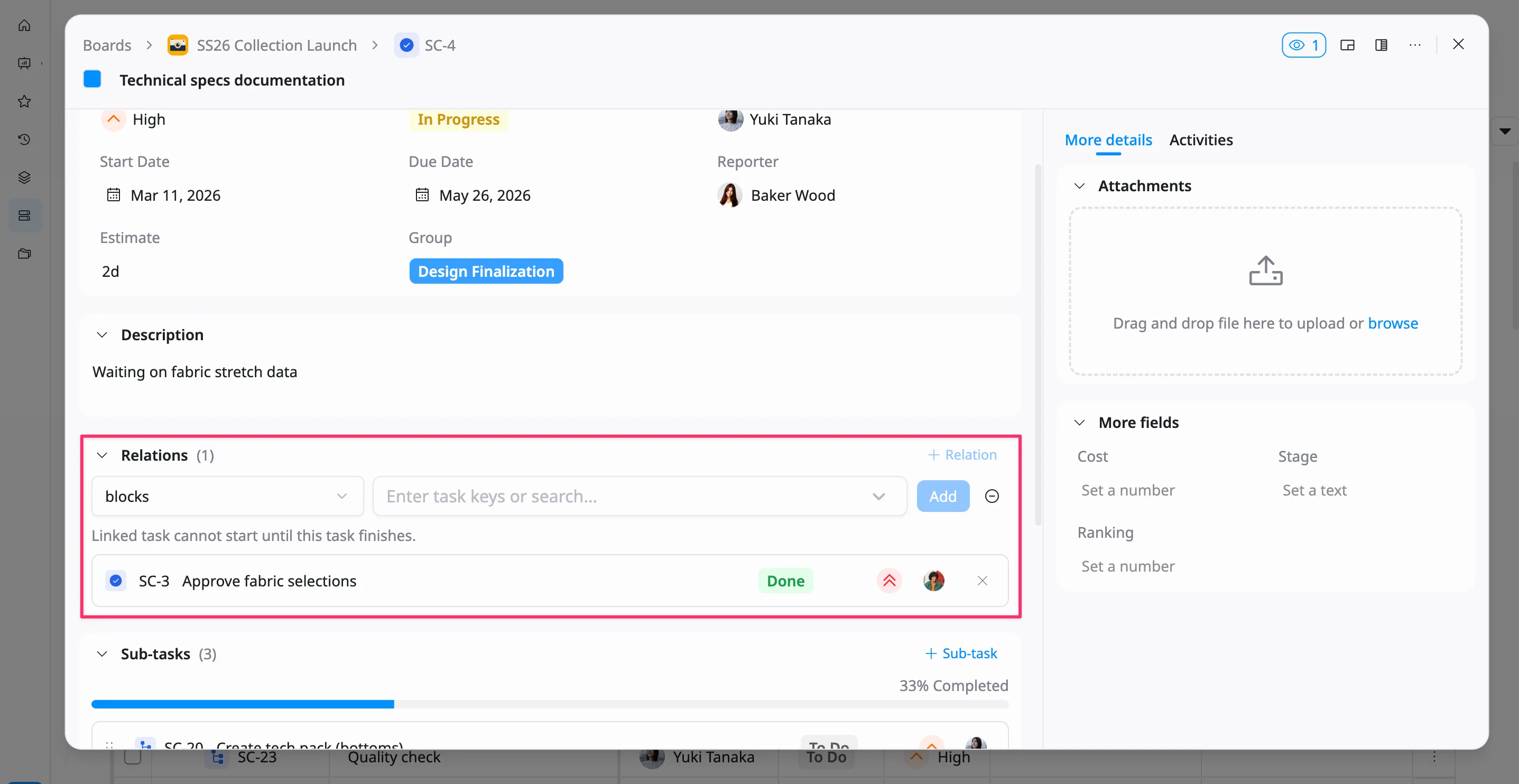
- You can click the task key (e.g., MAL-127) to open the related task.
- From the relation item, you can also quickly view and update key details such as status, priority, and assignee.
Watch a task
You can watch a task to receive notifications whenever there are updates.
To watch a task:
- Open the task details view for the task you want to follow.
- Click the eye icon in the top-right corner.
- Select Start watching.
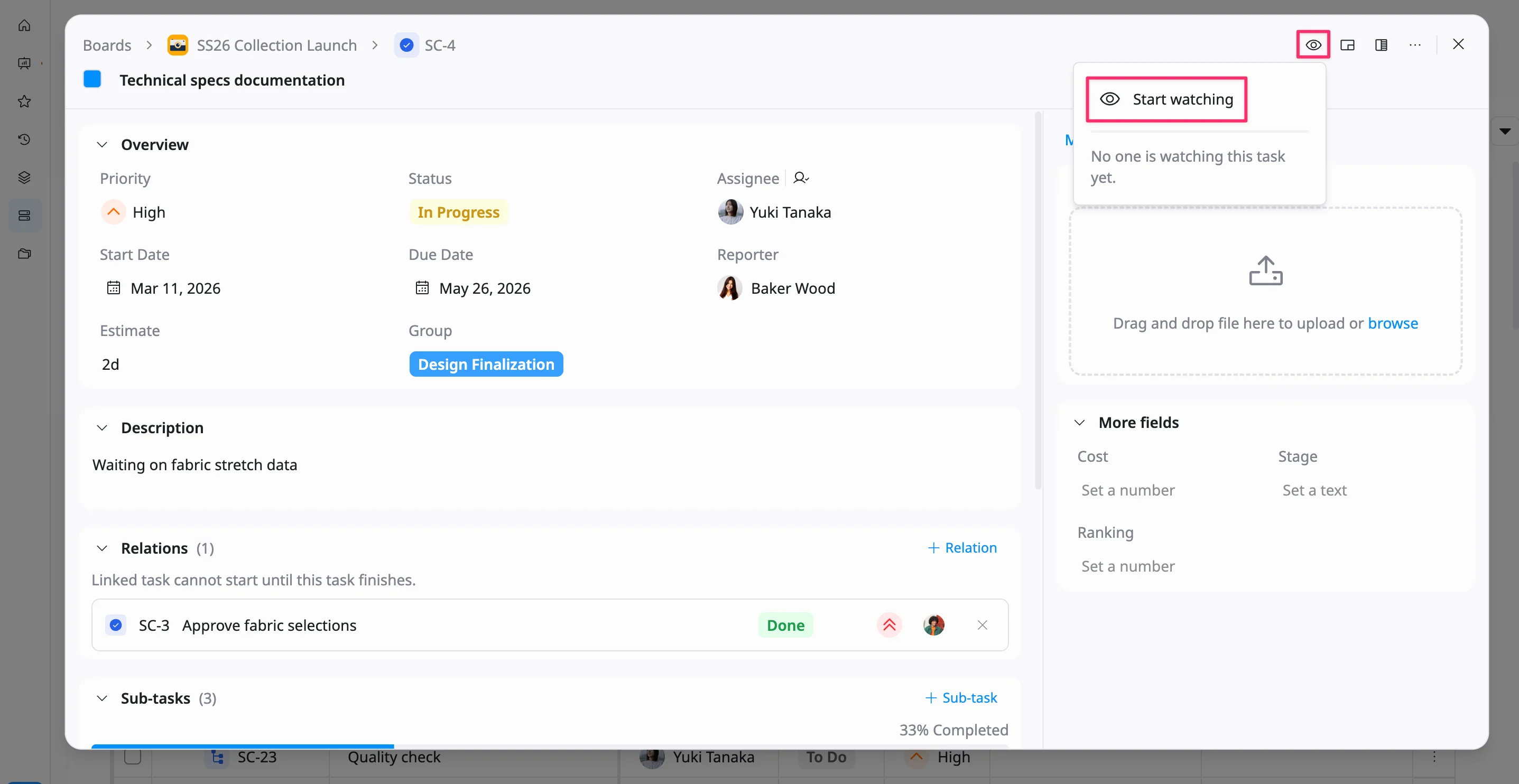
Once enabled, you will be added to the watcher list and receive notifications for any updates on the task.
To stop watching a task:
- Click the eye icon again.
- Select Stop watching.
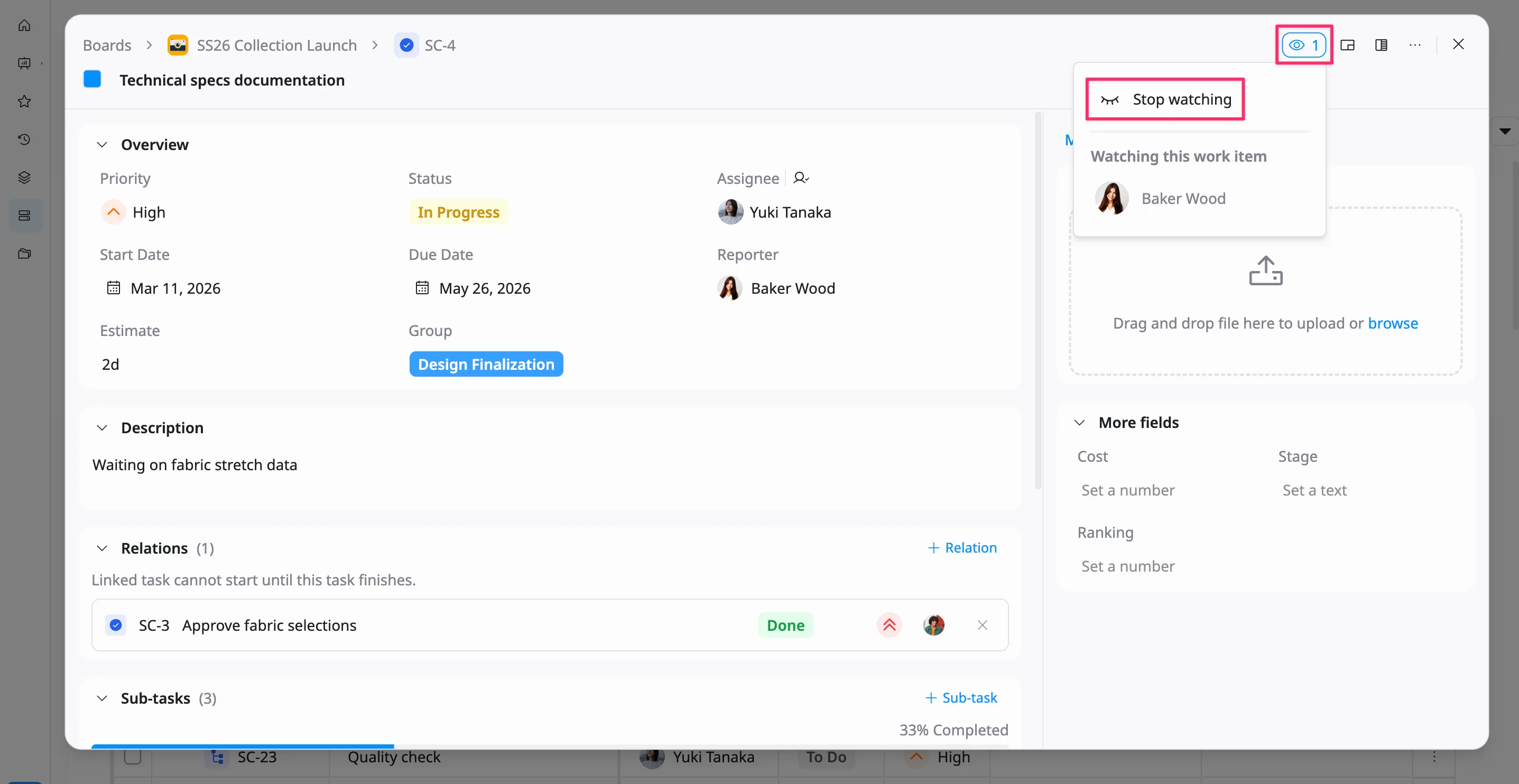
You will no longer receive notifications for that task.
By default, the task creator receives notifications for task updates.
Share a task
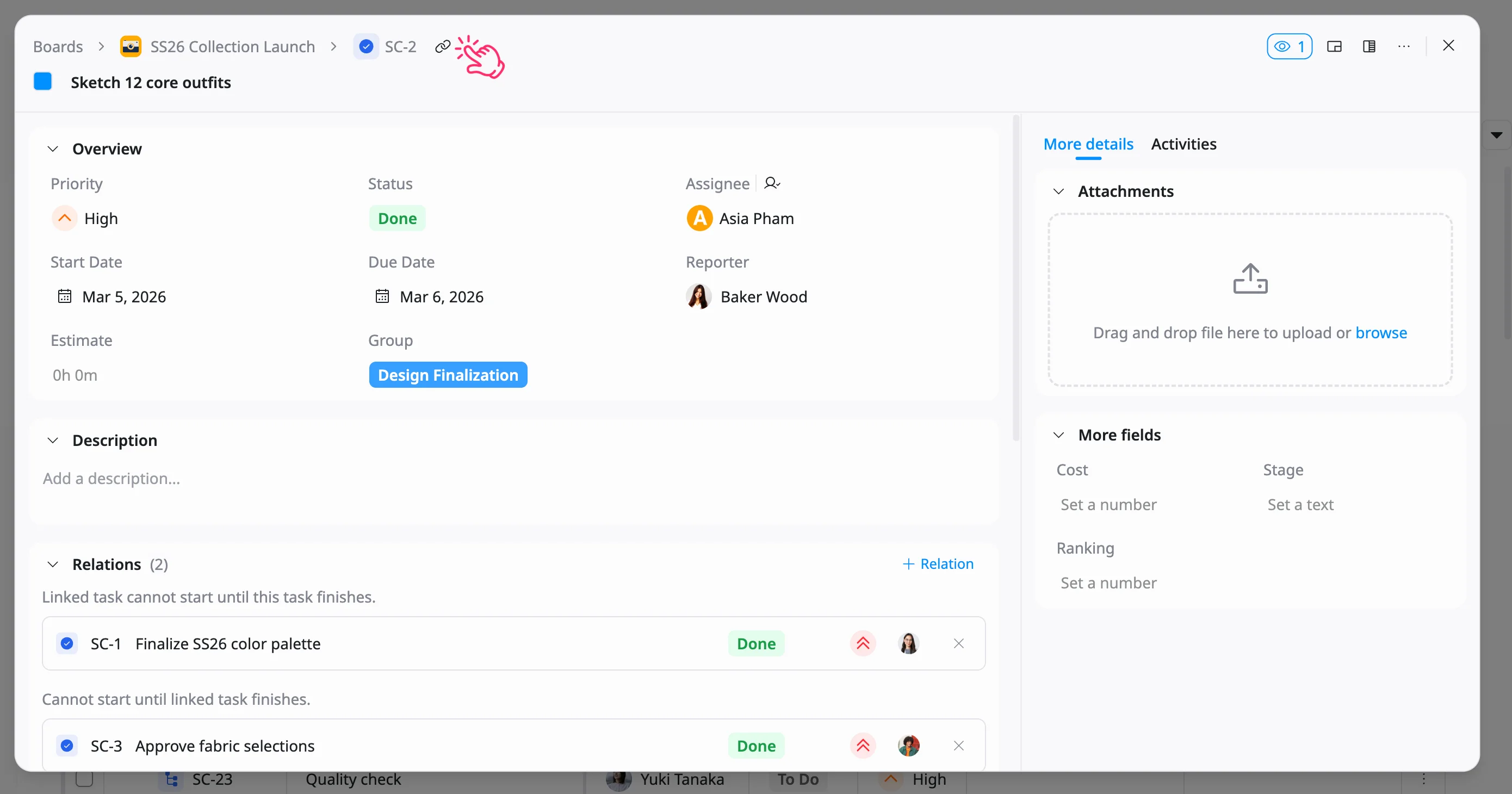
You can share a task by copying its link from the task details view.
To share a task:
- Open the task details view for the task you want to update.
- Hover over the task key.
- Click the Copy link icon next to the task key.
The task link will be copied to your clipboard, ready to share with others.
Attach files to a task
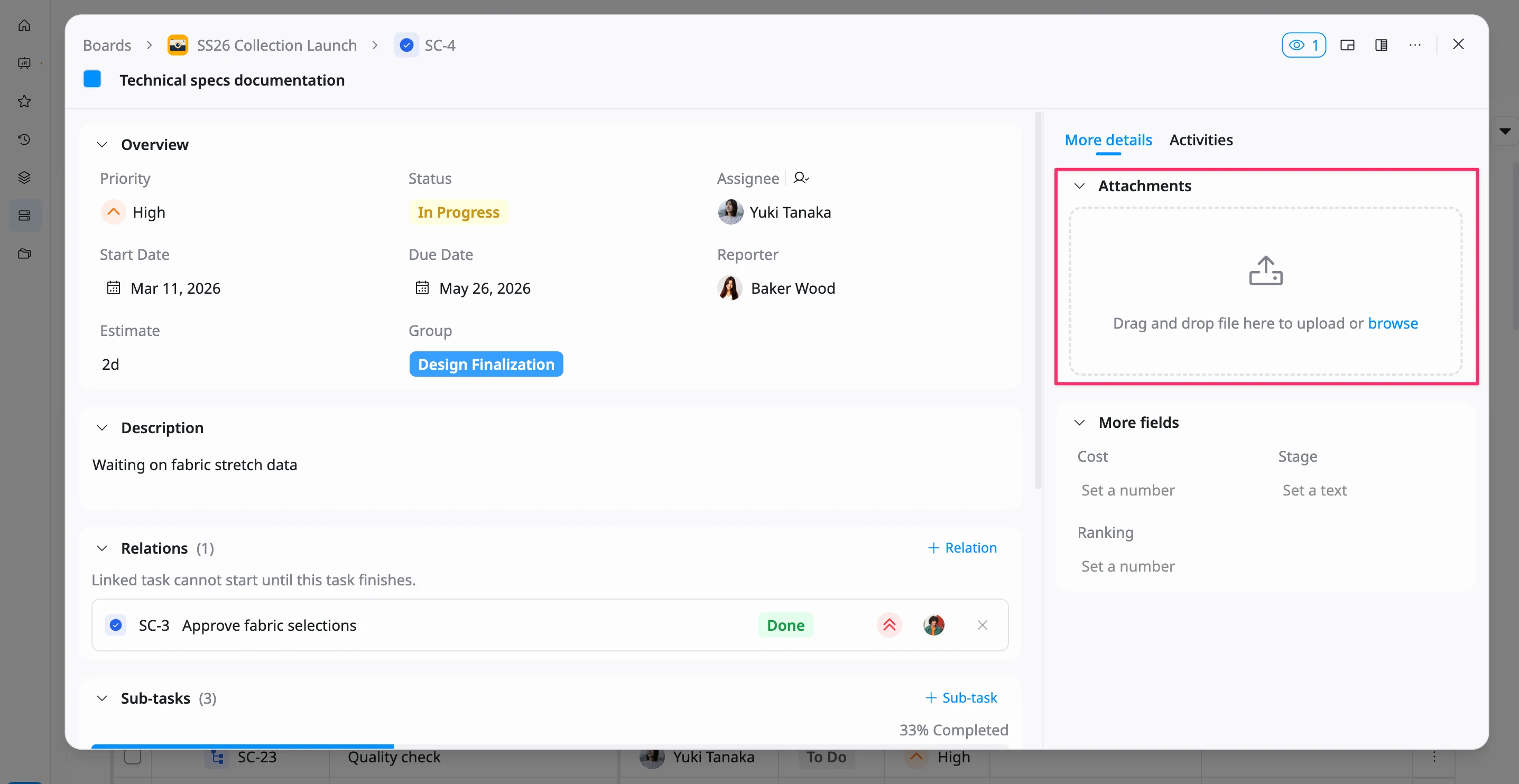
You can add files to a task from the Attachments section in the task details view. This helps you keep supporting files, references, and related materials in one place. TaskFord’s task workflow includes attachment support as part of task planning and execution.
Upload an attachment
To attach a file to a task:
-
Open the task details view for the task you want to update.
-
In the Attachments section, do one of the following:
- Drag and drop a file into the upload area
- Click browse to select a file from your device
-
Once uploaded, the file will appear in the attachment list.
View an attachment
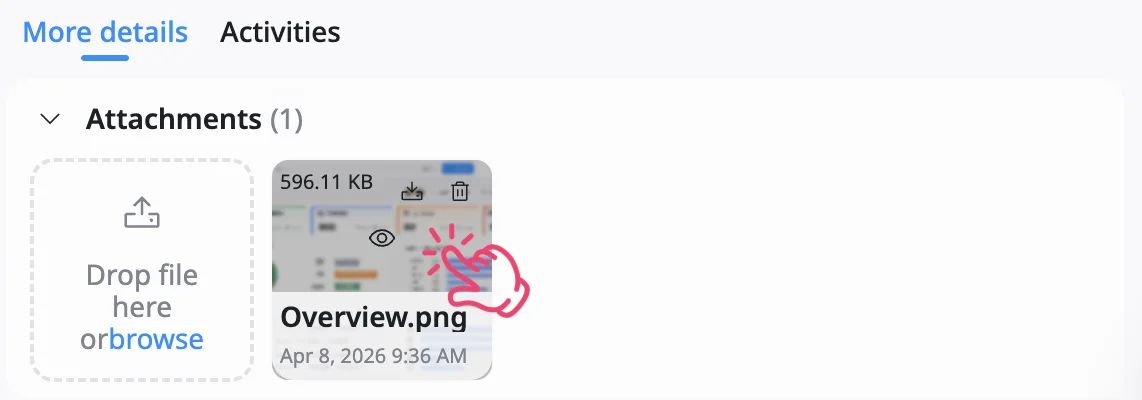
To view an attachment:
- Go to the Attachments section in the task details view.
- Click the file you want to open
The file will open in full screen for preview.
Download an attachment
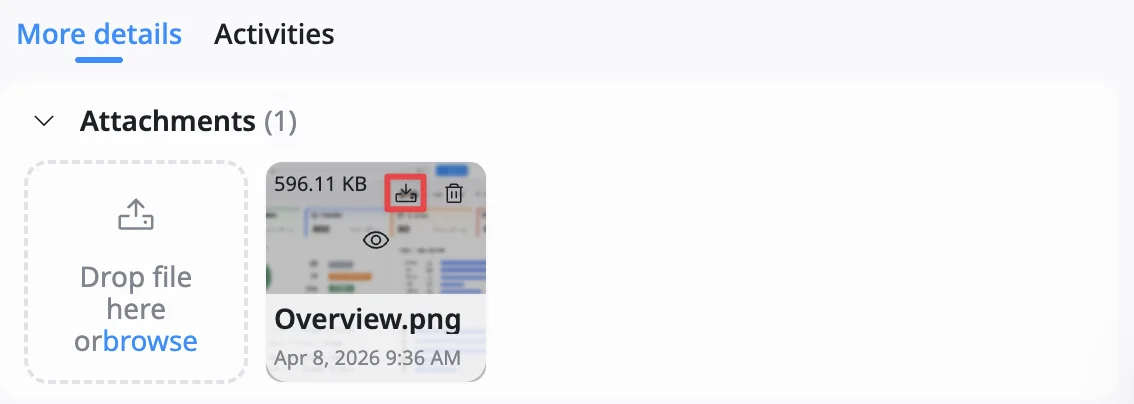
To download an attachment:
- Hover over the file in the Attachments section.
- Click the Download icon.
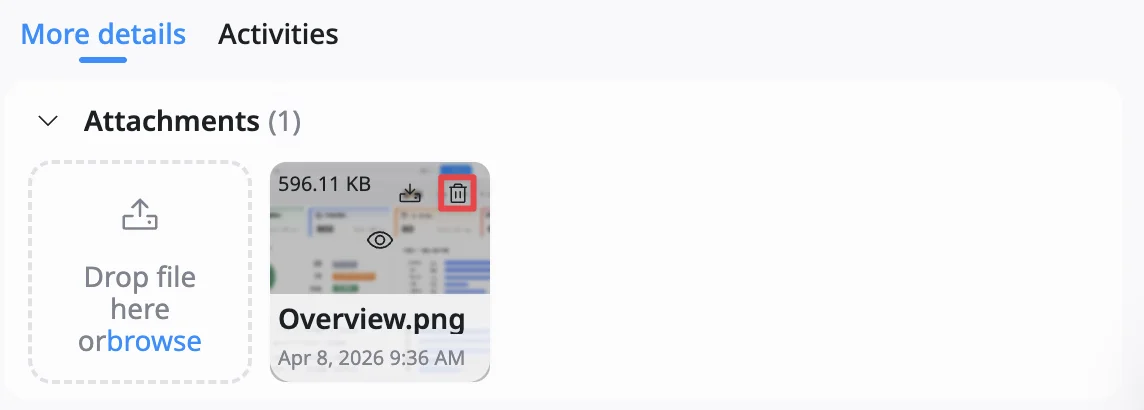
Delete an attachment
To delete an attachment:
-
Hover over the file in the Attachments section.
-
Click the Delete icon.
-
In the confirmation dialog:
- Click Delete to confirm
- Click Cancel to keep the file
You can attach a variety of file types, including documents, images, spreadsheets, GIFs, videos, or even technical diagrams.
Custom fields
The More fields section displays additional fields used to capture project-specific information for a task.
These fields are configured in site settings and will appear here once they are set up.
Use custom fields in a task
To fill in additional fields:
- Open the task details view you want to update.
- Scroll to the More fields section in the task details view.
- Click on a field.
- Enter or select a value based on the field type (e.g., number, text).
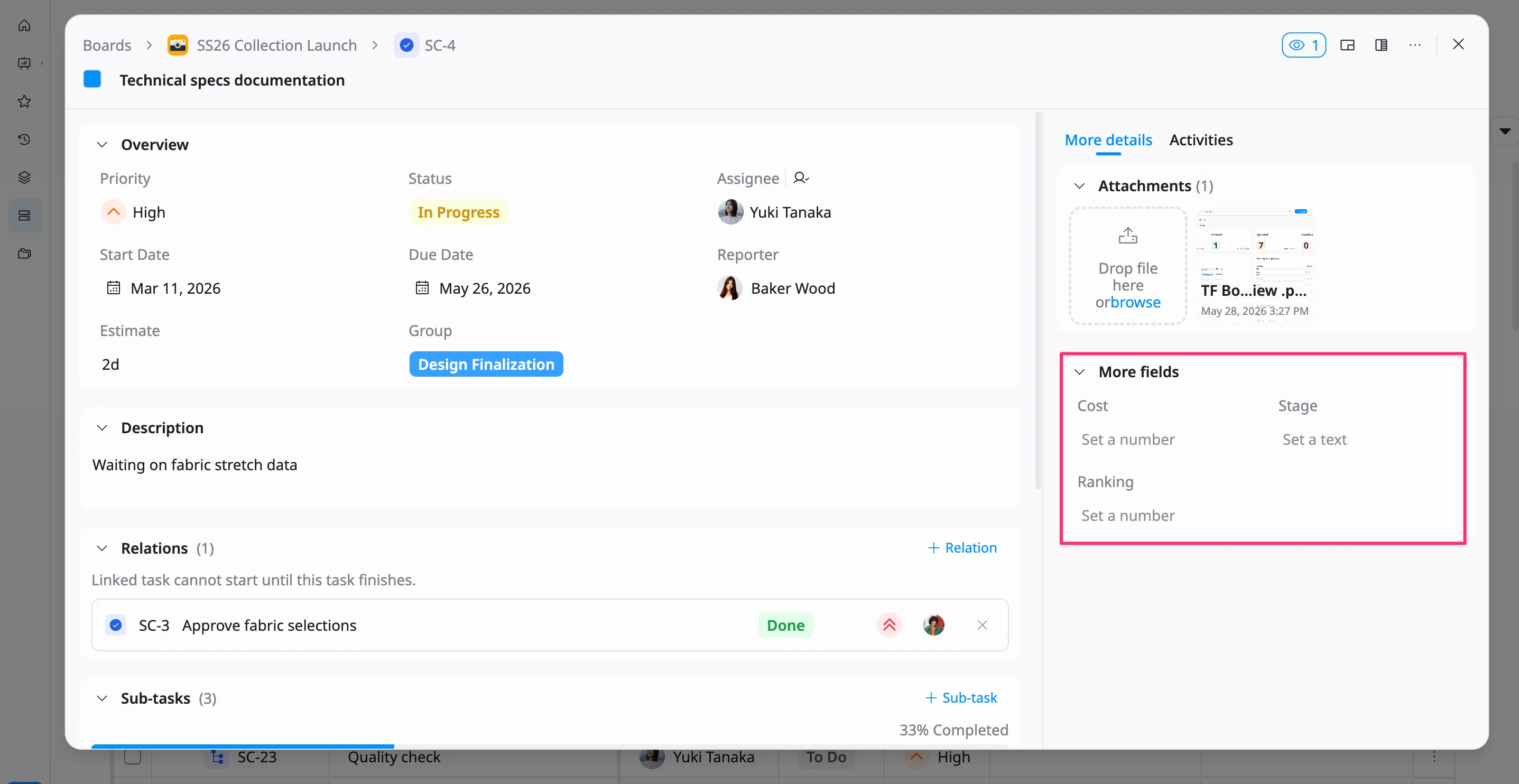
The information will be saved automatically.
Custom fields help you track extra details such as cost, metrics, or other data specific to your workflow.
View task activities
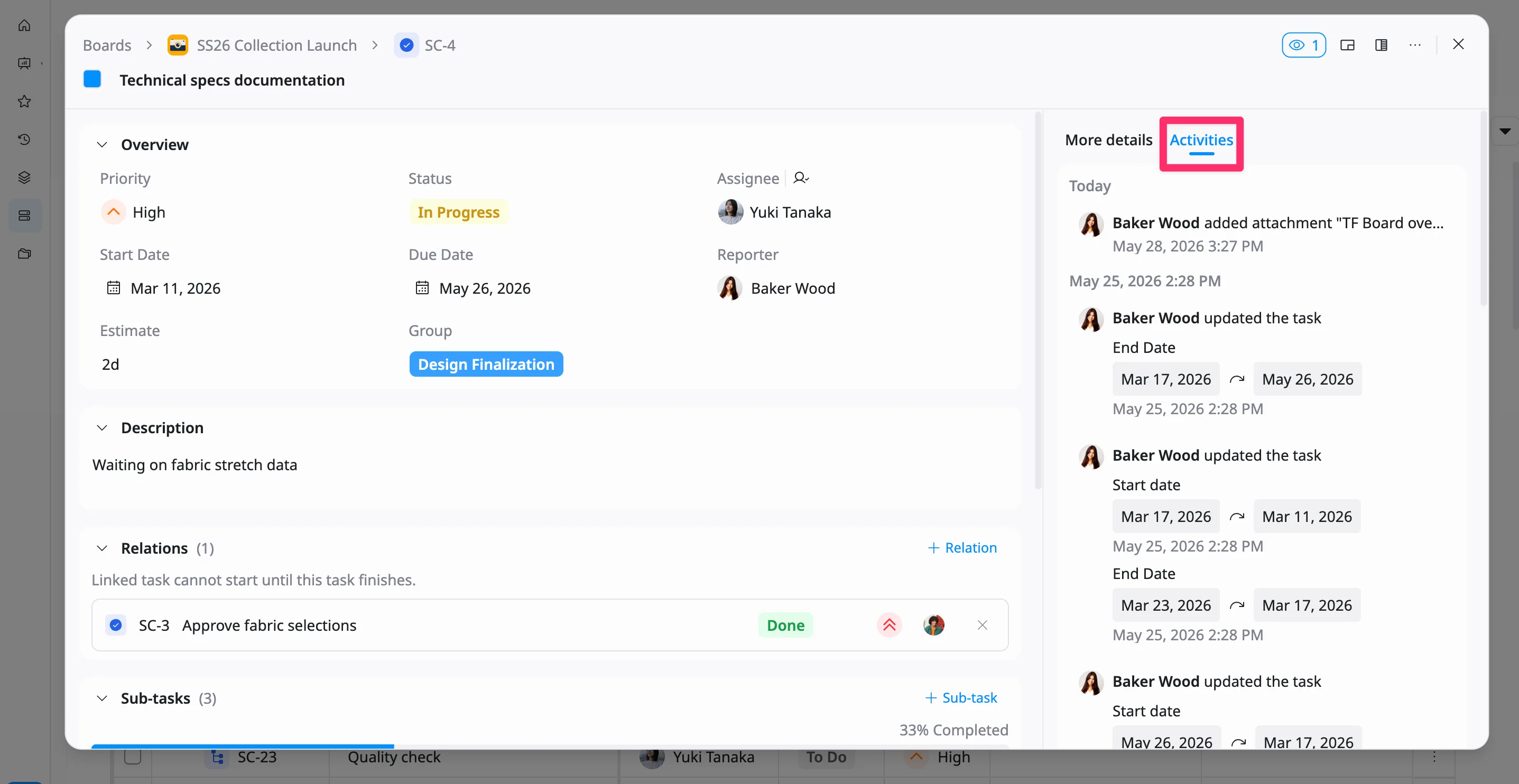
The Activities tab shows a complete history of updates made to a task, including what changed, when it changed, and who made the update. This helps you stay informed and track progress over time.
To view task activities:
- Open the task details view for the task you want to review.
- In the task details view, click the Activities tab.
You will see a timeline of all updates, such as changes to status, dates, assignee, and other task details.
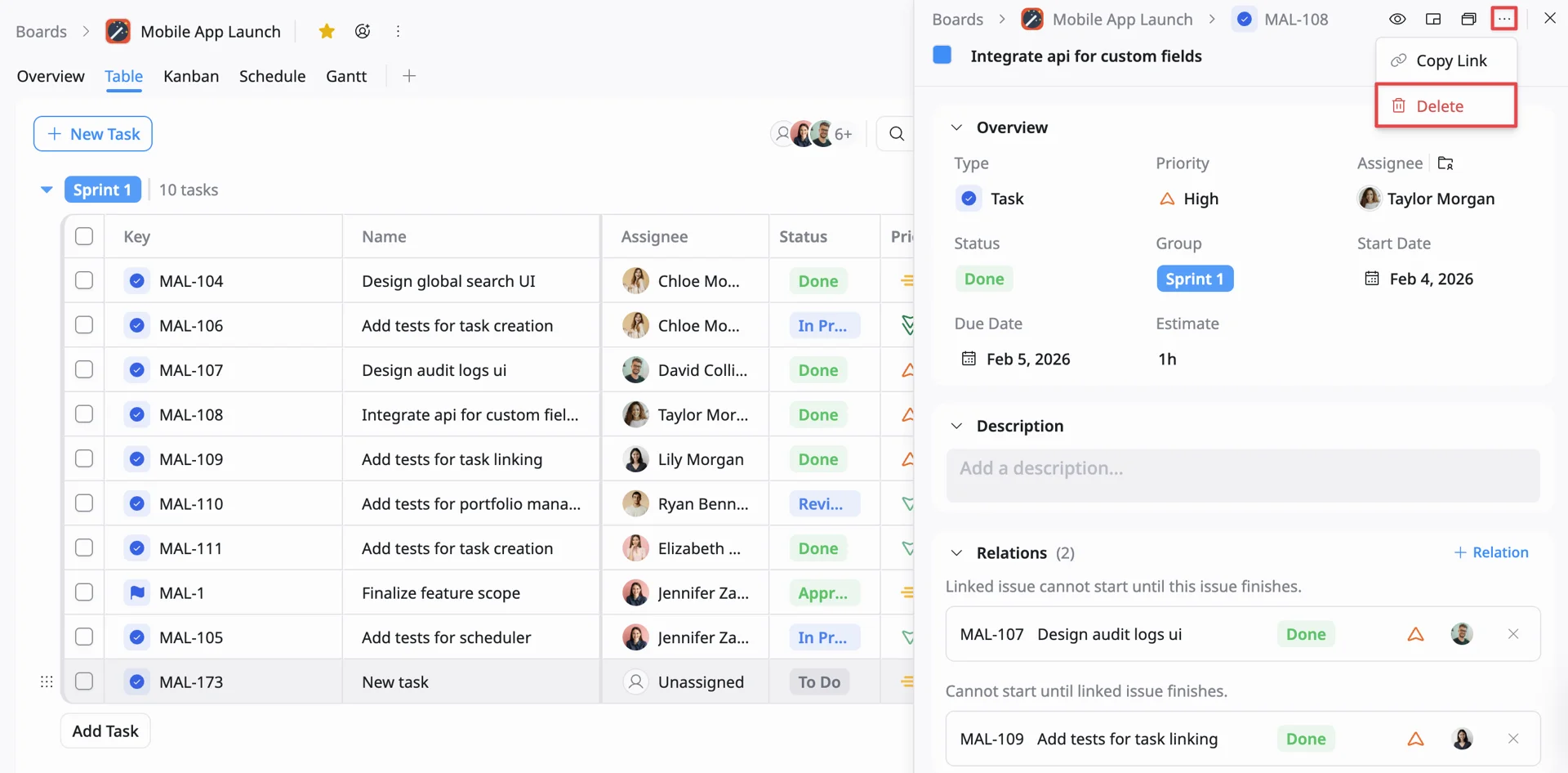
Delete a task
You can delete a task from the task details view.
To delete a task:
-
Open the task details view for the task you want to delete.
-
Click the three dots (⋯) in the top-right corner.
-
Select Delete from the dropdown menu.
-
In the confirmation dialog:
- Click Delete to confirm
- Click Cancel to keep the task
The task and its subtasks will be permanently removed.