Manage tasks in Gantt view
Manage tasks in TaskFord’s Gantt view by creating, scheduling, rescheduling, bulk editing, and deleting tasks directly from the timeline and list view.
- Board Admins / Board Editors can manage tasks in the Gantt view.
- Site Admins / Site Editors can manage tasks in the Gantt view only on Open boards.
Add a new task
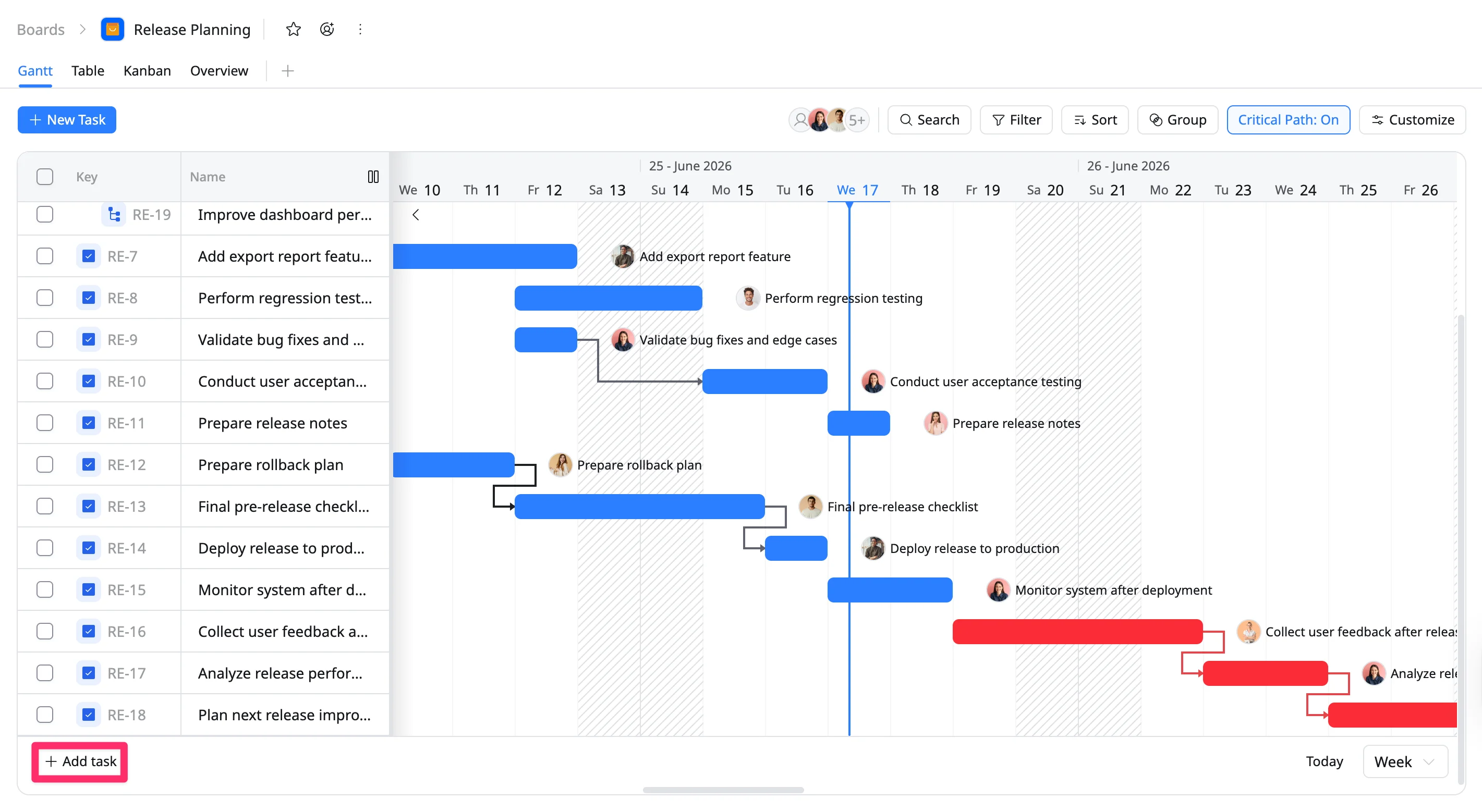
You can add a new task inline directly within the list view without opening a Task Details Panel. This allows you to capture ideas instantly and add specific details later.
To add a new task in the Gantt view, follow these steps:
- Scroll to the bottom of the task list.
- Click + Add task in the bottom-left corner.
- Type the name of your new task in the input field.
- Press Enter to create the task.
Schedule a task on Timeline
Tasks must have both start and due dates to appear on the Gantt chart. Tasks without dates will remain visible only in the list view.
- Navigate to the Gantt chart.
- Locate the unscheduled task in the list view.
- Click a specific time slot on the timeline to set the start and end dates.
Reschedule a task
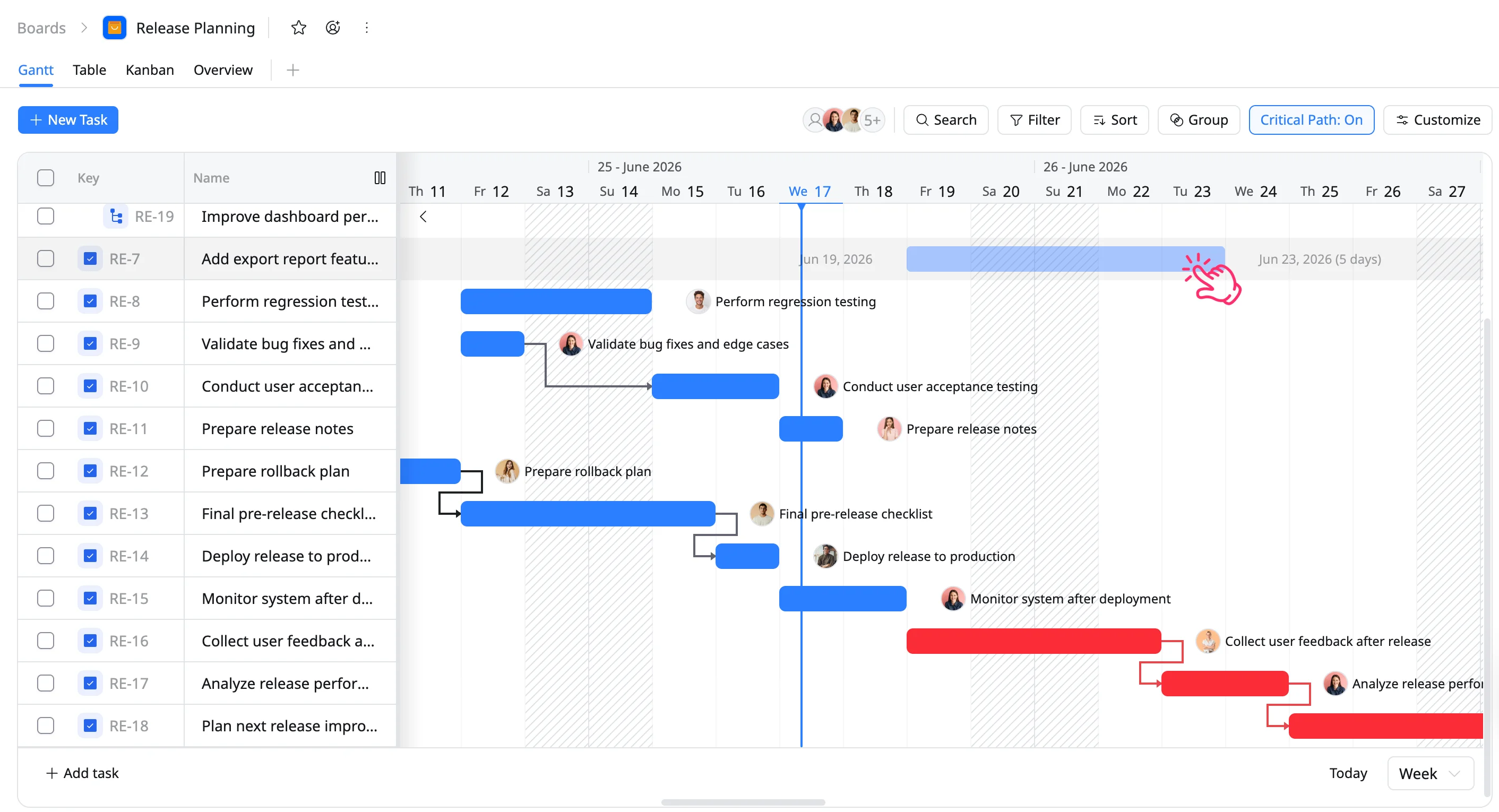
In the Gantt view, you can easily update a scheduled task using drag-and-drop. This allows you to quickly adjust task dates and durations.
- To change the date range: Click and drag the task bar left or right to change the start and end dates.
- To adjust the task duration: Drag the left or right edge of the task bar to extend or shorten its duration.
Unschedule a task
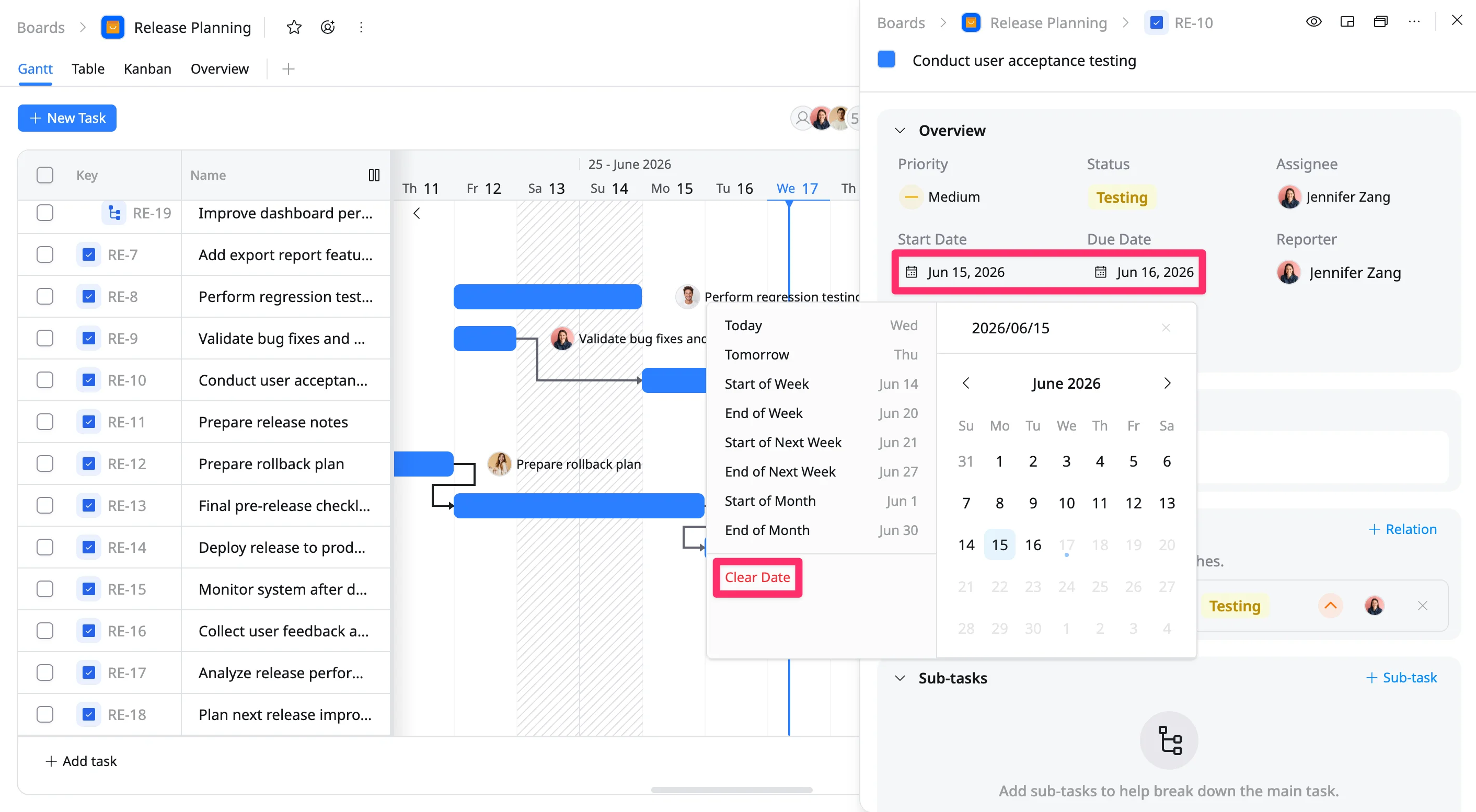
To unschedule a task from the Gantt view:
- Select the taskbar you want to unschedule.
- This will open the Task Details as a side panel on the right or as a modal pop-up.
- Select the Start Date or Due Date field.
- Press Clear Date to remove the assigned date.
Bulk edit tasks
Bulk editing allows you to update multiple tasks at once, helping you save time when making the same change across several items in your project.
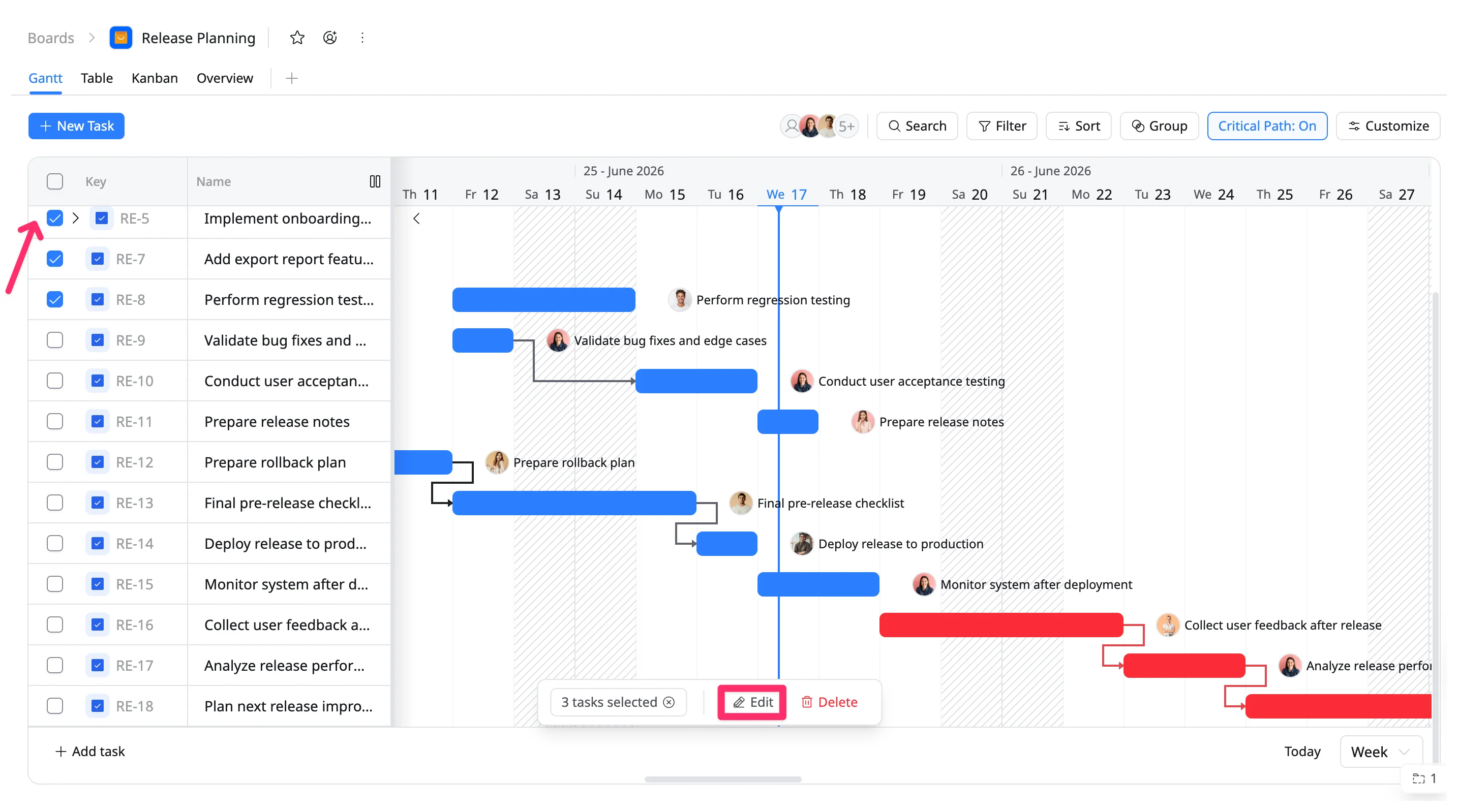
- On the Task List, hover your cursor over the left side of the rows. Then check the box next to each task you want to edit.
To select all tasks in the current view, click the checkbox in the header row.
- After selecting tasks, a Bulk Action toolbar will appear at the bottom of the table. Click Edit to open the Bulk edit panel.
- In the Bulk Edit panel, update one or more task fields at once. You can modify:
- Assignee: Assign all selected tasks to a specific team member.
- Due Date: Apply a shared deadline to all selected tasks.
- Priority: Set the same urgency level for the selected group.
- Start Date: Define a common start time for the selected tasks.
- Status: Update progress (e.g., To Do, In Progress, Done) for all selected items.
- Click Save to complete the changes. All selected tasks will be updated at the same time.
Delete or bulk delete tasks
To delete one or multiple tasks directly from your list view.
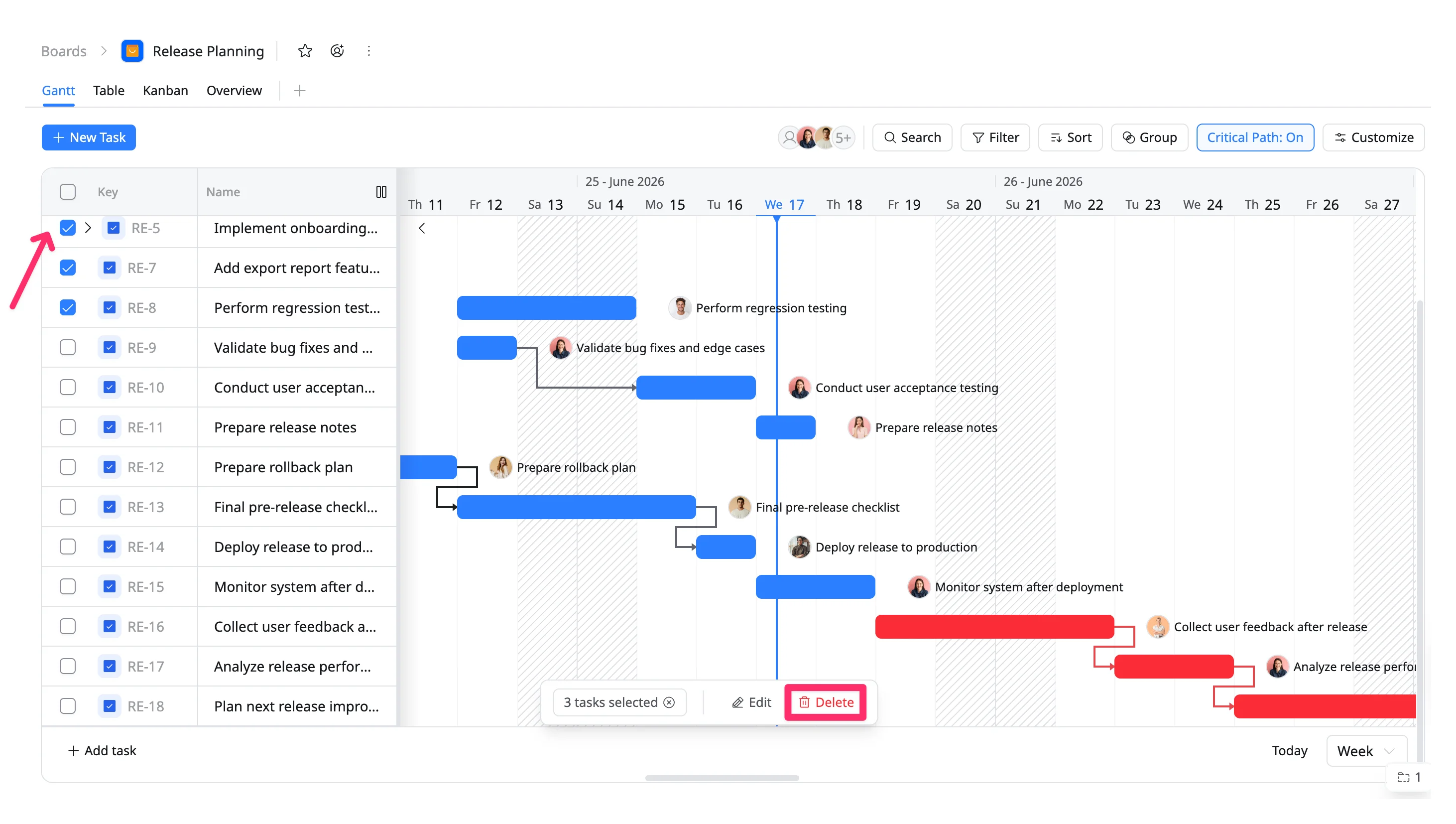
- In the List view, hover over the left side of any row and check the boxes for the tasks you wish to delete.
- Once selected, a Selection Toolbar will appear at the bottom of the screen.
- Click the Trash icon in the toolbar.
- Confirm the deletion when prompted to permanently delete the tasks.
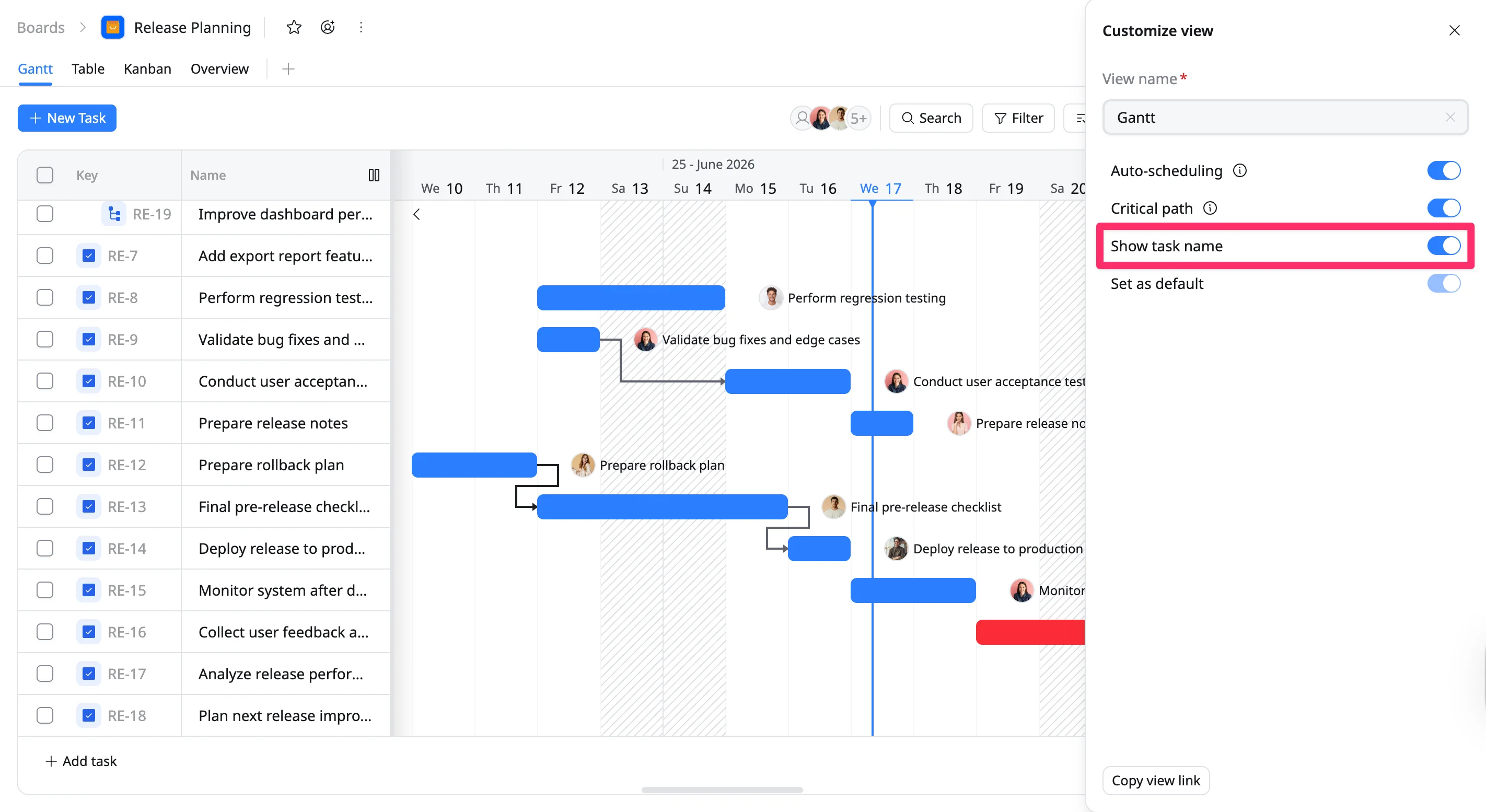
Show task name
To show the task name next to the taskbar in the Gantt view:
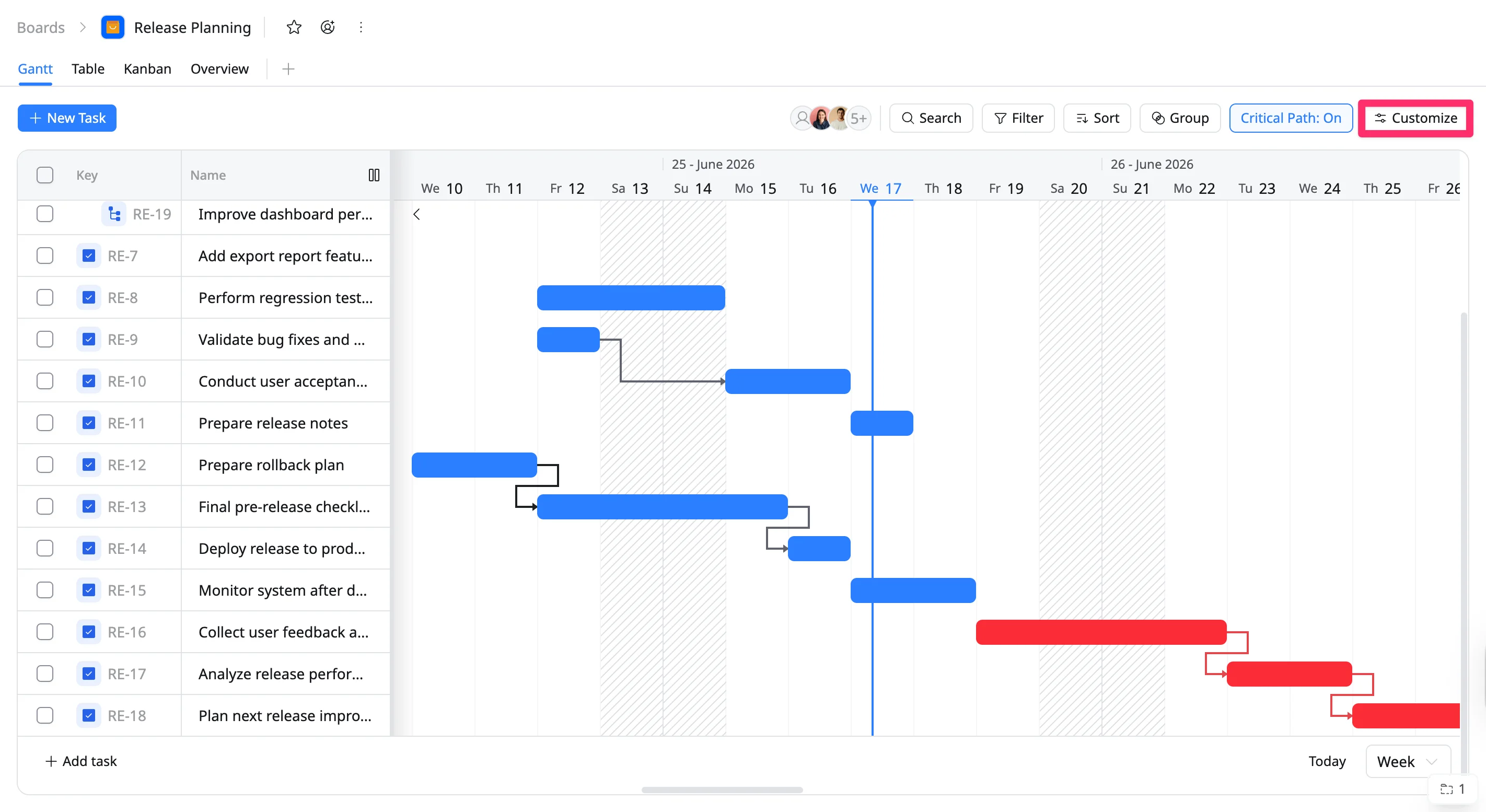
- Click Customize in the toolbar.
- Enable Show task name by toggling the setting.