Manage tasks in Kanban view
Manage tasks in Kanban view to create, edit, move, limit, and organize tasks directly within your workflow.
- Board Admins / Board Editors can manage tasks in the Kanban view.
- App Admins / App Editors can manage tasks in the Kanban view only on Open boards.
Create a new task
You can create a task directly from the Kanban view in two different ways, depending on how you prefer to work.
Option 1: From the column header
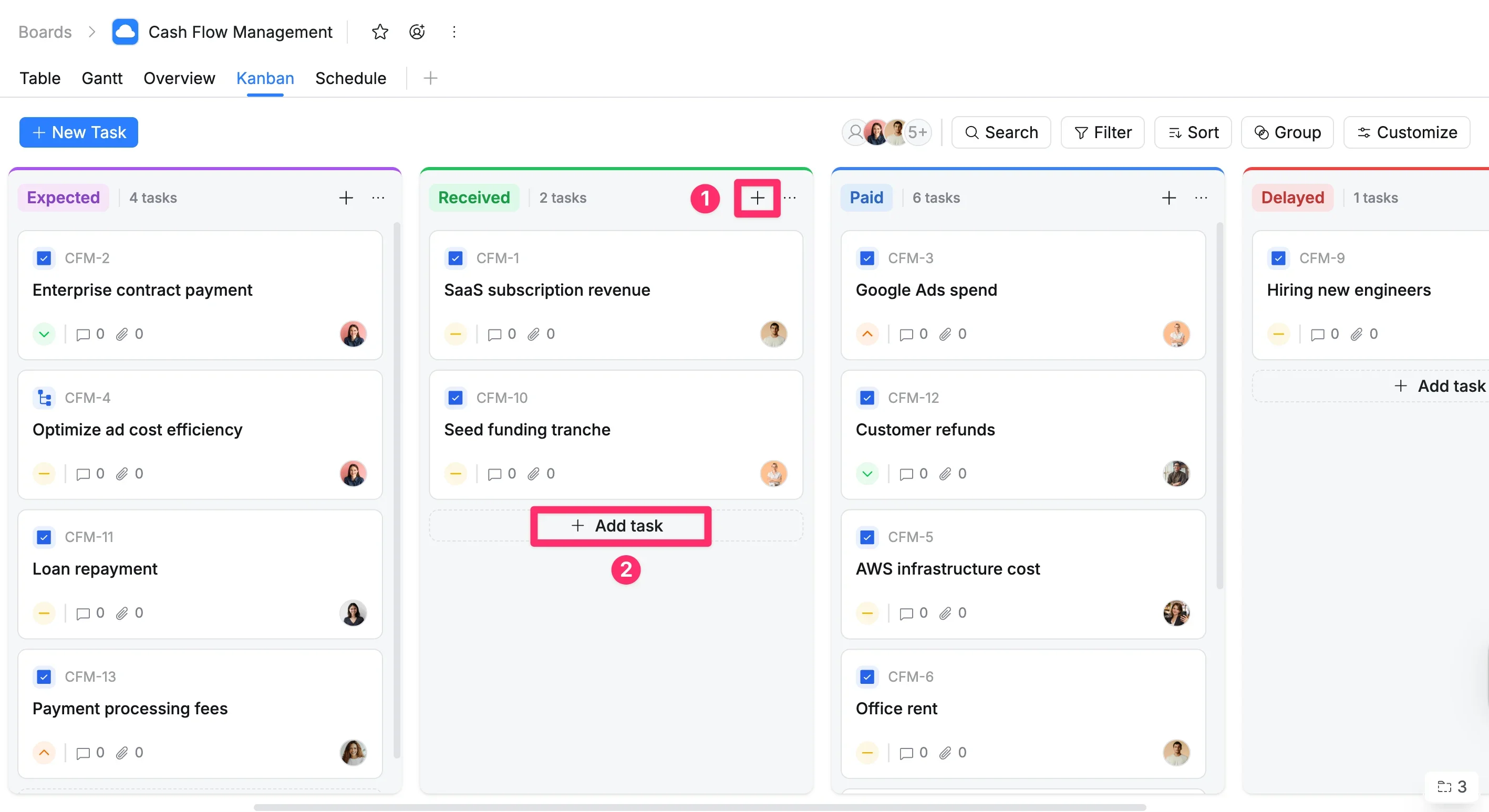
- Click the + icon in the header of the desired column.
- Enter the task name in the field provided. Optionally, select a Task type, Assignee, Priority, or Group.
- Press Enter or click Add to create the task.
Option 2: Inline task creation
You can quickly add tasks directly within a column, without opening the full Task Details panel:
- Scroll to the bottom of the column where you want to add the task.
- Click + Add task at the bottom of the column.
- Enter the task name in the field provided. Optionally, select a Task type, Assignee, Priority, or Group.
- Press Enter or click Add to create the task.
Edit a task
You can update tasks directly from the Kanban board without leaving the view.
Edit a task name
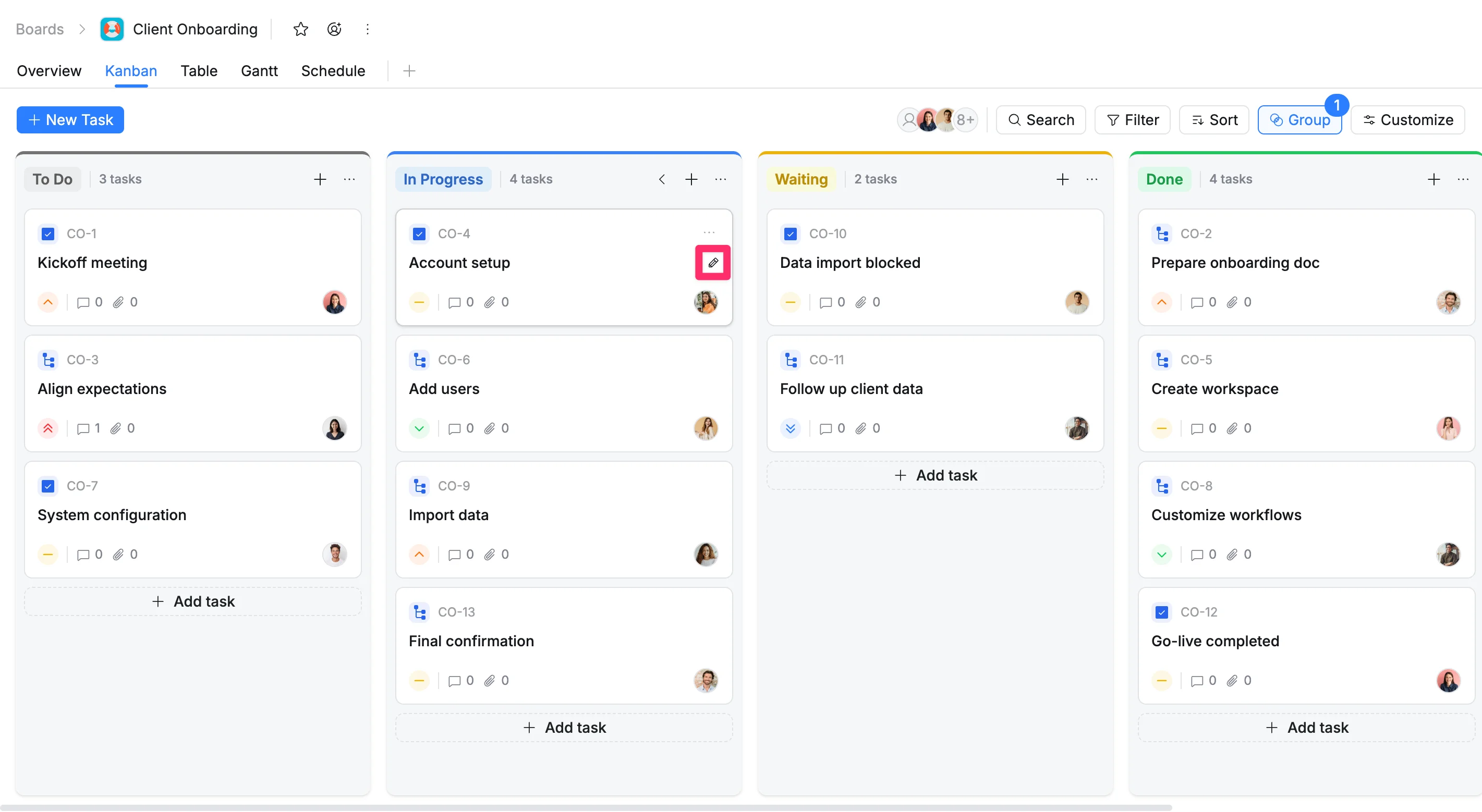
- Hover over the task card.
- Click the Pencil icon next to the task name.
- Update the name.
- Press Enter to save.
Edit task priority
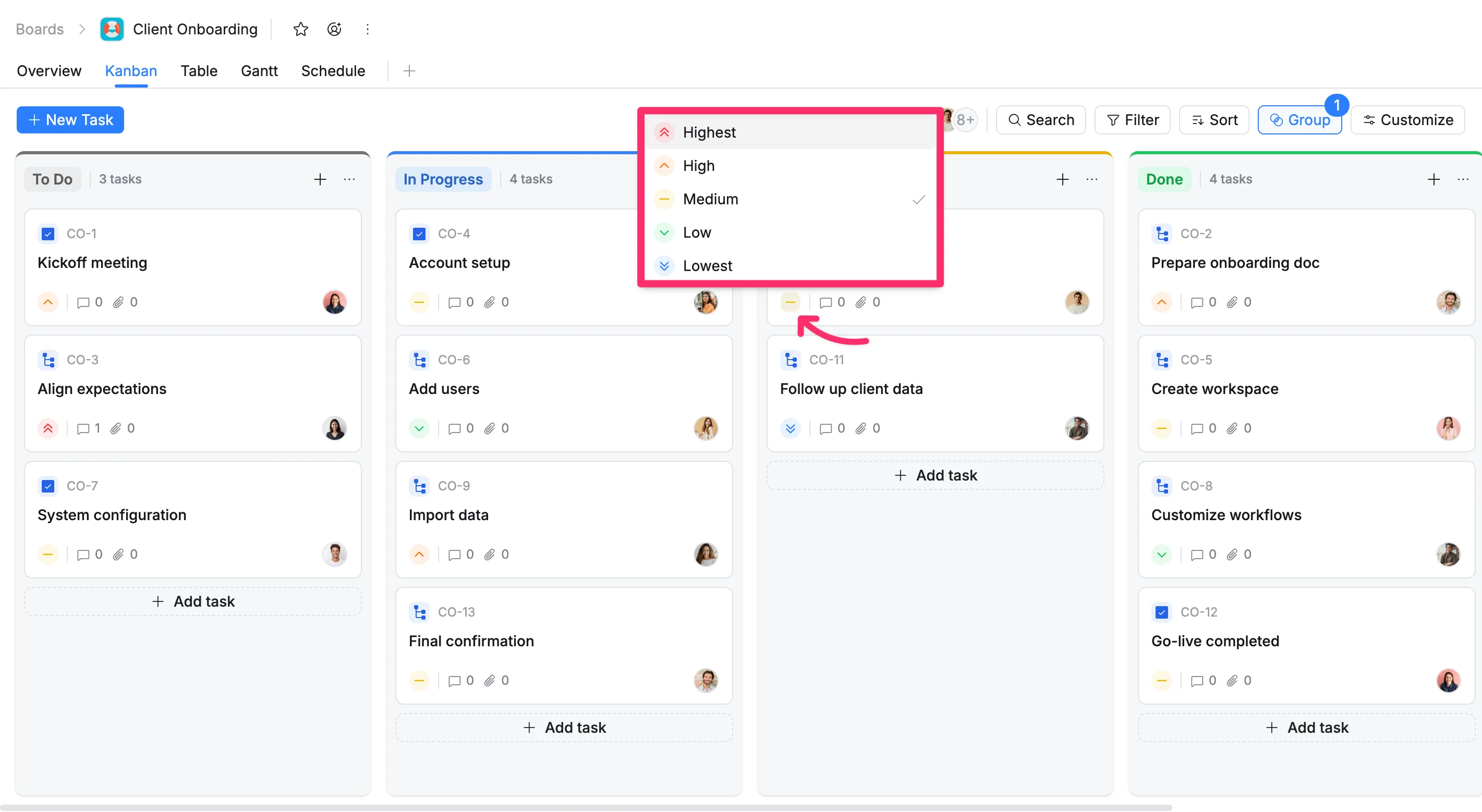
- Locate the task card.
- Click the priority icon on the card.
- Select a new priority (Highest, High, Medium, Low, Lowest).
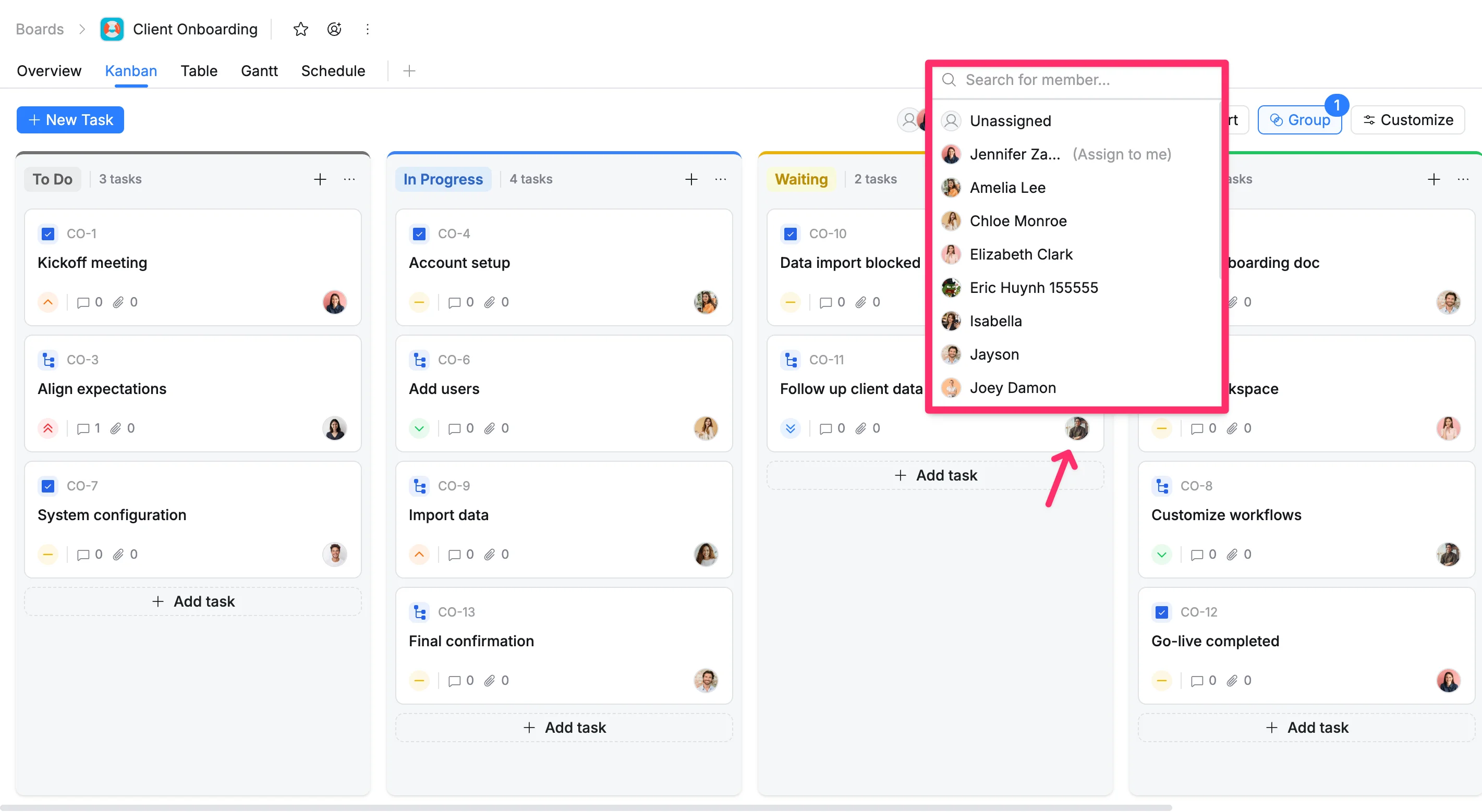
Edit task assignee
- Click the ‘profile picture’ icon on the task card.
- Select a member from the dropdown list, or use the search bar to find a specific name.
Change task status
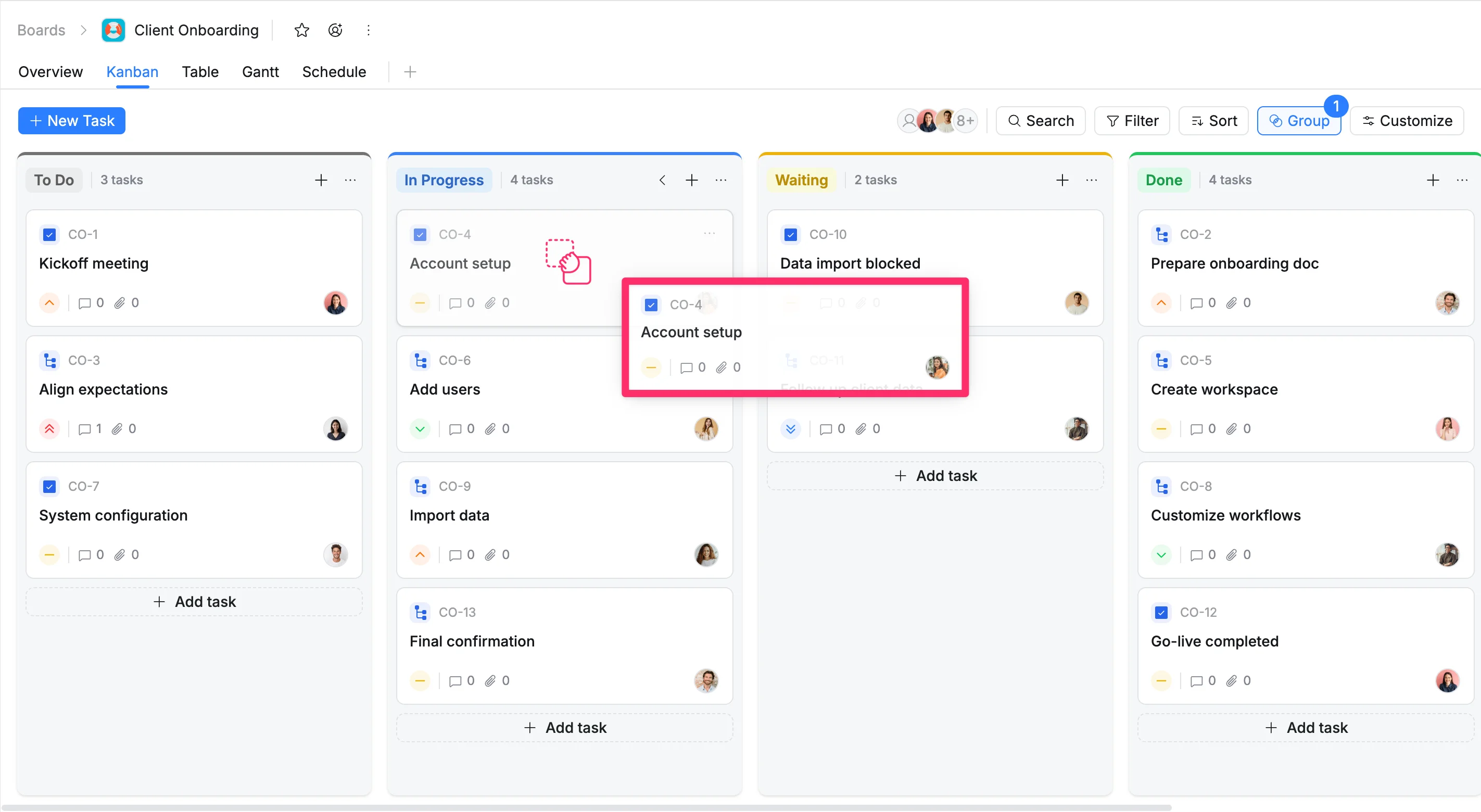
To move a task to a different stage:
- Click and hold the task card.
- Drag & drop it to another column.
Set task limits per column
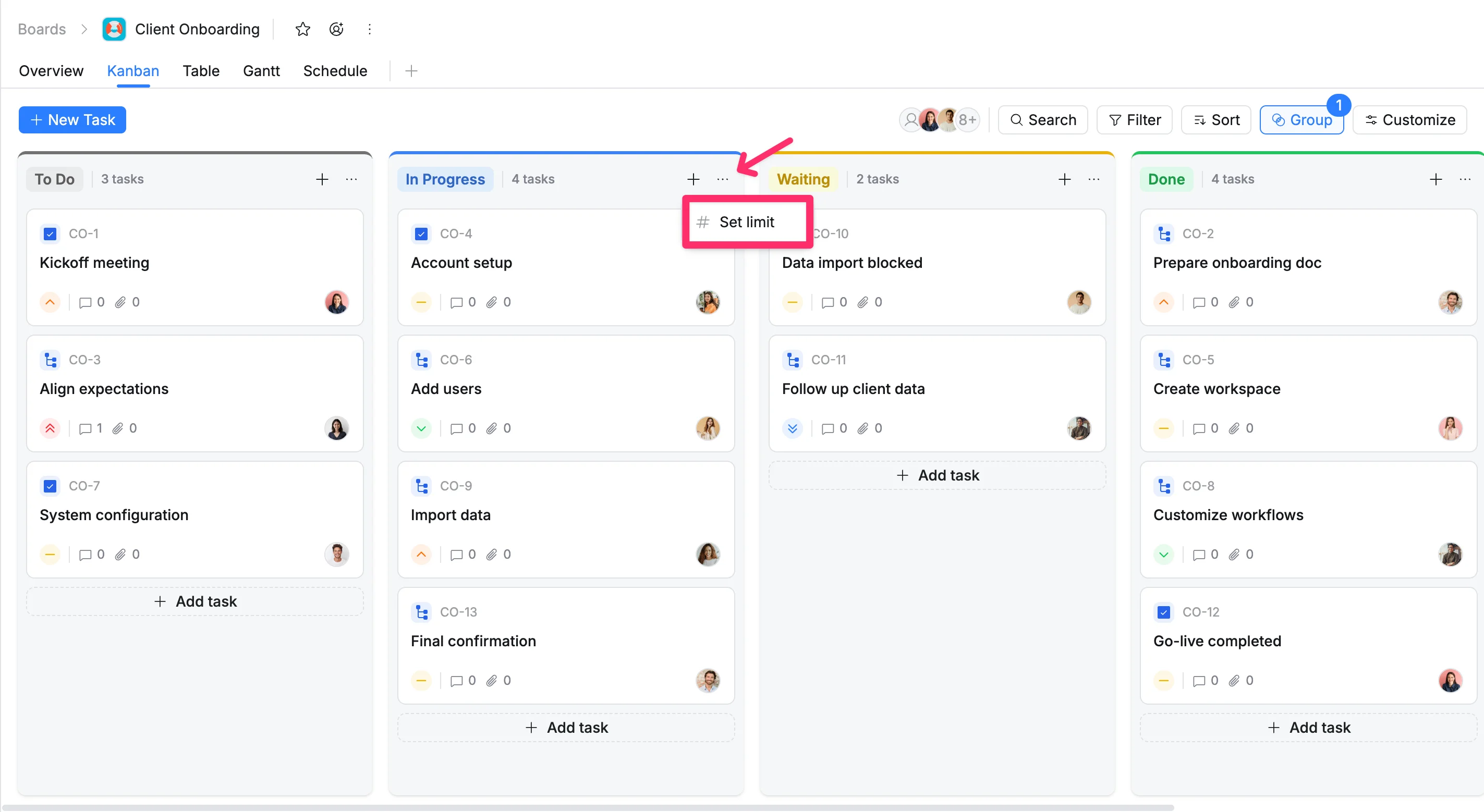
You can limit the number of tasks allowed in a column to better control workflow and avoid overload.
- Click the three dots (⋯) in the column header.
- Select #Set limit from the drop-down menu.
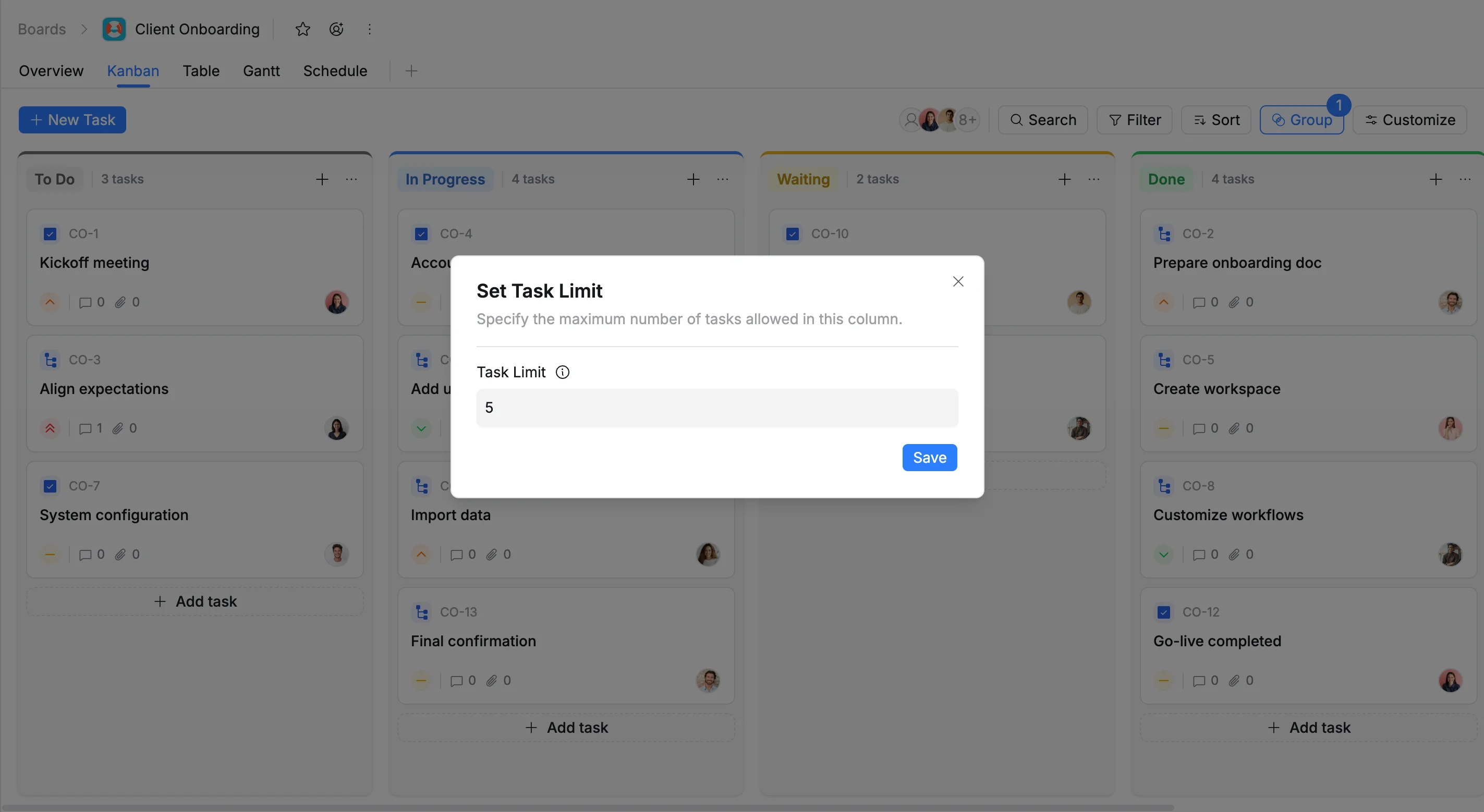
- In the dialog that appears, enter the maximum number of tasks allowed.
- Click Save to apply.
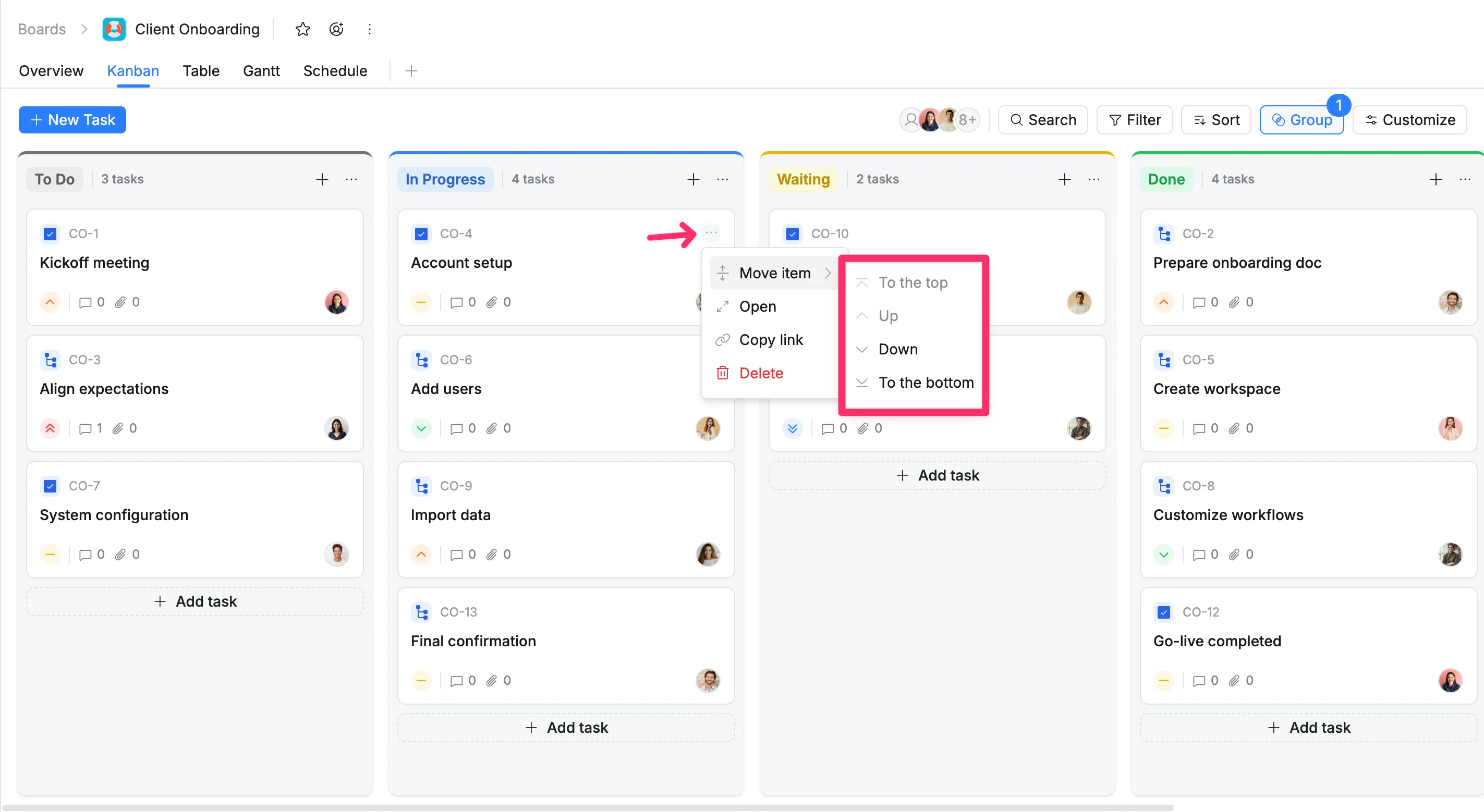
Move a task card within its column
You can quickly change a task card’s position within its current Kanban column without dragging it manually.
- Hover over the task card.
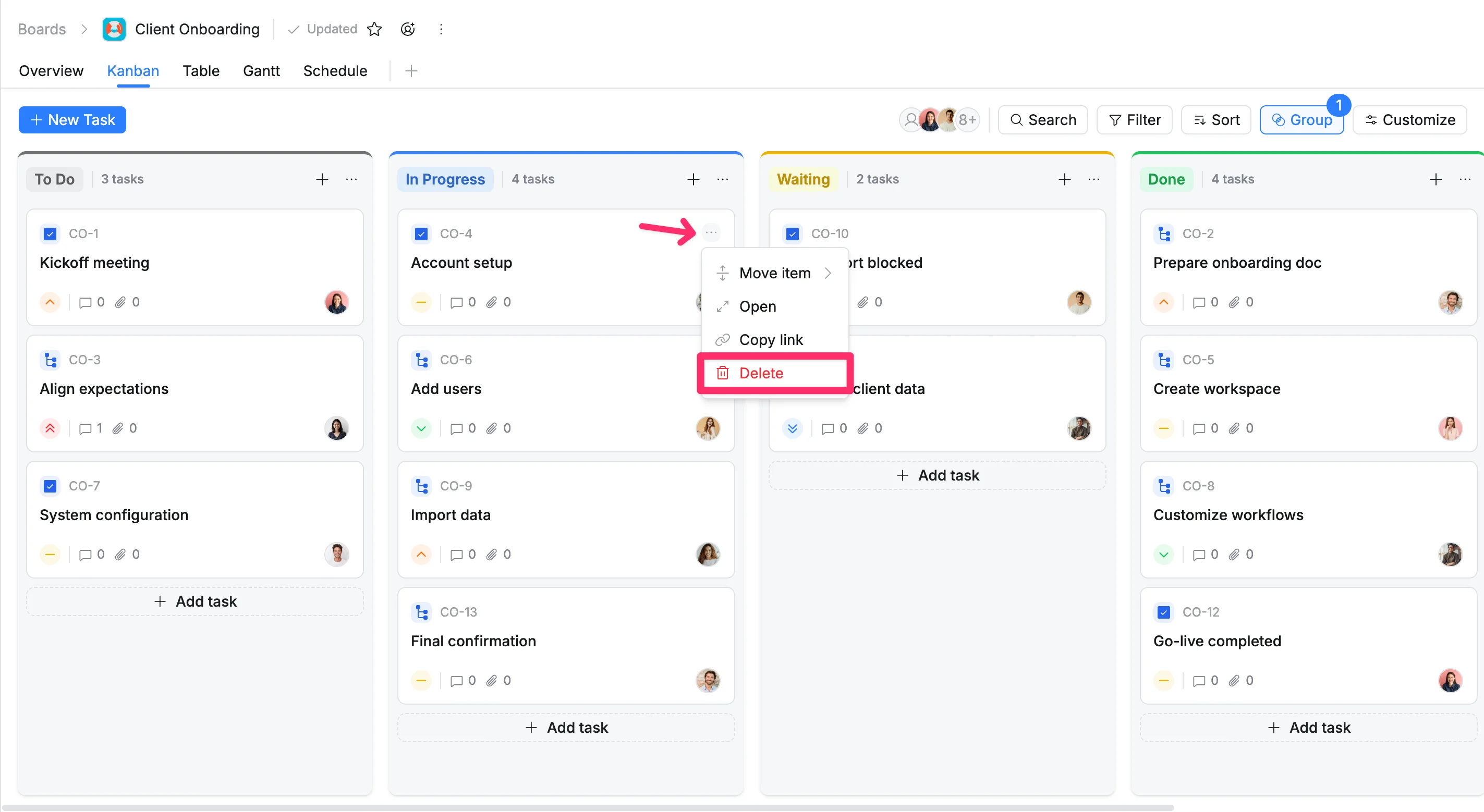
- Click the three dots (⋯) in the top-right corner of the card.
- Select Move item.
- Choose where you want to move the task card:
- To the top
- Up
- Down
- To the bottom
- The task card will move to the selected position within the same column.
Open a Task Details screen
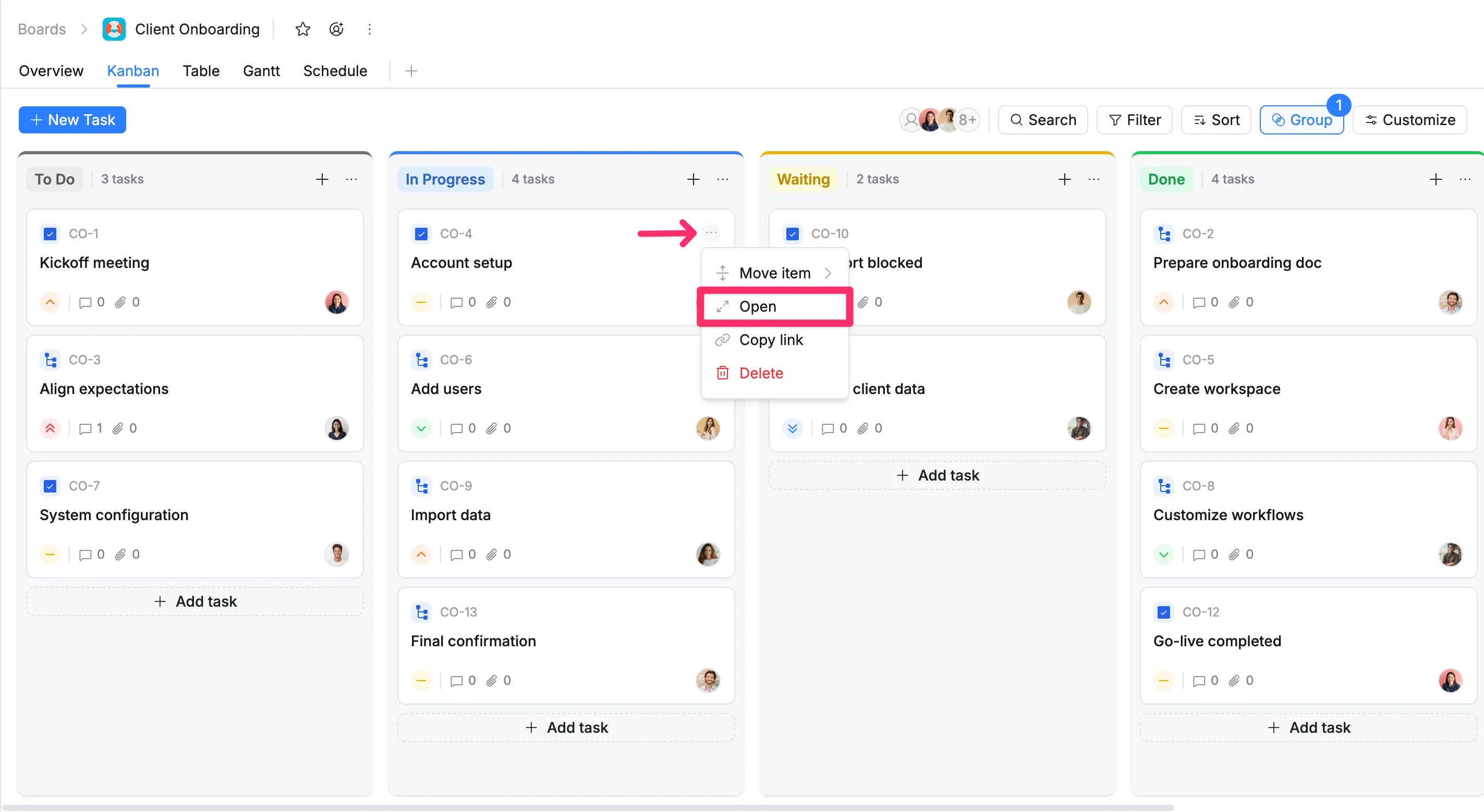
You can quickly open a Task Details screen directly from the Kanban board to view or edit its full details.
To open a task detail screen:
- Hover over the task card.
- Click the three dots (⋯) in the top-right corner of the card.
- Select Open from the dropdown menu. This will open the Task Details as a side panel on the right or as a modal pop-up.
You can also simply click directly on the task card to open the Task Details panel.
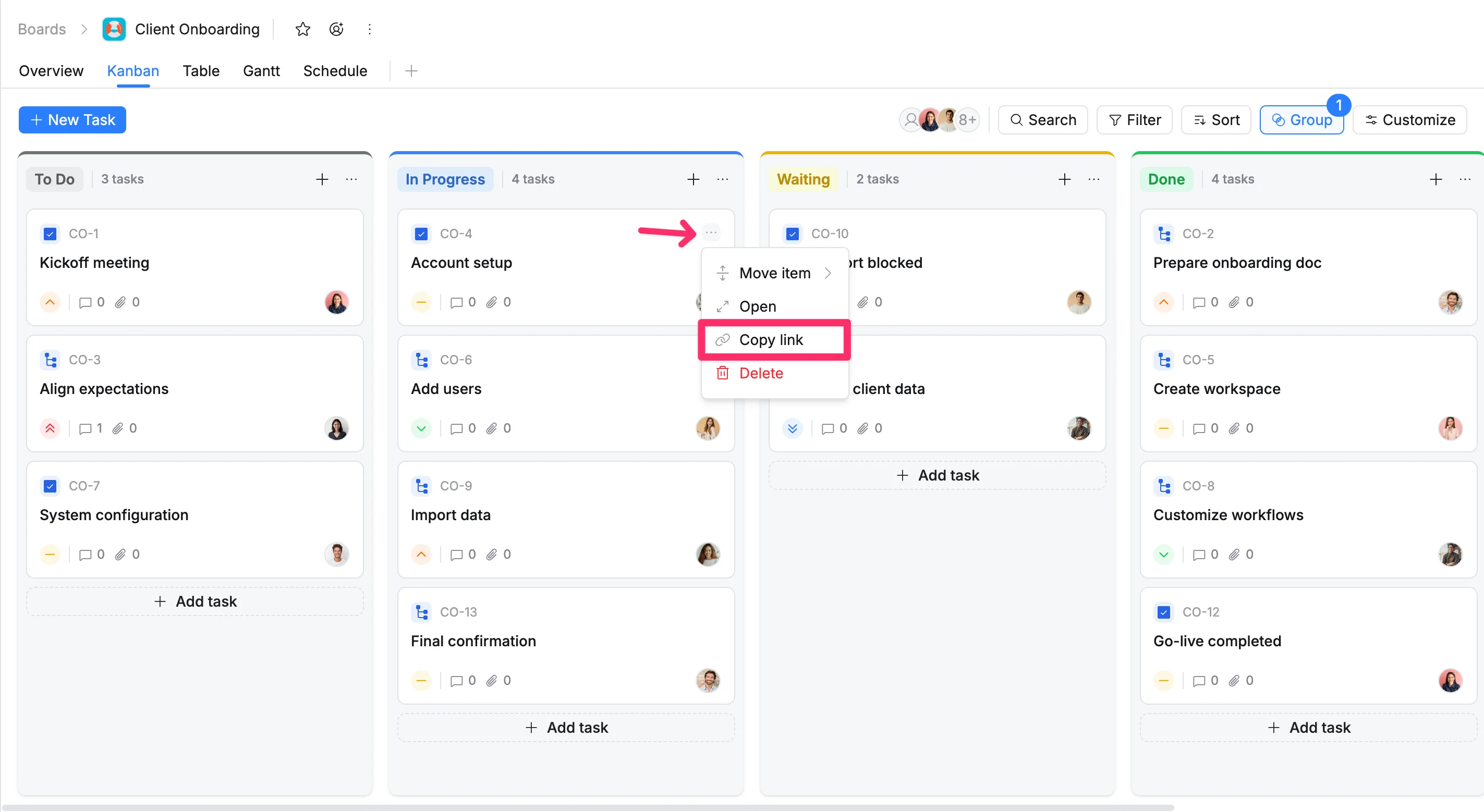
Share a task
- Hover over the task card you want to share.
- Click the three dots (⋯).
- Select Copy link from the dropdown menu.
The task link will be copied to your clipboard, allowing you to share it with others.
Delete a task
- Hover over the task card you want to delete.
- Click the three dots (⋯).
- Select Delete icon from the dropdown menu.
- Click Delete again to confirm, or click Cancel to keep the task.