Manage tasks in Table view
Add, edit, organize, and manage tasks in Table view, including bulk updates and task reordering to keep your work structured and efficient.
- Board Admins / Board Editors can manage tasks in the Table view.
- App Admins / App Editors can manage tasks in the Table view only on Open boards.
Add a new task
In the Table view, you can quickly add tasks using inline task creation without filling in all the details right away.
To add a new task, follow these steps:
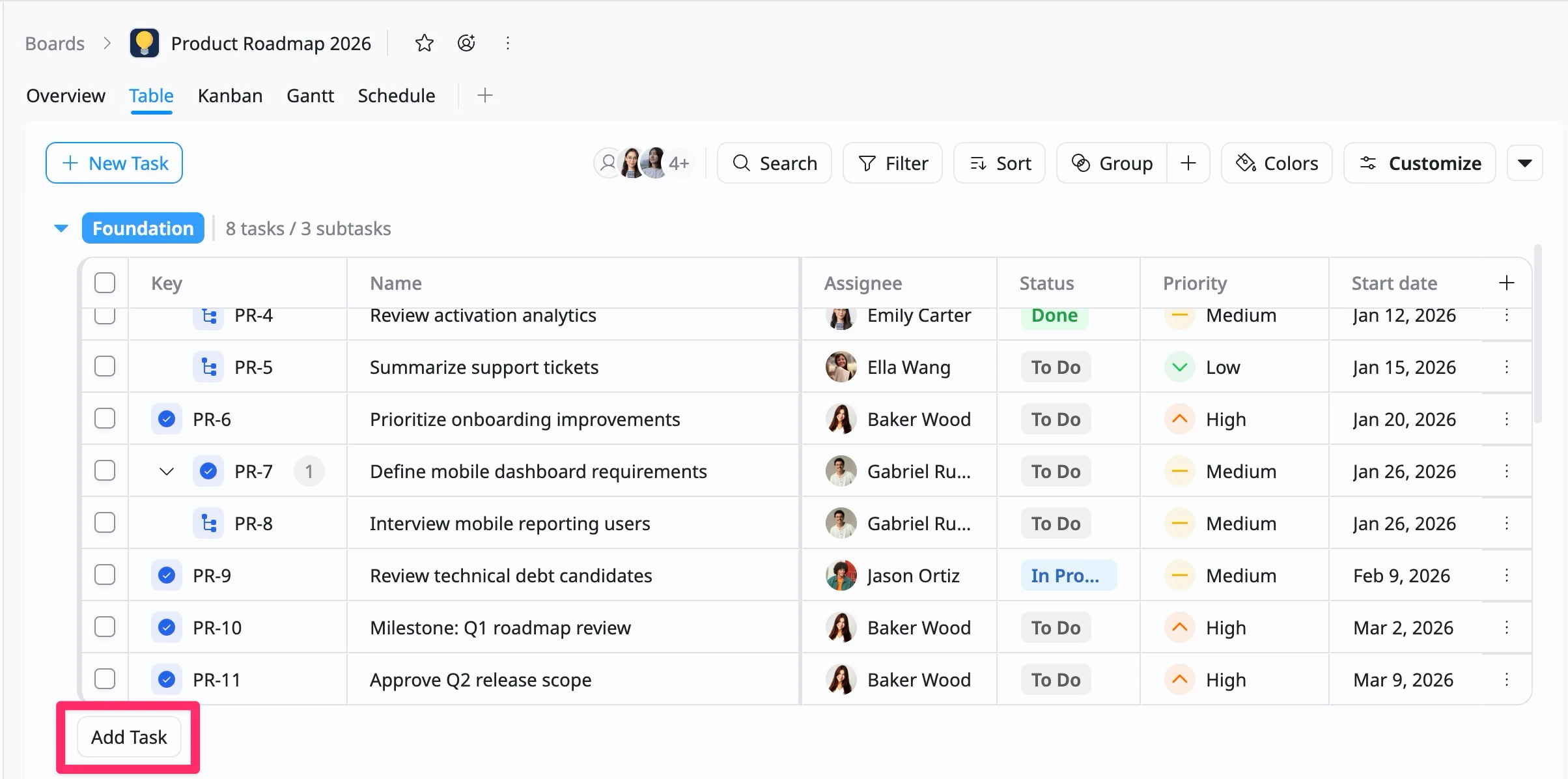
- Click Add task at the bottom of the table.
- Type the name of the task directly into the text field.
- Press Enter to create the task. A new row will appear in the table for your task.
Once created, you can add additional details in the corresponding columns, such as assignee, start date, due date, and more.
Add tasks or subtasks
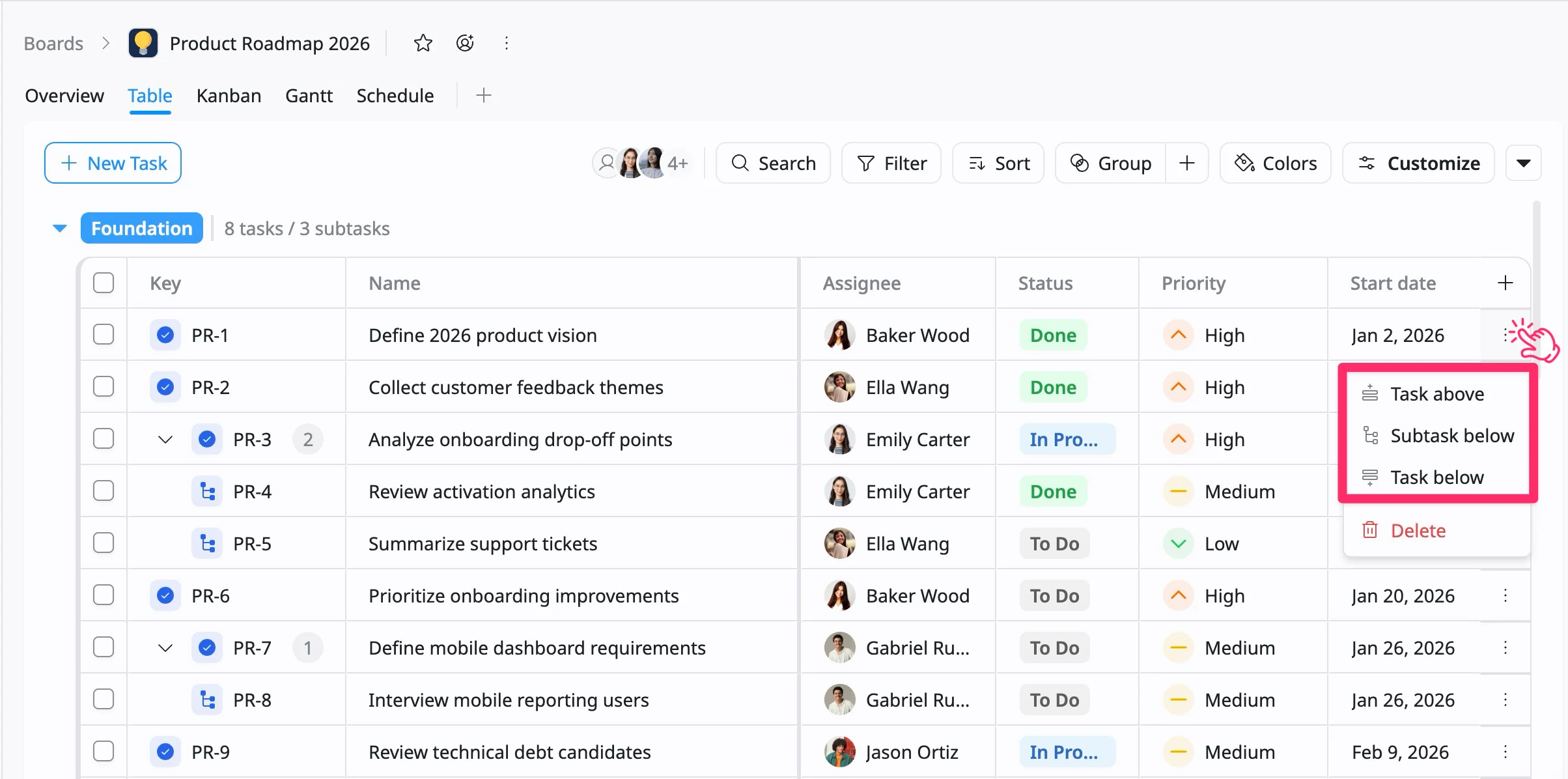
You can quickly add a new task above or below an existing task, or create a subtask directly from the Table view.
To add tasks or subtasks:
- Hover over the task row.
- Click the three vertical dots (⋮) on the right side of the row.
- Choose one of the following options:
- Task above: Creates a new task directly above the selected task.
- Task below: Creates a new task directly below the selected task.
- Subtask below: Creates a subtask nested under the selected parent task.
Edit a task
You can edit task information directly within the Table view.
- Click the cell you want to update (e.g., Summary, Assignee, Start Date, Status).
- Enter new text or select a new value from the dropdown options.
- Press Enter or click outside the field to save changes.
Bulk edit tasks
Bulk editing allows you to update multiple tasks at once, helping you save time when making the same change across several items in your project.
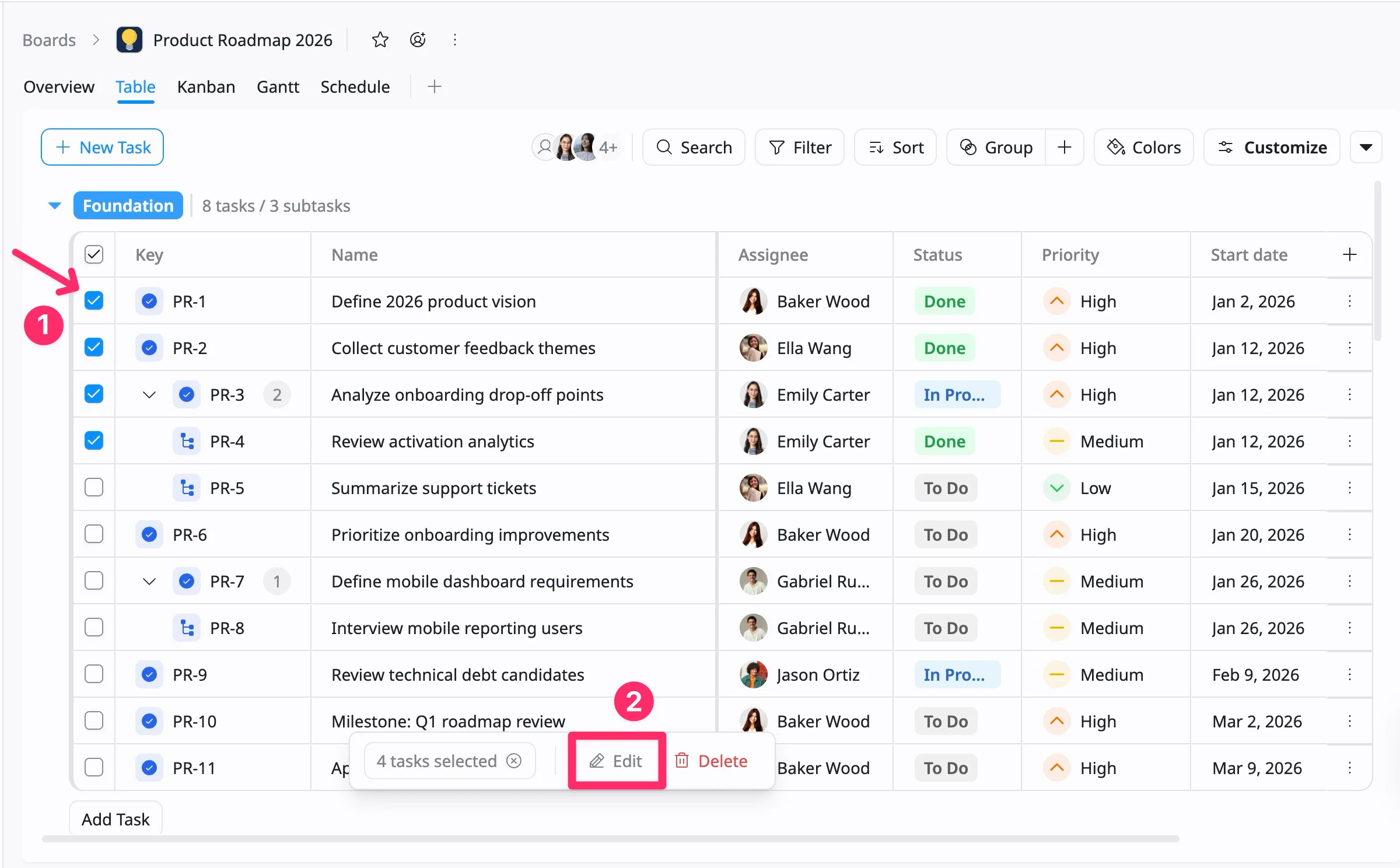
- Check the box next to each task you want to update. To select all visible tasks, click the checkbox in the header row.
- A toolbar will appear at the bottom of the table. Click Edit to open the Bulk Edit panel.
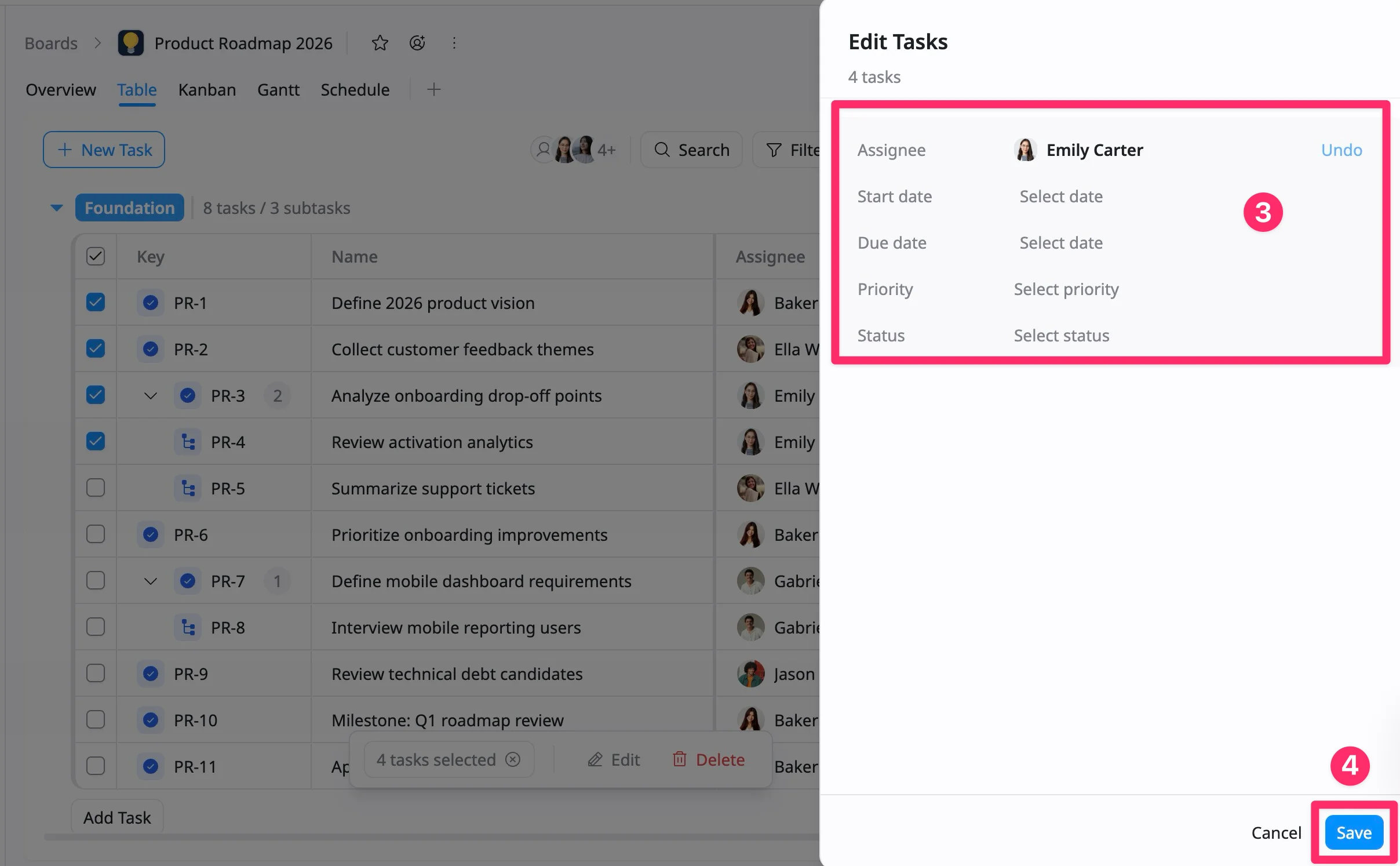
- Update one or more fields, such as:
- Assignee: Assign all selected tasks to a specific team member.
- Due date: Apply a shared deadline to all selected tasks.
- Priority: Set the same urgency level for the selected group.
- Start date: Define a common start time for the selected tasks.
- Status: Update progress (e.g., To Do, In Progress, Done) for all selected items.
- Click Save to apply changes.
Delete a task
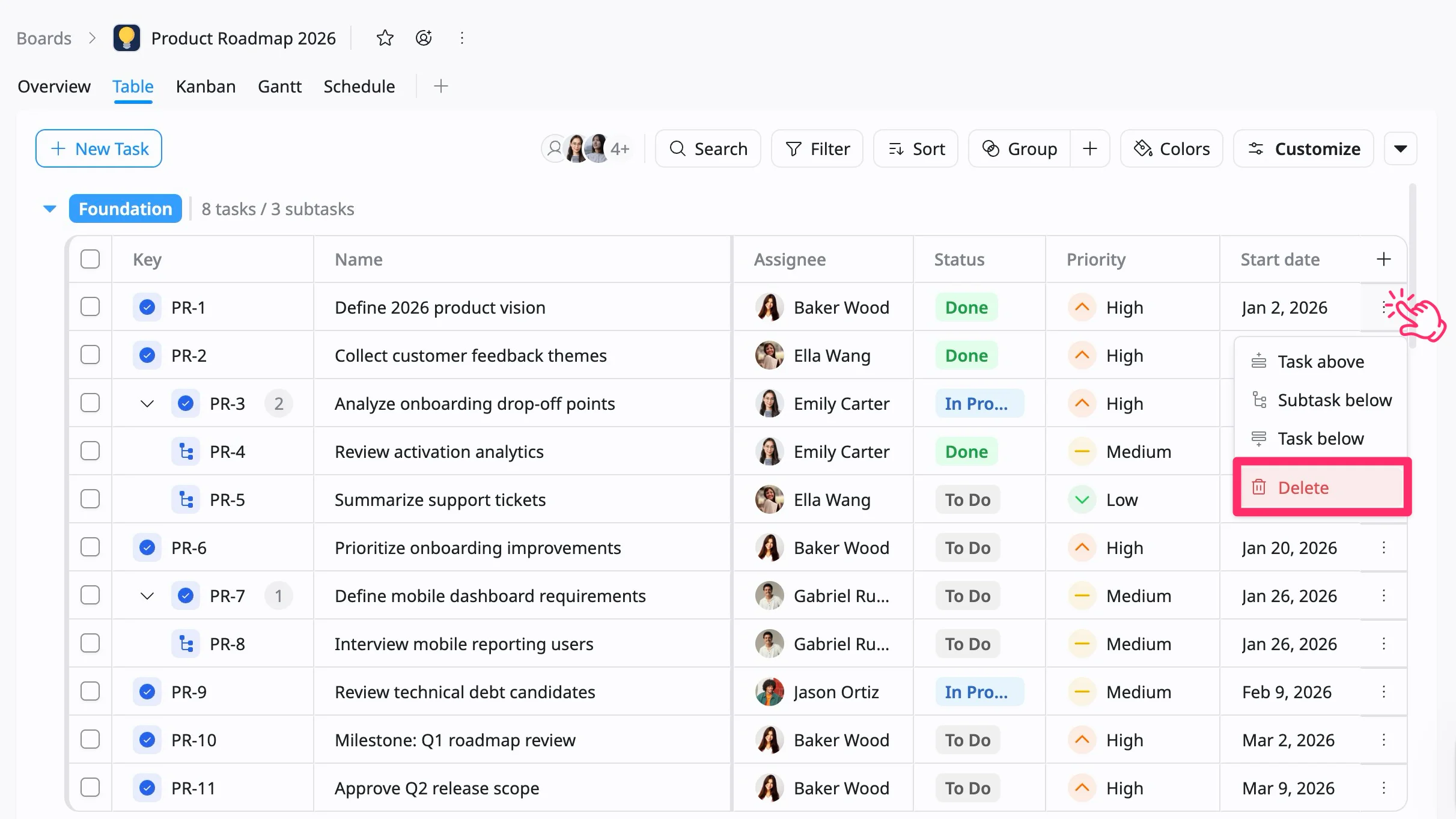
To delete a task:
- Hover over the task row. Then click the three vertical dots (⋮) icon on the right side of the row.
- Select Delete from the dropdown menu.
- Confirm the deletion.
Bulk delete tasks
To delete multiple tasks at once:
- Check the box next to each task you want to delete. To select all visible tasks, click the checkbox in the header row.
- After selecting tasks, a toolbar appears at the bottom of the table.
- Click Delete.
- Confirm the action to permanently delete the selected tasks.
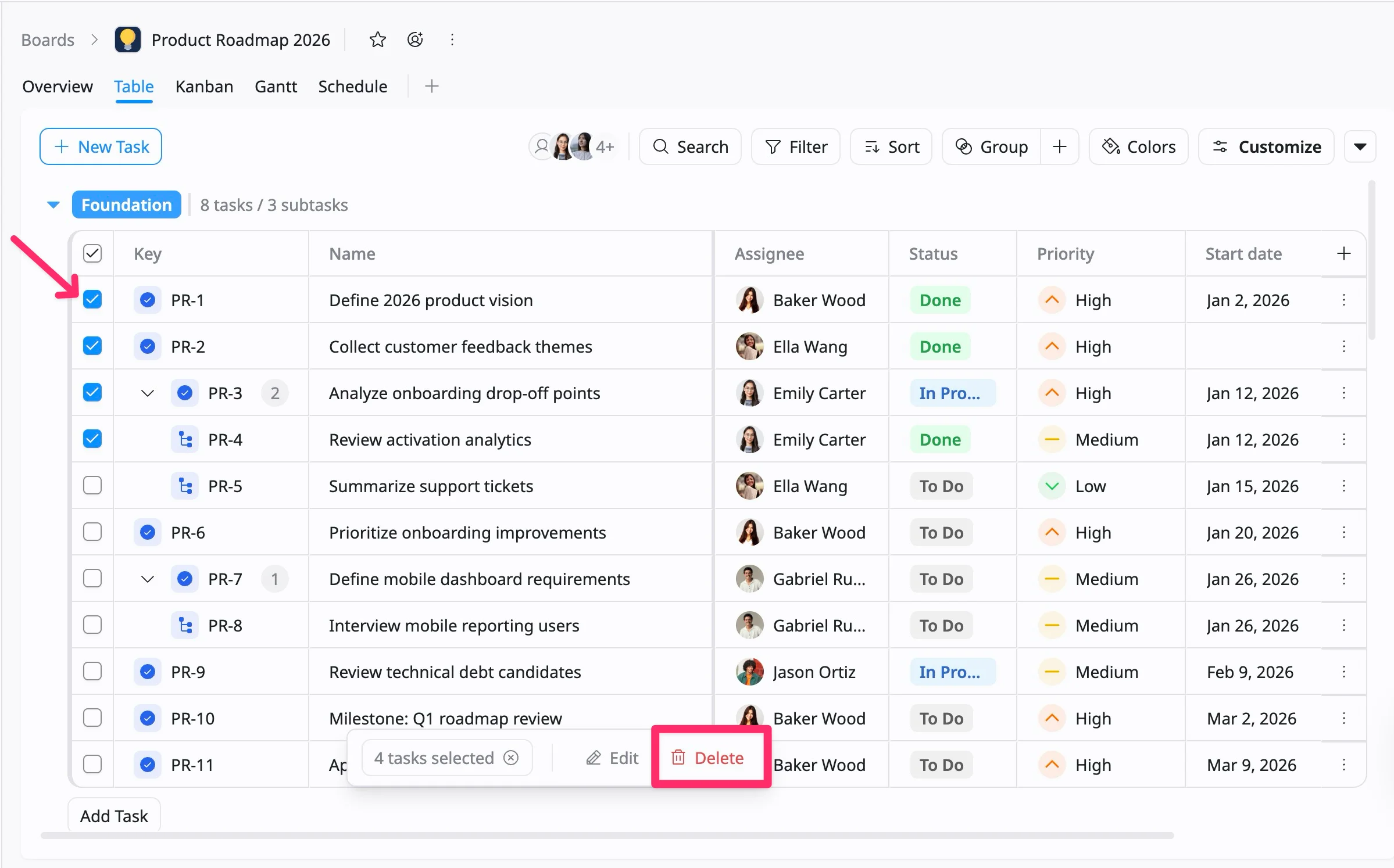
When you delete a task, all subtasks associated with it are also deleted.
Reorder tasks
You can rearrange tasks within a section or group to prioritize work or improve organization.
To reorder a task:
- Hover over the left side of the task row until the drag handle (⋮⋮⋮) appears.
- Click and hold the handle.
- Drag the task up or down to the desired position.
- Release to drop it into place.