Manage widgets in Dashboards
Add, edit, arrange, and delete widgets in TaskFord dashboards to customize how project data is displayed and monitored.
- Dashboard Admins / Dashboard Editors can add, edit, manage, and delete widgets.
- Site Admins / Site Editors can also add, edit, manage, or delete board views only on the Open Dashboard.
Widgets allow you to display project data in different visual formats, such as charts, metrics, and summaries. By adding and arranging widgets, you can build a dashboard that focuses on the information most relevant to your work.
Use widgets to track status, workload, priorities, estimates, and other project data in one place. This helps you review progress more easily and organize your dashboard based on how you want to monitor your projects.
Add a widget
Add widgets to display the data you want to monitor on your dashboard. To add a widget, follow these steps:
- Open the dashboard where you want to add a widget.
- Click + Widget in the top-right corner.
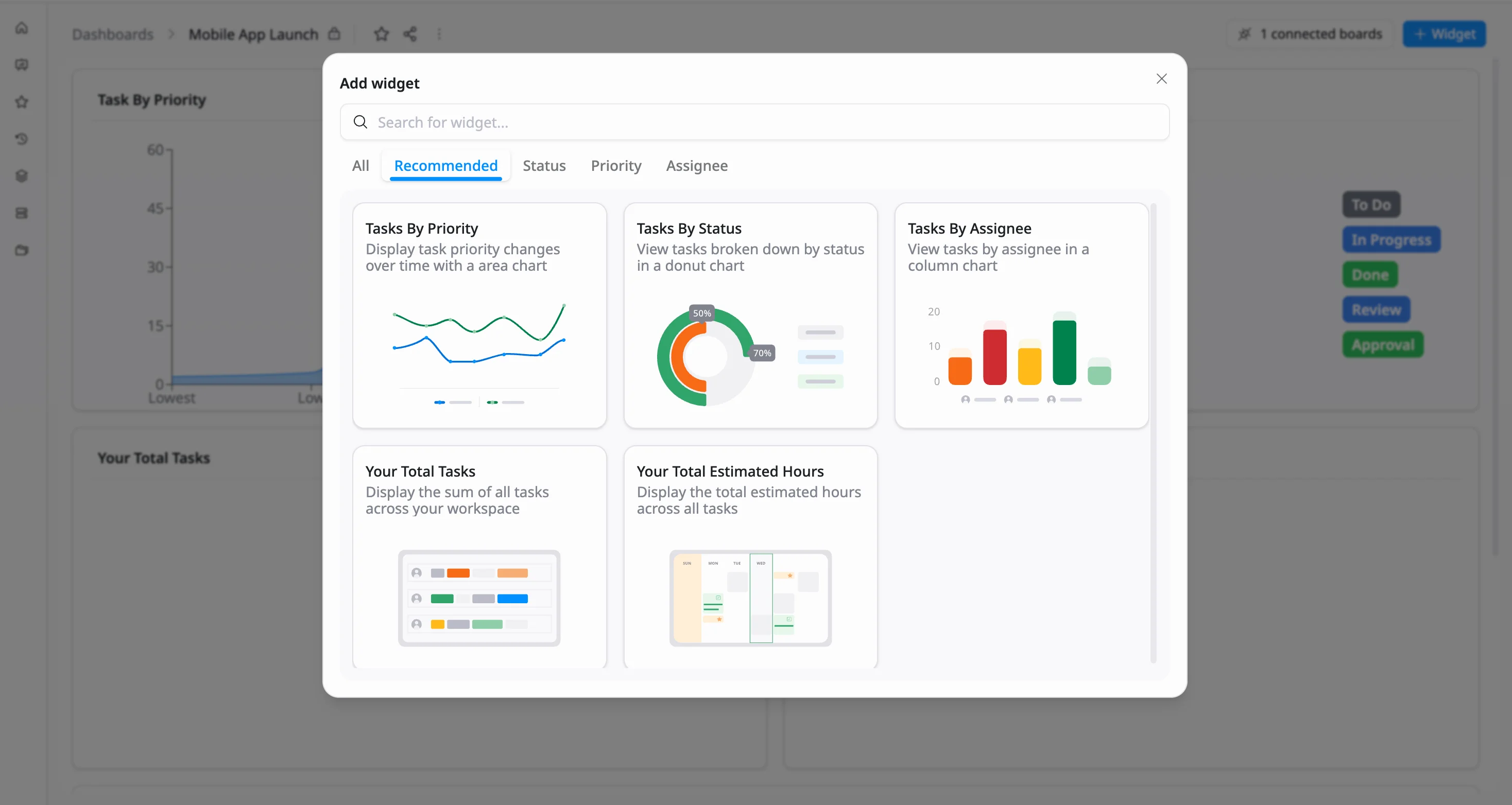
- In the Add Widget dialog, use the search bar or tab bar to browse widgets by category.
- Select the widget you want to add.
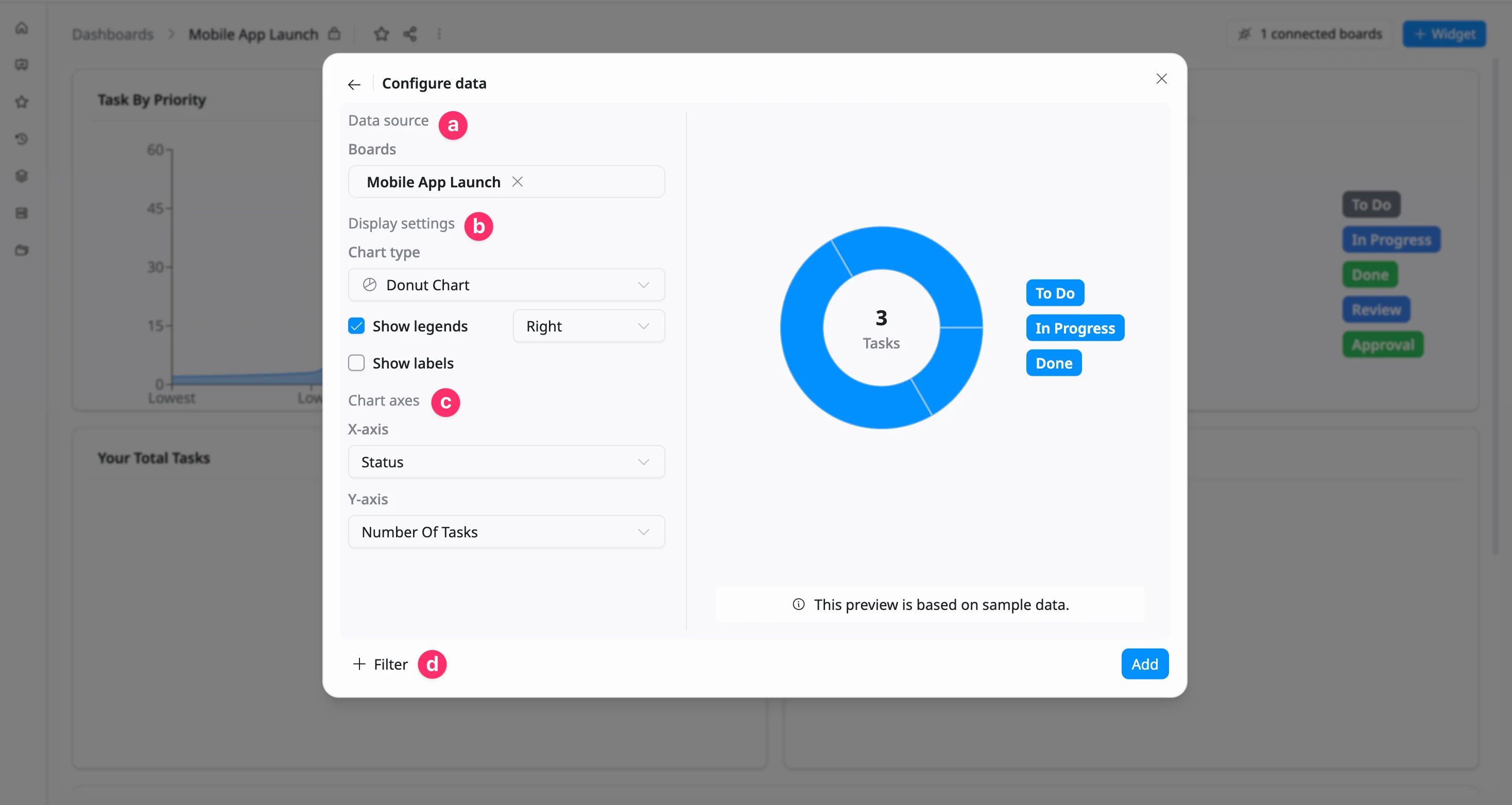
- In the Configure Data dialog:
- Choose one or more boards as the data source
- Adjust display settings such as chart type, labels, or legends
- Configure chart axes (X-axis and Y-axis)
- Apply filters or group data to focus on specific information
- Click Add to insert the widget into your dashboard.
Edit a widget
To edit and update how the widget data is displayed, follow these steps:
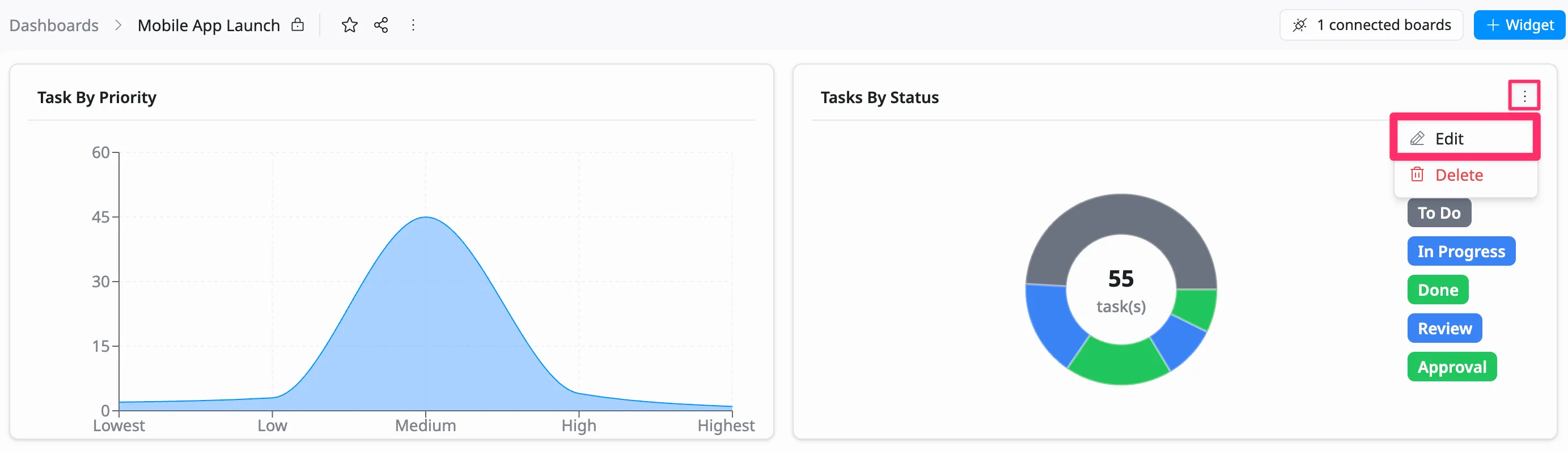
- Hover over the widget you want to edit.
- Click the three vertical dots (⋮) in the top-right corner of the widget.
- Select Edit from the dropdown menu.
- In the Configure Data dialog:
- Update the data source or adjust display settings (such as chart type, labels, or legends)
- Modify chart axes or apply filters as needed
- Click Save to apply the changes.
Rename a widget
Update a widget name to better reflect the data it displays.
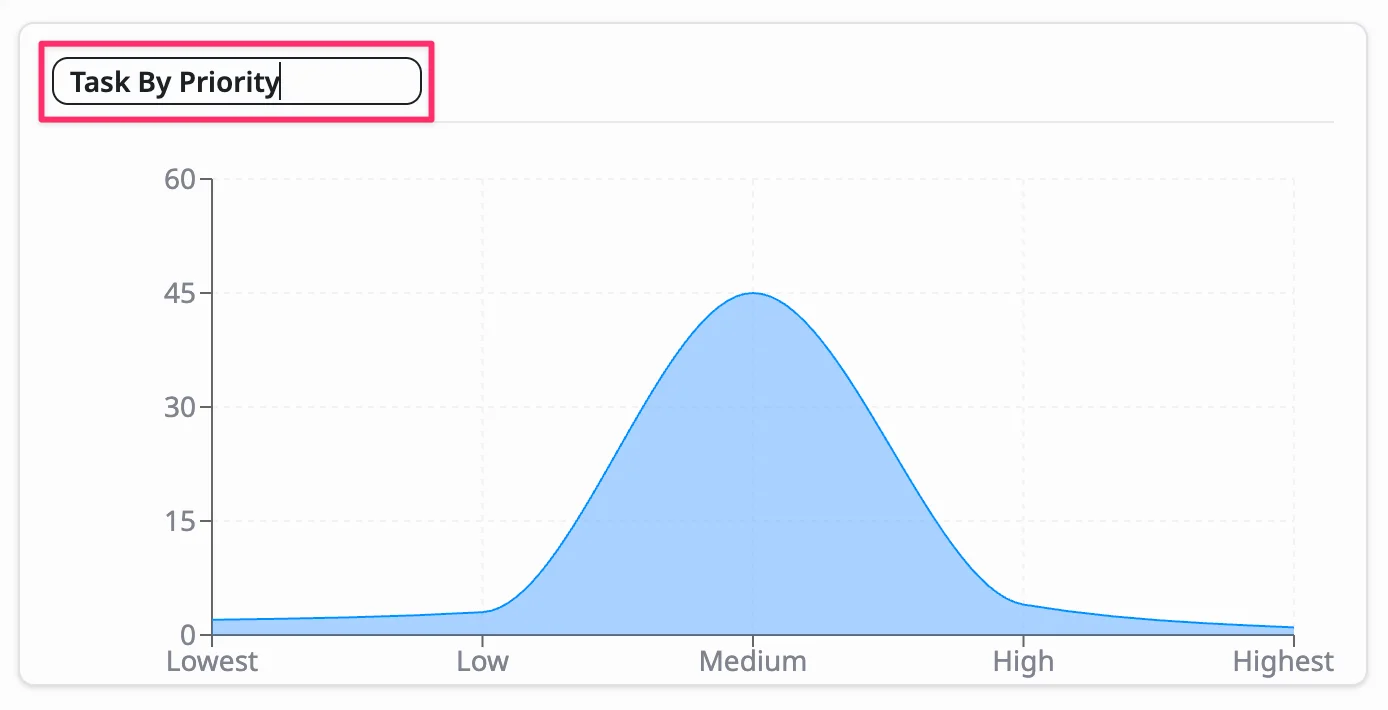
- Hover over the widget you want to rename.
- Click the widget title at the top.
- Enter a new name.
- Press Enter or click outside the title field to save the changes.
Arrange widgets
In the dashboard, you can easily arrange widgets using drag-and-drop. This allows you to organize your layout and adjust how information is displayed.
- Move a widget: Drag the widget to a new position on the dashboard to reorganize your layout.
- Resize a widget: Drag the edge or corner of the widget to adjust its size and control how much space it takes.
Delete a widget
To delete a widget, do the following:
- Hover over the widget you want to delete.
- Click the three vertical dots (⋮) in the top-right corner of the widget.
- Select Delete from the dropdown menu.
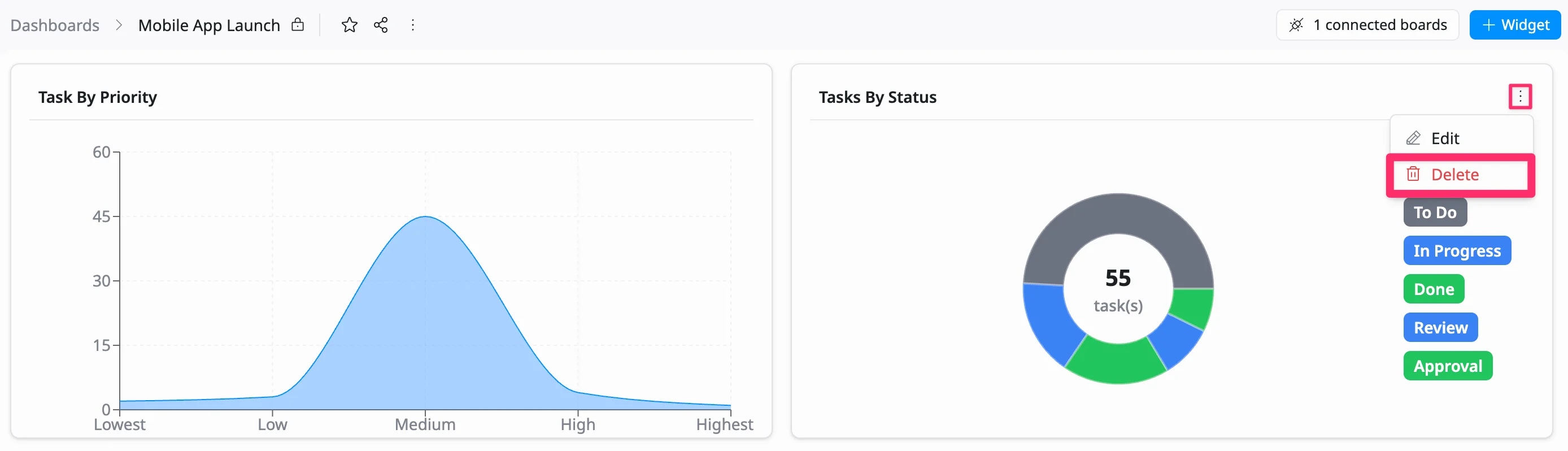
- In the confirmation dialog:
- Click Delete to remove the widget permanently
- Click Cancel to keep the widget
- Widget availability may vary depending on the dashboard data source.
- Changes to widget layout are reflected on the dashboard immediately.
- Only users with permission to edit the dashboard can add, edit, move, or resize widgets.