Member profiles
Learn how to access member profiles in TaskFord, view profile information, and see an overview of a member’s assigned tasks.
App permission
- Anyone with the Read user profile permission can view member profiles.
Default roles
- App Admins / App Editors / App Viewers have this permission by default.
Profiles help you learn more about the people you work with and get a quick view of their work in TaskFord.
Each member profile brings together profile information and assigned tasks in one place, making it easier to understand who someone is, their role in the organization, and what they are currently working on.
How to access a member profile
You can open your own profile or another member’s profile from an avatar wherever it appears in TaskFord.
- Hover over the avatar.
- A profile preview card appears.
- Click View profile.
- The full profile opens.
Each profile page is organized into two sections:
- Overview: Basic information, role and status, and timezone.
- Tasks: An overview of all tasks assigned to the member.
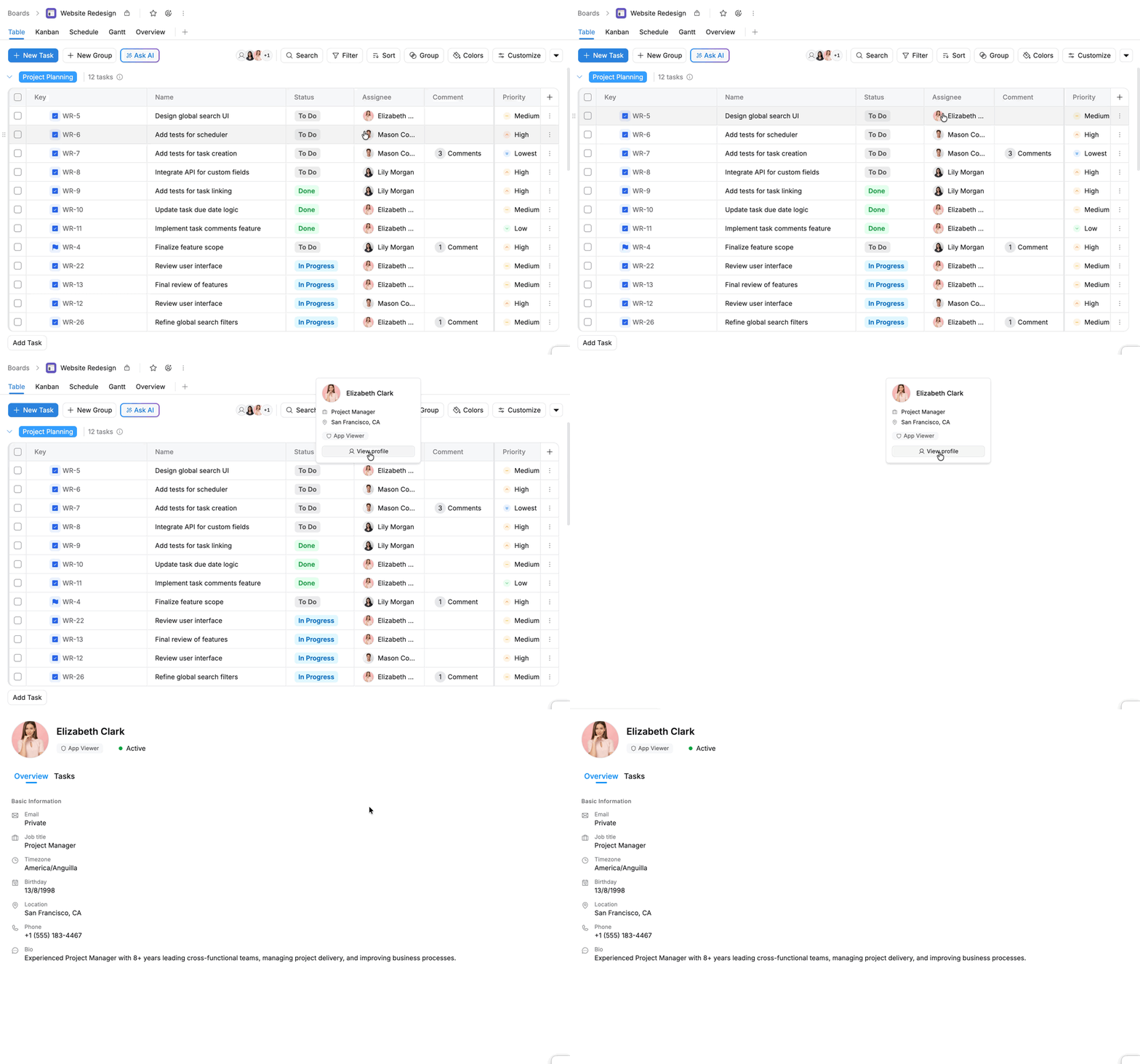
The profile preview card also shows key information, so you can quickly learn more about the member without opening the full profile.
View a member’s overview
The Overview tab provides information that helps you identify and contact the member.
At the top of the profile, you can see the member’s:
- Profile photo
- Display name
- App role
- Account status
Basic information
Depending on what the member has chosen to make visible, their profile can include:
- Email: The member’s email address.
- Job title: Their role or position in the organization.
- Timezone: The timezone configured for their TaskFord account.
- Birthday: Their birthday, when shared.
- Location: Their location or work location.
- Phone: Their contact number.
- Bio: Additional information about their role, experience, or responsibilities.
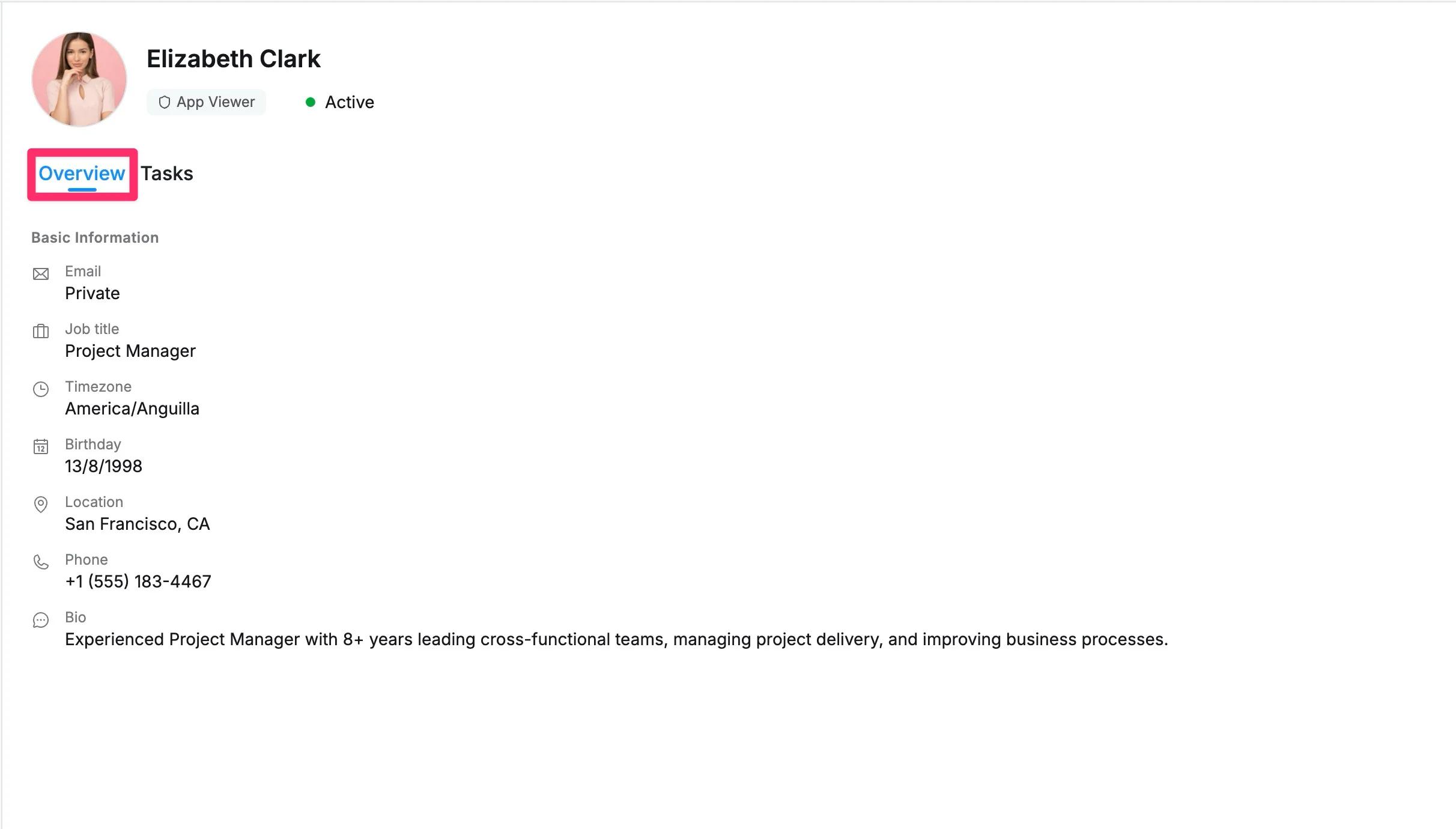
If information is missing from a profile, the member may not have added it or may have chosen not to make it visible.
View a member’s tasks
Select the Tasks tab to understand the member’s assigned work across TaskFord.
The Tasks tab contains two main areas:
Tasks overview
The task overview gives you a quick summary of the member’s workload and progress.
You can see the number of tasks that are:
- Assigned
- In Progress
- Completed
- Overdue
This helps you quickly understand whether the member has active work, completed work, or tasks that may need attention.
You can also use the available time options to review task activity for different periods:
- Today
- 3 days
- 7 days
- 14 days
- This Week
- This Month
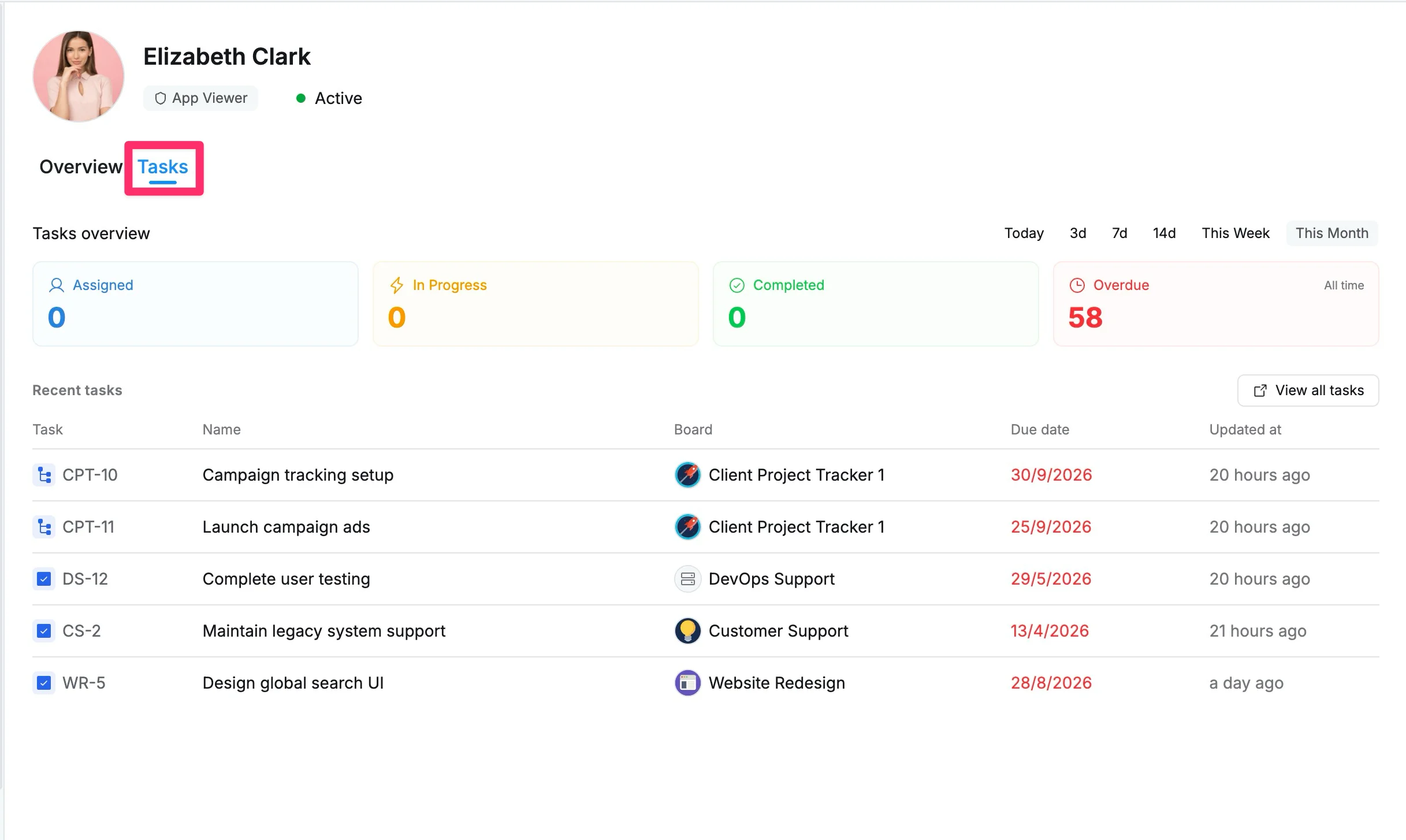
Recent tasks
Below the overview, Recent tasks gives you more detail about the member’s work.
For each task, you can see:
- Task: The task key or identifier.
- Name: The task name.
- Board: The board the task belongs to.
- Due date: The task’s current deadline.
- Updated at: When the task was last updated.
Tasks with overdue due dates are highlighted so they are easier to identify.
Select View all tasks when you want to see more of the member’s assigned work.
Manage your own profile information
When you view your own profile, only you can see the Edit profile button.
Click Edit profile to update your profile information and manage what other members can see.
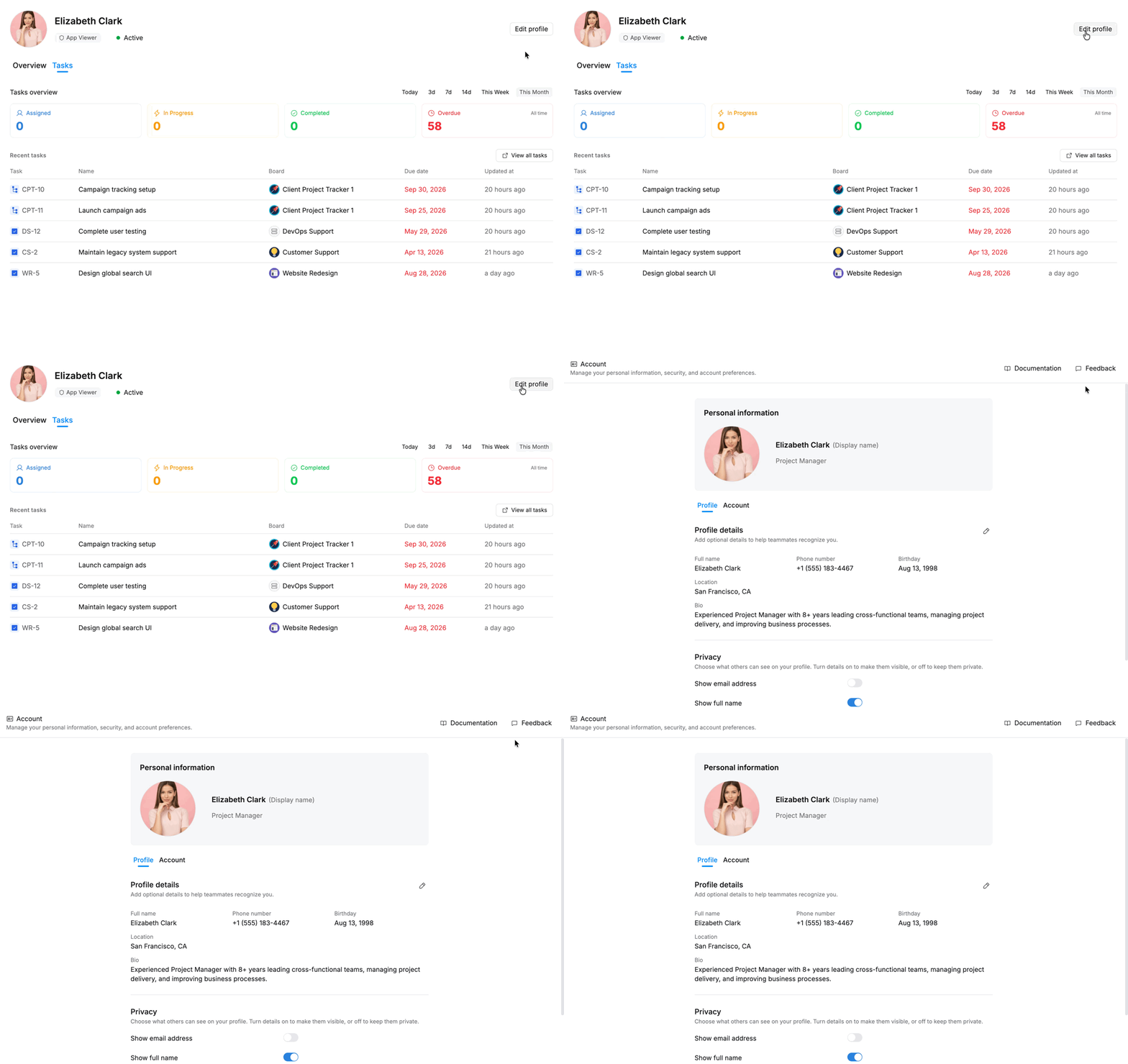
You can manage information such as:
- Profile photo
- Job title
- Phone number
- Birthday
- Location
- Bio
- Visibility preferences