Navigating TaskFord
Discover TaskFord's interface to quickly navigate the app, understand its features, and manage tasks efficiently.
TaskFord’s interface is designed to give you a clear view of your work while keeping navigation simple. This guide introduces the core areas of the workspace so you can quickly understand how to move between components and manage your tasks efficiently.
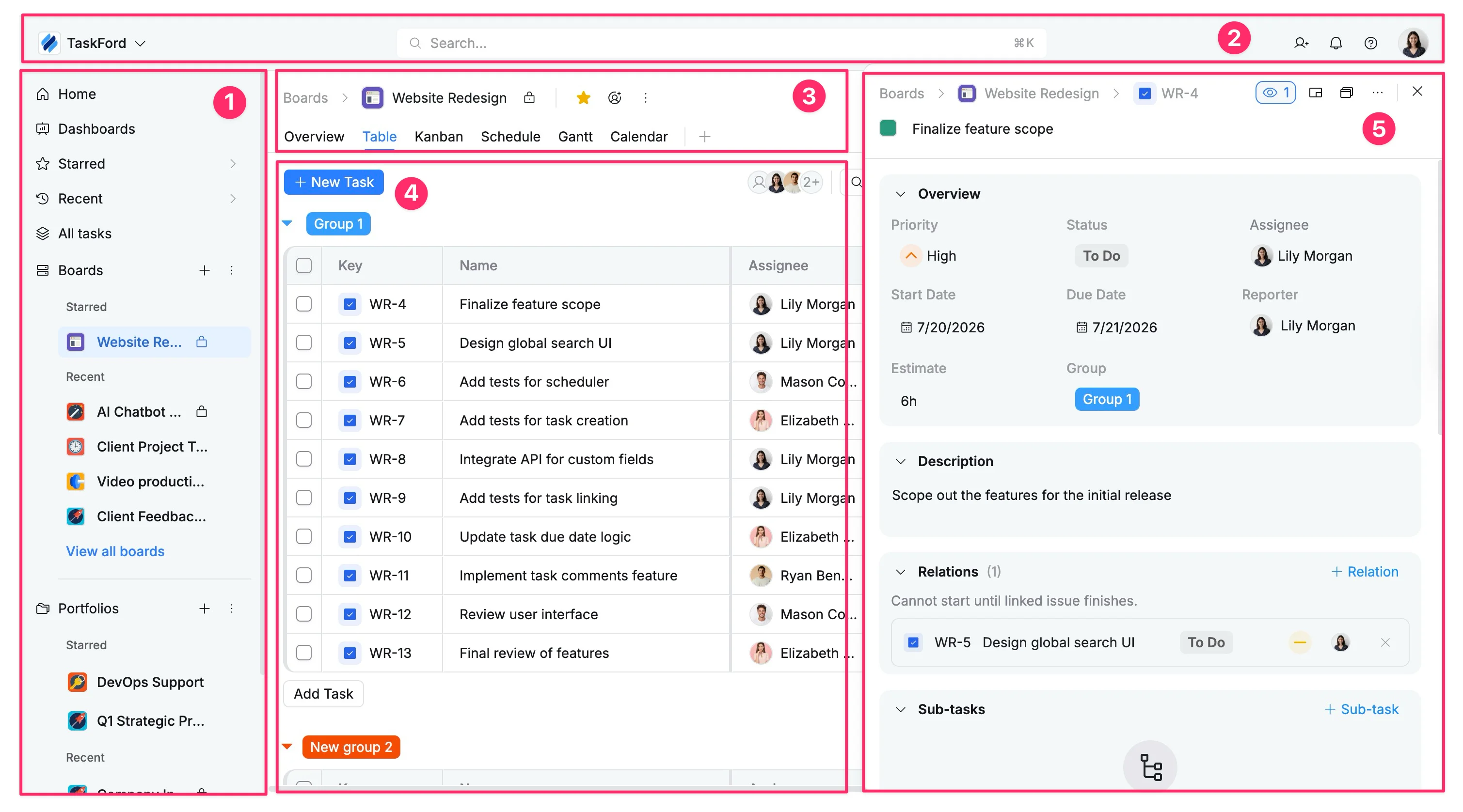
The workspace is divided into five main areas:
- Sidebar
The Sidebar is your main navigation panel. Use it to access key areas such as Home, Dashboards, Boards, Portfolios, and shortcuts like Starred or Recent.
- Top bar
The Top bar provides global controls available from anywhere in the workspace. It includes the site switcher, search bar, notifications, and profile settings from anywhere in the workspace.
- Header
The Header shows context for your current workspace. It includes the board name, breadcrumbs for navigation, and view options to switch between layouts.
- Main panel
The Main panel is your primary workspace. This is where tasks are displayed and managed using different layouts such as Table, Kanban, Gantt, Schedule, or Overview.
- Task details panel
The Task details panel provides a detailed view of a task. It includes information such as description, status, assignee, dates, priority, and comments.
Sidebar
The Sidebar stays on the left side of the workspace and organizes navigation into clear sections:
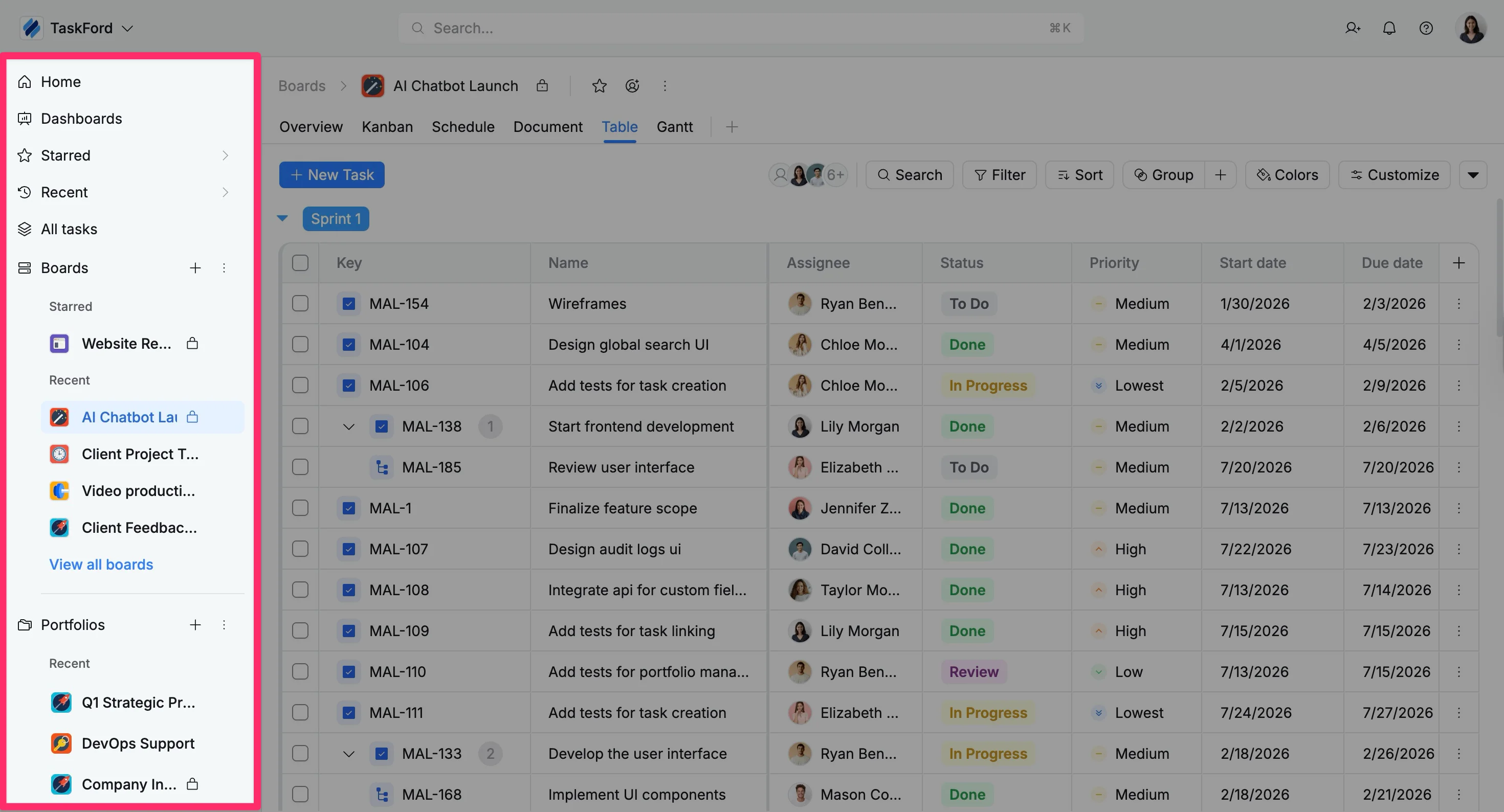
- Home: Your personal dashboard showing assigned tasks, deadlines, and recent activity.
- Dashboards: Provides visual summaries and reports across projects, tracking workloads and progress.
- Starred: A personalized list of boards and portfolios you’ve marked as favorites for quick access.
- Recent: A quick way to reopen boards or portfolios you’ve accessed recently.
- All tasks: A comprehensive list view of all tasks, complete with key details like assignee, status, priority, and due dates.
- Boards: Task management spaces for individual projects or teams, where tasks are organized and tracked.
- Portfolios: Groups multiple boards together for tracking progress and resources across projects.
Top bar
The Top bar provides global controls that stay visible no matter where you are in TaskFord, allowing you to efficiently navigate and manage your workspace.
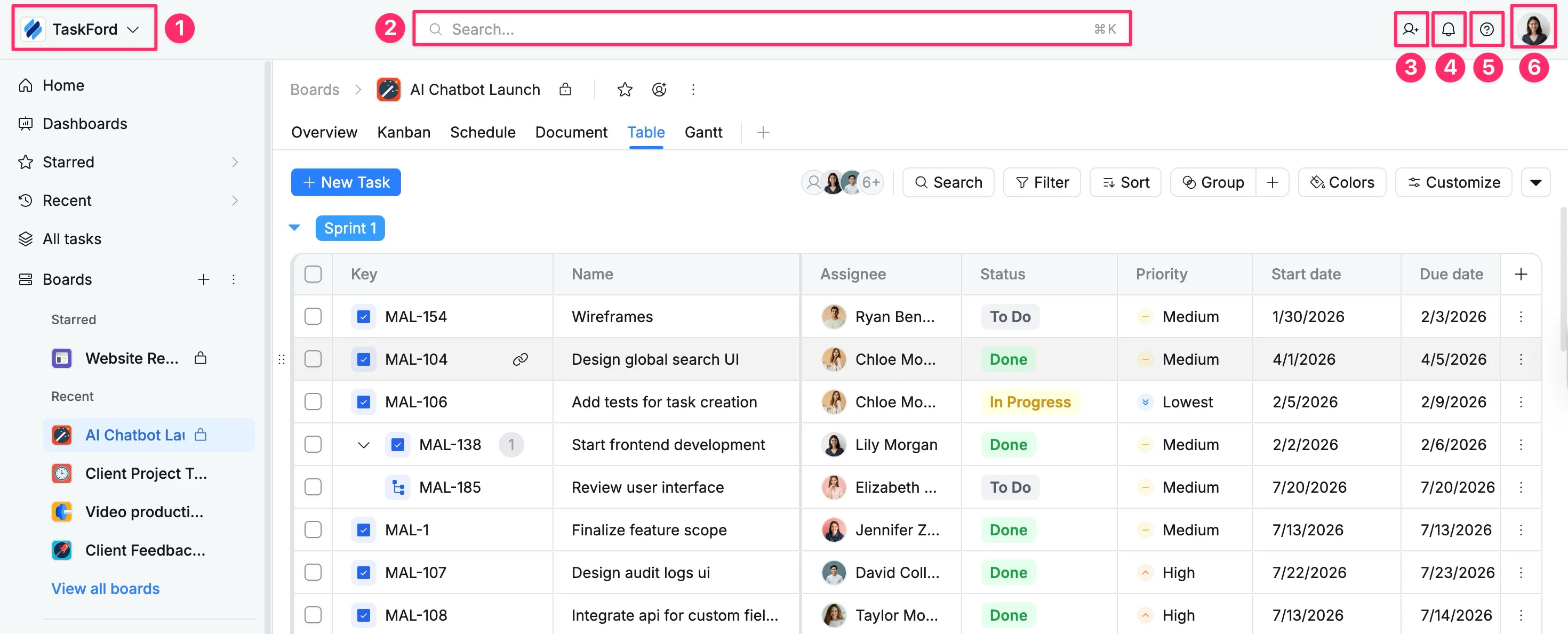
- Site switcher: Jump between different sites or create a new site.
- Search bar: Quickly find tasks, boards, portfolios, or teammates across your entire workspace.
- Invite member: Invite new team members or collaborators to join the project or site.
- Notifications: Get real-time alerts for tasks, comments, mentions, and project updates.
- Help resources: Access support documentation, FAQs, and the help center.
- Profile picture: Access your Personal and Admin settings to manage individual preferences or configure site-wide configurations.
Use shortcuts Ctrl + K (Windows/Linux) or Cmd + K (macOS) to instantly jump to the top search bar.
Header
The Header provides board-level navigation, offering essential actions specific to the project you’re working on:
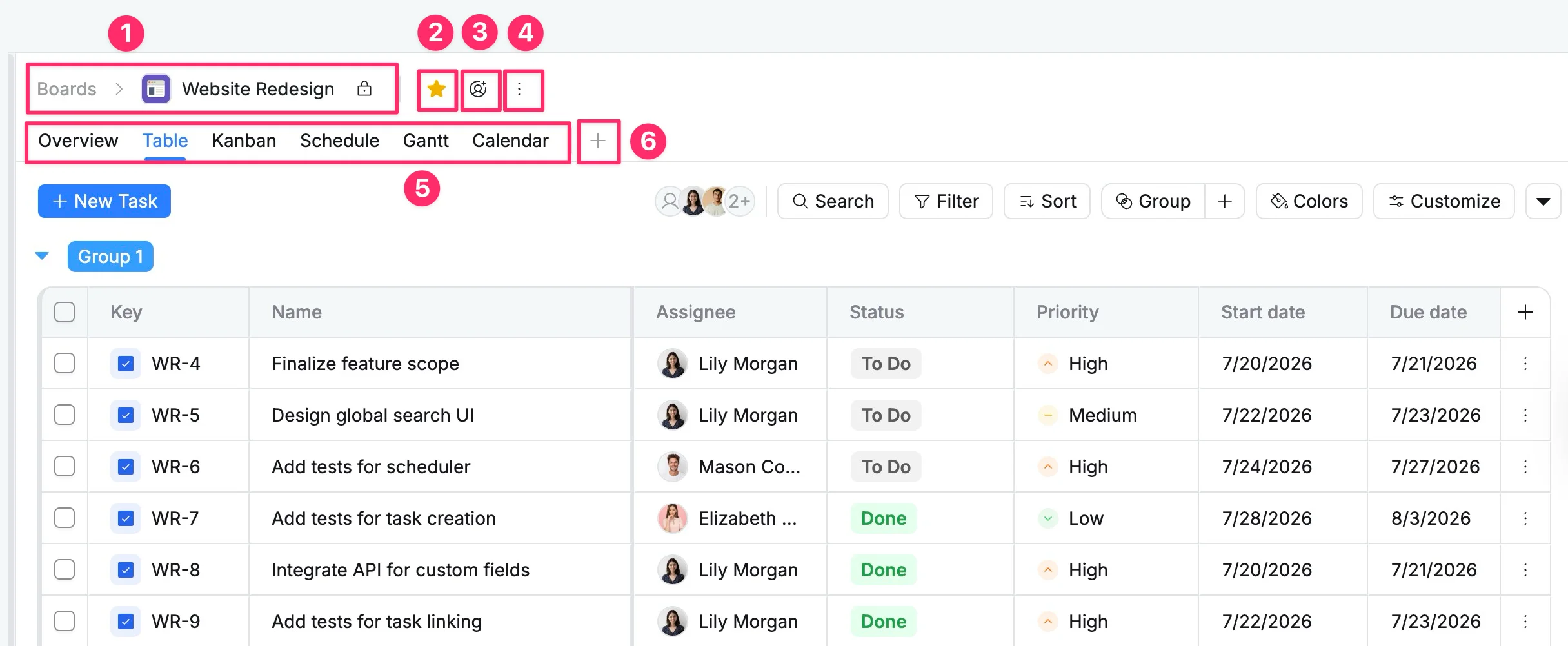
- Breadcrumbs: Navigate between levels (Boards > Board name) and quickly return to previous pages.
- Favorite: Add the board to your Starred list for quick access from the Sidebar.
- Invite members: Invite teammates or collaborators to join and work on the board.
- More options: Access additional board actions such as settings, import/export, and delete.
- Board views: Switch between views like Overview, Table, Schedule, Kanban, and Gantt.
- Add view: Create a new custom view tailored to your project needs.
Main panel
The Main panel is your central workspace for interacting with and managing tasks. Use the toolbar at the top to refine your view and organize your workflow.
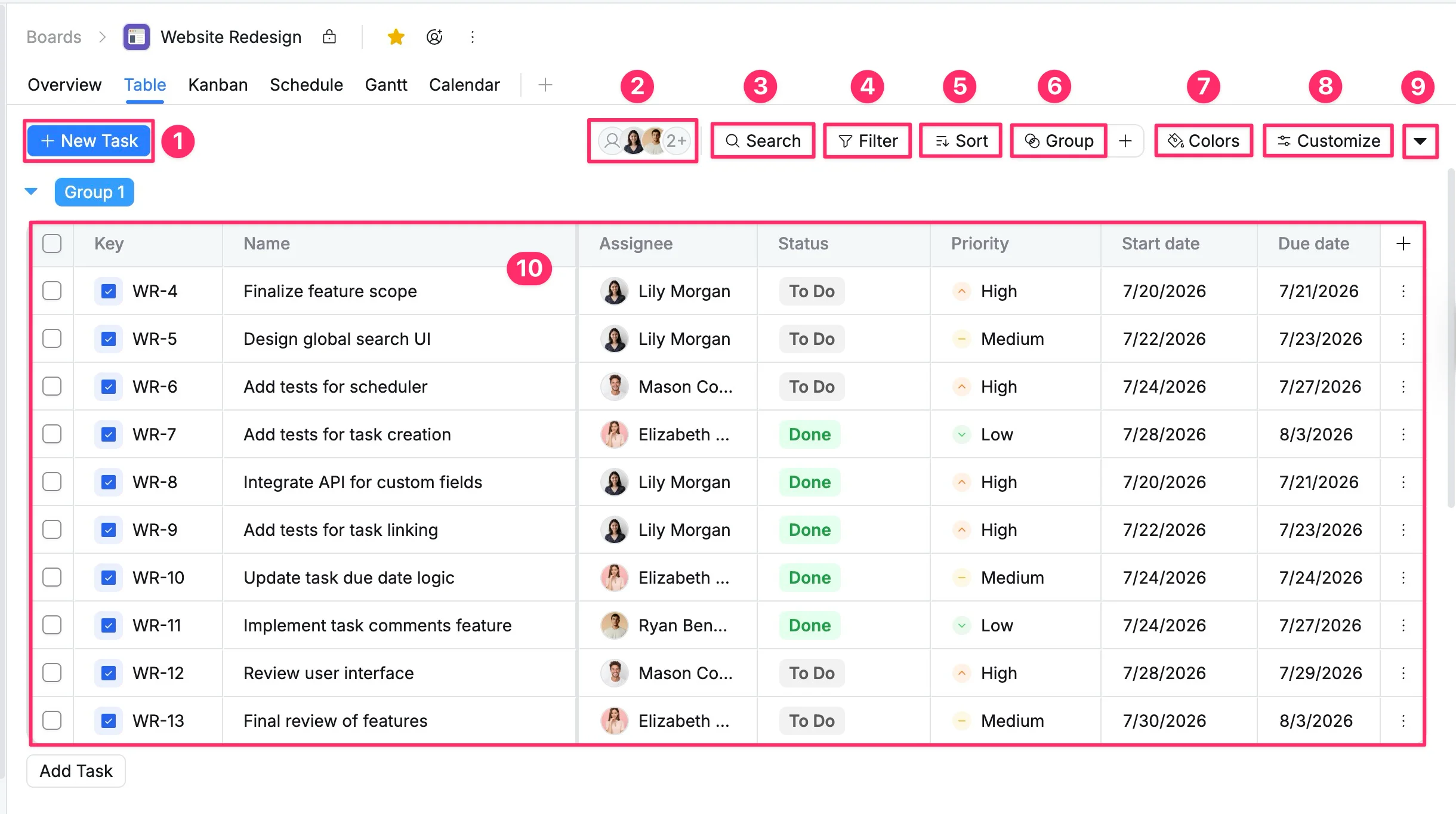
- New Task: Add a new task to the current board.
- Assignees: View all board members or filter tasks by specific people.
- Search: Quickly locate tasks within the current board by typing the task name or ID key.
- Filter: Narrow tasks based on criteria such as status, assignee, priority, or dates.
- Sort: Arrange tasks by due date, priority, status, or other fields.
- Group: Organize tasks into sections based on status, phase, or other custom fields.
- Colors: Create rules to highlight rows or cells based on defined conditions.
- Customize: Manage and adjust view settings.
- Collapse/Expand: Simplify your visual layout by collapsing all groups to hide details, or expand all rows in the table at once.
- Display view: View and manage tasks in the selected layout.
Task details view
The Task details view opens when you click on a specific task, providing a comprehensive overview of the task. This view allows users to view all information regarding a task and make updates without leaving their current view.
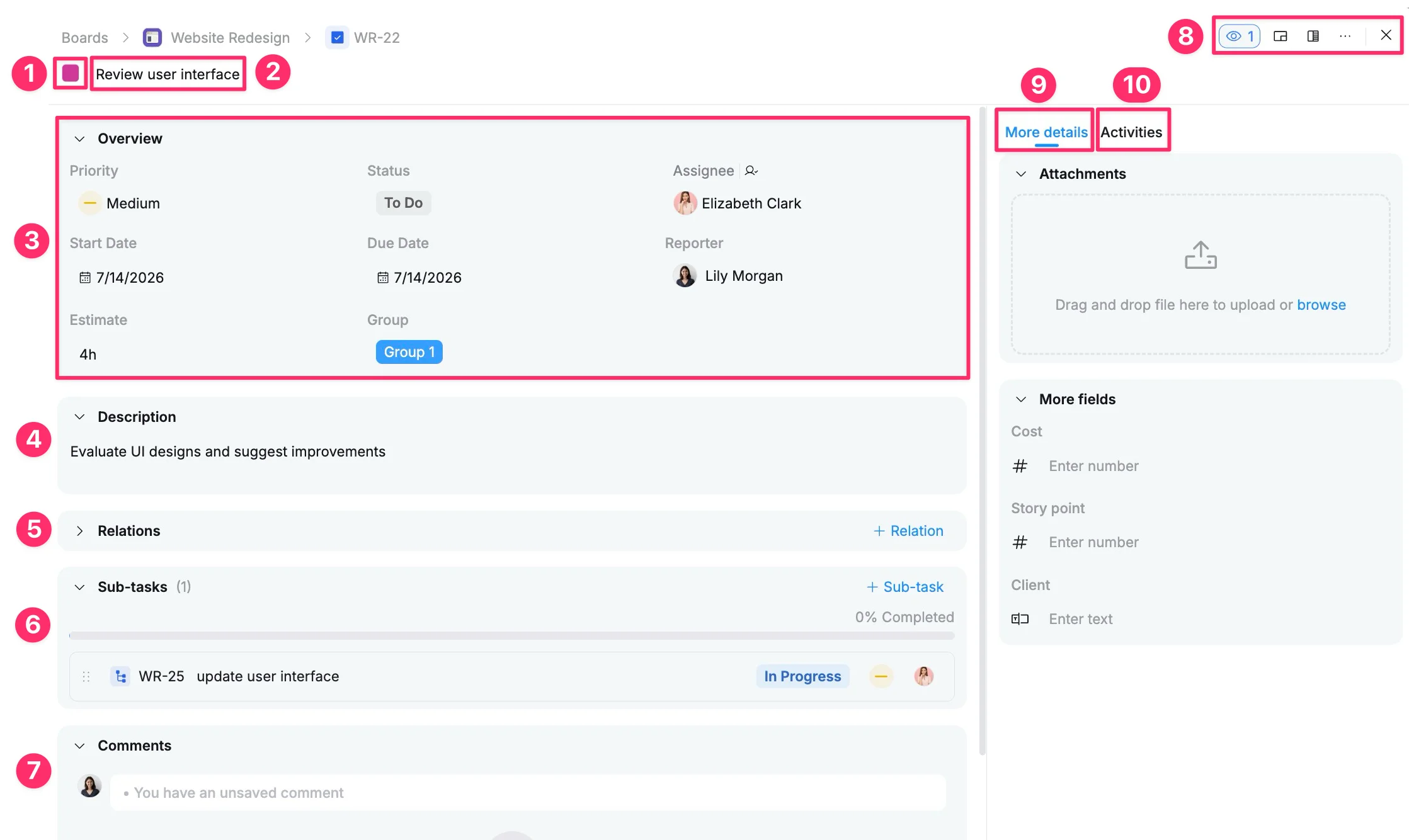
- Task color: Customize the task’s visual identifier for easier recognition in Schedule views.
- Task name: The title or identifier of the task.
- Overview: The Overview section displays key task details:
- Type: The type of the task (e.g., Task, Subtask, Milestone)
- Priority: Set the urgency (e.g., Highest, Low).
- Assignee: The team member responsible for the task.
- Status: The current stage of work (e.g., In Progress, Review).
- Group: The project phase or category this task belongs to.
- Dates: Track the Start Date and Due Date to stay on schedule.
- Estimate: The predicted time or effort required to complete the task.
- Reporter: Anyone who creates the task.
- Description: Add detailed information, notes, or objectives for the task.
- Relations: Link related tasks or define dependencies.
- Subtasks: Break the task into smaller, manageable items.
- Comments: A communication hub for team discussions and @mentions.
- Quick actions toolbar
- Watch task: Follow task updates and notifications
- Task tray: Minimize the task panel for quick access
- Switch layout: Toggle between panel view and modal view
- More options: Copy task link, delete task, or access additional actions
- Close: Exit the task view and return to the main board.
- More details tab: Access file attachments and manage specialized custom fields for this task.
- Activities tab: Displays a history log of all updates, changes, and actions performed on the task.