Plan tasks in Schedule view
Manage task scheduling in TaskFord’s Schedule view by planning tasks, updating assignments and timelines, and adjusting scheduled work with ease.
- Board Admins / Board Editors can manage tasks in the Schedule view.
- Site Admins / Site Editors can manage tasks in the Schedule view only on Open boards.
Plan a task
Task planning includes the following steps:
- Assign the task: Choose the appropriate team member responsible for completing the task.
- Set start and end dates: Define when the task will begin and when it should be completed.
- Specify work hours: Set the number of hours per day the team member will dedicate to the task.
There are two ways to plan a task: Plan an existing task via the Task Box and plan a new task directly on the timeline.
Option 1: Plan an existing task via the Task Box
What is a Task Box?
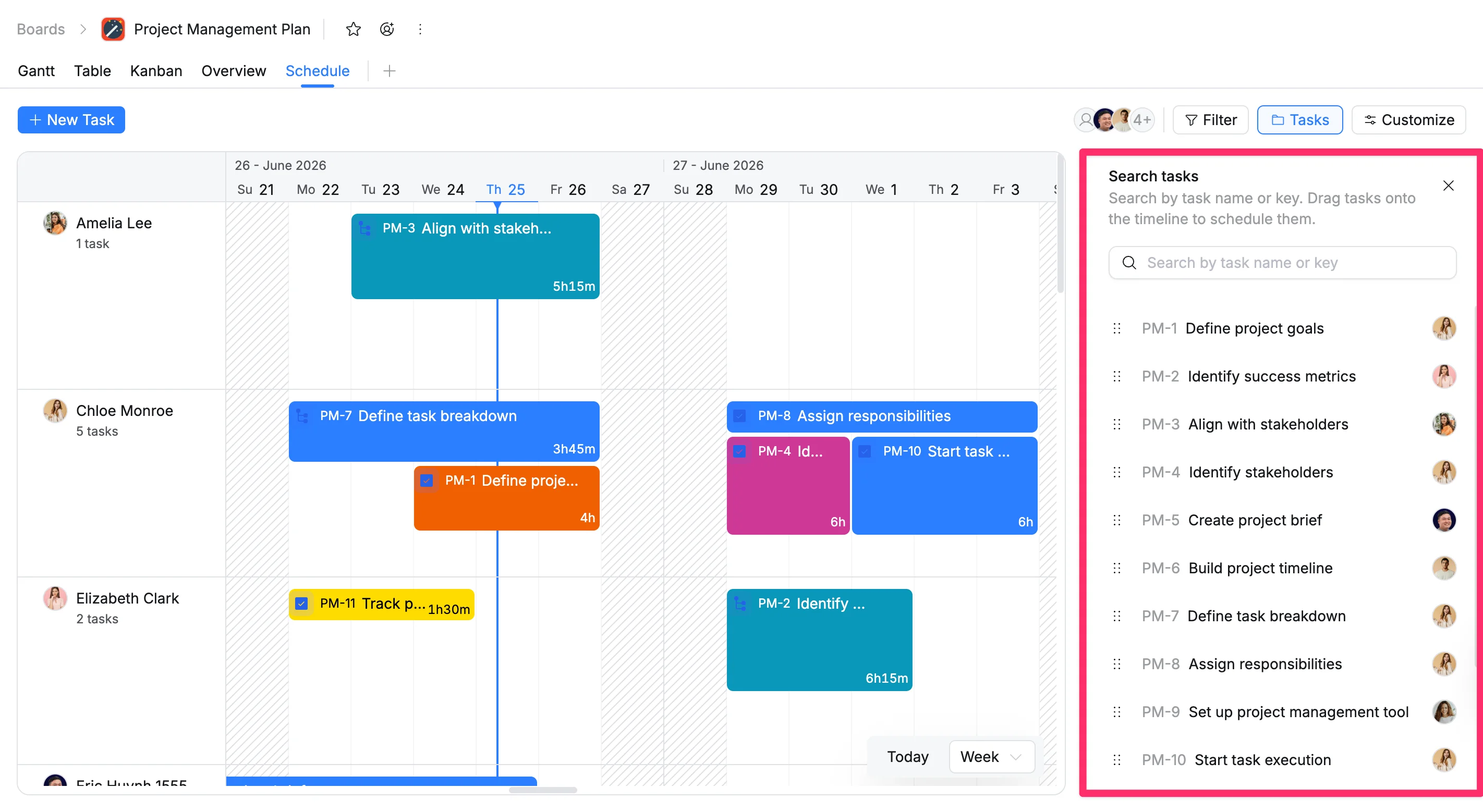
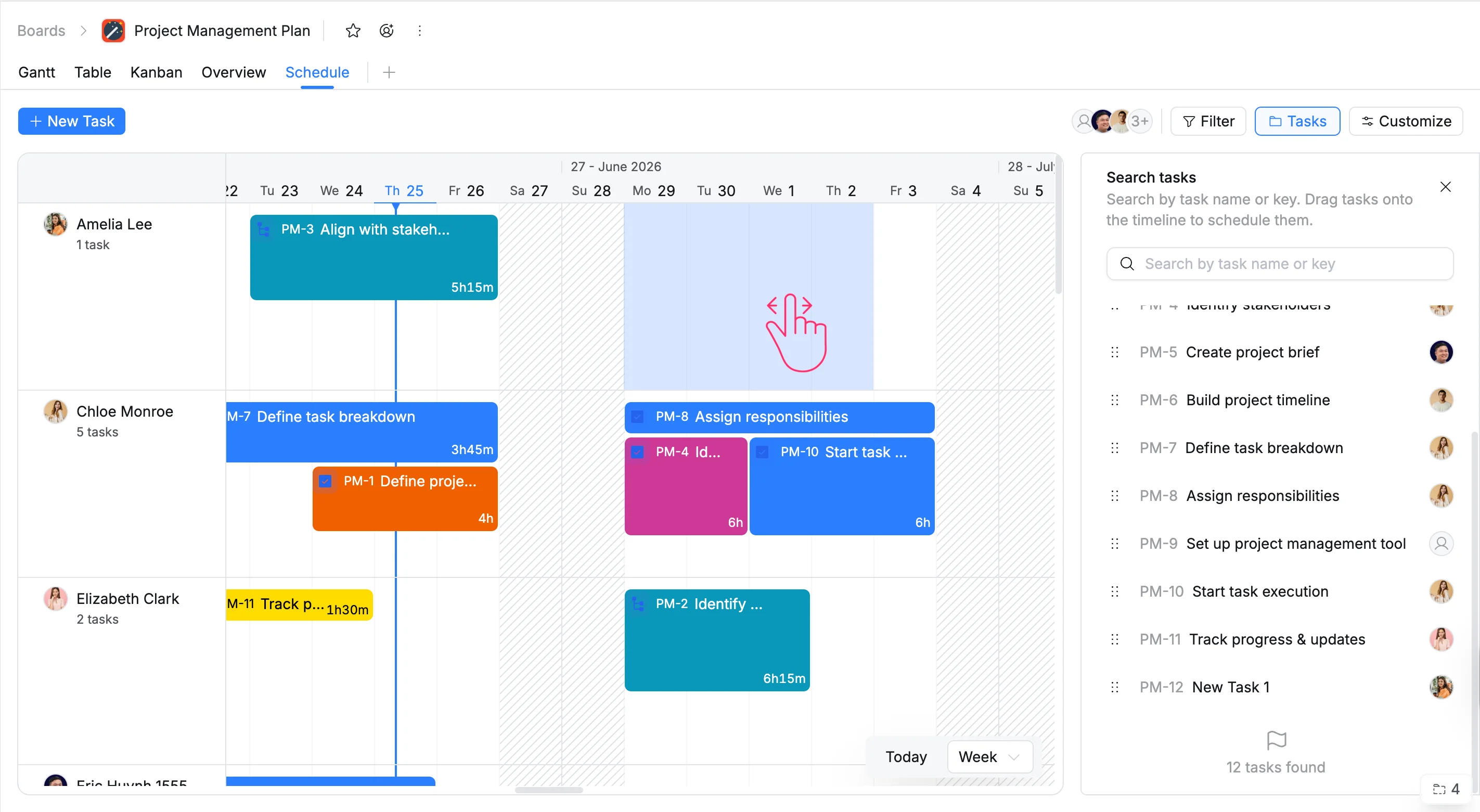
The Task Box displays all tasks on your board in one place. It helps you identify and review unscheduled tasks, then drag them onto the timeline to schedule them.
How to plan tasks via Task Box
You can use the Task Box to easily plan tasks using the drag-and-drop feature.
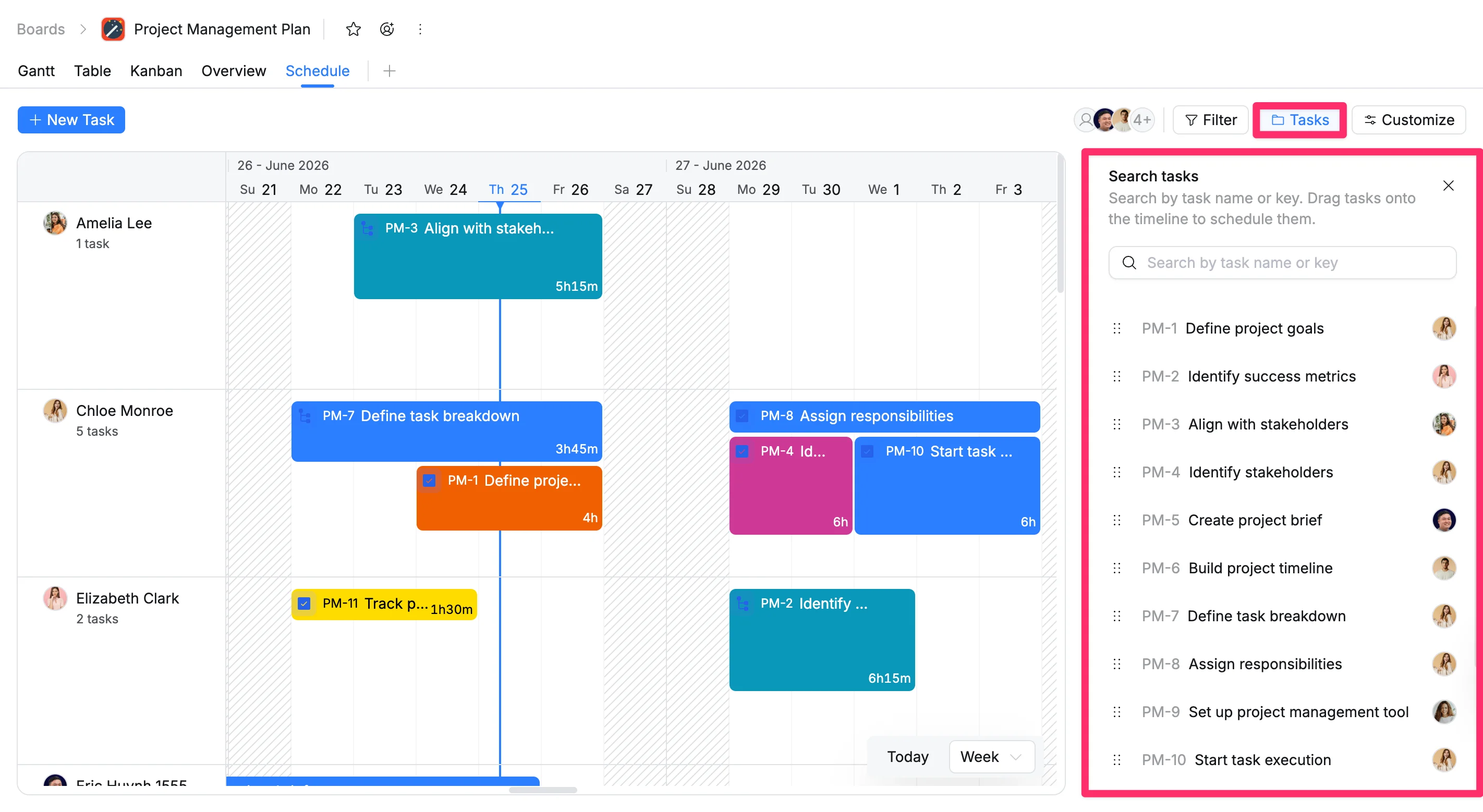
- Click the Tasks button in the top-right corner of the toolbar. This opens the Task Box panel on the right side of the screen.
- Find a task by typing its summary or key in the search bar
- Drag and drop the task from the Task Box onto the timeline under the appropriate team member and date to schedule it.
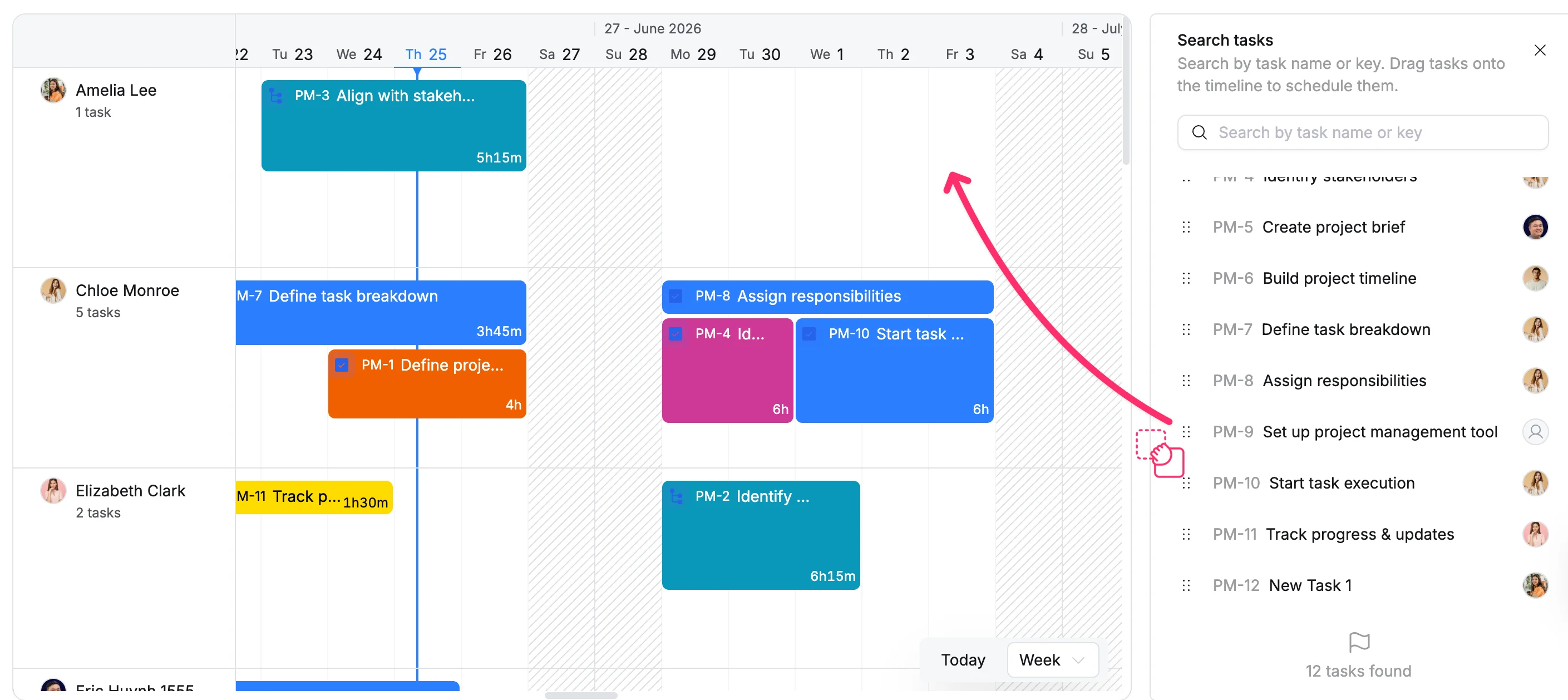
Only unplanned tasks can be dragged and dropped from the Task Box.
Option 2: Plan a new task directly on the timeline
You can directly plan a new task on the timeline following these steps:
- Click a date cell under the appropriate team member, or drag across multiple cells to select a time range.
- This will open the Task Details as a side panel on the right or as a modal pop-up.
- Enter the task name, description, and other relevant details.
- Click Create to add the task.
Update a planned task
In the Schedule View, you can easily update a planned task using the drag-and-drop feature. This allows you to make quick adjustments to schedules and assignments.
- Update the assignee: Drag the task card to another team member’s row to reassign the task.
- Update the scheduled hours per day: Drag the task card up or down within a day’s cell to adjust the number of scheduled hours.
- Update the date range: Drag the task card left or right on the timeline to change the start and end dates. You can also drag the left or right edge of the task card to extend or shorten its duration.
Edit a task’s details
To update a task’s information, such as its name, description, assignee, or due date, use the steps below:
- Hover over the task card you want to update.
- Right-click on the task card.
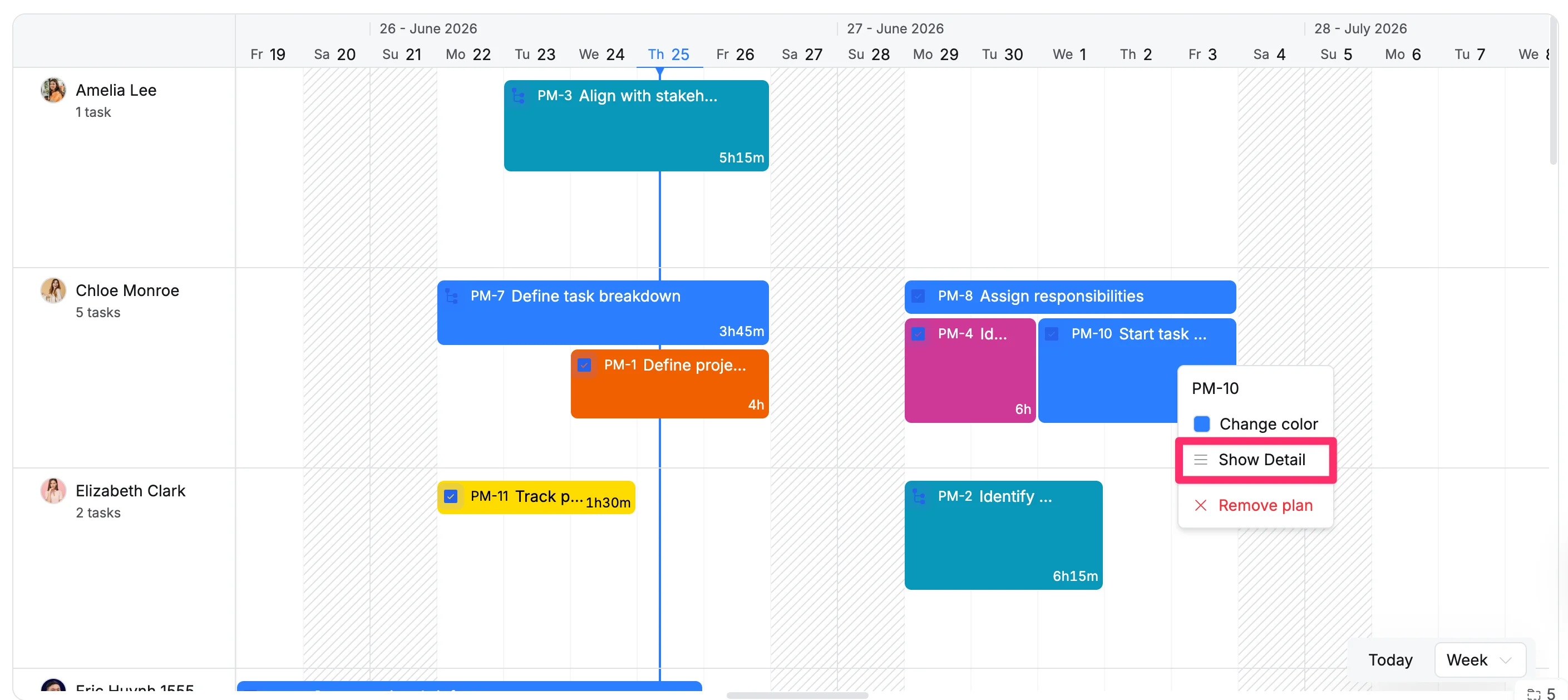
- Select Show Detail from the menu.
- The Task Details panel will open as a pop-up or on the right side of the screen.
- Update the task name, description, assignee, due date, or other task information as needed.
Change a task’s color
You can customize a task’s color to help categorize or highlight it. To change a task’s color, follow these steps:
- Hover over the task card you want to change color.
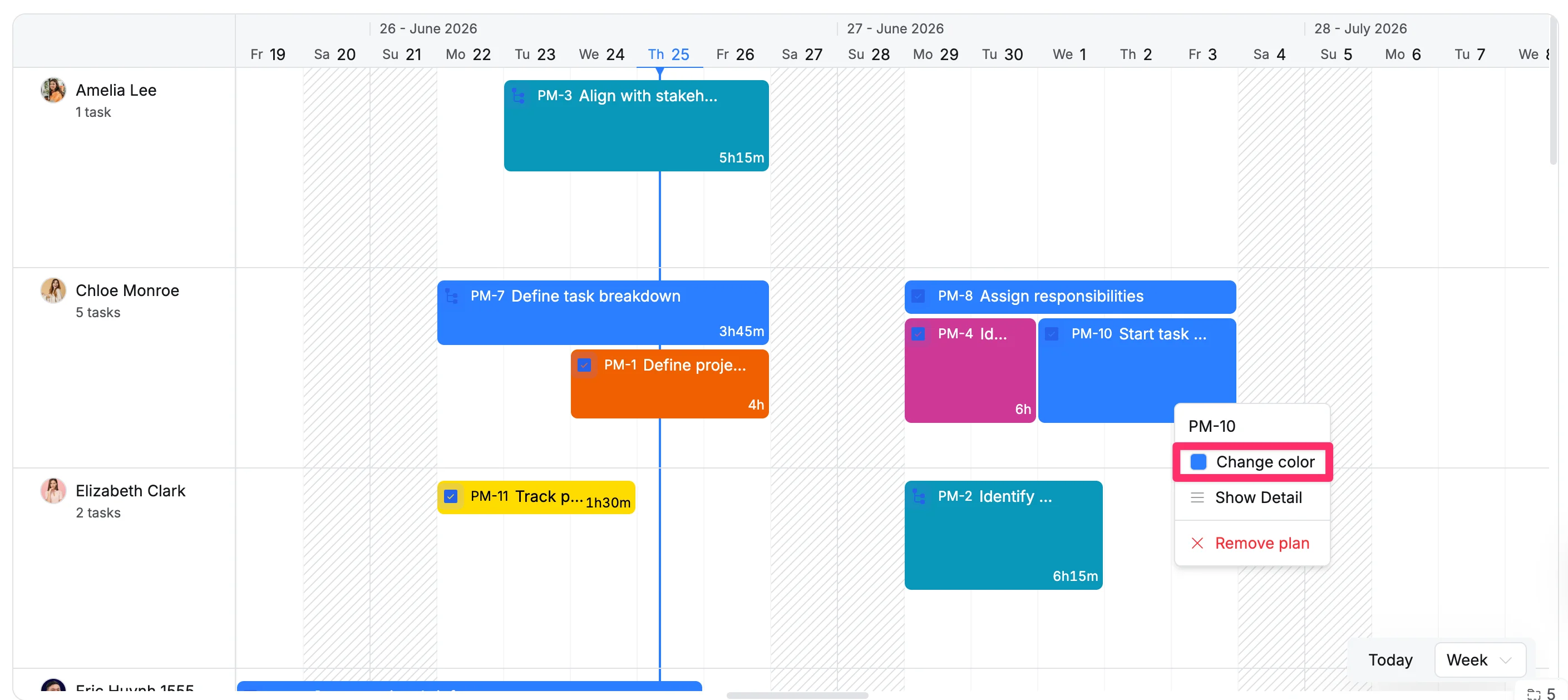
- Click the three dots (⋯) or right-click on the task card.
- Select Change color from the menu.
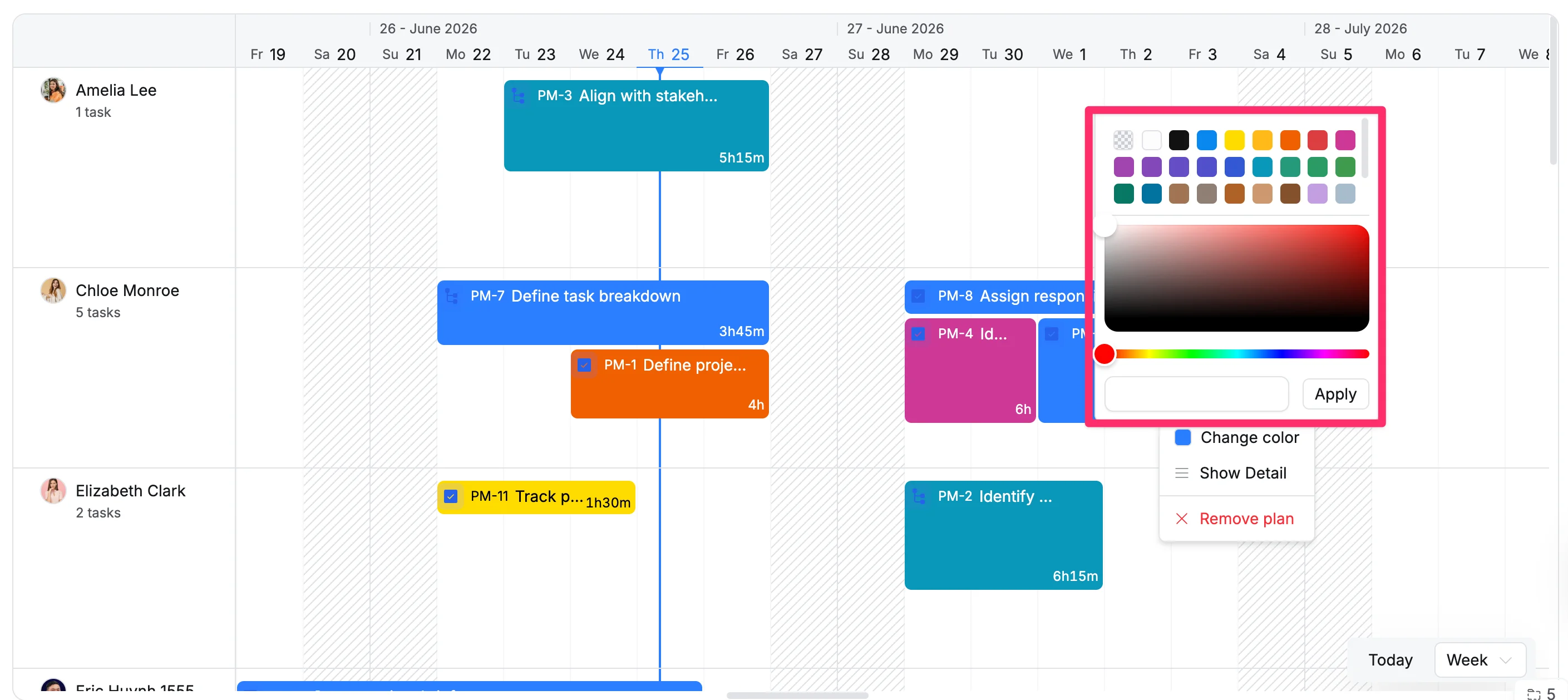
- In the color picker, select a preset color or create a custom color, then click Apply.
Preview task details on the timeline
You can quickly check a task’s key information directly from the timeline without opening the full task details panel.
Hover over a taskbar to display a task details preview. This helps you review task details at a glance while staying in the Schedule view.
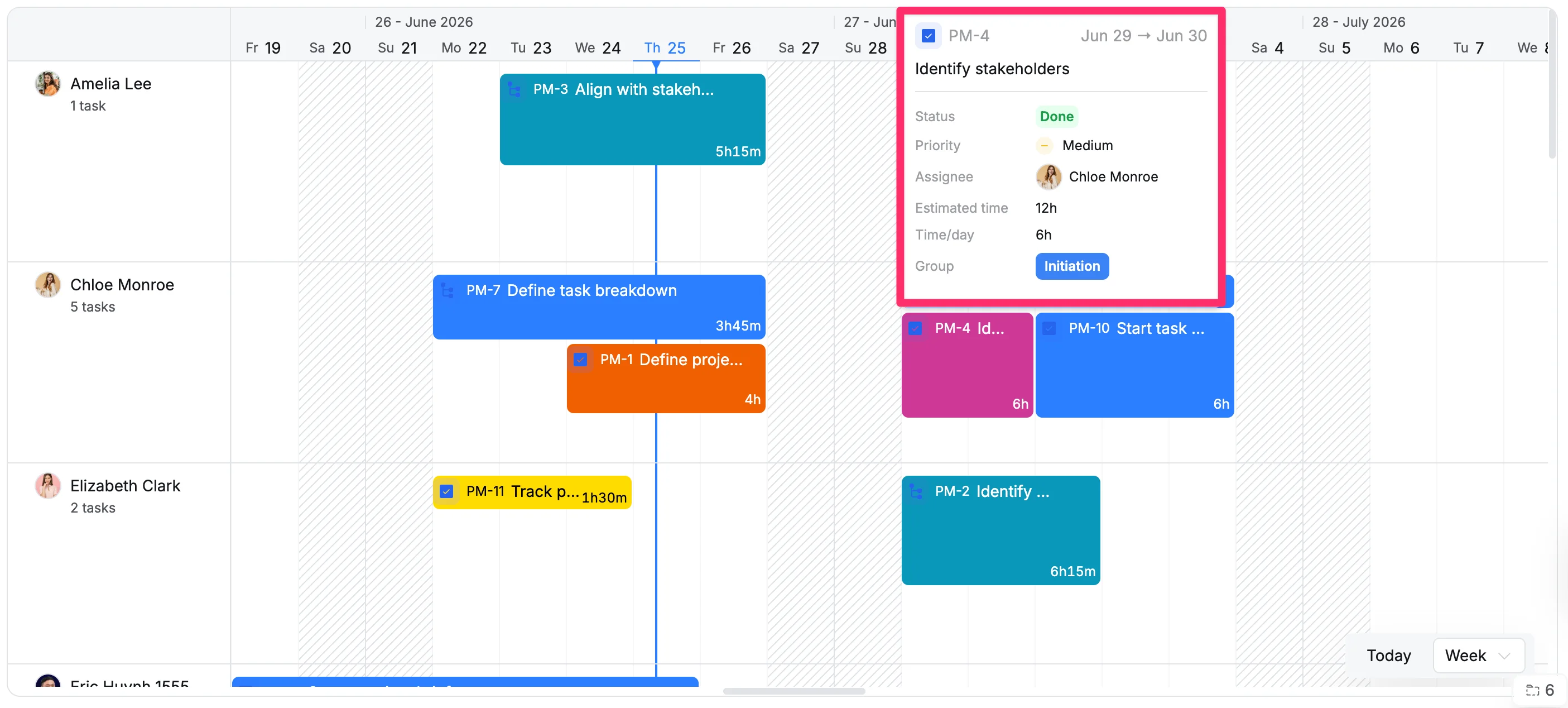
To view the complete task information, simply click the task key on the taskbar. The full task details panel will open, where you can see and manage all available task details.
Remove a planned task
When you remove a planned task, it is removed from the Schedule view, but not deleted from your board.
To remove a planned task in the Schedule view:
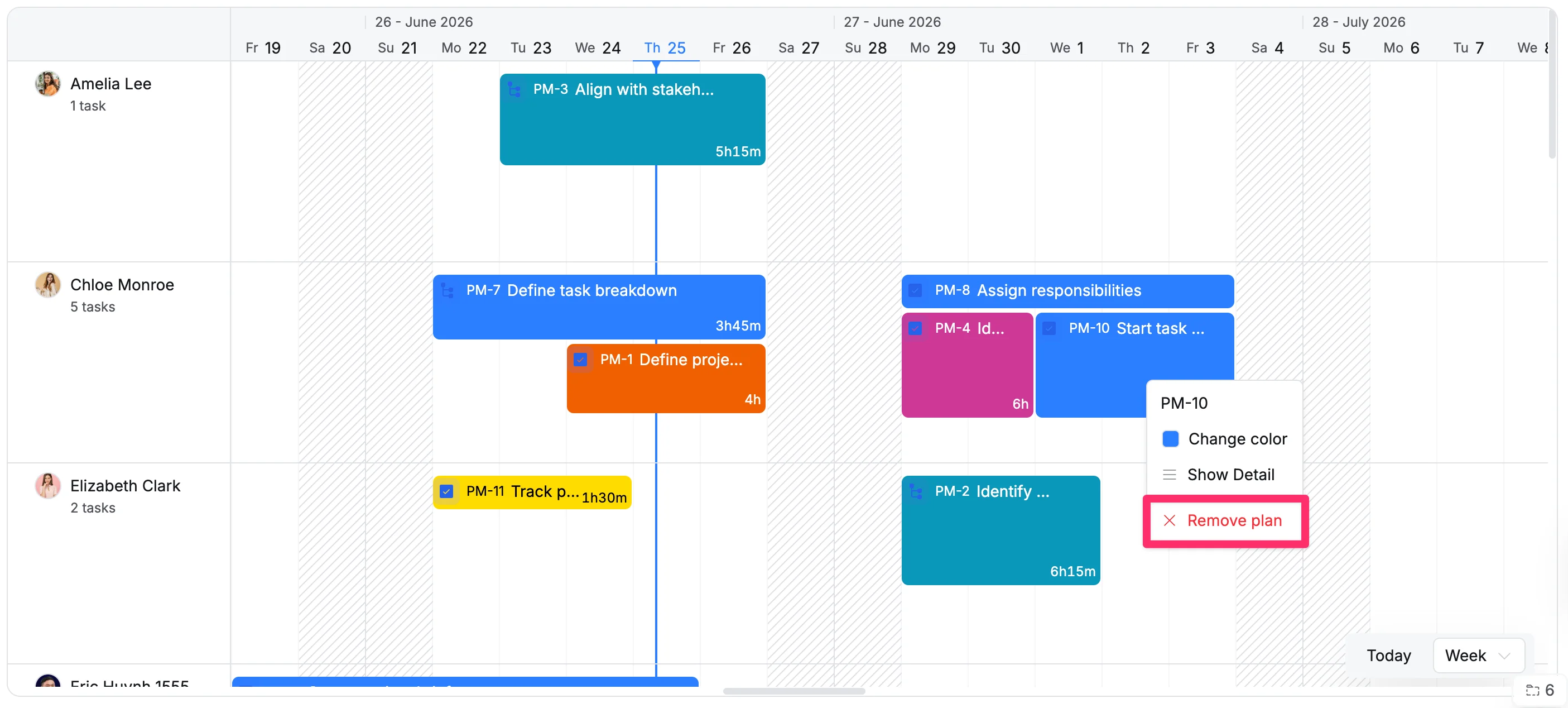
- Hover over the task card you want to remove.
- Click the three dots (⋯) on the task card.
- Select Remove plan from the context menu.