Portfolio workflow settings
The portfolio workflow tab allows you to view and manage workflows across all boards within a portfolio.
Who can use this feature?
Only Portfolio Admins can access and manage portfolio workflow settings.
The portfolio workflow tab allows you to view and manage workflows across all boards within a portfolio. It helps you maintain consistency and control over how tasks progress across different projects and teams, all from one central location.
Access portfolio workflow
To view portfolio workflows:
- Navigate to the Portfolio settings page
- Select the Workflow tab from the left-hand menu.
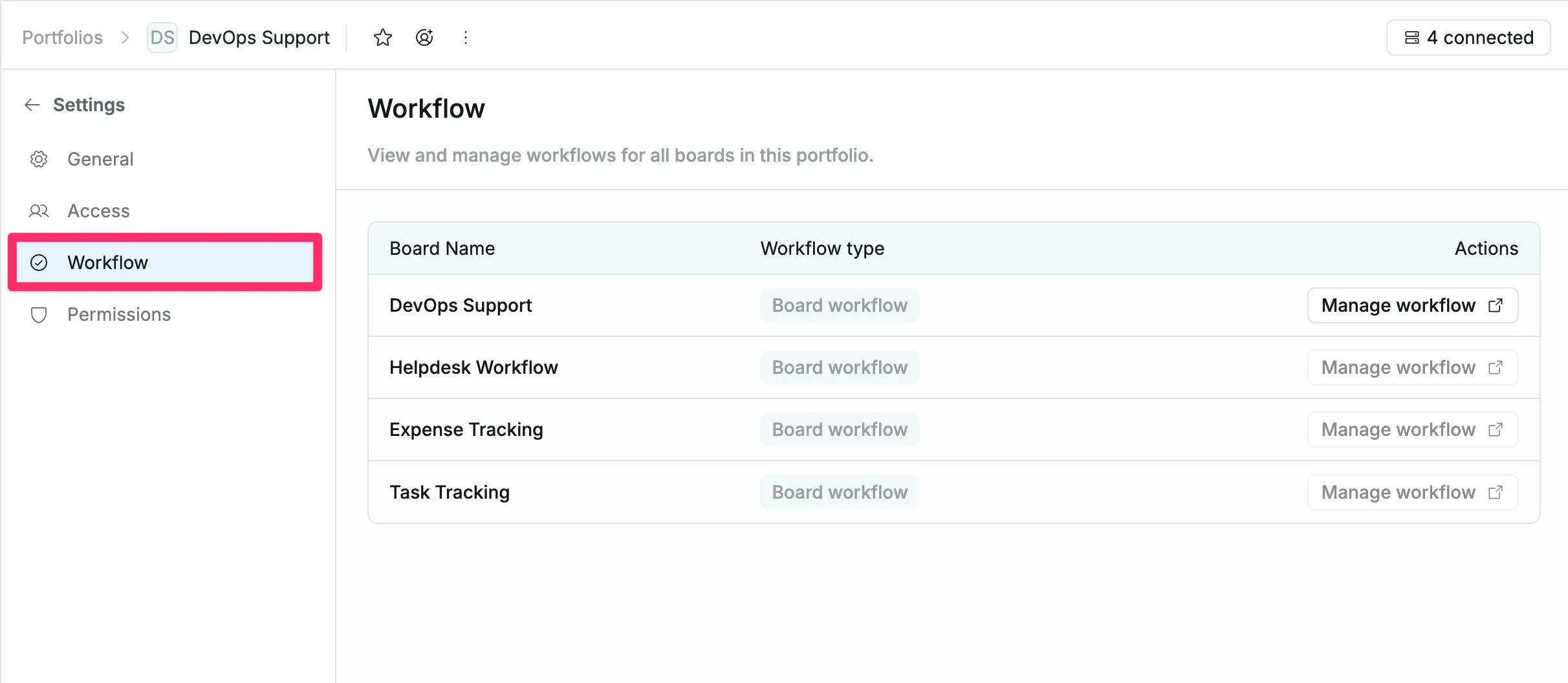
Manage portfolio workflows
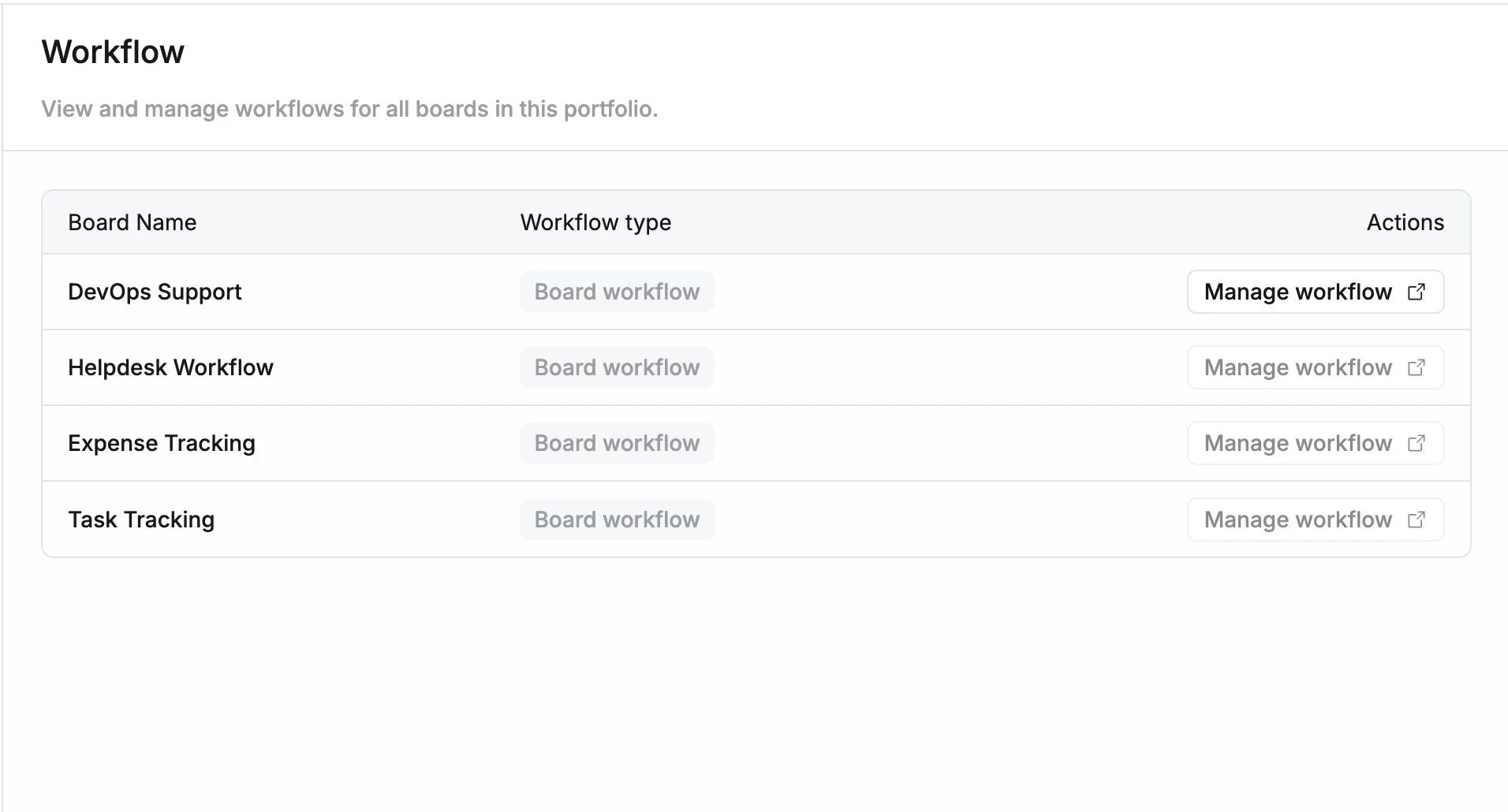
From the Workflow tab, you can review and manage workflows for each board in the portfolio.
Each row represents a board and includes:
- Board Name – Displays the name of the board included in the portfolio.
- Workflow Type – Indicates the workflow applied:
- Board workflow: A custom workflow configured specifically for that board.
- Site workflow: A standardized workflow shared across the organization.
- Actions – Manage workflows directly from this page:
- Click Manage workflow next to a board.
- You will be redirected to that board’s workflow settings
From there, you can:
- Customize workflow stages
- Update statuses